Black Friday: the specs to check before you buy
Comparison
Updated November 3, 2026Belkin Connect Thunderbolt 4 Dock: INC006 vs INC013 vs INC030
Short answer
For a full Belkin desk setup, choose the Connect Thunderbolt 4 Dock INC030; choose the INC013 Core Hub when you mainly want more Thunderbolt connections. The INC006 Pro is a separate dual-HDMI design, and Belkin's US store listed it out of stock when checked. For Mac owners, the decisive detail is the monitor connection path: two HDMI sockets on the Pro do not guarantee two independent desktops.
Our picks at a glance
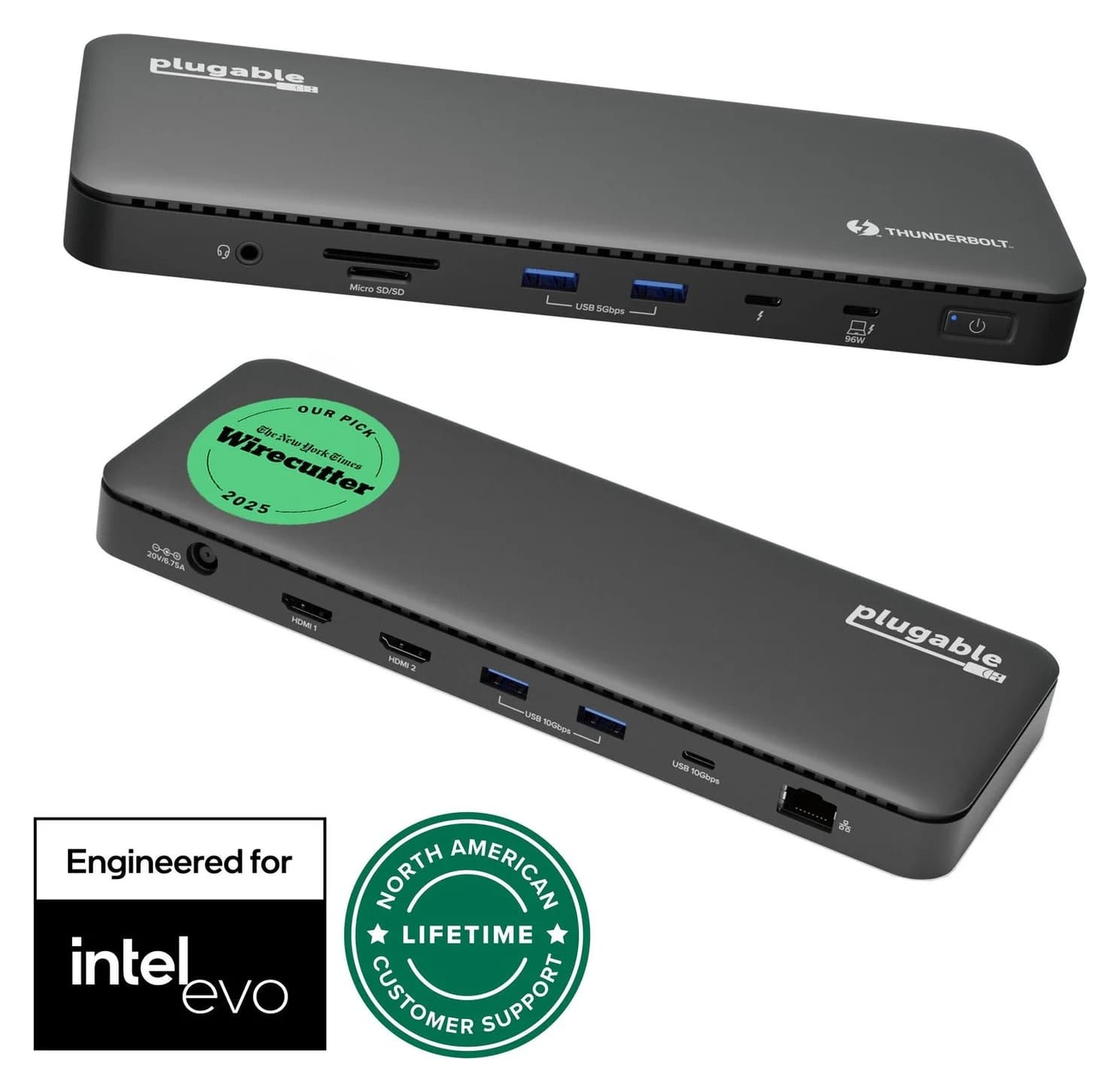
Alternative for two HDMI monitors: Plugable TBT4-UD5Plugable
Plugable Thunderbolt 4 Dock (TBT4-UD5)
- to laptop
- 96W
- data
- 40 Gbps
- video
- 4K
- Choose
- Two built-in HDMI outputs support dual 4K at 60Hz on supported hosts, avoiding separate video adapters.
- Limit
- Gigabit (not 2.5GbE) Ethernet
INC030 Thunderbolt 4 Dock
Quick picks
| Choose | Best fit | Main buying condition |
|---|---|---|
| INC030 Thunderbolt 4 Dock | A desk needing DisplayPort, Ethernet and card readers | Match your host to its display chart |
| INC013 Thunderbolt 4 5-in-1 Core Hub | Thunderbolt monitors, drives and other peripherals | Add adapters for HDMI or DisplayPort screens |
| Plugable TBT4-UD5 | Two HDMI monitors on a supported host | Check the Mac chip or Windows host port |
| INC006 Pro | An existing Pro setup or a specifically wanted dual-HDMI layout | Find a complete kit; check the Mac connection restriction |
Availability checked November 3, 2026: Belkin's US pages listed INC030 and INC013 in stock, and INC006 out of stock. That is why Pro is a comparison option rather than our default purchase.
Identify the version before comparing ports
The US product pages identify INC030ttSGY, INC013ttSGY and INC006ttSGY respectively. Do not buy by the word “Connect” alone. The port totals below include the laptop connection; Core's four Thunderbolt sockets leave three downstream after connecting the computer.
| Feature | INC030 Thunderbolt 4 Dock | INC013 Core Hub | INC006 Pro Dock |
|---|---|---|---|
| Total connection ports | 14 | 5 | 12 |
| Maximum listed link speed | 40Gbps | 40Gbps | 40Gbps |
| Thunderbolt 4 | 1 upstream + 1 downstream | 1 upstream + 3 downstream | 1 upstream + 1 downstream |
| Dedicated video outputs | 2 DisplayPort + 1 HDMI | None; video through downstream Thunderbolt | 2 HDMI |
| Other USB | 1 USB-C 10Gbps; 2 USB-A 10Gbps; 2 USB-A 5Gbps | 1 USB-A 10Gbps | 1 USB-C Gen 2; 2 USB-A 3.1; 2 USB-A 2.0 |
| Ethernet | 2.5Gb | None | Gigabit |
| Cards and audio | SD + microSD; audio combo jack | None | SD; audio combo jack |
| Laptop charging | Up to 96W | Up to 96W | FAQ says up to 90W; comparison panel says 85W |
| Included power supply | 150W | 150W | 120W |
| Included Thunderbolt cable | 1 m | Included; length conflicted | 0.8 m / 2.6 ft |
Sources: Belkin's INC030 specifications, Core FAQ, Pro FAQ and Pro port overview. These are connection specifications, not measured transfer results.
Best Belkin for a full desk: INC030
Buy this when you want the dock to provide the desk's network, card readers and display sockets. Its 2.5Gb Ethernet, SD and microSD readers, and 30W USB-C accessory port distinguish it from Core's Thunderbolt-focused layout. It supplies up to 96W to the laptop from an included 150W PSU, with a 1 m Thunderbolt 4 cable.
For a Mac with two DisplayPort monitors, Belkin's model-specific chart explicitly shows DisplayPort #1 + DisplayPort #2. It also shows downstream Thunderbolt + DisplayPort #1. Use those documented combinations when planning the desk; a Windows diagram is not sufficient evidence for the same Mac arrangement.
There are two unresolved specifications. The product page calls the HDMI port 2.0, while the FAQ and sales sheet call it 2.1; both port descriptions specify 4K at 60Hz. Also, the triple-display headline promises 4K at 60Hz, while the chart's note limits two screens to 4K at 30Hz and one to 4K at 60Hz. We would not buy it for guaranteed triple 4K at 60Hz without Belkin confirming the exact host and configuration.
Check the INC030 model and kit at Belkin.
Best for Thunderbolt expansion: INC013 Core
Core is the better fit when you already own Thunderbolt peripherals and want three downstream Thunderbolt 4 ports, rather than more built-in legacy connectors. Belkin specifies up to 40Gbps, 15W downstream charging and 96W host charging. The additional USB-A port runs at 10Gbps.
Its complete port list contains no HDMI, DisplayPort, Ethernet, card reader or audio jack. Consequently, HDMI-only or DisplayPort-only screens need matching USB-C video adapters or cables. For two such screens, plan a separate video connection from each of two rear Thunderbolt ports; this leaves one downstream Thunderbolt socket available. That is an inference from the port layout and dual-display specification, subject to the computer's display support.
Belkin rates Core for two 4K displays at 60Hz, or one 8K display at 30Hz. Those are maximum supported configurations, not a promise for every USB-C computer. Its FAQ also says it requires its power supply: this is a powered desk hub, even if you like its compact layout.
Check the INC013 model and kit at Belkin.
INC006 Pro: understand the dual-HDMI layout
Pro combines two HDMI 2.0 outputs, Gigabit Ethernet, an SD reader and audio with one downstream Thunderbolt connection. It includes a 120W supply and 0.8 m Thunderbolt 4 cable. It remains a useful model to identify when comparing listings or adding a second desk to an existing setup.
The INC006 Mac support article is explicit: Intel Macs using both HDMI sockets mirror the desktop. For two extended displays, it documents one HDMI connection plus a USB-C video adapter, using the downstream Thunderbolt video output. Budget for that adapter and its display cable.
Pro's charging documentation also disagrees: the model's own FAQ and product description say up to 90W, while Belkin's Core-page comparison panel labels Pro 85W. Treat its precise charging ceiling as unresolved; the 120W PSU rating is not laptop charging power. Do not choose it because a comparison carousel elsewhere shows a different dock's 96W figure.
Alternative for two HDMI monitors: Plugable TBT4-UD5
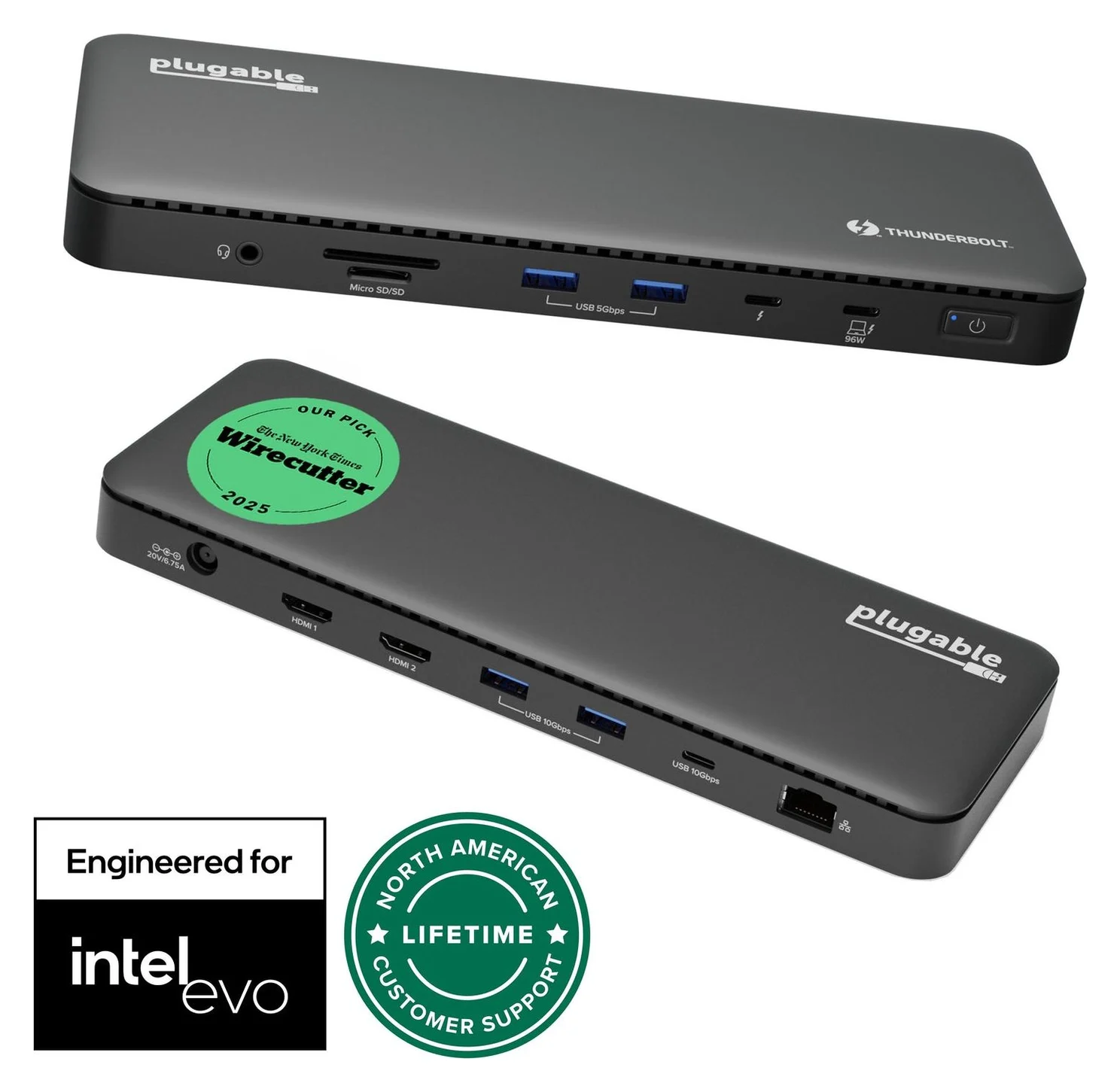
Plugable
Plugable Thunderbolt 4 Dock (TBT4-UD5)
A Thunderbolt 4 dock with dual HDMI, 100W laptop charging (96W certified), Gigabit Ethernet and an SD/microSD reader.
- 96W PD passthrough
- 40 Gbps data
- 4K video
- 13 ports
Choose this if your priority is connecting two HDMI screens without buying video adapters. Plugable specifies dual 4K at 60Hz, one downstream Thunderbolt port, Gigabit Ethernet, SD/microSD readers and laptop charging advertised as 100W, 96W certified. Its box includes the power supply, power cable and 1 m Thunderbolt 4 cable.
Plugable's model page supports two displays on Windows Thunderbolt 4/5 or USB4 hosts, and on M4/M5 and supported Pro/Max Macs. Its M3 information conflicts: one section allows two with the lid closed, while its FAQ says one. We would not select it for a base M3 on that evidence. For broader alternatives, see our Thunderbolt dock guide.
Match the monitor path to your computer
| Your host or screens | Connection to plan | Buying implication |
|---|---|---|
| Windows Thunderbolt 4 / USB4 laptop | INC030's documented pairs include two DisplayPorts or DisplayPort #2 + HDMI | Match the laptop's display capabilities to the chart |
| Supported Windows laptop with INC006 | The two HDMI sockets, up to dual 4K at 60Hz | Direct HDMI cables; confirm the laptop supports both screens |
| Intel Mac with INC006 | HDMI + downstream Thunderbolt through a USB-C video adapter | Both Pro HDMI sockets mirror |
| Supported dual-display Mac with INC030 | DisplayPort #1 + #2, or downstream Thunderbolt + DisplayPort #1 | These pairs appear in its Mac chart |
| Core with HDMI/DisplayPort screens | Separate adapters/cables from rear Thunderbolt ports | Adapter count follows screen count |
| M1 or M2 MacBook Air | One native external display | A different port arrangement does not increase Apple's limit |
| Base M3 MacBook | Apple permits two with lid closed; INC030 lists one through the dock | Verify the exact dock path before buying |
Belkin's INC030 chart lists M1/M2/M3 as one extended display, and M1/M2/M3 Pro/Max, M4 Pro/Max, M4 and M5 as up to two. Apple's M1 Air and M2 Air specifications each list one external display. Apple's M3 instructions require the lid closed, external keyboard and mouse, power, and a supported macOS version; that does not establish compatibility with every dock. Our MacBook dual-monitor guide covers other routes.
Plain USB-C fallback also needs care. INC030's chart notes limit a DisplayPort 1.4 laptop to dual 4K at 30Hz, and DisplayPort 1.2 to dual 1080p at 60Hz, using DisplayPort #2 and HDMI. Its FAQ says Thunderbolt 4 or USB4 is required for all features. A USB-C-shaped socket alone is not enough information.
Compare complete kits before checkout
For US purchases, match the full SKU above and require the specified PSU and upstream Thunderbolt cable. Belkin's INC030 sales sheet distinguishes regional part numbers, so verify the wall lead for your country rather than assuming another region's kit is identical. On a used or open-box Pro, explicitly check for the 120W supply and included cable.
For Core with two HDMI screens, add two video adapters or adapter cables to the shopping list. For Intel Mac dual displays on Pro, add one USB-C video adapter. With INC030 and DisplayPort monitors, plan matching DisplayPort cables; with Plugable and HDMI monitors, plan HDMI cables. Compare those complete baskets using current retailer offers, without treating the dock alone as the whole purchase.
Core's cable length is unresolved: the product page says 6 ft / 0.8 m, and the support FAQ reverses those same figures. They are not equivalent lengths.
For setup, Belkin's Core instructions put power first, then connect the computer to the front upstream Thunderbolt port. Belkin's INC030 monitor guide recommends starting with one display and selecting the correct monitor input.
Power the dock
Connect its specified power supply to the wall and dock.
Connect the computer
Use the included Thunderbolt cable and the upstream host port.
Add the screens
Start with one, select its input, then add the next using the documented host-specific path.
How we choose
This comparison uses manufacturer specifications, box-content lists, display charts and support instructions, with Apple documentation for the host limits. It is research, without physical performance testing. We checked model-specific sections instead of transferring specifications from adjacent comparison columns, and retained contradictions that affect a purchase. The unavailable Pro stays in the version comparison; the current full-desk recommendation is INC030.
Verdict
Buy INC030 for a full Belkin desk, after checking the display chart; buy INC013 Core for Thunderbolt expansion and include any video adapters in your decision. Choose Plugable TBT4-UD5 if two native HDMI outputs are your priority on a supported host. Consider INC006 Pro only for its specific layout with a complete kit, and follow its Mac connection instructions.
Frequently asked questions
Which Belkin Connect Thunderbolt 4 dock should I buy?
Choose INC030 for a full desk: it has DisplayPort, HDMI, Ethernet, card readers and 96W laptop charging. Choose the INC013 Core if you mainly need its three downstream Thunderbolt ports and can add video adapters. INC006 Pro is a different layout with two HDMI sockets; Belkin's US page was out of stock when checked. Match the model number before choosing a kit.
What is the difference between Belkin INC006 and INC013?
INC006 Pro is a 12-port dock with two HDMI outputs, Gigabit Ethernet, an SD reader and audio. INC013 Core is a five-port hub: one upstream Thunderbolt port, three downstream Thunderbolt ports and one USB-A port. Core has no built-in HDMI or Ethernet. Its 150W supply powers the hub and up to 96W host charging; Pro includes a 120W supply and its FAQ specifies up to 90W to the laptop.
Why do both HDMI monitors mirror on my Belkin INC006 with a Mac?
Belkin explicitly says Intel Macs connected to both INC006 HDMI sockets mirror the desktop. Its documented extended-desktop arrangement uses one HDMI connection and a USB-C video adapter on the downstream Thunderbolt connection. That also means budgeting for an adapter. Belkin separately says a base M1 Mac supports one monitor, so changing the connection path does not make every Mac a dual-display host.
Does the Belkin Thunderbolt 4 Core Hub include a power supply and cable?
Yes. Belkin's INC013 FAQ lists a 150W power adapter and a Thunderbolt 4 cable, and says the hub cannot operate without its power supply. The cable length needs checking: its documentation gives both 0.8 m and 6 ft for the same cable. Treat that as unresolved, rather than expecting a long cable in the box. HDMI and DisplayPort video adapters are additional purchases if your screens need them.
Can these Belkin docks run two monitors on an M3 MacBook?
Do not assume so from a dual-monitor headline. Apple supports two external displays on an M3 MacBook Air or Pro with the lid closed, power connected, and an external keyboard and mouse. Belkin's INC030 chart still lists base M3 as one extended display through that dock. Verify the exact dock and Mac pairing, or follow Apple's advice to connect directly to the Mac if a dock only mirrors.
Does the INC030 support three 4K monitors at 60Hz?
Belkin advertises that configuration for supported Windows systems, but its detailed chart notes say two screens have a maximum of 4K at 30Hz and one gets 4K at 60Hz. The chart therefore conflicts with the headline. Macs are limited to at most two extended displays through this dock, depending on the Mac. Get confirmation for your exact Windows laptop and port combination before buying for triple 4K at 60Hz.
Alternative for two HDMI monitors: Plugable TBT4-UD5
Plugable Thunderbolt 4 Dock (TBT4-UD5)
Related guides
Best External GPU Enclosures in 2026: Thunderbolt eGPUs That Still Exist
The current Thunderbolt eGPU enclosures from maker pages: Sonnet's Breakaway Box 850 T5 and 750ex and Razer's Core X V2, plus the Mac compatibility truth and what to check before buying.
Updated November 7, 2026Read
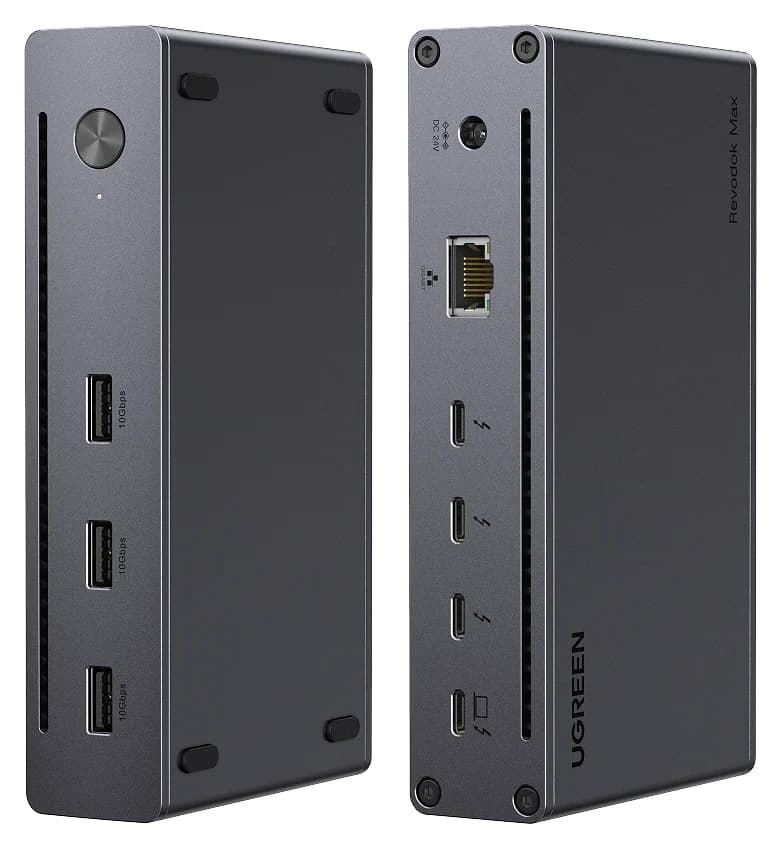
OWC Thunderbolt Go vs CalDigit TS4: Which Thunderbolt Dock Should You Buy?
The Go Dock packs its own power for travel; the TS4 anchors a desk with 18 ports and 98W charging. Compare full kits, monitors and which to buy.
Updated November 5, 2026Read
Plugable TBT4-UD5 vs UD-3900PDH: Which Dock for Dual Monitors?
Choose between Plugable's TBT4-UD5 Thunderbolt 4 dock and UD-3900PDH DisplayLink dock: which laptop ports they need, display counts, charging and software.
Updated November 5, 2026Read