Best picks
Best Dual-Monitor Docks and Hubs for MacBook in 2026 (M1 to M5 and Neo)
Why a second monitor mirrors or stays dark on a MacBook, what each chip from M1 to M5 and the Neo can drive, and which Thunderbolt and DisplayLink docks work.
By thisUSB EditorialUpdated October 22, 20269 min read5 picks
Our picks at a glance
- See on Amazon1
Best overall for M4, M5, Pro and Max MacBooks
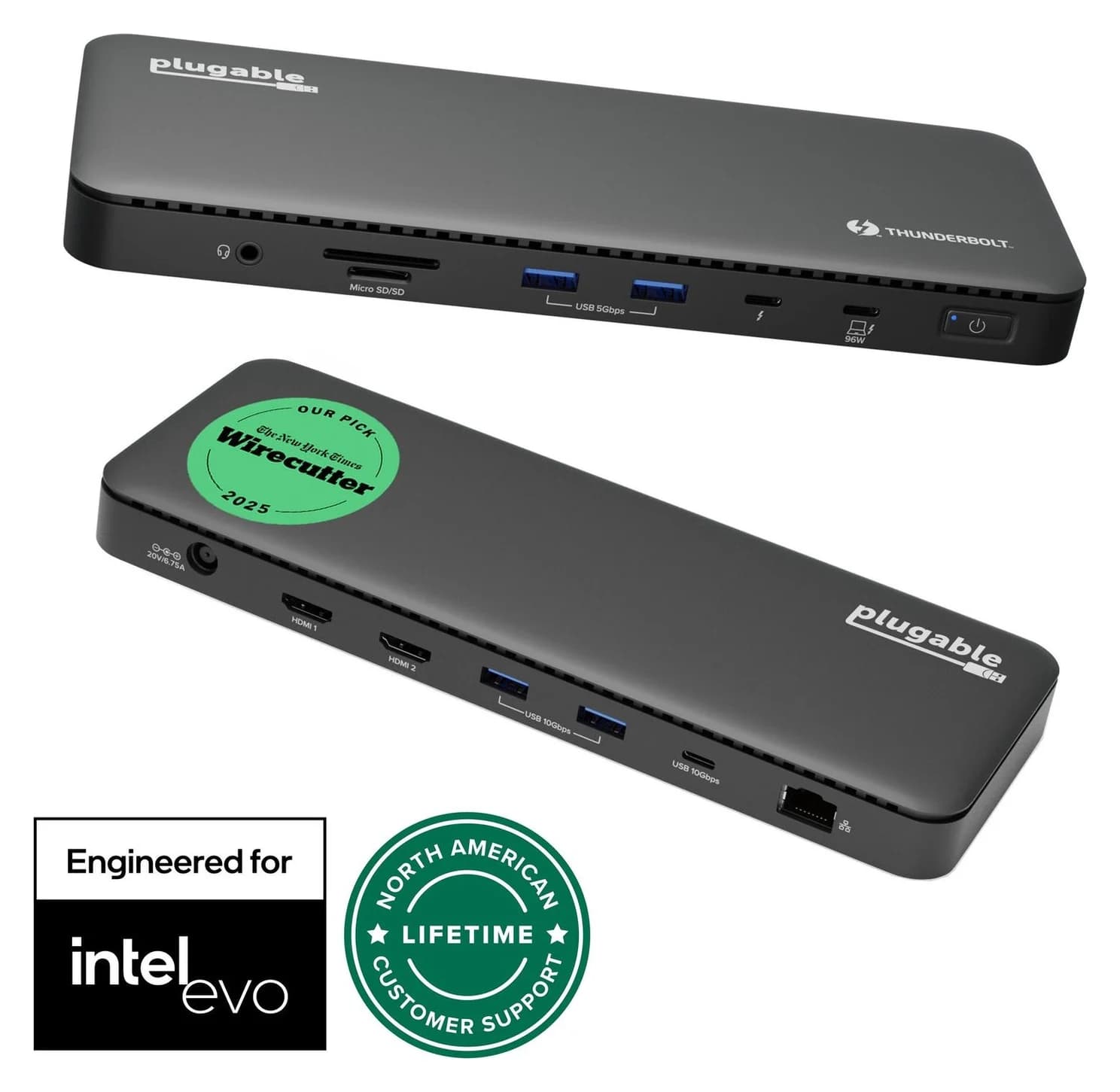
Plugable Thunderbolt 4 Dock (TBT4-UD5)96W PD passthrough · 40 Gbps data · 4K video · 13 ports
- See on Amazon2
Best for M1, M2, M3 and MacBook Neo
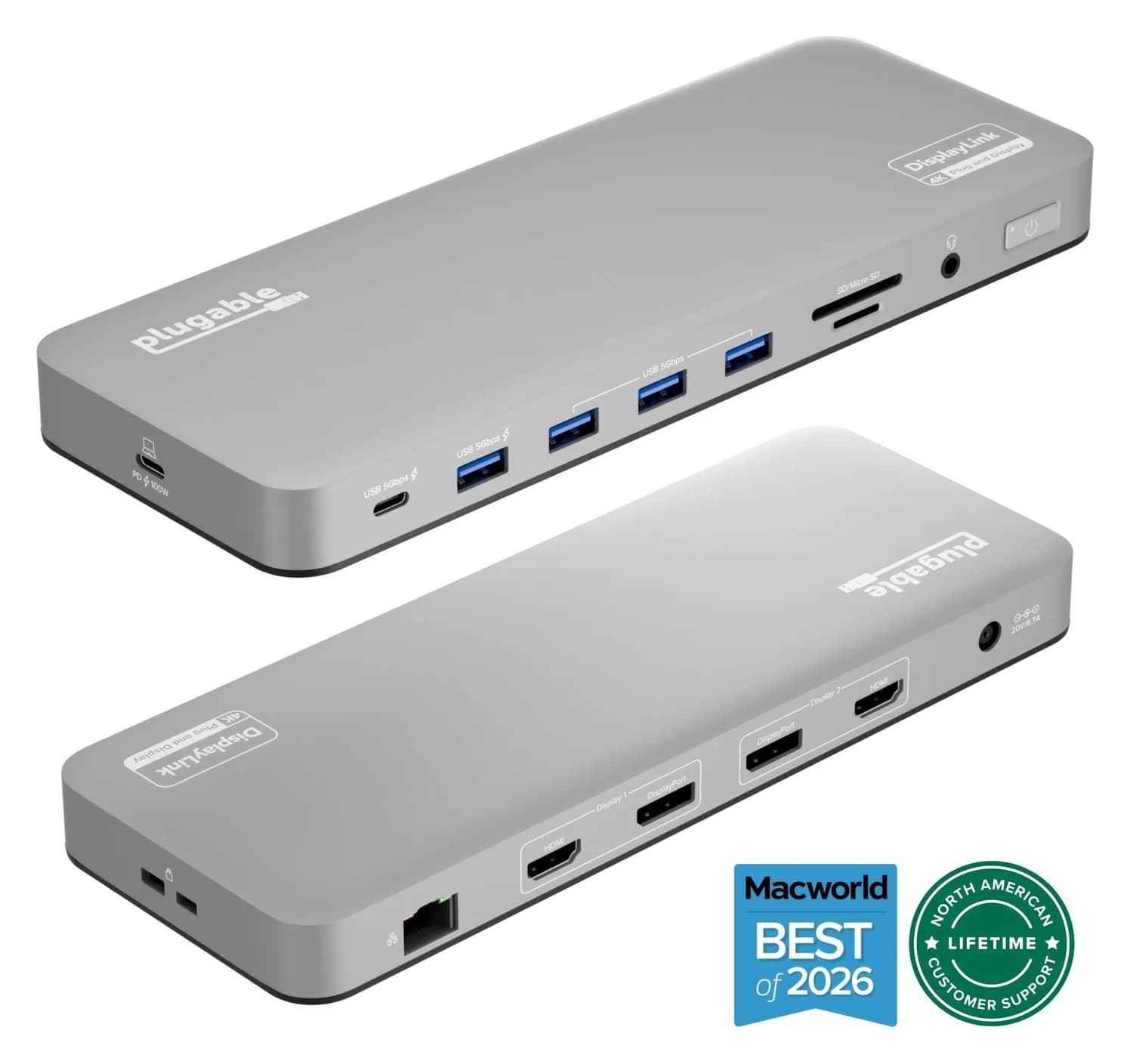
Plugable UD-6950PDH USB-C Dual 4K DisplayLink Dock (100W Charging)100W PD passthrough · 5 Gbps data · 4K60 video · 14 ports
- See on Amazon3
Best compact option for M4 and M5 MacBook Air
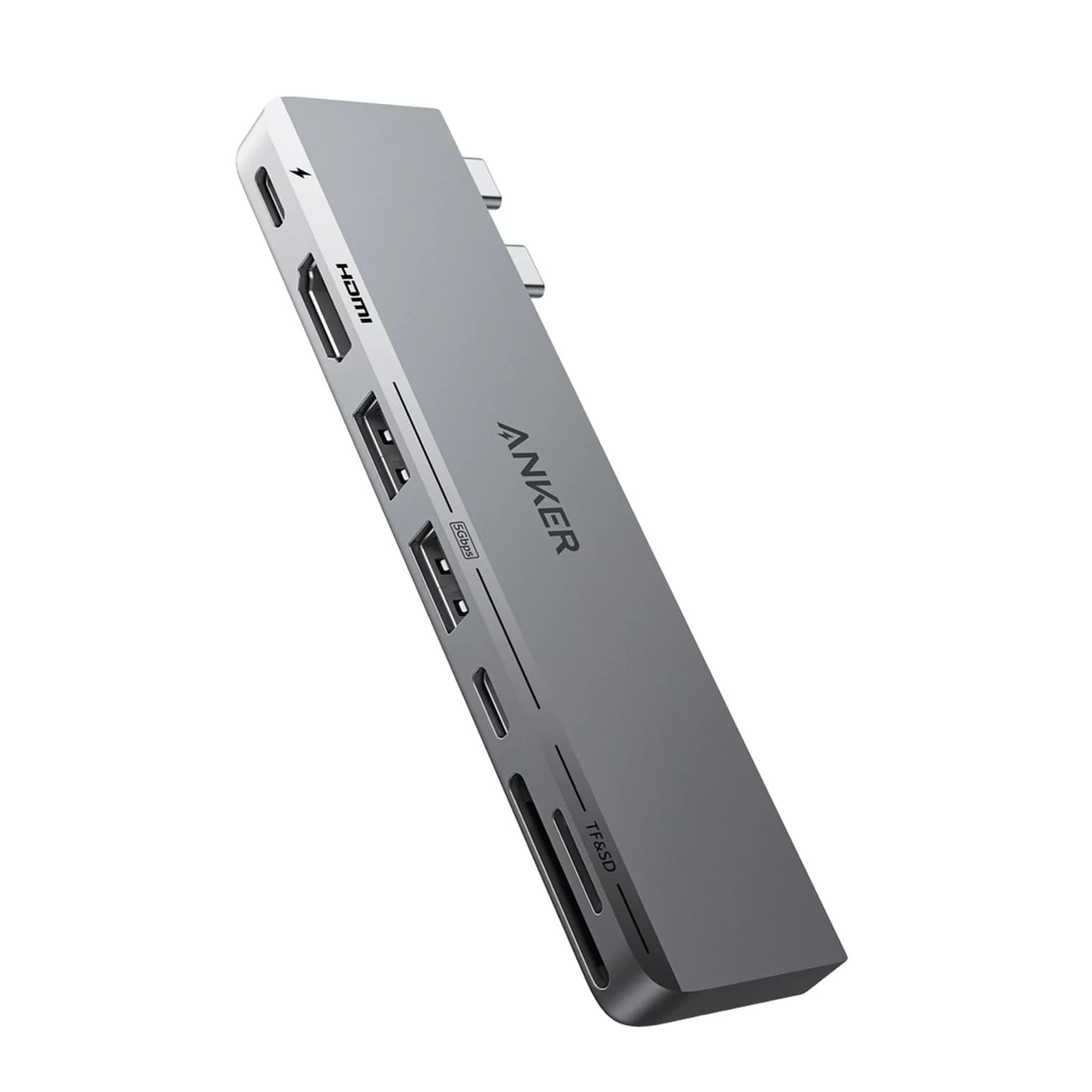
Anker 547 USB-C Hub (7-in-2, for MacBook)100W PD passthrough · 40 Gbps data · 4K60 video · 7 ports
- See on Amazon4
Best for three or four displays
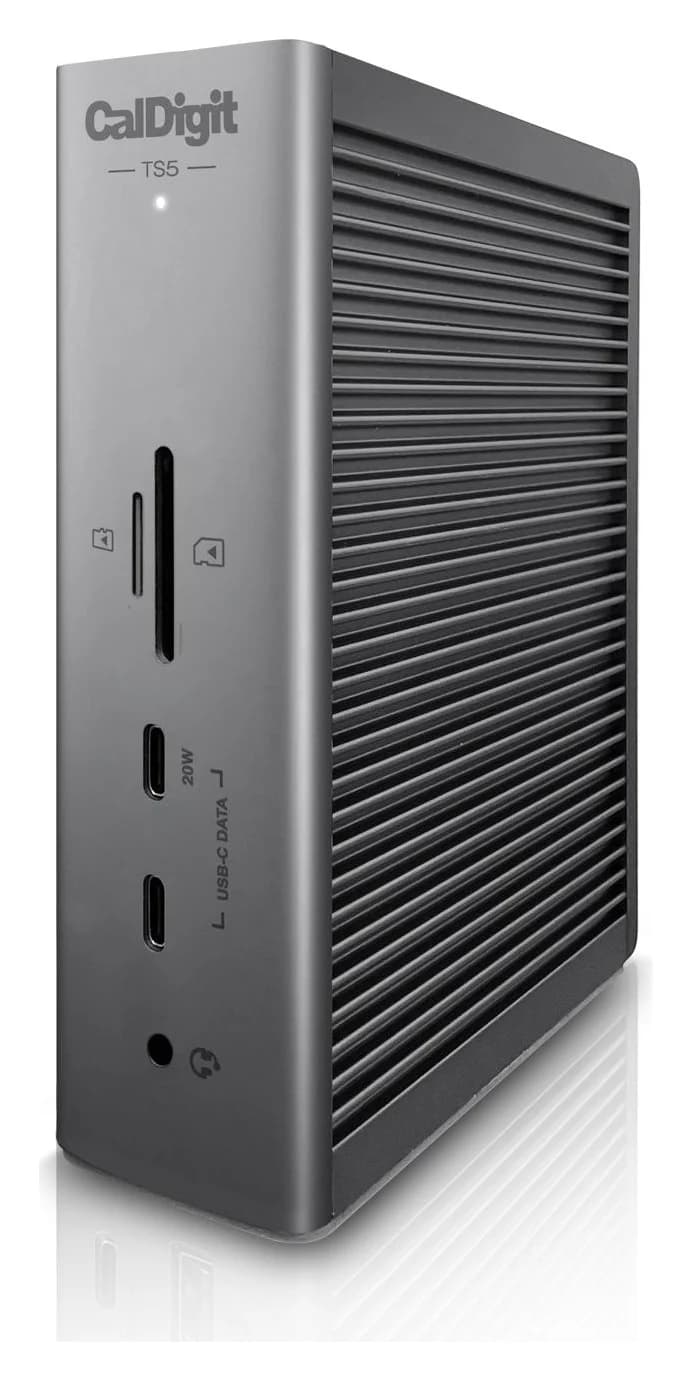
CalDigit TS5 Thunderbolt 5 Dock140W PD passthrough · 80 Gbps data · Via Thunderb video · 15 ports
- See on Amazon5
Best portable DisplayLink adapter
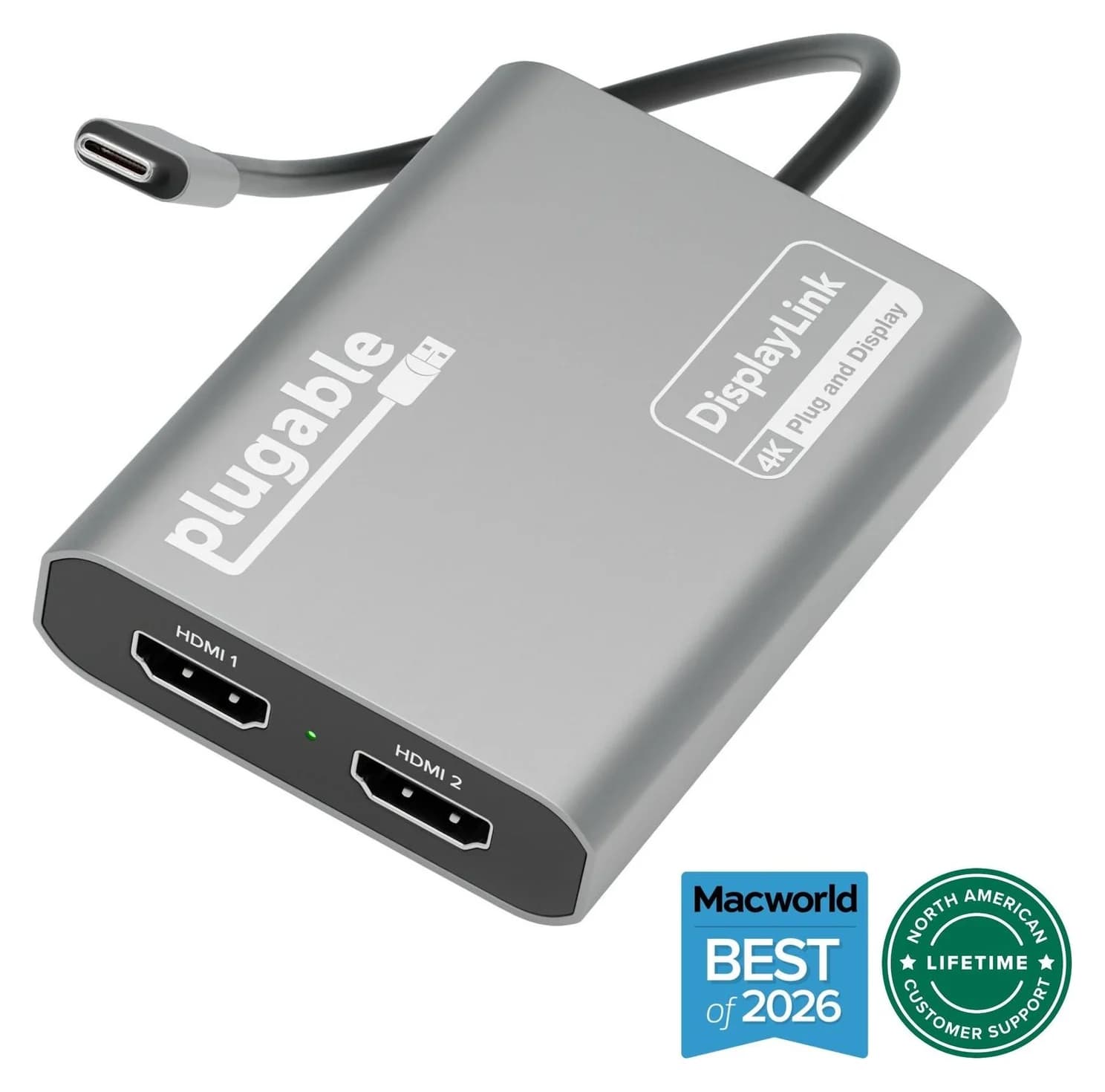
Plugable USBC-6950M USB-C to Dual HDMI DisplayLink Adapter (4K@60Hz)4K60 video · 2 ports
If your MacBook has an M4, M5, or any Pro or Max chip, get the Plugable TBT4-UD5 Thunderbolt 4 dock: one cable gives you two HDMI monitors, charging and Ethernet, with no driver. If you have a base M1, M2 or M3, or the new MacBook Neo, the chip can't drive two extended monitors over one cable, so the Plugable UD-6950PDH DisplayLink dock is the dependable route.
The classic mistake is a cheap "dual monitor" USB-C hub that shows the same picture on both screens. The fix depends on your chip. Our picks come from Apple's display support pages and the makers' spec sheets, not from physical testing.
Quick picks
| Pick | Best for | Video | Laptop charging |
|---|---|---|---|
| Plugable TBT4-UD5 | M4, M5, Pro and Max chips | 2x HDMI 4K@60Hz (Thunderbolt) | Up to 96W |
| Plugable UD-6950PDH | M1, M2, M3 and MacBook Neo | 2x 4K@60Hz via DisplayLink (HDMI or DP) | Up to 100W |
| Anker 547 (7-in-2) | M4 and M5 MacBook Air | HDMI 4K@60Hz + USB-C up to 5K@60Hz | Up to 100W |
| CalDigit TS5 | Three or four displays on M5 Pro/Max | Via 3x Thunderbolt 5 ports | Up to 140W |
| Plugable USBC-6950M | Two screens on the road | 2x HDMI 4K@60Hz via DisplayLink | None |
Step 1: how many monitors can your MacBook drive?
The chip sets the limit on native external displays, and no hub or dock raises it. From Apple's tech specs and display support pages:
| Chip | Native external displays | Conditions |
|---|---|---|
| M1, M2 (Air, 13-inch Pro) | 1, up to 6K@60Hz | None |
| M3 (Air, 14-inch Pro) | 1 with the lid open, 2 with the lid closed | Second display up to 5K@60Hz or 4K@100Hz; external keyboard and mouse; macOS 14.3+ (Air) or 14.6+ (Pro) |
| M4, M4 Pro, M5 | 2, up to 6K@60Hz or 4K@144Hz each | Closing the lid doesn't add a third |
| M1 Pro, M2 Pro, M3 Pro | 2 | 14- and 16-inch MacBook Pro also has an HDMI port |
| M1 Max, M2 Max, M3 Max, M4 Max | Up to 4 | Spread across Thunderbolt and HDMI |
| M5 Pro | Up to 3 | Apple says all three can share one Thunderbolt port |
| M5 Max | Up to 4 | Mix of Thunderbolt and HDMI |
| MacBook Neo (A18 Pro) | 1, up to 4K@60Hz | Left USB-C port only; the right port is USB 2 with no video |
If your Mac supports two displays, you may not need a dock. A MacBook Pro can run one monitor from HDMI and one from a Thunderbolt port. An M4 or M5 MacBook Air can use one Thunderbolt port per monitor and charge over MagSafe. Docks earn their place when you want one cable, or when the chip's limit is the problem.
Why dual-HDMI hubs mirror on a Mac
Most inexpensive "dual monitor" USB-C hubs use DisplayPort MST (Multi-Stream Transport). The hub receives one DisplayPort signal and splits it into two streams. Windows supports this, so the same hub extends across two screens on many Windows laptops.
macOS does not support MST. Plugable's support pages say a Mac usually shows one extended display and one mirrored display on its MST adapter, and CalDigit says macOS will mirror at best. That's why a hub like the Anker 553 is a fine Windows pick in our USB-C hubs with HDMI guide and the wrong choice for a Mac.
Three approaches do work on a Mac:
- Separate ports. Each monitor gets its own Thunderbolt or HDMI port. Free, driverless, and full quality, but only up to your chip's limit.
- A Thunderbolt dock with two video outputs. Thunderbolt carries separate DisplayPort streams, one per monitor, over one cable. That isn't MST, so macOS handles it natively. It still can't exceed your chip's limit: a base M1 or M2 lights up one screen.
- DisplayLink. The dock has its own graphics chip. Synaptics' DisplayLink Manager app compresses the extra desktops and sends them over ordinary USB, and the dock decodes them. The Mac's display engine isn't involved, so it works on any MacBook, including the Neo. The cost is a driver, some CPU and GPU load, no HiDPI scaling (per Plugable) and no copy-protected streaming.
Best overall for M4, M5, Pro and Max MacBooks: Plugable TBT4-UD5
Plugable
Plugable Thunderbolt 4 Dock (TBT4-UD5)
A Thunderbolt 4 dock with dual HDMI, 100W laptop charging (96W certified), Gigabit Ethernet and an SD/microSD reader.
- 96W PD passthrough
- 40 Gbps data
- 4K video
- 13 ports
The TBT4-UD5 is the cleanest answer for a MacBook that natively supports two displays. It has two HDMI 2.0 ports built in, each rated for 4K@60Hz, so standard monitors connect without adapters. Plugable's compatibility note is specific: dual display works on M5, M4, M1-M3 Pro and Max, and on base M3 only in clamshell mode. Base M1 and M2 Macs, and non-Thunderbolt USB-C laptops, get one display.
Beyond video, Plugable lists up to 100W of host charging (96W certified), which covers the 96W fast-charge threshold Apple quotes for the 14-inch MacBook Pro. There's a downstream Thunderbolt 4 port that can drive a single 8K display instead of the HDMI pair, five USB ports (three at 10Gbps), Gigabit Ethernet, a UHS-II SD and microSD reader and a headset jack. It's driverless on macOS 11 and later.
Why it stands out: Two monitors, charging and wired internet on one cable, with no DisplayLink caveats.
Watch out for: HDMI tops out at 60Hz, so it isn't for high-refresh gaming monitors. It drives two displays at most, even on an M5 Pro. A 16-inch MacBook Pro charges more slowly than its 140W maximum.
See the Plugable TBT4-UD5 on Amazon
Best for M1, M2, M3 and MacBook Neo: Plugable UD-6950PDH
Plugable
Plugable UD-6950PDH USB-C Dual 4K DisplayLink Dock (100W Charging)
A 14-in-1 DisplayLink USB-C dock that adds two extended 4K@60Hz displays over HDMI or DisplayPort, plus 100W laptop charging, Gigabit Ethernet, SD readers and five USB ports.
- 100W PD passthrough
- 5 Gbps data
- 4K60 video
- 14 ports
If your chip supports one external display, DisplayLink is the only way to get two extended monitors with the lid open. Plugable's UD-6950PDH uses a DisplayLink DL-6950 chip to drive two monitors at up to 4K@60Hz each. Each channel offers HDMI or DisplayPort. It also passes up to 100W to the laptop from an included 130W adapter, and adds Gigabit Ethernet, UHS-II SD and microSD readers, a headset jack and five 5Gbps USB ports.
Plugable names this dock as its top recommendation for the MacBook Neo, connected to the Neo's left USB-C port. On base M3 models you have a choice. Apple's lid-closed two-display mode is native and needs no driver. DisplayLink lets you keep the laptop screen open as a third display.
Why it stands out: Two extended 4K screens, charging and Ethernet from one cable on any MacBook, including the Neo.
Watch out for: Install Synaptics' free DisplayLink Manager and allow Screen Recording, or the screens stay blank. Plugable says HiDPI scaling isn't available on DisplayLink screens, so a 4K monitor runs at native 4K or 1080p. It says HDCP video may not play on any display while the dock is connected. All ports share one 5Gbps link, and it isn't suited to gaming or video editing.
See the Plugable UD-6950PDH on Amazon
Best compact option for M4 and M5 MacBook Air: Anker 547 (7-in-2)
Anker
Anker 547 USB-C Hub (7-in-2, for MacBook)
A 7-in-2 hub that plugs into two adjacent USB-C/Thunderbolt ports on a MacBook and adds HDMI, a Thunderbolt-passthrough USB-C port, USB-C and USB-A data, and SD/microSD slots.
- 100W PD passthrough
- 40 Gbps data
- 4K60 video
- 7 ports
The Anker 547 plugs into both of a MacBook's side-by-side USB-C ports at once. That gives it two independent paths to the Mac: an HDMI 2.0 port rated for 4K@60Hz, and a multi-function USB-C port that passes through up to 40Gbps, up to 100W of charging and video up to 5K@60Hz, according to Anker. On an M4 or M5 MacBook Air, each monitor gets native video with no driver. A 5Gbps USB-C port, two 5Gbps USB-A ports and UHS-I SD and microSD readers make it an everyday hub too.
Why it stands out: Two native monitors and a full 40Gbps passthrough port, in a hub that plugs straight into the side of the laptop.
Watch out for: Anker's compatibility list names the 13-inch MacBook Pro and the M1 and M2 MacBook Air. The M3, M4 and M5 Air keep the same left-side MagSafe and two-port layout, but Anker doesn't list them by name. Anker states it does not work with the MacBook Neo. On base M1 and M2 you still get one external display.
Best for three or four displays: CalDigit TS5
CalDigit
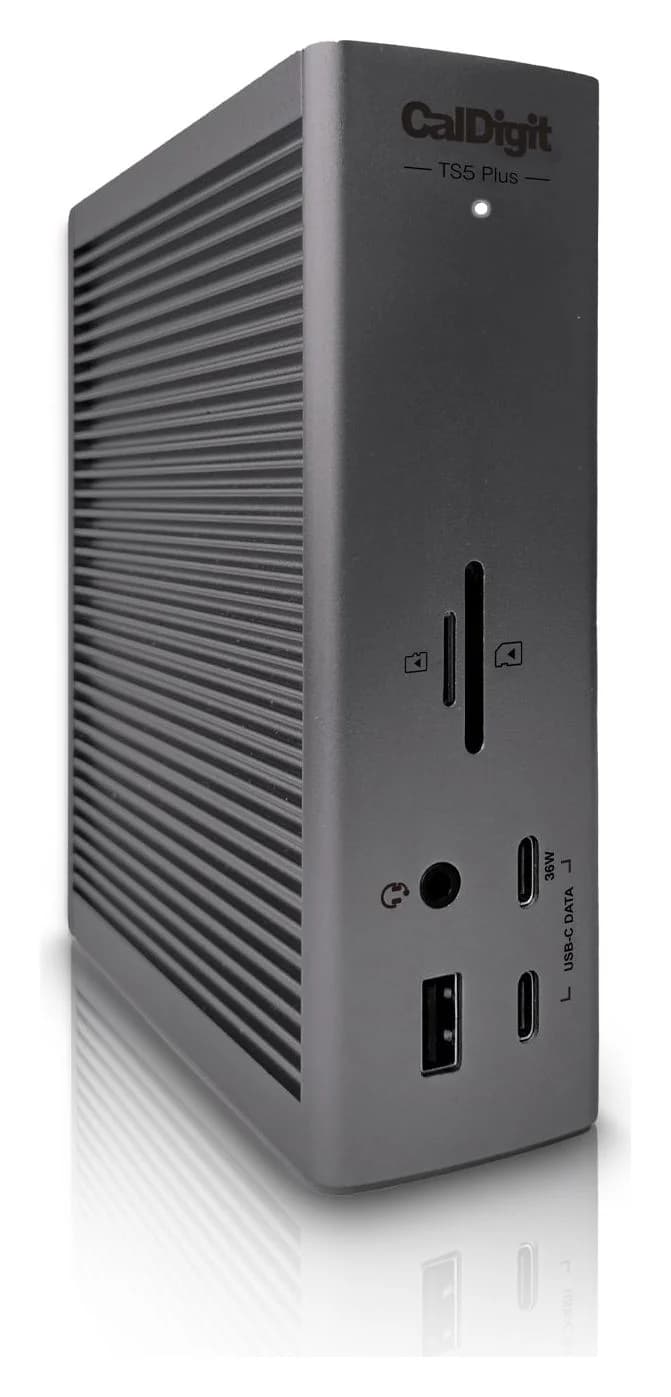
CalDigit TS5 Thunderbolt 5 Dock
A 15-port Thunderbolt 5 dock with three downstream 80Gb/s Thunderbolt 5 ports, 2.5GbE, UHS-II readers and 140W laptop charging.
- 140W PD passthrough
- 80 Gbps data
- Via Thunderb video
- 15 ports
The M5 Pro supports three external displays and the M5 Max four, and CalDigit's TS5 is built to use that over a single cable. Its three downstream Thunderbolt 5 ports (80Gb/s each) carry the video. CalDigit lists three displays on M5 Pro and M5 Max, up to four on M5 Max, and two on base M4, base M5 and M1-M4 Pro and Max. Base M1, M2 and M3 get one.
It also charges at up to 140W, enough for a 16-inch MacBook Pro, and adds 2.5GbE, SD 4.0 and microSD 4.0 readers, front and rear audio and five more USB ports.
Why it stands out: The only pick here that can run three monitors from one cable, with full-speed charging for the largest MacBook Pro.
Watch out for: There are no HDMI or DisplayPort outputs. Monitors need USB-C or Thunderbolt inputs, or a USB-C video adapter for each one. CalDigit notes HDMI adapters top out at 4K@60Hz on M1-M4 Macs. It needs macOS 15 or later. On a Mac that only supports two displays, a Thunderbolt 4 dock like the TBT4-UD5 does the same video job.
See the CalDigit TS5 on Amazon
Best portable DisplayLink adapter: Plugable USBC-6950M
Plugable
Plugable USBC-6950M USB-C to Dual HDMI DisplayLink Adapter (4K@60Hz)
A compact DisplayLink adapter that adds two extended HDMI displays, each up to 4K@60Hz, from one USB-C or Thunderbolt port, with no charging or extra ports.
- 4K60 video
- 2 ports
The USBC-6950M is the DisplayLink approach without the dock: an 85g aluminum adapter with an attached USB-C cable and two HDMI outputs, each rated up to 4K@60Hz. Plugable built it as the Mac-specific version of its dual-HDMI adapter and lists it as a MacBook Neo option.
It suits a second desk, a pair of portable monitors, or anyone who already has a hub for USB ports and just needs more screens. If you're shopping for screens too, our USB-C monitors guide covers monitors that take power and video over one cable.
Why it stands out: The smallest way to get two extended screens on a base M1, M2, M3 or a MacBook Neo.
Watch out for: No charging pass-through, so on a Neo you'll charge through the other port. It needs DisplayLink Manager, HDCP streaming shows a black screen on its displays, and Plugable recommends plugging it straight into the Mac rather than through a hub.
See the Plugable USBC-6950M on Amazon
How we choose
We don't physically test products. These picks come from research:
- Apple's limits first. Each chip's display count comes from Apple's tech specs and display support pages.
- Manufacturer compatibility notes. Plugable and CalDigit publish per-chip Mac display notes. Where they disagree with each other or with Apple, we say so.
- Standards. How a product carries video (DisplayPort Alt Mode, Thunderbolt tunneling, MST or DisplayLink) decides whether it works on a Mac.
- Known buyer patterns. The most common complaint is mirrored or blank screens from MST hubs, so we left those out.
We also confirm each Amazon listing matches the manufacturer's model.
Buying guide
Base M3 is the tricky one. Apple supports two displays with the lid closed. Plugable lists that for the TBT4-UD5, but CalDigit says base M3 Macs get one display through its Thunderbolt dock, and Apple's own advice for a docked display that only mirrors is to plug it straight into the Mac. The most reliable lid-closed setup is one monitor in each Thunderbolt port, with MagSafe for power.
Match outputs to your monitors. HDMI monitors suit the TBT4-UD5. USB-C and Thunderbolt monitors suit the TS5 or the Anker 547's passthrough port. For 4K, insist on 60Hz.
DisplayLink is a workaround, not an upgrade. If your chip already supports the monitors you want, native video avoids the driver, the compression, the HiDPI limit and the HDCP problem. If you only need more ports and one screen, see our best USB-C hubs for MacBook or, for Air owners, our MacBook Air hub guide.
Clamshell with DisplayLink. Plugable says lid-closed use needs external power, a keyboard and a mouse connected.
Charging. The TBT4-UD5 and UD-6950PDH deliver up to 96W and 100W, which covers a MacBook Air and a 14-inch Pro. Only the TS5 reaches the 16-inch MacBook Pro's 140W. For more desk options, see our best Thunderbolt docks.
Verdict
For an M4, M5, or any Pro or Max MacBook, the Plugable TBT4-UD5 is the dual-monitor dock to buy: two HDMI ports, one cable, no driver. Base M1, M2 and M3 owners, and anyone with a MacBook Neo, should get the Plugable UD-6950PDH, or the USBC-6950M for a bag. M4 and M5 Air owners who'd rather skip a dock can use the Anker 547. Choose the CalDigit TS5 only if you have an M5 Pro or M5 Max and want three or more screens. Whatever you buy, skip dual-HDMI MST hubs: on a Mac they mirror.
Frequently asked questions
Why do both of my monitors show the same picture on my MacBook?
You are almost certainly using a single-cable hub with two HDMI ports that relies on DisplayPort MST. Windows can split an MST stream into two independent desktops, but macOS does not support MST, so the Mac sends one image to both screens or lights up only one. Plugable and CalDigit both document this. Use separate ports, a Thunderbolt dock on a Mac that supports two displays, or a DisplayLink dock.
Can a base M1 or M2 MacBook run two external monitors?
Not natively. Apple lists one external display for the M1 and M2 MacBook Air and 13-inch MacBook Pro, and no hub or Thunderbolt dock changes that. The workaround is DisplayLink: a dock or adapter with its own graphics chip, driven by Synaptics' DisplayLink Manager app. Expect a driver install, a Screen Recording permission prompt, and no copy-protected streaming on those screens.
Does the MacBook Neo support two monitors?
Natively, no. Apple says the MacBook Neo supports one external display up to 4K at 60Hz, and only through its left USB-C port, which is the USB 3 port. The right port is USB 2 and carries no video. Plugable lists its UD-6950PDH dock and USBC-6950M adapter as DisplayLink options for adding a second screen, connected to the left port.
Why does DisplayLink need Screen Recording permission on a Mac?
DisplayLink Manager reads the pixels macOS draws for the extra desktops, compresses them and sends them over USB to the dock, which decodes them. macOS treats that as screen capture, so it asks for Screen Recording permission. Plugable says the driver is not recording or saving your screen. If you skip the permission, the DisplayLink monitors stay blank.
Will Netflix and other streaming services play on a DisplayLink monitor?
Usually not. Streaming services require HDCP copy protection, and Plugable says HDCP-protected video won't play on DisplayLink screens on macOS. For its UD-6950PDH dock, Plugable goes further and says protected video may not play on any display while the dock is connected. If you watch a lot of streaming video at your desk, a native Thunderbolt setup avoids this.
Related guides
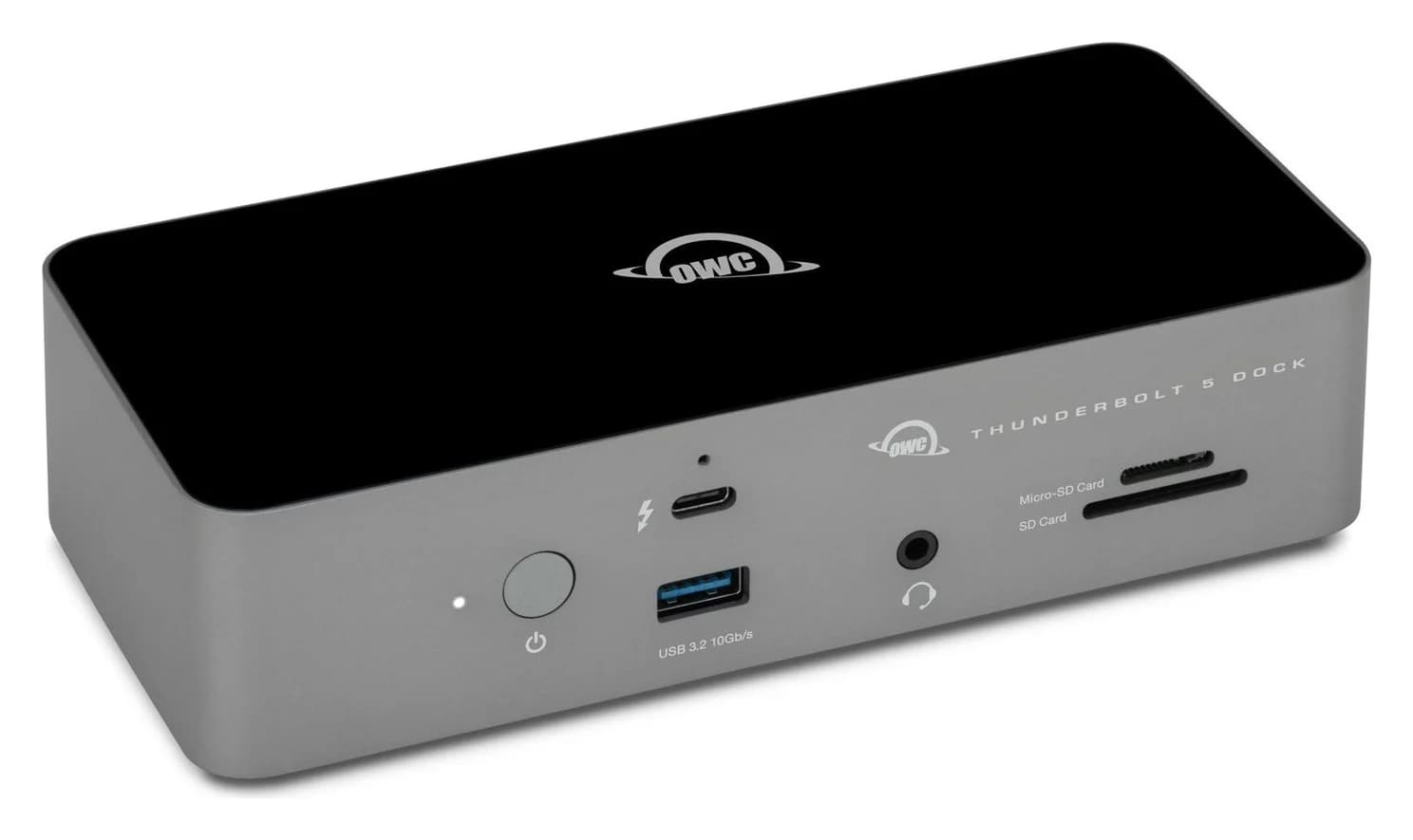
Best Docks for MacBook Pro in 2026 (M5, M5 Pro and M5 Max)
Thunderbolt 5 and 4 docks matched to each current MacBook Pro: 140W charging for the 16-inch, three or four displays on M5 Pro and Max, 10GbE and more.
Updated October 22, 2026Read
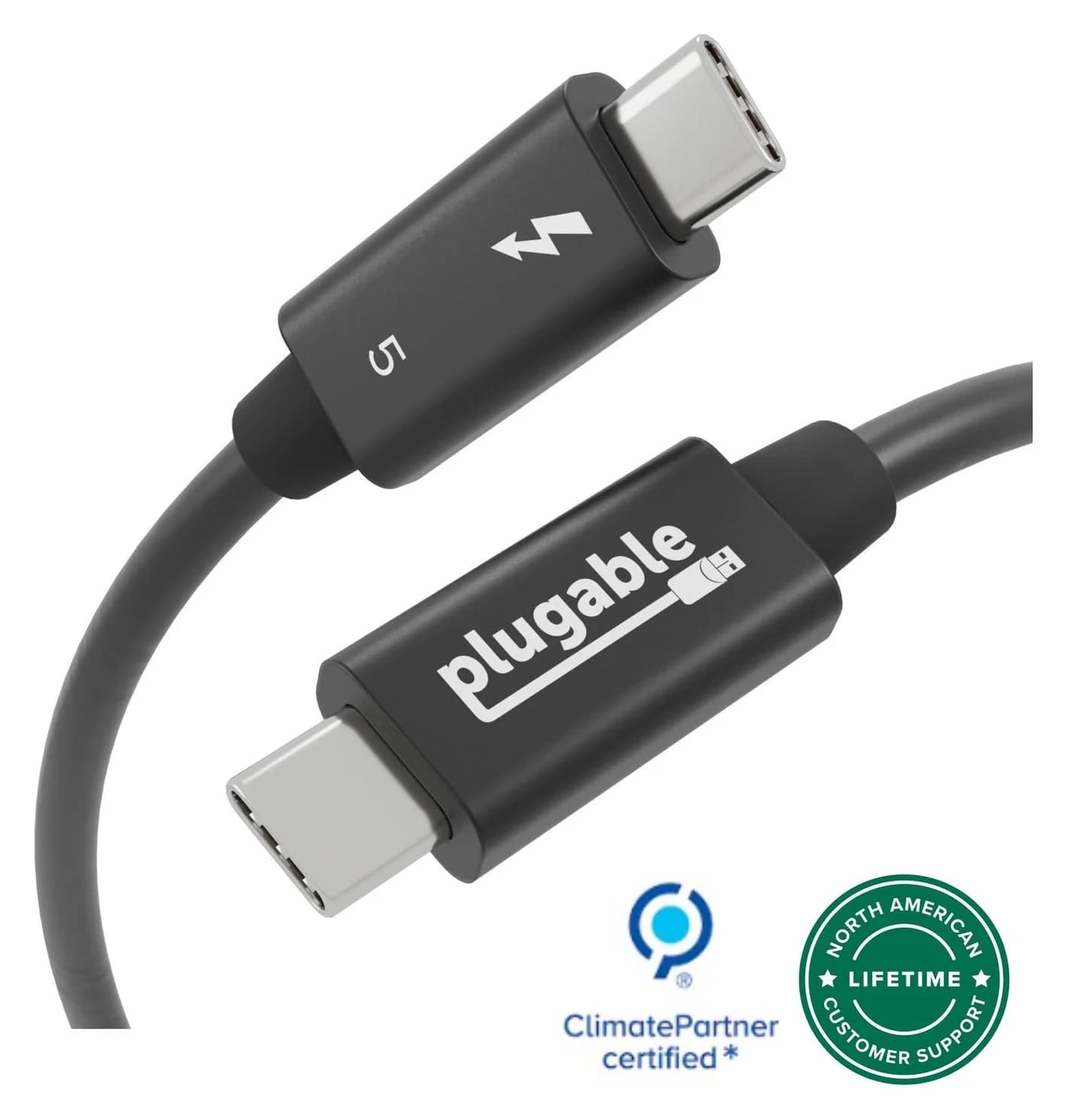
Thunderbolt 5 vs USB4: What's the Difference in 2026?
Thunderbolt 5 vs USB4 and USB4 v2 explained: 80Gbps, 120Gbps Bandwidth Boost, PCIe, displays, 140W to 240W charging, cables, and which Macs and PCs have it.
Updated October 22, 2026Read
Best Steam Deck Docks in 2026 (Also for ROG Ally and Legion Go)
Steam Deck, ROG Ally and Legion Go docks compared: HDMI 2.0 vs 2.1 for 4K120 and VRR, the charger each handheld needs, and the Nintendo Switch 2 trap.
Updated October 22, 2026Read