Best picks
Best USB-C Hubs for MacBook Air in 2026 (M2, M3, M4 and M5)
The right USB-C hub for your MacBook Air depends on its chip. Display limits for M2, M3, M4 and M5, the lid-closed rule, DisplayLink, and six hubs that fit.
By thisUSB EditorialUpdated October 22, 20269 min read6 picks
Our picks at a glance
- See on Amazon1
Best overall for MacBook Air
UGREEN Revodok Pro 108 USB-C Hub (8-in-1)85W PD passthrough · 10 Gbps data · 4K60 video · 8 ports
- See on Amazon2
Best for two displays on M4 and M5
Anker 547 USB-C Hub (7-in-2, for MacBook)100W PD passthrough · 40 Gbps data · 4K60 video · 7 ports
- See on Amazon3
Best for two monitors on M1, M2 and M3
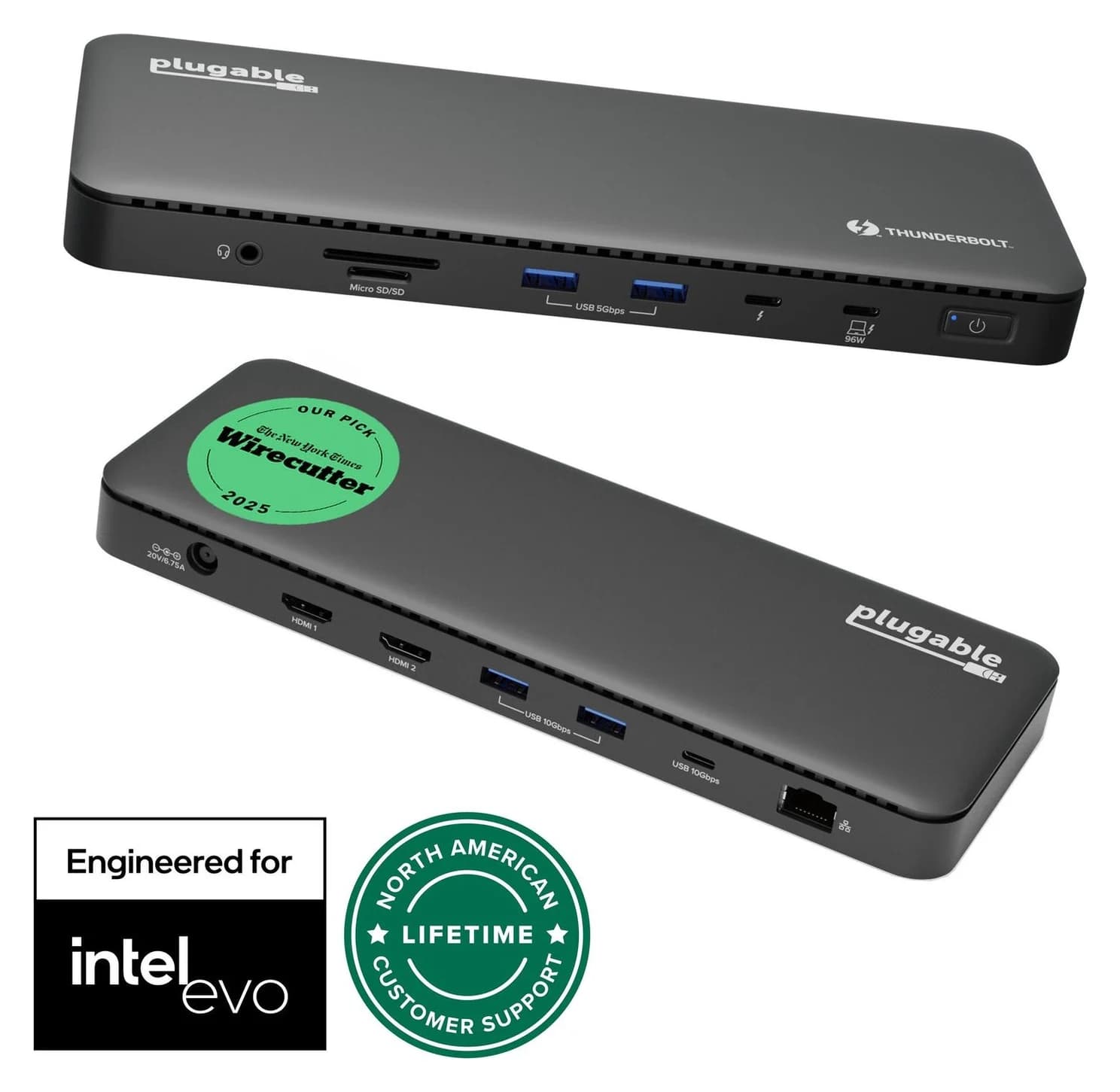
Plugable UD-6950PDH USB-C Dual 4K DisplayLink Dock (100W Charging)100W PD passthrough · 5 Gbps data · 4K60 video · 14 ports
- See on Amazon4
Best portable DisplayLink adapter
Plugable USBC-6950M USB-C to Dual HDMI DisplayLink Adapter (4K@60Hz)4K60 video · 2 ports
- See on Amazon5
Best with Ethernet
Anker 555 USB-C Hub (8-in-1)85W PD passthrough · 10 Gbps data · 4K60 video · 8 ports
- See on Amazon6
Best budget
UGREEN Revodok 105 USB-C Hub (5-in-1)95W PD passthrough · 5 Gbps data · 4K30 video · 5 ports
For most MacBook Air owners, the UGREEN Revodok Pro 108 is the hub to buy: one cable adds 4K@60Hz HDMI, fast USB-C and USB-A ports, and a quick SD card reader, and it works with every Apple silicon Air. If you have an M4 or M5 Air and want two monitors, the Anker 547 (7-in-2) gets you there without drivers. On an M1, M2 or M3 Air with the lid open, the only way to two extended monitors is a DisplayLink dock such as the Plugable UD-6950PDH.
We built this list from Apple's tech specs pages and the manufacturers' spec sheets. We have not physically handled these hubs, and where a spec isn't published, we leave it out.
Quick picks
| Hub | Best for | Video | Laptop charging |
|---|---|---|---|
| UGREEN Revodok Pro 108 | Most MacBook Air owners | 1x HDMI 4K@60Hz | Up to 85W |
| Anker 547 (7-in-2) | Two displays on M4/M5 | HDMI 4K@60Hz + USB-C up to 5K@60Hz | Up to 100W |
| Plugable UD-6950PDH | Two monitors on M1/M2/M3 | 2x 4K@60Hz via DisplayLink (HDMI or DP) | Up to 100W |
| Plugable USBC-6950M | Two monitors on the road | 2x HDMI 4K@60Hz via DisplayLink | None |
| Anker 555 (8-in-1) | Wired internet | 1x HDMI 4K@60Hz | Up to 85W |
| UGREEN Revodok 105 | Tight budgets | 1x HDMI 4K@30Hz | Up to 95W |
Prices change often before the holidays, so check current prices on Amazon.
First: what your MacBook Air can actually drive
A hub can't add display capability the chip doesn't have, so check your model before you buy. These figures come from Apple's tech specs and display support pages:
| MacBook Air | External displays | Conditions |
|---|---|---|
| M1 (2020) | 1, up to 6K@60Hz | None |
| M2 (13-inch 2022, 15-inch 2023) | 1, up to 6K@60Hz | None |
| M3 (2024) | 1 with the lid open; 2 with the lid closed | Second display up to 5K@60Hz; macOS Sonoma 14.3+, external keyboard and mouse or trackpad |
| M4 (2025) | 2, up to 6K@60Hz each | Lid open or closed; closing the lid doesn't add a third |
| M5 | 2, up to 6K@60Hz or 4K@144Hz each | Lid open or closed; Apple also allows two displays over one Thunderbolt port through a supported hub or daisy-chain |
Three rules follow from this:
- macOS has no MST support. A single-cable USB-C hub with two HDMI ports can't extend your desktop across two screens on a Mac. It mirrors one image or lights up a single screen. That's why there are no dual-HDMI USB-C hubs in this list.
- On M4 and M5, give each monitor its own path. Plug one monitor into a hub's HDMI port and the other into the Air's second Thunderbolt port, or use a two-port hub like the Anker 547 that keeps a Thunderbolt port free. A Thunderbolt dock with two video outputs also works; see our best Thunderbolt docks.
- On M1, M2, and M3 with the lid open, DisplayLink is the workaround. DisplayLink docks send compressed video over plain USB and decode it in the dock, so the Mac's display limit doesn't apply. The cost is a driver app, some CPU and GPU load, and no HDCP-protected playback on those screens in some apps.
If you're on a MacBook Pro instead, our best USB-C hubs for MacBook covers Pro-chip display rules.
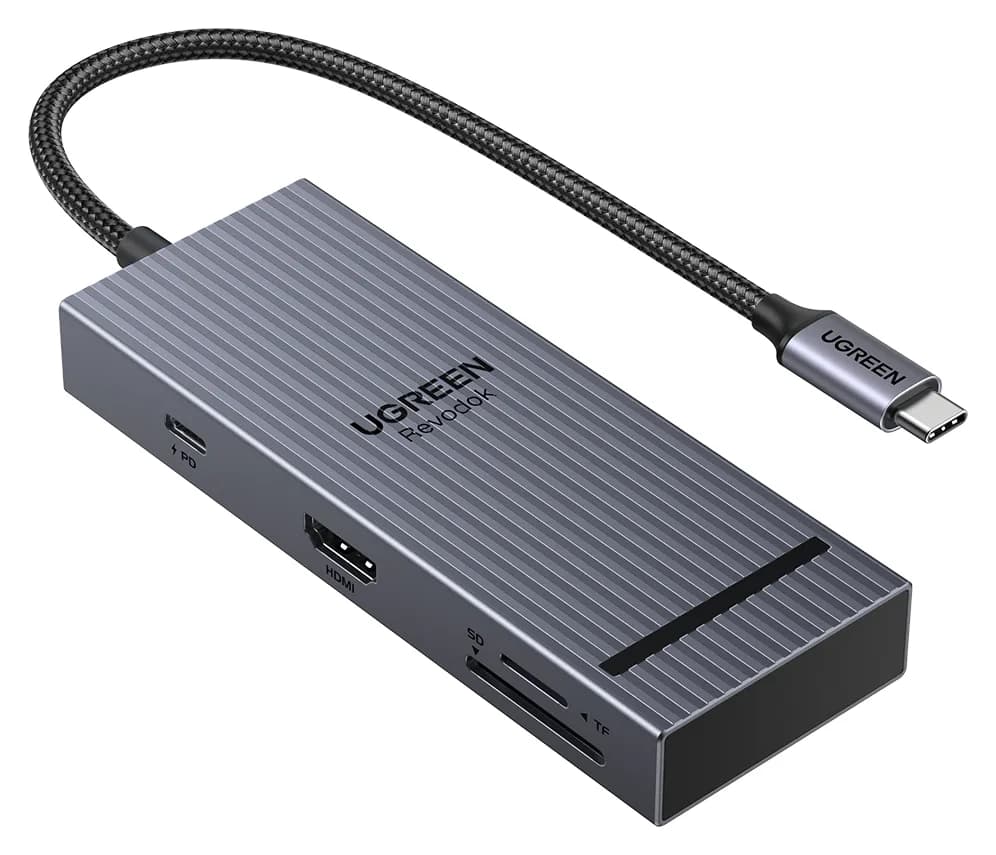
Best overall for MacBook Air: UGREEN Revodok Pro 108 (8-in-1)
UGREEN
UGREEN Revodok Pro 108 USB-C Hub (8-in-1)
A compact single-cable 8-in-1 USB-C hub with 4K@60Hz HDMI, 10Gbps USB ports, 170MB/s SD and microSD readers and 100W PD input.
- 85W PD passthrough
- 10 Gbps data
- 4K60 video
- 8 ports
The Revodok Pro 108 matches how most people use a MacBook Air: one cable to a monitor, a few USB accessories, the odd SD card, and charging through the hub. UGREEN lists a 4K@60Hz HDMI port, two 10Gbps USB-C data ports, two USB-A ports, SD and microSD readers rated up to 170MB/s, and a 100W PD input that passes up to 85W to the laptop. It weighs 80g.
Because it uses just one of the Air's two Thunderbolt ports, the other stays free. On an M4 or M5 Air, that free port can drive a second USB-C or Thunderbolt monitor directly, so this hub also works in a two-display setup.
Why it stands out: 10Gbps ports for a portable SSD and card readers faster than the UHS-I readers found in most hubs.
Watch out for: UGREEN says three of the four USB data ports are 10Gbps, so one USB-A port is slower. There's no Ethernet. The USB-C data ports don't carry video.
See the UGREEN Revodok Pro 108 on Amazon
Best for two displays on M4 and M5: Anker 547 USB-C Hub (7-in-2)
Anker
Anker 547 USB-C Hub (7-in-2, for MacBook)
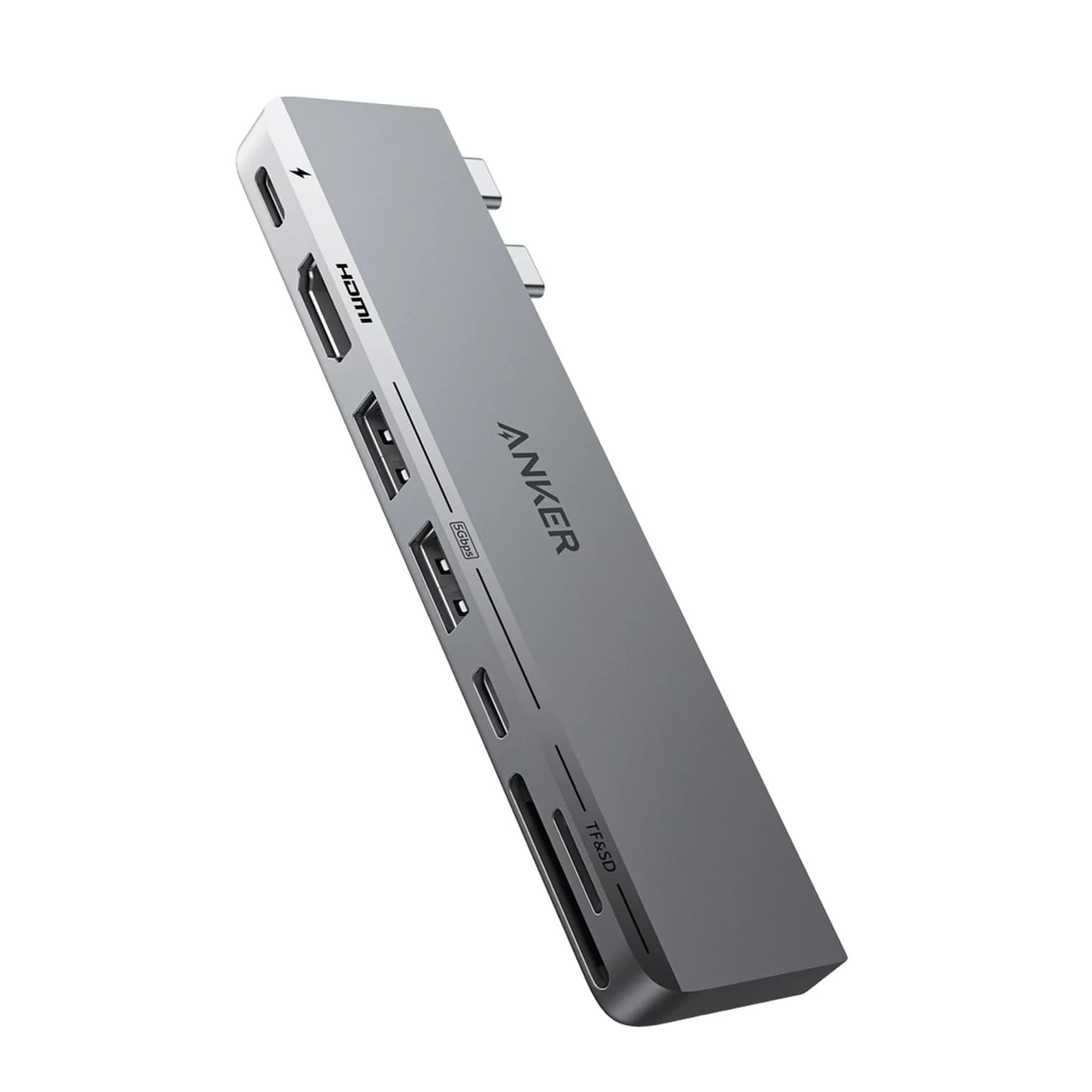
A 7-in-2 hub that plugs into two adjacent USB-C/Thunderbolt ports on a MacBook and adds HDMI, a Thunderbolt-passthrough USB-C port, USB-C and USB-A data, and SD/microSD slots.
- 100W PD passthrough
- 40 Gbps data
- 4K60 video
- 7 ports
The Anker 547 plugs into both of the MacBook Air's Thunderbolt ports at once. In exchange, it gives you a multi-function USB-C port that passes through up to 40Gbps, up to 100W of charging and video up to 5K@60Hz, plus an HDMI 2.0 port rated for 4K@60Hz, according to Anker. Add a 5Gbps USB-C port, two 5Gbps USB-A ports and UHS-I SD and microSD slots.
On an M4 or M5 Air, the HDMI port and the passthrough port can each drive a monitor: two extended displays without DisplayLink. On M1, M2 and a lid-open M3, you still get one external display.
Why it stands out: You get a full Thunderbolt port back, plus HDMI, USB and SD.
Watch out for: It's MacBook-only and Anker says it doesn't work with the MacBook Neo. Its data ports are 5Gbps and the readers are UHS-I.
Best for two monitors on M1, M2 and M3: Plugable UD-6950PDH (DisplayLink)
Plugable
Plugable UD-6950PDH USB-C Dual 4K DisplayLink Dock (100W Charging)
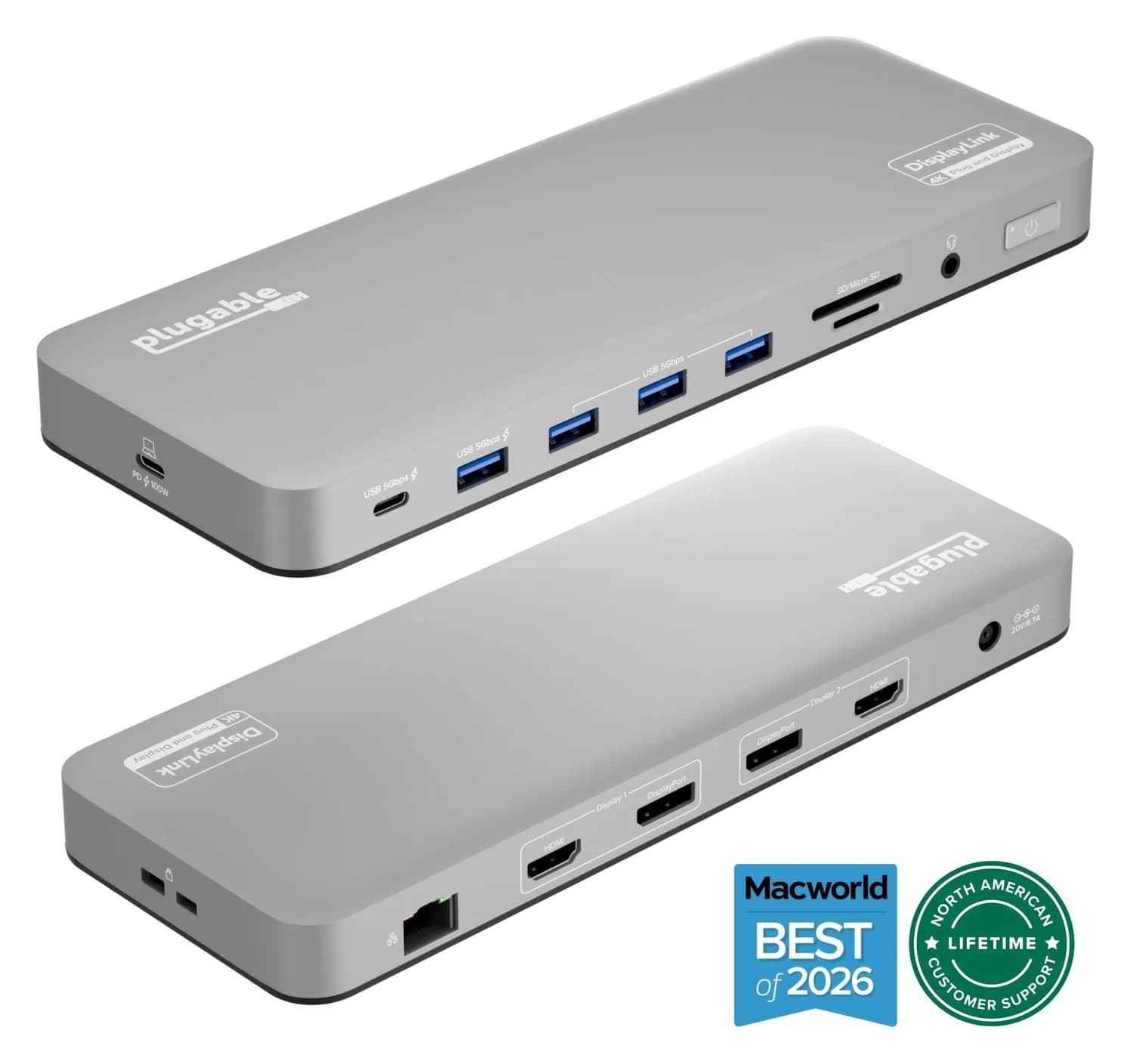
A 14-in-1 DisplayLink USB-C dock that adds two extended 4K@60Hz displays over HDMI or DisplayPort, plus 100W laptop charging, Gigabit Ethernet, SD readers and five USB ports.
- 100W PD passthrough
- 5 Gbps data
- 4K60 video
- 14 ports
If your MacBook Air is limited to one external display, this dock gets around it. Plugable's UD-6950PDH uses a DisplayLink DL-6950 chip to drive two extended monitors at up to 4K@60Hz each, with one HDMI and one DisplayPort output per screen. It also passes up to 100W to the laptop from its included 130W adapter, and adds Gigabit Ethernet, a UHS-II SD reader rated up to 312MB/s, a microSD reader, a headset jack, four USB-A ports and a front USB-C port.
DisplayLink works differently from a normal hub. macOS renders the extra desktops and sends them compressed over USB, and the dock decodes them. That's why the chip's display limit doesn't apply, and it's also why there are conditions. If you own an M3 Air and don't mind working with the lid closed, Apple's native two-display mode avoids DisplayLink altogether.
Why it stands out: Two extended 4K screens, 100W charging and Ethernet over one cable, on any Apple silicon MacBook Air.
Watch out for: You have to install Synaptics' free DisplayLink Manager and allow Screen Recording in macOS settings. Plugable says HiDPI (Retina) scaling isn't available on DisplayLink screens, so a 4K monitor runs at native 4K or 1080p. It also says HDCP-protected video, such as Netflix, won't play on any display on macOS while the dock is connected. It's not for gaming, and all ports share one 5Gbps link.
See the Plugable UD-6950PDH on Amazon
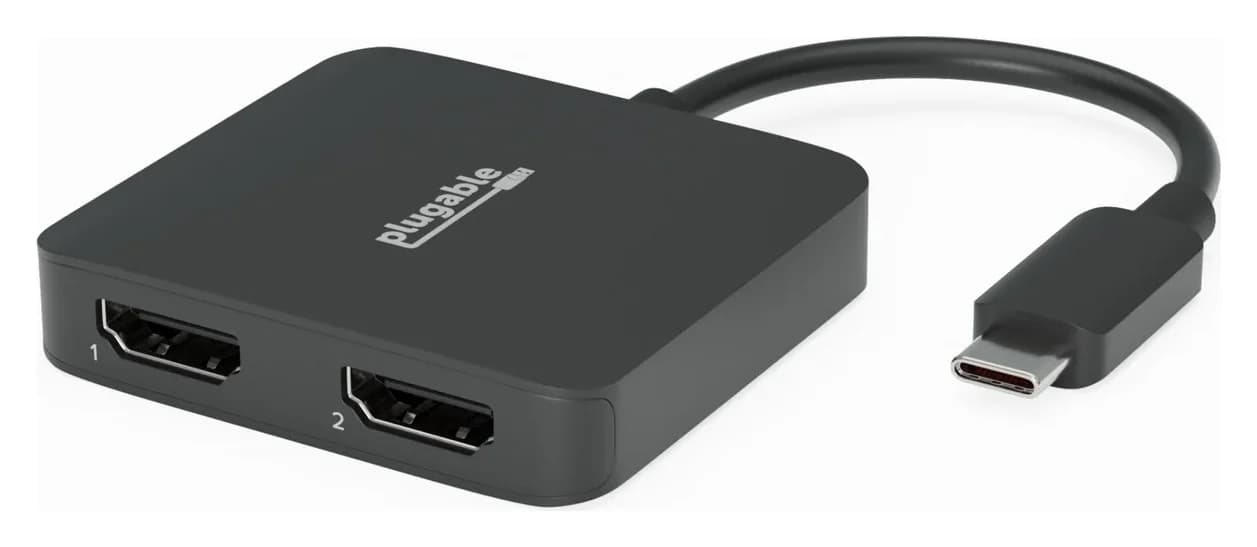
Best portable DisplayLink adapter: Plugable USBC-6950M
Plugable
Plugable USBC-6950M USB-C to Dual HDMI DisplayLink Adapter (4K@60Hz)
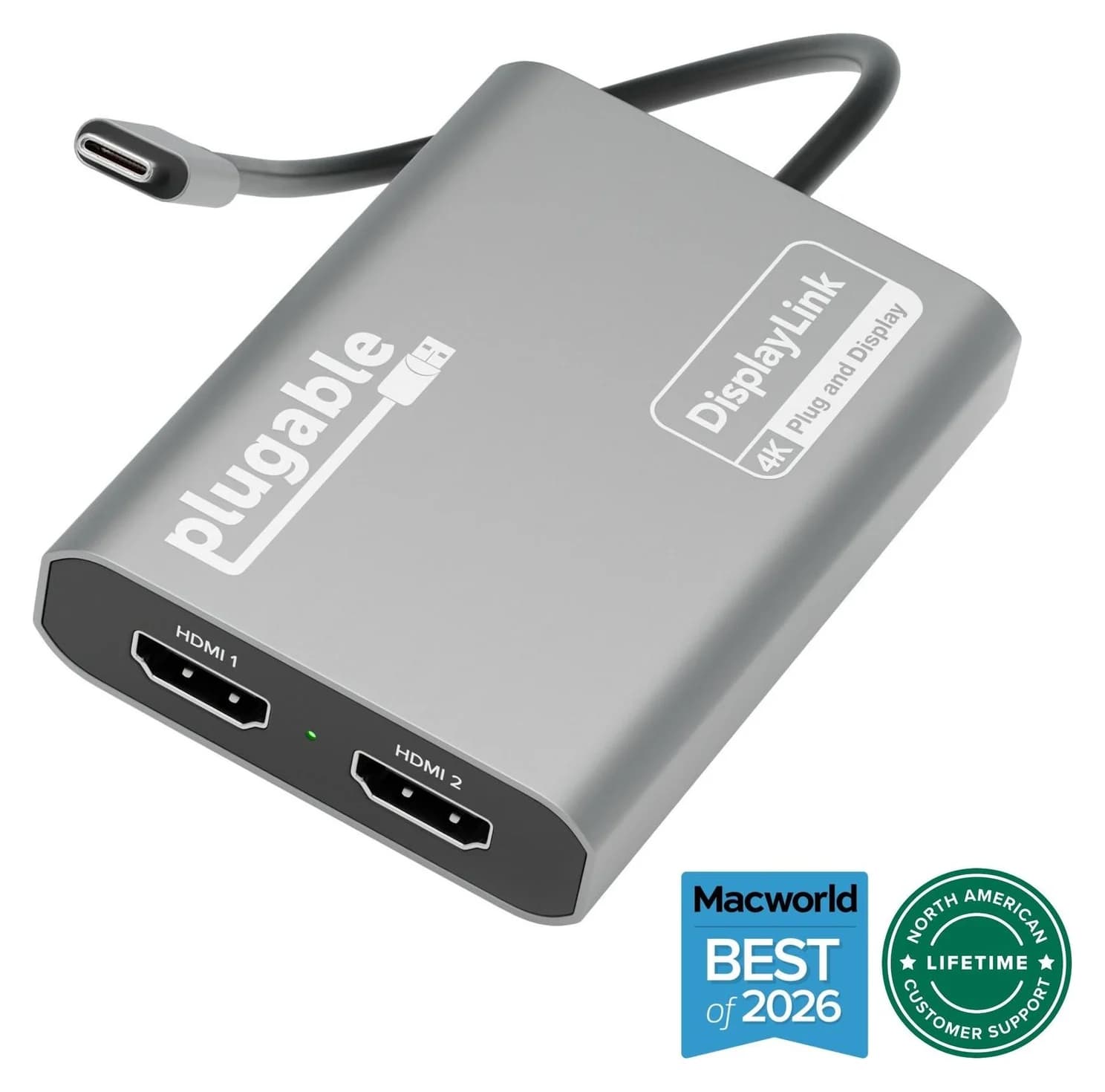
A compact DisplayLink adapter that adds two extended HDMI displays, each up to 4K@60Hz, from one USB-C or Thunderbolt port, with no charging or extra ports.
- 4K60 video
- 2 ports
The USBC-6950M puts the same DisplayLink approach in an 85g adapter: one USB-C plug, two HDMI outputs, each rated up to 4K@60Hz. Plugable points Mac owners to this model rather than its USBC-6950U sibling. It suits a second desk, a pair of travel monitors, or anyone who already has a hub for USB ports and only needs more screens.
Why it stands out: The smallest way to get two extended monitors on an M1, M2 or M3 Air, and it leaves MagSafe free for charging.
Watch out for: No charging pass-through, USB ports or Ethernet. It needs DisplayLink Manager, HDCP streaming shows a black screen on its displays, and Plugable recommends plugging it straight into the Mac rather than through a hub. The monitors need HDMI inputs.
See the Plugable USBC-6950M on Amazon
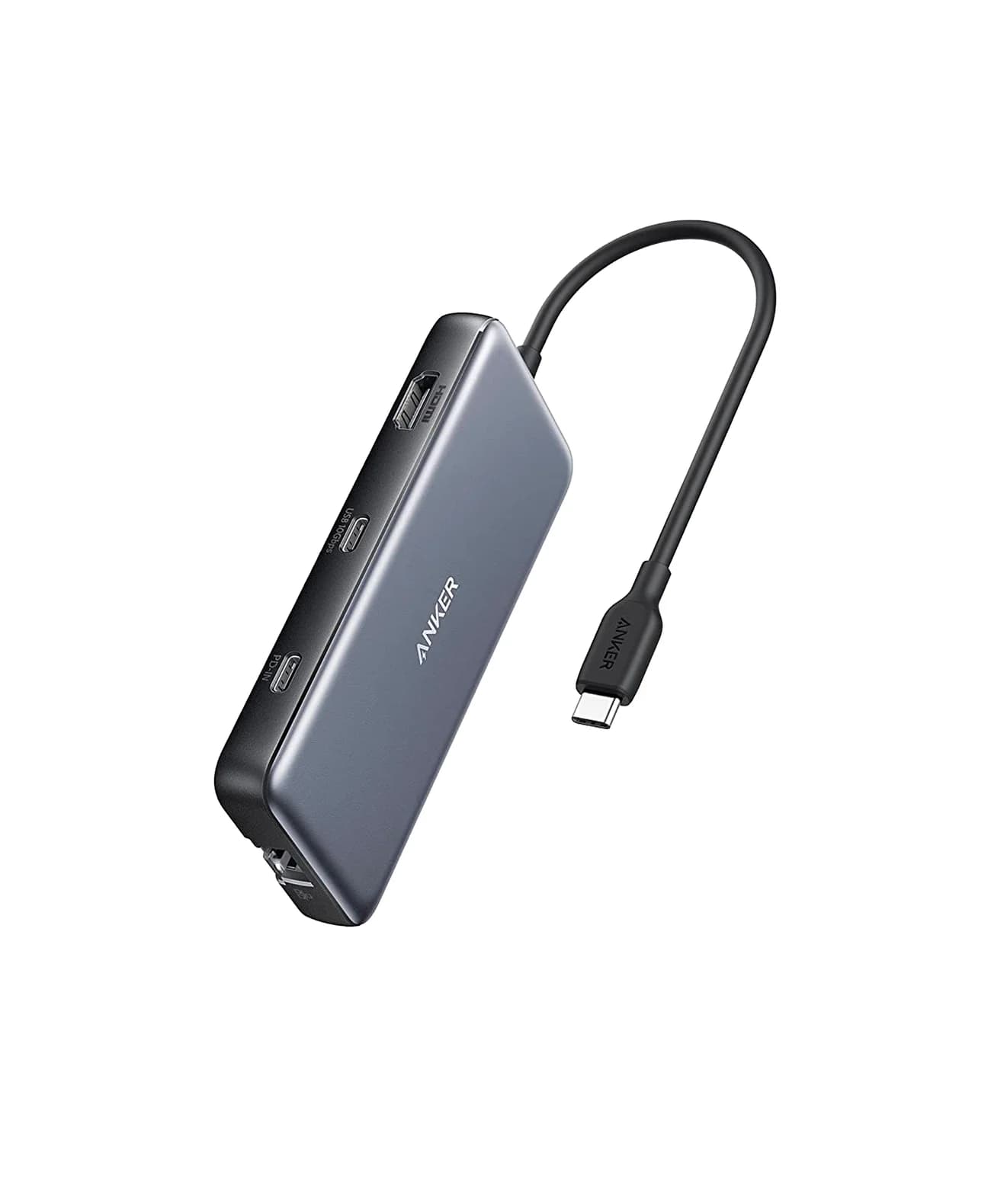
Best with Ethernet: Anker 555 USB-C Hub (8-in-1)
Anker
An 8-in-1 USB-C hub with 4K@60Hz HDMI, gigabit Ethernet, 10Gbps USB-C and USB-A data ports, SD/microSD readers and 85W pass-through charging.
- 85W PD passthrough
- 10 Gbps data
- 4K60 video
- 8 ports
The MacBook Air has no Ethernet port, and video calls over busy Wi-Fi can stutter. The Anker 555 adds gigabit Ethernet alongside a 4K@60Hz HDMI port, a 10Gbps USB-C data port, two 10Gbps USB-A ports and UHS-I SD/microSD readers, with up to 85W pass-through charging. Anker's 4K@60Hz rating needs DisplayPort 1.4 over USB-C, which Apple lists for M-series Airs.
Why it stands out: Wired internet, fast USB and a card reader from one port, with no driver needed on current macOS.
Watch out for: The USB-C data port doesn't carry video or charging, and it's a single-display hub.
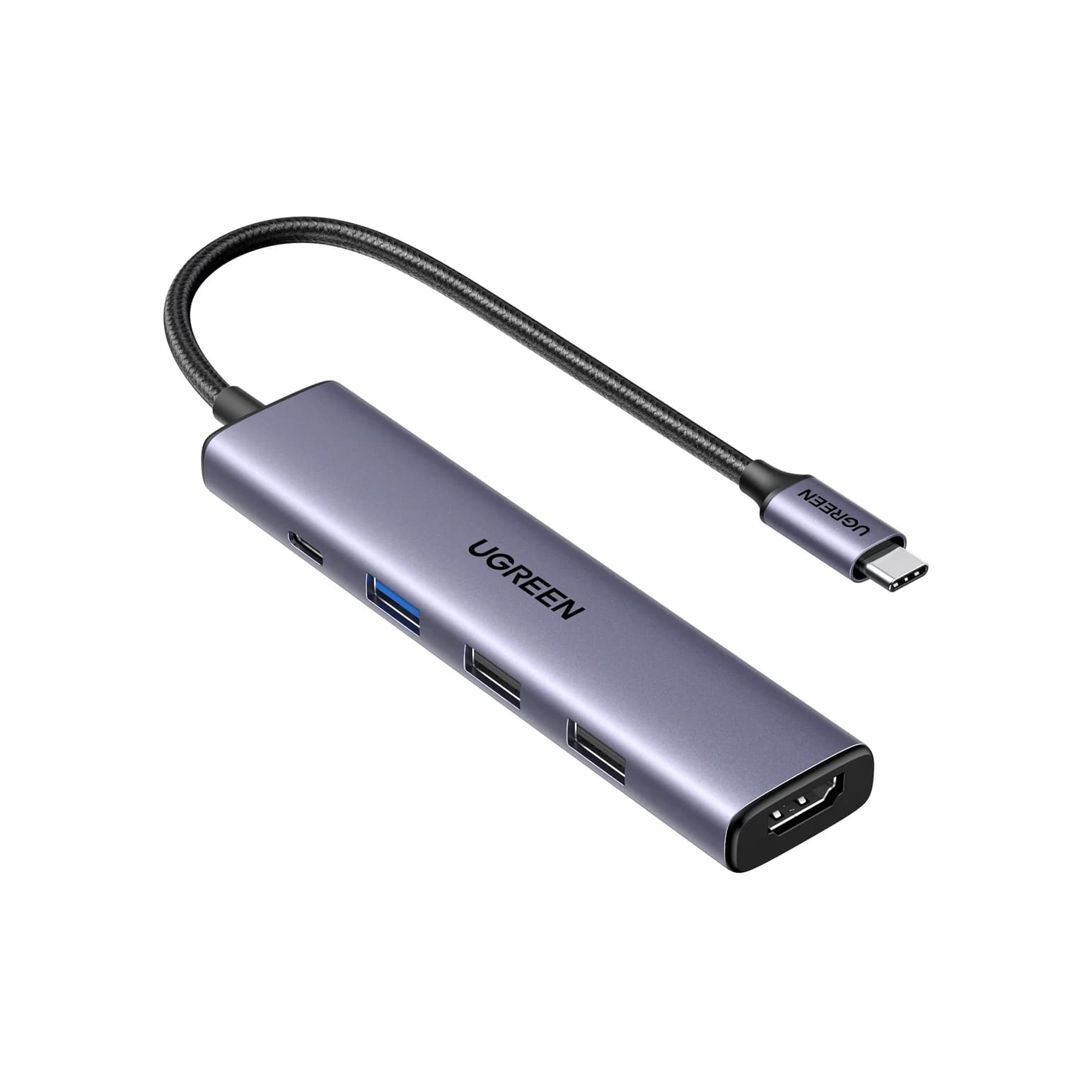
Best budget: UGREEN Revodok 105 (5-in-1)
UGREEN
UGREEN Revodok 105 USB-C Hub (5-in-1)
A small 5-in-1 USB-C hub with 4K@30Hz HDMI, one 5Gbps USB-A port, two USB 2.0 USB-A ports and 100W PD input.
- 95W PD passthrough
- 5 Gbps data
- 4K30 video
- 5 ports
If you need HDMI for a TV or a hotel monitor and somewhere to plug a mouse dongle and a flash drive, the Revodok 105 covers it. UGREEN lists one HDMI port at 4K@30Hz, one 5Gbps USB-A port, two USB 2.0 USB-A ports and a 100W PD input that passes up to 95W to the laptop.
Why it stands out: It passes more charging power to the laptop than most hubs, in a body small enough for any bag.
Watch out for: 4K@30Hz feels sluggish as a daily desktop on a 4K monitor; it's fine for 1080p and 1440p screens and for presentations. No card reader. For other small options, see our best portable USB hubs.
See the UGREEN Revodok 105 on Amazon
How we choose
We don't physically test products. Each pick comes from:
- Apple's own limits. Apple's tech specs and display support pages for each Apple silicon MacBook Air, because the chip decides how many monitors you get.
- Manufacturer spec sheets. Ports, speeds, wattages and resolutions come from UGREEN's, Anker's and Plugable's official pages, linked in each product card.
- Standards. We check claims against DisplayPort Alt Mode, USB Power Delivery and USB 3.2. A hub that says "4K" without a refresh rate usually means 30Hz.
- Known buyer patterns. The most common MacBook Air mistake is buying a dual-HDMI hub and expecting two extended screens.
We also confirm each Amazon listing matches the manufacturer's model.
Buying guide: matching a hub to your MacBook Air
Charging. Apple usually ships the MacBook Air with a 30W or 35W adapter (the M5 Air gets a 40W adapter that can reach 60W) and lists fast charging with a 70W or higher USB-C charger. A hub with a 100W PD input passes about 85 to 95W to the laptop, so pair it with a 100W charger; see our best USB-C chargers. Or keep charging over MagSafe and leave both Thunderbolt ports for accessories.
Refresh rate. For a 4K monitor, insist on 4K@60Hz. Our best USB-C hubs with HDMI guide explains HDMI versions and refresh rates in detail.
Data speed. 5Gbps is fine for a keyboard, mouse or flash drive. If you edit photos or video from a portable SSD, look for 10Gbps ports. Our USB-C vs USB-A explainer covers connectors and speeds.
DisplayLink or not. If your Air already supports the number of monitors you want, skip DisplayLink: native video has no driver, no compression and no HDCP caveats. DisplayLink earns its place only when the chip's limit is the problem.
Verdict
Get the UGREEN Revodok Pro 108 if you want one hub that does everything a MacBook Air usually needs. Owners of an M4 or M5 Air who want two monitors should get the Anker 547, which keeps a full Thunderbolt port. On an M1, M2 or M3 that needs two extended monitors with the lid open, the Plugable UD-6950PDH is the dependable route, and the Plugable USBC-6950M does the same job in a bag. Choose the Anker 555 for Ethernet and the UGREEN Revodok 105 if you just need HDMI and USB-A.
Frequently asked questions
Can a MacBook Air run two external monitors?
It depends on the chip. Apple lists one external display for M1 and M2 models. The M3 MacBook Air supports two, but only with the lid closed, on macOS Sonoma 14.3 or later, and with an external keyboard and mouse. M4 and M5 models support two external displays with the lid open. On M1, M2, or an M3 with the lid open, a DisplayLink dock or adapter is the workaround.
Why does my dual-HDMI hub show the same picture on both monitors?
macOS does not support DisplayPort MST, the feature that lets one USB-C port split into two independent video streams on Windows. On a Mac, a single-cable hub with two HDMI ports either mirrors the same image on both screens or lights up only one. To extend across two monitors, use a MacBook Air that supports two displays and give each monitor its own port, or use a Thunderbolt or DisplayLink dock.
Do USB-C hubs need drivers on a MacBook Air?
Standard USB-C hubs do not. HDMI over DisplayPort Alt Mode, USB ports, card readers and common Ethernet chips work natively on current macOS. DisplayLink products are the exception: they need the free DisplayLink Manager app from Synaptics, and macOS asks you to allow Screen Recording for it. Plugable also notes that HDCP-protected streaming video won't play on DisplayLink screens.
What charger should I use with a hub on a MacBook Air?
Apple says the MacBook Air M2, M3 and M4 fast-charge with a 70W or higher USB-C adapter, and the M5 page says the same. Most hubs keep about 15W for themselves, so a 100W charger plugged into the hub leaves around 85W for the laptop, which is plenty. A 30W or 35W charger through a hub will still charge, just slowly. You can also leave the hub uncharged and use MagSafe.
Do these hubs work with the MacBook Neo?
Single-cable USB-C hubs with HDMI generally work, with limits. Apple says the MacBook Neo supports one external display up to 4K at 60Hz, through its left USB-C port, and its ports are USB-C rather than Thunderbolt. Anker states the 547 does not work with the MacBook Neo. DisplayLink support depends on the product, so check the maker's compatibility list first.
Related guides
Best USB-C Hubs for iPad in 2026 (iPad Pro M5, iPad Air M4, iPad mini and iPad A16)
Which USB-C hub suits your iPad: port speeds, 4K vs 6K displays, extended vs mirrored screens, charging through a hub, SD readers, Ethernet and headphones.
Updated October 22, 2026Read
Best USB-C Hubs for Chromebook in 2026: Monitors, Ethernet and Charging
USB-C hubs that suit Chromebooks: which ports carry video, MST vs DisplayLink for two monitors, Ethernet chips ChromeOS supports, and charging through a hub.
Updated October 22, 2026Read
Why Is My Monitor Stuck at 30Hz? USB-C Hub, Cable and Mac Fixes
4K monitor stuck at 30Hz on a USB-C hub? The usual causes are HDMI 1.4, DisplayPort lanes shared with USB data, the cable or MST. How to check and fix it.
Updated October 22, 2026Read