Explainer
USB-C vs USB-A Explained: Speed, Power and Video in 2026
USB-C vs USB-A in plain English: what each connector can carry, what 5Gbps to 80Gbps means, how charging works, and which hub or dock fits your ports.
By thisUSB EditorialUpdated September 27, 20266 min read2 picks
Our picks at a glance
- See on Amazon1
Best bridge between USB-C and USB-A
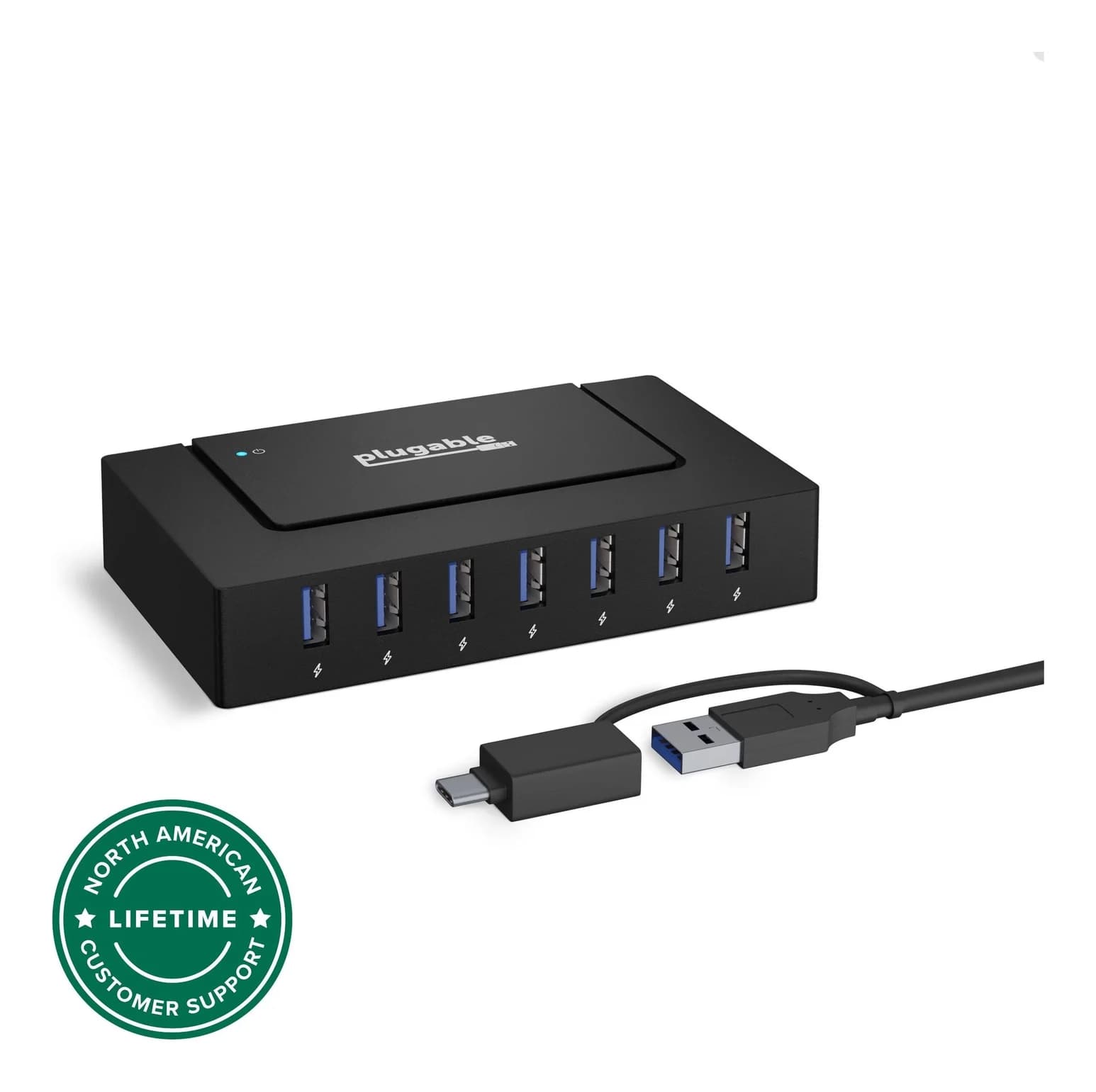
Plugable USB 3.0 and USB-C 7-Port Charging Hub5 Gbps data · 7 ports
- See on Amazon
USB-A is the flat rectangular plug that only goes in one way. USB-C is the small oval that fits either way up. The shape tells you whether a plug fits. It doesn't tell you the speed, the charging power or whether a monitor will work. Those depend on the standard behind the port.
In short, USB-A is fine for keyboards, mice, printers and flash drives. USB-C is where laptop charging, video and the fastest data speeds are. If you have both kinds of port and just need more room for accessories, a powered hub like the Plugable USBC-HUB7BC, which plugs into either port type, covers both.
The 30-second answer
| If you need to… | Use |
|---|---|
| Plug in keyboards, mice, receivers, printers | USB-A is fine |
| Charge a laptop | USB-C with USB Power Delivery |
| Connect a monitor without drivers | USB-C with DisplayPort Alt Mode, Thunderbolt or USB4 |
| Get the fastest external SSD speeds | USB-C (10Gbps or faster) |
| Run a whole desk from one cable | USB-C Thunderbolt or USB4 dock |
Connector, speed and features are separate things
People use "USB-C" to mean three different things: a connector shape, a data speed and a charging port. These don't always come together.
| What you're checking | What it tells you | What it doesn't guarantee |
|---|---|---|
| Connector (A or C) | Whether the plug fits | Speed, wattage or video |
| USB version / speed | Maximum data rate | Charging or video |
| USB Power Delivery | Whether the port can charge a laptop | Video output |
| DisplayPort Alt Mode | Whether a USB-C port can drive a monitor | Charging or data speed |
| Thunderbolt / USB4 | High bandwidth and dock support | That every accessory uses it |
That's why the same USB-C hub can work well on one laptop and poorly on another. A hub only passes through what the host port supports. If the laptop's USB-C port is data-only, the hub's HDMI port won't work.
Data speeds: what the numbers mean
USB naming has changed several times, so the same speed goes by several names. Here's the full list, with which connector each speed can use:
| Speed | Names you'll see | USB-A? | USB-C? |
|---|---|---|---|
| 480Mbps | USB 2.0 | Yes | Yes |
| 5Gbps | USB 3.0, USB 3.1 Gen 1, USB 3.2 Gen 1, "USB 5Gbps" | Yes | Yes |
| 10Gbps | USB 3.1 Gen 2, USB 3.2 Gen 2, "USB 10Gbps" | Yes (less common) | Yes |
| 20Gbps | USB 3.2 Gen 2x2, "USB 20Gbps" | No | Yes |
| 40Gbps | USB4, Thunderbolt 3, Thunderbolt 4 | No | Yes |
| 80Gbps (120Gbps boost) | USB4 v2, Thunderbolt 5 | No | Yes |
For everyday accessories, 5Gbps is plenty. It's far more than a keyboard, webcam or hard drive needs. Speeds of 10Gbps and above matter for external SSDs, and 40Gbps and above for docks, fast storage and multiple monitors.
Everything runs at the speed of its slowest link. A 10Gbps SSD on a 5Gbps hub runs at 5Gbps. A hub can't make a slower port faster.
Power: why USB-C charges laptops and USB-A doesn't
| Source | Typical power |
|---|---|
| USB 2.0 port (USB-A) | 500mA at 5V, 2.5W |
| USB 3.x port (USB-A) | 900mA at 5V, 4.5W |
| Battery Charging 1.2 port | Up to 1.5A at 5V, 7.5W |
| USB-C without PD | 1.5A or 3A at 5V, up to 15W |
| USB-C with Power Delivery | Up to 100W (20V, 5A) |
| USB-C with PD 3.1 EPR | Up to 240W (48V, 5A) |
USB Power Delivery lets the charger and device agree on a higher voltage, and that's only defined for USB-C. It's also why cables matter. A USB-C cable without an e-marker chip is limited to 3A (60W), 100W needs a 5A e-marked cable, and 240W needs a 240W (EPR) cable. Our fast-charging cable guide goes into detail, and our USB-C charger guide covers per-port wattage splits.
A powered USB-A hub gets around USB-A's power limit for accessories by using its own adapter. It still can't charge your laptop.
Video: only USB-C can do it natively
Monitors connect over USB in two main ways. With DisplayPort Alt Mode, the USB-C port carries a DisplayPort signal directly. With Thunderbolt or USB4, video is tunneled alongside data. Both work only over USB-C. USB-A has no video path. The workaround is a DisplayLink adapter, which compresses video over regular USB data and needs a driver.
Even among USB-C ports, video isn't guaranteed. Many laptops have one or two USB-C ports that support video and others that don't. Phones and budget devices often have none.
How to identify your ports
Look for the small icon next to the port, or check the laptop maker's spec page:
- Lightning bolt: Thunderbolt. Supports video, docks and high speeds.
- DisplayPort "D" symbol: USB-C with DisplayPort Alt Mode. A monitor will work.
- SS or SS10: SuperSpeed USB at 5Gbps or 10Gbps.
- USB logo with a number (such as 40): USB speed labeling in Gbps.
- Battery or plug icon: The port accepts charging.
- No icon: Possibly USB 2.0 or data-only. Check the spec sheet before counting on video or fast speeds.
Which hub or dock fits your setup
Desktop or laptop with spare USB-A ports, need more for accessories. A USB-A hub is the simplest option. If you connect drives or charge gadgets, get a powered one.
Sabrent
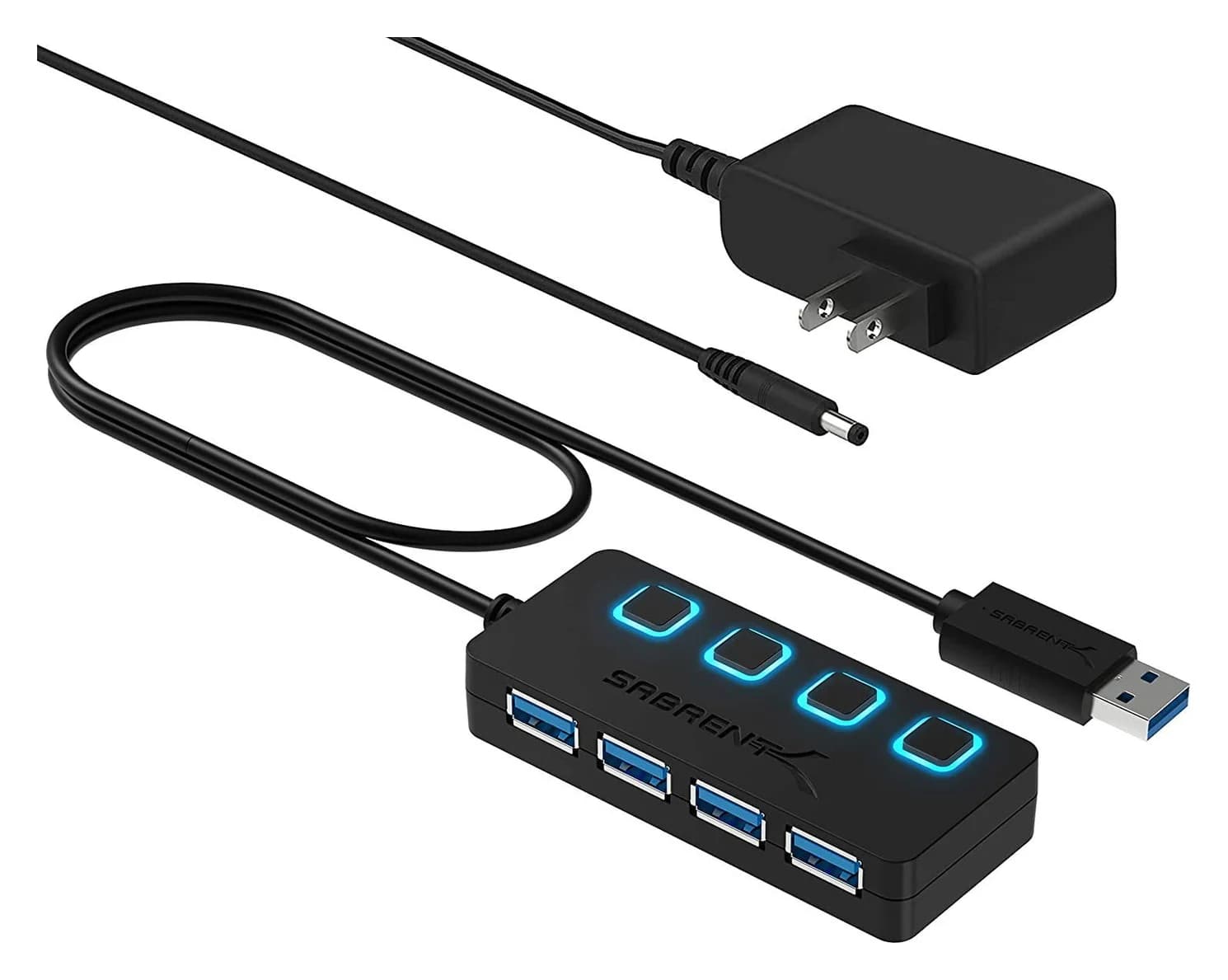
Sabrent 4-Port USB 3.0 Hub with Power Switches
A compact powered 4-port USB-A 3.0 hub with individual LED power switches and a 5V/2.5A adapter.
- 5 Gbps data
- 4 ports
The Sabrent HB-UMP3 adds four 5Gbps USB-A ports with per-port switches and its own 5V/2.5A adapter. See it on Amazon.
Mixed household, some USB-C laptops and some USB-A desktops. A hub with a hybrid cable avoids needing adapters.
Plugable
Plugable USB 3.0 and USB-C 7-Port Charging Hub
A powered 7-port USB-A hub with a 60W adapter and a 2-in-1 cable that connects to USB-C or USB-A computers.
- 5 Gbps data
- 7 ports
The Plugable USBC-HUB7BC has seven 5Gbps USB-A ports and a 60W adapter, and its 2-in-1 cable plugs into USB-C or USB-A computers. It doesn't charge laptops or output video. See it on Amazon.
USB-C laptop that needs a monitor, Ethernet and an SD card. Get a USB-C hub with HDMI and PD pass-through. See our USB-C hubs with HDMI, USB-C hubs for MacBook and USB-C hubs for Windows laptops guides.
One-cable desk with two monitors. Get a Thunderbolt or USB4 dock. See best Thunderbolt docks.
Travel. See best portable USB hubs.
How we put this together
This explainer is based on the USB-IF's published USB 2.0, USB 3.2, USB4 and USB Power Delivery specifications, Intel's Thunderbolt specifications, and the product pages of the hubs mentioned. We haven't physically tried these hubs. Product details come from Plugable's and Sabrent's spec sheets.
Common problems and fixes
| Symptom | Likely cause | What to try |
|---|---|---|
| HDMI on a USB-C hub shows nothing | Host port lacks video support | Try another USB-C port; check for DisplayPort or Thunderbolt support in the laptop specs |
| Laptop charges slowly via USB-C | Cable limited to 60W, or charger too small | Use a 5A or 240W e-marked cable and a charger that matches the laptop |
| External drive disconnects on a hub | Not enough power | Use a powered hub, or plug the drive in directly |
| SSD slower than advertised | A slower link somewhere in the chain | Check the port, hub and cable speeds; all must match the drive |
| USB-C device won't work in USB-A port via adapter | Device needs USB-C-only features (PD, video) | Use a native USB-C port |
Verdict
USB-A isn't going away soon. It's still the right port for keyboards, mice, printers and receivers, and a powered USB-A hub handles those well. For charging laptops, driving monitors or getting the fastest speeds, you need USB-C, and specifically a USB-C port with Power Delivery, DisplayPort Alt Mode, or Thunderbolt/USB4. Check what your ports support before you buy a hub. Nearly every "my hub doesn't work" problem comes from a mismatch between the hub and the port.
Frequently asked questions
Is USB-C faster than USB-A?
Not by itself. The connector shape doesn't set the speed; the USB version behind it does. A USB-A port can run at 480Mbps, 5Gbps or 10Gbps. A USB-C port can run anywhere from 480Mbps to 80Gbps. The fastest modes, 20Gbps USB 3.2 Gen 2x2, 40Gbps USB4 and Thunderbolt, and 80Gbps USB4 v2 and Thunderbolt 5, exist only on USB-C, so the fastest ports are always USB-C.
Can USB-A charge a laptop?
No, not in practice. USB-A ports supply 500mA to 900mA at 5V by the USB spec, or up to 1.5A with Battery Charging 1.2. That's roughly 2.5W to 7.5W, which is fine for accessories and slow phone charging. Laptop charging over USB uses USB Power Delivery on USB-C, which reaches 100W, or 240W with PD 3.1 and a 240W cable.
Can I connect a monitor to a USB-A port?
Not natively. Video over USB uses DisplayPort Alt Mode or Thunderbolt/USB4 tunneling, and both exist only on USB-C. The exception is DisplayLink adapters, which compress video over ordinary USB data and need a driver installed. For a simple, driverless monitor connection, use a USB-C port that supports video.
What do USB 3.0, 3.1 Gen 1 and 3.2 Gen 1 mean?
They're the same 5Gbps speed under three names, because the USB standard was renamed twice. USB 3.1 Gen 2 and USB 3.2 Gen 2 both mean 10Gbps, and USB 3.2 Gen 2x2 means 20Gbps. The USB-IF now recommends simply labeling products by speed, such as USB 5Gbps, USB 10Gbps, USB 20Gbps, USB 40Gbps and USB 80Gbps.
Related guides
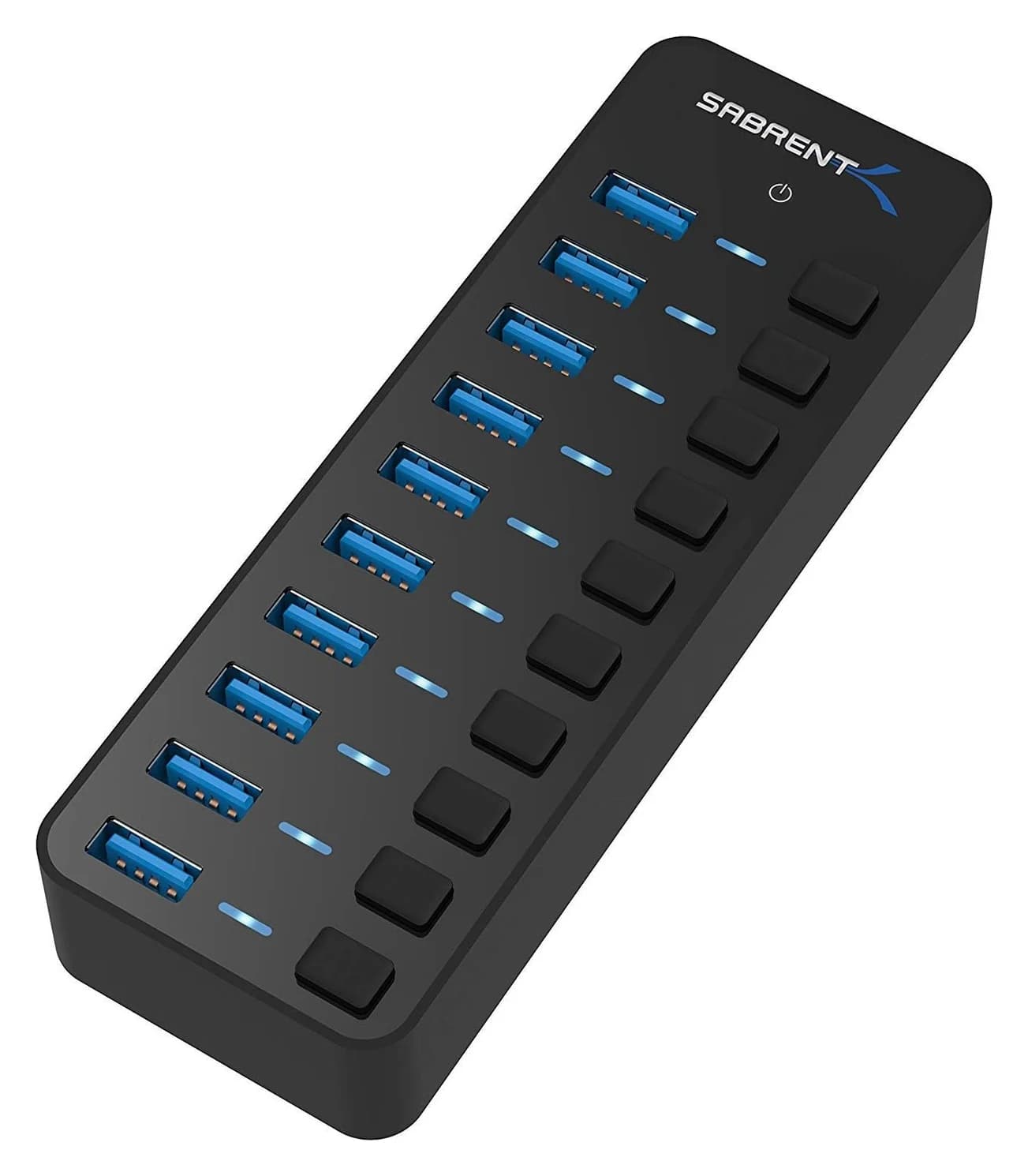
Best Powered USB Hubs in 2026
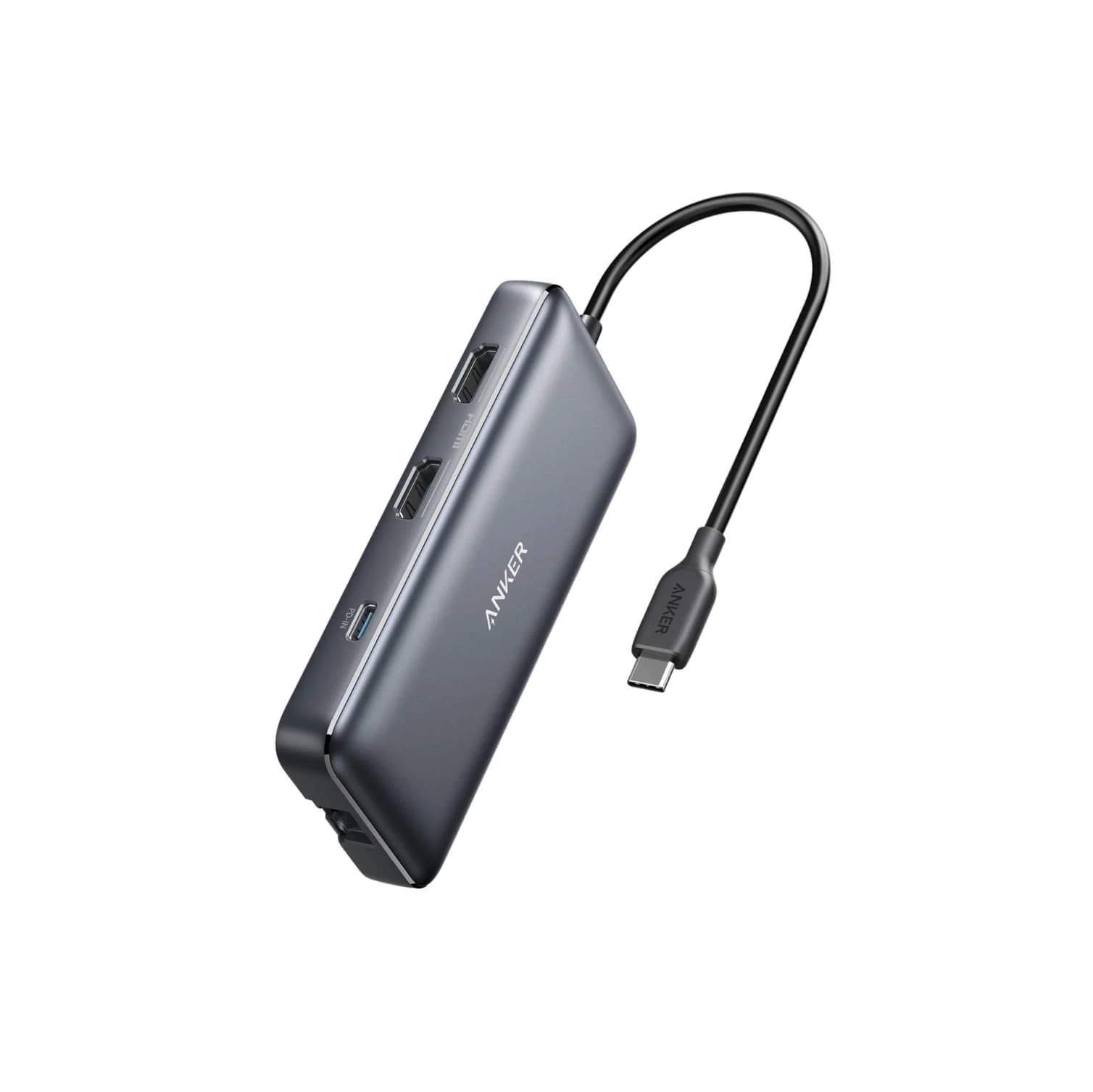
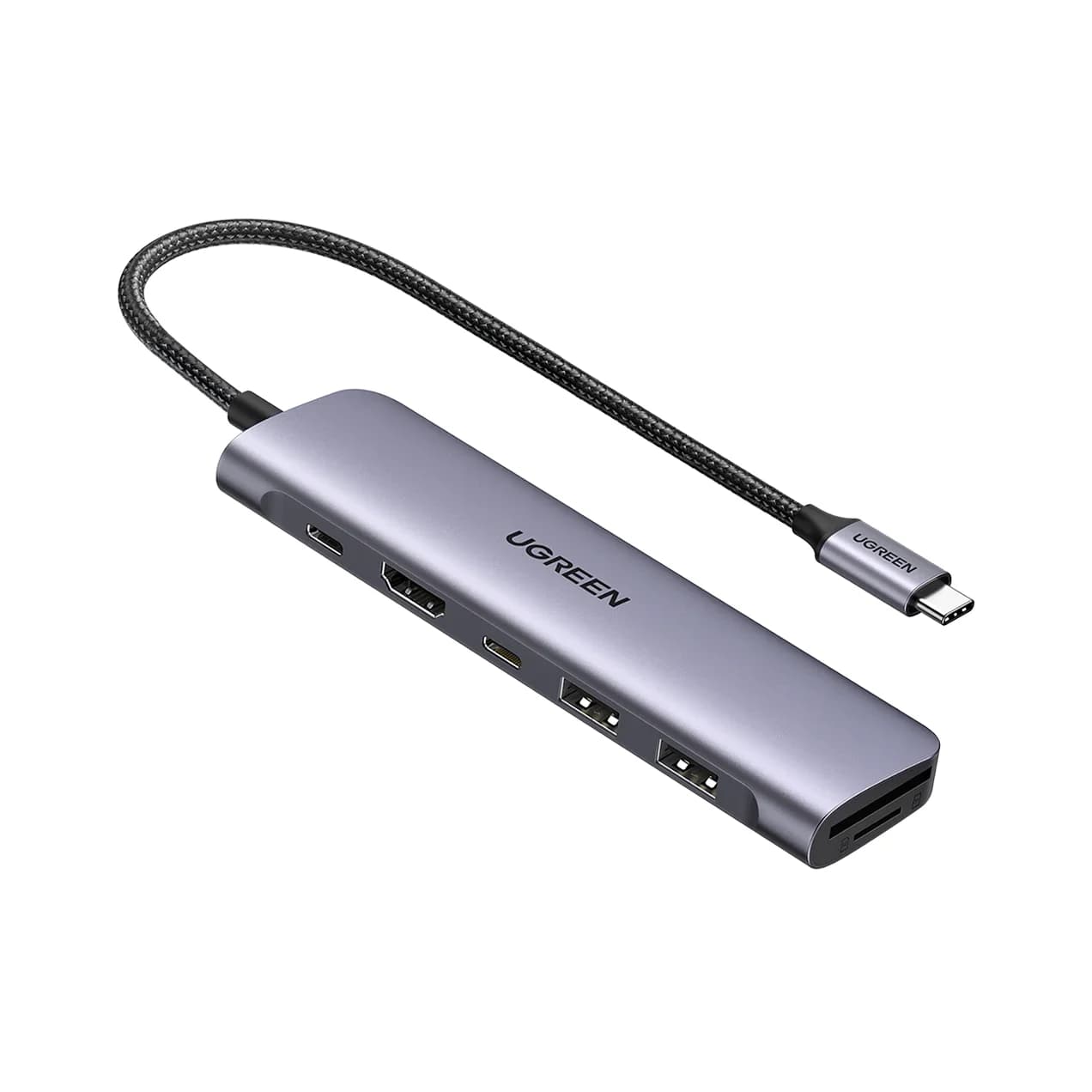
Powered USB hubs that keep drives, webcams and chargers stable. Compare 4, 7 and 10-port picks by adapter wattage, per-port charging and host connection.
Updated September 27, 2026Read
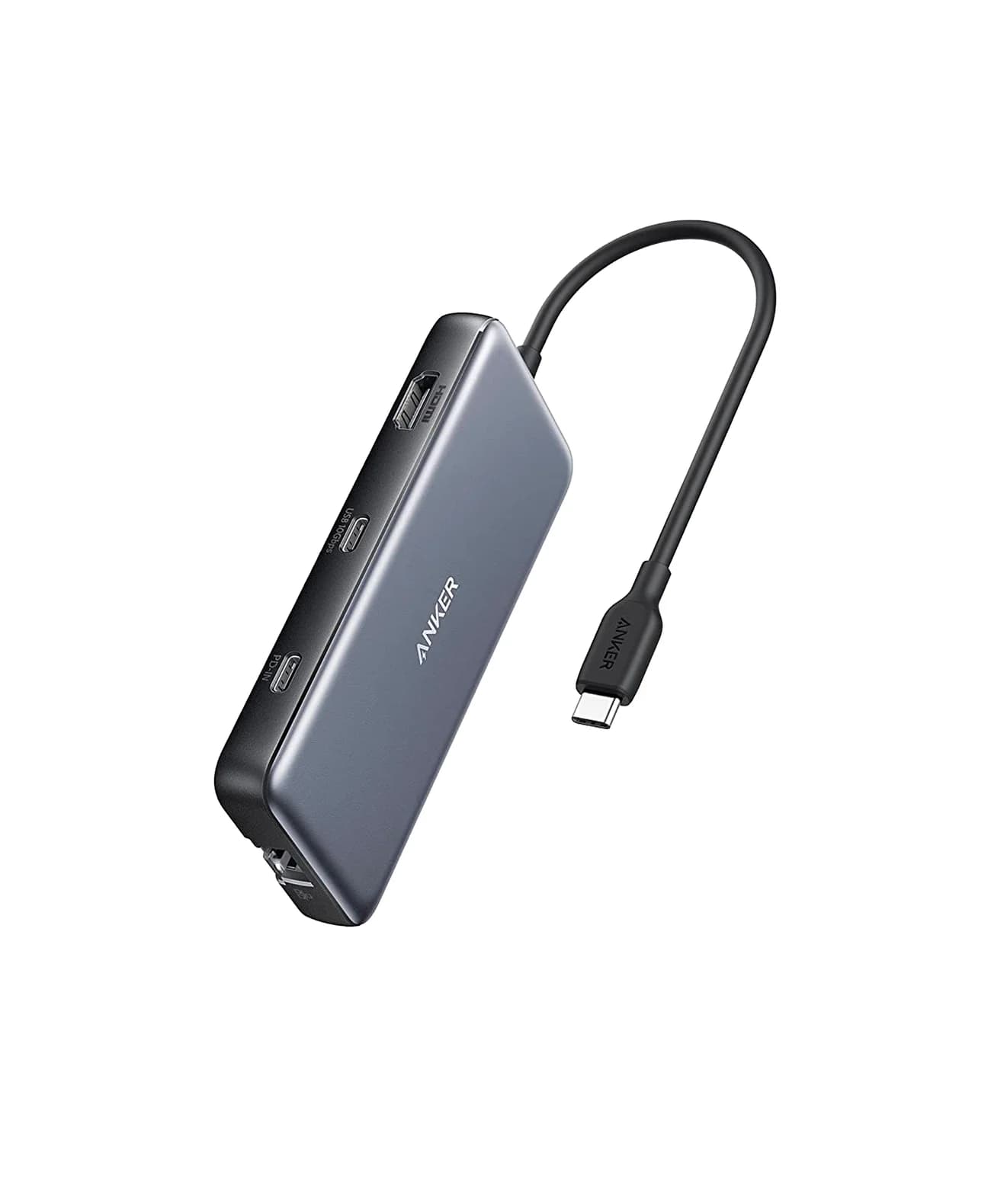
Best USB-C Hubs for Windows Laptops in 2026
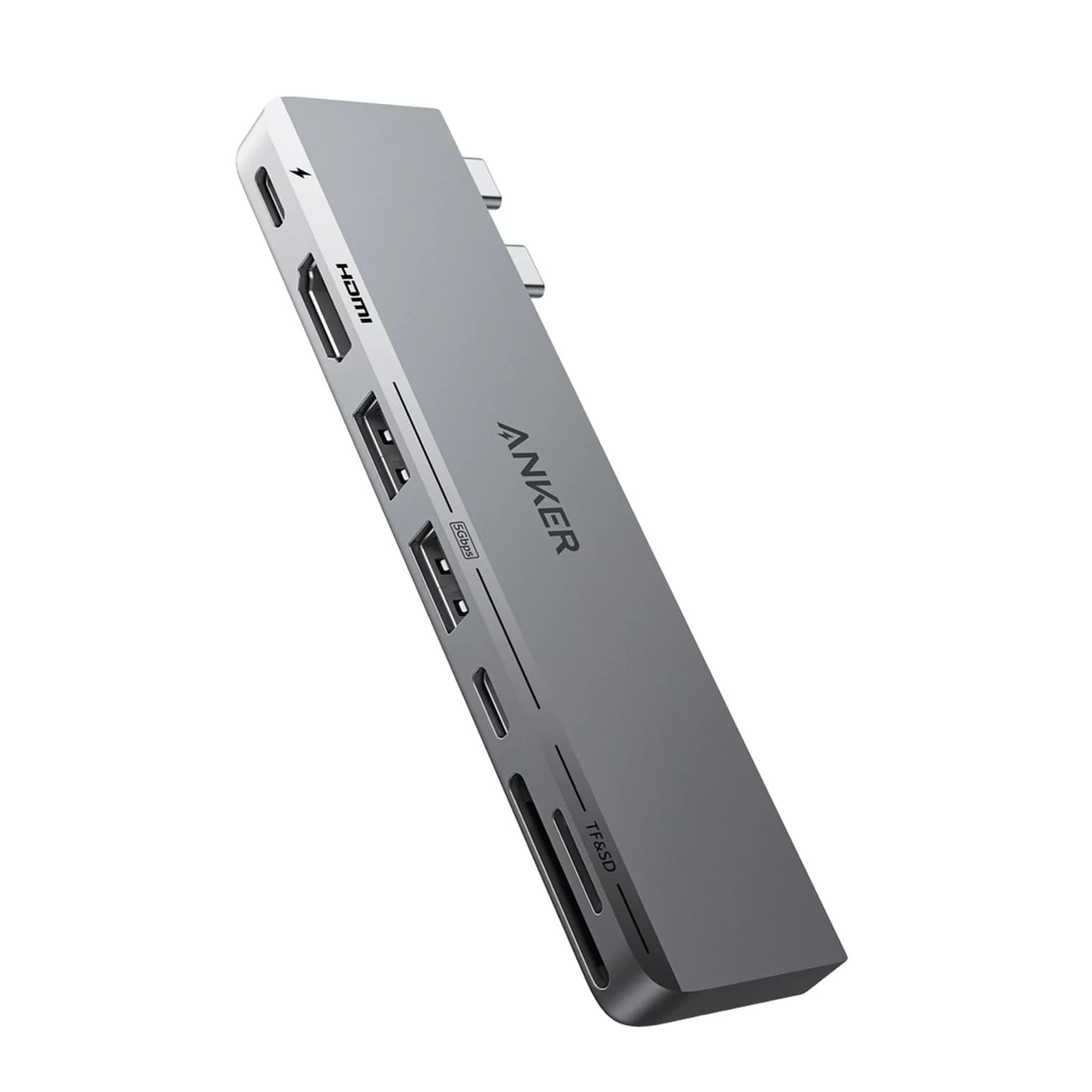
USB-C hubs for Dell, HP, Lenovo and ASUS laptops, picked from spec sheets. Covers 4K HDMI, dual monitors over MST, Ethernet and pass-through charging.
Updated September 27, 2026Read
Best USB-C Hubs for MacBook in 2026
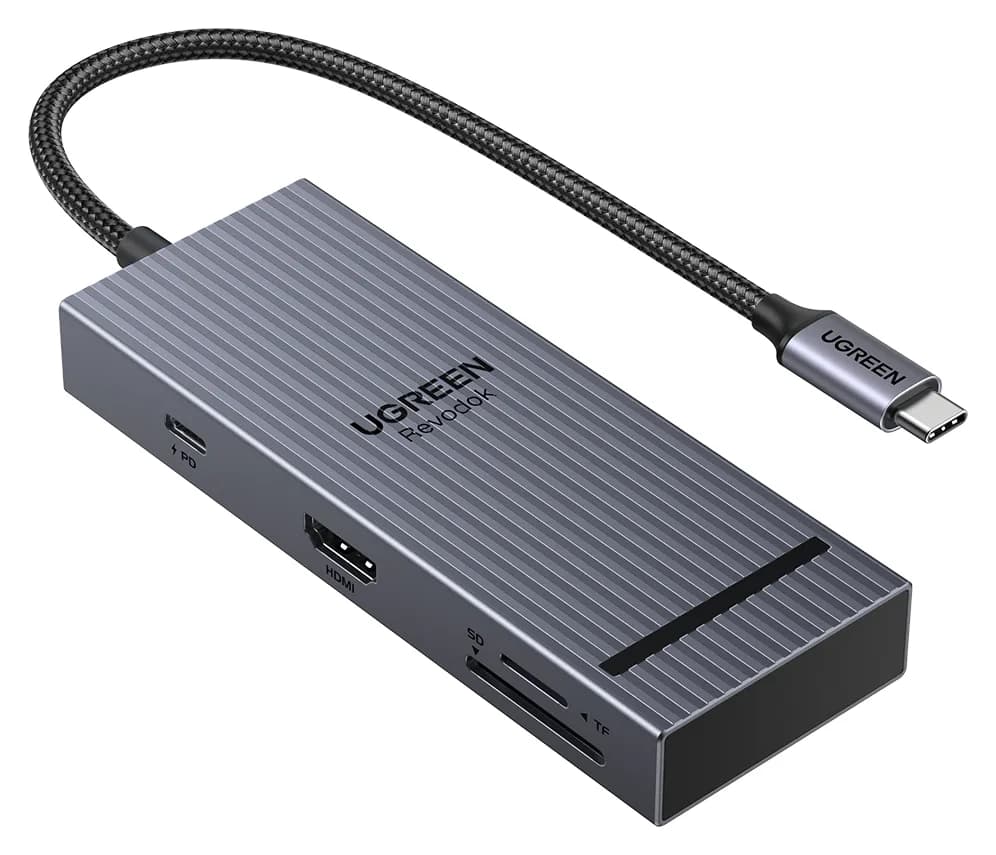
Add HDMI, USB-A, SD cards and Ethernet to your MacBook Air or Pro. We compare four USB-C hubs on spec sheets, display limits and macOS compatibility.
Updated September 27, 2026Read