Best picks
Best USB-C Hubs for Windows Laptops in 2026
USB-C hubs for Dell, HP, Lenovo and ASUS laptops, picked from spec sheets. Covers 4K HDMI, dual monitors over MST, Ethernet and pass-through charging.
By thisUSB EditorialUpdated September 27, 20266 min read4 picks
Our picks at a glance
- See on Amazon
- See on Amazon2
Best for two monitors
Anker 553 USB-C Hub (8-in-1, dual HDMI)85W PD passthrough · 5 Gbps data · 4K60 video · 8 ports
- See on Amazon3
Best budget all-rounder
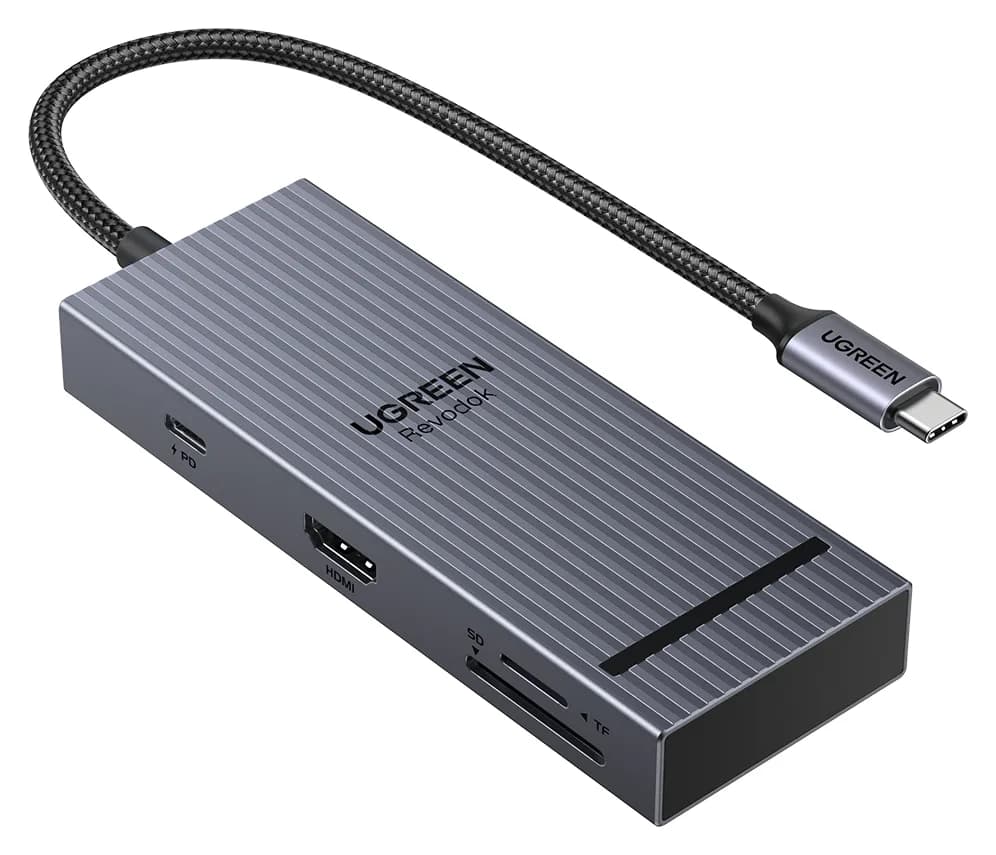
UGREEN Revodok 1071 USB-C Hub (7-in-1)95W PD passthrough · 5 Gbps data · 4K30 video · 7 ports
- See on Amazon
For most Windows laptops, the Anker 555 USB-C Hub (8-in-1) is the best choice: it adds 4K@60Hz HDMI, gigabit Ethernet, 10Gbps USB and a card reader without any drivers. If you need two external monitors from one USB-C port, the Anker 553 is the dual-HDMI option, with limits we explain below.
Windows laptops vary more than Macs. The same USB-C connector can mean full Thunderbolt on one model and data-only on another. So these picks are chosen from manufacturer spec sheets and compatibility notes, with the host requirements spelled out. We have not physically handled these hubs.
Quick picks
| Hub | Displays | Network | Data | Laptop charging |
|---|---|---|---|---|
| Anker 555 (8-in-1) | 1x HDMI, 4K@60Hz on DP 1.4 hosts | Gigabit | 10Gbps | Up to 85W |
| Anker 553 (8-in-1) | 2x HDMI; dual up to 2K@60Hz | Gigabit | 5Gbps | Up to 85W |
| UGREEN Revodok 1071 | 1x HDMI, 4K@30Hz | None | 5Gbps | Up to 95W |
| Anker 332 (5-in-1) | 1x HDMI, 4K@30Hz | None | 5Gbps | Up to 85W |
Check price on Amazon through the links; we don't quote prices because they change frequently.
Check your laptop's USB-C port first
Before buying any hub, look up three things in your laptop's spec sheet:
- Video over USB-C. The port needs DisplayPort Alt Mode, Thunderbolt or USB4. Look for a small DisplayPort (D) or lightning-bolt icon next to the port.
- DisplayPort version. Anker and UGREEN both note that 4K@60Hz through their hubs needs DP 1.4. Older or budget laptops with DP 1.2 get 4K@30Hz.
- USB-C charging input. Pass-through charging only works if the laptop charges over USB-C. Laptops with barrel chargers will use the hub for ports only.
Many business laptops from Dell, HP and Lenovo meet all three on at least one port. Budget and gaming models are more mixed.
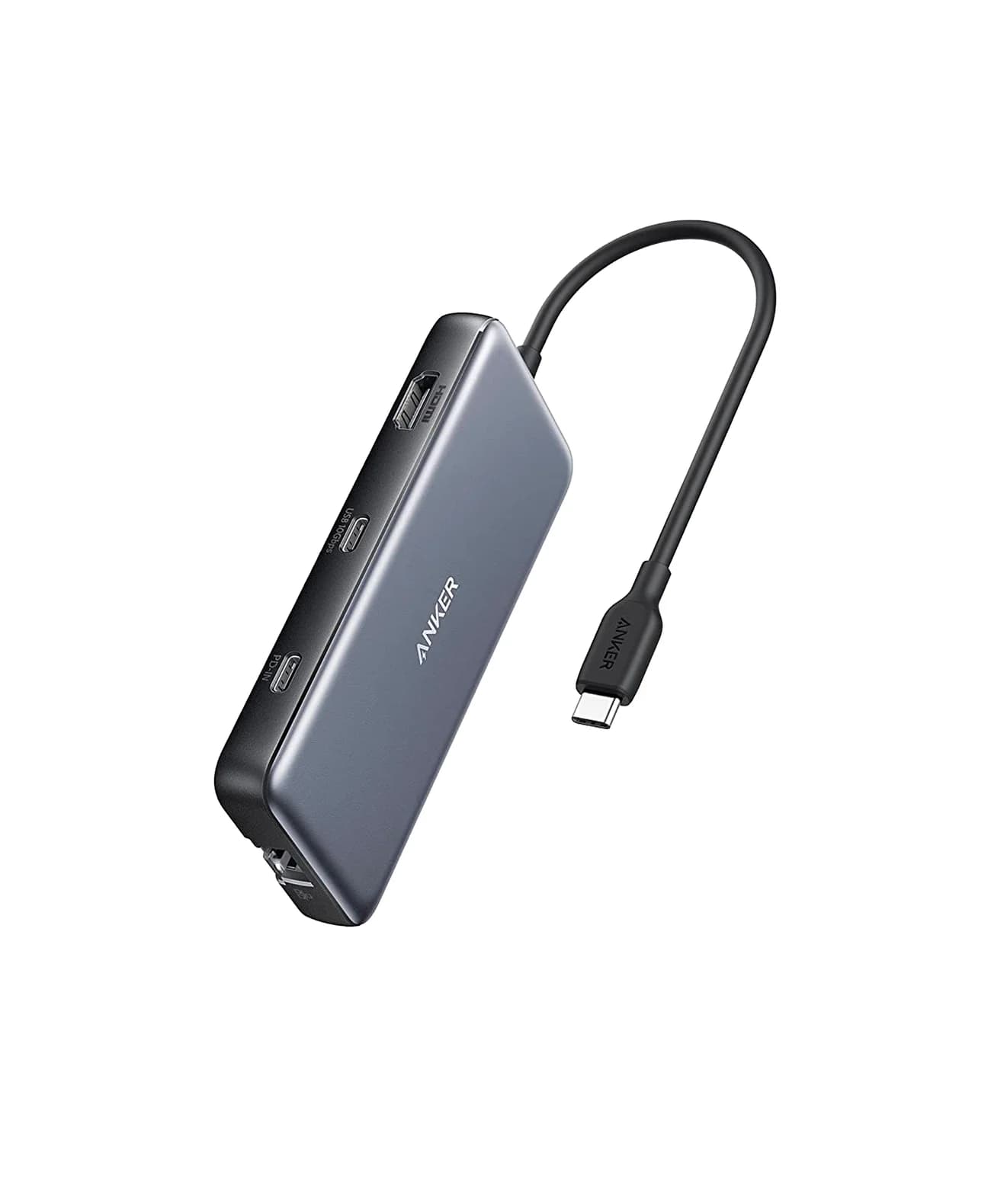
Best overall: Anker 555 (8-in-1)
Anker
An 8-in-1 USB-C hub with 4K@60Hz HDMI, gigabit Ethernet, 10Gbps USB-C and USB-A data ports, SD/microSD readers and 85W pass-through charging.
- 85W PD passthrough
- 10 Gbps data
- 4K60 video
- 8 ports
The Anker 555 covers what a typical Windows work laptop needs. Anker's spec sheet lists:
- HDMI 2.0 with HDR and HDCP 2.2, 4K@60Hz on DP 1.4 laptops, 4K@30Hz on DP 1.2 laptops
- Gigabit Ethernet
- One 10Gbps USB-C data port and two 10Gbps USB-A ports
- SD and microSD (UHS-I)
- 100W PD input, up to 85W to the laptop
Anker lists Windows 10 and 11 support for laptops with DP Alt Mode and Power Delivery, so there's nothing to install.
Why it stands out: Ethernet and fast USB together, which matters for video calls and moving large files.
Watch out for: One display only. The USB-C data port doesn't carry video.
Best for two monitors: Anker 553 (8-in-1)
Anker
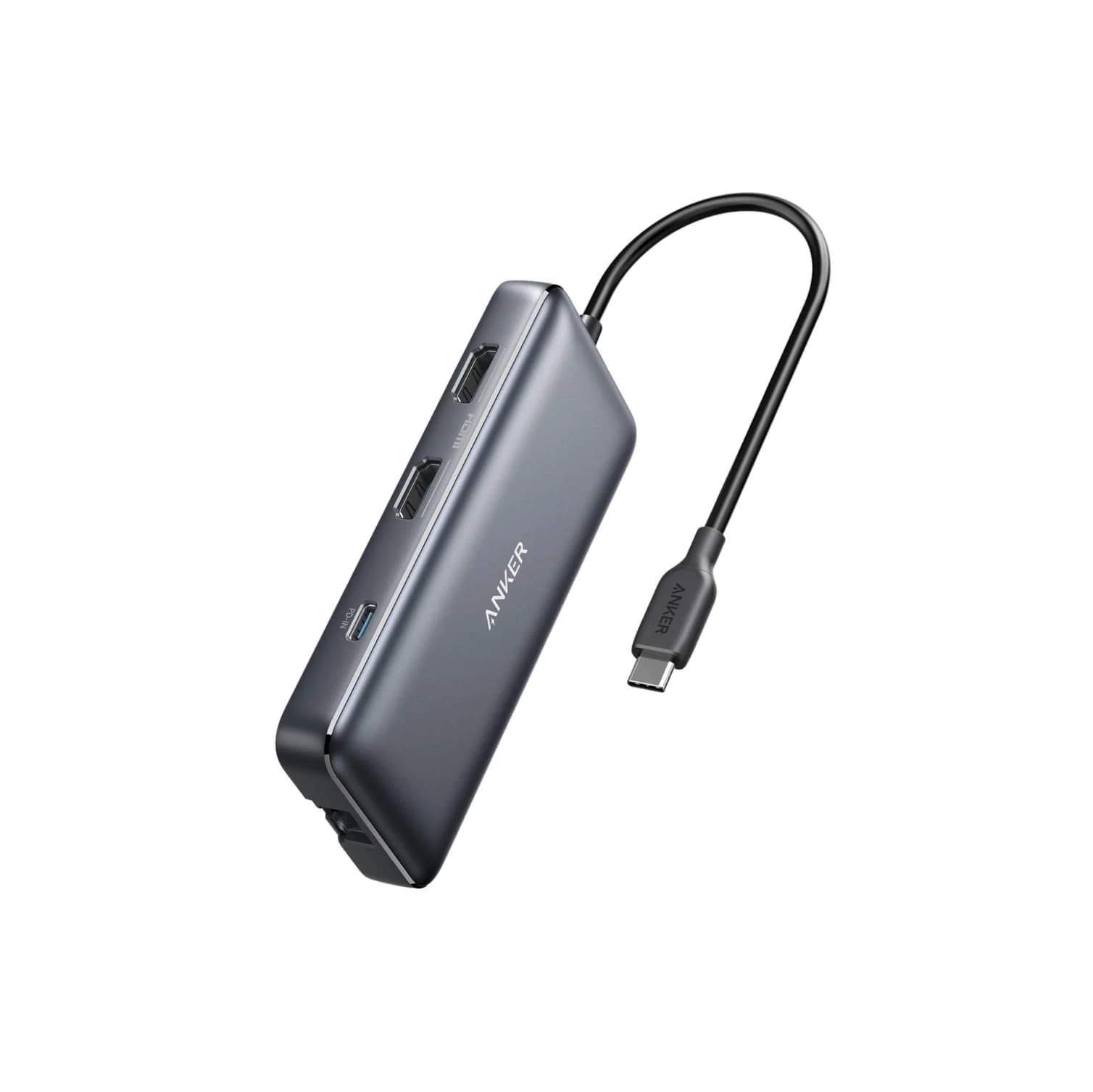
Anker 553 USB-C Hub (8-in-1, dual HDMI)
An 8-in-1 USB-C hub with two HDMI ports, gigabit Ethernet, USB-A data ports, SD/microSD readers and 85W pass-through charging; dual extended displays rely on MST, which Macs do not support.
- 85W PD passthrough
- 5 Gbps data
- 4K60 video
- 8 ports
The Anker 553 adds two HDMI ports, gigabit Ethernet, USB-A data ports (5Gbps), SD/microSD and up to 85W pass-through. It uses MST, which lets many Windows laptops extend two separate displays from one USB-C port without a driver.
The trade-off is resolution. Per Anker's spec sheet:
| Host port | One display | Two displays (Windows) |
|---|---|---|
| DP 1.4 | 4K@60Hz | 2K@60Hz each |
| DP 1.2 | 4K@30Hz | 1080p@60Hz each |
Anker also notes that some laptops without Display Stream Compression, including the Surface Pro 7 and HP Spectre x360, won't reach 4K@60Hz.
Why it stands out: Two extended screens from one port, driver-free, on laptops that support MST.
Watch out for: Two 4K monitors will run below 4K. On a Mac, both screens mirror. If you need two full 4K screens, look at our best Thunderbolt docks.
Best budget all-rounder: UGREEN Revodok 1071 (7-in-1)
UGREEN
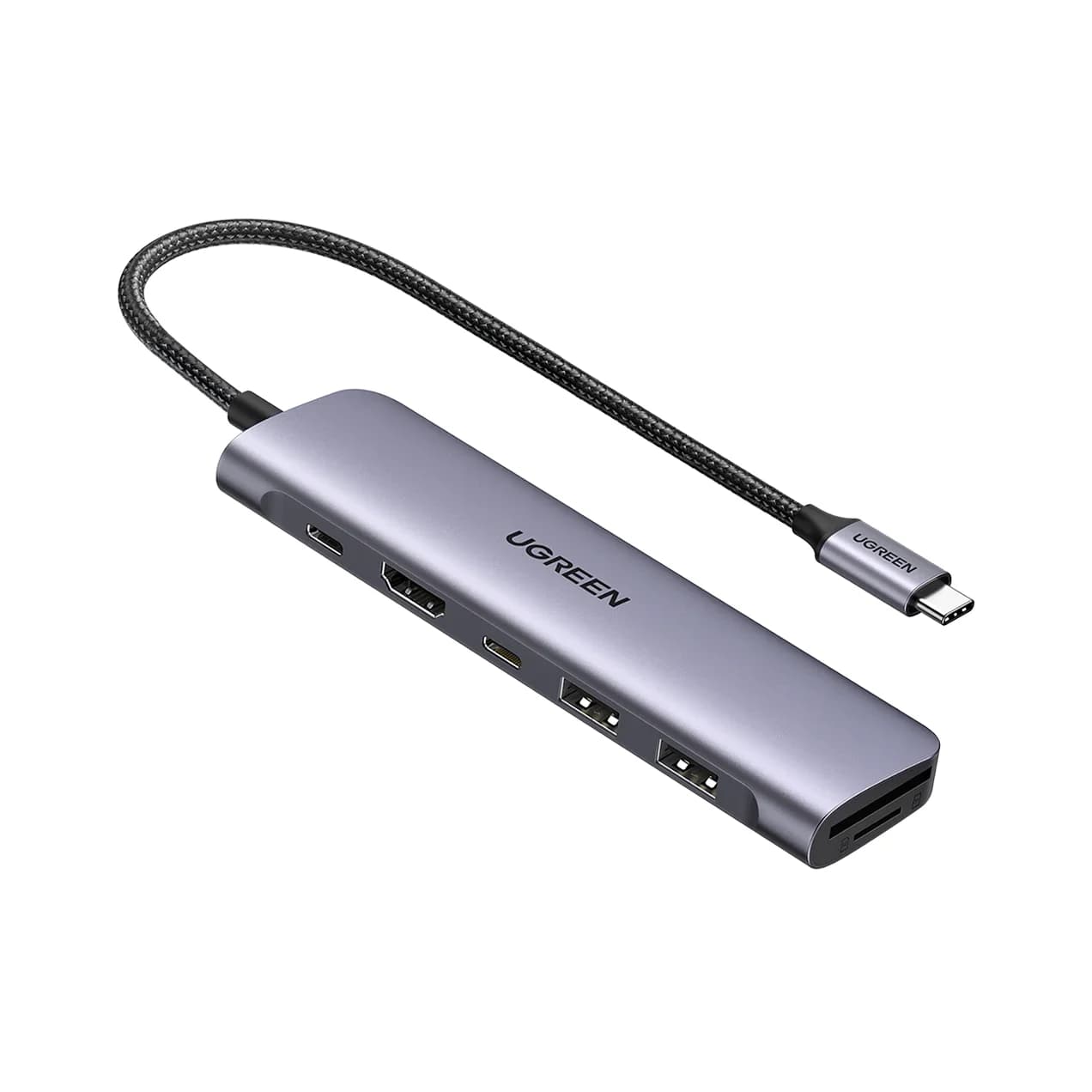
UGREEN Revodok 1071 USB-C Hub (7-in-1)
A 7-in-1 USB-C hub with 4K@30Hz HDMI, a 5Gbps USB-C data port, two 5Gbps USB-A ports, SD/microSD readers and 100W PD input.
- 95W PD passthrough
- 5 Gbps data
- 4K30 video
- 7 ports
If your monitor is 1080p or 1440p and you don't need Ethernet, the Revodok 1071 covers a lot. UGREEN lists a 4K@30Hz HDMI port, a 5Gbps USB-C data port, two 5Gbps USB-A ports, SD and microSD readers, and a 100W PD input with up to 95W to the laptop.
That 95W figure is higher than most hubs, which reserve 15W for themselves.
Why it stands out: Card readers, a USB-C data port and strong pass-through in a small body.
Watch out for: 4K@30Hz on a 4K monitor feels laggy. No Ethernet.
See the UGREEN Revodok 1071 on Amazon
Best simple hub: Anker 332 (5-in-1)
Anker
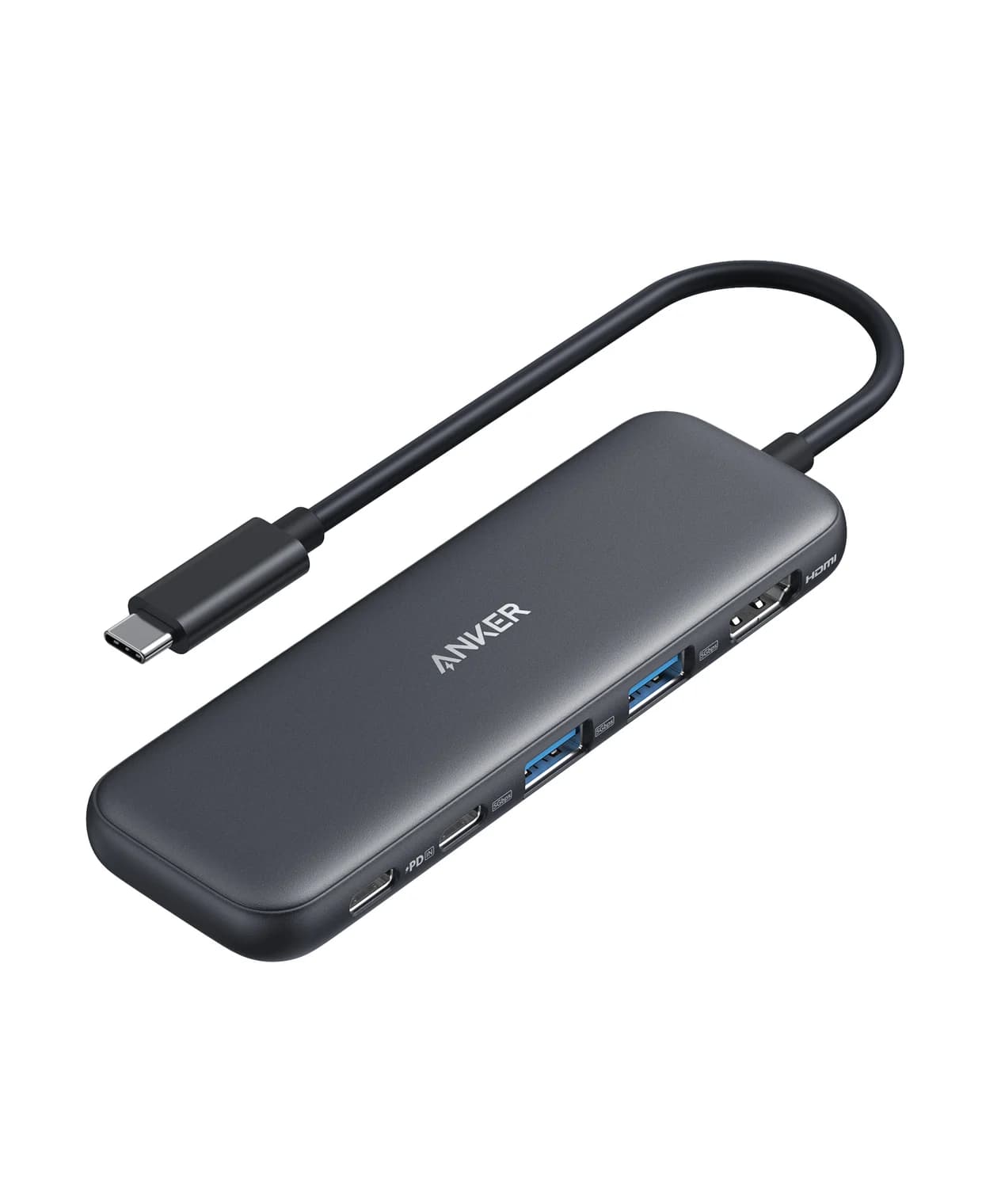
A slim 5-in-1 USB-C hub with 4K@30Hz HDMI, one 5Gbps USB-C data port, two 5Gbps USB-A ports and 85W pass-through charging.
- 85W PD passthrough
- 5 Gbps data
- 4K30 video
- 5 ports
The Anker 332 is for people who need a monitor, a mouse and a flash drive, and nothing else. Anker lists an HDMI 1.4 port rated 4K@30Hz, one 5Gbps USB-C data port, two 5Gbps USB-A ports and a 100W PD input with up to 85W to the laptop. It's slim enough to leave in a laptop bag.
Why it stands out: Simple, compact and includes a USB-C data port, which many 5-in-1 hubs skip.
Watch out for: 4K@30Hz only, no Ethernet or card reader.
Windows-specific gotchas
- Wrong port. Some laptops have one full-featured USB-C port and one that only charges and moves data. If the hub's HDMI is blank, try the other port.
- Firmware and graphics drivers. MST and USB-C display behavior often improve with BIOS, Thunderbolt and graphics driver updates from the laptop maker.
- Refresh rate stuck at 30Hz. Check Settings > System > Display > Advanced display, and make sure the HDMI cable supports 18Gbps.
- Wake from sleep. Buyers commonly report monitors or Ethernet not waking after sleep on some laptops. Updating firmware or unplugging and replugging the hub usually fixes it.
- Gaming laptops. Hubs rarely provide enough power for a gaming laptop under load. Use the original charger and treat the hub as a port expander.
Which hub fits which laptop?
| Laptop type | Typical USB-C port | Suggested pick |
|---|---|---|
| Business ultrabook (Thunderbolt or USB4) | DP 1.4, USB-C charging | Anker 555, or Anker 553 for two screens |
| Mid-range consumer laptop | Often DP Alt Mode, check spec sheet | Anker 555 or UGREEN Revodok 1071 |
| Budget laptop | May be data-only | Confirm DP Alt Mode first; Anker 332 for simple use |
| Gaming laptop | Mixed; barrel charger | Any hub for ports; keep the original charger |
| Windows tablet or 2-in-1 | Varies; some lack DSC | Anker 332 or Revodok 1071 |
When in doubt, search your laptop's model number plus "DisplayPort Alt Mode" and look for the manufacturer's spec page.
How we choose
We don't physically test products. Our picks come from:
- Manufacturer spec sheets from Anker and UGREEN, including display tables and footnotes.
- Standards: DisplayPort Alt Mode, MST, USB 3.2 speeds and USB Power Delivery behavior.
- Compatibility notes, such as Anker's list of laptops that can't reach 4K@60Hz.
- Patterns buyers commonly report, like MST quirks and wrong-port confusion.
We check that each Amazon listing matches the product on the maker's site and leave out anything we can't confirm.
Buying guide
One monitor at 4K: get a 4K@60Hz hub like the Anker 555 and confirm your laptop has DP 1.4. Our best USB-C hubs with HDMI guide goes deeper on refresh rates.
Two monitors: an MST hub like the Anker 553 works on many Windows laptops at reduced resolution. For two full-resolution screens, use a Thunderbolt or USB4 dock.
Wired internet: gigabit Ethernet is worth having for video calls in busy Wi-Fi areas.
Charging: use a 100W USB-C charger and a 100W-rated cable. See best USB-C chargers and best USB-C cables for fast charging.
Lots of USB-A devices: a separate powered USB hub handles printers, drives and many peripherals better than any bus-powered hub.
Verdict
The Anker 555 is the best all-round USB-C hub for Windows laptops: 4K@60Hz, Ethernet and 10Gbps USB with no drivers. Choose the Anker 553 for two monitors on an MST-capable laptop. On a budget, the UGREEN Revodok 1071 adds card readers and strong pass-through, and the Anker 332 is the simplest way to add HDMI and USB.
Frequently asked questions
Do USB-C hubs need drivers on Windows?
Standard hubs that use DisplayPort Alt Mode, like every pick in this guide, work without drivers on Windows 10 and 11. Only DisplayLink-based docks need a driver, because they create displays through a USB graphics chip. If a hub's HDMI port stays blank, the usual cause is a laptop USB-C port without DisplayPort Alt Mode, not a missing driver.
Why won't my Windows laptop show two monitors through a dual-HDMI hub?
Dual-HDMI hubs without DisplayLink use MST to split one DisplayPort stream. Your laptop's graphics and USB-C port must support MST, and resolution is shared, so each screen often drops to 1440p or 1080p. Update graphics drivers and firmware first. If MST still fails, a Thunderbolt dock or DisplayLink dock is the fallback.
Can I charge a gaming laptop through a USB-C hub?
Usually not fully. Most hubs pass 85 to 95W at most, and many gaming laptops draw far more under load through a barrel charger. The hub may keep the battery topped up at idle but drain it while gaming. Keep the laptop on its original charger and use the hub only for ports.
Which USB-C port on my laptop should I use?
Use the one marked with a Thunderbolt, USB4 or DisplayPort icon. Some laptops have one full-featured port and one that only charges and moves data. Plugging a hub into the wrong one means no video, even though the USB ports on the hub still work. If there are no icons, check your laptop's spec sheet or manual for DisplayPort Alt Mode.
Related guides
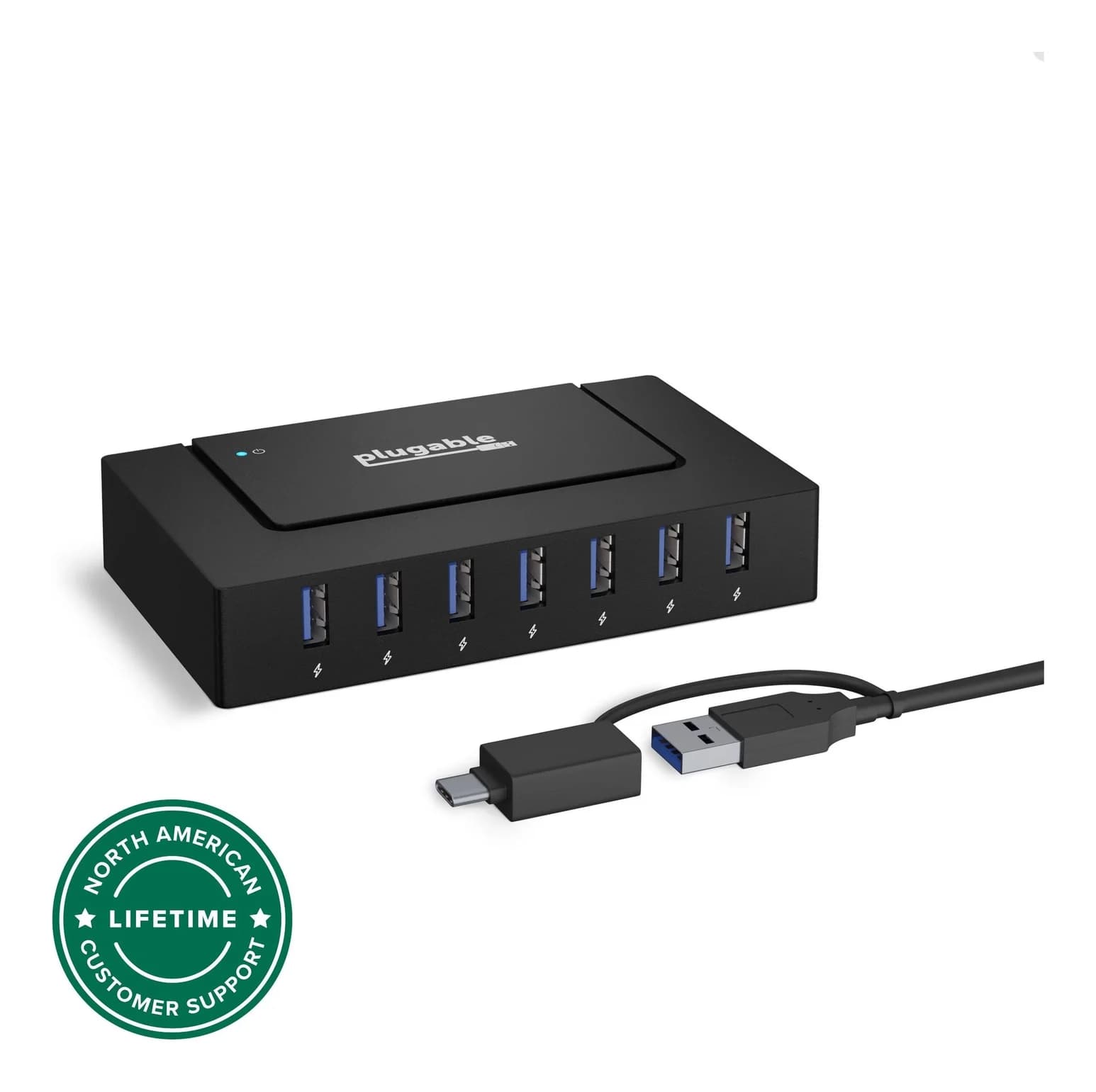
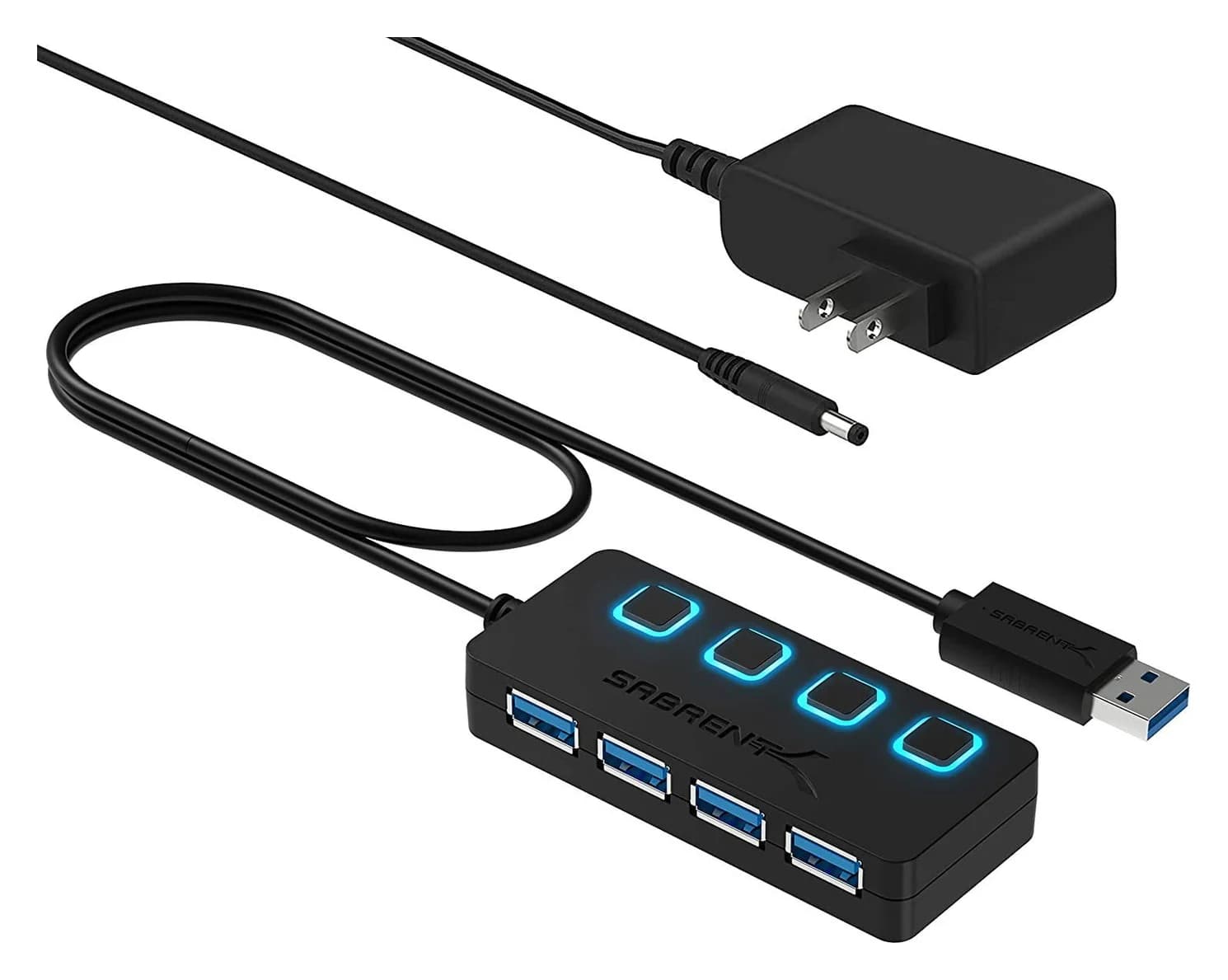
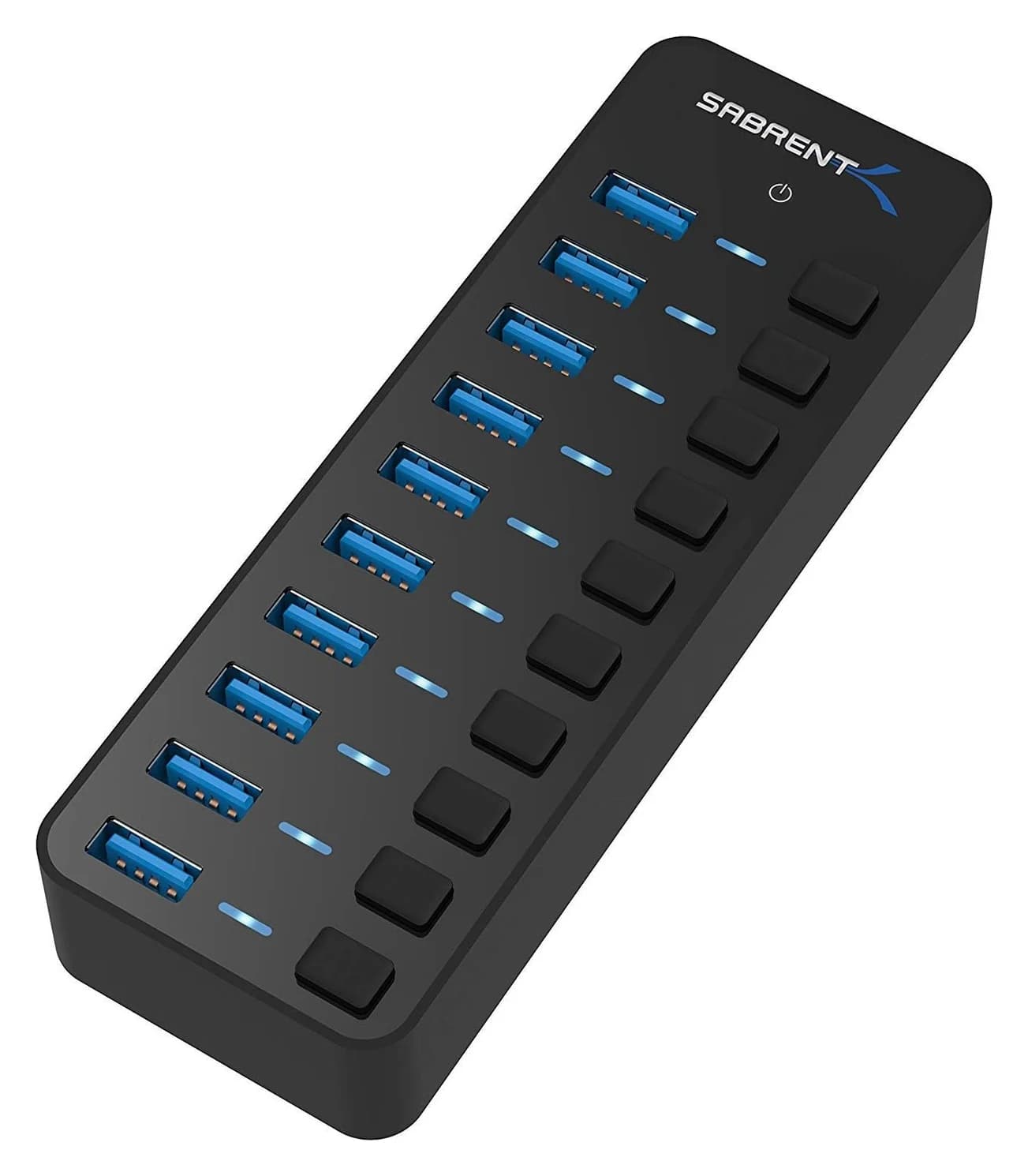
Best Powered USB Hubs in 2026
Powered USB hubs that keep drives, webcams and chargers stable. Compare 4, 7 and 10-port picks by adapter wattage, per-port charging and host connection.
Updated September 27, 2026Read
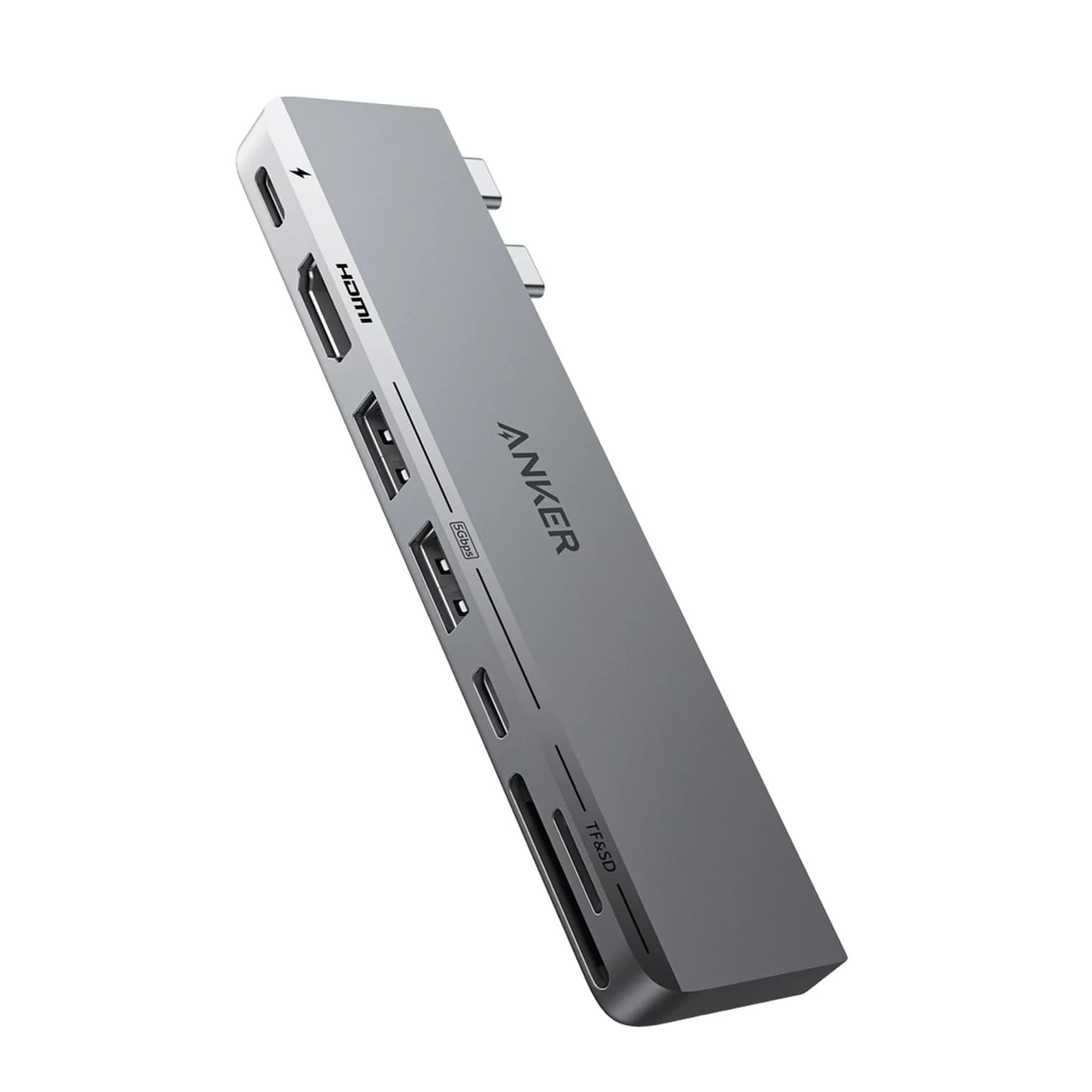
Best USB-C Hubs for MacBook in 2026
Add HDMI, USB-A, SD cards and Ethernet to your MacBook Air or Pro. We compare four USB-C hubs on spec sheets, display limits and macOS compatibility.
Updated September 27, 2026Read
USB-C vs USB-A Explained: Speed, Power and Video in 2026
USB-C vs USB-A in plain English: what each connector can carry, what 5Gbps to 80Gbps means, how charging works, and which hub or dock fits your ports.
Updated September 27, 2026Read