Black Friday: the specs to check before you buy
Comparison
Updated November 5, 2026Belkin Core 8-in-1 vs Anker 553: Pick by Laptop and Monitors
Short answer
Choose the Anker 553 (A8380) for a compatible Windows laptop when you want native dual-display support and SD/microSD readers. Choose the Belkin Universal USB-C 8-in-1 Dual Display Core Hub (INC015btSGY) for separate external desktops on a compatible Mac, or for USB-C data ports, provided you can run Silicon Motion software. Neither is a documented solution for two independent 4K 60Hz HDMI displays. Belkin specifications and Anker's user guide explain the limits below.
Our picks at a glance
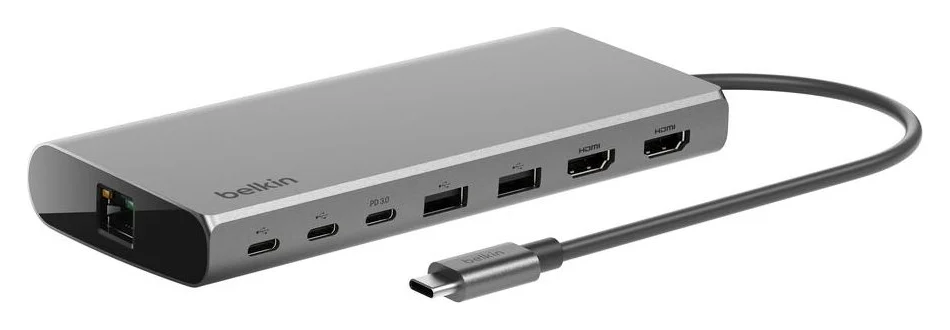
Belkin Core INC015
Quick picks
| Your purchase requirement | Pick | Condition to check first |
|---|---|---|
| Windows extended desktops and memory-card imports | Anker 553 | USB-C must support DP Alt Mode; resolution depends on the host's DisplayPort version. |
| Independent external desktops on a Mac | Belkin Core INC015 | Compatible Silicon Motion software must be allowed on your computer. |
| USB-C data accessories | Belkin Core INC015 | Its two dedicated USB-C data ports are rated up to 10Gbps. |
| Two independent 4K 60Hz screens | Choose another dock | Belkin's second output tops out at 4K 30Hz; Anker's Windows dual-display table tops out at 2K 60Hz. |
The distinction is independent desktops: a document on one external screen and a different app on the other. On a Mac, Anker states that both HDMI monitors mirror the same image; do not assume that the laptop's own screen will change that external-monitor limitation.
- Yes: Anker 553: independent HDMI desktops on compatible Windows laptops
- Partly: Belkin INC015: Mac dual-display choice when compatible Silicon Motion software is permitted
- No: Neither: a documented independent dual-4K-60Hz HDMI setup
Exact models and ports: what “8-in-1” buys
Belkin's US SKU is INC015btSGY, in silver gray. Anker's model is A8380, also named PowerExpand 8-in-1 USB-C PD Media Hub on its own page. Match those identifiers; the number of ports alone does not establish equivalent functions.
| Feature | Belkin INC015btSGY | Anker 553 / A8380 |
|---|---|---|
| Display connections | HDMI 2.0, up to 4K 60Hz; HDMI 1.4, up to 4K 30Hz | Two HDMI ports; host-dependent modes below |
| USB-C data | Two dedicated ports, up to 10Gbps | No USB-C data port listed; the USB-C PD-in port is identified for charging |
| USB-A data | Two ports, up to 5Gbps | Two ports, up to 5Gbps |
| Wired network | Gigabit Ethernet | Gigabit Ethernet |
| Memory cards | No reader in the listed port inventory | SD and microSD, UHS-I |
| Charging ceiling | 100W input budget; up to 85W to laptop after hub allowance | Up to 100W input; up to 85W to laptop |
Sources: Belkin's port inventory and power footnote, Anker's US specifications, and A8380 support inventory. Belkin's FAQ also labels its PD port for data; use the dedicated data ports when planning your accessories rather than counting the power-input connection as spare capacity.
Best for Windows and memory cards: Anker 553
The Anker uses DisplayPort Alt Mode and Multi-Stream Transport (MST) for its display arrangement. Anker's specifications state that display requires a host supporting DP Alt Mode; they do not state a general plug-and-play, no-software promise. It still supplies the SD and microSD readers the Belkin's port list lacks.
The catch is its port inventory. Anker lists one USB-C PD-in charging port and two USB-A data ports, but its cited official pages do not explicitly state whether the PD-in port can carry data or video. Buy the Belkin if dedicated USB-C data ports are central to your setup.
Check the Anker A8380 product page
Best for a compatible Mac with software allowed: Belkin Core
Belkin's Universal USB-C 8-in-1 Dual Display Core Hub offers a different display route. Its FAQ labels the HDMI 2.0 connection as DisplayPort Alt Mode, while its dedicated SM768 support page identifies INC015 as requiring Silicon Motion software for full display functionality. This software-assisted route is why we prefer it over the Anker for independent external Mac desktops.
Belkin's driver wording conflicts. Its general FAQ says plug-and-play and recommends downloading a driver; the SM768 page says Mac and Windows require a driver download for proper functionality. That page makes a separate driver-free exception for Chromebook. Plan around the stricter requirement, and check workplace software policy before ordering.
Belkin names M1, M2 and M3 MacBooks in its compatibility list; verify your exact laptop and current OS against the software available from Belkin's support route. Silicon Motion's macOS InstantView manual requires permission to access screen content. This is a meaningful setup requirement for a managed work Mac.
Matched laptop and monitor combinations
Belkin advertises a simultaneous 4K 60Hz plus 4K 30Hz pair, and requires a DisplayPort 1.4 source for maximum resolution on its HDMI 2.0 output. Anker's current US specifications list dual 2K 60Hz on Windows with DP 1.4, or dual 1080p 60Hz with DP 1.2. These are manufacturer ceilings, not measured performance.
| Same host and monitor requirement | Belkin Core INC015 | Anker 553 | Our choice |
|---|---|---|---|
| Windows, DP 1.4; two 4K HDMI monitors, accepting different refresh rates | Advertised pair: 4K 60Hz + 4K 30Hz, with Silicon Motion software | Dual-4K claim conflicts with its Windows resolution table; see below | Belkin, if the slower second display suits you |
| Windows, DP 1.2; two 1080p 60Hz HDMI monitors | Cited FAQ does not give an exact DP 1.2 dual-display pair | US specifications explicitly list dual 1080p 60Hz | Anker |
| Compatible Mac, DP 1.4; two independent 4K HDMI desktops | Advertised 4K 60Hz + 4K 30Hz pair; Silicon Motion software required | External monitors repeat the same image | Belkin, after checking software compatibility |
| Windows or Mac; two independent 4K 60Hz HDMI desktops | Second HDMI output is limited to 4K 30Hz | No documented independent dual-4K-60Hz mode | Neither |
Anker's own sources disagree. Its support overview says dual 4K 30Hz, but its US product specifications and downloadable user guide put Windows DP 1.4 dual output at 2K 60Hz. For DP 1.4 Macs, the guide lists mirrored dual 4K 60Hz while the product specifications say 4K 30Hz; both external screens still repeat one image. Do not buy it on an assumed dual-4K extended-mode promise; ask Anker to confirm your exact host and monitor pair if that is essential.
Anker labels its Windows mode “2K”; confirm the exact pixel dimensions of your monitors rather than treating that label as a guarantee. For a single 4K 60Hz screen, both makers specify a DP 1.4 source, and Anker additionally excludes certain hosts without DSC, including Surface Pro 7 and Spectre X360. Ask the laptop maker about the exact USB-C port, not just whether the machine has USB-C.
If both screens must run independently at 4K 60Hz, use our Thunderbolt dock guide to find a model with an explicit matching host/display specification. The dual-monitor MacBook guide covers the wider technology choice.
Charging and the complete kit
Belkin specifies a 100W input budget with 15W reserved for operation, leaving up to 85W for the laptop, and says a 65W charger delivers up to 50W through its hub. Anker separately specifies up to 100W input and 85W laptop output, and requires a 100W-capable PD charger and USB-C cable to reach that maximum. These are power budgets, not promises of a laptop's actual charging rate. Belkin power details; Anker charging instructions.
Compare your laptop's required charging power with the output after that allowance. If it needs more, retain its separate power connection or choose a dock with sufficient documented laptop output. Our USB Power Delivery explainer helps with charger and cable selection.
| Complete powered dual-HDMI setup | Supplied | Add or reuse |
|---|---|---|
| Belkin INC015btSGY | Hub with a tethered 22cm USB-C host cable, quick-start guide and regulatory documents | USB-C PD charger, charger-to-hub cable, and two suitable HDMI cables; Silicon Motion software on Mac/Windows |
| Anker A8380 | Hub and welcome guide; the UK page also says a travel pouch is included | USB-C PD wall charger, which that page says is not included, plus a suitable USB-C charging cable and two HDMI cables |
The separate charging cable goes from the charger to PD-IN, rather than replacing the laptop connection. Compare the hub, charger, charging cable and monitor cables as a complete basket, counting only the pieces you need. Confirm model, seller, condition and package contents at checkout.
Source review: November 3, 2026. Belkin's US page displayed Out of Stock in the reviewed evidence; check availability before committing to that setup. Check availability at Belkin or check availability at Anker.
Setup checks before you keep either hub
Establish the display arrangement before attaching all your accessories. Belkin says multiple devices can connect simultaneously but does not guarantee optimum performance for every connected device. Anker's guide recommends checking DP Alt Mode, updating graphics drivers, and trying a different HDMI cable or a lower resolution when video fails.
Check the laptop port
Confirm DP Alt Mode, DisplayPort version and USB-C charging support with the laptop maker.
Prepare the display path
For Belkin on Mac or Windows, arrange compatible Silicon Motion software. On a Mac, allow the permissions its software requires.
Connect power and monitors
Use the charging input for the charger, HDMI for the screens, then choose extended desktops in your display settings.
Add the rest of your desk
Connect storage, network and other accessories, and check the complete setup together.
For protected-video playback, keep a direct laptop video connection available: Silicon Motion's graphics FAQ documents streaming black-screen issues and recommends direct video if its workaround fails. That is a reason to treat the Belkin's software-assisted display path primarily as an office-work choice.
How we choose
We compare official port inventories, display tables, host requirements, software instructions and charging footnotes. These recommendations come from published specifications, without physical testing. Conflicting manufacturer claims remain visible instead of becoming an unconditional compatibility promise. For a broader shortlist, see our best USB-C hubs.
Verdict
Buy the Anker 553 for a compatible Windows laptop with ordinary dual-monitor needs and SD/microSD imports. Buy the Belkin INC015btSGY for compatible Mac dual desktops or USB-C data accessories, accepting its software requirement and asymmetric HDMI limits. Choose another dock for independent dual 4K 60Hz, and compare complete kits with the laptop's delivered charging budget in mind.
Frequently asked questions
Does the Belkin Universal USB-C 8-in-1 Dual Display Core Hub work with MacBooks?
Belkin lists Mac compatibility, including M1, M2 and M3 MacBooks. For full display functionality, its dedicated SM768 support page requires Silicon Motion software on Mac and Windows, although its general FAQ calls the hub plug-and-play. Check your exact macOS version against the current software before buying, and allow for InstantView's screen-recording permission on a Mac.
Can the Anker 553 run two extended monitors on a Mac?
It cannot provide two independent external desktops on macOS. Anker says that when connected to dual monitors, devices running macOS only support screen mirroring, so both HDMI monitors show the same image. For that purchase requirement, consider the Belkin with compatible Silicon Motion software instead.
Do these hubs deliver 100W to the laptop?
No. Anker specifies a 100W maximum input and up to 85W laptop output with a 100W-capable charger and cable. Belkin separately states its own 15W operating allowance and 65W-to-50W example. Compare the laptop's requirements with delivered power before choosing.
Can I connect a USB-C monitor to either hub?
Plan to use HDMI for video. Anker's official pages list a USB-C PD-in charging port and two USB-A data ports without stating that the PD-in port carries data or video. Belkin lists USB-C data connections and two HDMI video outputs, without promising USB-C display output in Belkin's published specifications. If your monitor accepts video only over USB-C, choose hardware that explicitly supports that connection rather than assuming the connector guarantees it.
Is the Anker 553 the same as the PowerExpand 8-in-1?
Anker uses both names for model A8380 on its product page: Anker 553 USB-C Hub and PowerExpand 8-in-1 USB-C PD Media Hub. Match the model code and port layout when shopping. This comparison's Belkin is specifically INC015btSGY; another hub described as Core or 8-in-1 needs a separate specifications check.
Best for Windows and memory cards
Anker 553
Related guides
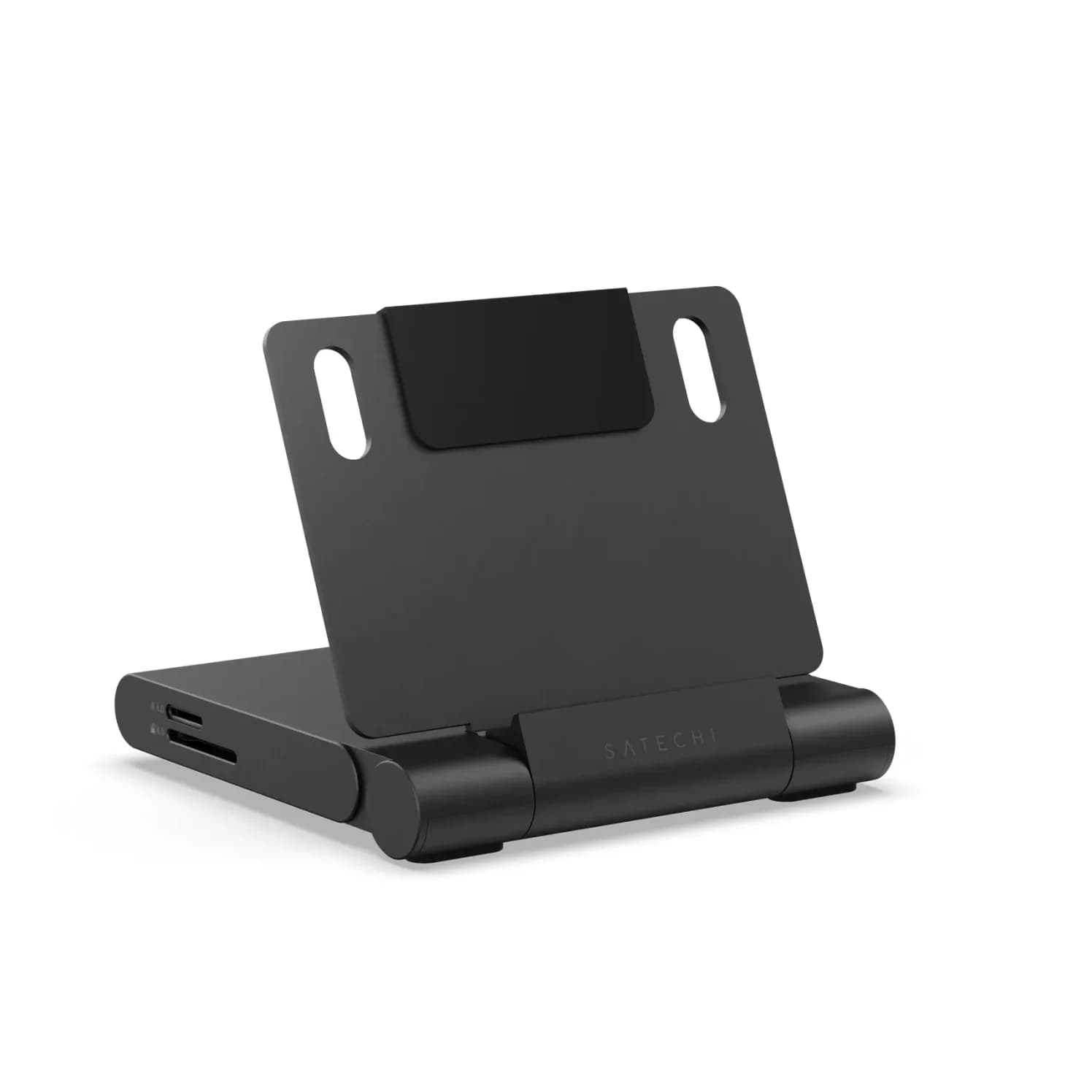
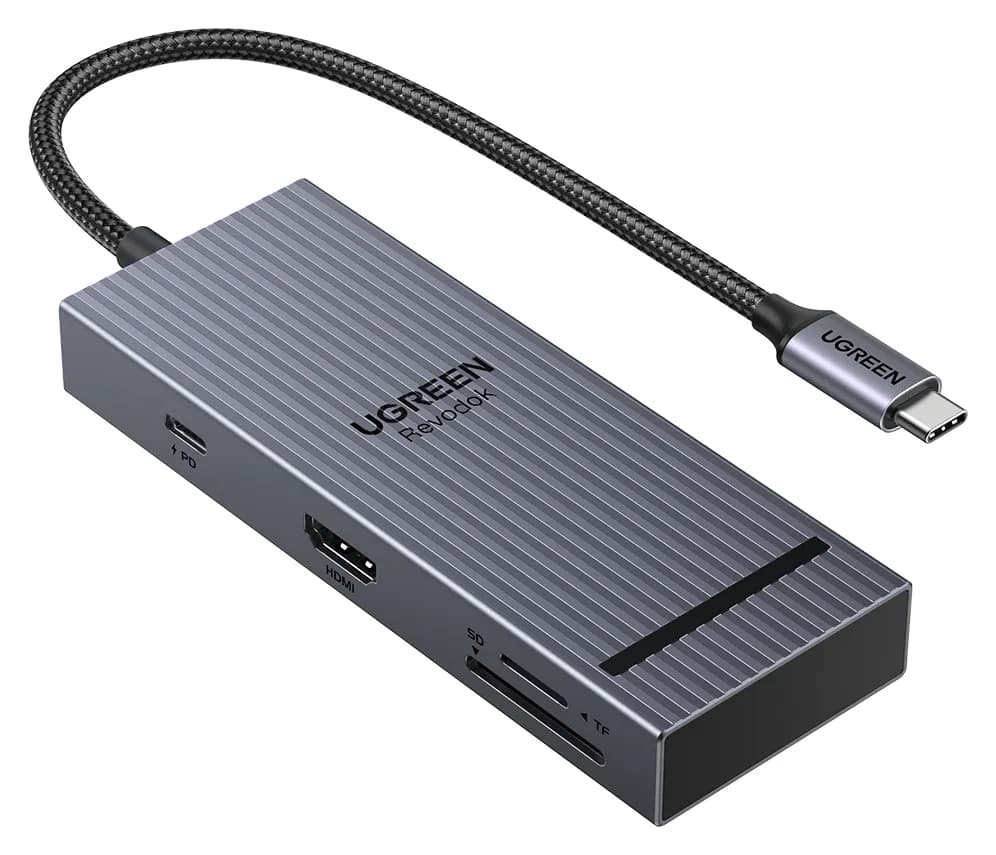
Satechi OntheGo vs UGREEN Revodok Pro 108 for iPad Pro: Which Hub Should You Buy?
Satechi OntheGo vs UGREEN Revodok Pro 108 for iPad Pro: stand-and-audio hub vs cable hub, case fit, the 4K display ceiling, SD card speed and the charger reserve that decides it.
Updated November 5, 2026Read
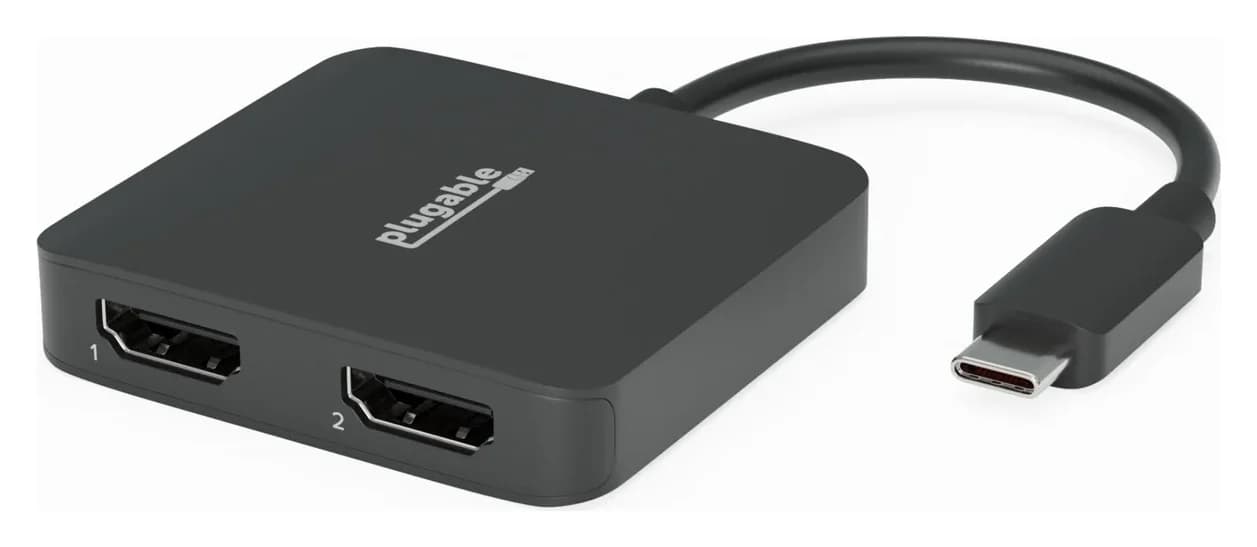
Anker 553 vs Plugable USBC-MSTH2: Hub or Display Adapter?
Choose Anker 553 or Plugable USBC-MSTH2 for dual monitors: check Windows support, 4K limits, Mac mirroring, charging and the complete setup before you buy.
Updated November 4, 2026Read
iPhone Docking Stations: Wired USB-C Docks vs Charging Stands
Choose an iPhone docking station for HDMI, storage or charging. Compare wired USB-C hubs and magnetic stands, check your model and build the right desk kit.
Updated November 3, 2026Read