Black Friday: the specs to check before you buy
Comparison
Updated November 4, 2026Anker 553 vs Plugable USBC-MSTH2: Hub or Display Adapter?
Short answer
For a compatible Windows laptop and two 1080p 60Hz monitors, choose the Anker 553 (A8380) if you need charging, USB accessories and Ethernet alongside your screens. Choose the Plugable USBC-MSTH2 for two HDMI monitors at 4K 60Hz on a host with DisplayPort 1.4 and DSC, especially when power and peripherals already connect elsewhere. Neither provides two independent extended desktops on macOS.
Our picks at a glance
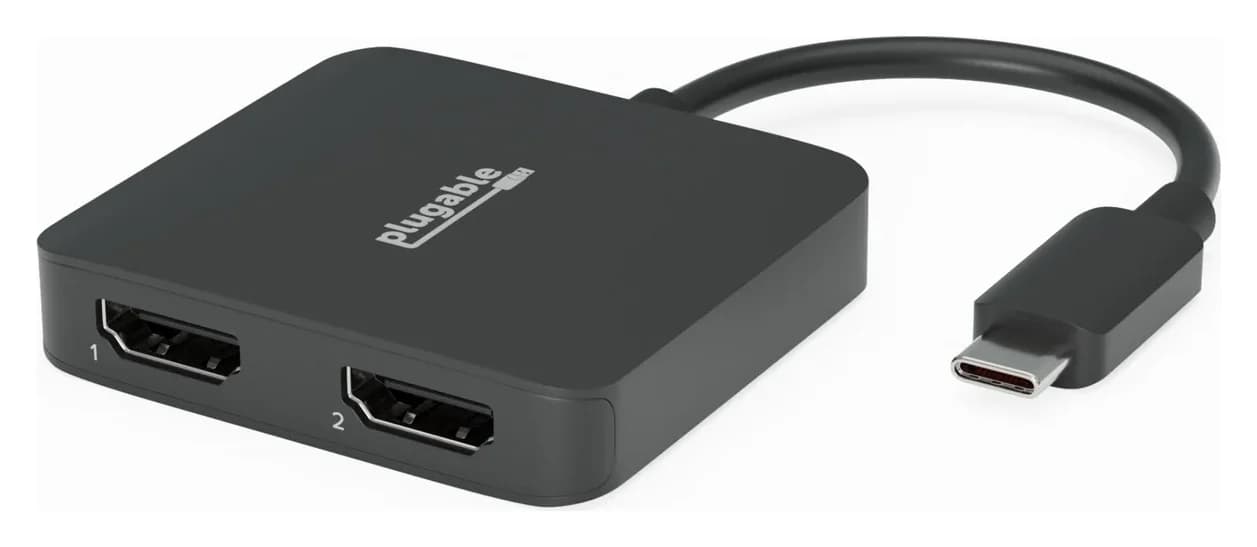
Best for dual 4K 60HzPlugable
Plugable USB-C Dual 4K HDMI MST Display Adapter (USBC-MSTH2)
- video
- 4K60
- ports
- 2
- host link
- USB-C
- Choose
- Runs two independent HDMI displays at up to 4K 60Hz on a Windows host with DisplayPort 1.4 and DSC, using separate laptop charging.
- Limit
- Needs a USB-C port with DisplayPort Alt Mode; data-only USB-C ports won't work
Quick picks
Best for charging and peripherals: Anker 553. It combines dual HDMI with USB-A, Gigabit Ethernet, card readers and up to 85W laptop charging; budget for a separate charger and charging cable.
Best for dual 4K 60Hz: Plugable USBC-MSTH2. Its display-focused design suits a compatible laptop whose charging and main accessory connections are already covered; Plugable also lists a rear 5Gbps USB-C port.
Check the laptop before the port list
Both require DisplayPort Alt Mode, meaning video over the laptop's USB-C connection; independent dual screens also require MST support. Plugable lists Windows 10 and newer and ChromeOS 100 and newer, while discouraging Linux because MST support varies. Confirm the exact laptop model and port with its manufacturer, including DisplayPort version and DSC support for the desired resolution.
MST does not raise the graphics hardware's display limit, and the built-in panel can count toward that limit. Ask whether your intended external pair works with the laptop screen active. A Thunderbolt connector alone does not settle this comparison: the operating system and host video capabilities still matter.
- Yes: Windows laptop with verified DP Alt Mode and MST: eligible for independent dual displays
- Partly: DisplayPort 1.4 alone: confirm DSC and the desired monitor modes
- No: Data-only USB-C port: no video through either product
- No: macOS: neither gives two independent extended desktops
Anker 553 vs Plugable: the exact hardware
Specifications below come from Anker's A8380 page, its UK FAQ and Plugable's product page and troubleshooting guidance.
| What matters | Anker 553 / A8380 | Plugable USBC-MSTH2 |
|---|---|---|
| HDMI outputs | 2 | 2, HDMI 2.0 |
| Dual displays, DP 1.2 Windows host | Up to 1080p 60Hz each | Up to 1080p 60Hz each |
| Dual displays, DP 1.4 Windows host | US table: "2K" 60Hz each; UK FAQ: 4K 30Hz each — conflict below | Up to 4K 60Hz each with DSC |
| USB accessory ports | 2 USB-A, up to 5Gbps | 1 USB-C, USB 3.0 (5Gbps); host connection is a separate integrated lead |
| Wired network | Gigabit Ethernet | None |
| Card readers | SD and microSD, UHS-I | None |
| Laptop charging | Up to 85W out; up to 100W PD input | None; adapter draws power from laptop |
| Listed kit | Hub, travel pouch and welcome guide | Adapter with built-in USB-C lead; no HDMI leads |
Best for charging and peripherals: Anker 553 (A8380)
{{product:AN-ASIN}}
The Anker is our default for a supported Windows office setup that needs more than video: two USB-A ports handle accessories, while Ethernet and the card slots cover networking and removable media. The USB-C socket is a PD input, so plan USB peripherals around the USB-A ports. Anker's USB-A specification row contains a contradictory count, but its expansion list and dual-USB-A description identify two ports.
Anker specifies 100W maximum input and 85W maximum laptop output. Its FAQ requires a charger and USB-C to USB-C cable that both support 100W PD to achieve 85W; the charger is not included. If your laptop needs more power than that output, plan a separate supported charging connection or choose a dock with sufficient host charging. Having a spare phone charger is not enough reason to assume the complete Anker setup is covered.
Display rating caveat: Anker's US specification table lists dual “2K@60Hz” on Windows and dual 4K@30Hz on Mac with DP 1.4, while its UK FAQ also advertises dual 4K 30Hz. Those are different modes, and the US table does not define “2K” in pixels. Get confirmation for your exact monitor pair rather than treating either line as a universal promise. The names 553 and PowerExpand 8-in-1 USB-C PD Media Hub refer to A8380 on Anker's page; match the model code when checking a listing.
Check price on Amazon for the Anker 553
Best for dual 4K 60Hz: Plugable USBC-MSTH2
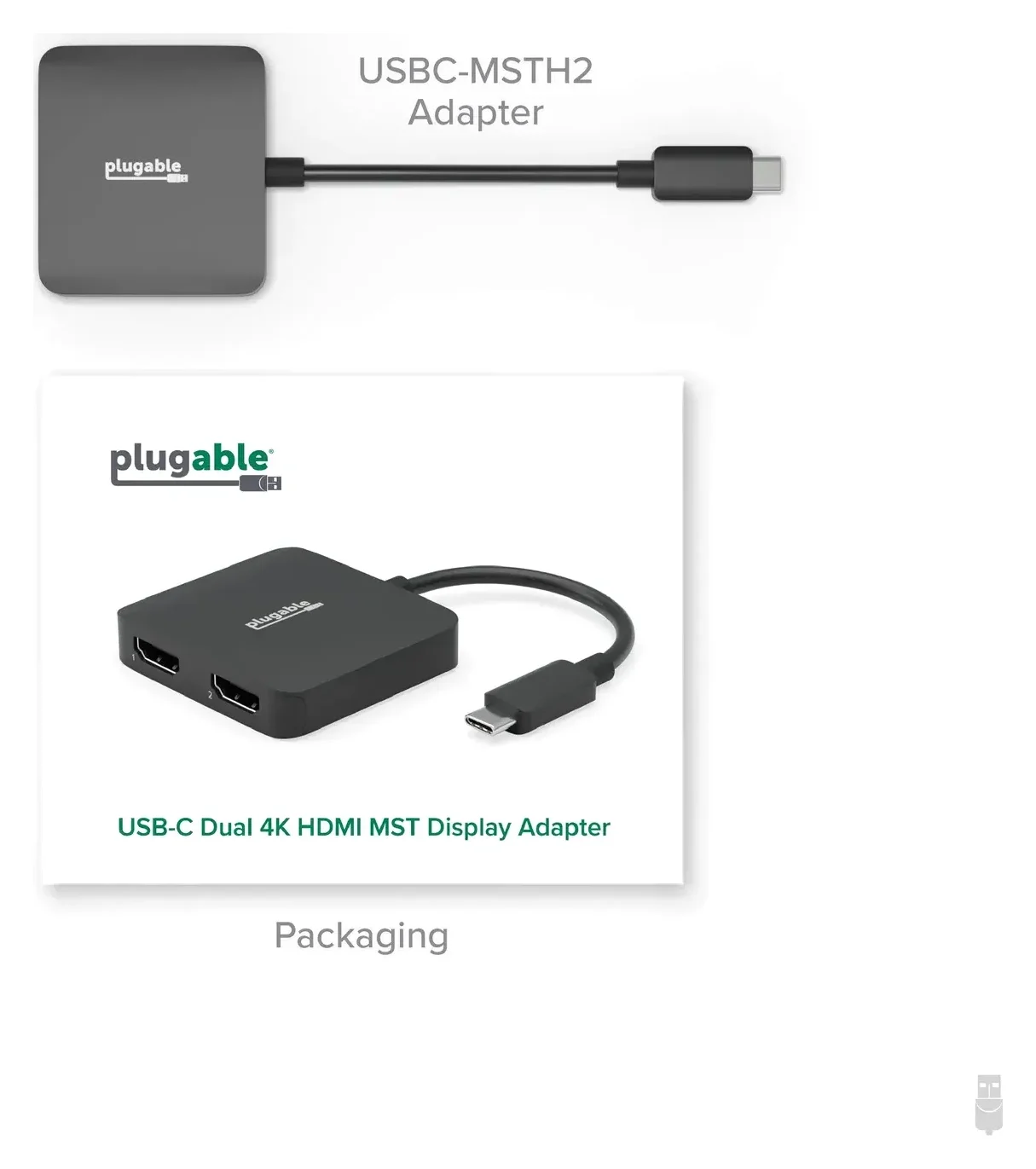
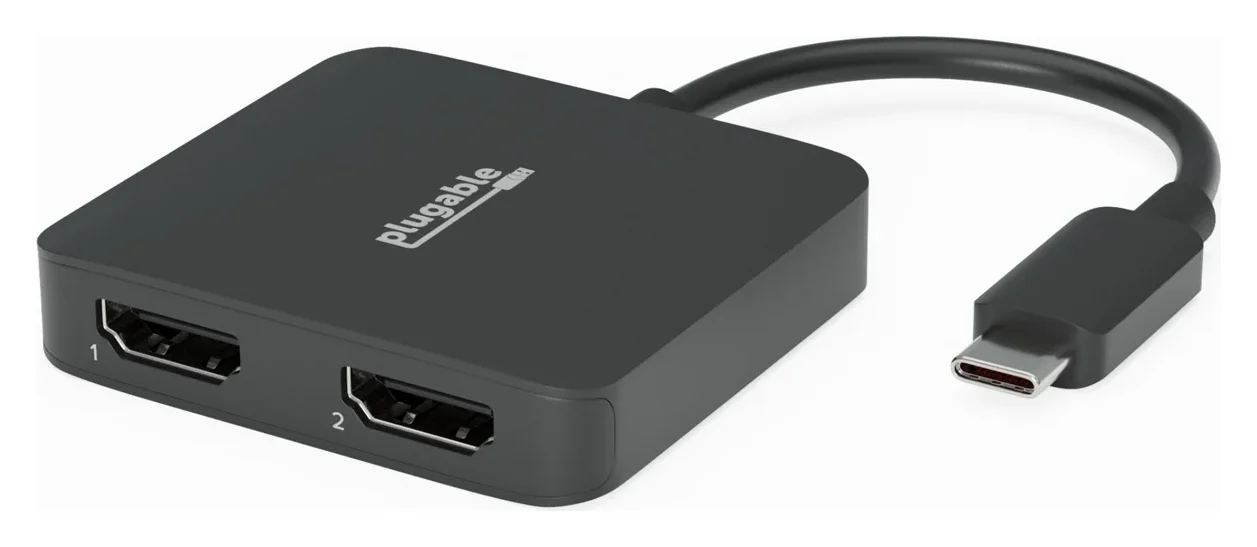
Plugable
Plugable USB-C Dual 4K HDMI MST Display Adapter (USBC-MSTH2)
A driver-free USB-C to dual HDMI adapter that uses DisplayPort MST to run two independent extended monitors from one USB-C port on Windows and ChromeOS.
- 4K60 video
- 2 ports
Buy the Plugable when the monitors are the missing connection, rather than the whole desk's peripherals. It uses the computer's native graphics without a separate driver installation, draws its operating power from the host and has an integrated 17cm USB-C lead. Plugable lists a weight of 44 grams. HDMI cables are separate; for 4K 60Hz, Plugable recommends HDMI 2.0-rated or better leads.
The defining output is two independent 4K 60Hz displays with DP 1.4 and DSC. Plugable's compatibility summary does not state a DisplayPort version; its feature list and FAQ require DisplayPort 1.4 with DSC for that pair. Use that fuller requirement when checking your laptop. This is the USBC-MSTH2, an MST adapter; a DisplayLink product uses a different video path and software.
The tradeoff is the rest of the setup: there is no laptop-charging input, USB-A port or Ethernet socket. Plugable's specification table lists a rear 5Gbps USB-C port, so check whether that port and the separate host lead meet your peripheral needs. If the laptop's sole USB-C port is also its only charging inlet, choose another setup for simultaneous charging and video.
Check price on Amazon for the Plugable USBC-MSTH2
Choose for the monitors you actually own
Matching 1080p 60Hz screens: both makers specify that pair on DP 1.2 Windows hosts, so choose by the missing ports and charging hardware.
Matching 1440p 60Hz screens: Plugable lists DP 1.4 without DSC or with reduced bandwidth as supporting up to dual 1440p 60Hz or a single 4K 60Hz display, depending on the host. Confirm the Anker's ambiguous “2K” label before buying it for that pair.
Matching 4K 60Hz screens: choose Plugable after verifying DP 1.4 with DSC; Anker's published dual-display modes do not promise this pair.
A single-display maximum does not establish a dual-display maximum: Anker lists single 4K 60Hz with DP 1.4 and single 4K 30Hz with DP 1.2. It warns that the hub cannot support 4K@60Hz with Surface Pro 7 / 930QCG / Spectre X360 laptops since they are not compatible with Display Stream Compression (DSC). For mixed resolutions or a high-refresh gaming screen, send support the exact laptop, monitor models and desired modes before ordering.
Compare the whole kit with a full dock
Compare the same job in each basket: a compatible Windows laptop, dual 1080p 60Hz HDMI screens, keyboard and mouse, wired networking and laptop charging. Count only hardware you still need, including a charger left permanently at the desk if that is your goal.
| Route | Power and peripherals | What to add or reuse |
|---|---|---|
| Anker 553 setup | USB-A, Ethernet and card readers built in; charger separate | For maximum charging: 100W PD charger and matching charging cable; plan HDMI and network leads |
| Plugable USBC-MSTH2 setup | Display-focused; no laptop charging or Ethernet; Plugable lists a 5Gbps USB-C port | HDMI leads; retain laptop charger; add other USB expansion or Ethernet hardware only if the listed port and host lead do not meet your needs |
| Full-dock reference: Plugable TBT4-UD5 | USB and Ethernet built in; power supply and Thunderbolt host cable included | Plan HDMI and network leads; verify Thunderbolt 4/5 or suitable USB4 host for dual displays |
The TBT4-UD5 documentation lists up to 100W host charging, with 96W certified. It is a useful complete-kit reference, but its dual-display support requires a suitable Thunderbolt or USB4 host; Plugable lists only one display for ordinary USB-C Windows hosts. Use our Windows docking station guide to choose a full dock after checking that requirement.
Buying rule: compare the completed baskets at checkout, with matching seller, model, supplied accessories and delivery terms. Choose Anker when its integrated functions cover your desk; choose Plugable when existing connections cover those functions and its display modes fit your monitors. The cost comparison should include the missing hardware, not just the hub or adapter.
When neither is the right purchase
For a Mac, use our MacBook dual-monitor guide to choose a compatible Thunderbolt dock within the Mac's native display limits, or a DisplayLink solution. Plugable's DisplayLink dock documentation requires software and macOS Screen Recording permission, and warns that protected video can fail even on directly connected screens while that dock is connected. Read those restrictions before switching technologies.
For a data-only port, a USB-A converter cannot give these MST products the missing video signal. For DisplayPort-only monitors, ordinary DisplayPort-to-HDMI cables do not work backwards from an HDMI output. Choose hardware with the right native outputs instead of building the purchase around an unverified conversion. Our USB-C hub guide with HDMI covers broader hub choices.
Set up and verify the result
Connect each display directly by HDMI and select its HDMI input; for the Plugable, begin with the adapter connected directly to the laptop. On Windows, choose Settings > System > Display > Extend these displays, then check each display's resolution and refresh rate. If one screen is missing, select Detect; if a mode is missing, check the host capabilities, cables and graphics updates before replacing hardware.
Connect directly
Use the Plugable's built-in host lead and connect each monitor by HDMI.
Extend the desktop
Set Windows to Extend these displays and arrange the screens.
Verify each screen
Check resolution and refresh rate per display before calling the setup finished.
How we choose
These recommendations come from manufacturer specifications and support documents, with eligibility checked before port counts. We compare the supported monitor pair, host video requirements, charging output and missing kit. Conflicting manufacturer claims stay visible; they are a reason to verify a configuration. This is document-based research, with no physical performance results or buyer anecdotes used as evidence. Check the linked official pages again before purchase, especially for a laptop or monitor combination the makers do not explicitly list.
Verdict
Choose Anker 553 / A8380 for a compatible Windows desk needing USB-A, Ethernet, card readers and up to 85W charging, after confirming your monitor modes and adding the required power hardware. Choose Plugable USBC-MSTH2 for dual 4K 60Hz on a verified DP 1.4-with-DSC host when separate charging and peripheral connections suit the laptop. For independent dual desktops on a Mac, choose another display technology.
Check the Anker 553 on Amazon · Check the Plugable USBC-MSTH2 on Amazon
Frequently asked questions
Which is better for dual monitors: Anker 553 or Plugable USBC-MSTH2?
Choose Anker for a supported Windows laptop when you need USB-A, Ethernet and pass-through charging as well as monitors. Choose Plugable for dual 4K 60Hz when the laptop supports DisplayPort 1.4 with DSC and already has suitable charging and peripheral connections. On a DP 1.2 Windows host, both makers specify dual 1080p 60Hz. Neither provides two independent extended screens on macOS.
Does the Anker 553 charge a laptop at 100W?
No: Anker specifies up to 100W into the hub and up to 85W out to the laptop. To reach 85W, its FAQ requires a USB-C PD charger and a USB-C to USB-C cable that both support 100W charging; the wall charger is separate. Compare the laptop's charging requirement with the hub's output before choosing it for a desk setup.
Will the Plugable USBC-MSTH2 work with any USB-C port?
No: the port must carry DisplayPort Alt Mode video, and the system must support MST for independent extended screens. A data-only USB-C port cannot provide video through this adapter. Plugable supports Windows 10 and newer and ChromeOS 100 and newer on compatible hardware. It does not recommend macOS for dual extension or Linux because MST support is inconsistent.
Can either adapter extend two monitors on a MacBook?
No: both rely on MST for independent dual displays, which macOS does not support. On macOS, the Anker mirrors both HDMI outputs; Plugable says its adapter gives one extended display and one mirrored display. For independent screens, choose a compatible Thunderbolt dock within your Mac's native display limits, or a DisplayLink product. Check software permissions and protected-video restrictions before choosing DisplayLink for a Mac.
Related guides
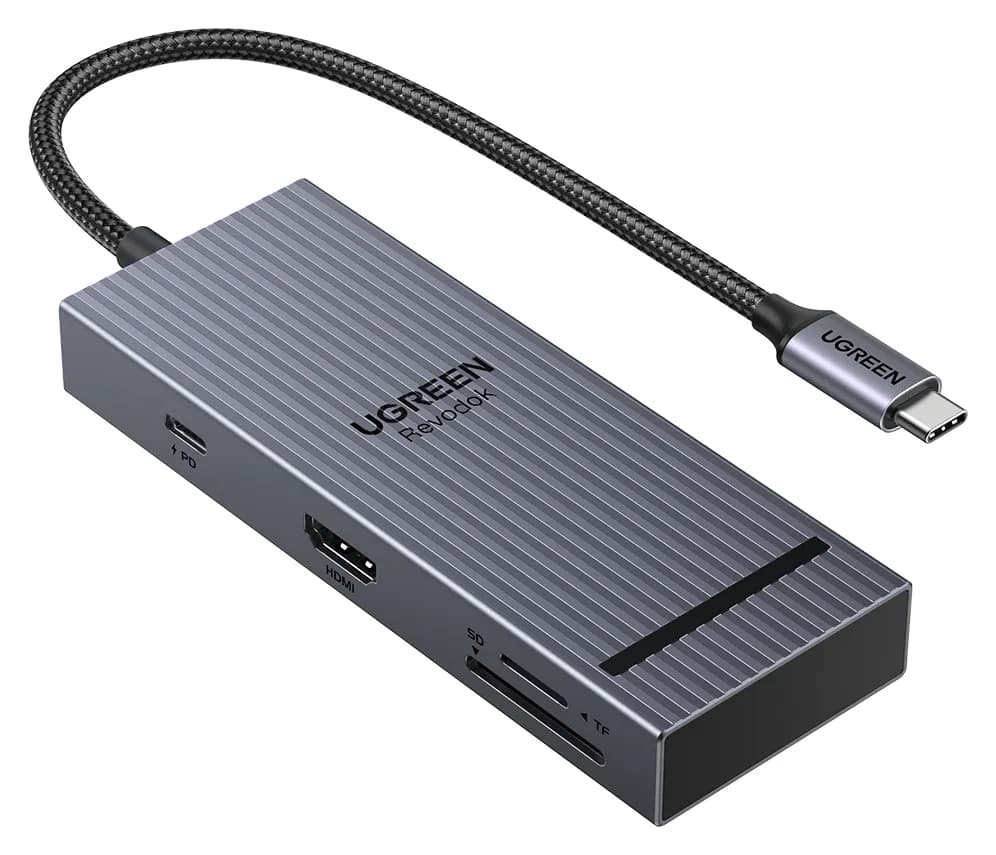
Satechi OntheGo vs UGREEN Revodok Pro 108 for iPad Pro: Which Hub Should You Buy?
Satechi OntheGo vs UGREEN Revodok Pro 108 for iPad Pro: stand-and-audio hub vs cable hub, case fit, the 4K display ceiling, SD card speed and the charger reserve that decides it.
Updated November 5, 2026Read
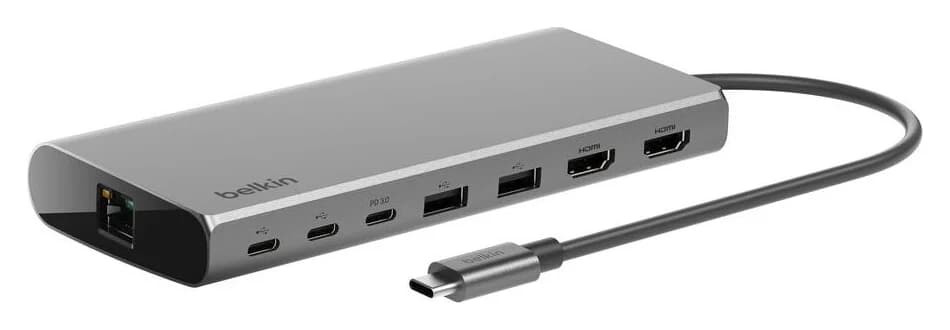
Belkin Core 8-in-1 vs Anker 553: Pick by Laptop and Monitors
Choose between Belkin's Core 8-in-1 and Anker 553 with exact models, Mac and Windows display limits, real laptop charging budgets, and a complete-kit checklist.
Updated November 5, 2026Read
iPhone Docking Stations: Wired USB-C Docks vs Charging Stands
Choose an iPhone docking station for HDMI, storage or charging. Compare wired USB-C hubs and magnetic stands, check your model and build the right desk kit.
Updated November 3, 2026Read