Black Friday: the specs to check before you buy
Best picks
Updated November 3, 2026Best Docking Stations for Windows Laptops in 2026
Short answer
For a Windows laptop with Thunderbolt 4, or a USB4 port that supports two displays, the Plugable TBT4-UD5 is the docking station to buy: one cable runs two HDMI monitors without a driver and charges the laptop at up to 100W (96W certified). A Thunderbolt 5 laptop can step up to the CalDigit TS5: up to three displays on supported models and up to 140W of charging. If your laptop has Thunderbolt 3 or a plain USB-C port, the Plugable UD-6950PDH adds two monitors with DisplayLink software instead.
Our picks at a glance
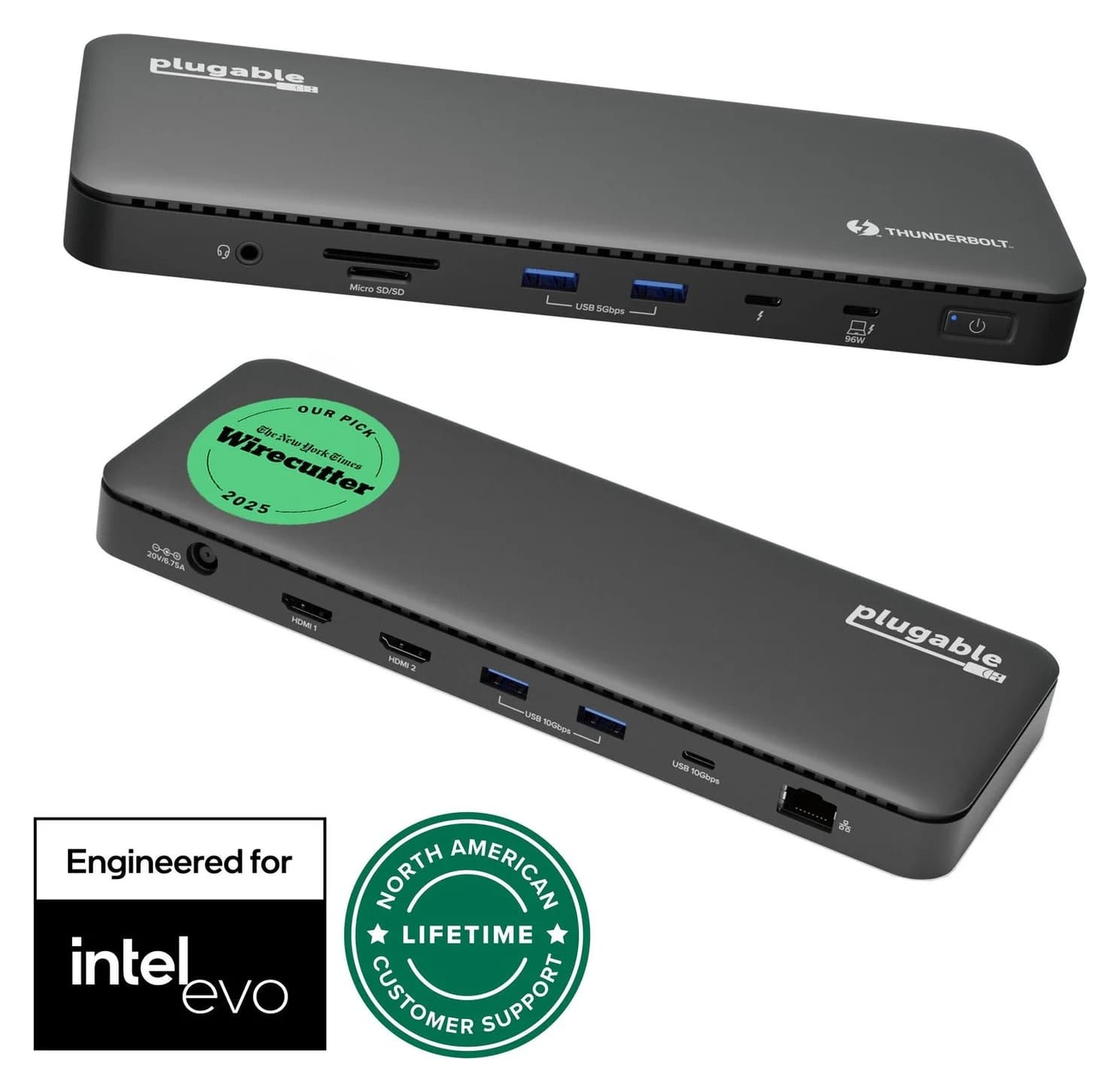
Best overall for Thunderbolt 4 and USB4Plugable
Plugable Thunderbolt 4 Dock (TBT4-UD5)
- to laptop
- 96W
- data
- 40 Gbps
- video
- 4K
- Choose
- Two HDMI ports run two monitors without a driver on Thunderbolt 4 and 5 laptops and on USB4 laptops that support two displays, with up to 100W charging (96W certified).
- Limit
- Gigabit (not 2.5GbE) Ethernet
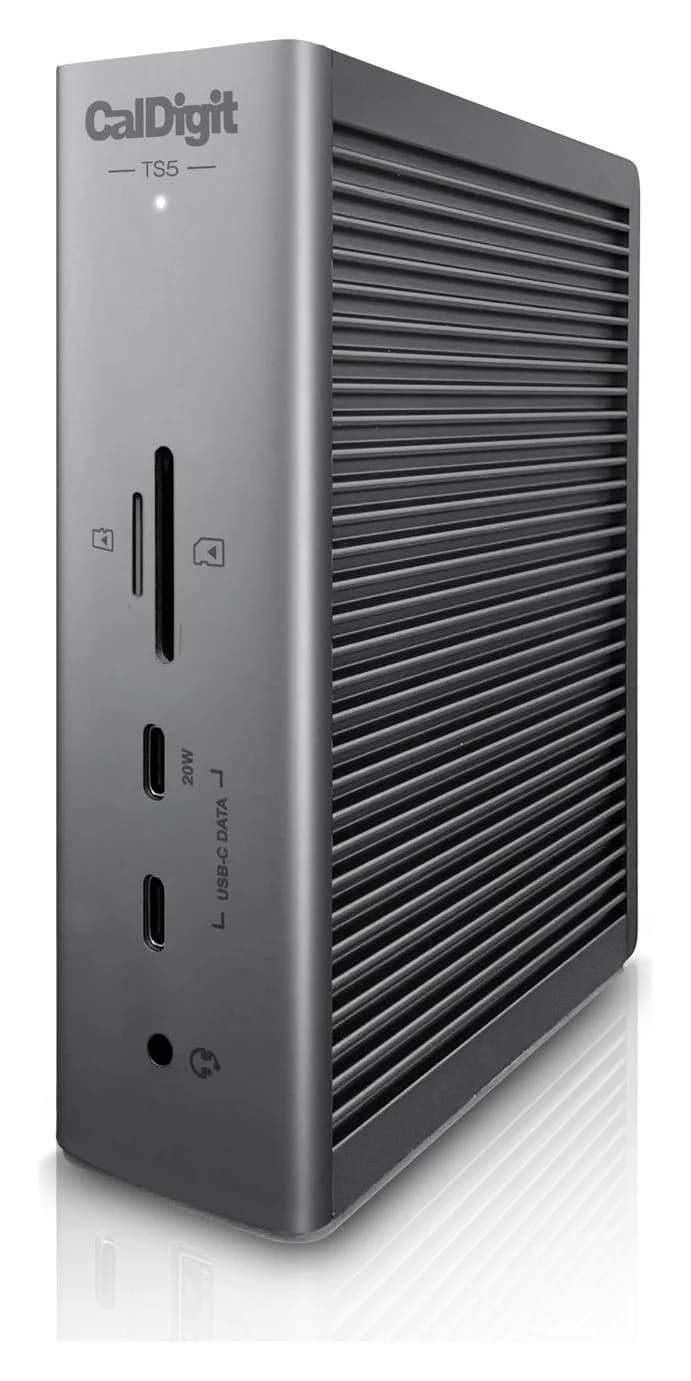
Best for Thunderbolt 5 laptopsCalDigit
CalDigit TS5 Thunderbolt 5 Dock
- to laptop
- 140W
- data
- 80 Gbps
- ports
- 15
- Choose
- Up to three displays on supported Thunderbolt 5 Windows laptops, up to 140W charging and three 80Gb/s Thunderbolt 5 ports.
- Limit
- No HDMI or DisplayPort; displays connect through Thunderbolt/USB-C
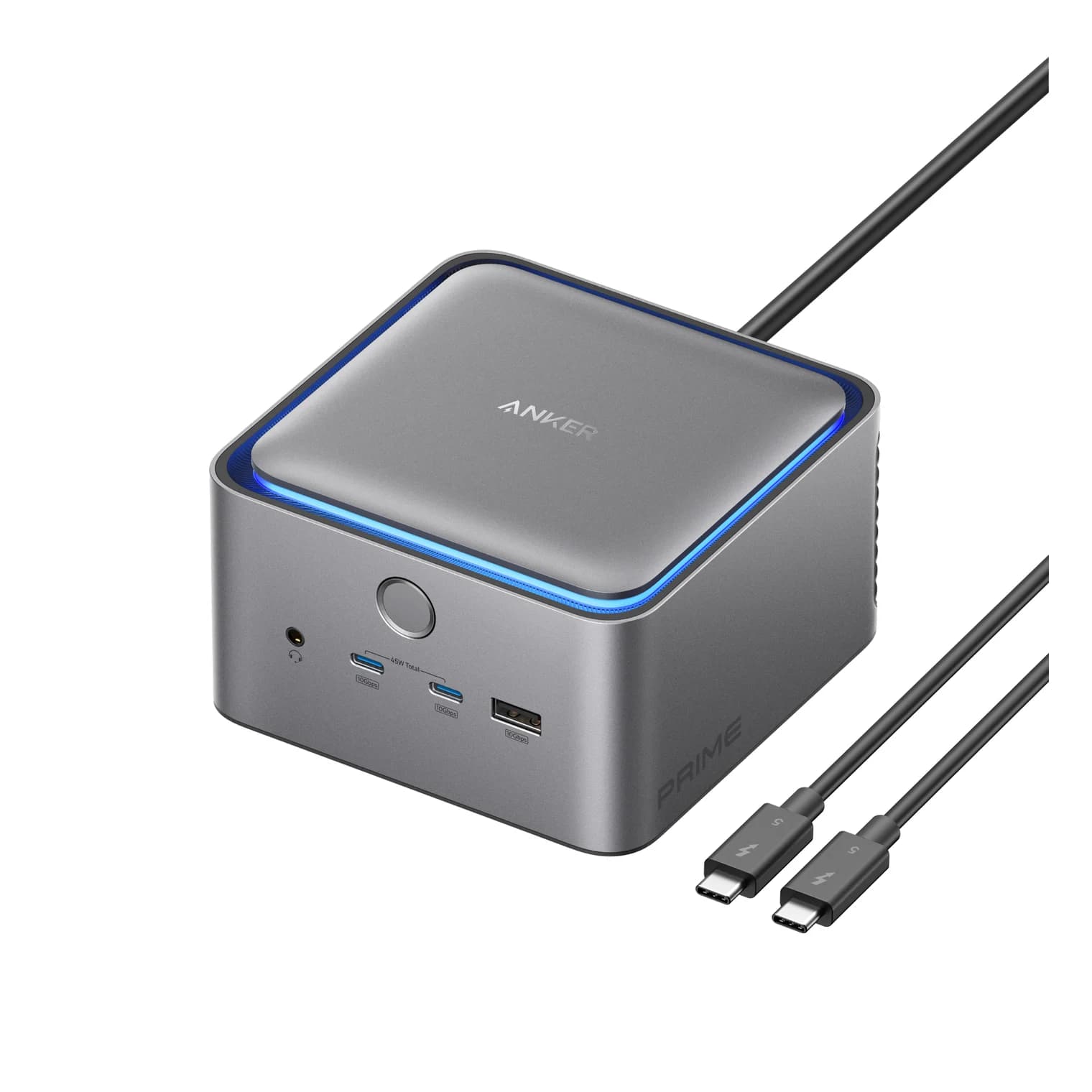
Best Thunderbolt 5 dock with HDMIAnker
Anker Prime TB5 Docking Station (14-in-1, 8K, Thunderbolt 5)
- to laptop
- 140W
- data
- 80 Gbps
- video
- 4K144
- Choose
- HDMI 2.1 or DisplayPort 2.1 built in, two Thunderbolt 5 ports for a second monitor, up to 140W charging and a built-in power supply.
- Limit
- HDMI and DisplayPort can't be used at the same time
- See on Amazon4
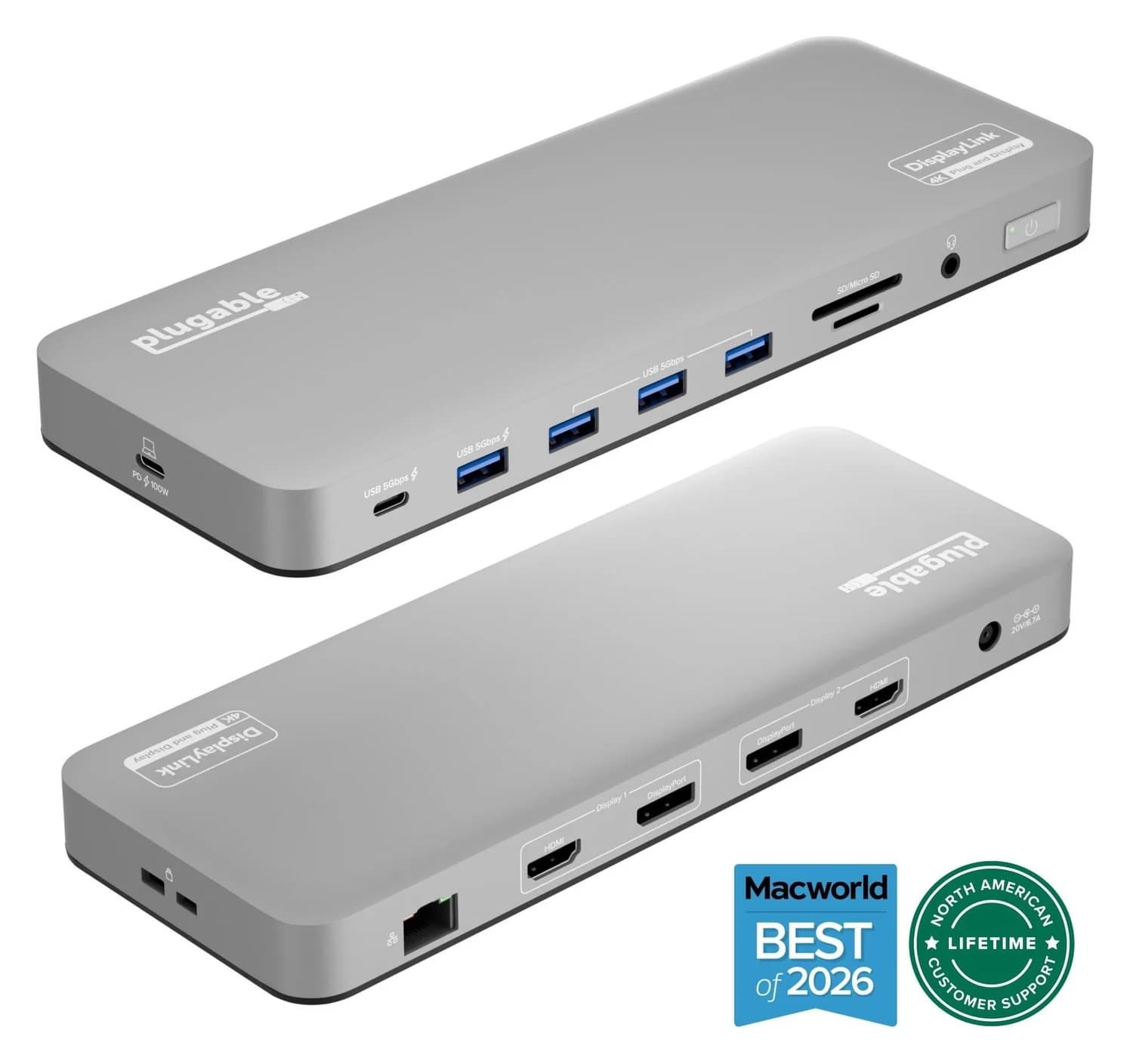
Best DisplayLink dock
Plugable UD-6950PDH USB-C Dual 4K DisplayLink Dock (100W Charging)
100W PD passthrough · 5 Gbps data · 4K60 video · 14 ports
This guide is for a laptop on a desk, run from one cable; for a laptop bag, see our best USB-C hubs for Windows laptops. We haven't tested these docks; the picks come from spec sheets and official documents.
- 2HDMI monitors from the Plugable TBT4-UD5 on a Thunderbolt 4 or 5 laptop, no driver needed
- 3Displays the CalDigit TS5 supports on supported Thunderbolt 5 Windows laptops
- 140WMaximum laptop charging from the CalDigit TS5 and the Anker Prime TB5
Quick picks
| Dock | Best for | Monitors on Windows |
|---|---|---|
| Plugable TBT4-UD5 | Thunderbolt 4 laptops, and USB4 laptops that support two displays | 2 over HDMI, no driver |
| CalDigit TS5 | Thunderbolt 5 laptops; 140W charging | Up to 3 on supported Thunderbolt 5 laptops |
| Anker Prime TB5 | HDMI or DisplayPort built in; 140W charging | 2, or 3 on some Thunderbolt 5 laptops |
| Plugable UD-6950PDH | Thunderbolt 3 and plain USB-C laptops | 2, with DisplayLink software |
Check price on Amazon through the links; we don't quote prices because they change often.
Which docking station fits your laptop's port?
Your laptop's port decides how many monitors you get and whether the dock can charge the laptop. The type of dock decides whether you need a driver.
| Your laptop's USB-C port | What a dock can do | Pick |
|---|---|---|
| Thunderbolt 4, or USB4 that supports two displays | Two monitors without a driver; charging up to 100W if the laptop charges over USB-C | Plugable TBT4-UD5 |
| Thunderbolt 5 | Up to three monitors on supported laptops; charging up to 140W | CalDigit TS5, or the Anker for built-in HDMI |
| Thunderbolt 3 | One monitor from the TBT4-UD5 (two on some, per Plugable's table); the Anker doesn't support Thunderbolt 3, and the TS5's Windows minimum is Thunderbolt 4 | Plugable UD-6950PDH for two |
| USB-C with DisplayPort Alt Mode (video, but not Thunderbolt) | One monitor from the TBT4-UD5 or the Anker | Plugable UD-6950PDH for two |
| Data only (Dell marks some with "SS") | No laptop charging, and no video except through a USB graphics dock such as DisplayLink | Use the laptop's other USB-C port, if it has one |
Look at the icon next to the port
A lightning bolt usually means Thunderbolt, but not always, so confirm it in step 2. Dell marks its other dock-ready USB-C ports with a DisplayPort or power icon.
Confirm it in the spec sheet
Look up the exact model in its manual on Dell Support, in Lenovo's PSREF or in HP's specifications. Look for Thunderbolt 4 or 5, USB4, or DisplayPort Alt Mode (video over USB-C), and for USB-C charging.
Note your charger's wattage
It's printed on the laptop's power adapter. For full-speed charging, the dock should supply at least that much.
Icons can mislead: on Dell laptops, a lightning bolt or battery symbol beside a USB port can mark PowerShare, which lets USB devices charge while the laptop runs on battery. That's a charging feature, not Thunderbolt. For how Thunderbolt 5 and USB4 differ, see our Thunderbolt 5 vs USB4 explainer.
Best overall for Thunderbolt 4 and USB4: Plugable TBT4-UD5
Plugable
Plugable Thunderbolt 4 Dock (TBT4-UD5)
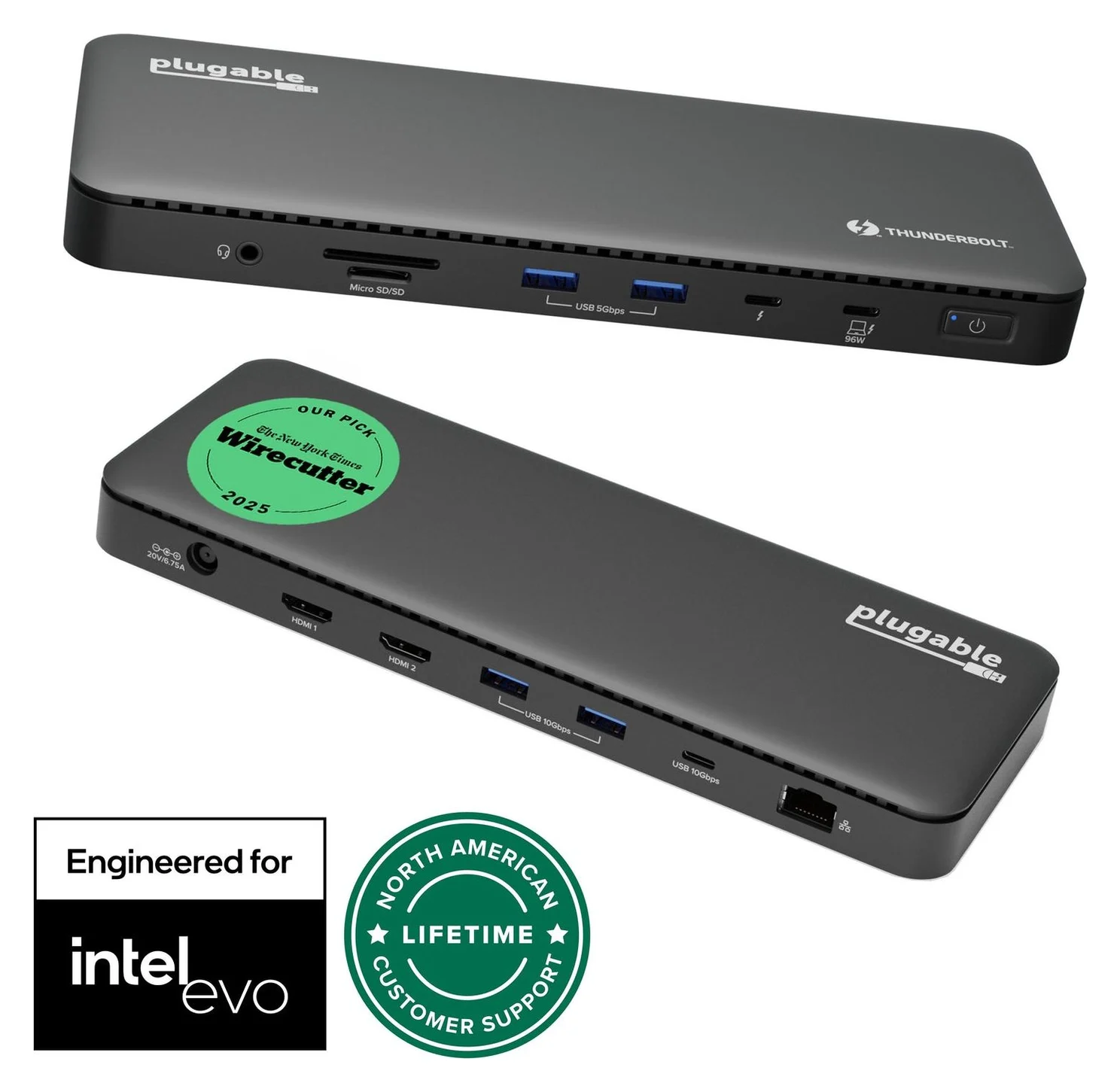
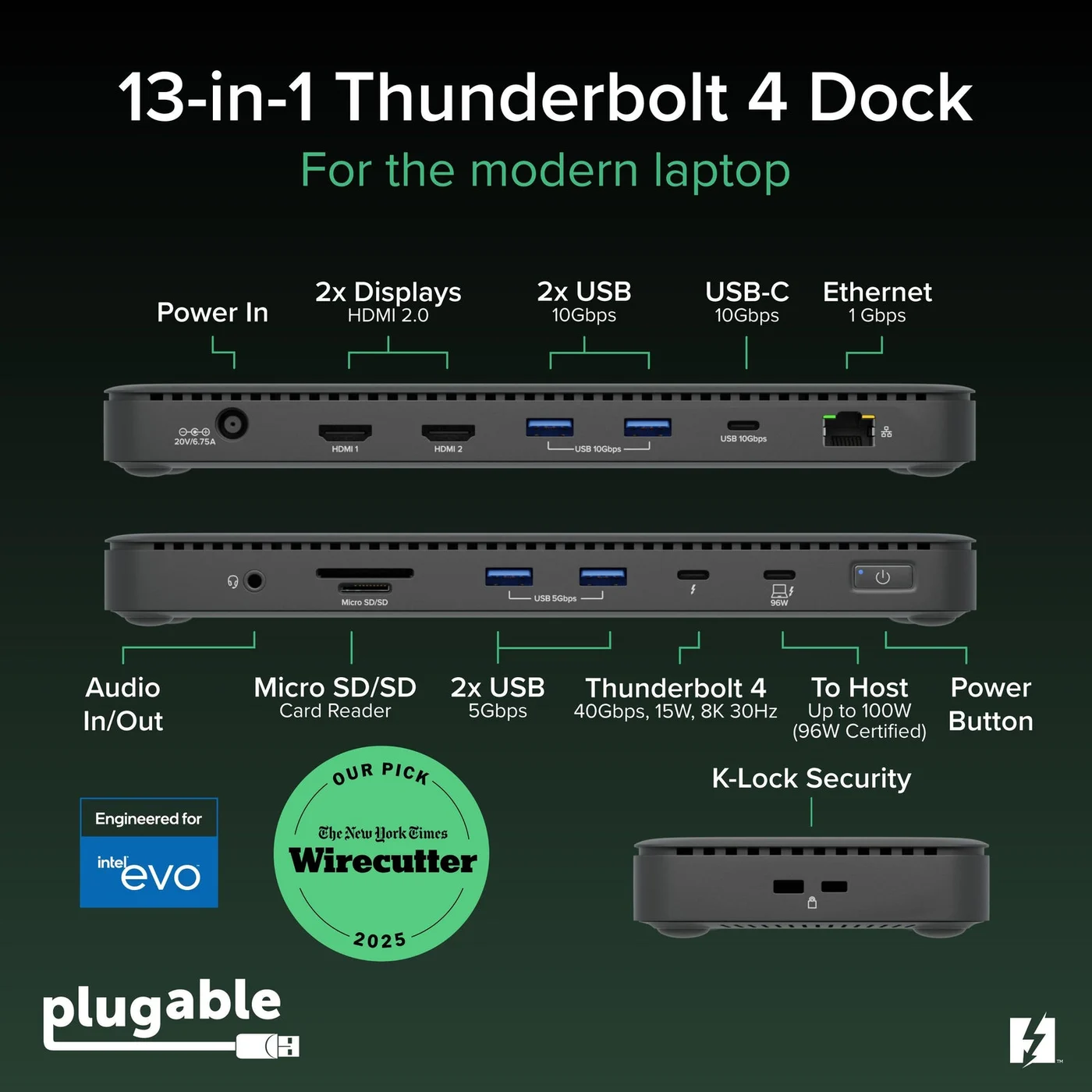
A Thunderbolt 4 dock with dual HDMI, 100W laptop charging (96W certified), Gigabit Ethernet and an SD/microSD reader.
- 96W PD passthrough
- 40 Gbps data
- 4K video
- 13 ports
Plugable lists driverless support for two displays on Windows 10 and later laptops with Thunderbolt 4, Thunderbolt 5 or USB4 ports, adding that display support depends on the laptop's video capabilities. Its spec sheet lists:
- 2x HDMI 2.0, each up to 4K at 60Hz, or a single 8K display at 30Hz through the downstream Thunderbolt 4 port
- 1x Thunderbolt 4 downstream (40Gbps, 15W)
- 2x USB-A 10Gbps, 2x USB-A 5Gbps and 1x USB-C 10Gbps
- Gigabit Ethernet, SD and microSD (UHS-II) readers and a combo audio jack
- Up to 100W laptop charging (96W certified) from a 134W power supply, plus a 1m Thunderbolt 4 cable
Why it stands out: two monitors over HDMI with no driver and no adapters, on Thunderbolt and capable USB4 laptops alike.
Watch out for: Plugable says Thunderbolt 3 and plain USB-C laptops get one display (its own table allows two on some Thunderbolt 3 laptops) and lists 4K at only 30Hz on plain USB-C. The HDMI ports top out at 60Hz, so this isn't the dock for a 144Hz gaming monitor. And Plugable says a DisplayPort-only monitor can't use the HDMI ports through a DisplayPort-to-HDMI cable, because most of those cables only work one way.
See the Plugable TBT4-UD5 on Amazon
Best for Thunderbolt 5 laptops: CalDigit TS5
CalDigit
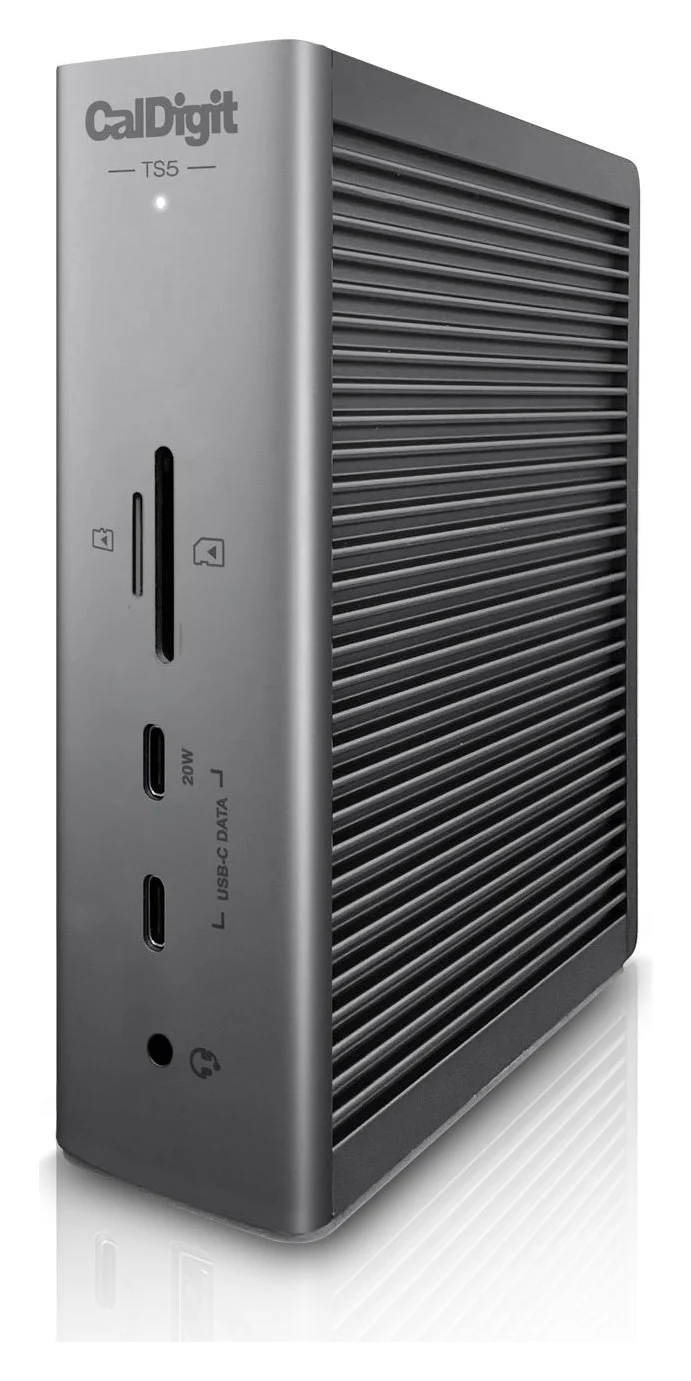
CalDigit TS5 Thunderbolt 5 Dock
A 15-port Thunderbolt 5 dock with three downstream 80Gb/s Thunderbolt 5 ports, 2.5GbE, UHS-II readers and 140W laptop charging.
- 140W PD passthrough
- 80 Gbps data
- Via Thunderb video
- 15 ports
For a Thunderbolt 5 laptop, CalDigit lists up to three displays on supported Thunderbolt 5 Windows PCs, including three 4K monitors at 144Hz, and up to two on Thunderbolt 4. Its spec sheet lists:
- 3x Thunderbolt 5 downstream (80Gb/s, 15W each), plus the Thunderbolt 5 host port (up to 120Gb/s with Bandwidth Boost)
- 3x USB-C 10Gb/s (one front port charges at 20W), 1x USB-A 10Gb/s and 1x USB 2.0 USB-A
- 2.5GbE, SD 4.0 and microSD 4.0 (UHS-II) readers and three 3.5mm audio jacks
- Up to 140W laptop charging from a 240W power supply, plus a 1m Thunderbolt 5 cable
There's no HDMI or DisplayPort. Monitors go on the spare Thunderbolt 5 ports: a USB-C or Thunderbolt monitor plugs in directly (see our USB-C monitor picks), and an HDMI or DisplayPort monitor needs a USB-C video adapter, sold separately.
Why it stands out: three monitors from one cable on a supported Thunderbolt 5 laptop.
Watch out for: CalDigit's Windows minimum is Windows 11 with Thunderbolt 4 or newer, an Intel 12th Gen processor or newer and Thunderbolt NVM firmware 43.3 or newer, so check an older laptop first. It also lists USB4 computers, but its Ethernet port needs a USB4 laptop that supports PCIe tunneling. Still choosing a laptop? See our laptops with Thunderbolt.
See the CalDigit TS5 on Amazon
Best Thunderbolt 5 dock with HDMI: Anker Prime TB5
Anker
Anker Prime TB5 Docking Station (14-in-1, 8K, Thunderbolt 5)
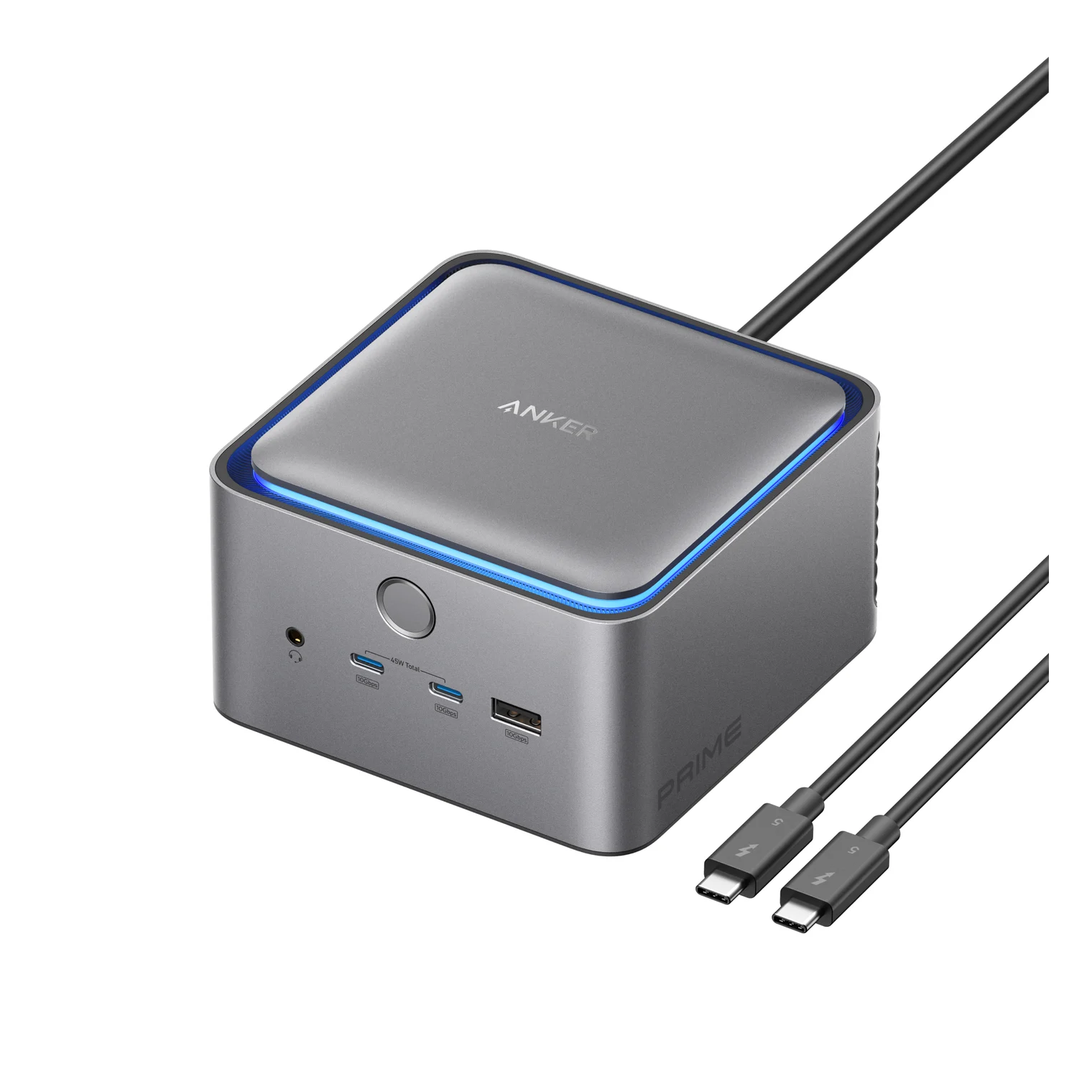
A 14-port Thunderbolt 5 dock with a built-in power supply, 140W laptop charging, an HDMI 2.1 or DisplayPort 2.1 output and two downstream Thunderbolt 5 ports.
- 140W PD passthrough
- 80 Gbps data
- 4K144 video
- 14 ports
The Anker's HDMI 2.1 and DisplayPort 2.1 ports work one at a time, so a second monitor goes on a Thunderbolt 5 port. Anker's Windows chart says up to two external displays, while its support page says two or three on Intel Thunderbolt 5 laptops, depending on the laptop. Its spec sheet lists:
- 1x HDMI 2.1 or 1x DisplayPort 2.1 (one at a time) and 2x Thunderbolt 5 downstream (15W each)
- 3x USB-A 10Gbps and 2x USB-C 10Gbps (45W shared, no video)
- 2.5Gbps Ethernet, SD and TF (microSD) readers (UHS-I) and an audio combo jack
- Up to 140W laptop charging, with the power supply built in, so there's no external power brick
Why it stands out: a monitor plugs straight into HDMI or DisplayPort, and there's no power brick on the desk.
Watch out for: Anker says it isn't compatible with Thunderbolt 3 laptops, and a USB-C laptop with DisplayPort Alt Mode gets one monitor. On an 11th-gen Intel Thunderbolt 4 laptop, Anker asks for Thunderbolt NVM firmware 48.1 or later and Thunderbolt support enabled in the BIOS. Plan on two displays: Anker's notes name only one laptop, a Razer Blade 18 with an RTX 4090, that ran three.
See the Anker Prime TB5 on Amazon
Best DisplayLink dock for USB-C laptops: Plugable UD-6950PDH
Plugable
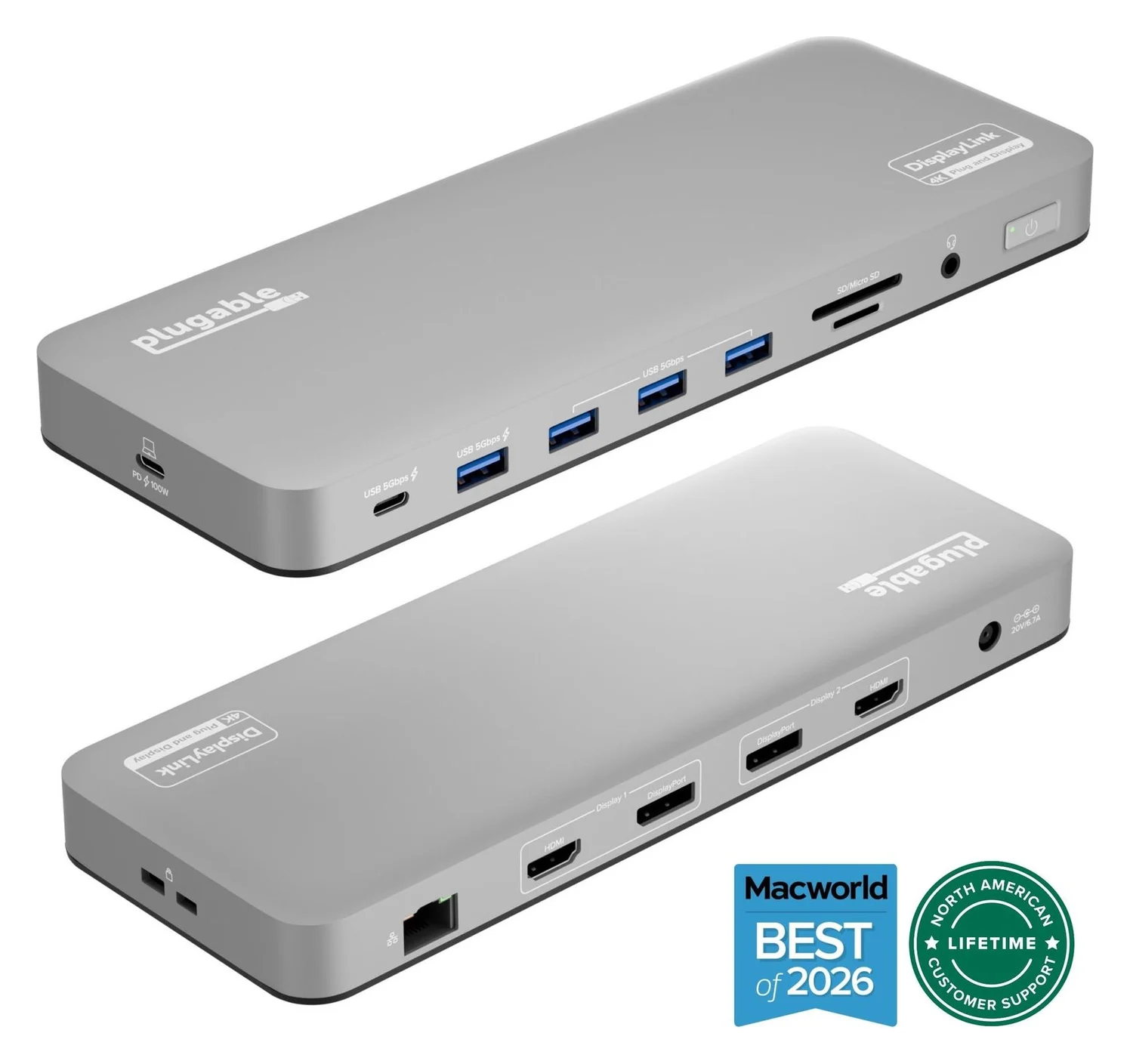
Plugable UD-6950PDH USB-C Dual 4K DisplayLink Dock (100W Charging)
A 14-in-1 DisplayLink USB-C dock that adds two extended 4K@60Hz displays over HDMI or DisplayPort, plus 100W laptop charging, Gigabit Ethernet, SD readers and five USB ports.
- 100W PD passthrough
- 5 Gbps data
- 4K60 video
- 14 ports
DisplayLink sends monitor signals over ordinary USB data, so it doesn't need a Thunderbolt port or DisplayPort Alt Mode. Plugable's spec sheet lists:
- Two extra monitors at up to 4K 60Hz each, over HDMI, DisplayPort or one of each
- Up to 100W laptop charging
- Gigabit Ethernet, SD (UHS-II) and microSD readers, a 3.5mm headset jack and five 5Gbps USB ports
On Windows it needs DisplayLink software. Plugable says installation is typically automatic, and Synaptics, which makes DisplayLink, publishes the driver for Windows 10 and 11. Plugable's minimum is a USB-C port with Power Delivery. It also lists Thunderbolt 3, 4 and 5 and USB4 laptops, naming Dell XPS and Latitude, Lenovo ThinkPad and HP EliteBook models among its Windows hosts.
Why it stands out: two monitors on laptops that Thunderbolt docks limit to one, including Thunderbolt 3 models.
Watch out for: it's built for office work, not games. Plugable says games may not launch correctly with the dock connected, HDCP-protected video won't play on its DisplayLink monitors, and its monitors run at up to 60Hz. The software needs administrator rights to install, so a work laptop may need IT's help. Plug the laptop into the USB-C port labeled "PD 100W" (on the side of the aluminum version); the front USB-C port is for accessories only.
See the Plugable UD-6950PDH on Amazon
How many monitors can a docking station run on Windows?
Intel requires every Thunderbolt 4 computer to support two 4K displays and every Thunderbolt 5 computer two 6K displays, and each of the three Thunderbolt picks here lists two monitors on Thunderbolt 4 and 5 Windows laptops. USB4 is looser: Intel says its minimum is one display and no charging support, so check that a USB4 laptop lists two displays and USB-C charging. With the Thunderbolt docks here, a third monitor needs a supported Thunderbolt 5 laptop: CalDigit says Thunderbolt 4 Windows laptops can't connect three natively. Docks with built-in MST and DisplayLink adapters can go further.
A plain USB-C port with DisplayPort Alt Mode has two ways past one monitor:
- An MST hub. Windows supports MST (Multi-Stream Transport) for extended desktops, so one DisplayPort signal can feed two screens if the laptop's graphics support it. Plugable notes that without Display Stream Compression you may be limited to lower resolutions, such as 1080p or 4K at 30Hz. Our Windows USB-C hub guide covers an MST pick, the Anker 553.
- A DisplayLink dock. Software creates the extra screens over USB, as on the UD-6950PDH above.
If Windows says "Display connection might be limited", Microsoft's possible causes include a USB-C port without the right Alternate Mode and a connection through a hub or dock.
How much charging power do you need?
HP says a dock should supply at least as much power as your laptop's own charger to charge it at full speed; the wattage is on the adapter. Intel's rules help: Thunderbolt 4 requires thin-and-light laptops that need less than 100W to charge through Thunderbolt, and Thunderbolt 5 raises that line to 140W.
Source: CalDigit, Anker and Plugable product pages
Plugable warns that gaming and performance laptops may not charge properly, and Dell says some Precision workstations need more power than most docks can deliver over a single USB-C connection. Anker adds two catches in its manual: laptops that use proprietary charging may show a low-power warning on third-party docks, and its dock gives at most 98W to a laptop on USB PD 3.0, so some gaming laptops that need 100W won't charge from it. If your laptop has its own power jack, keep its charger plugged in and use the dock for ports. If Windows warns "Slow charger", our laptop not charging guide walks through the causes.
Dell, Lenovo and HP laptops: what to check
Dell. For Thunderbolt and USB-C docks, Dell's docking guide says to use a USB-C port with a DisplayPort icon, a lightning bolt or a power icon next to it; Dell says its DisplayLink "universal" docks work with virtually any laptop. On some Dell 15, Dell Pro 15 Essential, Inspiron and Vostro models, use the USB-C port with the "D" logo: Dell says it carries data, video and power, while the port with the "SS" logo only transfers data.
Lenovo. Look up the exact model in PSREF, Lenovo's Product Specifications Reference, which lists each model's ports.
HP. HP says a lightning bolt next to the port usually indicates Thunderbolt, and to check the laptop's specifications for the port's standard (USB-C with DisplayPort, USB4, Thunderbolt 4 or Thunderbolt 5) and its maximum charging input.
Windows traps that waste a dock
- The wrong cable. Use the one in the box: Plugable says a charging-only cable can stop video and high-speed data, Microsoft's advice for USB4 docks is the dock maker's cable or a certified USB4 cable, and Anker asks for its own or a certified Thunderbolt 5 one.
- Old firmware. Both Thunderbolt 5 docks here name minimum Thunderbolt firmware for some laptops, so install the laptop maker's updates first.
- A monitor stuck at 30Hz. Work through our 30Hz fix guide.
How we choose
We haven't tested these docks ourselves. The picks come from research:
- Makers' spec sheets. Ports, charging, display limits and Windows requirements from Plugable's, CalDigit's and Anker's product pages, footnotes included.
- Platform documents. Intel's Thunderbolt 4 and 5 requirements, Microsoft's USB-C troubleshooting page and Synaptics' DisplayLink pages.
- Laptop makers' guidance. Dell's docking and port articles, Lenovo's docking brochure and PSREF, and HP's docking guides.
- Docks we already cover. Every pick is in our catalog, matched to the maker's model.
When a maker's claims conflict, we give the cautious one, and we leave out what we couldn't confirm on an official page. For more Thunderbolt docks, see our Thunderbolt dock roundup. Mac owners should start with docking stations for MacBook Pro.
Verdict
For a Windows laptop with Thunderbolt 4, or USB4 that supports two displays, the Plugable TBT4-UD5 is the easy choice: two HDMI monitors with no driver and up to 100W of charging. On a Thunderbolt 5 laptop, the CalDigit TS5 adds a third monitor on supported models and up to 140W, while the Anker Prime TB5 adds built-in HDMI or DisplayPort. On Thunderbolt 3 or plain USB-C, the Plugable UD-6950PDH gets you two monitors with DisplayLink, as long as you don't need it for games.
Frequently asked questions
Will a Thunderbolt docking station work with a USB-C laptop?
Usually, but with less. Plugable says Thunderbolt 3 and plain USB-C laptops get one display from its Thunderbolt 4 dock, and Anker says the same for USB-C laptops with DisplayPort Alt Mode. Some Thunderbolt 5 docks don't support Thunderbolt 3 laptops at all, and a data-only USB-C port won't run monitors through a Thunderbolt dock. For two monitors on plain USB-C, a DisplayLink dock such as the Plugable UD-6950PDH works over USB data instead.
How many monitors can a docking station run on Windows?
The laptop's port decides first. Intel requires Thunderbolt 4 laptops to support two 4K displays, and Thunderbolt 4 docks such as the Plugable TBT4-UD5 list two on Windows. With the Thunderbolt docks here, a third monitor needs a supported Thunderbolt 5 laptop: CalDigit lists up to three for its TS5 and says Thunderbolt 4 Windows laptops can't connect three natively. A plain USB-C port with DisplayPort Alt Mode gets one from the TBT4-UD5 or the Anker. Docks with built-in MST, MST hubs and DisplayLink adapters can add more.
Do docking stations need drivers on Windows?
It depends on how the dock makes video. Plugable calls its Thunderbolt TBT4-UD5 driverless on Windows 10 and later, and Anker describes its Thunderbolt 5 dock as plug and play. DisplayLink docks need DisplayLink software, which Plugable says usually installs automatically on Windows and needs administrator rights. Plugable adds that the TBT4-UD5's Ethernet may need a driver on Windows for the best performance.
Can a docking station charge a gaming laptop?
Often not at full speed. The docks here supply up to 100W or 140W, and Plugable warns that gaming and performance laptops with a high power draw may not charge properly. Dell says some Precision workstations need more power than most docks can deliver over a single USB-C connection. Compare the dock's wattage with your laptop's charger. If the dock gives less and the laptop has its own power jack, keep the charger plugged in and use the dock for ports.
Do I need a Dell, Lenovo or HP dock for my laptop?
Not for monitors, charging and ports, as long as the dock supports your laptop's port: check the dock maker's requirements first (the Anker and the TS5 don't support Thunderbolt 3 Windows laptops, for example). The makers' own docks add management extras: Lenovo lists MAC address pass-through, Wake-on-LAN and a mirrored power button on most ThinkPads, and Dell's Smart Docks add enterprise IT management such as remote management. If your employer manages your laptop, ask IT before you buy a third-party dock.
Related guides
Best External GPU Enclosures in 2026: Thunderbolt eGPUs That Still Exist
The current Thunderbolt eGPU enclosures from maker pages: Sonnet's Breakaway Box 850 T5 and 750ex and Razer's Core X V2, plus the Mac compatibility truth and what to check before buying.
Updated November 7, 2026Read
OWC Thunderbolt Go vs CalDigit TS4: Which Thunderbolt Dock Should You Buy?
The Go Dock packs its own power for travel; the TS4 anchors a desk with 18 ports and 98W charging. Compare full kits, monitors and which to buy.
Updated November 5, 2026Read
Plugable TBT4-UD5 vs UD-3900PDH: Which Dock for Dual Monitors?
Choose between Plugable's TBT4-UD5 Thunderbolt 4 dock and UD-3900PDH DisplayLink dock: which laptop ports they need, display counts, charging and software.
Updated November 5, 2026Read