Best picks
Best Docks for MacBook Pro in 2026 (M5, M5 Pro and M5 Max)
Thunderbolt 5 and 4 docks matched to each current MacBook Pro: 140W charging for the 16-inch, three or four displays on M5 Pro and Max, 10GbE and more.
By thisUSB EditorialUpdated October 22, 20268 min read5 picks
Our picks at a glance
- See on Amazon1
Best overall
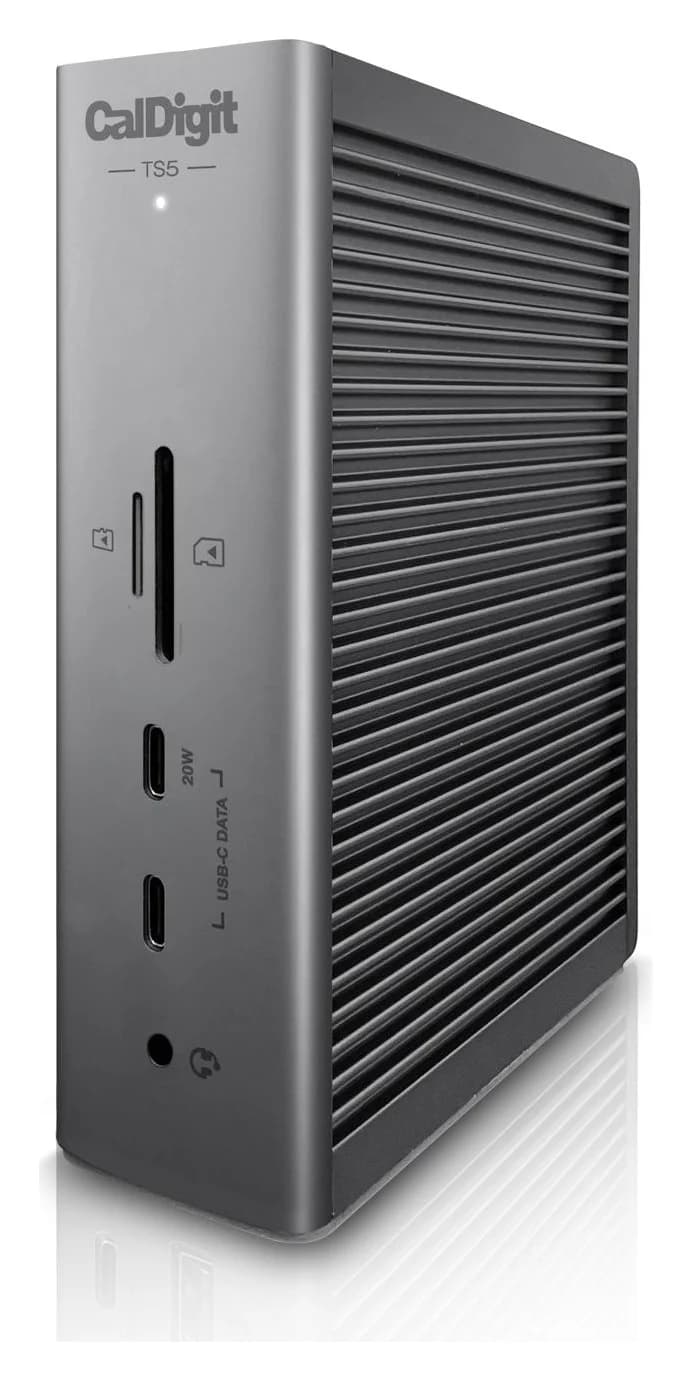
CalDigit TS5 Thunderbolt 5 Dock140W PD passthrough · 80 Gbps data · Via Thunderb video · 15 ports
- See on Amazon2
Best for studios and 10GbE
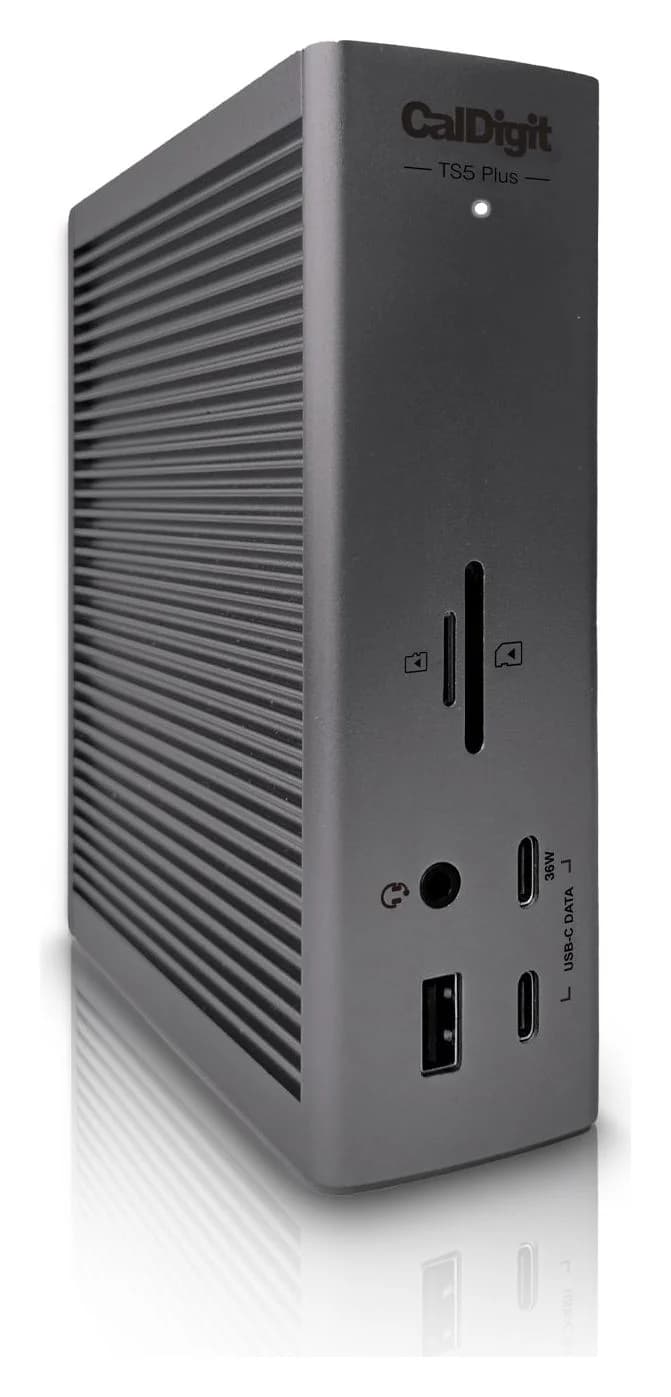
CalDigit TS5 Plus Thunderbolt 5 Dock (20 Ports, 10GbE)140W PD passthrough · 80 Gbps data · 1x DisplayPo video · 20 ports
- See on Amazon3
Best compact Thunderbolt 5 dock
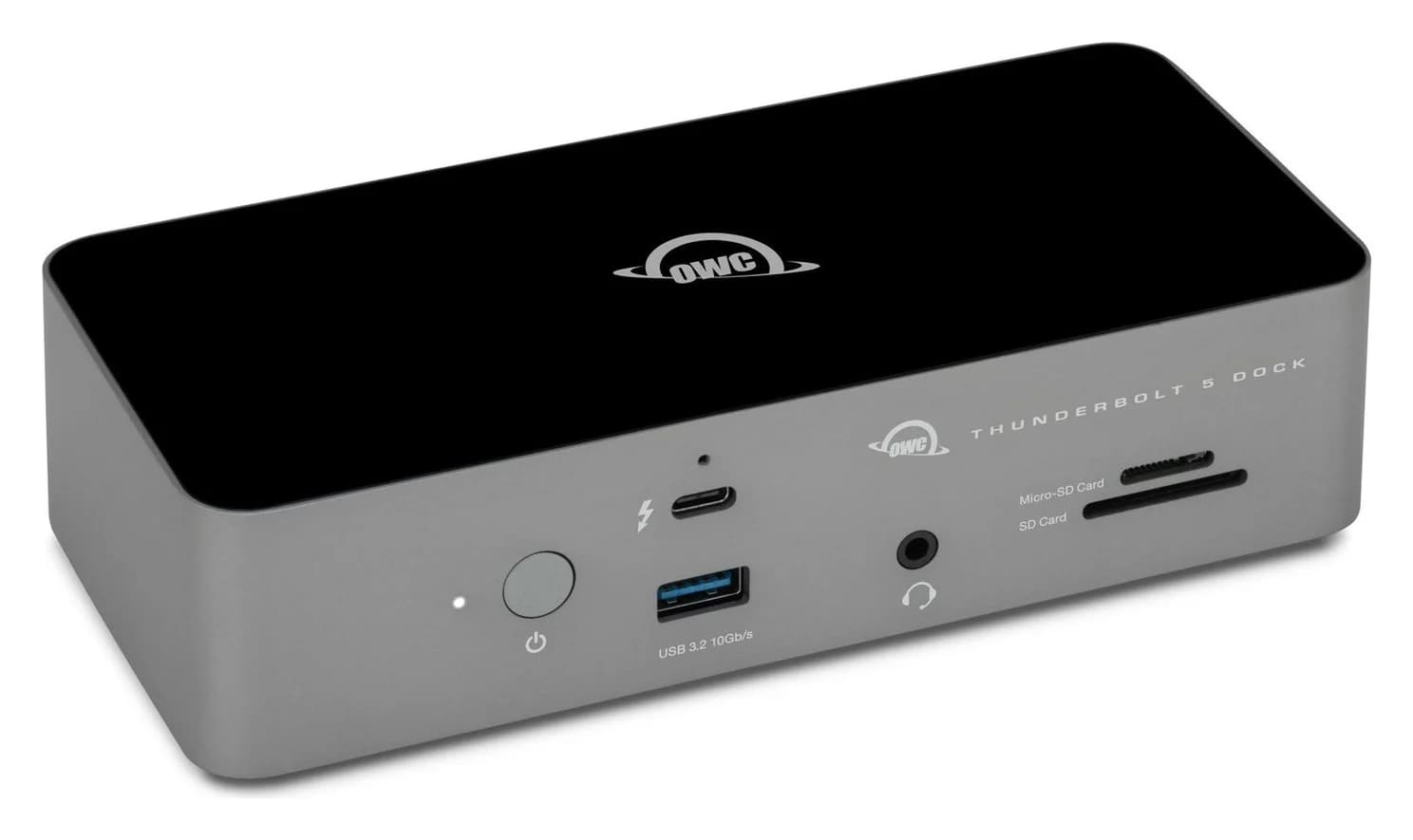
OWC Thunderbolt 5 Dock (11-Port)140W PD passthrough · 80 Gbps data · 8K60 video · 11 ports
- See on Amazon4
Best with built-in HDMI
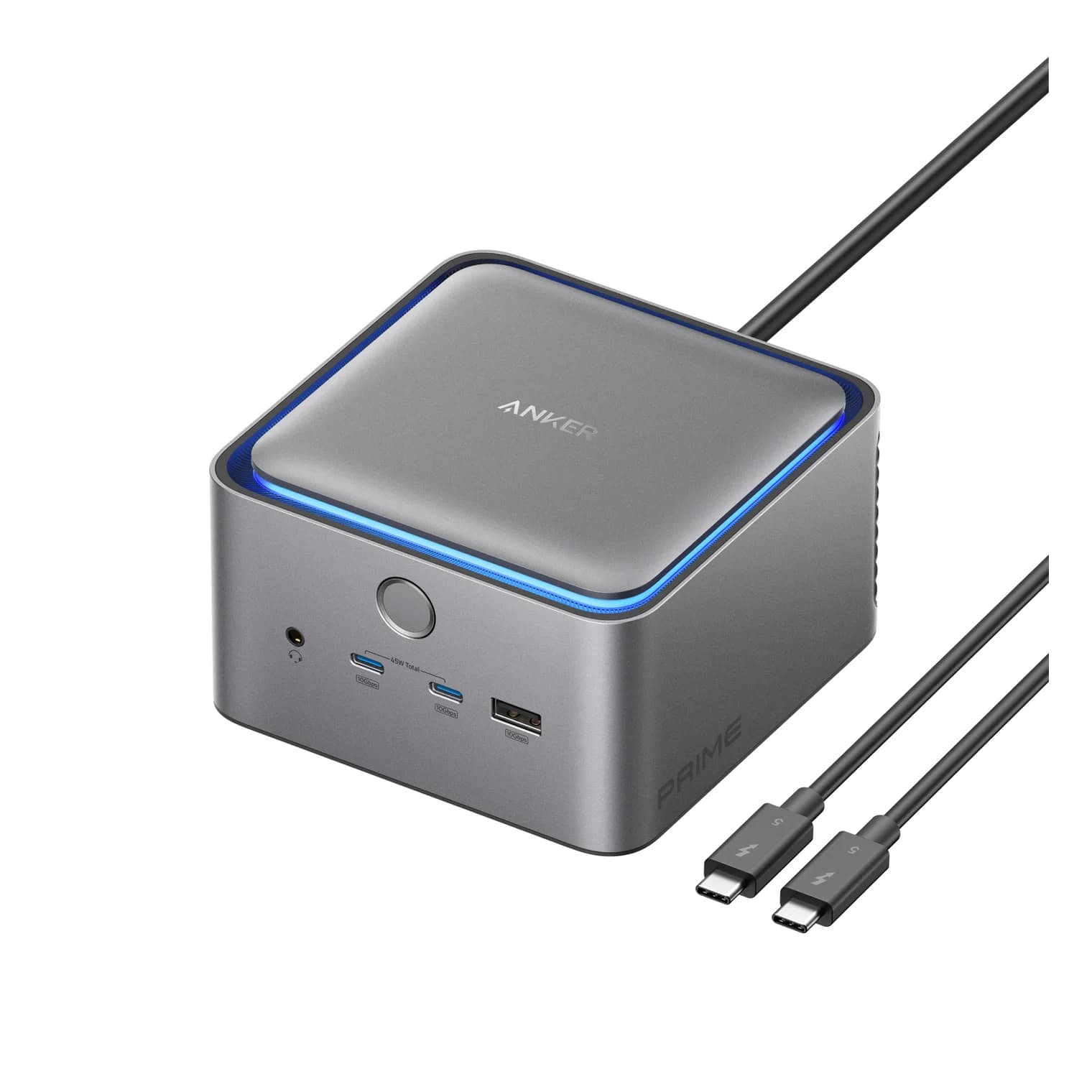
Anker Prime TB5 Docking Station (14-in-1, 8K, Thunderbolt 5)140W PD passthrough · 80 Gbps data · 4K144 video · 14 ports
- See on Amazon5
Best for the base M5 MacBook Pro
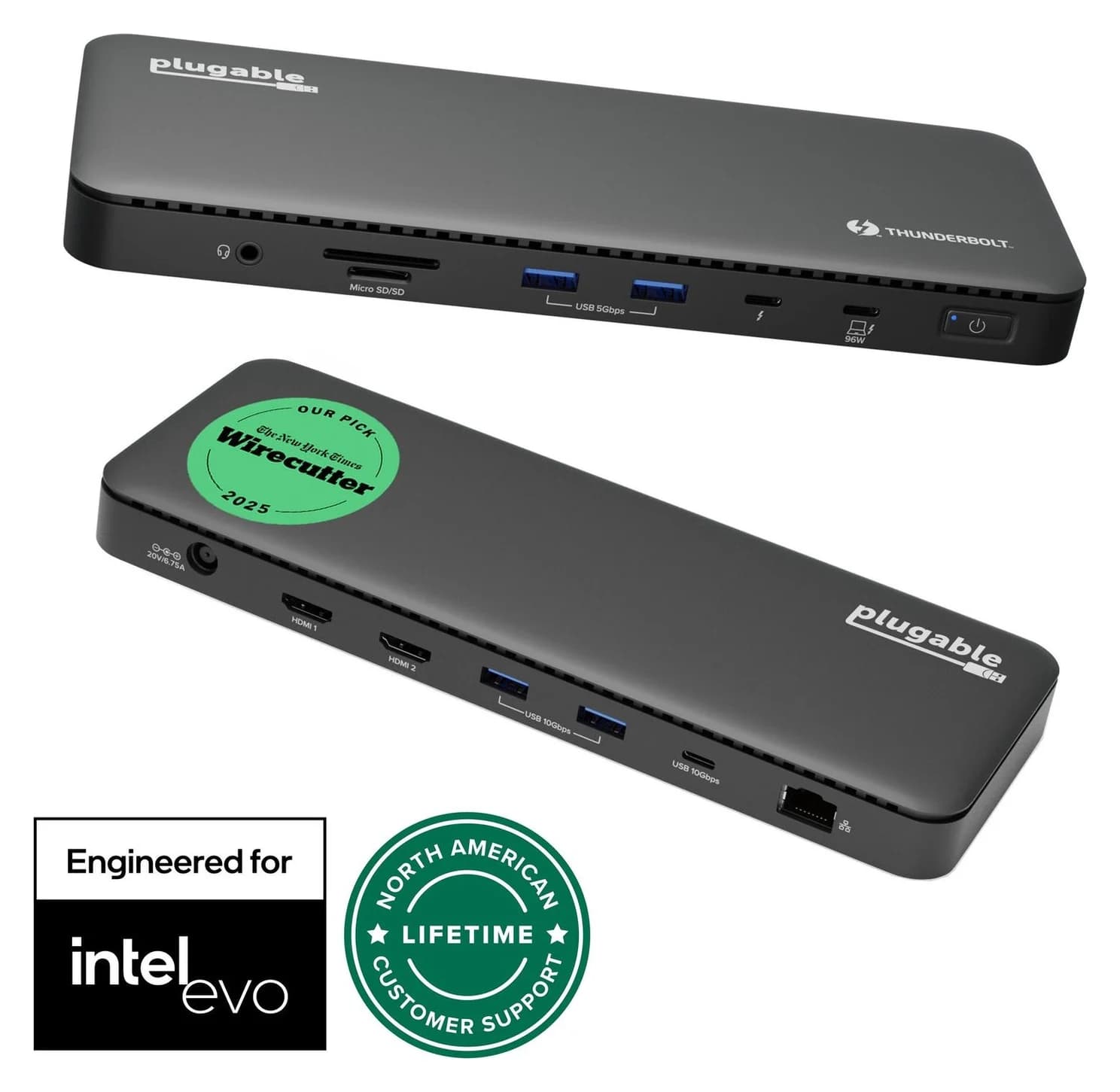
Plugable Thunderbolt 4 Dock (TBT4-UD5)96W PD passthrough · 40 Gbps data · 4K video · 13 ports
For an M5 Pro or M5 Max MacBook Pro, the CalDigit TS5 is the dock to get. It has three 80Gb/s Thunderbolt 5 ports, 140W charging for the 16-inch, and CalDigit's own support for three or four displays on one cable. If your studio runs on a fast NAS, the CalDigit TS5 Plus adds 10GbE. If you have the base M5 14-inch, which has Thunderbolt 4, the dual-HDMI Plugable TBT4-UD5 covers it for less.
Every pick below works with every current MacBook Pro. What changes is speed, charging and how many monitors you get, and those depend on your chip.
Quick picks
| Pick | Award | Link to Mac | Laptop charging | Display outputs | Ethernet |
|---|---|---|---|---|---|
| CalDigit TS5 | Best overall | Thunderbolt 5 | 140W | 3x Thunderbolt 5 | 2.5GbE |
| CalDigit TS5 Plus | Best for studios | Thunderbolt 5 | 140W | DisplayPort 2.1 + 2x Thunderbolt 5 | 10GbE |
| OWC Thunderbolt 5 Dock | Best compact | Thunderbolt 5 | 140W | 3x Thunderbolt 5 | 2.5GbE |
| Anker Prime TB5 Dock | Best with HDMI | Thunderbolt 5 | 140W | HDMI 2.1 or DP 2.1 + 2x Thunderbolt 5 | 2.5GbE |
| Plugable TBT4-UD5 | Best for base M5 | Thunderbolt 4 | 96W certified | 2x HDMI 2.0 + 1x Thunderbolt 4 | 1GbE |
Which MacBook Pro do you have?
Apple's spec pages list three current chips, and they behave differently with a dock:
| MacBook Pro | Thunderbolt ports | External displays | Charger in the box | Fast charging needs |
|---|---|---|---|---|
| 14-inch M5 | 3x Thunderbolt 4 (40Gb/s) | Up to 2 | 70W | 96W+ |
| 14-inch M5 Pro (15-core CPU) | 3x Thunderbolt 5 (120Gb/s) | Up to 3 | 70W | 96W+ |
| 14-inch M5 Pro (18-core) or M5 Max | 3x Thunderbolt 5 (120Gb/s) | 3 (Pro) or 4 (Max) | 96W | 96W+ |
| 16-inch M5 Pro or M5 Max | 3x Thunderbolt 5 (120Gb/s) | 3 (Pro) or 4 (Max) | 140W | 140W+ |
Every model also has HDMI, an SDXC slot, a headphone jack and MagSafe 3. Our best laptops with Thunderbolt guide covers the 14-inch M5 Pro's ports in more detail.
The MacBook Pro already has HDMI and SD, so what's the dock for?
Unlike a MacBook Air, the Pro doesn't need a dock just to reach a monitor or a camera card. The dock's job is different:
- One cable for the whole desk. Charging, monitors, Ethernet, USB-A and drives connect through one Thunderbolt cable, so plugging in at the desk takes a second.
- Charging that keeps up. A 140W dock matches the 16-inch's adapter, and a 96W or higher dock meets Apple's fast-charge threshold for the 14-inch.
- More fast ports. Downstream Thunderbolt 5 ports run fast SSDs, Thunderbolt monitors and card readers. The Mac's own three ports fill up quickly.
- Displays on one cable. Apple says the M5 Pro can run all three of its displays, and the M5 Max all four, over a single Thunderbolt port, as long as the dock supports it.
The Mac's built-in HDMI is still useful. It counts toward the same display limit, and it gives you a third monitor if your dock only supports two.
Best overall: CalDigit TS5
CalDigit
CalDigit TS5 Thunderbolt 5 Dock
A 15-port Thunderbolt 5 dock with three downstream 80Gb/s Thunderbolt 5 ports, 2.5GbE, UHS-II readers and 140W laptop charging.
- 140W PD passthrough
- 80 Gbps data
- Via Thunderb video
- 15 ports
The TS5 is the most complete Thunderbolt 5 dock for a MacBook Pro. CalDigit's spec page lists:
- 1x Thunderbolt 5 host port, up to 120Gb/s with Bandwidth Boost
- 3x Thunderbolt 5 downstream, 80Gb/s and 15W each
- 3x USB-C 10Gb/s (the front one at 20W), 1x USB-A 10Gb/s, 1x USB-A USB 2.0
- 2.5GbE, SD 4.0 and microSD 4.0 (UHS-II), three 3.5mm audio jacks
- 140W host charging from a 240W power supply, with a 1m Thunderbolt 5 cable
CalDigit is unusually specific about Macs. It lists three displays on M5 Pro, and up to four on M5 Max with one daisy-chained Thunderbolt display. Base M5 and M4 Macs get two, and base M1 to M3 Macs get one. Displays connect through the Thunderbolt 5 ports, so an HDMI monitor needs a USB-C to HDMI cable. It requires macOS 15 or later.
See the CalDigit TS5 on Amazon
Best for studios and 10GbE: CalDigit TS5 Plus
CalDigit
CalDigit TS5 Plus Thunderbolt 5 Dock (20 Ports, 10GbE)
A 20-port Thunderbolt 5 dock with 10 Gigabit Ethernet, a DisplayPort 2.1 output, two 80Gb/s Thunderbolt 5 ports and 140W laptop charging.
- 140W PD passthrough
- 80 Gbps data
- 1x DisplayPo video
- 20 ports
The TS5 Plus suits a MacBook Pro that edits off a NAS. Its 10 Gigabit Ethernet port is about four times faster than the 2.5GbE on the other docks here. CalDigit lists 20 ports:
- 1x Thunderbolt 5 host (120Gb/s, 140W) and 2x Thunderbolt 5 downstream at 80Gb/s and 36W each
- 1x DisplayPort 2.1
- 5x USB-C 10Gb/s (the front one at 36W) and 5x USB-A 10Gb/s, split across two USB controllers
- 10GbE, SD 4.0 and microSD 4.0 (UHS-II) usable at once, three audio jacks
- 140W host charging from a 330W power supply
CalDigit's display table matches the TS5's: three on M5 Pro (two on the Thunderbolt ports and one on DisplayPort) and four on M5 Max. The trade-offs are a large power brick and no HDMI. CalDigit also notes that the 10GbE port and the second USB controller need PCIe tunnelling. Every Thunderbolt Mac has it, but some USB4 Windows laptops don't.
See the CalDigit TS5 Plus on Amazon
Best compact Thunderbolt 5 dock: OWC Thunderbolt 5 Dock
OWC
OWC Thunderbolt 5 Dock (11-Port)
A fanless 11-port Thunderbolt 5 dock with three downstream Thunderbolt 5 ports, 2.5GbE, UHS-II card readers and 140W laptop charging.
- 140W PD passthrough
- 80 Gbps data
- 8K60 video
- 11 ports
OWC's 11-port dock is a smaller, fanless alternative to the TS5. OWC's spec pages and support manual list:
- 1x Thunderbolt 5 host port (140W) and 3x Thunderbolt 5 downstream (one on the front), up to 15W each
- 2x USB-A 10Gb/s and 1x USB-A 5Gb/s
- 2.5GbE, SD 4.0 and microSD 4.0 (UHS-II), a 3.5mm combo jack
- A 1.0m certified Thunderbolt 5 cable and an external power supply
The front Thunderbolt 5 port is handy for an SSD you plug in every day. There's no HDMI, DisplayPort or extra USB-C, so all your monitors go through the Thunderbolt ports. OWC's page lists two 6K displays on Macs and doesn't yet mention M5 Pro or M5 Max three-display support. Plan on two from the dock, plus the MacBook Pro's HDMI for a third. On a Mac, OWC's Dock Ejector app adds high-power USB charging and Apple SuperDrive support.
See the OWC Thunderbolt 5 Dock on Amazon
Best with built-in HDMI: Anker Prime TB5 Docking Station
Anker
Anker Prime TB5 Docking Station (14-in-1, 8K, Thunderbolt 5)
A 14-port Thunderbolt 5 dock with a built-in power supply, 140W laptop charging, an HDMI 2.1 or DisplayPort 2.1 output and two downstream Thunderbolt 5 ports.
- 140W PD passthrough
- 80 Gbps data
- 4K144 video
- 14 ports
Anker's 14-in-1 cube is the only pick here with HDMI built in. Anker lists:
- 1x Thunderbolt 5 upstream (140W, PD 3.1) and 2x Thunderbolt 5 downstream (15W)
- 1x HDMI 2.1 or 1x DisplayPort 2.1 (only one at a time)
- 2x USB-C 10Gbps on the front sharing 45W, 3x USB-A 10Gbps
- 2.5GbE, SD and microSD (UHS-I), a 3.5mm combo jack
- A built-in power supply (just an AC cord) and a 3.3 ft Thunderbolt 5 cable
The built-in power supply keeps the desk tidier, and the Dock Manager app handles firmware updates. Anker's display claims are inconsistent, though. Most of its notes say two external displays and "no triple display", with dual 6K at 60Hz or dual 4K at 144Hz on Macs. Its newest compatibility chart lists triple displays on M5 Pro and Max. Plan on two until Anker settles it. The card readers are UHS-I, slower than the UHS-II readers on the CalDigit and OWC docks, and the cube uses a fan. It needs macOS 15 or later.
See the Anker Prime TB5 Docking Station on Amazon
Best for the base M5 MacBook Pro: Plugable TBT4-UD5
Plugable
Plugable Thunderbolt 4 Dock (TBT4-UD5)
A Thunderbolt 4 dock with dual HDMI, 100W laptop charging (96W certified), Gigabit Ethernet and an SD/microSD reader.
- 96W PD passthrough
- 40 Gbps data
- 4K video
- 13 ports
The 14-inch MacBook Pro with the base M5 has Thunderbolt 4 ports, so a Thunderbolt 5 dock can't run faster than 40Gb/s on it. The TBT4-UD5 makes more sense there. It has two HDMI 2.0 ports (4K at 60Hz each), 1x Thunderbolt 4 downstream, two 10Gbps and two 5Gbps USB-A ports, a 10Gbps USB-C port, Gigabit Ethernet and a UHS-II card reader.
Apple says the base M5 supports two external displays and can run both over a single Thunderbolt port, which suits this dual-HDMI design. Charging is 100W, with 96W certified. That meets Apple's "96W or higher" fast-charge figure for the 14-inch, which ships with a 70W adapter. It's also a reasonable dock for a 14-inch M5 Pro if you don't need Thunderbolt 5 speeds. It isn't the right dock for a 16-inch, which wants 140W, or for 4K monitors above 60Hz.
See the Plugable TBT4-UD5 on Amazon
Also considered
Belkin's Connect Thunderbolt 5 Dock (14 ports, 140W, HDMI 2.1 and DisplayPort 2.1) was listed as "coming soon" on Belkin's own store when we checked in October, so we left it out for now. OWC has also announced a Thunderbolt 5 Dual HDMI Dock. We'll look at both once they're widely available.
How we choose
We haven't physically tried these docks. Our picks come from research:
- Apple's specs. Thunderbolt versions, display limits and charging figures come from Apple's MacBook Pro tech specs, its display support page and its fast-charge page.
- Maker spec sheets. Ports, host charging, power supplies and Mac display notes come from CalDigit's, OWC's, Anker's and Plugable's own pages and manuals. Where a maker contradicts itself, as Anker does on triple displays, we say so.
- Standards. We check claims against Intel's Thunderbolt 5 and 4 requirements. See our Thunderbolt 5 vs USB4 explainer.
- ASIN checks. We confirm every Amazon listing matches the exact model before linking it.
Buying guide
Match charging to your MacBook Pro. For a 16-inch, choose a 140W dock (all four Thunderbolt 5 picks). For a 14-inch, 96W or more meets Apple's fast-charge figure. Lower charging still works, just more slowly. For the details behind the wattages, see USB Power Delivery explained.
Count your monitors, then check the dock's Mac notes. Apple sets the ceiling: 2 displays on M5, 3 on M5 Pro, 4 on M5 Max. The dock has to support those numbers over one cable. CalDigit publishes them clearly for M5 Pro and Max, Anker contradicts itself, and OWC still lists two. Remember that the Mac's own HDMI port adds a display. For dual-monitor setups on older or base MacBooks, see our dual-monitor hub guide. If a monitor stays at 30Hz, it's usually the cable or adapter. See why your monitor is stuck at 30Hz.
Use a real Thunderbolt cable. Every dock here includes one, about 1m long. A spare or longer cable must be a certified Thunderbolt 5 (or Thunderbolt 4) cable, not a charging cable. Our USB-C cable guide explains the difference.
Think about storage. Thunderbolt 5 docks pay off most with fast external SSDs. Our portable SSD guide covers which drives use the bandwidth.
Verdict
The CalDigit TS5 is the best dock for an M5 Pro or M5 Max MacBook Pro. It has three Thunderbolt 5 ports and 140W charging, and CalDigit publishes three- and four-display support. Pick the TS5 Plus for 10GbE and a DisplayPort output, or the fanless OWC Thunderbolt 5 Dock for a smaller footprint. The Anker Prime TB5 suits HDMI monitors. For the base M5 14-inch, the Plugable TBT4-UD5 gives you dual HDMI and 96W certified charging without paying for Thunderbolt 5 speed the Mac can't use. For more options, including Thunderbolt 4 docks, see our best Thunderbolt docks.
Frequently asked questions
Do I need a Thunderbolt 5 dock for a MacBook Pro?
Only if your MacBook Pro has an M5 Pro or M5 Max chip. Those models have three Thunderbolt 5 ports rated up to 120Gb/s. The base 14-inch M5 has Thunderbolt 4 ports at 40Gb/s, so a Thunderbolt 5 dock runs at Thunderbolt 4 speed there. The 140W charging still applies, though, and a Thunderbolt 4 dock works fine on any of these Macs at 40Gb/s.
Can a dock fast-charge the 16-inch MacBook Pro?
On paper, a 140W dock comes closest. Apple says the 16-inch fast-charges from a 140W or higher USB Power Delivery source. Its fast-charge list names only the 140W adapter with MagSafe 3 or with Apple's 240W USB-C cable, plus the Studio Display XDR, and no third-party docks. A 96W or 100W dock still charges the 16-inch, just more slowly, and it may not keep up under heavy load.
How many monitors can a MacBook Pro run through one dock?
Apple's limits are two external displays on M5, three on M5 Pro and four on M5 Max. Apple says all of them can run over a single Thunderbolt port with a supported dock. The dock has to support it too: CalDigit lists three and four displays on its TS5 docks, while Anker and OWC list two on Macs. macOS doesn't support DisplayPort MST, so cheap MST hubs mirror instead of extending.
Does the MacBook Pro's HDMI port count toward the display limit?
Yes. Apple's limits count every external display, over any combination of Thunderbolt and HDMI ports. That's useful, though: if your dock lists two displays on Macs, an M5 Pro can drive a third monitor from its own HDMI port. You lose the one-cable setup, but you don't need a more expensive dock.
Related guides
Thunderbolt 5 vs USB4: What's the Difference in 2026?
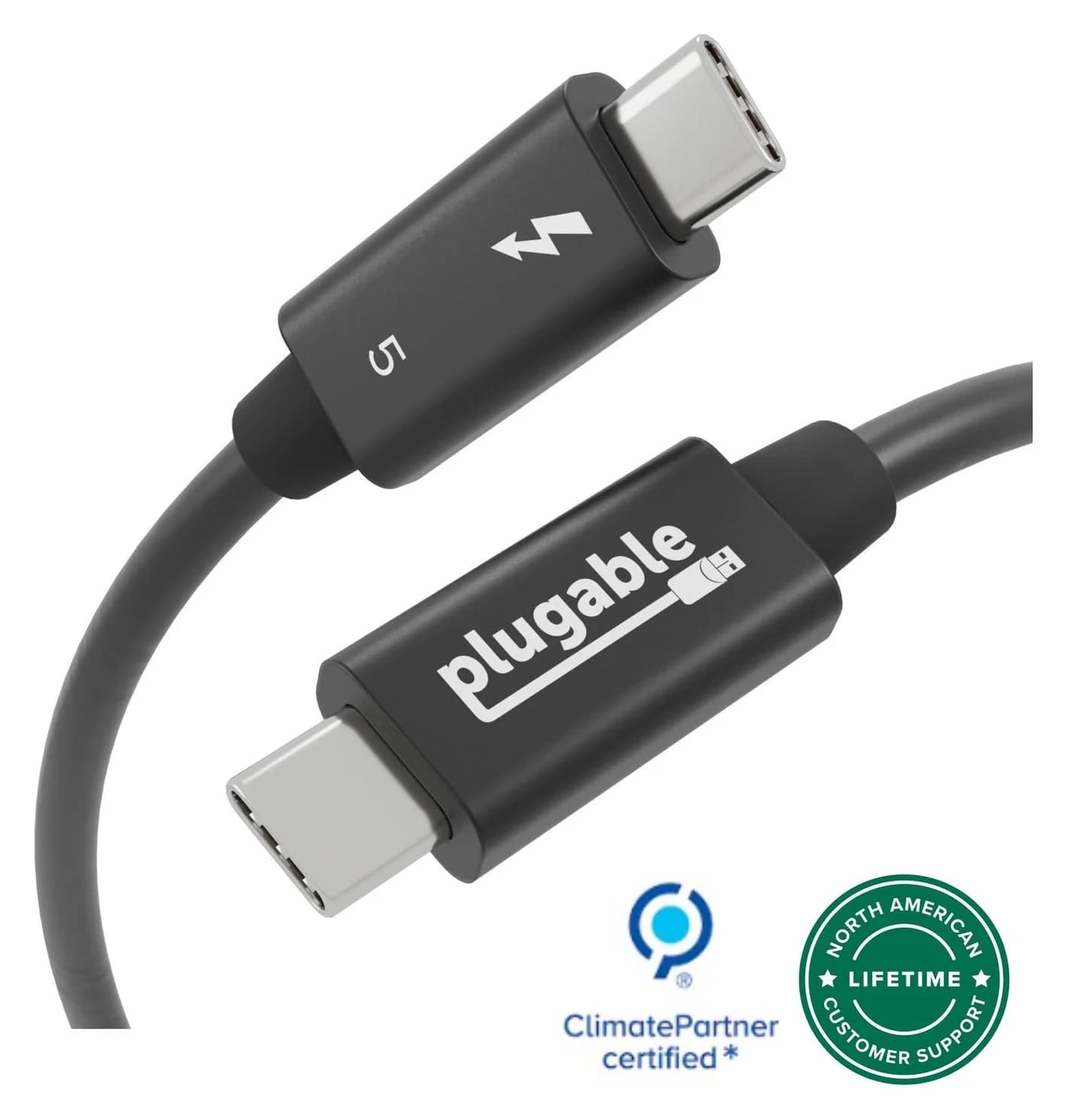
Thunderbolt 5 vs USB4 and USB4 v2 explained: 80Gbps, 120Gbps Bandwidth Boost, PCIe, displays, 140W to 240W charging, cables, and which Macs and PCs have it.
Updated October 22, 2026Read
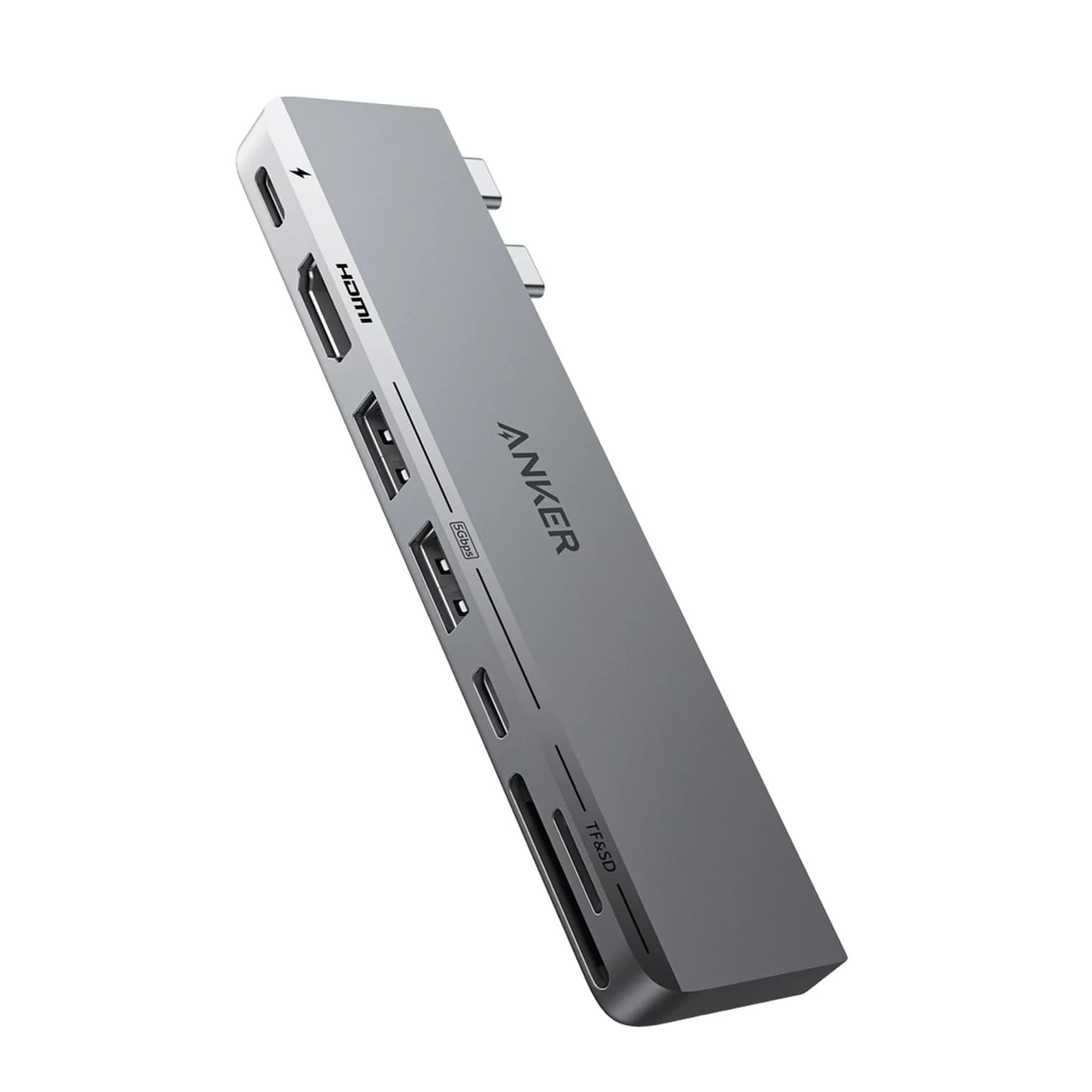
Best Dual-Monitor Docks and Hubs for MacBook in 2026 (M1 to M5 and Neo)
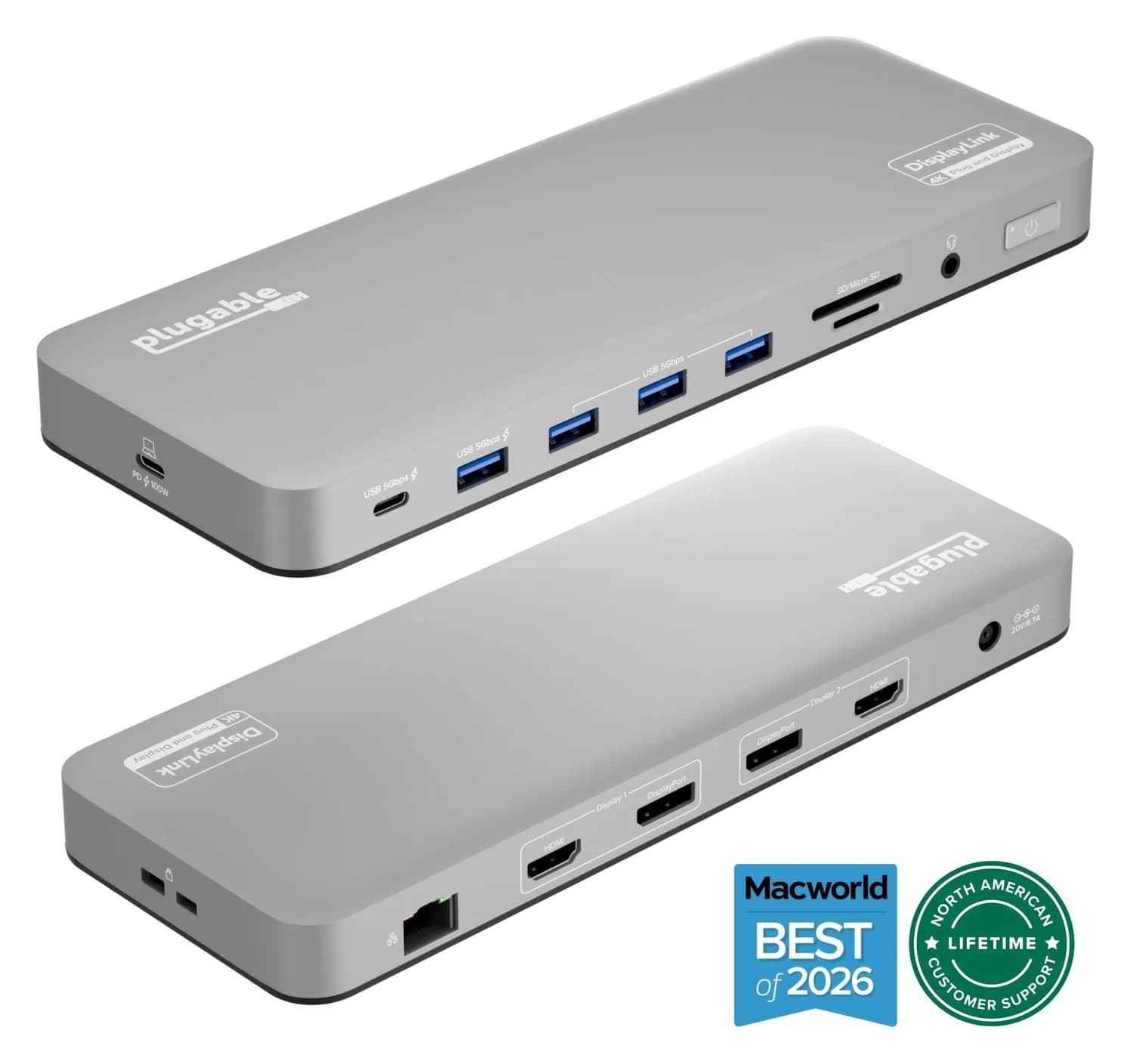
Why a second monitor mirrors or stays dark on a MacBook, what each chip from M1 to M5 and the Neo can drive, and which Thunderbolt and DisplayLink docks work.
Updated October 22, 2026Read
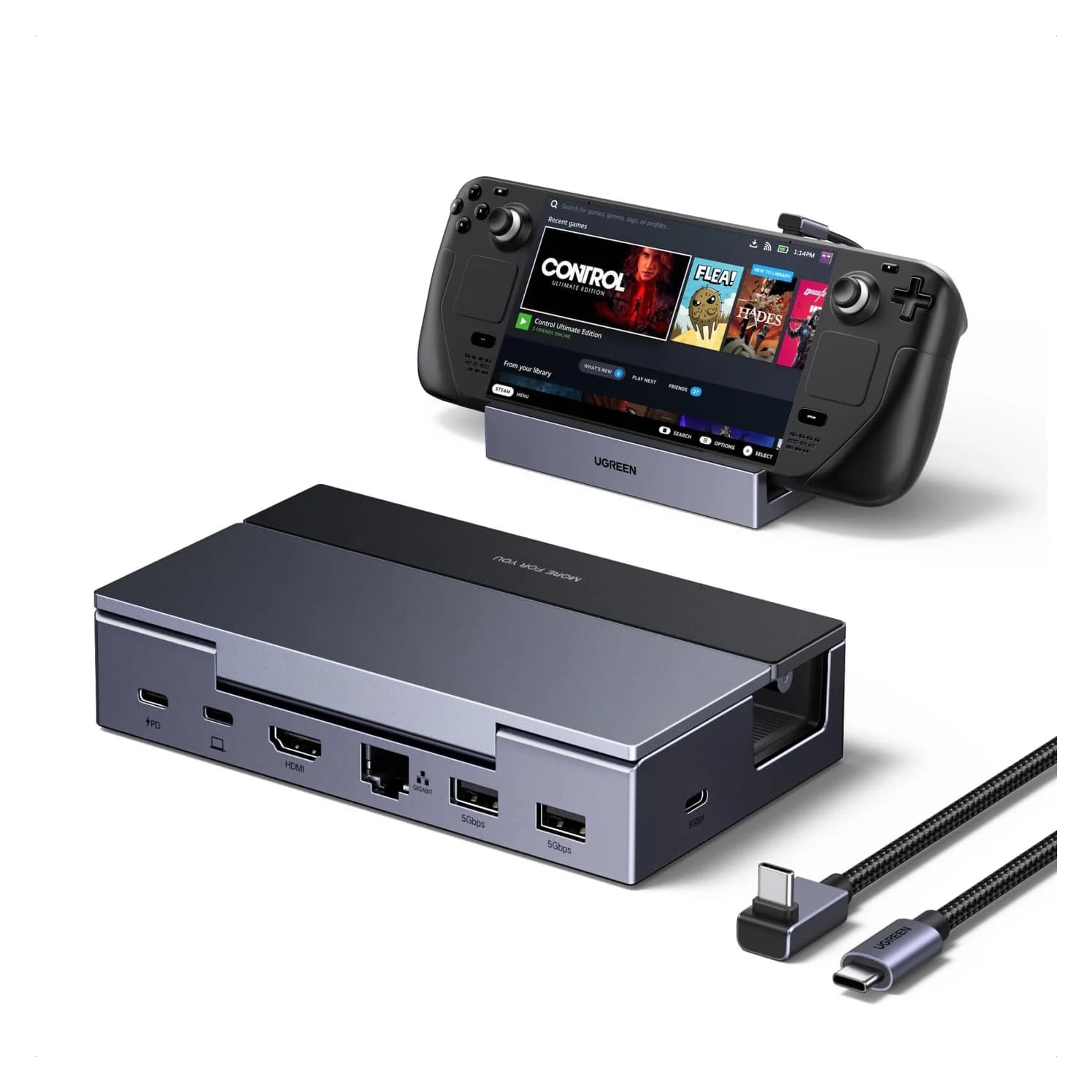
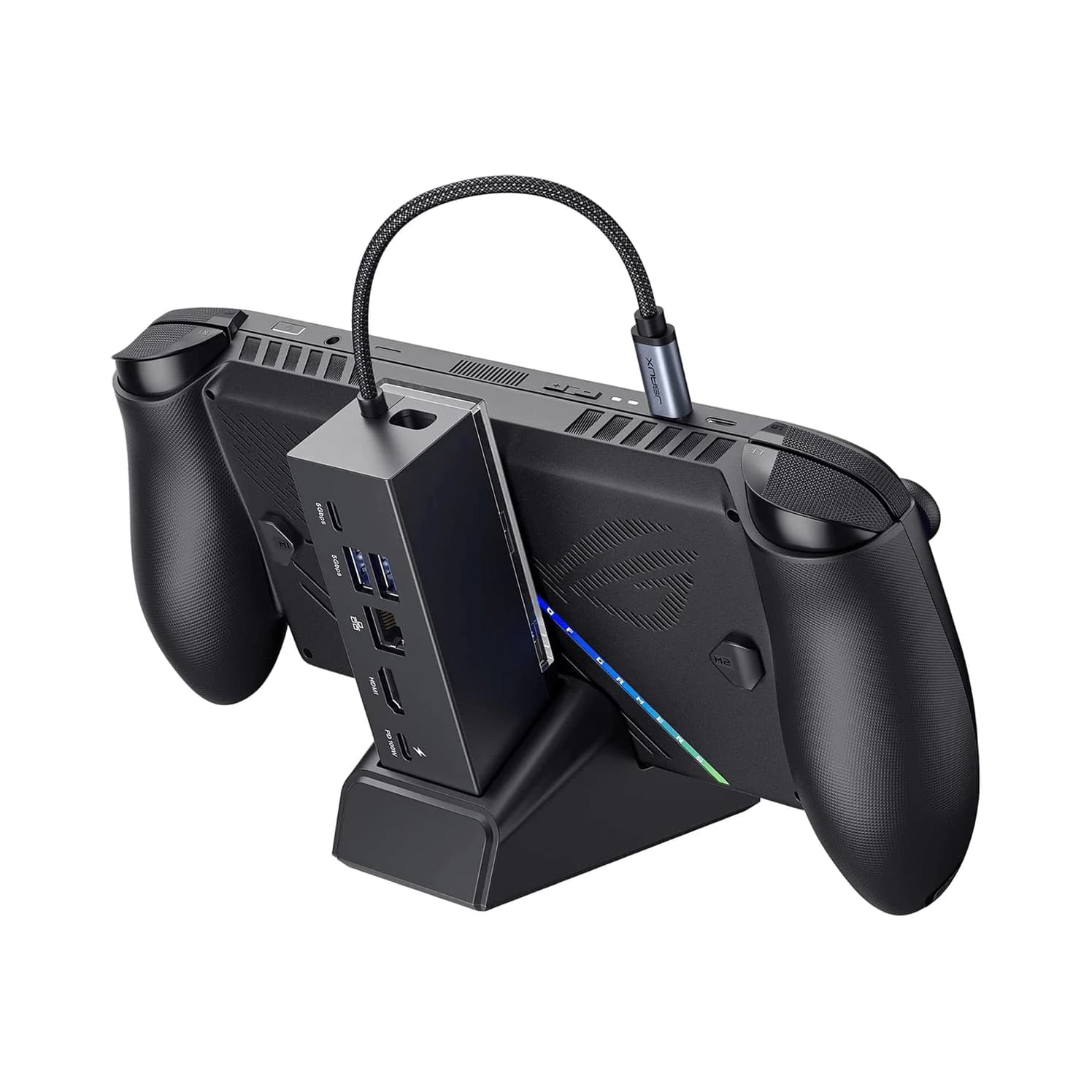
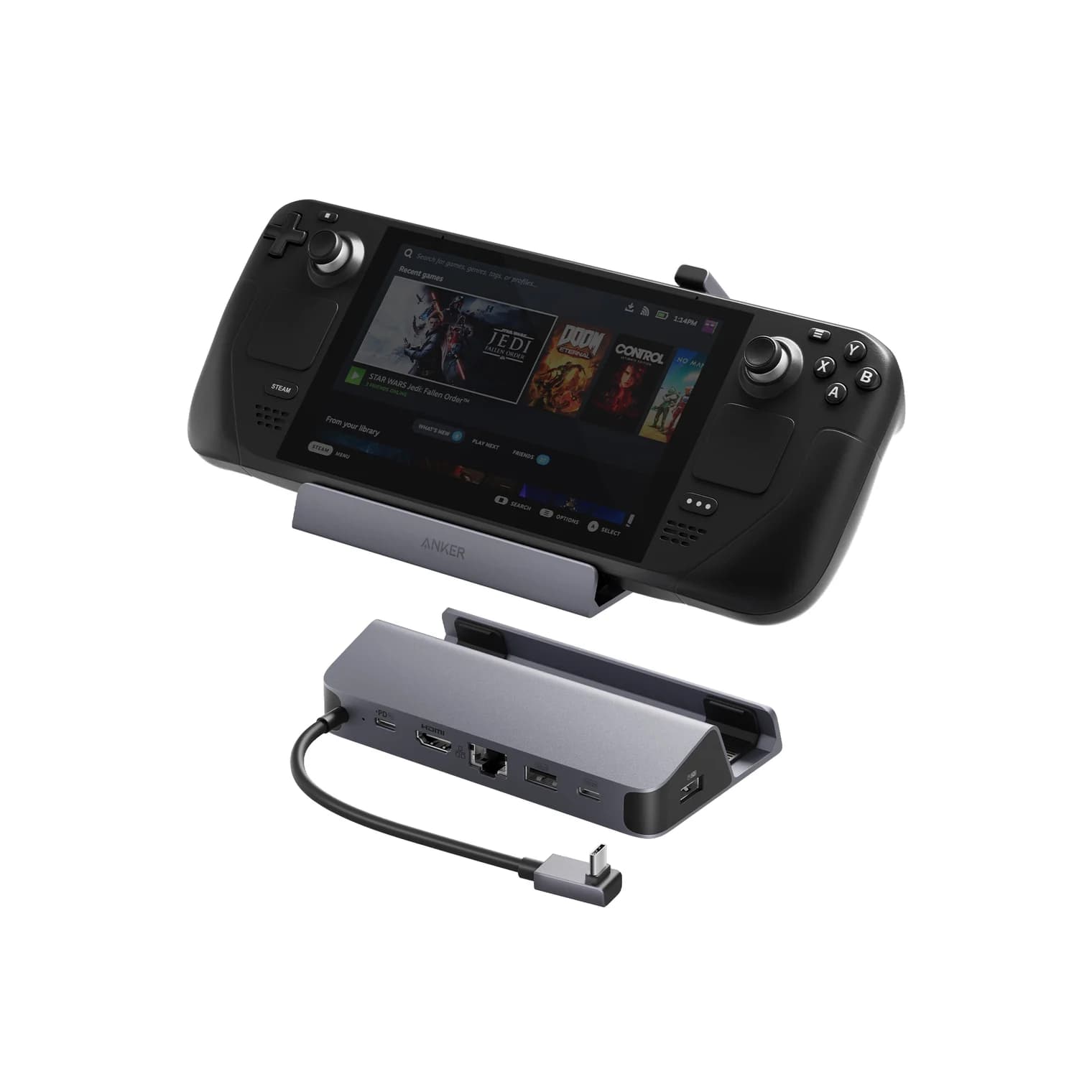
Best Steam Deck Docks in 2026 (Also for ROG Ally and Legion Go)
Steam Deck, ROG Ally and Legion Go docks compared: HDMI 2.0 vs 2.1 for 4K120 and VRR, the charger each handheld needs, and the Nintendo Switch 2 trap.
Updated October 22, 2026Read