Explainer
Why Is My Monitor Stuck at 30Hz? USB-C Hub, Cable and Mac Fixes
4K monitor stuck at 30Hz on a USB-C hub? The usual causes are HDMI 1.4, DisplayPort lanes shared with USB data, the cable or MST. How to check and fix it.
By thisUSB EditorialUpdated October 22, 20268 min read4 picks
Our picks at a glance
- See on Amazon1
Best 4K@60Hz USB-C hub
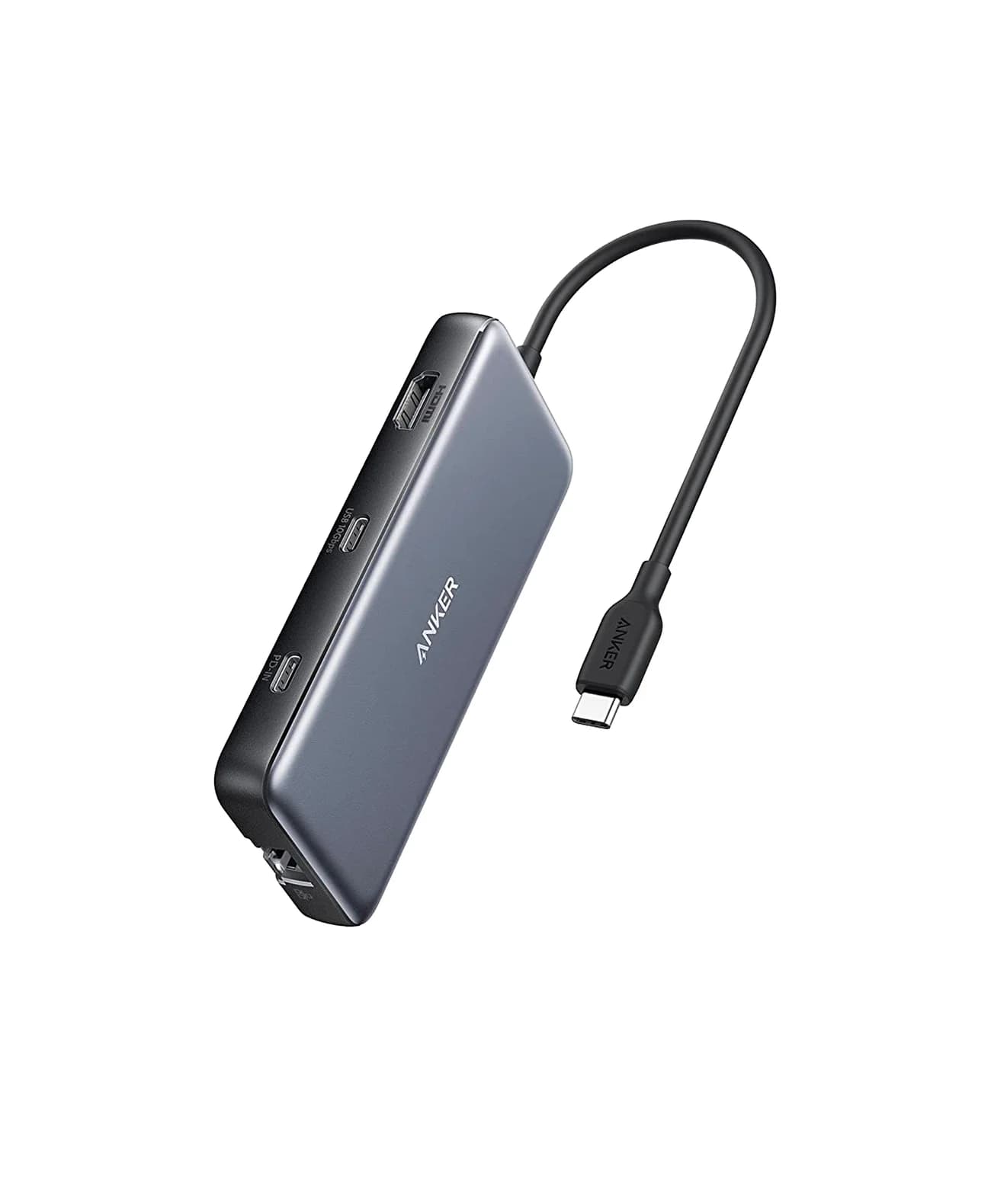
Anker 555 USB-C Hub (8-in-1)85W PD passthrough · 10 Gbps data · 4K60 video · 8 ports
- See on Amazon2
Best compact 4K@60Hz hub
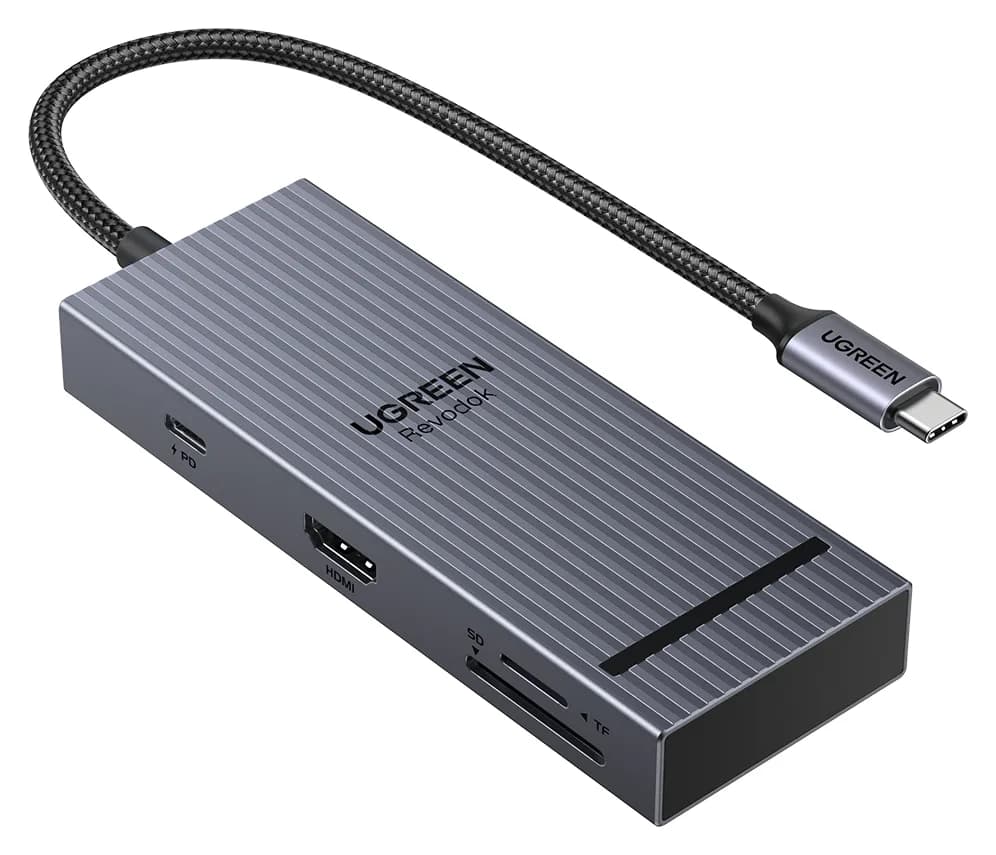
UGREEN Revodok Pro 108 USB-C Hub (8-in-1)85W PD passthrough · 10 Gbps data · 4K60 video · 8 ports
- See on Amazon3
Best for two 4K@60Hz monitors
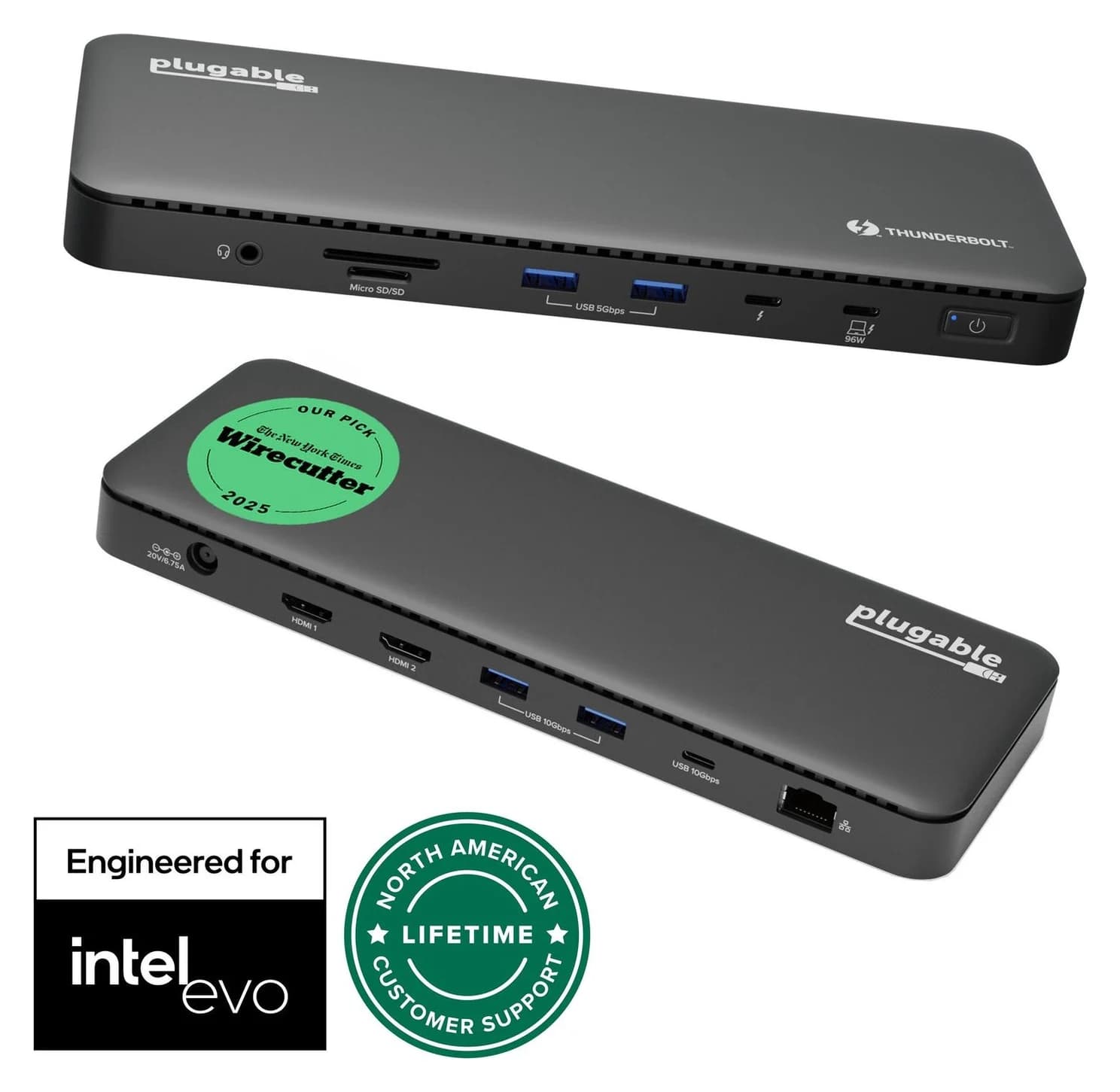
Plugable Thunderbolt 4 Dock (TBT4-UD5)96W PD passthrough · 40 Gbps data · 4K video · 13 ports
- See on Amazon4
Best for base-model Macs
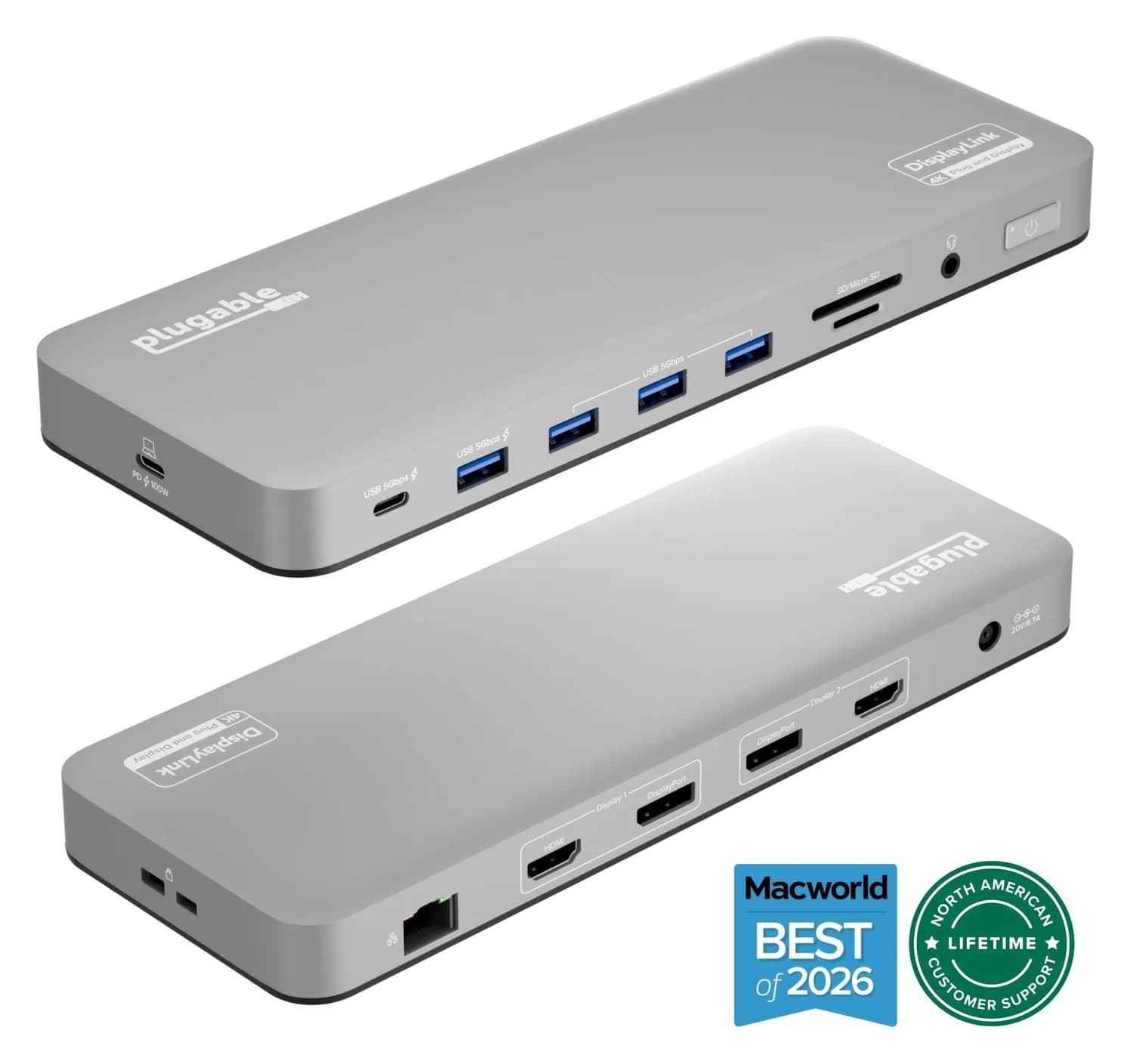
Plugable UD-6950PDH USB-C Dual 4K DisplayLink Dock (100W Charging)100W PD passthrough · 5 Gbps data · 4K60 video · 14 ports
If your 4K monitor is stuck at 30Hz through a USB-C hub, the hub is usually the bottleneck. Either its HDMI port is HDMI 1.4, or it splits the laptop's USB-C lanes between video and USB 3 data and leaves too little bandwidth for 4K@60Hz. The fix is a hub rated for 4K@60Hz on your kind of laptop, such as the Anker 555 USB-C Hub (8-in-1), or a Thunderbolt dock like the Plugable TBT4-UD5 for two monitors.
The 30-second answer
| Likely cause | How to spot it | Fix |
|---|---|---|
| Hub has an HDMI 1.4 port | Hub spec says 4K@30Hz | A hub rated 4K@60Hz (HDMI 2.0 or later) |
| Laptop's USB-C port is DisplayPort 1.2 | Hub needs DP 1.4 for 60Hz; older laptop | Thunderbolt dock or DisplayLink dock |
| Old HDMI cable | Unlabeled or plain High Speed cable | Premium High Speed or Ultra High Speed cable |
| Two monitors on one hub (MST) | Both screens drop resolution or refresh, or mirror on a Mac | Thunderbolt dock or DisplayLink |
| Monitor input or setting | 60Hz missing from the refresh menu | Try another input; check the monitor's menu |
First, confirm what you're actually getting
- Mac: Choose Apple menu > System Settings > Displays, select the monitor and open the Refresh Rate menu. Apple's Displays settings page notes the menu appears only if the display supports changing its refresh rate.
- Windows 11: Go to Start > Settings > System > Display > Advanced display and look next to Choose a refresh rate. Microsoft's refresh rate page says rates marked with an asterisk don't support your current resolution, so picking one changes the resolution.
If 60Hz isn't offered at 4K, the computer isn't getting enough bandwidth from the chain. Settings can't fix that, but the right hardware can. The math explains why: 3840 x 2160 pixels, 60 times a second, at 24 bits per pixel is about 12Gbps of picture data before any timing overhead.
Cause 1: the hub's HDMI port is HDMI 1.4
HDMI Licensing's HDMI 1.4b page lists 3840 x 2160 at 24, 25 and 30Hz, and nothing faster. Many compact hubs convert the laptop's DisplayPort signal to HDMI with an HDMI 1.4 chip, and their specs say so. The Anker 332, for example, lists HDMI 1.4 at up to 4K@30Hz, and several of UGREEN's Revodok hubs are rated 4K@30Hz.
| HDMI version | 4K refresh rate | Cable to use |
|---|---|---|
| HDMI 1.4 | Up to 30Hz | High Speed (10.2Gbps) |
| HDMI 2.0 | Up to 60Hz | Premium High Speed (18Gbps) |
| HDMI 2.1 | 120Hz and up | Ultra High Speed (48Gbps) |
A 4K@30Hz hub is fine for a 1080p monitor or for films on a 4K TV. On a 4K desktop monitor, scrolling and cursor movement look noticeably less smooth at 30Hz, so look for "4K@60Hz" in the hub's spec.
Cause 2: DisplayPort lanes shared with USB 3 data
A USB-C port has four high-speed lanes. VESA's DisplayPort Alt Mode announcement explains the two options: send video on two lanes and keep the other two for SuperSpeed USB data, or use all four for video while USB 2.0 data travels on separate pins. A hub with fast USB ports uses the two-lane split, which halves the video bandwidth.
| Laptop's DisplayPort level | Per lane | Two lanes, usable | 4K@60Hz over two lanes? |
|---|---|---|---|
| DP 1.2 (HBR2) | 5.4Gbps | 8.64Gbps | No, so 4K@30Hz |
| DP 1.4 (HBR3) | 8.1Gbps | 12.96Gbps | Yes |
VESA's own example is two lanes at 8.1Gbps driving a 4K monitor while USB data runs alongside. That's why 4K@60Hz hubs come with a condition. Anker's 555 lists 4K@60Hz with DP 1.4 laptops and 4K@30Hz with DP 1.2 laptops, and UGREEN says the Revodok Pro 108 needs DisplayPort 1.4 Alt Mode for 60Hz. Anker's rule of thumb is that Windows laptops with 10th-generation or older Intel CPUs use DP 1.2. Current MacBooks clear that bar: Apple's MacBook Air specs, for example, list native DisplayPort 1.4 up to HBR3 with DSC on its Thunderbolt ports.
Display Stream Compression (DSC) is the other variable. Anker lists the Surface Pro 7 and HP Spectre x360 as unable to run its dual-HDMI 553 hub at 4K@60Hz because they lack DSC support.
Thunderbolt and USB4 docks avoid the split. They carry video inside a 40Gbps link alongside data, and Intel requires Thunderbolt 4 computers to support two 4K@60Hz displays.
Cause 3: the cables
- The USB-C cable. The USB-IF says USB 2.0 Type-C cables don't include the high-speed or Alt Mode wires, so a charging cable gives you no picture at all. For a USB-C monitor or a hub with a detachable cable, use the cable that came with it, or a 10Gbps-or-faster, USB4 or Thunderbolt cable. Our USB-C cable types explainer shows how to tell them apart.
- The HDMI cable. HDMI Licensing designs the High Speed cable for up to 10.2Gbps, while the Premium High Speed cable is certified for the full 18Gbps that 4K@60Hz uses. If your HDMI cable is old or unlabeled, swap it for a Premium High Speed one.
Cause 4: two monitors on one hub (MST, and why Macs mirror)
A plain USB-C port sends one DisplayPort signal, so a dual-HDMI hub that doesn't use DisplayLink splits it into two with Multi-Stream Transport (MST). The bandwidth is shared, so each screen gets less. Anker's 553 runs one monitor at 4K@60Hz, but two only at 2K@60Hz each on Windows, or 1080p@60Hz each on a DP 1.2 laptop. On a Mac it's worse: Anker states that MST "is not supported on Mac laptops," so both HDMI ports show the same mirrored image at up to 4K@30Hz.
For two extended monitors, you have two good routes:
- A Thunderbolt dock. Video doesn't compete with USB lanes. On a Mac, the chip sets the display count: Apple's external display page lists two external displays for M4 and M5 MacBooks and three for M5 Pro. Plugable notes base M1 and M2 Macs get one display from its dock.
- A DisplayLink dock. It compresses video over ordinary USB data using a driver, which gets around both MST and a base Mac's display limit. Per Plugable, the trade-offs on macOS are the DisplayLink Manager app plus Screen Recording permission, no HiDPI (Retina) scaling, blocked HDCP-protected streaming video while it's connected, and it isn't suited to gaming.
Cause 5: the port, the monitor and its settings
- Use a video-capable port. Many laptops support video on only some USB-C ports. Look for the DisplayPort or Thunderbolt icon, or check the laptop's spec page.
- Check the monitor's input. Some monitors accept 4K@60Hz on only certain inputs, or have an input-version setting in their on-screen menu. The manual will say.
- Rule out the hub. Connect the monitor directly with a USB-C or DisplayPort cable if it has one. If 60Hz appears, the hub is the limit.
Hubs and docks that do 4K@60Hz
One 4K monitor plus fast USB, from a single port.
Anker
An 8-in-1 USB-C hub with 4K@60Hz HDMI, gigabit Ethernet, 10Gbps USB-C and USB-A data ports, SD/microSD readers and 85W pass-through charging.
- 85W PD passthrough
- 10 Gbps data
- 4K60 video
- 8 ports
The Anker 555 has HDMI 2.0 at 4K@60Hz on DP 1.4 laptops (4K@30Hz on DP 1.2), one 10Gbps USB-C and two 10Gbps USB-A data ports, Gigabit Ethernet, SD and microSD readers, and up to 85W pass-through charging. It drives one display and needs no driver. See it on Amazon.
The same idea in a smaller hub with card readers.
UGREEN
UGREEN Revodok Pro 108 USB-C Hub (8-in-1)
A compact single-cable 8-in-1 USB-C hub with 4K@60Hz HDMI, 10Gbps USB ports, 170MB/s SD and microSD readers and 100W PD input.
- 85W PD passthrough
- 10 Gbps data
- 4K60 video
- 8 ports
The UGREEN Revodok Pro 108 runs HDMI at 4K@60Hz on hosts with DisplayPort 1.4 Alt Mode and adds two 10Gbps USB-C data ports, SD and microSD readers rated up to 170MB/s, and 85W to the laptop. UGREEN's note says only one of its two USB-A ports is 10Gbps, and there's no Ethernet. See it on Amazon.
Two 4K@60Hz monitors from a Thunderbolt or USB4 laptop.
Plugable
Plugable Thunderbolt 4 Dock (TBT4-UD5)
A Thunderbolt 4 dock with dual HDMI, 100W laptop charging (96W certified), Gigabit Ethernet and an SD/microSD reader.
- 96W PD passthrough
- 40 Gbps data
- 4K video
- 13 ports
The Plugable TBT4-UD5 is a Thunderbolt 4 dock with two HDMI 2.0 ports at up to 4K@60Hz each, plus Gigabit Ethernet, UHS-II card readers and 96W certified laptop charging. It also works with USB4 and Thunderbolt 5 laptops. Base M1 and M2 Macs get one display. See it on Amazon.
Two extended monitors on a base-model Mac.
Plugable
Plugable UD-6950PDH USB-C Dual 4K DisplayLink Dock (100W Charging)
A 14-in-1 DisplayLink USB-C dock that adds two extended 4K@60Hz displays over HDMI or DisplayPort, plus 100W laptop charging, Gigabit Ethernet, SD readers and five USB ports.
- 100W PD passthrough
- 5 Gbps data
- 4K60 video
- 14 ports
The Plugable UD-6950PDH uses a DisplayLink DL-6950 chip to run two extended displays at up to 4K@60Hz each, over HDMI or DisplayPort, from a 5Gbps-or-faster USB-C, USB4 or Thunderbolt port. It charges the laptop at up to 100W. It needs the DisplayLink Manager app on macOS and has the trade-offs listed above. See it on Amazon.
For more choices, see our USB-C hubs with HDMI, best Thunderbolt docks and USB-C hubs for MacBook guides. A USB-C monitor avoids HDMI conversion entirely.
How we put this together
This guide is based on VESA's DisplayPort Alt Mode announcement and DisplayPort link-rate figures, HDMI Licensing's HDMI 1.4b and cable pages, the USB-IF's USB Type-C guidelines, Intel's Thunderbolt 4 page, Apple's and Microsoft's display support pages, and Anker's, UGREEN's and Plugable's spec sheets. We haven't physically tried these hubs.
Common problems and fixes
| Symptom | Likely cause | What to try |
|---|---|---|
| 4K at 30Hz, and the hub spec says 4K@30Hz | HDMI 1.4 hub | A 4K@60Hz hub |
| Hub says 4K@60Hz but you get 30Hz | DP 1.2 laptop port, or an old HDMI cable | Check the laptop's DP level; use a Premium High Speed cable |
| Two monitors mirror on a Mac | MST hub | Thunderbolt dock or DisplayLink |
| Second monitor drops resolution or refresh | MST bandwidth split | Thunderbolt dock |
| No picture at all | Port without video, or a USB 2.0 cable | Another USB-C port; a full-featured cable |
| DisplayLink screens stay black on a Mac | Screen Recording not allowed | Install DisplayLink Manager and allow Screen Recording |
Verdict
A monitor stuck at 30Hz is almost always a bandwidth problem, not a broken screen. Read the hub's spec for "4K@60Hz" and the host it requires, use a Premium High Speed HDMI cable, and skip MST hubs on a Mac. For one 4K monitor on a modern laptop, a 4K@60Hz hub like the Anker 555 is enough. For two, a Thunderbolt dock does it cleanly, and DisplayLink covers Macs that can't drive a second screen natively.
Frequently asked questions
Why is my 4K monitor only running at 30Hz?
Usually one link in the chain can't carry 4K@60Hz. The common culprits are a USB-C hub with an HDMI 1.4 port, a laptop whose USB-C port only offers DisplayPort 1.2 while the hub keeps USB 3 data running, an old HDMI cable, or two monitors sharing one hub through MST. Check the hub's spec for 4K@60Hz and the laptop it requires.
Does HDMI 1.4 support 4K at 60Hz?
No. HDMI Licensing's HDMI 1.4b page lists 3840 x 2160 at 24, 25 and 30Hz, with no 50Hz or 60Hz modes. For 4K@60Hz you need HDMI 2.0 or later at both ends and a Premium High Speed HDMI cable, which is certified for 18Gbps. Many compact USB-C hubs still use HDMI 1.4, which is why their specs say 4K@30Hz.
How do I change my monitor's refresh rate on a Mac?
Choose Apple menu > System Settings > Displays, select the external display, and pick a value from the Refresh Rate menu. Apple says the menu appears only if the connected display supports changing its refresh rate. If 60Hz isn't offered at 4K, the Mac isn't getting enough bandwidth through the hub or cable, and no setting will fix that.
How do I change the refresh rate in Windows 11?
Go to Start > Settings > System > Display > Advanced display, select the monitor, and pick a rate next to Choose a refresh rate. Microsoft notes that rates marked with an asterisk don't support your current resolution, so choosing one changes the resolution. If 60Hz only appears with an asterisk at 4K, the connection is too slow for 4K@60Hz.
Why do my two monitors mirror on a Mac with a dual-HDMI hub?
Dual-HDMI USB-C hubs typically use DisplayPort MST to split one video signal into two, and Macs don't support MST. Anker, for example, states MST isn't supported on Mac laptops and that its dual-HDMI hub mirrors on macOS. For two extended monitors on a Mac, use a Thunderbolt dock on a Mac whose chip supports two displays, or a DisplayLink dock.
Can a USB-C cable cause a 30Hz limit?
It can cause problems, though usually not exactly 30Hz. A USB 2.0 Type-C cable has no video wires, so you get no picture at all. A full-featured cable longer than the spec's practical length can struggle at high link rates. Use the cable that came with the monitor or hub, or a short 10Gbps-or-faster, USB4 or Thunderbolt cable. For HDMI, use a Premium High Speed cable or better.
Related guides
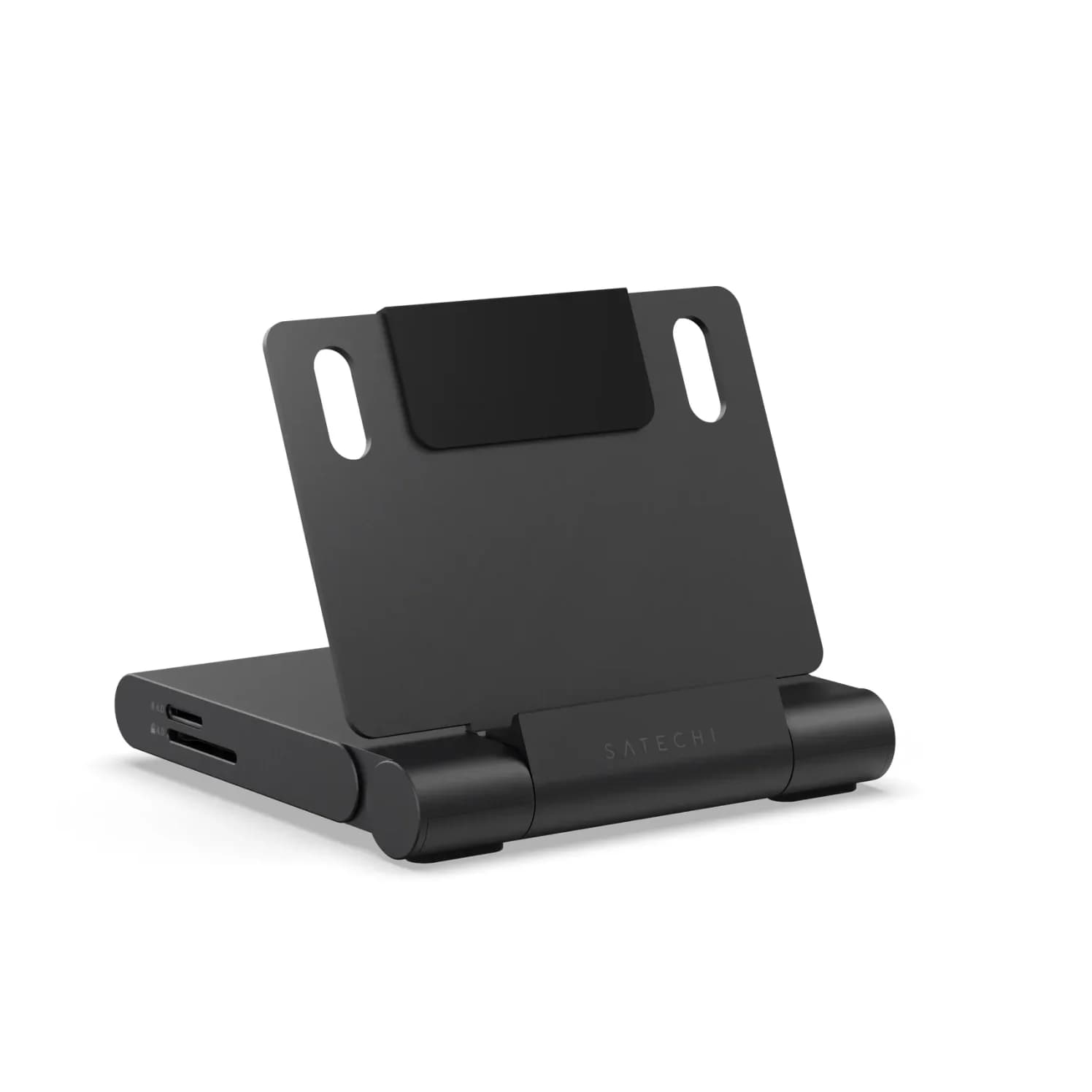
Best USB-C Hubs for iPad in 2026 (iPad Pro M5, iPad Air M4, iPad mini and iPad A16)
Which USB-C hub suits your iPad: port speeds, 4K vs 6K displays, extended vs mirrored screens, charging through a hub, SD readers, Ethernet and headphones.
Updated October 22, 2026Read
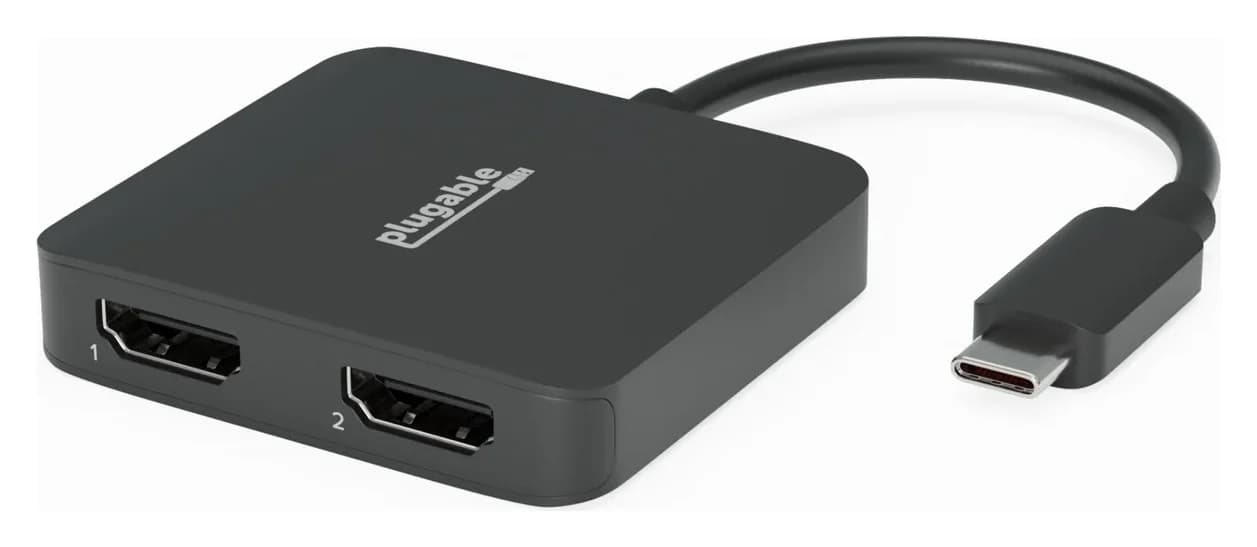
Best USB-C Hubs for Chromebook in 2026: Monitors, Ethernet and Charging
USB-C hubs that suit Chromebooks: which ports carry video, MST vs DisplayLink for two monitors, Ethernet chips ChromeOS supports, and charging through a hub.
Updated October 22, 2026Read
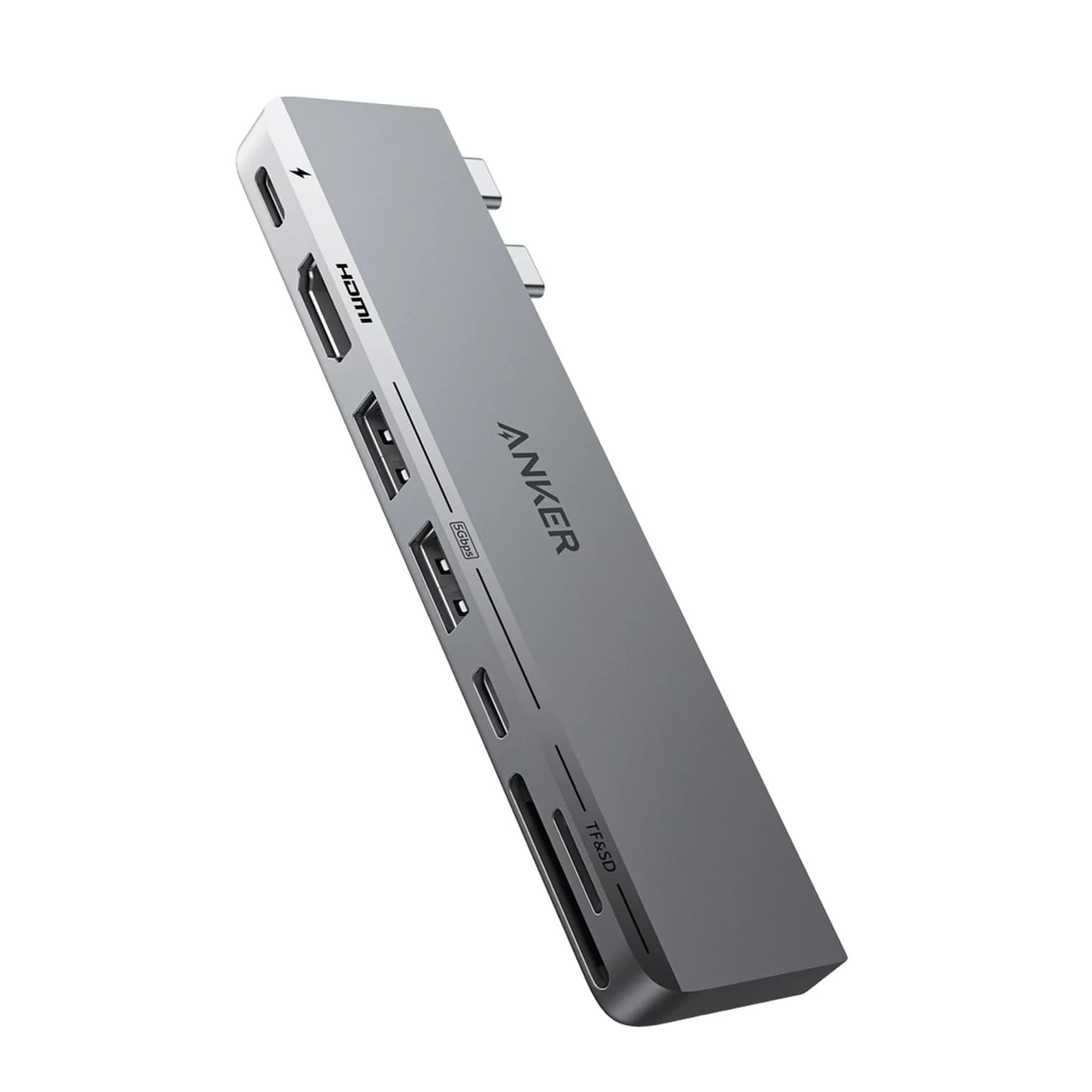
Best USB-C Hubs for MacBook Air in 2026 (M2, M3, M4 and M5)
The right USB-C hub for your MacBook Air depends on its chip. Display limits for M2, M3, M4 and M5, the lid-closed rule, DisplayLink, and six hubs that fit.
Updated October 22, 2026Read