Best picks
Best USB-C Hubs for iPad in 2026 (iPad Pro M5, iPad Air M4, iPad mini and iPad A16)
Which USB-C hub suits your iPad: port speeds, 4K vs 6K displays, extended vs mirrored screens, charging through a hub, SD readers, Ethernet and headphones.
By thisUSB EditorialUpdated October 22, 202610 min read4 picks
Our picks at a glance
- See on Amazon1
Best overall for iPad
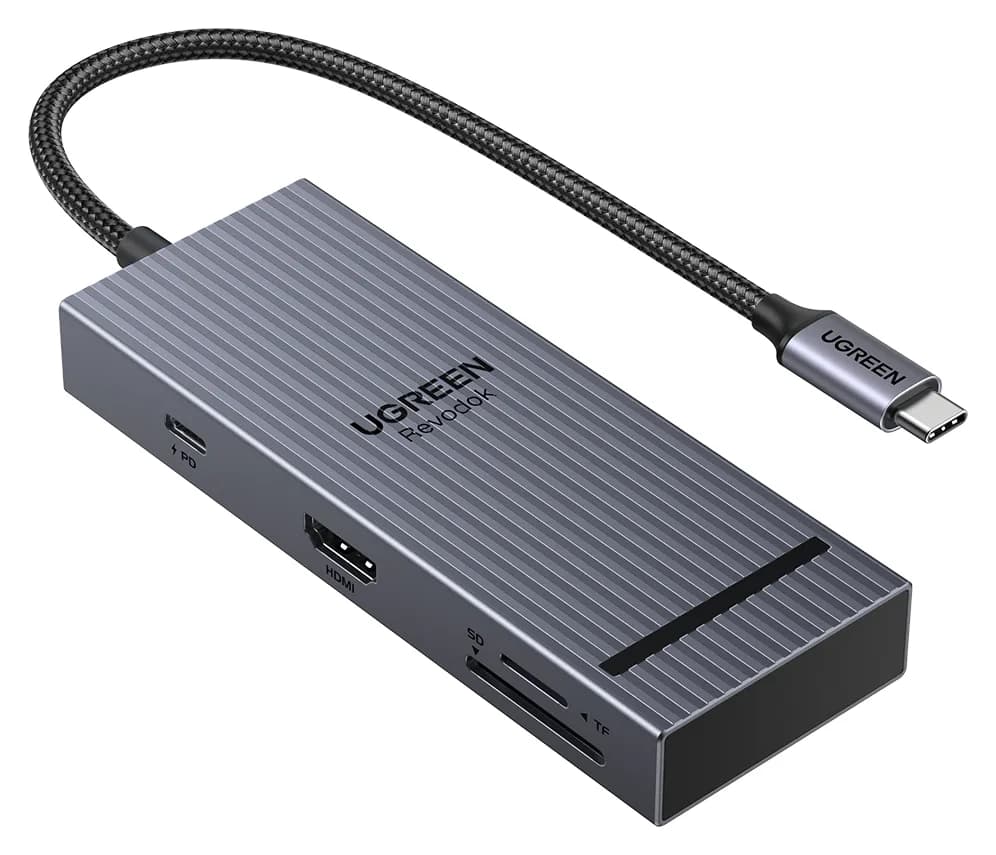
UGREEN Revodok Pro 108 USB-C Hub (8-in-1)85W PD passthrough · 10 Gbps data · 4K60 video · 8 ports
- See on Amazon2
Best for photographers and wired audio
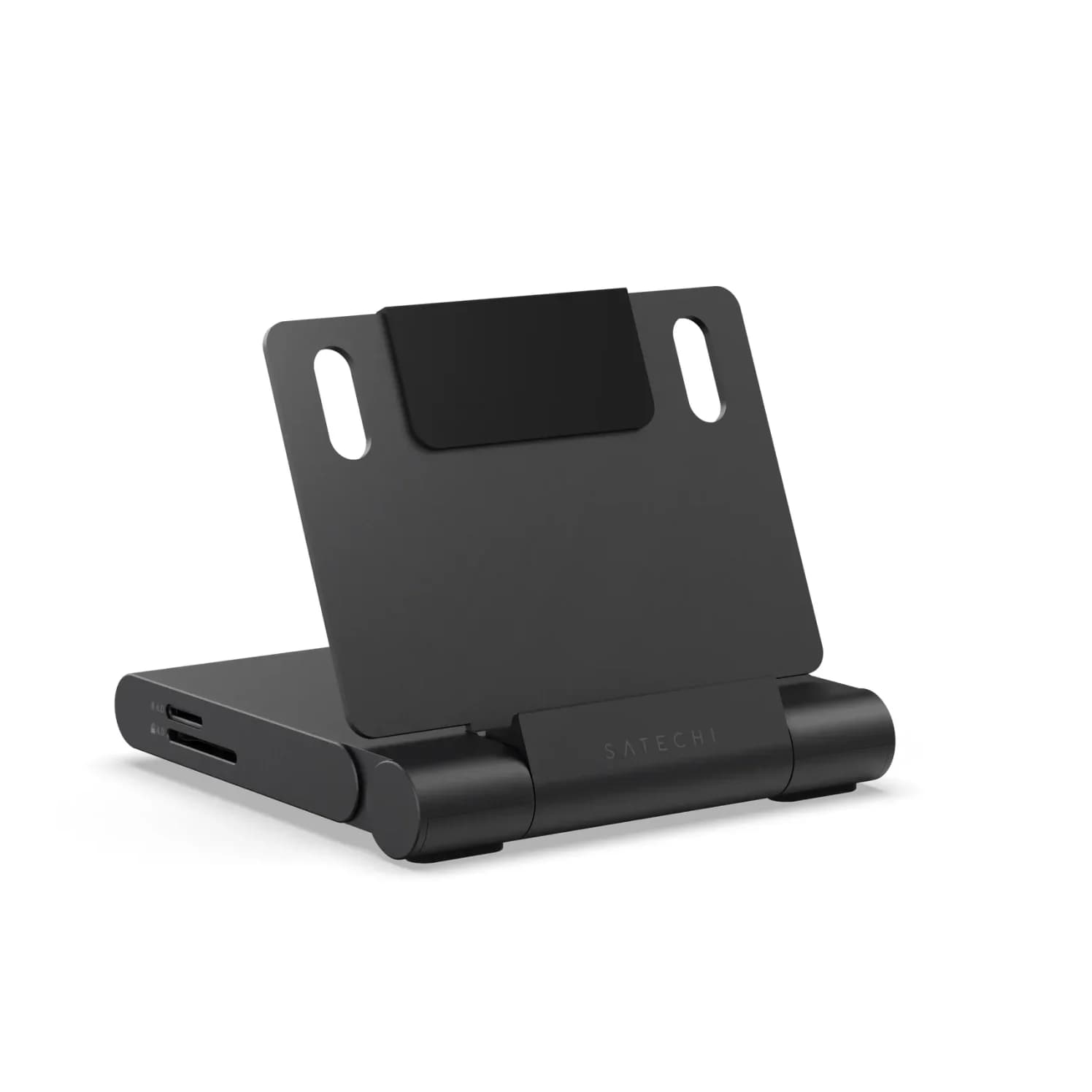
Satechi OntheGo Foldable Stand Hub (7-in-1, Space Black)85W PD passthrough · 10 Gbps data · 4K60 video · 7 ports
- See on Amazon3
Best with Ethernet
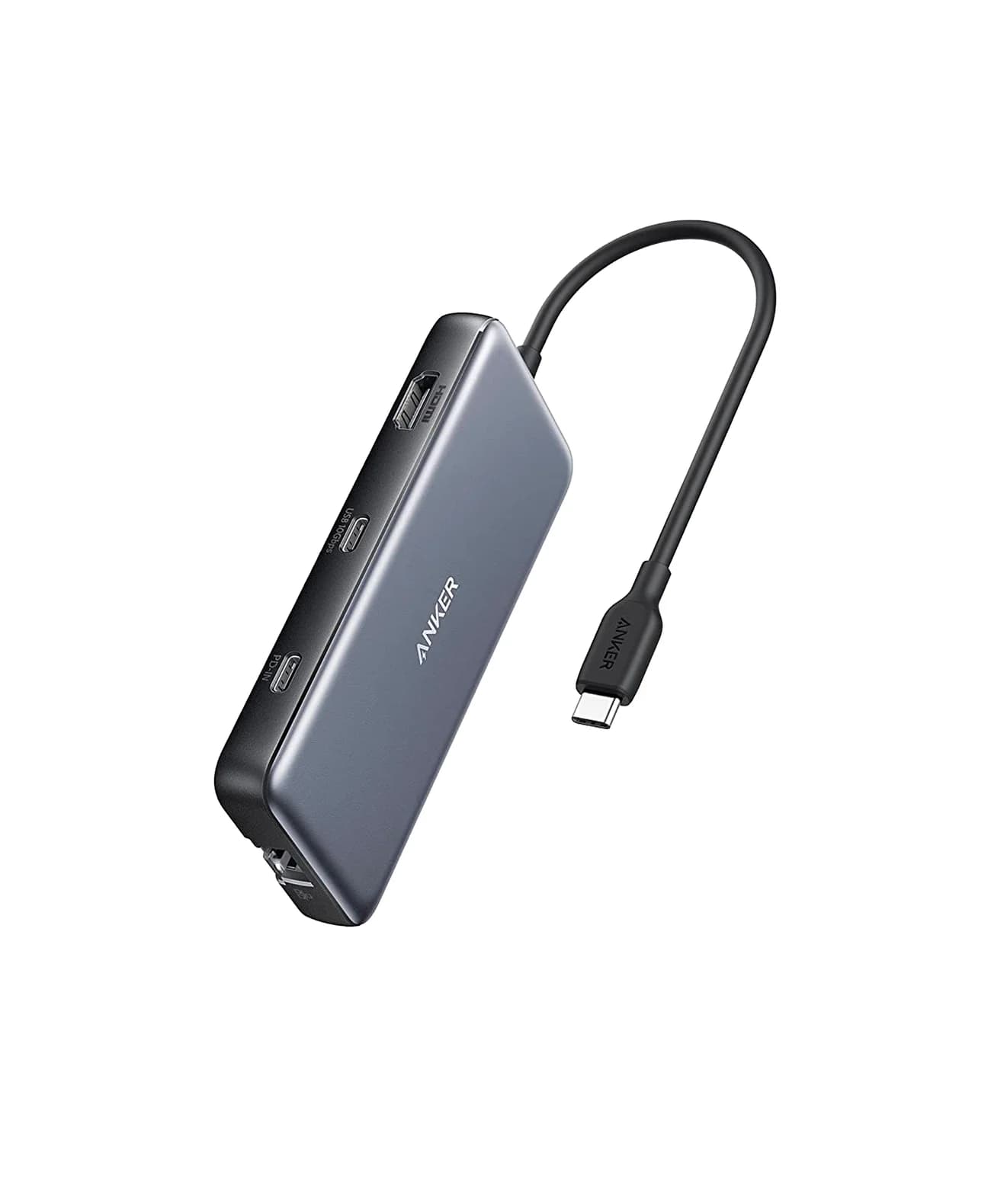
Anker 555 USB-C Hub (8-in-1)85W PD passthrough · 10 Gbps data · 4K60 video · 8 ports
- See on Amazon4
Best budget (and for iPad A16)
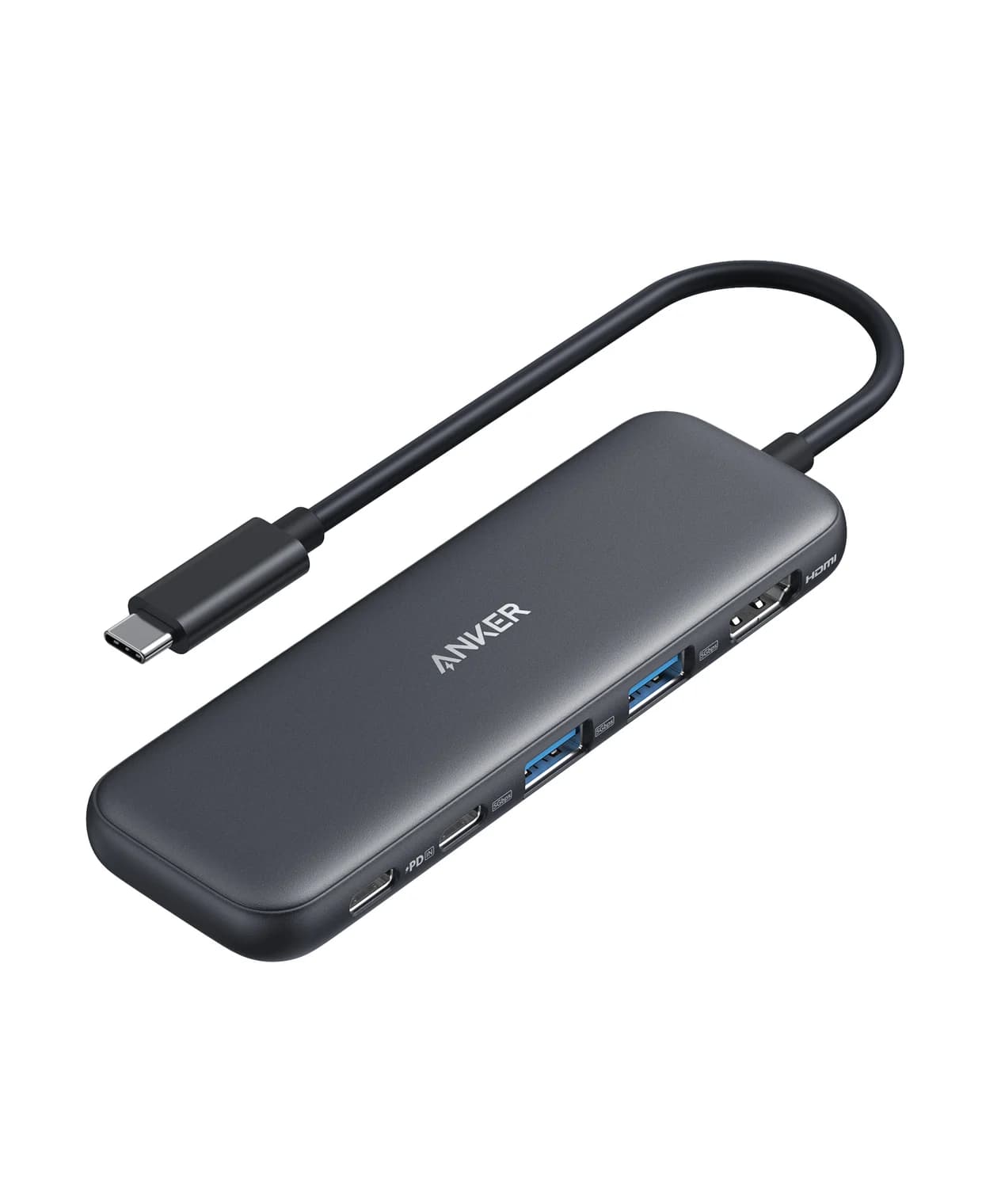
Anker 332 USB-C Hub (5-in-1)85W PD passthrough · 5 Gbps data · 4K30 video · 5 ports
For most iPad owners, the UGREEN Revodok Pro 108 is the hub to buy: one 30cm cable adds 4K@60Hz HDMI, fast USB-C and USB-A ports and quick SD card readers, and it passes up to 85W of charging through to the iPad. Photographers and anyone who wants wired headphones should look at the Satechi OntheGo Foldable Stand Hub, which adds UHS-II card readers and a 3.5mm jack and holds the iPad up. On an iPad (A16), a simple hub like the Anker 332 is all its USB 2 port can use.
We built this list from Apple's tech specs and support pages and the hub makers' spec sheets. We have not physically handled these hubs, and where a spec isn't published, we leave it out.
Quick picks
| Hub | Best for | Video | Card readers | 3.5mm jack | iPad charging |
|---|---|---|---|---|---|
| UGREEN Revodok Pro 108 | Most iPad owners | HDMI 4K@60Hz | SD + microSD, up to 170MB/s | No | Up to 85W |
| Satechi OntheGo Foldable Stand Hub | Photographers, audio, travel | HDMI 4K@60Hz | SD + microSD, UHS-II up to 312MB/s | Yes, in and out | Up to 85W |
| Anker 555 (8-in-1) | Wired internet | HDMI 4K@60Hz | SD + microSD, UHS-I | No | Up to 85W |
| Anker 332 (5-in-1) | Budget, iPad (A16) | HDMI 4K@30Hz | None | No | Up to 85W |
Prices move around a lot before the holidays, so check current prices on Amazon.
First: what your iPad's USB-C port can do
Every current iPad has one USB-C port, but Apple builds very different ports into each model. These figures come from Apple's tech specs and its USB-C support page:
| iPad | USB-C port | External display | Extended or mirrored | Thickness |
|---|---|---|---|---|
| iPad Pro (M5) | Thunderbolt / USB 4, up to 40Gb/s | 1, up to 6K@60Hz or 5K@120Hz | Extended | 5.3 mm (11-inch), 5.1 mm (13-inch) |
| iPad Air (M4) | USB 3, up to 10Gb/s | 1, up to 6K@60Hz | Extended | 6.1 mm |
| iPad mini (A17 Pro) | USB 3, up to 10Gb/s | 1, up to 4K@60Hz | Mirrored | 6.3 mm |
| iPad (A16) | USB 2, up to 480Mb/s | 1, up to 4K@60Hz | Mirrored | 7 mm |
What that means for a hub:
- HDMI tops out at 4K. Apple says HDMI 2.0 adapters output 4K at 60Hz from all four current iPads. The 6K and 5K@120Hz figures need a USB-C or Thunderbolt monitor, not a hub's HDMI port. A hub rated only for 4K@30Hz, like the Anker 332, caps a 4K screen at 30Hz; our monitor stuck at 30Hz guide explains why.
- Fast hub ports only help on fast iPads. On the iPad Air and iPad mini, 10Gbps hub ports run a portable SSD at full speed. On the iPad (A16), everything shares a 480Mb/s link, about 60MB/s before overhead, so a fast card reader or SSD can't go faster than that.
- One screen, whatever the hub. No current iPad drives two external displays, and Apple devices don't support the MST trick that dual-HDMI hubs use, so skip them.
Extended display vs mirroring, and where Stage Manager fits
Apple's iPad User Guide lists the models that support extended displays: the iPad Pro (M4 and M5, 11-inch 3rd and 4th generation, 12.9-inch 5th generation and later) and the iPad Air (5th generation, M2, M3 and M4). On those, the monitor becomes its own workspace: you drag a window from one screen to the other, or use the window controls to pick Move to Display. Turn on Stage Manager (Settings, then Multitasking & Gestures) to group, resize and overlap windows.
The iPad (A16) and iPad mini (A17 Pro) still output 4K@60Hz, but the monitor shows a copy of the iPad screen. Apple notes that apps with their own second-screen mode, like video players, can show something different on the external display. That's fine for movies and presentations, but it isn't a second desktop. Our best USB-C tablets guide compares the four iPads in more detail if you haven't bought one yet.
Best overall for iPad: UGREEN Revodok Pro 108 (8-in-1)
UGREEN
UGREEN Revodok Pro 108 USB-C Hub (8-in-1)
A compact single-cable 8-in-1 USB-C hub with 4K@60Hz HDMI, 10Gbps USB ports, 170MB/s SD and microSD readers and 100W PD input.
- 85W PD passthrough
- 10 Gbps data
- 4K60 video
- 8 ports
The Revodok Pro 108 covers what most people plug into an iPad: a monitor or TV, a USB-C drive, a keyboard dongle and an SD card. UGREEN lists a 4K@60Hz HDMI port, two 10Gbps USB-C data ports, two USB-A ports, SD and microSD readers rated up to 170MB/s, and a 100W PD input that passes up to 85W to the device. It weighs 80g and hangs off a 30cm cable, so it works with the iPad in any case.
Its 10Gbps ports match the iPad Air and iPad mini, and its card readers beat the UHS-I readers in most hubs. UGREEN rates the HDMI port's 4K@60Hz on hosts with DisplayPort 1.4 Alt Mode. Apple doesn't publish a DisplayPort version for iPads, but it does say HDMI 2.0 adapters reach 4K@60Hz on all current models. UGREEN also recommends keeping a PD charger connected when you use the hub with a tablet, to keep video output stable.
Why it stands out: Fast ports and fast card readers on a cable, so case thickness never matters.
Watch out for: UGREEN says three of the four USB data ports run at 10Gbps, so one USB-A port is slower. The USB-C data ports don't carry video or charging. No Ethernet or headphone jack.
See the UGREEN Revodok Pro 108 on Amazon
Best for photographers and wired audio: Satechi OntheGo Foldable Stand Hub
Satechi
Satechi OntheGo Foldable Stand Hub (7-in-1, Space Black)
A fold-flat aluminum tablet stand with a built-in 7-port USB-C hub: 4K@60Hz HDMI, 10Gbps USB-C and USB-A, UHS-II SD and microSD readers, a 3.5mm audio jack and 100W USB-C PD pass-through.
- 85W PD passthrough
- 10 Gbps data
- 4K60 video
- 7 ports
Satechi built this for iPads: a fold-flat aluminum stand with a seven-port hub in its base. According to Satechi's manual, you get 4K@60Hz HDMI, 10Gbps USB-C and USB-A data ports, UHS-II SD and microSD readers rated up to 312MB/s that can be read at the same time, a 3.5mm jack that handles audio out and microphone input, and a USB-C PD port that takes up to 100W and passes up to 85W to the iPad. The 17cm host cable stows in a channel underneath.
That combination solves two iPad problems at once. UHS-II readers move photos off a UHS-II camera card much faster than the UHS-I readers in most hubs, which pays off on an iPad Air or iPad Pro, and the jack gives you wired headphones or a headset while the iPad charges. Satechi's compatibility list names the iPad Pro M5 and M4, iPad Air M4, M3 and M2, iPad (A16) and iPad mini (A17 Pro).
Why it stands out: The fastest card readers here, plus the only headphone jack, in a stand that packs flat.
Watch out for: One fixed viewing angle, a short built-in cable that can't be replaced, and no Ethernet. At 187.5g it's heavier than a plain hub. Satechi warns that very thick cases may stop the cable from seating fully in the iPad. To see UHS-II speeds you also need UHS-II cards.
See the Satechi OntheGo Foldable Stand Hub on Amazon
Best with Ethernet: Anker 555 USB-C Hub (8-in-1)
Anker
An 8-in-1 USB-C hub with 4K@60Hz HDMI, gigabit Ethernet, 10Gbps USB-C and USB-A data ports, SD/microSD readers and 85W pass-through charging.
- 85W PD passthrough
- 10 Gbps data
- 4K60 video
- 8 ports
Wired internet makes sense for video calls, large uploads, online exams and hotel rooms with weak Wi-Fi, and Apple lists USB to Ethernet adapters as supported on the iPad's USB-C port. The Anker 555 adds gigabit Ethernet along with a 4K@60Hz HDMI 2.0 port, a 10Gbps USB-C data port, two 10Gbps USB-A ports, UHS-I SD and microSD readers and up to 85W pass-through. Anker's compatibility list names USB-C iPad Pro models from 2018 to 2020.
Anker's notes spell out the charging catch: the hub can't pass charge to a tablet using the tablet's original wall charger, and full-speed charging for an iPad Pro needs an adapter that supports at least 15V (45W).
Why it stands out: Ethernet, fast USB and card readers in one hub, with no app or driver needed.
Watch out for: The USB-C data port doesn't carry video or charging. If you only need Ethernet, a single adapter such as the Plugable USBC-E1000 lists iPadOS 17 or later and is smaller.
Best budget (and for iPad A16): Anker 332 USB-C Hub (5-in-1)
Anker
A slim 5-in-1 USB-C hub with 4K@30Hz HDMI, one 5Gbps USB-C data port, two 5Gbps USB-A ports and 85W pass-through charging.
- 85W PD passthrough
- 5 Gbps data
- 4K30 video
- 5 ports
The base iPad's port runs at USB 2 speed, so paying for 10Gbps ports buys nothing. The Anker 332 gives it an HDMI port, a USB-C data port, two USB-A ports and up to 85W pass-through charging. Its 5Gbps ports are already faster than the iPad (A16) can use, and HDMI at 4K@30Hz is fine for a 1080p TV or a classroom projector, especially since this iPad mirrors its screen anyway.
Anker's own compatibility list names laptops rather than iPads. The 332 uses the same DisplayPort Alt Mode video and standard USB that Apple supports for hubs on every USB-C iPad, but keep Anker's tablet-charging note in mind and use a bigger charger than the iPad's 20W.
Why it stands out: Everything a USB 2 iPad can use, in a slim hub.
Watch out for: 4K@30Hz is sluggish on a 4K monitor; on an iPad Air or Pro connected to a 4K screen, get a 4K@60Hz hub instead. No card reader or Ethernet.
Flush hubs vs cable hubs (and the case trap)
Flush or "clip-on" hubs plug straight into the iPad and rest against its edge, so there's no cable to snag, but they depend on the exact shape of the iPad they were designed for. Current iPads range from 5.1 mm to 7 mm thick, and many flush hubs were shaped for older iPad Pro models. Most also need the case off, because a folio or rugged case keeps the plug from seating, and a half-seated plug can drop the display or charging. Some makers' compatibility lists for flush iPad hubs stop at 2021 and 2022 models.
At the time of writing, we couldn't find a flush hub from a major brand whose maker lists the iPad Pro M5 and iPad Air M4 by name, which is why every pick here uses a cable. A short-cable hub works with any iPad, in any case. If you do buy a flush hub, check that your exact model is on the maker's list and plan on taking the case off.
Charging through a hub
Every current iPad comes with a 20W adapter, and that's the wrong charger to put behind a hub. UGREEN and Anker both say their hubs keep about 15W for themselves, so a 20W charger leaves almost nothing for the iPad, and the battery can drain while you work. Use a 45W or larger USB-C PD charger in the hub's power port. A 65W to 100W charger leaves headroom for an iPad Pro, which Apple says charges to 50% in around 30 minutes with an adapter that can supply 60W or more. Our USB-C charger guide has options.
How we choose
We don't physically test products. Each pick comes from:
- Apple's own limits. Apple's tech specs, its USB-C support article and the iPad User Guide lists of models that extend displays.
- Manufacturer spec sheets. Ports, speeds, wattages and compatibility lists from UGREEN, Satechi and Anker, linked in each product card.
- Standards. DisplayPort Alt Mode, USB Power Delivery and USB 3.2 data rates, plus the SD card bus speeds behind UHS-I and UHS-II.
- Known buyer patterns. The common iPad hub problems are a hub that won't charge from the 20W adapter, a dual-HDMI hub that only mirrors, and a flush hub that won't fit a case.
We also confirm each Amazon listing matches the maker's model.
Buying guide: matching a hub to your iPad
iPad Pro (M5). Any hub here works, and the Thunderbolt port opens up docks too, which Apple says the M4 and M5 iPad Pro support. Our Thunderbolt docks guide is written for Macs and PCs, so check iPad support first, and remember the iPad still drives one display. Apple notes some Thunderbolt accessories draw power from the iPad.
iPad Air (M4) and iPad mini (A17 Pro). Look for 10Gbps ports, which is where the Revodok Pro 108 and the Satechi earn their place. For storage, see our portable SSD guide.
Photographers. Apple's Photos app imports straight from a card reader or camera. UHS-I readers top out at 104MB/s, the UGREEN reaches 170MB/s and the Satechi's UHS-II readers go up to 312MB/s with UHS-II cards. On the iPad (A16), the USB 2 port is the limit whichever reader you choose.
Audio. Without a headphone jack on any current iPad, the options are USB-C or Bluetooth headphones (see our USB-C earbuds and headphones guide), Apple's USB-C to 3.5 mm adapter, or a hub with a jack like the Satechi.
Just a TV or projector. Apple's USB-C Digital AV Multiport Adapter adds HDMI, one USB-A port and USB-C charging. Apple says that with an iPad it shows the Home Screen and apps at 1080p@60Hz and switches to up to 4K@60Hz when video plays. For portable screens with USB-C, see our best portable monitors.
Verdict
Get the UGREEN Revodok Pro 108 if you want one hub that does what most iPads need, with fast ports and card readers on a cable that ignores your case. Choose the Satechi OntheGo Foldable Stand Hub for UHS-II card readers, a headphone jack and a built-in stand. The Anker 555 is the pick when you need Ethernet, and the Anker 332 covers the iPad (A16), whose USB 2 port can't use anything faster. Whatever you buy, give the hub a 45W or bigger charger, not the 20W one from the box.
Frequently asked questions
Can my iPad use an external monitor as a second screen?
Only some models. Apple lists the current iPad Pro and iPad Air, plus some earlier Pro and Air models, as supporting extended displays, so the monitor becomes a separate workspace you can drag app windows onto. The iPad (A16) and iPad mini (A17 Pro) connect to monitors at up to 4K 60Hz, but they mirror their own screen, apart from apps such as video players that offer a second-screen view.
Why won't my iPad charge when it's plugged into a hub?
Usually the charger is too small. Hubs keep about 15W for themselves, so the 20W adapter in the iPad box leaves little or nothing for the tablet. Anker says its 555 hub can't pass charge to tablets from their original wall charger and suggests at least a 45W charger. A 65W to 100W USB-C charger plugged into the hub's PD port fixes it, and UGREEN says a PD charger also keeps video stable.
Will a dual-HDMI hub give my iPad two monitors?
No. Every current iPad drives one external display. Dual-HDMI hubs split one USB-C port into two screens with DisplayPort MST, and Plugable notes Apple devices don't support MST, so the second screen just mirrors the first. For one big screen, an iPad Pro or iPad Air can go up to 6K through a USB-C or Thunderbolt monitor.
Do USB-C hubs need drivers or apps on an iPad?
No. Apple lists hubs and docks, external storage, keyboards, audio interfaces, card readers and USB to Ethernet adapters among the devices the iPad's USB-C port supports. Drives and SD cards show up in the Files app, cameras and cards import in Photos, and a wired connection appears in Settings. Specialist gear, such as some audio interfaces, may want its maker's app.
How do I plug wired headphones into an iPad?
No current iPad has a headphone jack; Apple's tech specs list only a USB-C port for wired connections. Use USB-C headphones, Apple's USB-C to 3.5 mm Headphone Jack Adapter, or a hub with a 3.5mm jack, such as the Satechi OntheGo Foldable Stand Hub, which supports audio out and microphone input. A hub with a jack lets you charge and listen at the same time.
Related guides
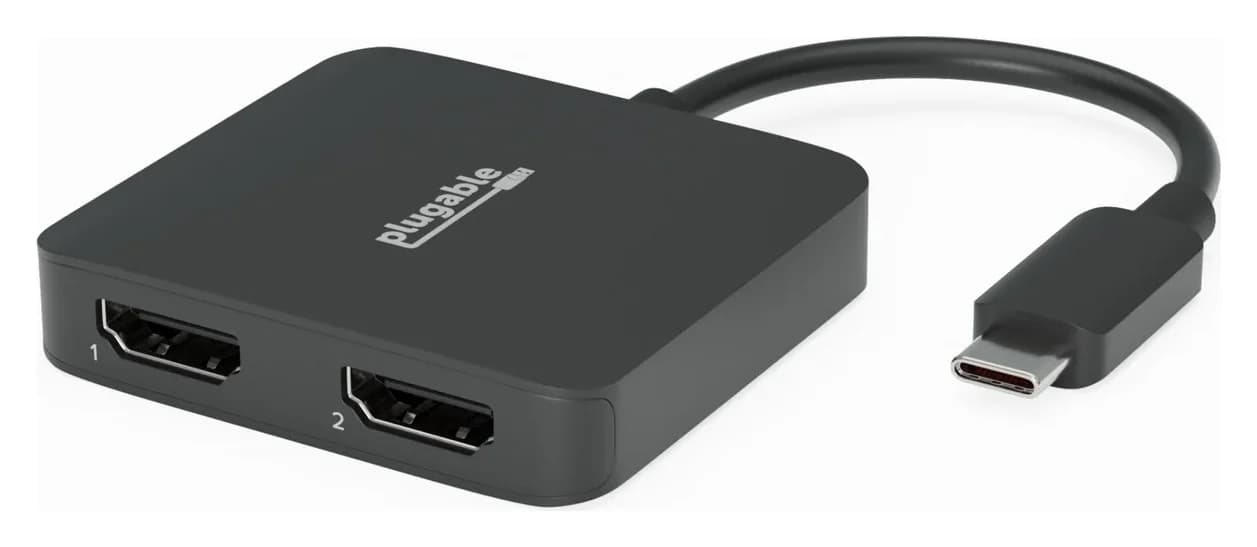
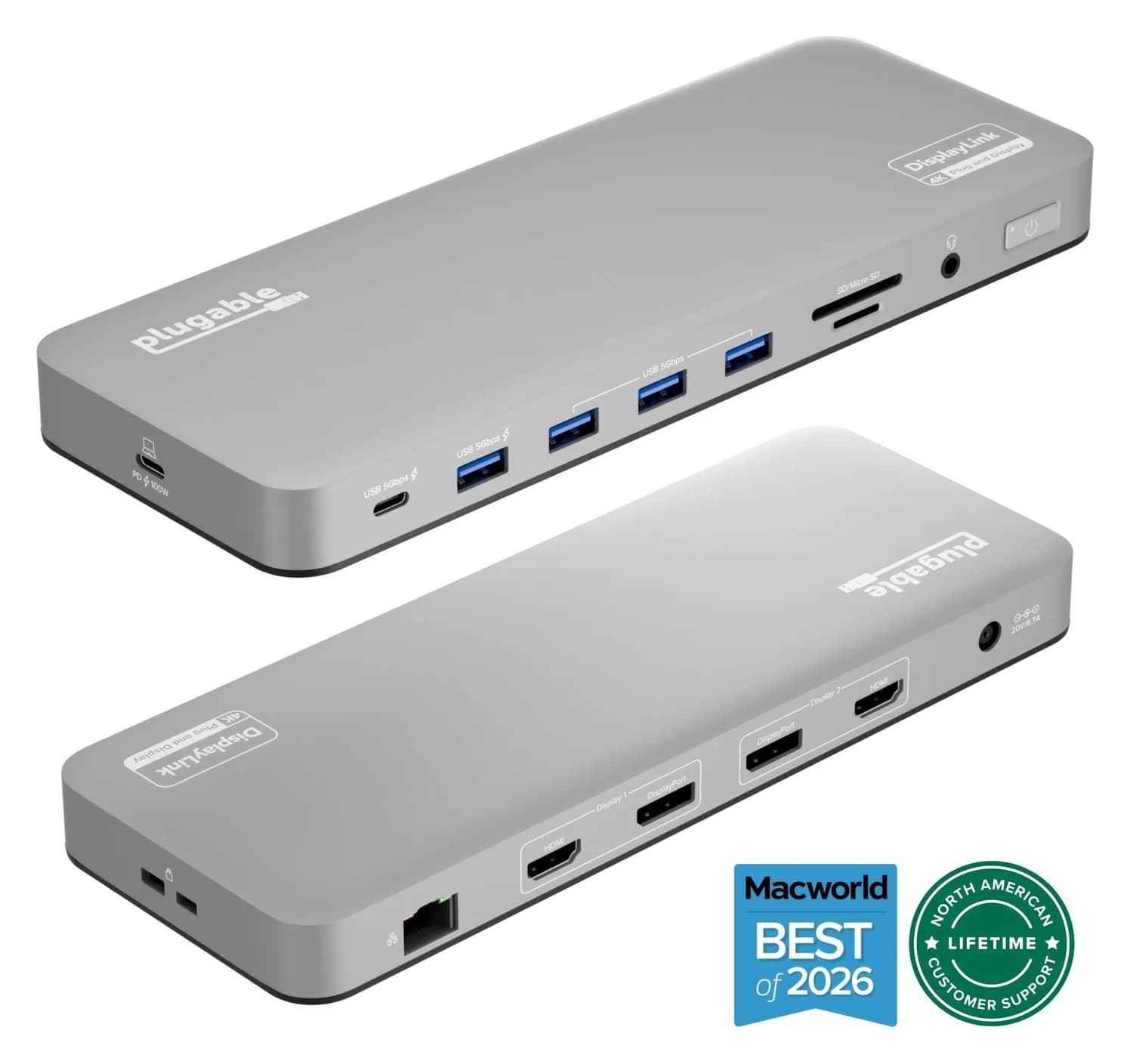
Best USB-C Hubs for Chromebook in 2026: Monitors, Ethernet and Charging
USB-C hubs that suit Chromebooks: which ports carry video, MST vs DisplayLink for two monitors, Ethernet chips ChromeOS supports, and charging through a hub.
Updated October 22, 2026Read
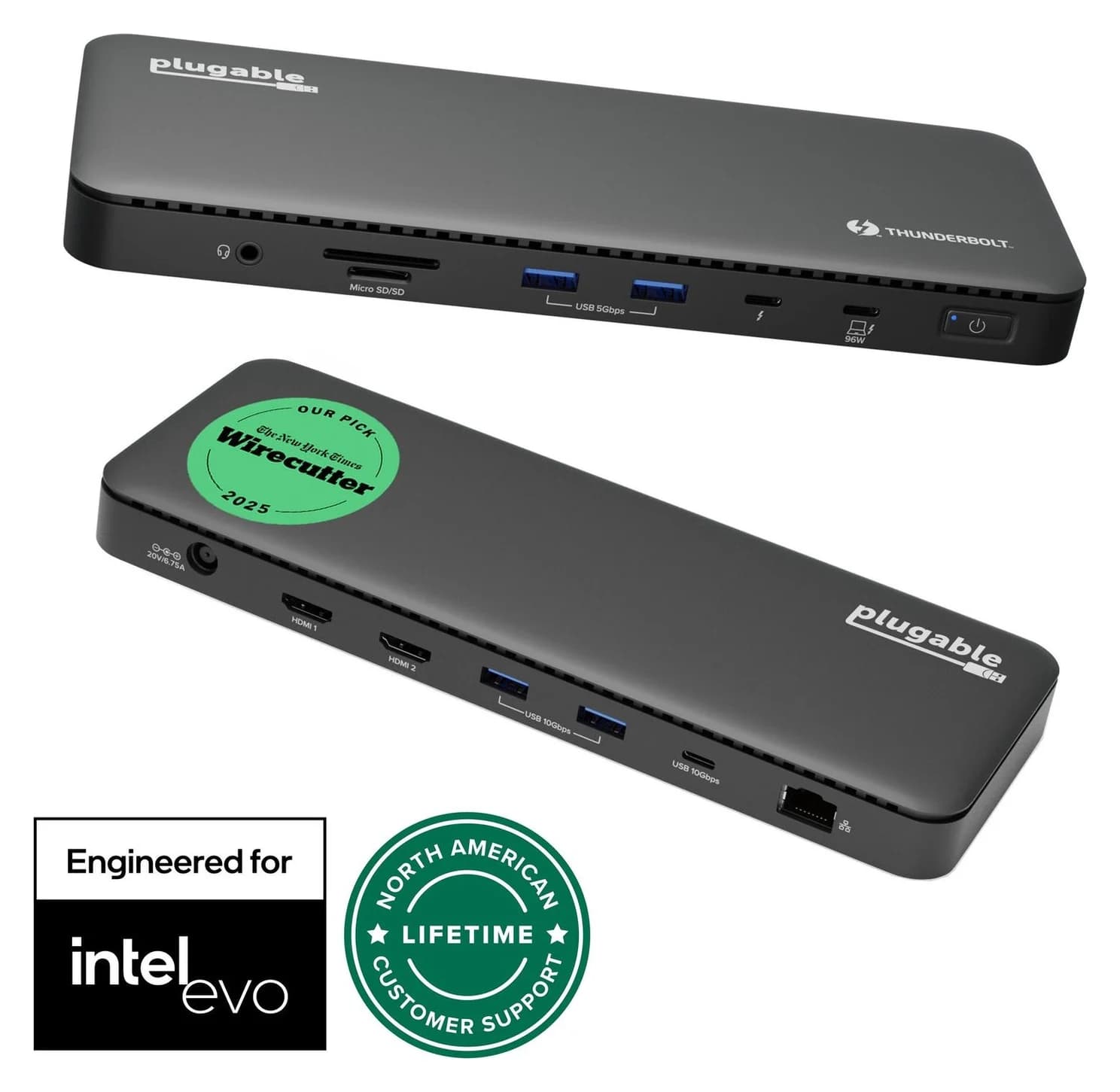
Why Is My Monitor Stuck at 30Hz? USB-C Hub, Cable and Mac Fixes
4K monitor stuck at 30Hz on a USB-C hub? The usual causes are HDMI 1.4, DisplayPort lanes shared with USB data, the cable or MST. How to check and fix it.
Updated October 22, 2026Read
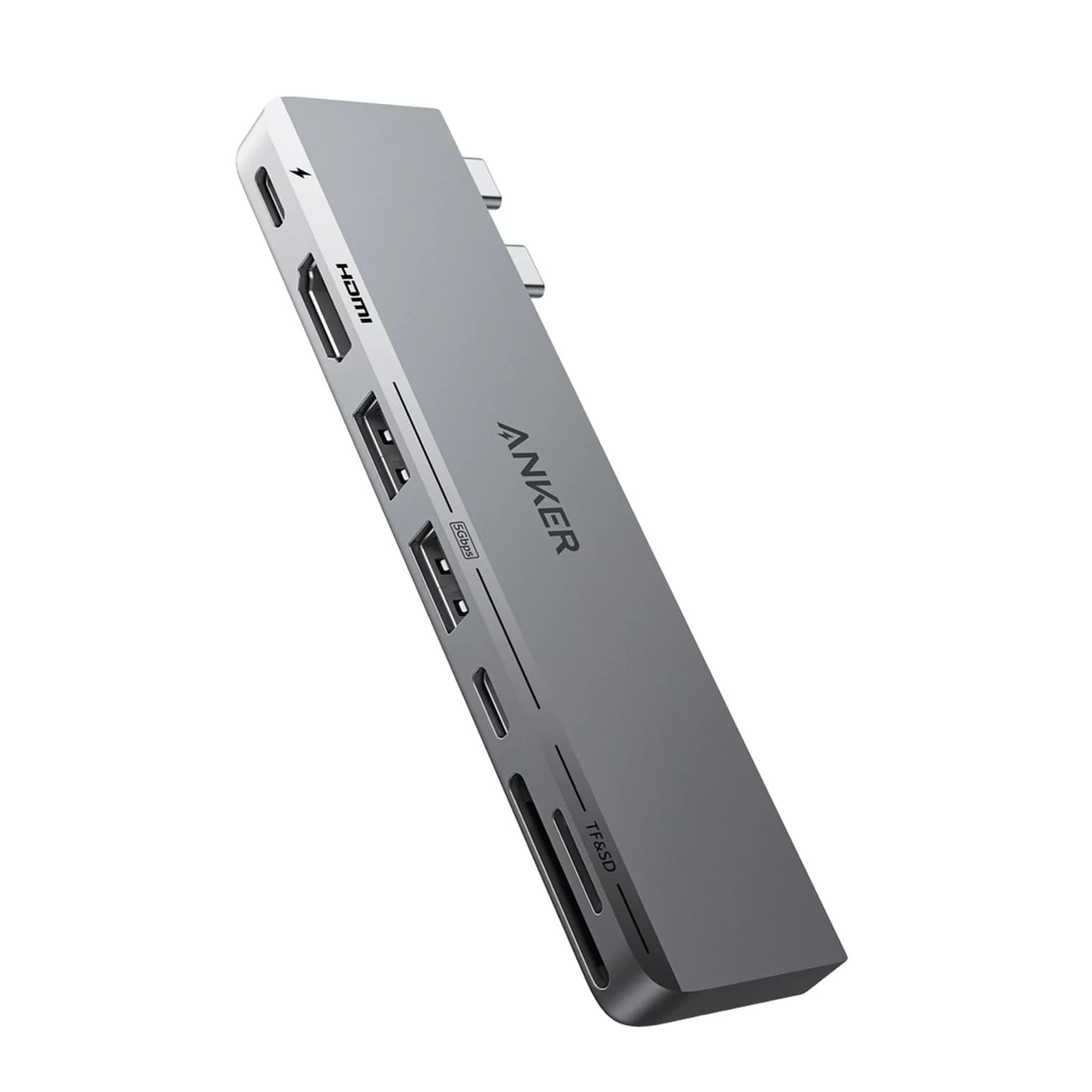
Best USB-C Hubs for MacBook Air in 2026 (M2, M3, M4 and M5)
The right USB-C hub for your MacBook Air depends on its chip. Display limits for M2, M3, M4 and M5, the lid-closed rule, DisplayLink, and six hubs that fit.
Updated October 22, 2026Read