Best picks
Best USB-C Hubs for Chromebook in 2026: Monitors, Ethernet and Charging
USB-C hubs that suit Chromebooks: which ports carry video, MST vs DisplayLink for two monitors, Ethernet chips ChromeOS supports, and charging through a hub.
By thisUSB EditorialUpdated October 22, 20269 min read5 picks
Our picks at a glance
- See on Amazon1
Best overall for Chromebook
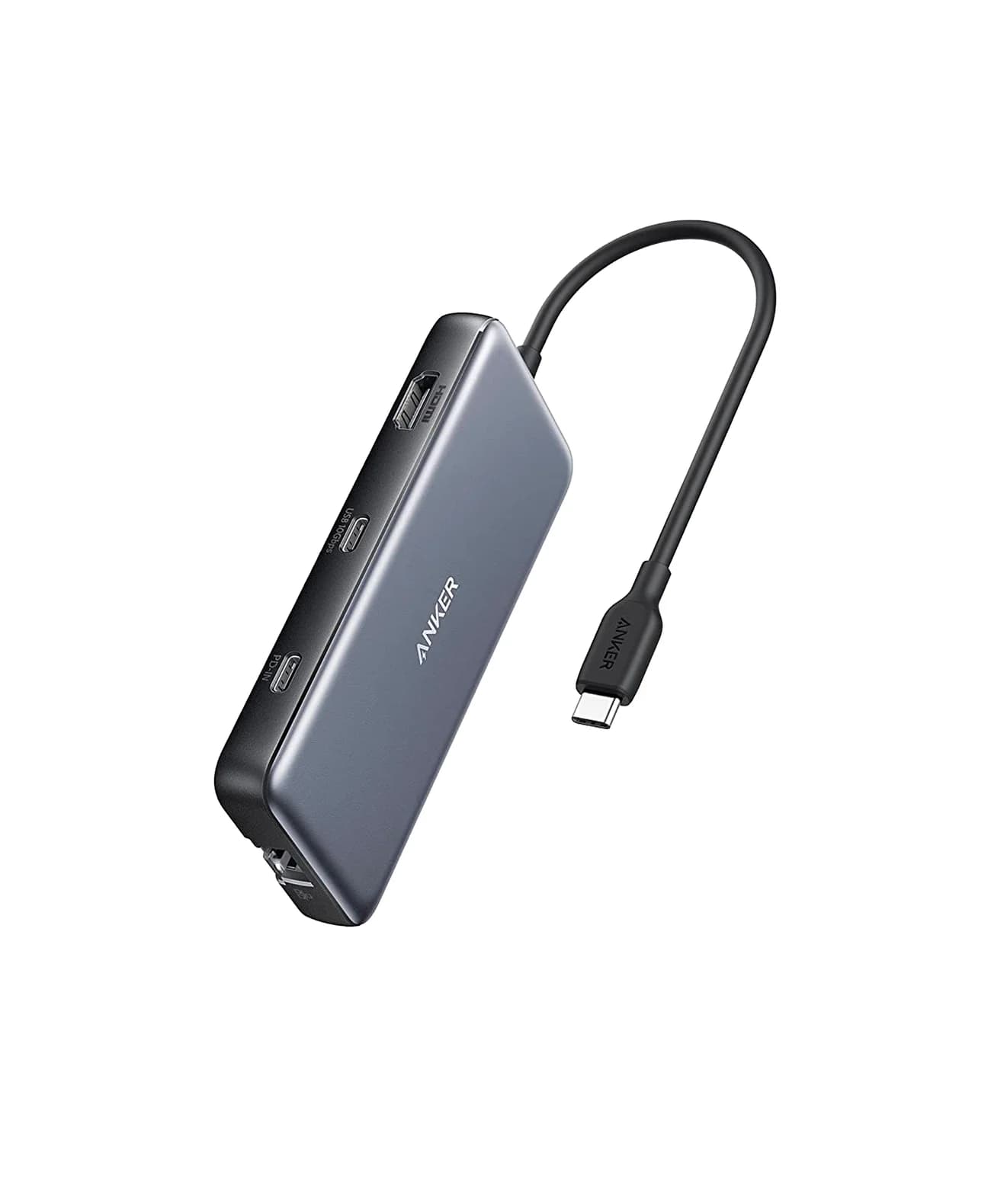
Anker 555 USB-C Hub (8-in-1)85W PD passthrough · 10 Gbps data · 4K60 video · 8 ports
- See on Amazon2
Best for two monitors, no drivers
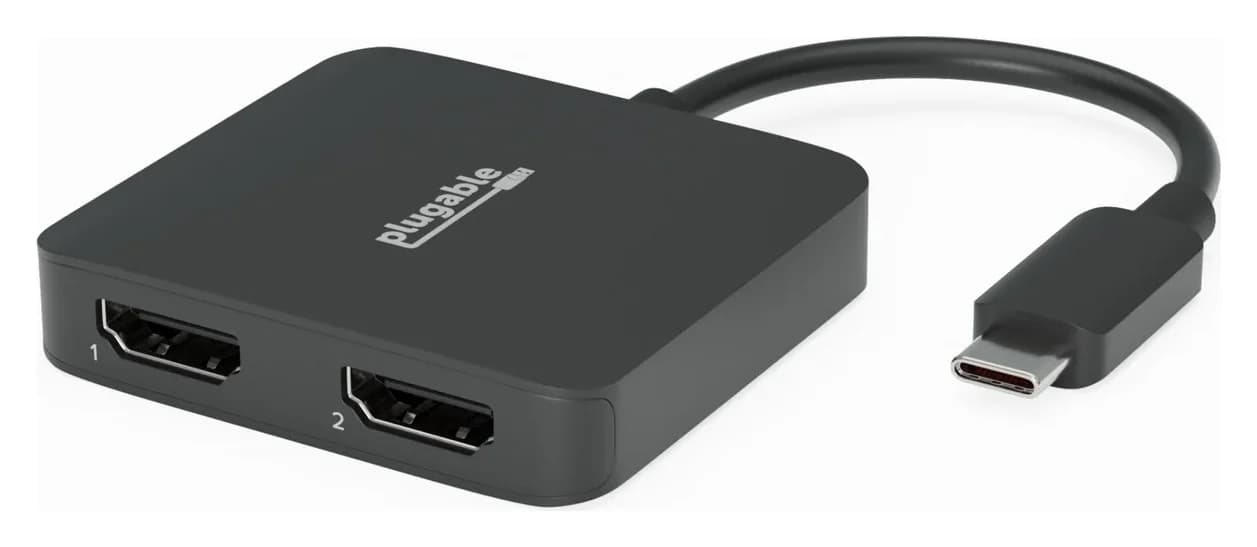
Plugable USB-C Dual 4K HDMI MST Display Adapter (USBC-MSTH2)4K60 video · 2 ports
- See on Amazon3
Best DisplayLink dock for two monitors
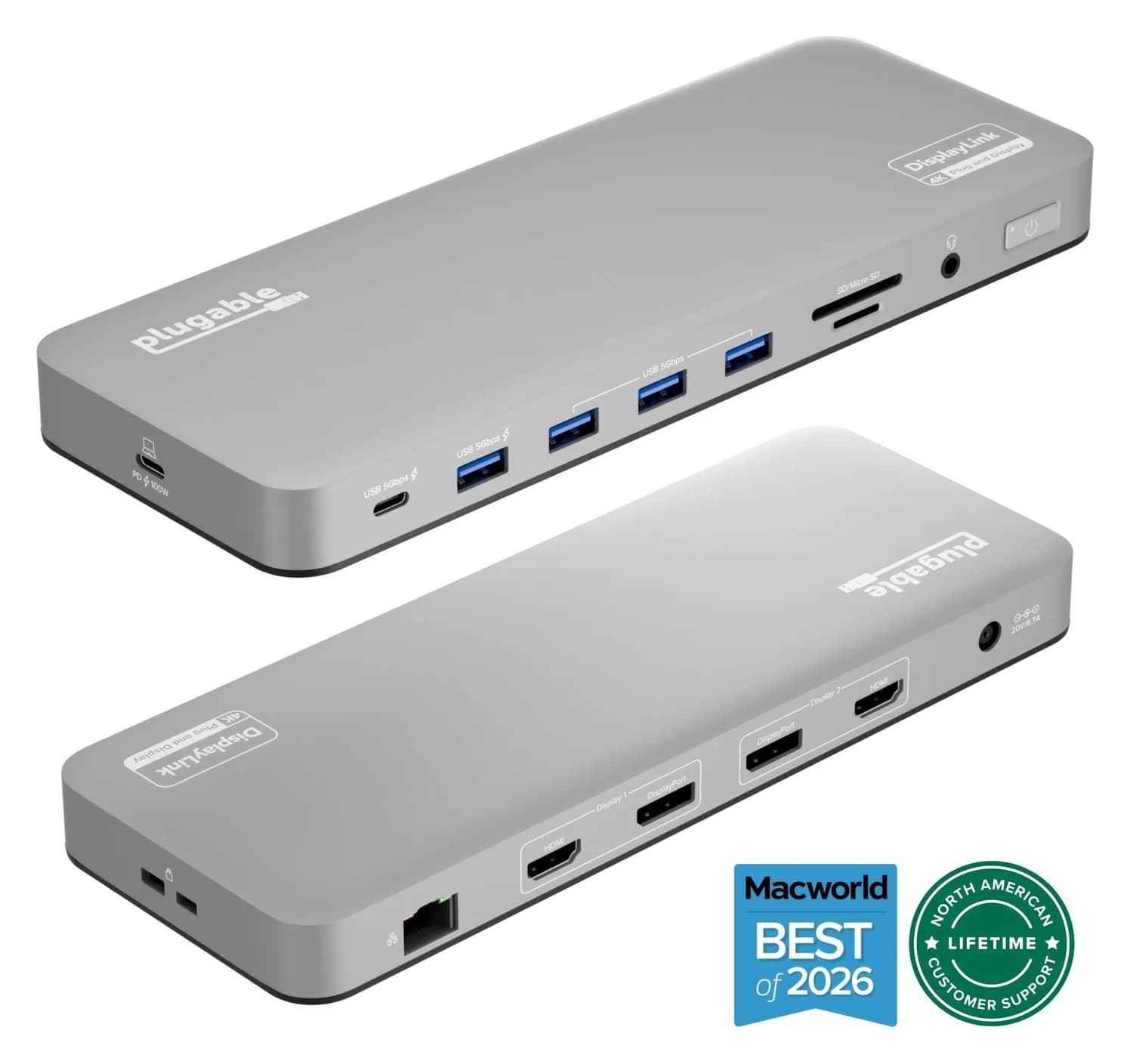
Plugable UD-6950PDH USB-C Dual 4K DisplayLink Dock (100W Charging)100W PD passthrough · 5 Gbps data · 4K60 video · 14 ports
- See on Amazon
- See on Amazon5
Best budget for students
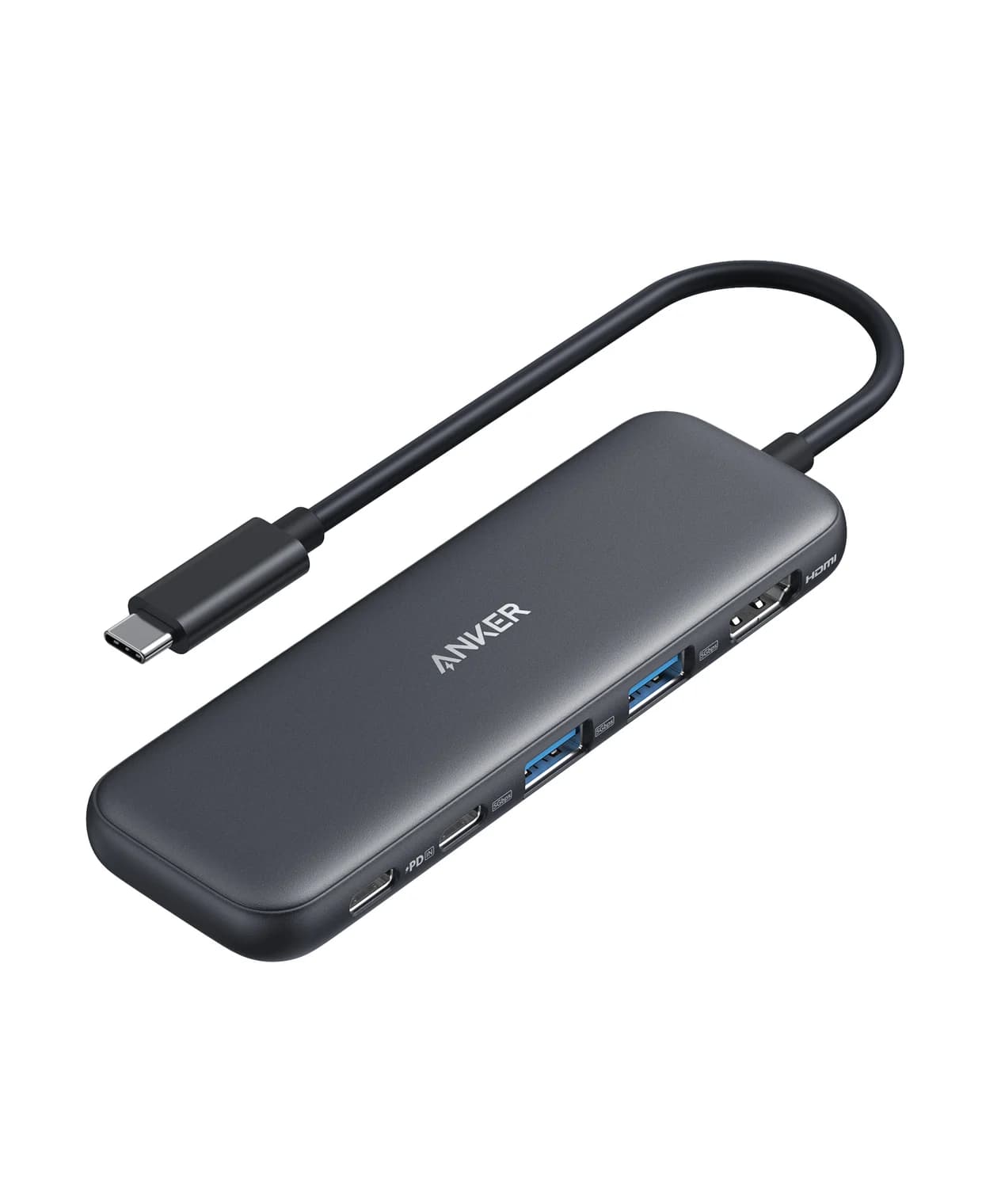
Anker 332 USB-C Hub (5-in-1)85W PD passthrough · 5 Gbps data · 4K30 video · 5 ports
For most Chromebook owners, the Anker 555 (8-in-1) is the hub to buy: one cable adds 4K@60Hz HDMI, gigabit Ethernet, fast USB ports and an SD card reader, passes up to 85W of charging through, and Anker lists ChromeOS. For two monitors, the Plugable USBC-MSTH2 does it with no drivers if your Chromebook supports two external displays, and the Plugable UD-6950PDH DisplayLink dock does it on most recent Chromebooks. Students who just need HDMI and USB-A should get the Anker 332.
We built this list from Google's Chromebook Help pages, Synaptics' DisplayLink notes and the makers' spec sheets. We have not physically handled these products, and where a spec isn't published, we leave it out.
Quick picks
| Pick | Best for | Video | Ethernet | Chromebook charging |
|---|---|---|---|---|
| Anker 555 (8-in-1) | Most Chromebooks | HDMI 4K@60Hz (DP 1.4 host) | Gigabit | Up to 85W |
| Plugable USBC-MSTH2 | Two monitors, no drivers | 2x HDMI via MST, up to 4K@60Hz each | No | None |
| Plugable UD-6950PDH | Two monitors at a desk | 2x 4K@60Hz via DisplayLink (HDMI or DP) | Gigabit | Up to 100W |
| Plugable USBC-E1000 | Wired internet only | None | Gigabit | None |
| Anker 332 (5-in-1) | Students on a budget | HDMI 4K@30Hz | No | Up to 85W |
Prices change often in the run-up to the holidays, so check current prices on Amazon.
First: check what your Chromebook's USB-C ports can do
Chromebooks range from basic school laptops to Chromebook Plus models, and their USB-C ports vary just as much. Four things decide whether a hub will do what you want:
- Video. A hub's HDMI port only works if the Chromebook's USB-C port carries DisplayPort Alt Mode. ASUS notes that not every USB-C port on a Chromebook outputs video, and Plugable warns that data-only USB-C ports can't send a picture. Look for "DisplayPort" in your model's spec sheet, or a DP or Thunderbolt logo by the port.
- How many monitors. Google's Chromebook Help says you can connect one to three external monitors depending on the Chromebook. A hub can't raise that limit with its own HDMI ports, though DisplayLink can work around it (see below).
- Cables. If you see "Cable may not support displays," Google says the USB-C cable isn't fast enough and should be replaced with one rated SuperSpeed USB 5Gbps or higher with a certified logo. The USB-C cable types explainer shows how to tell them apart.
- Chromebook Plus. Google's Chromebook Plus page promises 8GB or more of RAM and 128GB or more of storage. The page doesn't spell out USB-C port requirements, so check the individual model, but the extra memory helps with DisplayLink, which uses the Chromebook's processor and RAM.
Chromebooks extend the desktop onto a new monitor by default; Google puts the Mirror Built-in Display option under Settings, Device, Displays, along with resolution and refresh rate. If a 4K screen looks choppy, our monitor stuck at 30Hz guide explains the usual causes.
Two monitors on a Chromebook: MST or DisplayLink
This is where Chromebooks beat Macs. MST (DisplayPort Multi-Stream Transport) lets one USB-C port feed two independent screens using the Chromebook's own graphics. ChromeOS supports it and macOS doesn't, which is why Plugable sells its MST adapter for "Windows and Chromebook users." It needs no driver and plays protected streaming video, but it only works if your Chromebook supports two external displays, and resolution depends on the port: Plugable says DisplayPort 1.4 with DSC allows two 4K@60Hz screens, while DisplayPort 1.2 is typically limited to two at 1080p@60Hz.
DisplayLink compresses the picture in software and sends it over ordinary USB data, and a chip in the dock decodes it. Synaptics says the DisplayLink driver has been built into ChromeOS since release R51, so there's nothing to install, and Plugable recommends ChromeOS 100 or later. Because it doesn't need DisplayPort Alt Mode, it works from ports that can't output video, and Plugable's support team says it can add monitors to a Chromebook that supports only one over USB-C. The cost is processing load: Synaptics recommends a 2GHz or faster processor, 4GB or more of RAM for two or more DisplayLink screens, and a USB 3.0 connection. It's for documents and web apps, not games.
Best overall for Chromebook: Anker 555 USB-C Hub (8-in-1)
Anker
An 8-in-1 USB-C hub with 4K@60Hz HDMI, gigabit Ethernet, 10Gbps USB-C and USB-A data ports, SD/microSD readers and 85W pass-through charging.
- 85W PD passthrough
- 10 Gbps data
- 4K60 video
- 8 ports
The Anker 555 covers what most people want at a desk or in a classroom: an HDMI 2.0 port, gigabit Ethernet, a 10Gbps USB-C data port, two 10Gbps USB-A ports, UHS-I SD and microSD readers and a 100W PD input that passes up to 85W to the Chromebook, with 15W used by the hub. Anker lists ChromeOS alongside Windows and macOS, and its compatibility list includes the Google Pixelbook.
Anker rates the HDMI port at 4K@60Hz on laptops with DisplayPort 1.4 and 4K@30Hz on DisplayPort 1.2, so on an older or basic Chromebook, a 4K monitor may run at 30Hz. A 1080p or 1440p monitor is unaffected.
Why it stands out: Ethernet, a card reader and fast USB from one cable, with no setup on ChromeOS.
Watch out for: The USB-C data port doesn't carry video or charging. It drives one external display. For more Windows-focused options, see our best USB-C hubs for Windows laptops.
Best for two monitors, no drivers: Plugable USBC-MSTH2
Plugable
Plugable USB-C Dual 4K HDMI MST Display Adapter (USBC-MSTH2)
A driver-free USB-C to dual HDMI adapter that uses DisplayPort MST to run two independent extended monitors from one USB-C port on Windows and ChromeOS.
- 4K60 video
- 2 ports
The USBC-MSTH2 is a 44 g adapter with two HDMI 2.0 ports and an attached 17cm USB-C cable. Plugable lists ChromeOS 100 or later and Windows 10 and 11, and rates it for two extended 4K@60Hz screens on hosts with DisplayPort 1.4 and DSC, or two 1080p@60Hz screens on DisplayPort 1.2 hosts. It uses the Chromebook's own graphics, so HDCP-protected video plays, and there's no software to update.
Why it stands out: The simplest, lightest way to two extended monitors on a Chromebook that supports them.
Watch out for: It needs a USB-C port with DisplayPort Alt Mode and a Chromebook that supports two external displays. There's no charging pass-through or USB ports, so it occupies one of your USB-C ports. Plugable doesn't recommend it for Macs, where the second screen mirrors.
See the Plugable USBC-MSTH2 on Amazon
Best DisplayLink dock for two monitors: Plugable UD-6950PDH
Plugable
Plugable UD-6950PDH USB-C Dual 4K DisplayLink Dock (100W Charging)
A 14-in-1 DisplayLink USB-C dock that adds two extended 4K@60Hz displays over HDMI or DisplayPort, plus 100W laptop charging, Gigabit Ethernet, SD readers and five USB ports.
- 100W PD passthrough
- 5 Gbps data
- 4K60 video
- 14 ports
If your Chromebook is limited to one external display, or its USB-C port doesn't carry video, DisplayLink is the way around it. Plugable's UD-6950PDH uses a DisplayLink DL-6950 chip to drive two extended screens at up to 4K@60Hz each, with an HDMI and a DisplayPort output per screen. It also passes up to 100W to the Chromebook from its included 130W adapter, and adds gigabit Ethernet, a UHS-II SD reader rated up to 312MB/s, a microSD reader, a headset jack, four USB-A ports and a front USB-C port. Plugable lists ChromeOS 100 or later, with no driver to install.
Why it stands out: Two big screens, charging and Ethernet from one cable on nearly any recent Chromebook.
Watch out for: DisplayLink uses the Chromebook's processor, so a basic model may feel slower with two screens, and it's not for games or video editing. Displays, Ethernet and USB share one 5Gbps link. It needs desk space and a power brick. For a pocket-size DisplayLink option without charging, Plugable's USBC-6950M also lists ChromeOS 100 or later.
See the Plugable UD-6950PDH on Amazon
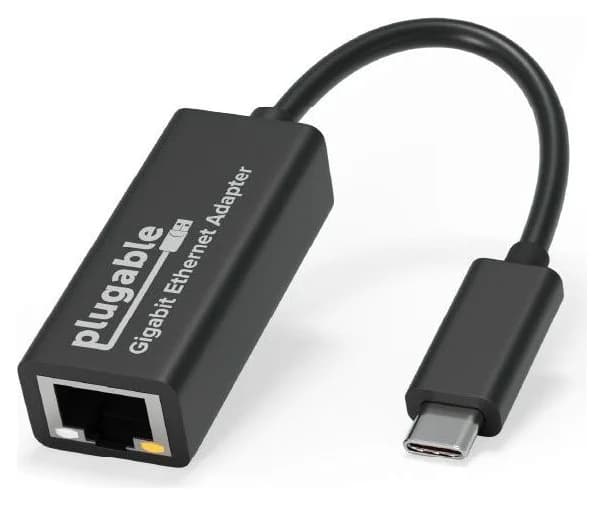
Best Ethernet adapter: Plugable USBC-E1000
Plugable
Plugable USB-C Gigabit Ethernet Adapter (USBC-E1000)
A small bus-powered adapter that adds a gigabit Ethernet (RJ45) port through a USB-C, USB4 or Thunderbolt port, with built-in driver support on ChromeOS, Windows 10/11, macOS and iPadOS.
- 1 port
Most Chromebooks have no Ethernet port, and a wired connection helps with video classes, online tests and crowded Wi-Fi. The USBC-E1000 is a 20 g bus-powered gigabit adapter. Plugable says current units use the ASIX AX88179B chip, need no driver, and support ChromeOS on up-to-date systems, along with Windows 10 and 11, macOS 10.15 or later and iPadOS 17 or later.
Why it stands out: A Chromebook-listed chip from a maker that publishes which chip it uses.
Watch out for: It takes a USB-C port and gives no charging or USB ports back. It's gigabit only, and it can't be used for PXE network boot.
See the Plugable USBC-E1000 on Amazon
Best budget for students: Anker 332 USB-C Hub (5-in-1)
Anker
A slim 5-in-1 USB-C hub with 4K@30Hz HDMI, one 5Gbps USB-C data port, two 5Gbps USB-A ports and 85W pass-through charging.
- 85W PD passthrough
- 5 Gbps data
- 4K30 video
- 5 ports
For a dorm room or a classroom projector, the Anker 332 adds an HDMI 1.4 port, a 5Gbps USB-C data port, two 5Gbps USB-A ports for a mouse dongle and a flash drive, and a 100W PD input that passes up to 85W to the Chromebook. Anker lists ChromeOS, macOS and Windows.
Why it stands out: The ports most students actually use, in a slim hub.
Watch out for: HDMI 1.4 tops out at 4K@30Hz, which is fine for 1080p monitors, TVs and projectors but sluggish on a 4K desktop. No Ethernet or card reader.
Works With Chromebook: what the badge does and doesn't tell you
Google's Chromebook Help says to look for peripherals certified Works With Chromebook, which "have been tested and proven to meet Chromebook compatibility standards," and links its own list of certified docking stations from the monitor help page. When we checked in October 2026, that link led to a deleted file, and Google's Works With Chromebook address now opens a list of partner brands, including Anker, Belkin, Cable Matters, Hyper, j5create, Kensington, Plugable, Satechi, StarTech and Targus, rather than individual products.
Because Google no longer publishes a product list we could check, we don't describe any pick here as certified. The badge on the box is still a good sign, especially for schools buying in bulk. Otherwise, rely on the maker's spec sheet: every pick in this guide lists ChromeOS by name.
Ethernet on a Chromebook: the chip matters
On Windows, an unknown Ethernet chip can usually be fixed with a driver download. A Chromebook doesn't let you install drivers, so an adapter or hub works only if ChromeOS already supports its chip, and fixes arrive through ChromeOS updates. That makes the maker's word important. Plugable names its chips and lists ChromeOS for them: the ASIX AX88179B in the gigabit USBC-E1000, and the Realtek RTL8156 in its 2.5Gbps USBC-E2500, which it lists for ChromeOS 100 or later. Hub makers rarely name the Ethernet chip, so for a hub, ChromeOS on the spec sheet is what to look for, as with the Anker 555 and the Plugable dock.
For students and schools
School Chromebooks tend to have few ports and modest processors, so keep it simple: a hub with HDMI 4K@30Hz or better for projectors, USB-A for a mouse and flash drive, and power pass-through so one charger runs both. For two screens on a basic Chromebook, MST only works if the model supports two displays, while DisplayLink adds processing load, so check the model first. On a school-managed Chromebook, ask IT before buying a dock, since they control updates and settings.
How we choose
We don't physically test products. Each pick comes from:
- Google's own guidance. Chromebook Help pages on monitors, cables and compatible peripherals, and the Chromebook Plus spec page.
- Manufacturer spec sheets. Ports, speeds, chips, wattages and listed ChromeOS versions from Anker and Plugable, plus Synaptics' DisplayLink notes.
- Standards. DisplayPort Alt Mode and MST, USB Power Delivery and USB 3.2 data rates.
- Known buyer patterns. The common Chromebook mistakes are a USB-C port without video, a charge-only cable, and a dual-HDMI hub on a model that supports one monitor.
We also confirm each Amazon listing matches the maker's model.
Buying guide: charging and the right charger
Chromebooks that charge over USB-C can charge through any of the hubs here with a PD input. Hubs keep about 15W, so a 100W charger into the Anker 555 or 332 passes up to 85W to the Chromebook. If you reuse the Chromebook's own 45W charger behind a hub, it can charge slowly or even drain under load. Our USB-C charger guide covers 65W and 100W options, and if you'd rather add a screen without a desk, see our best portable monitors. If you also use an iPad, our USB-C hubs for iPad guide covers its quirks.
Verdict
Get the Anker 555 if you want one hub that handles a monitor, Ethernet, SD cards and charging on a Chromebook. For two monitors, start with the Plugable USBC-MSTH2 if your Chromebook supports two displays and has a DisplayPort-capable USB-C port; otherwise the Plugable UD-6950PDH DisplayLink dock gets you there with charging and Ethernet included. The Plugable USBC-E1000 is the clean fix for wired internet, and the Anker 332 covers students who just need HDMI and USB-A.
Frequently asked questions
Do USB-C hubs need drivers on a Chromebook?
No, and on a Chromebook you couldn't install one anyway. Hubs, card readers and common Ethernet chips work with support built into ChromeOS. DisplayLink is built in too: Synaptics says its driver has been part of ChromeOS since release R51, and Plugable recommends ChromeOS 100 or later for its DisplayLink products. Updates arrive with ChromeOS updates, so keep the Chromebook current.
Why does my Chromebook say "Cable may not support displays"?
Google says it means your USB-C cable doesn't support the connection, and to replace it with a USB-C cable rated SuperSpeed USB 5Gbps or higher that carries a certified logo. Charge-only and USB 2 cables lack the high-speed wires video needs. A hub with an attached cable avoids the problem, and so does a short cable that came with a monitor or dock.
Can a Chromebook run two monitors from one USB-C port?
Often, yes. Google says Chromebooks support one to three external monitors depending on the model. ChromeOS supports DisplayPort MST, so an MST adapter like the Plugable USBC-MSTH2 can run two extended screens if your Chromebook allows two. A DisplayLink dock adds screens through software built into ChromeOS, which Plugable says works even when the Chromebook's USB-C port supports only one monitor.
What does "Works With Chromebook" mean?
It's Google's badge for accessories that, in Google's words, have been tested and proven to meet Chromebook compatibility standards. Look for it on the box. Google's program page now points to partner brands, including Anker, Belkin, Plugable, Satechi and Targus, rather than a list of products, so we don't call any pick here certified. Plenty of uncertified hubs work fine when the maker lists ChromeOS.
Will a USB-C hub charge my Chromebook?
Yes, if the Chromebook charges over USB-C, as most current models do, and the hub has a USB-C Power Delivery input. Hubs keep about 15W for themselves, so use a charger at least 15W bigger than the one that came with your Chromebook: a 65W charger for a 45W Chromebook, for example. Plugable notes that docks connected over USB 3.0 rather than USB-C can't charge a Chromebook.
Related guides
Best USB-C Hubs for iPad in 2026 (iPad Pro M5, iPad Air M4, iPad mini and iPad A16)
Which USB-C hub suits your iPad: port speeds, 4K vs 6K displays, extended vs mirrored screens, charging through a hub, SD readers, Ethernet and headphones.
Updated October 22, 2026Read
Why Is My Monitor Stuck at 30Hz? USB-C Hub, Cable and Mac Fixes
4K monitor stuck at 30Hz on a USB-C hub? The usual causes are HDMI 1.4, DisplayPort lanes shared with USB data, the cable or MST. How to check and fix it.
Updated October 22, 2026Read
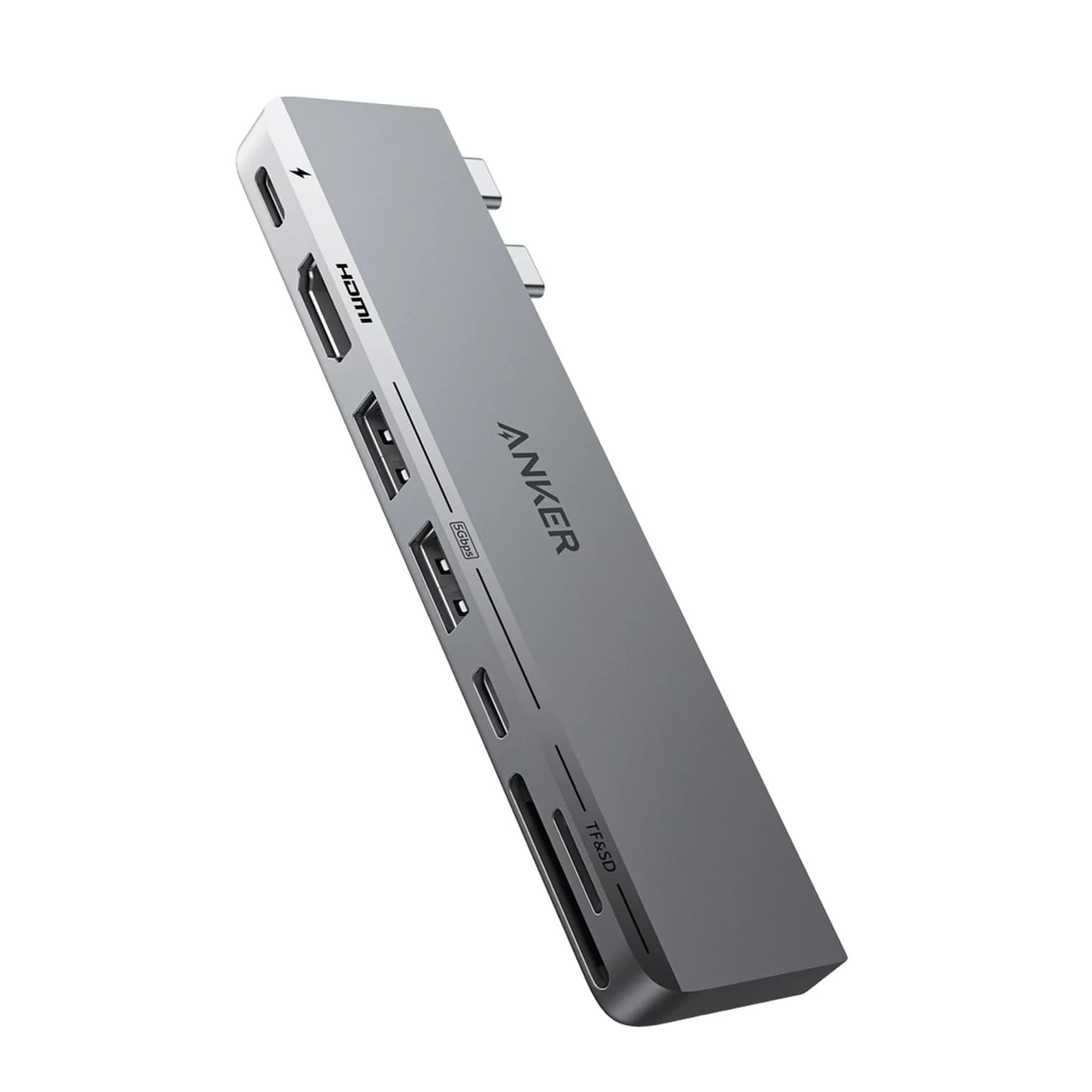
Best USB-C Hubs for MacBook Air in 2026 (M2, M3, M4 and M5)
The right USB-C hub for your MacBook Air depends on its chip. Display limits for M2, M3, M4 and M5, the lid-closed rule, DisplayLink, and six hubs that fit.
Updated October 22, 2026Read