Explainer
USB-C Laptop Not Charging? Find the Cause: Charger, Cable, Port, Setting or Battery
Laptop plugged in but not charging over USB-C, or a slow charger warning? Check wattage, 20V, the cable, the port, hubs and charge limits, in that order.
By thisUSB EditorialUpdated October 30, 20269 min read3 picks
Our picks at a glance
- See on Amazon1
Best fix for a cable bottleneck
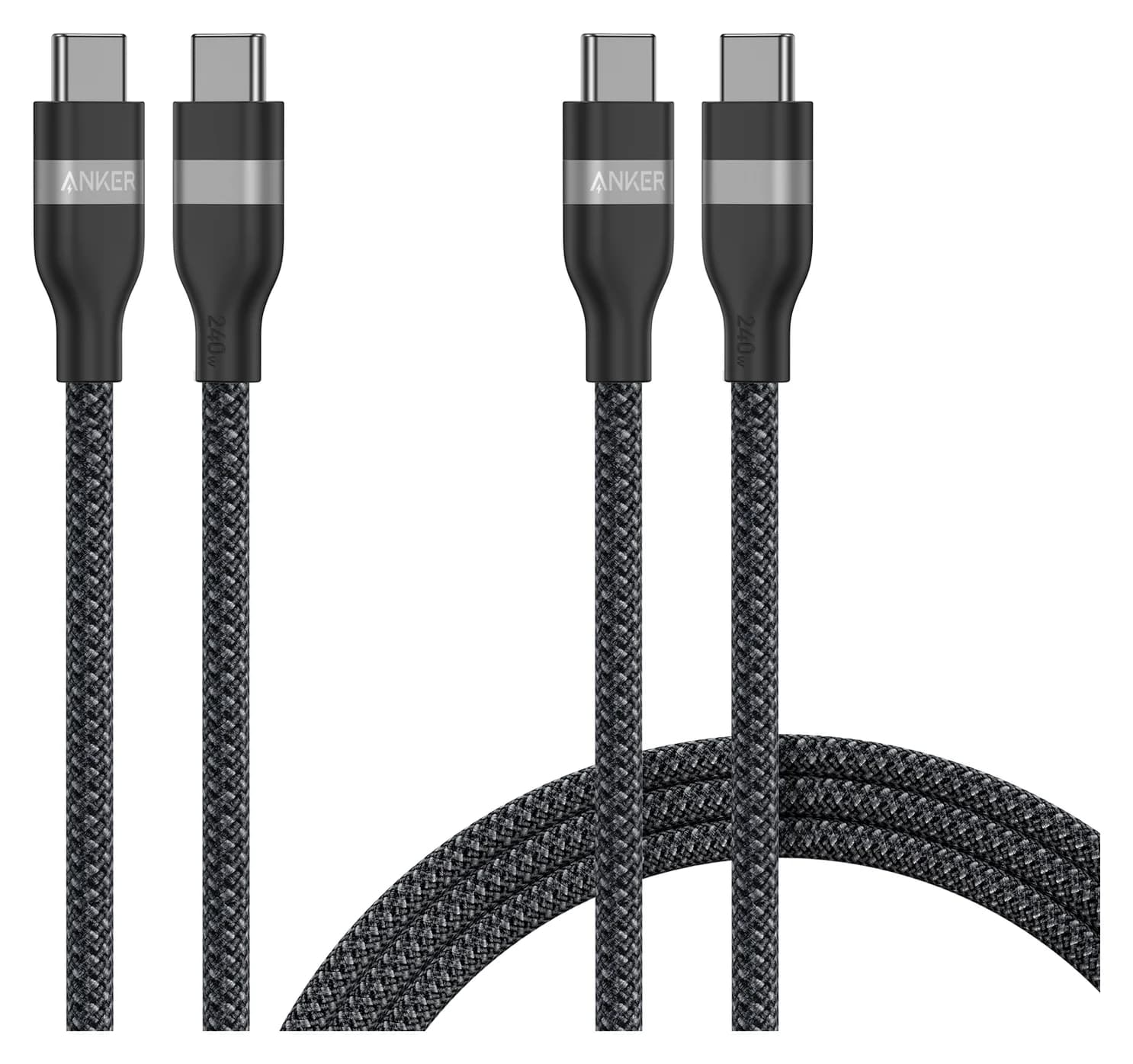
Anker USB-C to USB-C Cable (3 ft / 6 ft, 240W, Upcycled-Braided, 2-Pack)240W max output · 0.48 Gbps data
- See on Amazon2
Best fix for an underpowered charger
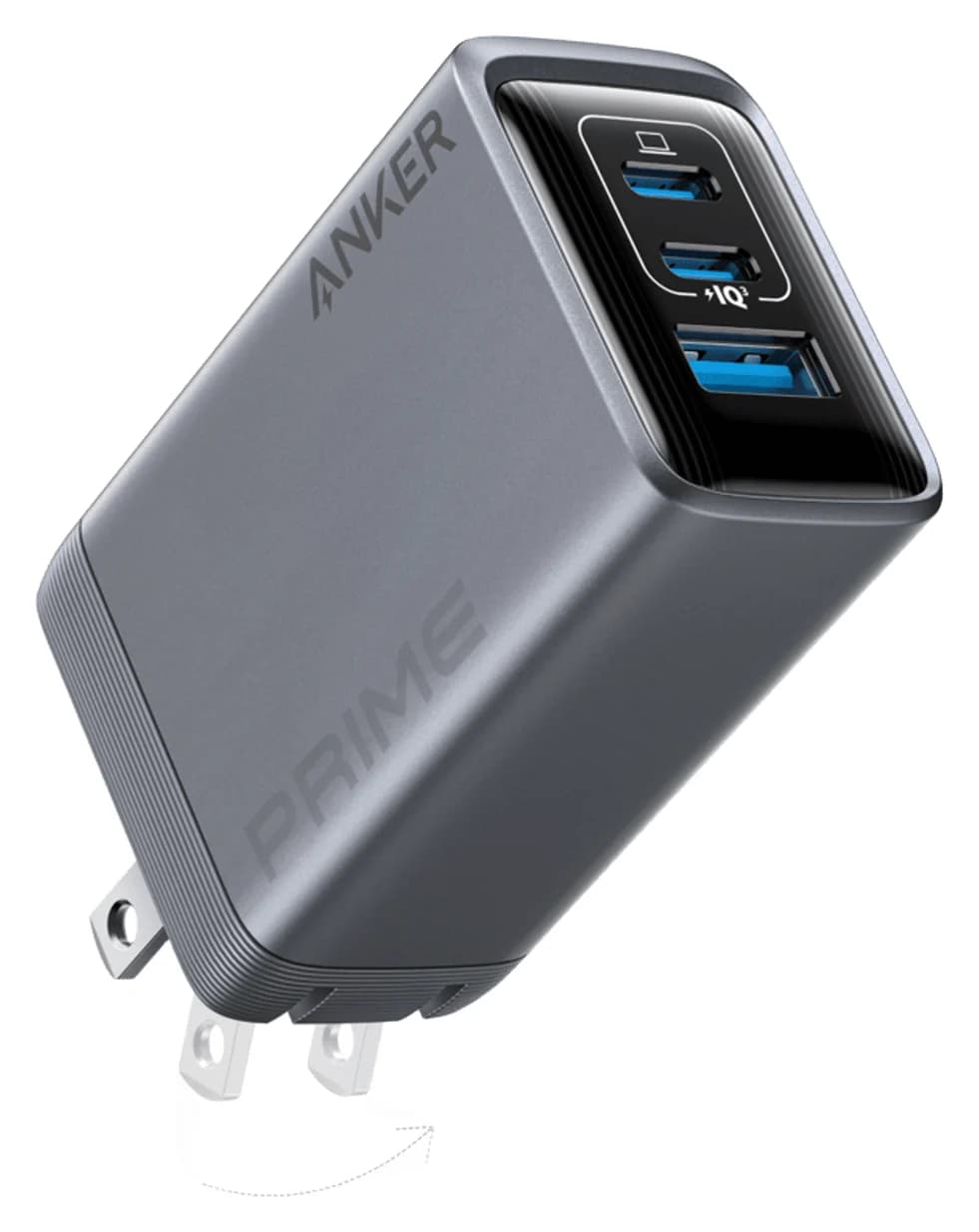
Anker Prime Charger (100W, 3 Ports, GaN)100W max output · 3 ports
- See on Amazon3
Best fix for laptops that need over 100W
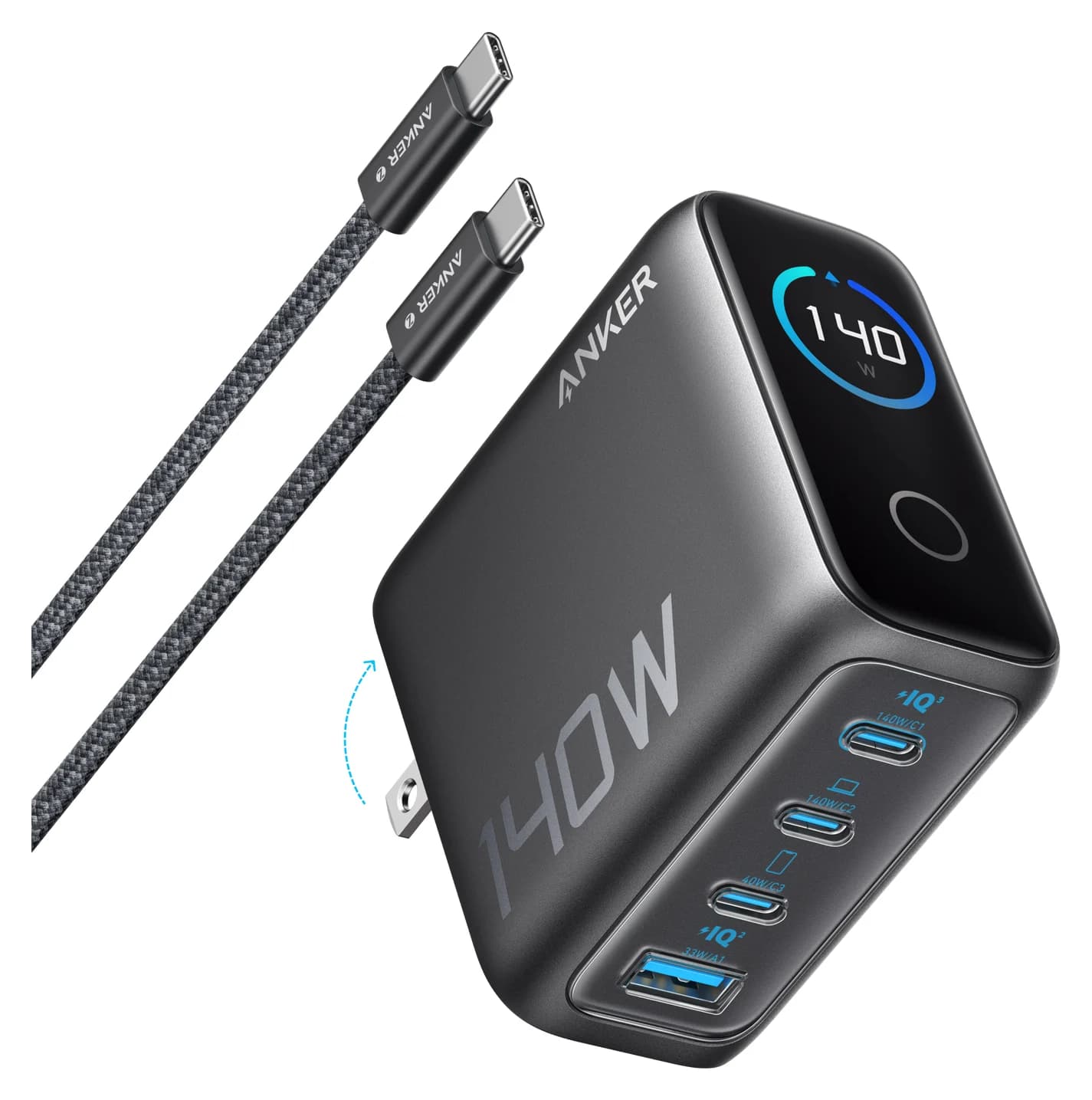
Anker Charger (140W, 4-Port, PD 3.1)140W max output · 4 ports
When a USB-C laptop won't charge, the cause is usually the charger's wattage, the cable, the port or a battery setting, and you can check all four in a few minutes. Start with whatever warning your laptop shows, plug the charger straight into the laptop, then work down the list below. If the fix turns out to be hardware, it's usually a 5A or 240W cable or a charger such as the Anker Prime 100W.
This guide is built from Apple, Microsoft, Dell, Lenovo and HP support documents and the USB-IF's Power Delivery specs. It describes how USB-C charging is designed to behave; we haven't run these checks on your model.
Quick diagnosis
| What you see | Most likely cause | Fix |
|---|---|---|
| Windows "Slow charger" or "PC isn't charging" | Charger or cable too weak, a non-charging port, or a hub in the path | Plug straight in, use the original-wattage charger and cable |
| Dell boot warning about a lower-wattage adapter | Charger, hub or dock below the laptop's rating | Match the wattage of the adapter that shipped with it |
| Mac shows "Not Charging" | Low-wattage adapter, heavy workload, or a battery-health pause | Bigger adapter, lighter load, or wait it out |
| Mac shows "Charging On Hold" or stops at 80% | Optimized Battery Charging or Charge Limit | Normal behaviour; change the setting if needed |
| Windows laptop stops below 100% | Dell, Lenovo, HP or Surface charge-limit setting | Change it in BIOS or the maker's app |
| Stuck near 60W on a 100W charger | 3A cable | 5A (100W) or 240W cable |
| 140W charger only gives 100W | Cable isn't a 240W EPR cable | 240W cable |
| Charges on one USB-C port, not another | Data-only port | Use the port marked for charging |
| Nothing works with any charger | Dirty or damaged port, or the battery | Clean the port, then check battery health |
Read the warning
Each message points at a different cause, so note it before you unplug anything.
Plug the charger straight into the laptop
Take hubs, docks and monitors out of the power path.
Compare wattage and voltage
Match or beat the adapter your laptop shipped with, at 20V.
Swap the cable
Above 60W you need a 5A or 240W cable.
Try another USB-C port
Some ports carry data only.
Check battery settings
Charge limits stop below 100% on purpose.
Inspect the port, then the battery
Debris, heat and a worn battery come last.
1. The charger is below your laptop's minimum
USB Power Delivery is a negotiation: the charger lists what it can supply and the laptop picks one option. A smaller charger is usually safe but may not keep up. Apple says you can charge a Mac "with any USB-C power adapter or display, even if it provides higher or lower wattage," on its power adapter page, but its troubleshooting page recommends "equal or greater wattage (W) than the power adapter that came with your Mac."
The gap shows up under load. Apple's "Not Charging" page describes a power source "that gives it enough power to run, but not enough power to charge the battery," and HP notes a laptop "may not charge while the laptop is in use" if it needs more than the charger provides. On Windows, Microsoft's USB-C troubleshooting page lists "The charger isn't powerful enough to charge your PC" among the causes of its Slow charger warning. Dell laptops say it at boot: "You have plugged in a lower wattage power adapter, USB-C charging device, or power pass-through device."
Fix: check the wattage on the adapter that came with your laptop and match or beat it.
2. The charger can't reach 20V, or 28V above 100W
Wattage isn't the whole story; voltage matters too. USB PD only guarantees the 20V level on chargers rated above 45W, and smaller ones may stop at 15V, which many laptops won't accept. Lenovo's Legion 5 user guide is explicit: a USB-C charger, dock or display "should be at least 20 V and 2.25 A," and below that it "Cannot provide power to the computer or charge the battery."
Above 100W there's a second step. The USB-IF says USB PD was "limited to 100W using a solution based on 20V" with 5A cables, and that the newer 28V, 36V and 48V levels "enable up to 140W, 180W and 240W." That Extended Power Range (EPR) only switches on when the charger, the cable and the laptop all support it. Apple's fast-charge page pairs the 16-inch MacBook Pro's 140W adapter with either MagSafe 3 or Apple's 240W USB-C cable. Our USB Power Delivery explainer covers each level.
Fix: a 65W-plus charger for 20V, and a PD 3.1 (EPR) charger if your laptop shipped with more than 100W.
3. The cable is capping the power
This is the most common hidden cause. The USB Type-C spec rates standard USB-C cables at 3A, which is 60W at 20V, and any cable rated above 3A must carry an e-marker chip that tells the charger so. The USB PD spec requires a 5A cable above 60W and an EPR cable to enter EPR. A 100W charger on an ordinary cable therefore delivers 60W, and a 140W charger on a 100W cable stops at 100W, with no warning beyond slower charging. Certified cables now carry a 60W or 240W logo, per the USB-IF's cable logo guidelines.
Source: USB-IF USB PD page and USB PD and Type-C specifications
Apple adds a separate trap: "Some USB-C cables only support data transfer and won't charge your Mac." Our USB-C cable types explainer shows how to tell them apart, and best USB-C cables for fast charging has options.
4. You're on a port that doesn't charge
Not every USB-C port accepts power. On some Vostro, Inspiron and Dell 15 models, Dell says the port with a "D" logo supports power delivery while the one with a SuperSpeed (SS) logo "only supports data transferring." Lenovo's guides name the specific "power input connector", and the Legion 5's rear USB-C port "is not designed as the primary power input port." Microsoft lists "The charger isn't connected to a charging port on your PC" as a cause.
Fix: look for a power, lightning-bolt or "D" icon next to the port, or check your manual.
5. A hub, dock or monitor is taking its share
Pass-through charging isn't free. Dell's dock and hub article says most of its new laptops ship with a 130W adapter, yet "Only 90 W is provided back to the laptop after passing through a dock or hub." Microsoft lists "The charger is connected through an external hub or dock" among the causes of both of its charging warnings. A 100W charger feeding a typical hub leaves noticeably less for the laptop.
6. A battery setting is stopping the charge on purpose
Every major maker ships a mode that stops below 100% to extend battery life, and each looks like a fault if you didn't turn it on.
| Laptop | Setting | What it does |
|---|---|---|
| Mac | Optimized Battery Charging | Can delay charging past 80%; shows "Charging On Hold" |
| Mac (Apple silicon, macOS Tahoe 26.4+) | Charge Limit | You choose 80% to 100%; shows "Charged to [%] Limit" |
| Dell | Primarily AC Use / Custom | Primarily AC Use limits charge to 50% to 80%; Custom stops at your threshold |
| Lenovo Legion and Yoga | Conservation mode | Keeps the battery at 75% to 80% |
| Lenovo ThinkPad | Charge threshold in Vantage | Stops at the threshold you set below 100% |
| HP | Battery Health Manager (BIOS) | "Maximize my battery health" shows 80% by design |
| Microsoft Surface | Smart charging | Limits the maximum charge to 80% |
Some laptops also wait before topping up. Apple's "Not Charging" status can mean the Mac "temporarily paused charging to extend the life of your battery," and it "may drain to 93% or lower" before charging resumes. Lenovo says a ThinkPad X1 Carbon Gen 13 battery must discharge to 94% or lower before it recharges. Heat is the other quiet pause: Apple says a Mac that stops at 80% with Optimized Battery Charging off may have a battery that's too hot, and HP lists high-temperature protection as a cause.
Fix: turn the setting off or raise the limit when you need a full battery, then turn it back on.
7. A dirty or damaged port
Pocket lint stops a plug seating fully. Apple says to make sure the ports "are clean and free of debris," and Microsoft suggests "a can of compressed air" and lists dust in the port as a cause. If the plug wiggles, or charging cuts in and out when you move the cable, the port or the cable's connector may be damaged, which is a repair job. On Intel Macs, Apple also suggests resetting the SMC.
8. When it's the battery
If the laptop runs on the charger but the battery won't fill on any charger, cable or port, check its health. On a Mac, Battery Health in System Settings reads Normal or Service Recommended, which Apple says means the battery's "ability to hold charge is less than when it was new." On Windows, powercfg /batteryreport generates a report of the battery's history. Dell suggests replacement when its health check reads Fair or Poor, or when a battery is swollen or damaged.
The fixes, when the fix is hardware
For a cable bottleneck.
Anker
Anker USB-C to USB-C Cable (3 ft / 6 ft, 240W, Upcycled-Braided, 2-Pack)
A two-pack of braided USB-C to USB-C charging cables (3 ft and 6 ft) rated for up to 240W.
- 240W max output
- 0.48 Gbps data
Anker's 240W cables come as a 3 ft and 6 ft pair and cover every level from 60W to 240W, including EPR. They're charging cables with USB 2.0 data, not for video or fast SSDs. Check price on Amazon.
For a laptop that wants up to 100W.
Anker
Anker Prime Charger (100W, 3 Ports, GaN)
A 100W GaN wall charger with two USB-C ports and one USB-A port and a foldable plug.
- 100W max output
- 3 ports
The Anker Prime 100W delivers 20V at 5A from either USB-C port, enough for any laptop that ships with a 100W or smaller adapter. Anker lists 100W total with two devices and 89W with three, so a phone on the second port takes a share. It needs a 5A cable for anything above 60W. Check price on Amazon.
For a laptop that wants more than 100W.
Anker
Anker Charger (140W, 4-Port, PD 3.1)
A 140W USB PD 3.1 GaN charger with three USB-C ports, one USB-A port and a smart status display, sold with a 240W USB-C cable.
- 140W max output
- 4 ports
The Anker 140W is a USB PD 3.1 charger whose top two ports reach 140W at 28V, and a 5 ft 240W cable is in the box. Anker's split table keeps 100W on the main port with a phone on the third. Check price on Amazon. For more options, see our best USB-C chargers.
How we put this together
This guide draws on Apple's Mac charging and battery pages, Microsoft's USB-C troubleshooting and Surface pages, Dell knowledge-base articles, Lenovo and HP user guides and support documents, and the USB-IF's Power Delivery and cable specifications. Product details come from Anker's spec sheets. We haven't tested these fixes ourselves; settings and messages vary by model, so check your own laptop's manual.
Verdict
Most "plugged in, not charging" cases come down to four things: a charger below the laptop's rating or without 20V, a 3A cable on a charger above 60W, a hub in the power path, or a battery-saving limit doing its job. Plug straight in, match the original wattage, use a 5A or 240W cable, and check the charge-limit setting before you suspect the battery.
Frequently asked questions
Why does my laptop say plugged in, not charging?
Usually one of three things. A battery setting is holding the charge on purpose, such as Optimized Battery Charging on a Mac, Primarily AC Use on a Dell or Battery Health Manager on an HP. The charger supplies enough to run the laptop but not to charge it, which Apple and Microsoft both name. Or the battery is too warm, which Apple and HP list as a reason charging pauses.
Can I use a lower-wattage USB-C charger on my laptop?
Often, yes, but expect slow charging or none under load. Apple says a Mac can charge from any USB PD adapter, even a lower-wattage one, while recommending equal or greater wattage than the one in the box. Some laptops set a floor: Lenovo's Legion 5 user guide says a USB-C source below 20V and 2.25A can't power the laptop or charge it.
Why does my laptop stop charging at 80%?
Almost always a battery-saving setting. Apple's Optimized Battery Charging can hold a Mac at 80%, and macOS Tahoe 26.4 adds a Charge Limit from 80% to 100%. Dell's Primarily AC Use mode keeps the battery at 50% to 80%, Lenovo's conservation mode at 75% to 80%, and HP's Maximize my battery health option shows 80% by design. Change the setting if you need a full charge.
Do I need a special cable for a 100W charger?
Yes. A standard USB-C cable is rated for 3A, which is 60W at 20V. Above 60W, USB PD requires a 5A cable with an e-marker chip, sold as 100W or 240W. Above 100W, the charger must switch to 28V or higher, which it only does over a 240W EPR cable. With the wrong cable, the charger quietly falls back to a lower level.
Why won't my laptop charge through my USB-C hub?
Hubs and docks keep some power for themselves and pass the rest through. Dell's example: a 130W adapter leaves only 90W for the laptop after a dock or hub. Microsoft also lists a charger connected through a hub or dock as a cause of its Slow charger and PC isn't charging warnings. Plug the charger straight into the laptop, or feed the hub a bigger charger.
How do I know if the battery is the problem?
Rule out the charger, cable, port and settings first. Then check the battery's own report. On a Mac, Battery Health in System Settings shows Normal or Service Recommended, which Apple says means the battery holds less charge than when new. On Windows, powercfg /batteryreport creates a report of the battery's history. Dell suggests replacement when health reads Fair or Poor.
Best fix for a cable bottleneck
Anker USB-C to USB-C Cable (3 ft / 6 ft, 240W, Upcycled-Braided, 2-Pack)
Related guides
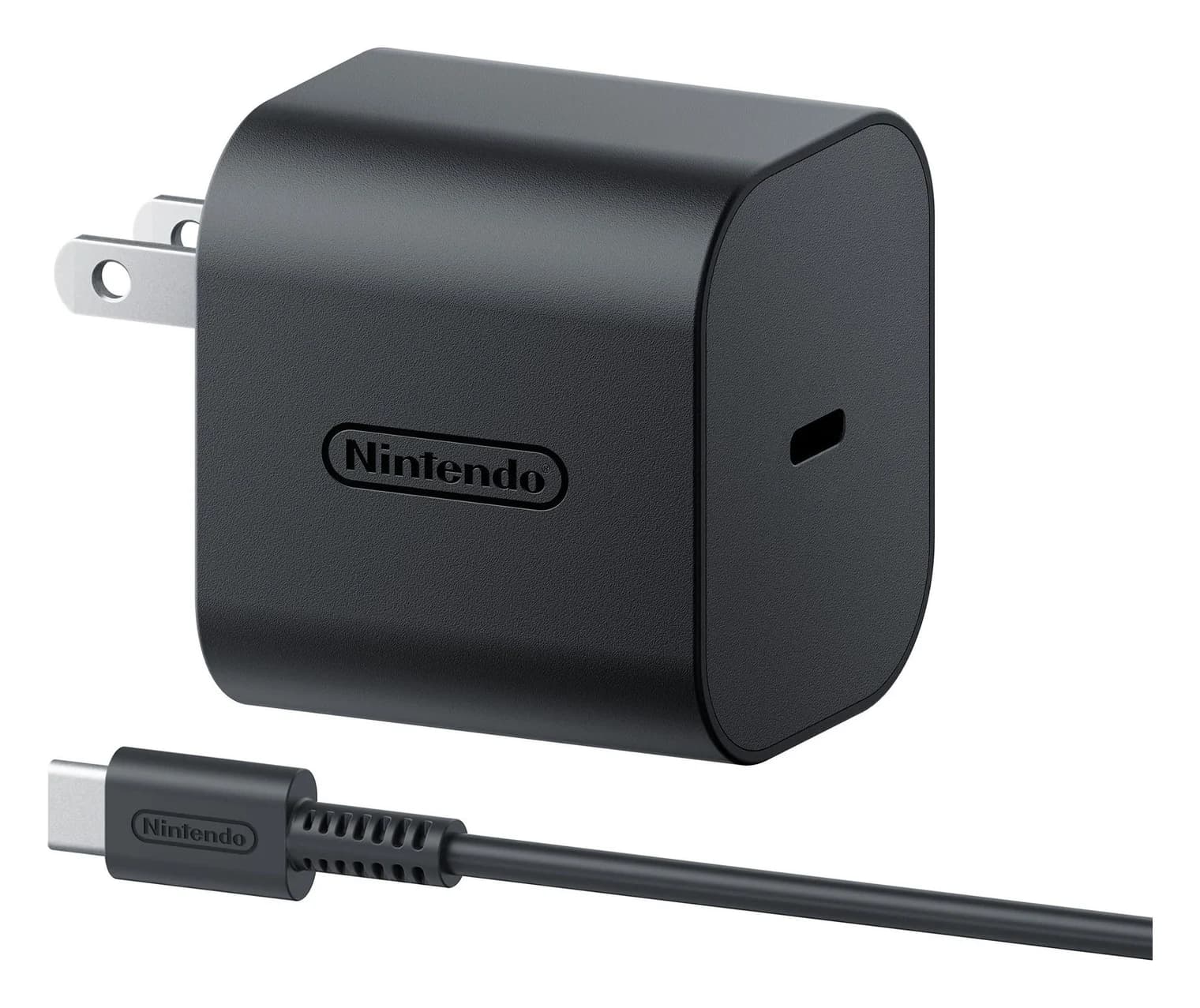
Best Nintendo Switch 2 Chargers, Docks and Power Banks in 2026
What powers a Switch 2: Nintendo's 60W USB-C adapter, its 54W rule for TV mode, third-party docks that list Switch 2, and the power banks that keep up.
Updated October 30, 2026Read
Best MagSafe Chargers in 2026: Qi2 25W Stands, 3-in-1s and Car Mounts for iPhone
The best MagSafe and Qi2 25W chargers for iPhone 16, 17, 18 Pro and Duo, from Apple's own specs, with the adapter you need for 25W and the traps to avoid.
Updated October 30, 2026Read
Best Charger for MacBook Air in 2026: What the M4 and M5 Need to Fast Charge
Which charger your MacBook Air needs, from Apple's own specs: what ships with M4 and M5 models, the 70W rule for 50% in 30 minutes, and MagSafe vs USB-C.
Updated October 30, 2026Read