Black Friday: the specs to check before you buy
Best picks
Updated November 3, 2026Best USB Wi-Fi Adapters: Match Your PC, Port and Router
Short answer
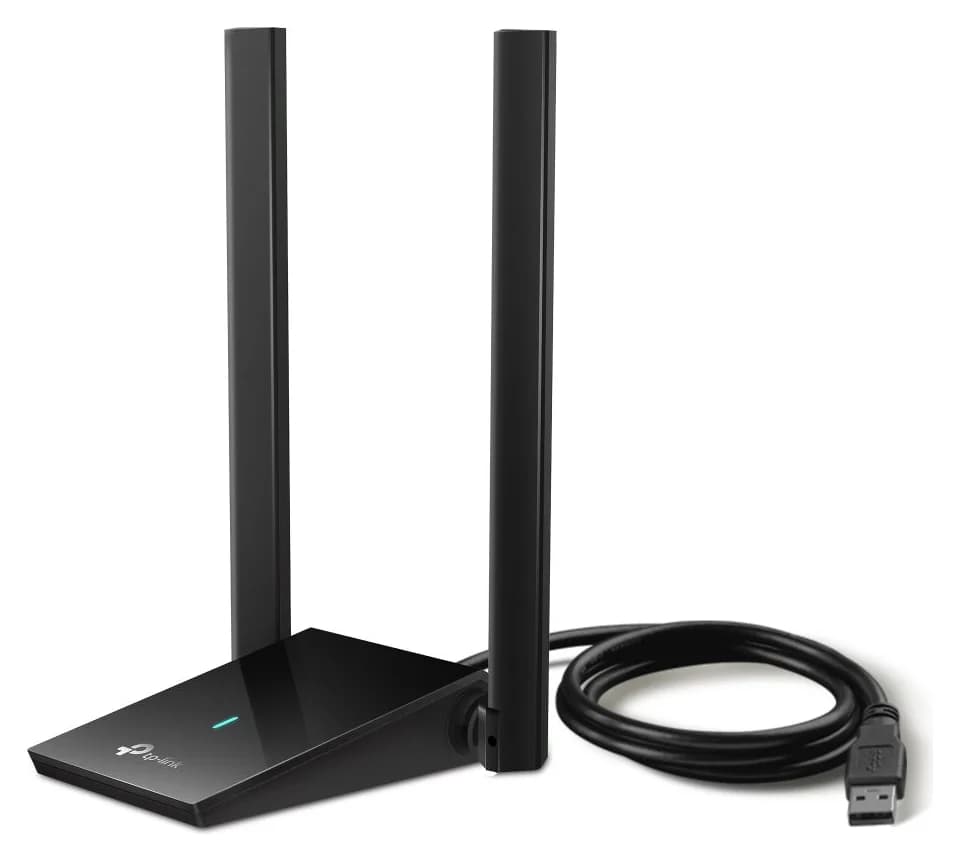
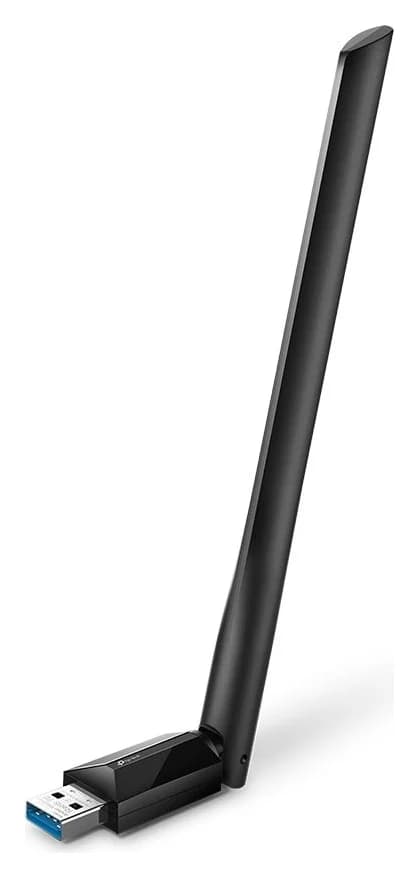
For a Windows desktop, the best starting point is the TP-Link Archer TX20U Plus: its adjustable antennas and included 1-meter USB 3.0 cable let you position the adapter independently of the PC. Choose the TX20U Nano for minimum bulk, the TXE70UH for a cabled Wi-Fi 6E setup, or the TBE400U for a direct USB-C connection and Wi-Fi 7. Buy for the operating system, usable USB connection and router you have; advertised wireless class alone is a poor deciding factor.
Our picks at a glance
Windows desktop
TX20U Plus, our default for adjustable antennas and cabled placement
Travel laptop
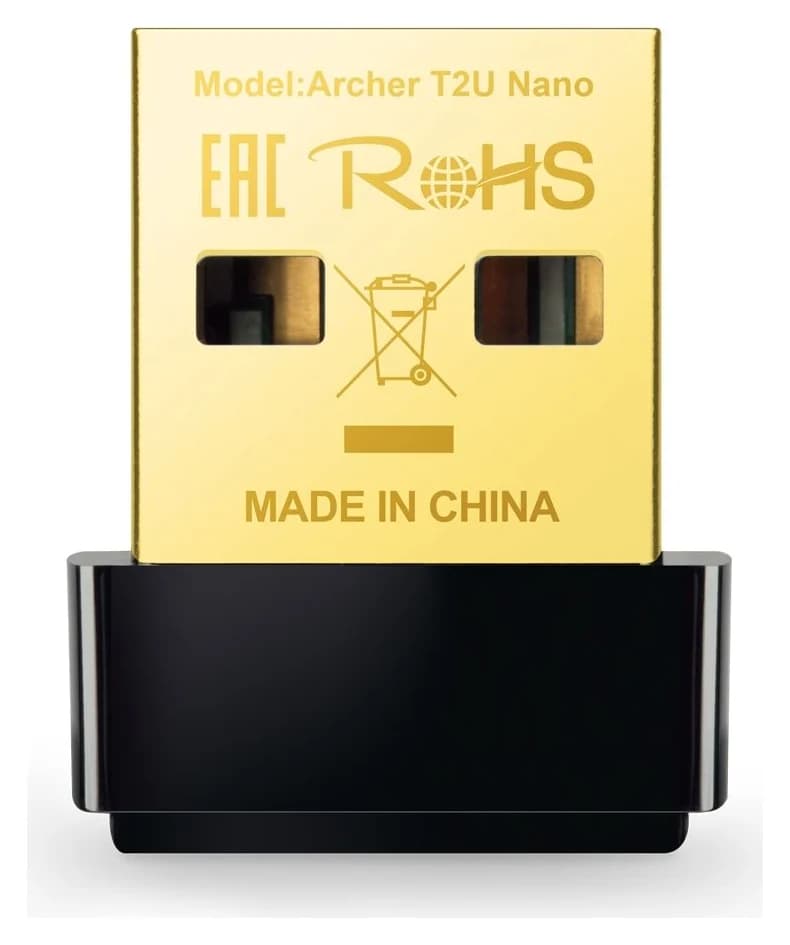
TX20U Nano, if the smallest body matters more than its USB 2.0 limitation
- Find on Amazon
USB-C laptop or Wi-Fi 7 network
TBE400U, with USB-C and USB-A connection options
Quick picks by computer and setup
- Windows desktop: TX20U Plus, our default for adjustable antennas and cabled placement.
- Travel laptop: TX20U Nano, if the smallest body matters more than its USB 2.0 limitation.
- Cabled 6 GHz setup: TXE70UH, with the router and operating-system checks below.
- USB-C laptop or Wi-Fi 7 network: TBE400U, with USB-C and USB-A connection options.
- Linux: consider the exact revision's driver package first; TXE70UH lists source and DKMS packages, while the Nano's package is beta.
- macOS, ChromeOS or Windows on Arm: no verified pick here; the cited requirements and downloads do not establish support for those platforms.
Comparison: exact hardware, USB mode and complete kit
These recommendations refer to US V1.6 hardware, shown as V1.60 in TP-Link's support selectors. Check the model and hardware marking on the delivered device; TP-Link says versions and availability vary by region. All listed wireless rates are maximum signal rates, not measured download speeds.
| US V1.6 model | Bands: maximum signal rate | USB interface | Included connection kit | Choose it for |
|---|---|---|---|---|
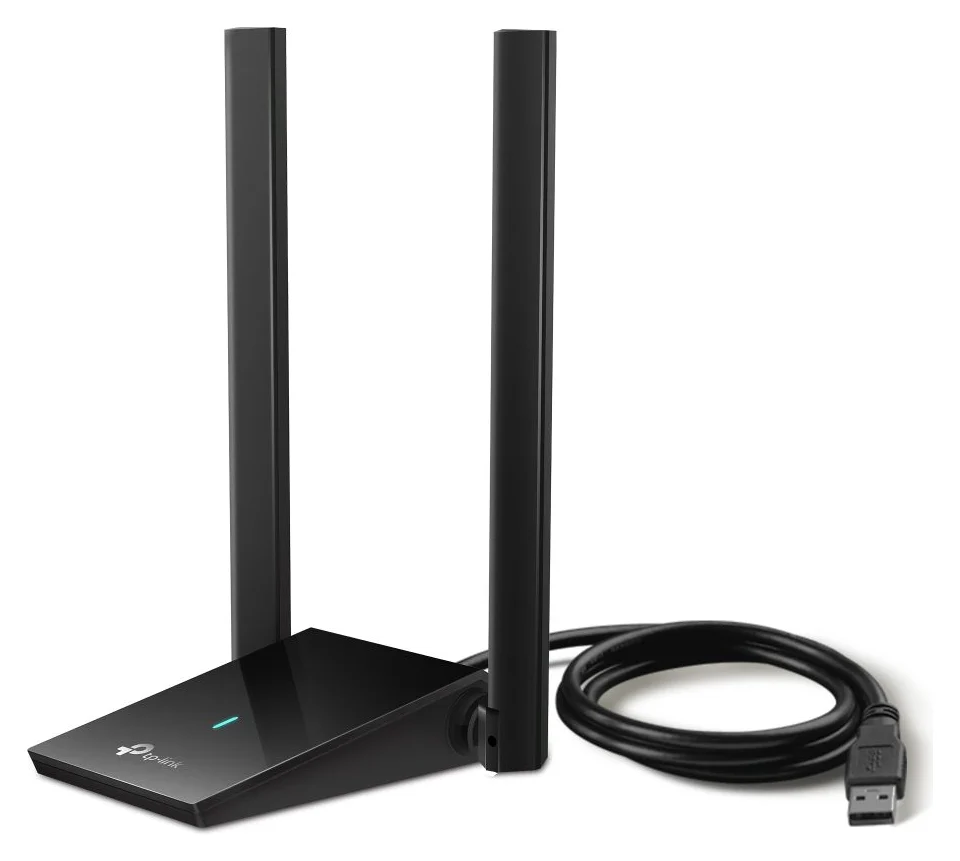
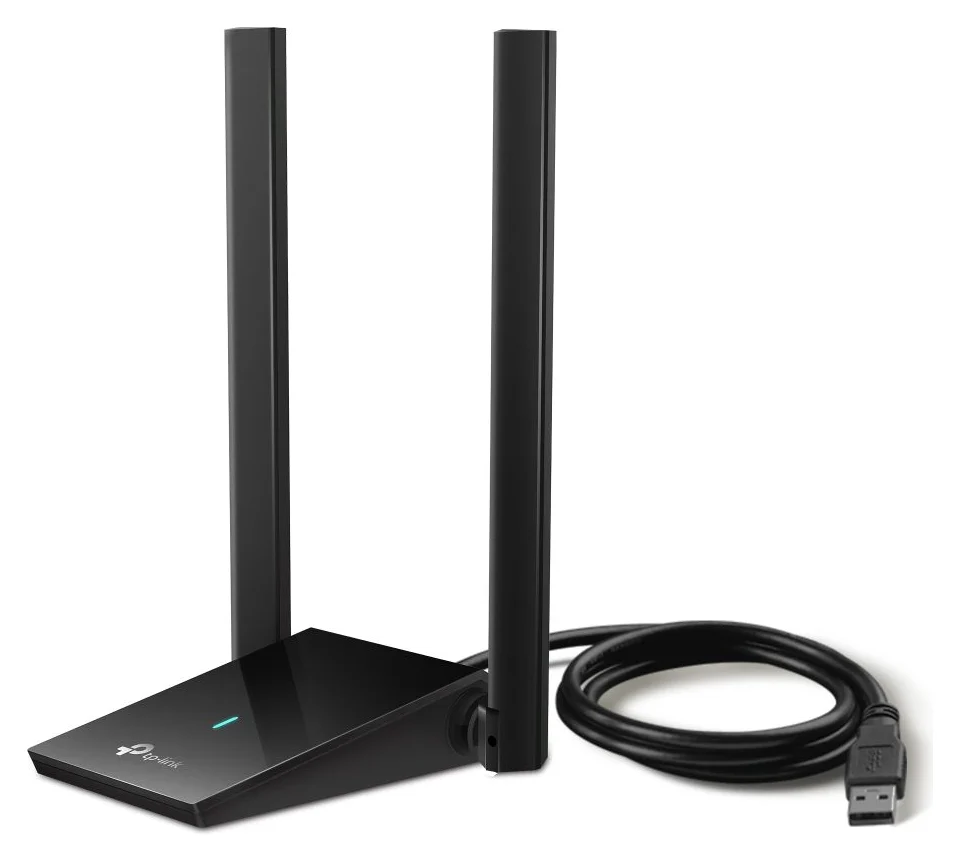
| Archer TX20U Plus | 2.4 GHz: 574 Mbps; 5 GHz: 1201 Mbps | USB 3.0 | 1-meter USB 3.0 cable; installation guide | Adjustable desktop placement |
| Archer TX20U Nano | 2.4 GHz: 574 Mbps; 5 GHz: 1201 Mbps | USB 2.0 | Adapter and installation guide; no cable listed | Smallest body in this shortlist |
| Archer TXE70UH | 2.4 GHz: 574 Mbps; 5 GHz: 2402 Mbps; 6 GHz: 2402 Mbps | USB 3.0 | USB 3.0 cradle with 1.2-meter cable; installation guide | Cabled Wi-Fi 6E |
| Archer TBE400U | 2.4 GHz: 688 Mbps; 5 GHz: 2882 Mbps; 6 GHz: 2882 Mbps | USB 3.0; USB-C or USB-A | Adapter with USB-A connection option and installation guide; no cradle listed | Native USB-C and Wi-Fi 7 |
The Windows downloads for these revisions list Windows 10 x86/x64 and Windows 11 x64. However, the TXE70UH datasheet and TBE400U datasheet describe Windows support as 64-bit, conflicting with their downloads' Windows 10 x86 entries. Our Windows recommendations are for x64 PCs; resolve that discrepancy with TP-Link before ordering for a 32-bit computer.
Best overall for a Windows desktop: Archer TX20U Plus
The Plus is our default USB Wi-Fi adapter for a desktop because its two adjustable high-gain antennas and supplied cable give you control over placement. TP-Link specifies dual-band Wi-Fi 6, with up to 1201 Mbps on 5 GHz and 574 Mbps on 2.4 GHz, and recommends a USB 3.0 host port. Those are link-rate limits, without a promise of equivalent internet throughput.
Use the included cable before buying an extension or hub. Choose this over the Nano when placing the antenna separately from the PC matters more than pocket size. Skip it if access to 6 GHz is the goal: its documented bands are 2.4 GHz and 5 GHz. The US V1.60 driver page currently lists the 128.4 Windows package; select the revision printed on your own unit if it differs.
Best nano adapter for travel: Archer TX20U Nano
At 26.8 × 15.7 × 7.5 mm, the Nano is the smallest adapter here. It supports the same maximum dual-band wireless rates as the Plus, but TP-Link's interface specification says USB 2.0. The USB-IF specification sets a 480 Mbps Hi-Speed signaling rate; the Nano's 1201 Mbps wireless rate therefore cannot become gigabit file transfers over its USB interface. That distinction makes compactness the buying reason, rather than the AX1800 label or an expectation of matching the Plus's throughput.
The package list contains the adapter and installation guide, without a placement cable. For a laptop that moves between desks, that simplicity is appealing; for a fixed PC, prefer a cabled model if you need to reposition reception. Its US V1.60 downloads include the 128.4 Windows package and a beta Linux package for kernels 3.13–6.14. Do not interpret that bounded Linux offering as support for every distribution or kernel.
Best cabled option for Wi-Fi 6E: Archer TXE70UH
Choose the TXE70UH when you want a USB 3.0 cradle with a 1.2-meter cable and access to 6 GHz. Its maximum signal rate is 2402 Mbps on either 5 GHz or 6 GHz, with 574 Mbps on 2.4 GHz. The datasheet ties features including HE160 to support at the access point, so check the router's channel-width specifications too.
The 6 GHz instructions require a compatible router, permitted local use and Windows 11 x64 or above. The separate US V1.60 support page now also lists a Linux kernel 3.13–6.14 package with source and DKMS options. That Linux listing does not, by itself, establish the same 6 GHz functionality as the Windows instructions; verify your intended setup before buying specifically for that band.
Best for USB-C and Wi-Fi 7: Archer TBE400U
The TBE400U solves the USB-C purchase cleanly: its installation guide documents direct USB-C connection and a USB-A connection option. It uses USB 3.0, has internal antennas, and measures 72 × 24 × 10.8 mm. It is larger than the Nano, but avoids a separate USB-C converter.
TP-Link rates it at up to 2882 Mbps on 5 GHz or 6 GHz, and 688 Mbps on 2.4 GHz. Its current US V1.60 driver notes explicitly add MLO support on Windows 11 24H2 and later. The installation guide also calls for a Wi-Fi 7 router using WPA3; buy it for that documented setup rather than expecting the newest wireless features from any router. TP-Link describes this adapter's MLO as seamless band switching, so do not read BE6500 as a promise of that speed for a single transfer.
What your computer and router can actually use
Match shared capabilities first. The Plus supports older wireless standards, while TP-Link explains that a connection uses the generation supported by both router and adapter. A new adapter can add a wireless radio to a PC without built-in Wi-Fi, but it still joins an existing Wi-Fi network. Keep a working built-in connection unless you can identify the upgrade you need.
For 6 GHz, check the whole path. The TXE70UH instructions name the router, operating system, driver and local band rules; TBE400U features also depend on the router and OS. Windows 10 driver availability is not proof of 6 GHz access, and Windows 11 alone is not proof of MLO support.
- Yes: Router or access point provides the band and features you intend to use
- Yes: Exact US hardware revision has a driver for your operating system and architecture
- Partly: 6 GHz on Windows: TXE70UH instructions require Windows 11 x64 or above
- Partly: TBE400U MLO: compatible router, current driver and Windows 11 24H2 or later
Separate USB mode from wireless class. The Nano's USB 2.0 interface differs from the cabled picks' USB 3.0 connections even though it shares the Plus's AX1800 label. TP-Link notes that the host controller, hubs and other devices sharing the connection can affect USB adapter throughput. For a hub-based desk, our Windows laptop hub guide helps plan the ports; the USB-C versus USB-A explainer covers connector choices.
Nano versus cabled placement: buy the kit you need
For a desktop, start with the Plus's included cable or the TXE70UH's supplied cradle rather than adding accessories by default. For USB-C, the TBE400U documents both connector options; check its connection diagram against your computer before ordering. That removes a connector adapter from the shopping list.
Position is worth trying before replacing an adapter again. Intel's white paper hosted by USB-IF explains that some USB 3.0 devices and cables can interfere with nearby 2.4 GHz receivers, and that moving the antenna away can reduce the effect. Our practical advice is to separate the Wi-Fi adapter from busy USB storage hardware and compare positions using the supplied cable. That is a troubleshooting step, without a promised range increase.
Download the right driver before replacing failed Wi-Fi
The built-in Windows installer on these adapters still needs to run. The Plus, Nano and TBE400U guides direct you to This PC, then the TP-Link drive and SetupInstall.exe; TP-Link provides a support download if the installer is missing. Save the matching package on another computer before changing the failed connection, and have it available locally.
Identify the hardware
Read the model and Ver marking on the label or engraved body; choose the matching US support revision.
Save the driver
Download that revision's package for the operating system and architecture before disconnecting your working connection.
Connect and install
Use the supplied connection hardware; run the built-in Windows installer or your saved package.
Verify and join
Check the adapter in Device Manager, then select your Wi-Fi network and enter its password.
If installation fails, the Plus troubleshooting page recommends checking Device Manager → Network adapters, trying another USB port, installing the official driver and restarting. Use the current revision's support page when following older troubleshooting instructions.
How we choose
These are research-based picks from manufacturer specifications, manuals and revision-specific support pages, without physical testing or throughput measurements. We favor documented driver support, a suitable USB interface and useful box contents over headline wireless class. The Nano's portability, the cabled models' placement options and the TBE400U's native USB-C connection give each a distinct job. These recommendations compare the documented setups above; they do not establish a fastest adapter or a guaranteed range winner.
Holiday buying and final compatibility check
Compare the exact model suffix, US region, hardware revision and included connection kit before ordering. Do not substitute a similarly named Archer model merely because its wireless class matches. Keep the packaging until the driver installs and the adapter joins the intended network, and confirm the seller's return terms before buying it as a gift. If the recipient's operating system and router are unknown, postpone choosing the adapter.
Verdict
Buy the TX20U Plus for flexible placement on a compatible Windows desktop, or the TX20U Nano when the smallest body is the priority. Choose the TXE70UH for a cabled Wi-Fi 6E setup after checking its band and driver requirements. For USB-C and a compatible Wi-Fi 7 setup, the TBE400U avoids a separate converter; check the Windows version before counting on MLO.
Frequently asked questions
What is the best USB Wi-Fi adapter for a desktop PC?
Our default is the TP-Link Archer TX20U Plus for a compatible Windows PC. Its adjustable high-gain antennas and supplied 1-meter USB 3.0 cable let you choose the adapter's position separately from the computer's socket. Choose the TXE70UH instead if you specifically need a cabled Wi-Fi 6E adapter and have a compatible router and operating system. These are specification-based recommendations, without physical performance testing.
Will a USB Wi-Fi adapter work with my existing router?
Check the standards and bands both devices support. The TX20U Plus supports older Wi-Fi standards as well as Wi-Fi 6, so a router upgrade is not automatically required. However, the connection uses capabilities the router and adapter share. A 6 GHz adapter needs a router or access point that actually provides 6 GHz Wi-Fi; buying the adapter alone cannot add that band to your router.
Can Windows 10 use a Wi-Fi 6E USB adapter?
The TXE70UH has a Windows 10 driver, but that does not establish access to its 6 GHz band. TP-Link's separate 6 GHz instructions require Windows 11 x64 or above, an appropriate router and local permission to use the band. Treat Windows 10 support as distinct from full Wi-Fi 6E functionality. Check the exact hardware revision's download page before buying.
Does a USB Wi-Fi adapter need a driver or an internet connection to install?
These models include a Windows installer on the adapter, so a separate driver download is not always necessary for initial installation. You still need to run the installer; preloaded does not mean driver-free. Save the current driver for your exact US hardware revision on another computer before replacing a failed connection. TP-Link directs you to its support download if the built-in installer cannot be found.
Which USB Wi-Fi adapter should I buy for Linux or a Mac?
There is no unconditional recommendation here for either. The US TXE70UH V1.6 support page offers Linux source and DKMS packages for kernels 3.13–6.14; the Nano's Linux download for that range is marked beta. Check your kernel and the installation requirements first. The cited product requirements and driver lists do not establish macOS support, so do not buy these models for a Mac based only on their USB connector.
Is an AX1800 nano adapter as fast as a larger AX1800 adapter?
The shared class name does not prove equal file-transfer speeds. TP-Link gives the TX20U Nano and TX20U Plus the same maximum wireless signal rates, but specifies USB 2.0 for the Nano and USB 3.0 for the Plus. Their placement options also differ. Choose the Nano for its small body; choose the cabled Plus when flexible antenna placement matters. Neither class label is a measured internet speed.
Windows desktop
TX20U Plus, our default for adjustable antennas and cabled placement
Related guides
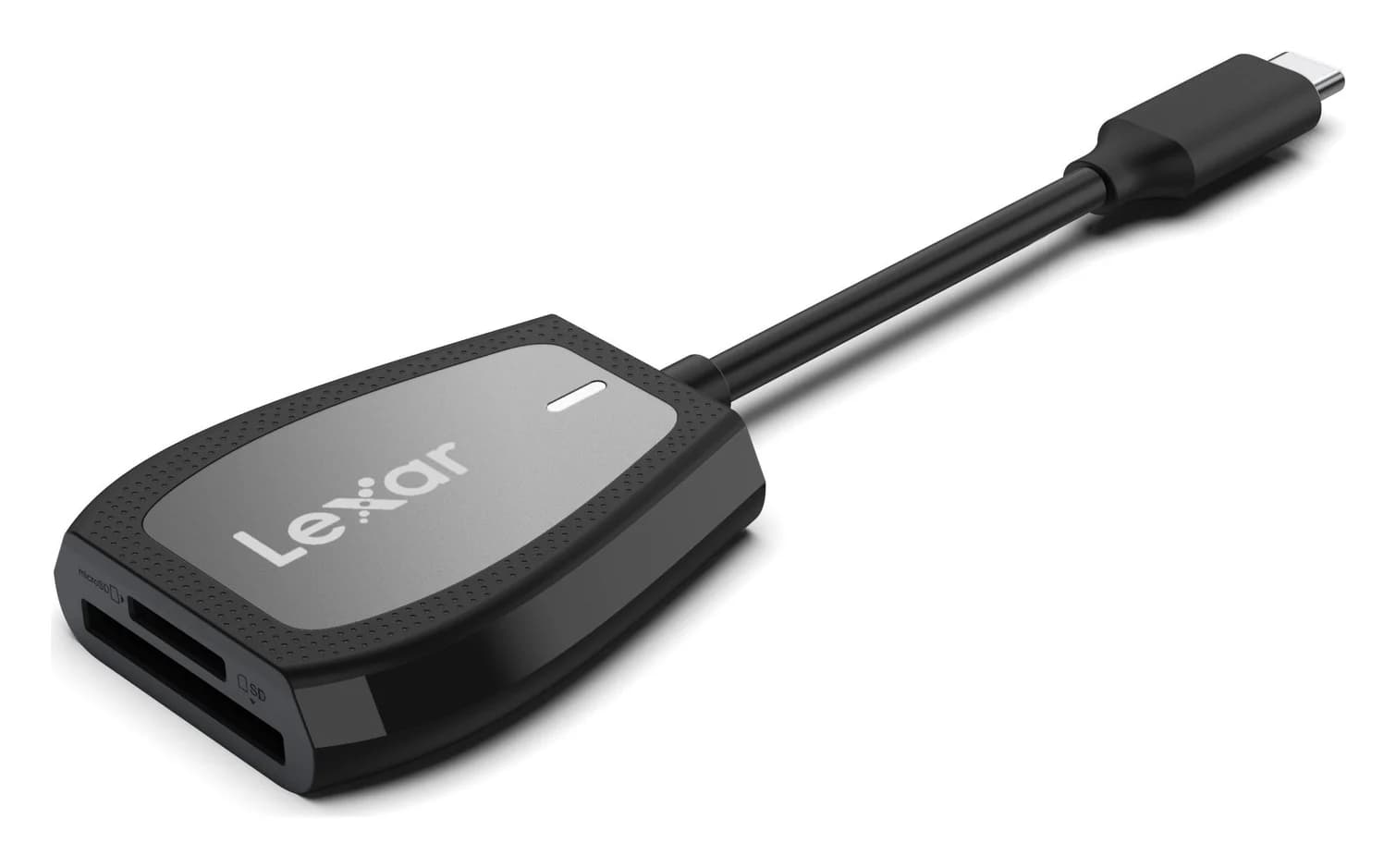
Best SD Card Readers in 2026: USB-C Picks for Every Workflow
The SD card readers worth buying, from makers' spec sheets: UHS-II dual-slot picks from Lexar and ProGrade, Apple's USB-C reader, and an Anker hub that reads cards too.
Updated November 7, 2026Read
Best KVM Switches: Two Computers, One Keyboard, Mouse and Monitor Set
Pick the right KVM switch for two PCs, laptops, dual monitors, gaming or USB-only sharing. Compare HDMI, DisplayPort and USB-C models, docks and Mac limits.
Updated November 7, 2026Read
The Best USB Wi-Fi Adapters for Mac (The macOS Compatibility Truth)
Which USB Wi-Fi adapters actually support a Mac? The verified models, the macOS version limits, the USB-C problem on modern Macs, and the Ethernet workaround.
Updated November 10, 2026Read