Black Friday: the specs to check before you buy
Best picks
Updated November 7, 2026Best KVM Switches: Two Computers, One Keyboard, Mouse and Monitor Set
Short answer
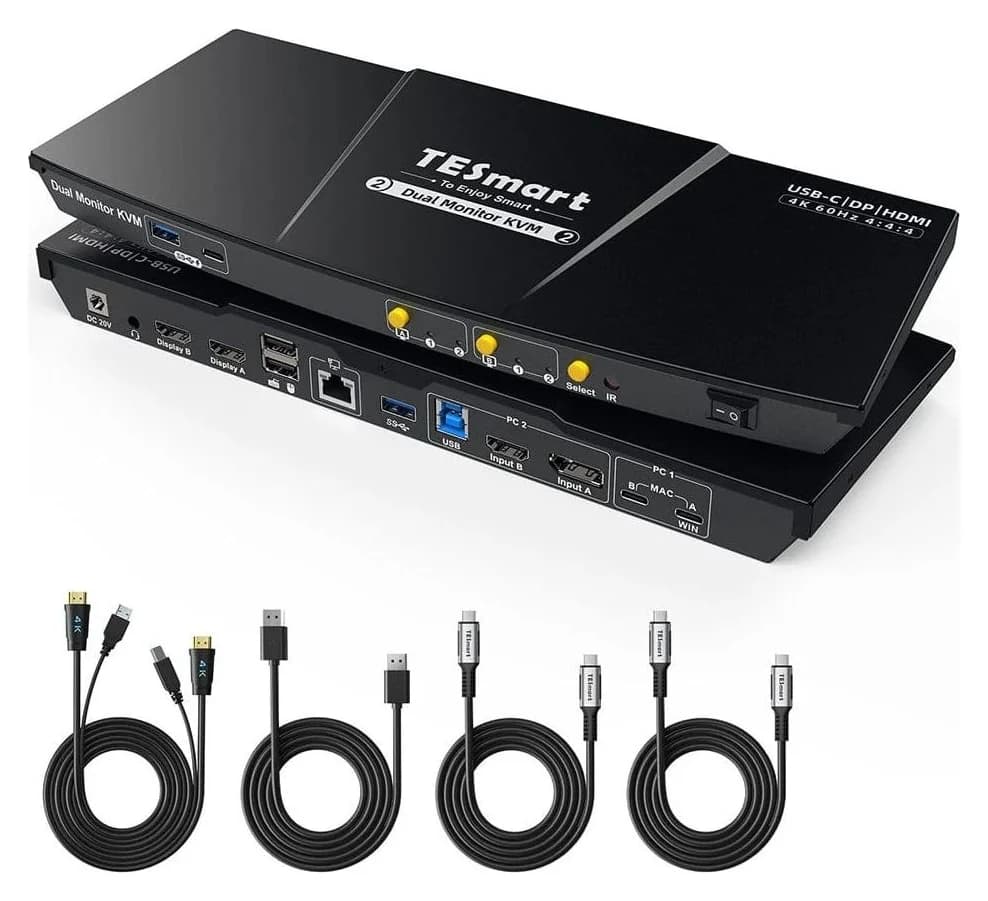
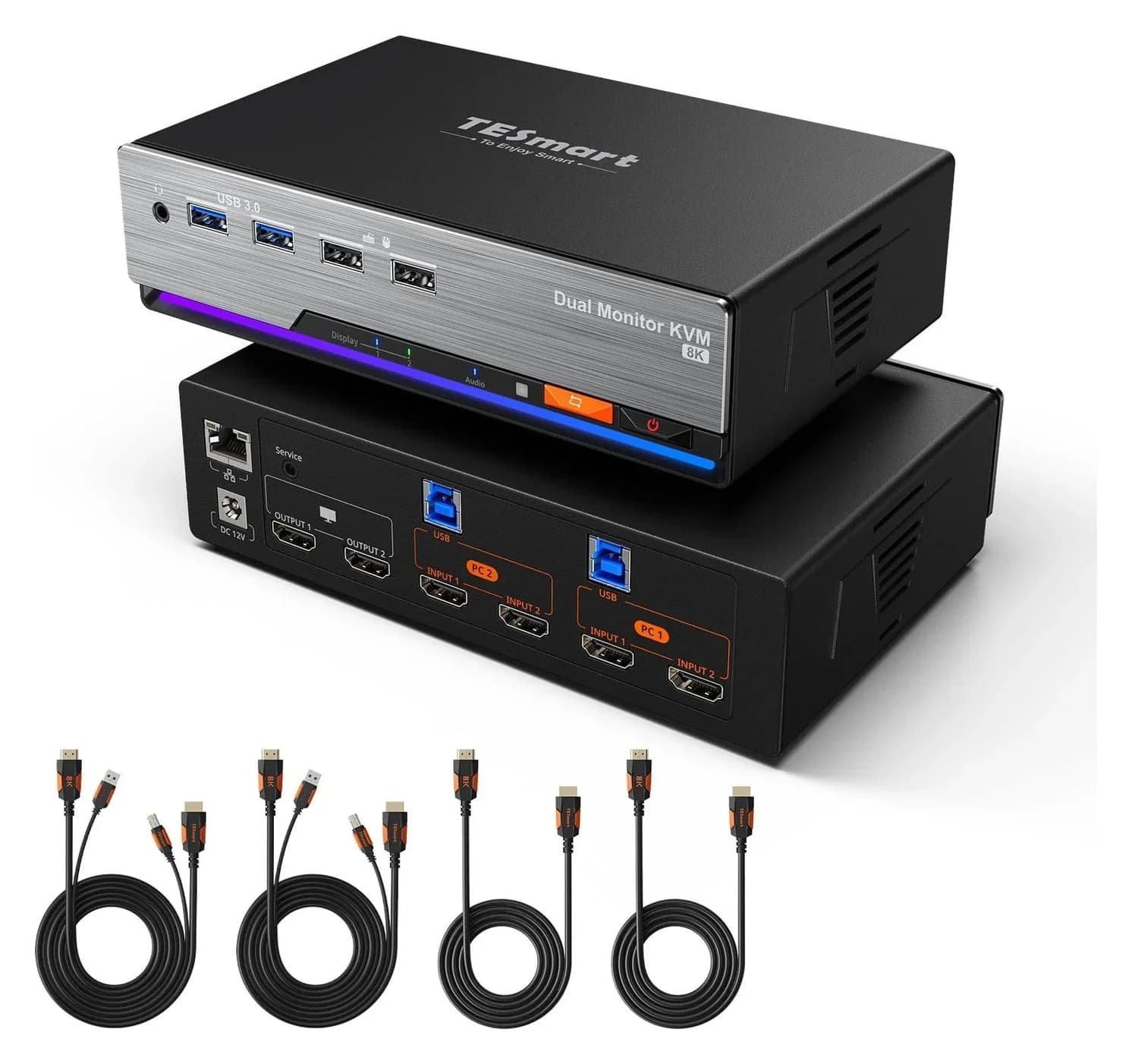
The best KVM switch for most two-computer desks is the TESmart HDC202-P23-N if one of those computers is a USB-C laptop: one full-function USB-C cable carries the laptop's video, USB data and up to 60W charging, while the desktop connects over HDMI or DisplayPort, and both share two HDMI monitors at up to 4K 60Hz. For two PCs and high-refresh gaming monitors, get the TESmart HKS202-M24 (HDMI 2.1, up to 8K 60Hz or 4K 144Hz) or, on DisplayPort, the Rextron PAAG-ET3122B (up to 8K 60Hz with DSC or 4K 144Hz). If you only want to share a keyboard and mouse, skip full KVMs entirely: the Plugable USB3-SWITCH2 is a one-button USB sharing switch.
Our picks at a glance
- Find on Amazon
Best USB-C KVM with charging
Rextron CAAB-P3112
- Find on Amazon
Best for keyboard and mouse only
Plugable USB3-SWITCH2
- Find on Amazon
Best USB-C-only device switch
UGREEN USBC Switch 2-Port
A KVM switch is a hardware box that lets two (or more) computers share one keyboard, video display and mouse. Rextron summarizes the idea: computers "may be selected by pressing the KVM push button directly, by issuing hotkey commands", and a KVM is a "compact size pure hardware solution plug-and-play system without any driver or software installation". Before buying, the two decisions that matter are your monitor connection (HDMI vs DisplayPort, and how many) and whether laptop charging should ride the same cable.
- 60WCharging the TESmart HDC202-P23-N can deliver to a compatible USB-C laptop
- 8K 60HzTop resolution of the TESmart HKS202-M24 (HDMI 2.1) and Rextron PAAG-ET3122B (DisplayPort 1.4, DSC)
- 10GbpsUSB hub speed of the Rextron PAAG-ET3122B (USB 3.2 Gen 2)
Quick picks
| Pick | Best for | Key spec | Main catch |
|---|---|---|---|
| TESmart HDC202-P23-N | USB-C laptop + desktop, 2 HDMI monitors | 4K 60Hz, 60W charging | Needs DisplayPort Alt Mode or Thunderbolt 3+; Mac MST limits |
| TESmart HKS202-M24 | Dual-monitor 4K/8K gaming (HDMI) | 8K 60Hz, 4K 144Hz, VRR | Both PCs need 2 HDMI outputs and 8K-capable cables |
| Rextron PAAG-ET3122B | Dual-monitor DisplayPort setups | 8K 60Hz (DSC), 10Gbps USB | DisplayPort only; no laptop charging |
| Rextron CAAB-P3112 | Two USB-C laptops/desktops, 1 monitor | 4K 60Hz, 20V PD total output up to 105W | Single monitor; resolution and USB speed trade off |
| Plugable USB3-SWITCH2 | Keyboard and mouse only | USB 3.0, one button | No video, no hotkeys |
| UGREEN USBC Switch 2-Port | USB-C devices only, 10Gbps | 10Gbps, remote switch | Not a KVM switch; no monitor support |
Which pick for your setup?
| Your setup | Buy | Why |
|---|---|---|
| Windows USB-C laptop + desktop, two HDMI monitors | TESmart HDC202-P23-N | One-cable laptop connection with charging |
| Two gaming PCs, two HDMI monitors | TESmart HKS202-M24 | HDMI 2.1 with HDR, VRR and 4K 144Hz |
| Two PCs with DisplayPort graphics cards | Rextron PAAG-ET3122B | Dual DisplayPort 1.4 at up to 8K 60Hz |
| Two USB-C computers, one monitor, charging | Rextron CAAB-P3112 | USB PD modes named up to 120; 20V charge output totals up to 105W |
| Monitors handled separately | Plugable USB3-SWITCH2 | Simplest, cheapest way to share USB devices |
Best for a laptop plus a desktop: TESmart HDC202-P23-N
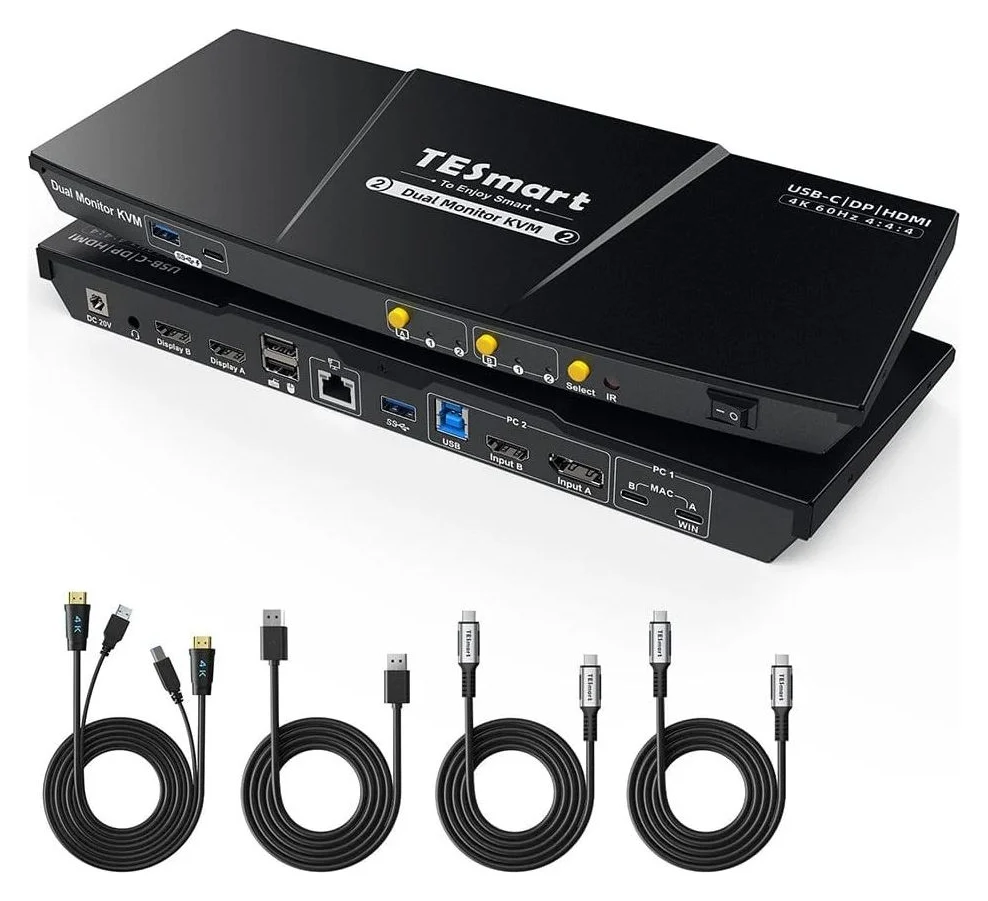
This hybrid KVM dock is built for the exact desk most people have: a work laptop and a home desktop sharing two monitors. TESmart describes it as connecting "one USB-C laptop and one desktop to two HDMI monitors, with MST, up to 4K60, EDID emulation and a shared USB hub". The laptop side needs a port with "DisplayPort Alt Mode or Thunderbolt 3 or later"; the desktop connects through "the required HDMI/DisplayPort video and USB connections".
The reason it leads: a compatible Windows USB-C laptop "can send video, USB data and charging through one full-function USB-C connection" — up to 60W, enough for most thin-and-light laptops, though it "requires a compatible USB-C host and the required 20V Power Delivery handshake", and TESmart notes "some ThinkPad Yoga/T-series models may not accept the full 60W". The shared side includes USB 3.0 at up to 5Gbps, Gigabit Ethernet at up to 1000Mbps, and EDID emulation that reduces monitor re-detection and window rearrangement after switching.
The catch is the Mac: "macOS does not support DisplayPort MST for independent extended displays in the same way as Windows", and Apple-silicon Macs "may be limited to one extended external display through a single MST connection". Video tops out at "3840×2160@60Hz 4:4:4" on the HDMI 2.0 path — fine for work, not for 144Hz gaming. TESmart's product page carries the full compatibility guide; for general USB-C video background see our USB-C to HDMI adapter guide.
Best dual-monitor gaming HDMI KVM: TESmart HKS202-M24
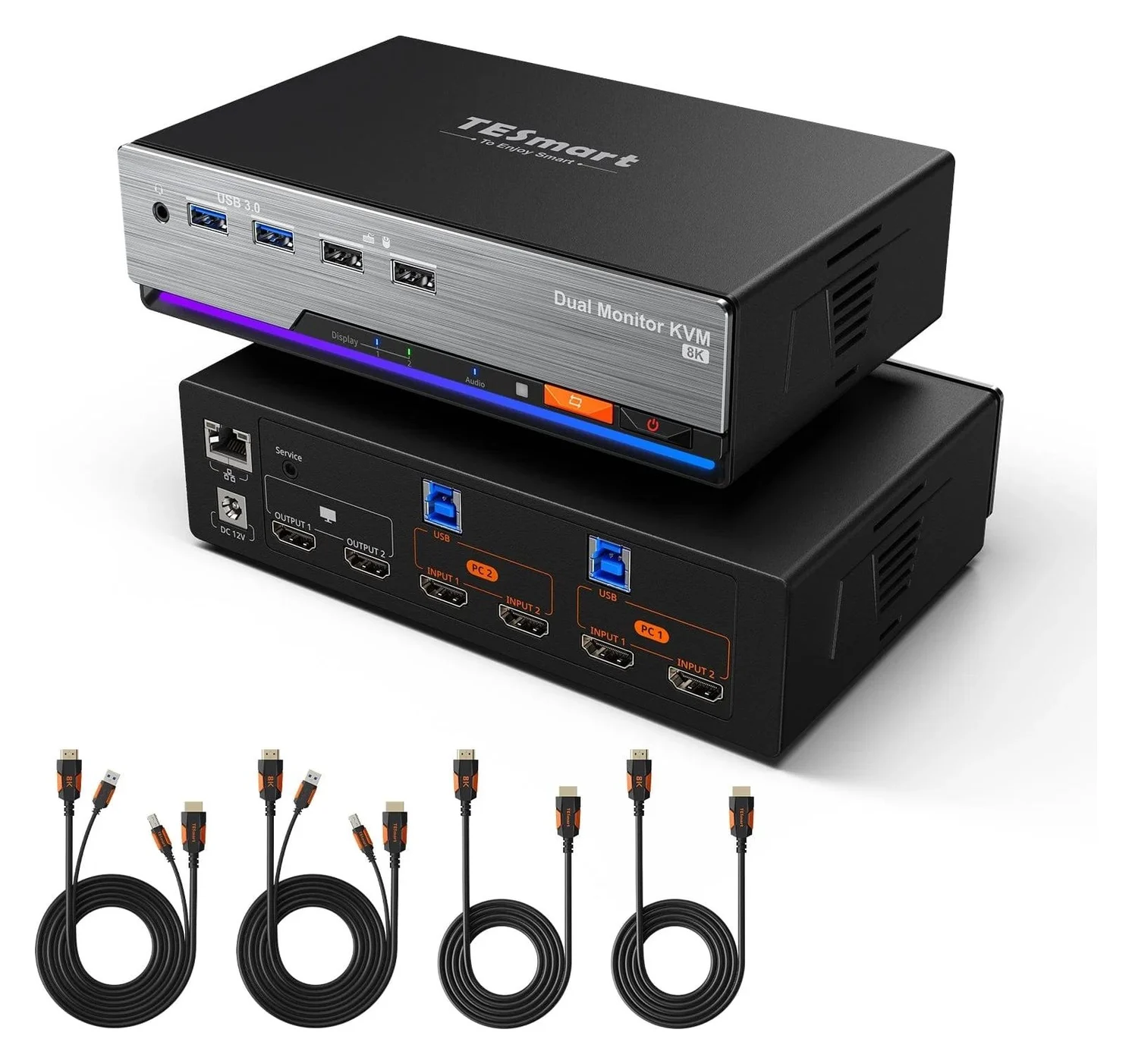
For two gaming or creator PCs, the HKS202-M24 is the strongest HDMI pick here: two HDMI 2.1 display paths at "48Gbps" support "up to 8K@60Hz 4:4:4", with backward compatibility for "4K@60/120/144Hz" and support for "HDCP 2.3; DSC 1.2a; HDR10; Dolby Vision; VRR, FVA and ALLM". Each computer connects with "2 × HDMI + 1 × USB" per PC, so check that your GPU has two HDMI outputs.
Beyond video, it doubles as the desk's shared dock: "Gigabit Ethernet, USB 3.2 Gen 1 devices and 3.5mm audio" all switch with the computers, and the shared USB runs at up to 5Gbps. Switching is flexible — "front panel, IR remote, keyboard hotkeys and mouse wheel" — and a Pass-Through Mode suits most modern keyboards and mice while Legacy Emulation Mode covers hotkey edge cases.
Two honest warnings from TESmart's own page: "Confirm that each computer can drive two external HDMI displays at the resolution and refresh rate you expect", and "DSC, VRR, FVA and ALLM also require support from the complete source-to-display chain". For 8K60 or high-refresh 4K you also need HDMI 2.1-capable displays and cables. The box includes the KVM, two KVM cables, two HDMI cables, an IR remote and a 12V power adapter.
Best dual-monitor DisplayPort 8K KVM: Rextron PAAG-ET3122B
If your PCs have DisplayPort outputs, this Rextron beats the HDMI picks on two counts: video bandwidth and USB speed. Its console side has "DisplayPort 1.4 x 2 ( Dual Display )" fed by "DisplayPort 1.4 x 4 ( Dual Display x 2 PCs )", supporting up to "7680 x 4320 @ 60Hz (4:4:4) ( DSC )", "3840 x 2160 @ 144Hz" or "5120 x 1440 @ 120Hz" for ultrawides. The hub is USB 3.2 Gen 2: "USB 3.2 Gen 2 Provides Excellent 10Gbps Speed", with two Type-A ports on the rear and front plus four dedicated HID ports for keyboards and mice.
Gaming features travel over DisplayPort: the switch supports "VRR ( Variable Refresh Rate ) for Gaming" plus "Free Sync, G-Sync, and VRR", and it handles "Deep Color; Dolby True HD, DTS-HD Master, and stereo audio". EDID pass-through covers "16:9, 21:9, or 32:9" monitors, so unusual aspect ratios keep their settings. Switching is by "Hotkey / Push Button", with an automatic scan interval of "3, 8, 15, 30 seconds", and Rextron lists Windows, Mac, Linux and Chrome OS support.
The catches: 8K 60Hz 4:4:4 depends on DSC end-to-end, there is no laptop charging, and your monitors need DisplayPort inputs (an adapter adds cost and another failure point). It is also a bare switch: plan your own cabling rather than expecting a kit.
Best USB-C KVM with charging: Rextron CAAB-P3112
For two USB-C computers and a single DisplayPort monitor, the CAAB-P3112 is the pick that eliminates power bricks. Rextron calls it "the first 2 ports True 4K USB-C KVM Switch in the world with built in USB PD (power delivery) function", with selectable modes advertised "from 70W up to 120W"; Rextron also states 20V Power Delivery provides "total power output up to 105W". Mode 4 allocates up to 45W and up to 60W across the two computers, and devices without USB PD still get "5V Charging Up to 3.00A on Each Port". Each computer connects with one "USB Type-C" cable carrying "Video & USB 3.2 Gen 1".
Video is "4096x2160@60Hz (4:4:4)" or "3840x2160@60Hz (4:4:4)" to one DisplayPort monitor only when the switch is set to the USB 2.0 bandwidth path — single display only. In the USB-speed mode, Rextron specifies "4K@60Hz (4:2:0) / 4K@30Hz (4:4:4) + USB 3.2 Gen 1". The interesting engineering is the bandwidth slide switch: you choose "4K 60Hz at USB 2.0 bandwidth (higher video resolution, lower USB speed) or 4K 30Hz at USB 3.2 Gen 1 data transmission (lower video resolution, higher USB speed)". Keyboard, mouse and audio still work in either mode, and there's a 3.5mm audio port with selectable USB audio modes.
Rextron says the switch "is perfect for multiple Macbook and USB-C device operations", and setup is "Plug & Play" with "no software or driver required". Check the mode table first: Rextron allocates 25W/35W, 45W/15W, 45W/35W or 45W/60W across the two ports, and high-power gaming laptops exceed these per-port levels. For more on wattage needs, see our MacBook Air dock guide.
Best for keyboard and mouse only: Plugable USB3-SWITCH2
If your monitors have multiple inputs and you switch them with their own buttons, a full KVM is overkill. Plugable's sharing switch "makes it easy to share USB devices between two systems with a single button press", runs at "USB 3.0 (5Gbps)", and works with "any computer (Windows, macOS, Linux)" with no drivers. Two 1.0m USB 3.0 Type-A to Type-B cables are in the box.
Know the limits, all from Plugable's own page: "Keyboard hotkey control is not supported" — you press the button on the switch itself. It is "not compatible with USB-C or Thunderbolt docks" because those rely on "Alt Mode and Power Delivery which are not supported on USB 3.0 Type A ports"; USB 3.0 docks are fine. And USB-C-only systems need a "USB-A to USB-C adapter (sold separately)". Pair it with a powered USB 3.0 hub to share more than one or two devices.
Best USB-C-only device switch: UGREEN USBC Switch 2-Port
The UGREEN alternative for the same USB-only job is faster on paper: "4 USB 3.2 Gen 2 ports and speeds up to 10Gbps", shared between two USB-C computers, with "Remote control and button" switching so the switch itself can hide behind the desk. Its shared side offers "1 USB C port and 3 USB A ports", and it is "Plug and play and enough to drive most devices without additional power" with a "MAX power output is 2.4A".
UGREEN is unusually clear about what this is not: "(Not a KVM switch and Not support a monitor)", and "the USB-C input does not support video". The output ports are "only used for data transfer and does not support power supply for a laptop". Two practical notes from the manual: wireless receivers can hit "2.4Ghz co-channel interference" (fix: move the router to 5GHz), and macOS 13.3+ needs "Allow accessories to connect" set to "Always". USB-A laptops work with a short "USB-A to C data cable (best within 1.2ft/0.8m)".
How to choose a KVM switch
Source: TESmart, Rextron, Plugable and UGREEN product pages
Start from your monitors, not the box. Count the video outputs each computer has and their type (HDMI vs DisplayPort), then match the KVM's inputs and outputs exactly. A dual-monitor KVM needs two video paths per computer.
Decide whether the laptops need charging. Only the Rextron CAAB-P3112 (20V PD total output up to 105W, with modes named up to 120) and TESmart HDC202-P23-N (up to 60W) charge through the KVM; every HDMI-only pick leaves power bricks in play.
Check the refresh rate, not just the resolution. A "4K" KVM can mean 4K 60Hz (HDC202-P23-N, CAAB-P3112) or 4K 144Hz with 8K 60Hz headroom (HKS202-M24, PAAG-ET3122B). High refresh also demands GPUs, cables and displays rated for it — the manufacturer caveats are on each product page.
Mac users should verify the video path. MST limits Apple-silicon Macs to one extended display per MST connection, so a dual-monitor KVM may behave differently than on Windows. Rextron lists Mac support on the DisplayPort models; check macOS MST limits before committing.
For USB-only sharing, buy the simple thing. One-button switches like the Plugable and UGREEN cost far less than video KVMs and fail less often, as long as your monitors switch themselves.
Count your computers' video outputs and pick HDMI or DisplayPort
Decide single or dual monitor, and 60Hz vs high refresh
Add charging only if a USB-C laptop is in the mix
Confirm EDID handling and switching method (hotkey, button, remote)
How we choose
We haven't put these KVM switches on a test bench. Our picks come from research:
- Manufacturer pages first. Every port count, resolution, charging wattage and box contents item above comes from TESmart's, Rextron's, Plugable's and UGREEN's own product pages, linked in each section.
- Limitations from the source. The macOS MST limit, ThinkPad charging caveat, hotkey restrictions and "not a KVM switch" warnings are the manufacturers' own documented caveats, not ours.
- Standards. USB 3.2 Gen 1/Gen 2 naming, HDMI 2.1 and DisplayPort 1.4 DSC are checked against the standards' published capabilities. Our USB-C to DisplayPort adapter guide covers the DisplayPort side in detail.
Verdict
Buy the TESmart HDC202-P23-N for the common laptop-plus-desktop desk with two 4K 60Hz HDMI monitors and one-cable 60W laptop charging. Buy the TESmart HKS202-M24 for two gaming PCs on HDMI — up to 8K 60Hz or 4K 144Hz with VRR — or the Rextron PAAG-ET3122B for the same performance on DisplayPort with a 10Gbps USB hub. For two USB-C computers sharing one monitor with charging, the Rextron CAAB-P3112 is the specialist. And if you only need to share a keyboard, mouse and USB devices, the Plugable USB3-SWITCH2 (USB-A) or UGREEN USBC Switch 2-Port (10Gbps, USB-C) does the job without paying for video switching you will not use.
Frequently asked questions
What is the best KVM switch for two computers?
For a Windows USB-C laptop plus a desktop with two HDMI monitors, the TESmart HDC202-P23-N connects both computers and charges the laptop up to 60W through one cable. For two PCs with two high-refresh HDMI monitors, the TESmart HKS202-M24 handles up to 8K 60Hz or 4K 144Hz with HDR and VRR. If your monitors switch separately and you only share a keyboard, mouse and USB devices, the Plugable USB3-SWITCH2 is the simpler purchase.
Can a KVM switch share two monitors?
Yes. Dual-monitor KVM switches route two independent video paths, so one computer can extend across both displays or each computer can own one display. The TESmart HKS202-M24 and HDC202-P23-N use two HDMI outputs; the Rextron PAAG-ET3122B uses two DisplayPort 1.4 outputs. Each computer needs two matching video outputs, and every pick here keeps EDID information available to both computers so desktops are less likely to reset after a switch.
Does a KVM switch work with a Mac?
Partly. Rextron lists Windows, Mac, Linux and Chrome OS support for the PAAG-ET3122B, and TESmart's KVMs operate at the hardware level across PC and Mac environments. The limits are in the video path: macOS does not support DisplayPort MST for independent extended displays, so TESmart documents Apple-silicon Macs may be limited to one extended display through a single MST connection. For USB sharing, UGREEN lists a macOS 13.3 setting: Privacy & Security, Allow accessories to connect, set to Always.
Can I use a USB switch instead of a KVM switch?
Only if you do not need shared video. A USB sharing switch such as the Plugable USB3-SWITCH2 or UGREEN USBC Switch toggles keyboards, mice and other USB devices between two computers, but a monitor needs a separate input button or a second switch. UGREEN explicitly states its switch is not a KVM switch and does not support a monitor, and Plugable's switch has no video ports at all.
Do KVM switches support gaming features like VRR and 144Hz?
The gaming-focused ones do. The TESmart HKS202-M24 passes HDMI 2.1 with VRR, FVA and ALLM and supports 4K at 120/144Hz, and the Rextron PAAG-ET3122B supports VRR, FreeSync and G-Sync over DisplayPort 1.4 at 4K 144Hz. Both manufacturers note the features require support from the complete source-to-display chain: the GPU, the KVM, the cables and the display.
Will a KVM switch charge my laptop?
Some USB-C models can. The Rextron CAAB-P3112 offers selectable USB Power Delivery modes named from 70W up to 120W, but Rextron specifies 20V PD total output up to 105W across its two computer ports. The TESmart HDC202-P23-N charges a compatible USB-C host up to 60W, which requires the 20V Power Delivery handshake; devices that do not negotiate 20V may receive only basic charging. HDMI-only KVMs have no charging path.
Best for a laptop plus a desktop
TESmart HDC202-P23-N
Related guides
Best SD Card Readers in 2026: USB-C Picks for Every Workflow
The SD card readers worth buying, from makers' spec sheets: UHS-II dual-slot picks from Lexar and ProGrade, Apple's USB-C reader, and an Anker hub that reads cards too.
Updated November 7, 2026Read
The Best USB Wi-Fi Adapters for Mac (The macOS Compatibility Truth)
Which USB Wi-Fi adapters actually support a Mac? The verified models, the macOS version limits, the USB-C problem on modern Macs, and the Ethernet workaround.
Updated November 10, 2026Read
Plugable UGA-4KHDMI vs StarTech USB32HDPRO: Which Should You Buy?
Compare Plugable UGA-4KHDMI and StarTech USB32HDPRO for office monitors: resolution, drivers, Mac permissions, included cables, and when to choose native USB-C.
Updated November 4, 2026Read