Black Friday: the specs to check before you buy
Comparison
Updated November 4, 2026Plugable UGA-4KHDMI vs StarTech USB32HDPRO: Which Should You Buy?
Short answer
Choose the Plugable UGA-4KHDMI for 4K at 30Hz or a 1440p monitor whose timing you confirm with Plugable; the StarTech USB32HDPRO fits 1080p or 1920x1200 office work. As of November 3, 2026, Plugable’s manufacturer page marks its Amazon US offer out of stock, while StarTech lists its exact model as active with US stock. If your computer has suitable native video output, or you need gaming or protected streaming, buy neither and use that native connection instead.
Our picks at a glance
1440p rate listed as 50Hz in one table and 60Hz in another; 4K at 30Hz
Plugable UGA-4KHDMI, if you can obtain it
Recommendations below are based on manufacturer documentation, with unresolved conflicts called out.
Quick picks
| Your setup | Our choice | Why |
|---|---|---|
| USB-A computer, 1440p or occasional 4K desktop work | Plugable UGA-4KHDMI, if you can obtain it | 1440p rate listed as 50Hz in one table and 60Hz in another; 4K at 30Hz |
| USB-A computer, existing 1080p office monitor | StarTech USB32HDPRO | An appropriate resolution ceiling; maker shows US stock |
| Video-capable USB-C port, gaming, or streaming priority | A suitable native video adapter | Direct GPU video; no DisplayLink installation |
Exact SKU and included-kit comparison
These are single-HDMI DisplayLink adapters, with one additional monitor per adapter. The “4K” in Plugable’s name describes resolution, not four HDMI sockets.
| Detail | Plugable UGA-4KHDMI | StarTech USB32HDPRO |
|---|---|---|
| DisplayLink chipset | DL-5500 | DL-3500 |
| Host connector | Attached USB-A, USB 3.0 at 5Gbps | USB-A, USB 3.2 Gen 1 at 5Gbps |
| HDMI displays per adapter | 1 | 1 |
| Published output ceiling | 3840x2160 at 30Hz; 2560x1440 listed at 50Hz and 60Hz in different tables | 1920x1200 / 1080p; exact-model sheet gives no refresh rate |
| HDMI audio | Stereo | 5.1-channel listed |
| Power supply | USB-powered; no external adapter needed | USB-powered; no extra power supply needed |
| Published box contents | Adapter with attached cable, quick-start guide | Adapter, manual; datasheet also lists a software disc, shared manual omits it |
| USB-C connector in the box? | No; maker says USB-C-to-USB-A conversion is sold separately | No USB-C converter listed in either package list |
| HDMI cable | Not in the published box list | Not in the published box lists |
Sources: Plugable specifications and setup, StarTech exact-model datasheet, and StarTech shared manual.
Check the suffix: UGA-4KDP is Plugable’s DisplayPort sibling; StarTech’s shared manual also covers USB32DVIPRO and USB32VGAPRO, with DVI and VGA outputs respectively. Do not transfer those models’ connector or resolution claims to this pair.
Best fit for 1440p or 4K office work: Plugable UGA-4KHDMI
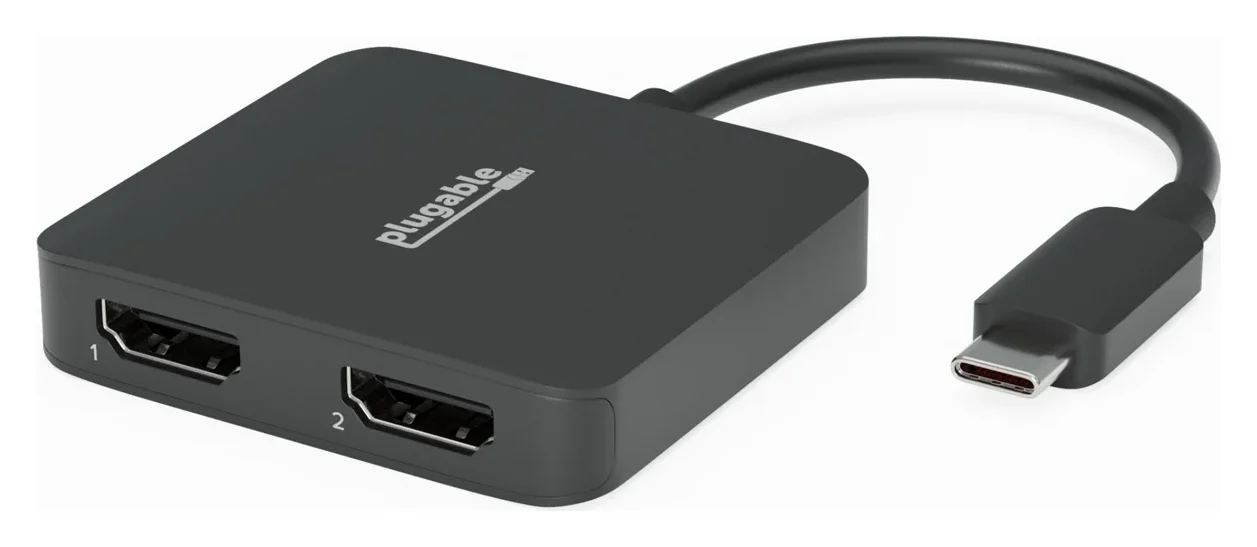
Plugable is the resolution pick: its detailed output-mode list gives 2560x1440 and 1920x1080 at 60Hz, alongside 3840x2160 at 30Hz. Its comparison table, however, gives 2560x1440 at 50Hz. Confirm that 1440p timing before purchase, then use it for documents, spreadsheets and browser windows when native outputs are unavailable or already occupied.
For a 4K desk, decide whether the 30Hz ceiling is acceptable before buying. This is a productivity recommendation: Plugable specifically advises against gaming, video editing and rendering.
Ultrawide warning: Plugable’s HDMI port table lists 3440x1440 at 50Hz, but its output-mode table lists 3440x1440 at 30Hz. Ask Plugable to confirm your exact monitor and timing before making this an ultrawide purchase.
The Amazon US offer on Plugable’s manufacturer page is marked out of stock; that is an availability snapshot, not proof the model is discontinued. Do not settle for the StarTech if your requirement exceeds its 1920x1200 ceiling.
Check UGA-4KHDMI availability with Plugable.
For an existing 1080p office monitor: StarTech USB32HDPRO
StarTech is the practical choice for an existing lower-resolution monitor: its exact-model sheet specifies up to 1920x1200 / 1080p and supports extending or mirroring the desktop. Its US page identifies USB32HDPRO as active and shows stock. It is not the 1440p or 4K alternative to Plugable.
Do not infer a refresh-rate guarantee from “1080p”: the exact-model datasheet does not attach a refresh rate to its resolution ceiling. Confirm a required timing with StarTech before ordering.
There are documentation mismatches to resolve if they affect your setup: the exact-model datasheet specifies a 16cm cable, while the shared manual specifies 0.91m. The shared manual also includes 2048x1152 in a family resolution list, despite the exact-model datasheet’s 1920x1200 maximum. Treat cable reach and the higher mode as unconfirmed rather than promised extras.
Check USB32HDPRO availability and downloads at StarTech.
Windows, Mac and Chromebook: approve the software first
Both adapters use DisplayLink, so a USB plug alone does not make them driver-free on Windows or macOS. On a managed laptop, make IT approval part of the purchase decision.
| Platform | What to check before buying |
|---|---|
| Windows | Plugable’s current driver table lists Windows 10 and 11; StarTech lists both too. Automatic driver installation may occur, but manual setup can require administrator access. |
| macOS | Plugable currently lists 14, 15, 26 and 27; StarTech also lists 13, 12, 11 and older macOS versions. DisplayLink Manager must run with screen-recording permission; use software matched to the OS. |
| ChromeOS / Ubuntu | Plugable supports ChromeOS 100+ without a separate driver install and explicitly excludes Linux. StarTech lists ChromeOS and Ubuntu, with downloads for Ubuntu 18.04, 19.04, 20.04 and 22.04; confirm your exact release before purchase. |
Old compatibility copy needs caution. Plugable still says macOS 10.14+ and older Windows versions in its product copy, while its current support FAQ excludes macOS 13 and earlier and Windows versions before 10. Plugable also explicitly declines support for legacy DisplayLink downloads. For an older computer, request exact OS-and-driver confirmation rather than relying on the broader marketing list.
On a Mac, installation can request your system password, accessory approval and screen access. Plugable’s current instructions use System Settings → Screen & System Audio Recording, followed by enabling DisplayLink Manager and quitting and reopening it. Enable automatic startup so the app runs after login; without the app and permissions, the display output will not work.
Use Plugable’s driver page, its Mac setup instructions, or the exact StarTech product’s Downloads section. The chipmaker also maintains the DisplayLink Manager download page.
Playback and workload limits that can change the purchase
Plugable explicitly excludes HDCP-protected playback. StarTech’s datasheet advertises HDCP 1.4, but the support FAQ linked from the same product page says HDCP-protected playback is unsupported on USB-connected displays. That conflict is enough to rule out a confident recommendation for Netflix or other protected streaming.
- Yes: Documents, spreadsheets and web browsing: the intended use for Plugable; StarTech also targets office productivity.
- Partly: Managed Windows or Mac: only after the required software and permissions are approved.
- No: Gaming and demanding graphics: neither maker recommends these adapters for that workload.
- No: Protected streaming as the main job: the support documentation prevents a dependable recommendation.
When native USB-C video is the better purchase
If your USB-C port supports DisplayPort Alt Mode or appropriate Thunderbolt/USB4 video, start with a native video adapter. Plugable describes Alt Mode as a direct path to the host GPU, with no separate driver download for its native adapter. That route is the better fit for graphics-heavy work, within the computer’s own display capabilities.
Check the computer’s port specifications first; the USB-C connector shape alone is not the video requirement. A USB-C-to-USB-A converter on the UGA-4KHDMI only makes its USB connection fit: DisplayLink and its output limits still apply. Both comparison models can also connect to USB 2.0, but Plugable warns of reduced performance.
Use our USB-C-to-TV connection guide to choose the connection type. For an existing display stuck at a low refresh rate, see why your monitor is stuck at 30Hz.
Complete purchase checklist and setup
Budget for the adapter and an HDMI cable if you do not have one: Plugable lists only the adapter with its attached cable and a quick-start guide, and StarTech lists only the adapter, software installation disc and instruction manual. A USB-C-only computer also needs the appropriate USB-A connection conversion for these USB-A adapters. Do not buy an optical drive for StarTech’s listed software disc: the shared manual omits the disc and directs you to online downloads.
Compare the complete basket at checkout, including any missing cable or converter, shipping and the return terms. Match the exact SKU in the seller’s title and photos, then confirm the seller and delivery date. A discount should not overrule resolution or software compatibility.
Approve and install
Get the matching official software. For StarTech’s manual Windows installation, run the extracted installer as administrator and restart if prompted before connecting the adapter.
Connect and permit
Connect the adapter to the computer and HDMI screen. On Mac, allow the accessory if prompted, grant DisplayLink Manager screen access, and keep the app running.
Arrange the desktop
Select extended or mirrored mode in the operating system’s display settings and arrange the screens to match your desk.
If Mac video disappears
Check that DisplayLink Manager is running and has screen access; Plugable documents a clean reinstall when the software stops working correctly.
How we choose
This comparison is desk research from the manufacturers’ exact-model specifications, installation instructions and current driver pages. We have not physically evaluated these adapters. The picks reflect supported resolution, software access and the complete connection kit; they do not imply measured latency, picture quality or reliability. Conflicting documentation remains a buying condition until the manufacturer resolves it.
Verdict
For a USB-A office setup, choose UGA-4KHDMI when you need 4K at 30Hz or can confirm the 1440p timing with Plugable; its page lists that rate as 50Hz in one table and 60Hz in another. Choose USB32HDPRO for an existing 1080p or 1920x1200 productivity screen after confirming driver access and any required timing. For suitable native USB-C video, gaming or protected streaming, put the purchase toward a native connection instead.
Frequently asked questions
Which is better, Plugable UGA-4KHDMI or StarTech USB32HDPRO?
Choose Plugable for 3840x2160 at 30Hz office work, subject to availability; its page lists 2560x1440 at both 50Hz and 60Hz in different tables, so confirm that timing with Plugable. StarTech caps the USB32HDPRO at 1920x1200 / 1080p, so it fits an existing lower-resolution screen. Both use DisplayLink. If your computer already has suitable native HDMI or USB-C video output, start there, especially for games or protected streaming.
Does the Plugable UGA-4KHDMI support 4K at 60Hz?
No. Plugable specifies 3840x2160 at 30Hz for this exact adapter; its detailed mode list includes 2560x1440 and 1920x1080 at 60Hz, but its comparison table gives 2560x1440 at 50Hz. Buying an HDMI cable with a higher rating cannot remove the adapter’s own output limit. If 4K at 60Hz is essential, choose a different adapter whose manufacturer confirms that mode for your computer and display.
Do these USB-to-HDMI adapters work on a Mac?
Both manufacturers list macOS support, but both adapters need DisplayLink Manager and screen-recording permission. Plugable’s current driver table lists macOS 14, 15, 26 and 27, despite older macOS 10.14 wording elsewhere on its page; StarTech also lists macOS 13, 12, 11 and older versions. Use the maker’s matching software for the exact OS.
Can I use either adapter without administrator permission?
Do not buy either for a managed computer until IT approves the installation. StarTech’s Windows manual explicitly runs the installer as administrator; Plugable’s Mac installation requests a system password and screen-access permission. Automatic Windows driver delivery does not establish that your organization permits the device. A native USB-C video adapter may be the better route if the port supports video.
Can these adapters play Netflix or other protected video?
Avoid both for that purchase. Plugable explicitly says the UGA-4KHDMI does not support HDCP playback. StarTech’s datasheet advertises HDCP 1.4, but its linked support FAQ says protected playback is unsupported on USB-connected displays. That conflict prevents a reliable streaming recommendation. Use a suitable native video connection and check the adapter’s protection requirements.
Will either USB-to-HDMI adapter work with Linux?
Plugable explicitly says Linux is unsupported for the UGA-4KHDMI. StarTech lists Ubuntu 18.04, 19.04, 20.04 and 22.04 downloads for the USB32HDPRO and includes Ubuntu installation instructions in its shared manual. That is a reason to investigate StarTech, rather than a guarantee for every Linux distribution or kernel. Ask StarTech to confirm any other Ubuntu release and driver before ordering.
1440p rate listed as 50Hz in one table and 60Hz in another; 4K at 30Hz
Plugable UGA-4KHDMI, if you can obtain it
Related guides
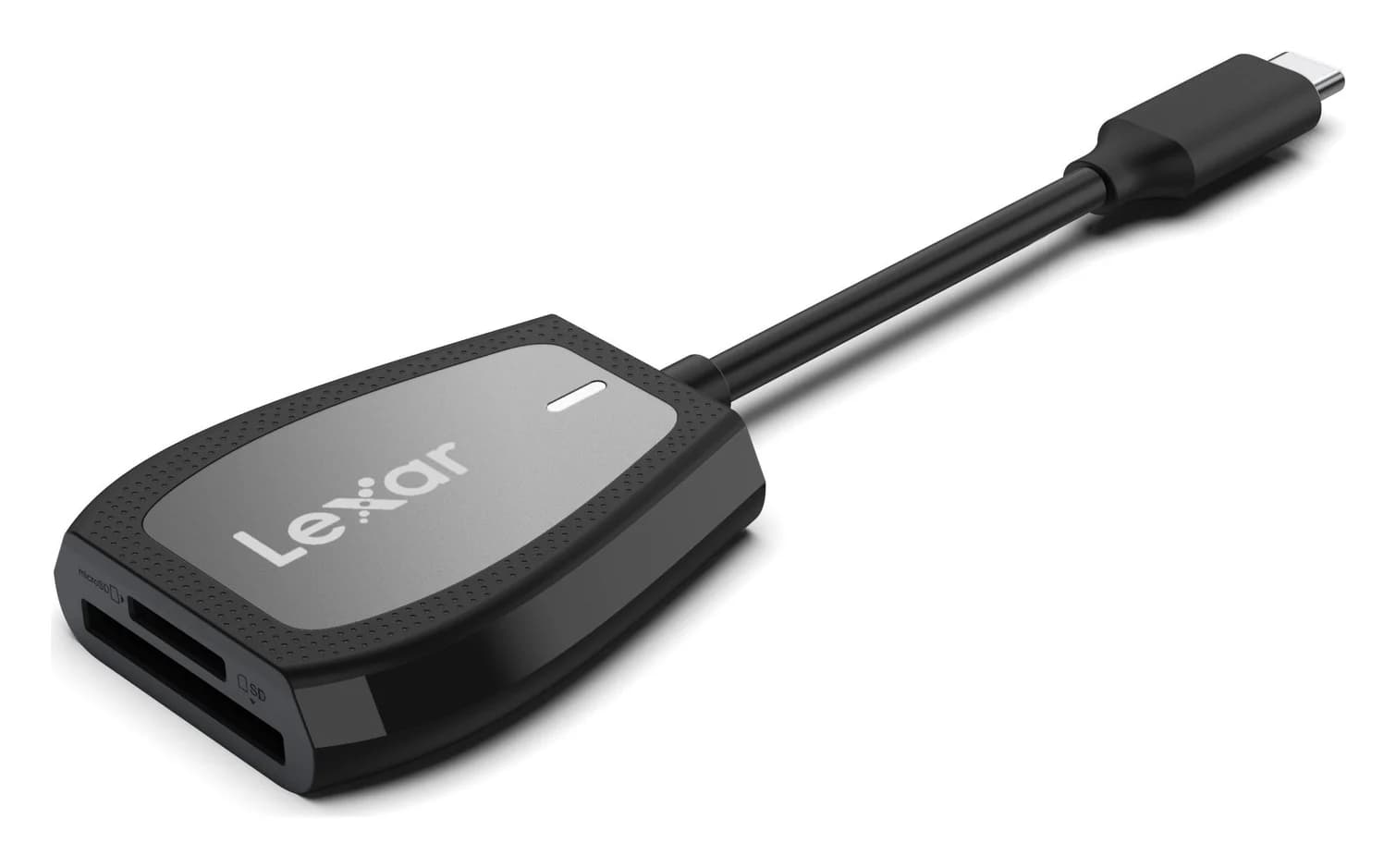
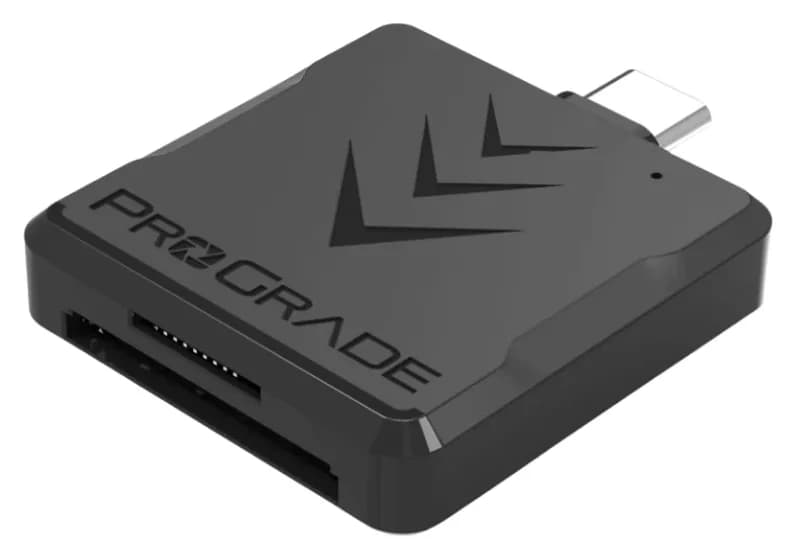
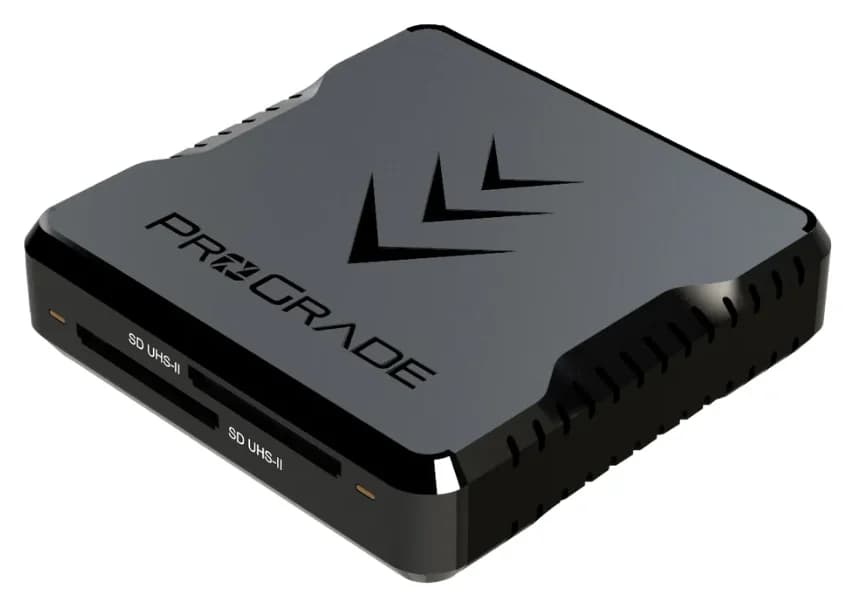
Best SD Card Readers in 2026: USB-C Picks for Every Workflow
The SD card readers worth buying, from makers' spec sheets: UHS-II dual-slot picks from Lexar and ProGrade, Apple's USB-C reader, and an Anker hub that reads cards too.
Updated November 7, 2026Read
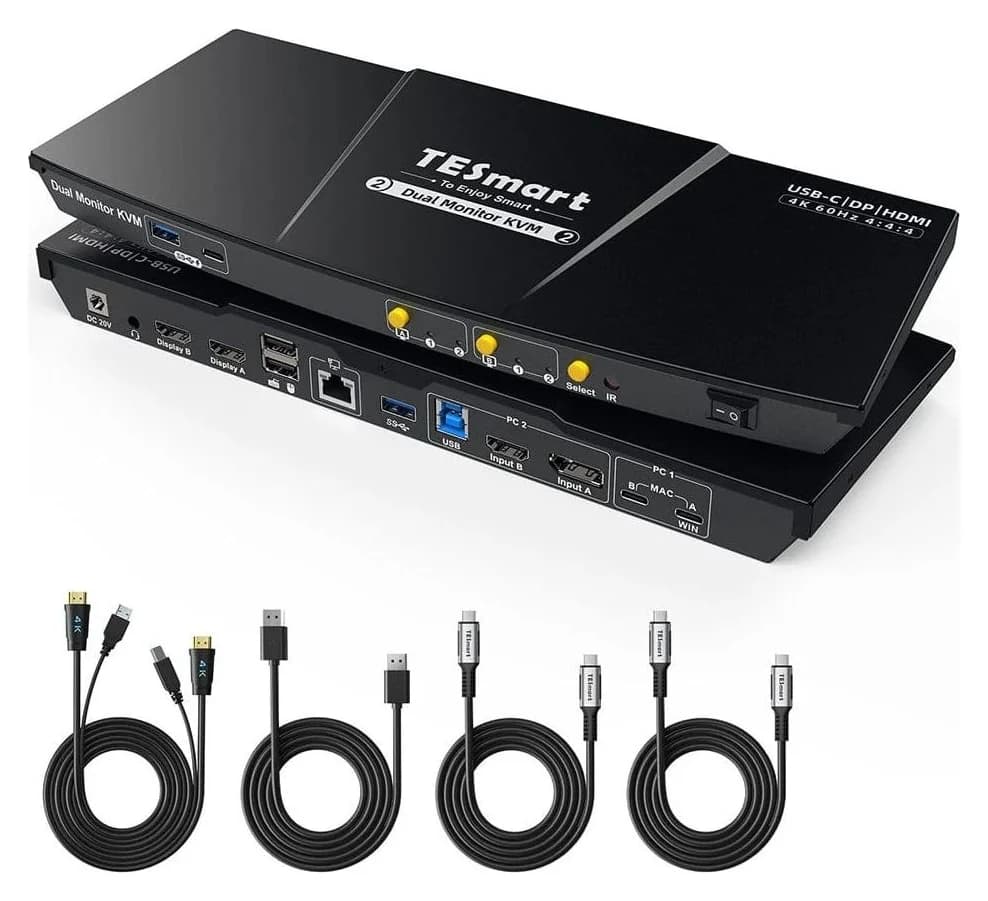
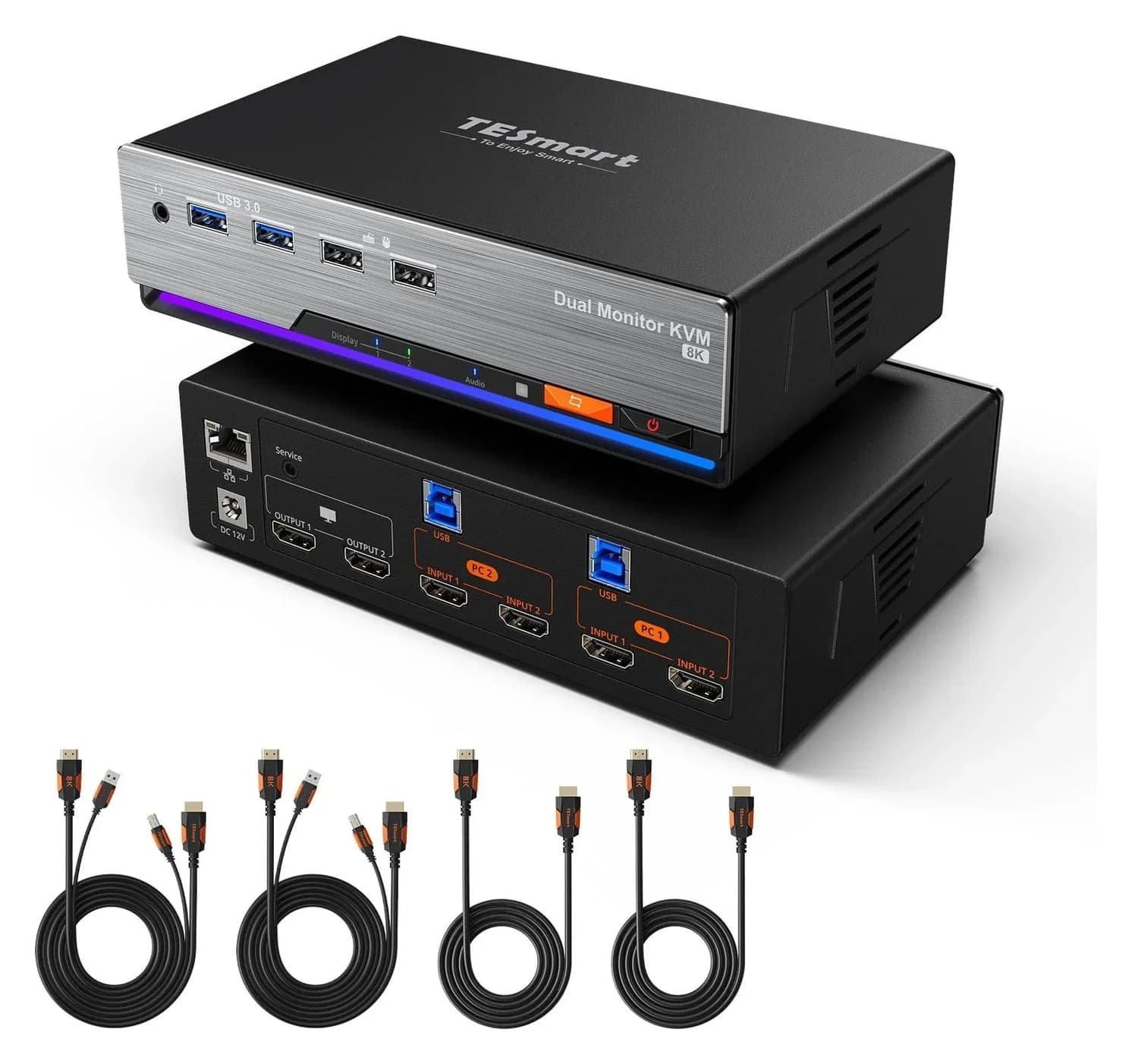
Best KVM Switches: Two Computers, One Keyboard, Mouse and Monitor Set
Pick the right KVM switch for two PCs, laptops, dual monitors, gaming or USB-only sharing. Compare HDMI, DisplayPort and USB-C models, docks and Mac limits.
Updated November 7, 2026Read
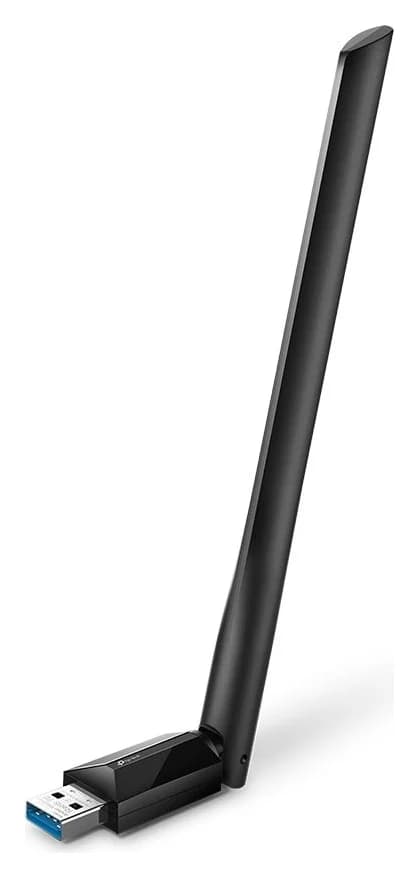

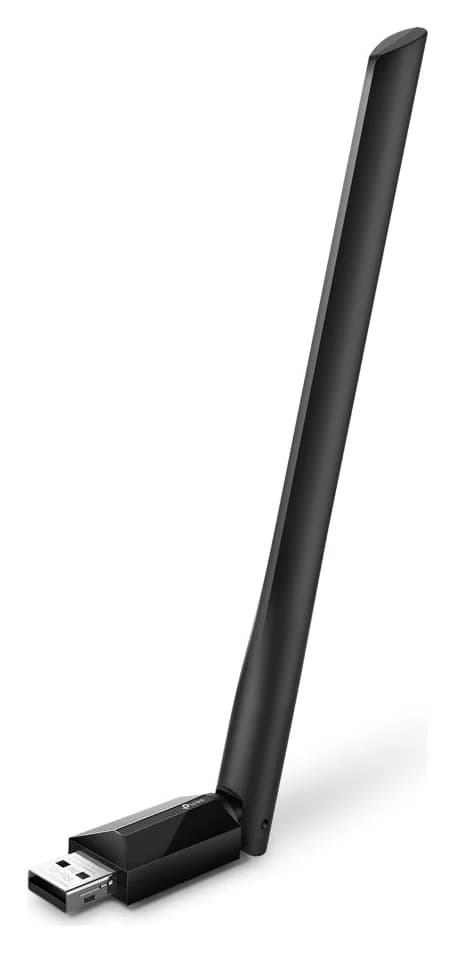
The Best USB Wi-Fi Adapters for Mac (The macOS Compatibility Truth)
Which USB Wi-Fi adapters actually support a Mac? The verified models, the macOS version limits, the USB-C problem on modern Macs, and the Ethernet workaround.
Updated November 10, 2026Read