Black Friday: the specs to check before you buy
Best picks
Updated November 3, 2026Best USB-C to DisplayPort Adapters: Match Your Monitor Mode
Short answer
For a laptop that already supports USB-C video output, the StarTech CDP2DP14B is our best USB-C to DisplayPort adapter: its documented modes include 4K at 120Hz, with HDR and DSC support. Choose the StarTech CDP2DPUCP instead for 4K at 60Hz plus up to 60W charging through the same laptop port. Both list only the adapter in the box, so keep or buy a separate DisplayPort cable. (Display adapter specs, charging adapter specs)
Our picks at a glance
Quick adapter choices by monitor and host
| Pick | Choose it for | Documented display modes | Charging | What you must supply |
|---|---|---|---|---|
| StarTech CDP2DP14B | Best overall; higher-refresh or HDR requirements | 4K at 120Hz; 5K at 60Hz; 8K at 60Hz | No PD pass-through | Video-capable USB-C host and DisplayPort cable |
| StarTech CDP2DPUCP | A 4K work monitor when charging must share the laptop port | 3840 x 2160 at 60Hz; HDR not supported | Up to 60W PD pass-through | Video-capable USB-C host, DisplayPort cable, your charger and charging cable |
| Cable Matters 102025, 6 ft | Optional cable for either adapter | HBR3 cable; does not change the adapter's mode limit | Not a laptop charger | One of the adapters above, or a native DisplayPort output |
The adapter rows come from StarTech's linked datasheets; the cable's product page and manual document its connection and HBR3 support. These are equipment capabilities, not a promise that every laptop will produce the maximum mode.
Buying for a normal 4K 60Hz screen? Pick CDP2DP14B if you can charge separately; choose CDP2DPUCP when its charging input solves a port shortage. Buying specifically for 4K 144Hz or a particular ultrawide mode? Do not round a nearby specification up: get that exact resolution and refresh rate confirmed before checkout.
Best overall: StarTech CDP2DP14B
This is the clearest higher-bandwidth choice in this shortlist. StarTech specifies DisplayPort 1.4, HBR3, HDR and Display Stream Compression (DSC), alongside the modes in the comparison table. It also lists backward compatibility with DisplayPort 1.2. That makes it our default when keeping an existing monitor cable and charging through another connection. (Datasheet)
The limits matter more than the headline: your USB-C device must support DP Alt Mode, and StarTech requires DisplayPort 1.4 at both source and destination for its 8K claim. It provides no PD pass-through, and the package contains the adapter alone. Keep the laptop's charging connection in your purchase plan.
StarTech lists driver-free operation across Windows, macOS, Linux and ChromeOS, among other systems. That establishes software compatibility, not identical maximum display modes on every computer. For an unlisted gaming or ultrawide mode, send support the complete setup rather than assuming the 8K headline answers it.
See the StarTech CDP2DP14B specifications
Best for 4K with charging: StarTech CDP2DPUCP
Buy this for the charging input. StarTech rates the DisplayPort output for 3840 x 2160 at 60Hz, and its additional USB-C charge port accepts the laptop's power adapter for up to 60W PD pass-through while video runs. Its specification says HDR support: No. This is the office-monitor choice when sharing a laptop port matters more than HDR or a higher refresh rate. (Datasheet)
Its package lists only the adapter. Bring your charger, charging cable and DisplayPort cable; compare the charging limit with your laptop's requirements before buying. StarTech specifies a maximum DisplayPort cable distance of 2 m, so the optional 6 ft cable below is within that distance.
There is a small documentation mismatch worth flagging: the datasheet's feature bullet includes 4096x2160, while its maximum-resolution field lists 3840 x 2160 at 60Hz. For a cinema-width display, ask StarTech to confirm the exact mode. We recommend it here for the latter, explicitly listed UHD mode. Driver-free support includes macOS, iPadOS, Windows, ChromeOS and Linux.
See the StarTech CDP2DPUCP specifications
Optional DisplayPort cable: Cable Matters 102025, 6 ft
Skip this purchase if your existing cable supports the intended mode. Cable Matters lists the 102025 as VESA certified, supporting HBR3 at up to 32.4 Gbps, and offers a 6 ft option. Its manual explicitly supports use with a USB-C to DisplayPort adapter. This is the separate DisplayPort-to-DisplayPort cable for the kit, not another USB-C adapter. (Product page, manual)
Cable Matters' current page advertises up to 4K at 240Hz, whereas its linked manual lists 4K at 60Hz among its modes. Both identify HBR3 support; neither makes a connected adapter faster. For a demanding mode, confirm the whole connection rather than treating the cable's headline as the kit's rating. Depress the connector's latch before unplugging, as the maker instructs.
See the Cable Matters 102025 cable options
Check source direction and USB-C video capability
Shop for this path: laptop USB-C video output → adapter → DisplayPort cable → monitor DisplayPort input. On a monitor with both input and output sockets, use DP IN; the output is for daisy-chaining another display. Cable Matters documents this mistake in its adapter support guidance.
Read the laptop's documentation for the particular port. VESA's FAQ says DisplayPort support should be documented and may be marked with a DP logo; without it, no video reaches the screen. A charging or USB data specification alone does not establish video support.
- Yes: Host documentation confirms DisplayPort Alt Mode video output
- Yes: Monitor has a DisplayPort input and you have a suitable DisplayPort cable
- No: A charging-only or data-only USB-C port cannot supply the required video signal
- Partly: High-refresh and HDR operation need confirmation across the complete setup
For a DisplayPort-source computer and a USB-C-input screen, start a separate search for an explicitly compatible reverse-direction or bidirectional product. For a new screen instead of an adapter, see our USB-C monitor guide.
High-refresh, DSC and OS conditions to verify
Write down resolution, refresh rate and whether you need HDR before choosing. StarTech's 4K 120Hz listing does not explicitly establish 4K 144Hz, and a generic compatibility list does not settle an ultrawide timing. Ask the maker to confirm your exact laptop port, operating system, monitor and cable together.
DSC means Display Stream Compression. VESA describes it as visually lossless compression that increases what a display link can carry; its FAQ explains its use for 8K at 60Hz over DisplayPort 1.4a. Check source and monitor support when a mode relies on DSC. Separately, confirm HDR support across the source, display and software; Cable Matters' technical guidance explains that requirement.
For multiple displays, StarTech specifies a single display for each adapter here. Do not assume daisy-chaining will create separate Mac desktops: Cable Matters explicitly says macOS does not support MST for extended displays. Our Mac dual-monitor guide covers that buying decision.
Variants and alternatives worth checking carefully
The Plugable USBC-TDP remains a documented 4K 60Hz option with a DisplayPort cable sold separately. However, its product page shows it out of stock and its adapter collection labels it unavailable or limited availability. It is not our default new purchase.
Two Cable Matters alternatives need revision confirmation. The 201086 product page advertises 4K at 240Hz, while the linked manual lists 3840x2160 at 60Hz. The 201026 page advertises 100W charging and higher display modes, but its linked support article says 60W and 4K 60Hz. Those conflicts do not establish what a particular shipment contains; confirm before ordering for the disputed capability.
Adapter-only versus a direct cable purchase
A dongle is most compelling when reusing an appropriate monitor cable, or when the charging input is the reason for buying it. VESA says certified DisplayPort cables support HBR2 for 4K at 60Hz, while DP8K-certified cables are designed for higher-bandwidth HBR3 applications. Start with certification and the required mode rather than a bigger resolution label. (Cable guidance)
How we choose
These are research-based recommendations from manufacturer datasheets, support pages and VESA guidance. We compare named models, display modes, host requirements and box contents, and flag conflicting official specifications. We have no physical test results for these products. The awards reflect the documented purchase each solves, rather than measured performance or a claim that every compatible laptop reaches its maximum mode.
Final complete-kit checklist
Check the host
Confirm video output on the laptop port you will actually use.
Match the monitor mode
Get the required resolution, refresh rate and HDR support confirmed together.
Complete the connection
Reuse a suitable DisplayPort cable or buy one; compare a direct cable if starting fresh.
Plan charging
Keep a separate charging connection, or match the charging adapter's limit to your laptop.
Set the display
Select the monitor's DisplayPort input and choose the supported resolution and refresh rate on the computer.
The cable maker's setup instructions cover input selection and display settings. If the intended mode is missing, our monitor refresh-rate troubleshooting guide is the next stop before buying more hardware.
Verdict
Choose StarTech CDP2DP14B for its documented higher-refresh and HDR capabilities, or CDP2DPUCP when 4K 60Hz and up to 60W charging fit your setup. Add the Cable Matters 102025 only if you need a DisplayPort cable. Starting from scratch, compare a direct cable first; keeping an existing cable, match the adapter to the exact mode you want.
Frequently asked questions
Will a USB-C to DisplayPort adapter work with any USB-C port?
No. Check the laptop's documentation for DisplayPort Alt Mode video output on the specific port you will use. A USB-C connector alone does not establish video support. VESA says a port without DisplayPort support sends no video to the display. Both StarTech adapters here depend on a host that already provides a DisplayPort signal; buying the higher-bandwidth adapter cannot add that capability.
Which USB-C to DisplayPort adapter should I buy for 144Hz?
Match both the resolution and refresh rate. StarTech lists 4K at 120Hz for CDP2DP14B; that is not an explicit promise of 4K at 144Hz. For another mode, ask the adapter maker to confirm your laptop, monitor, resolution, refresh rate and HDR setting together. Cable Matters' 201086 page advertises 4K at 240Hz, but its linked manual lists 4K at 60Hz, so confirm the supplied revision before buying for that higher mode.
Can I charge my laptop through a USB-C to DisplayPort adapter?
Choose a model with a separate charging input. StarTech CDP2DPUCP supports up to 60W USB Power Delivery pass-through while displaying video, using your laptop's power adapter. CDP2DP14B has no PD pass-through. Check your laptop's required charging power before choosing: a video adapter's charging rating is a limit to match against the laptop, not a guarantee of its fastest charging.
Is a USB-C to DisplayPort cable better than an adapter?
For a new connection without an existing DisplayPort cable, start with a direct USB-C to DisplayPort cable. VESA recommends that arrangement and cautions that receptacle adapters plus separate cables can cause connection problems. A dongle makes sense when keeping a suitable cable or choosing the charging adapter here. Either way, verify the host's video output and the exact display mode before ordering.
Will these adapters give my Mac two extended monitors?
Neither is a dual-output adapter: StarTech lists a single display for each. Do not buy either as a way around your Mac's native display limit. Daisy-chaining is a separate compatibility question; Cable Matters notes that macOS does not support MST for extended displays. Check the Mac model's display specification first, then choose a suitable multi-display dock if that is the purchase you need.
Best overall
StarTech CDP2DP14B
Related guides
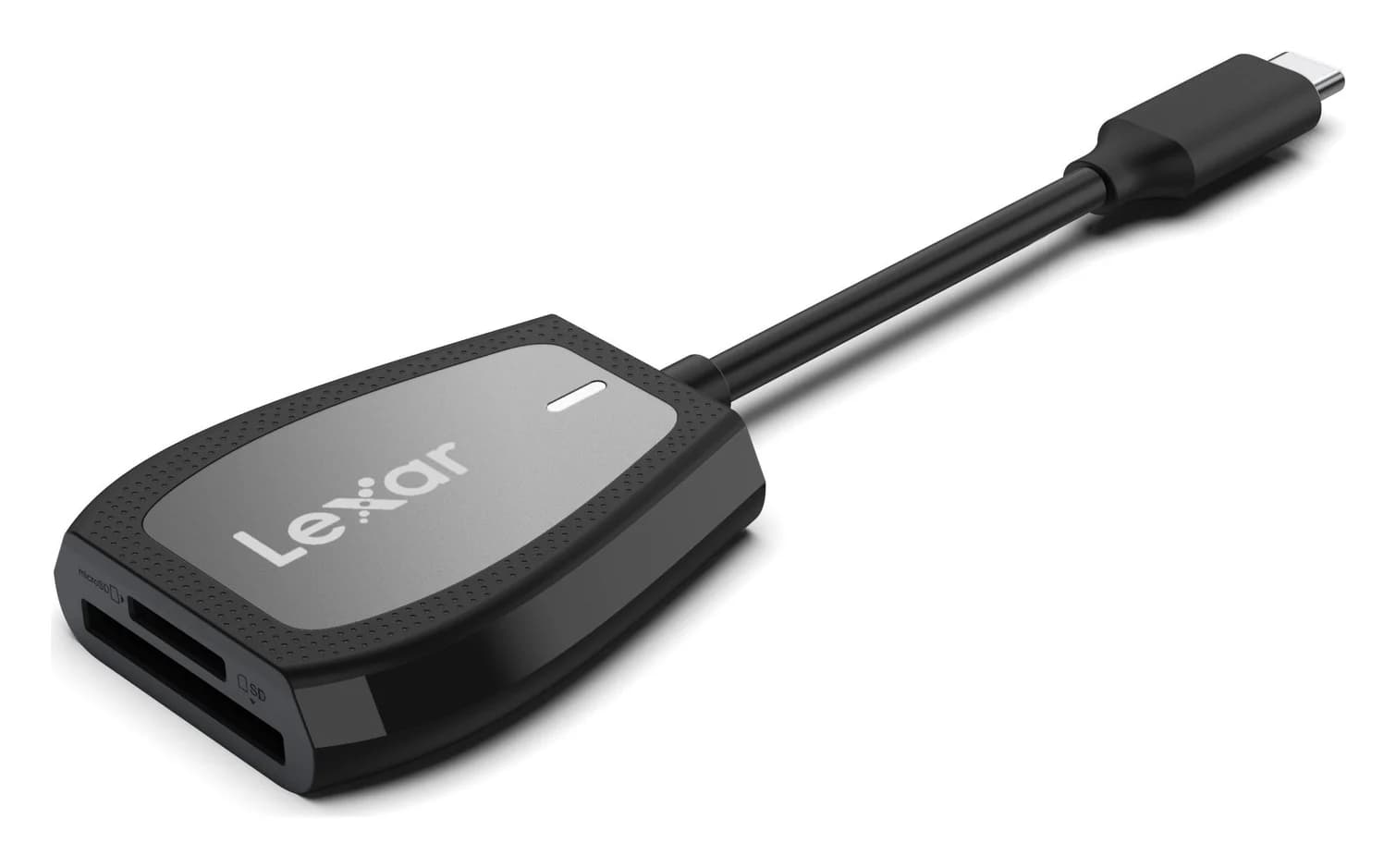
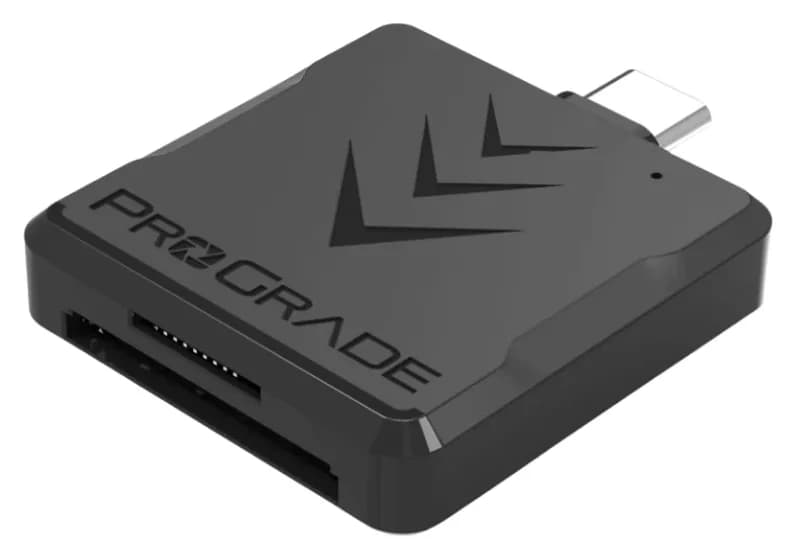
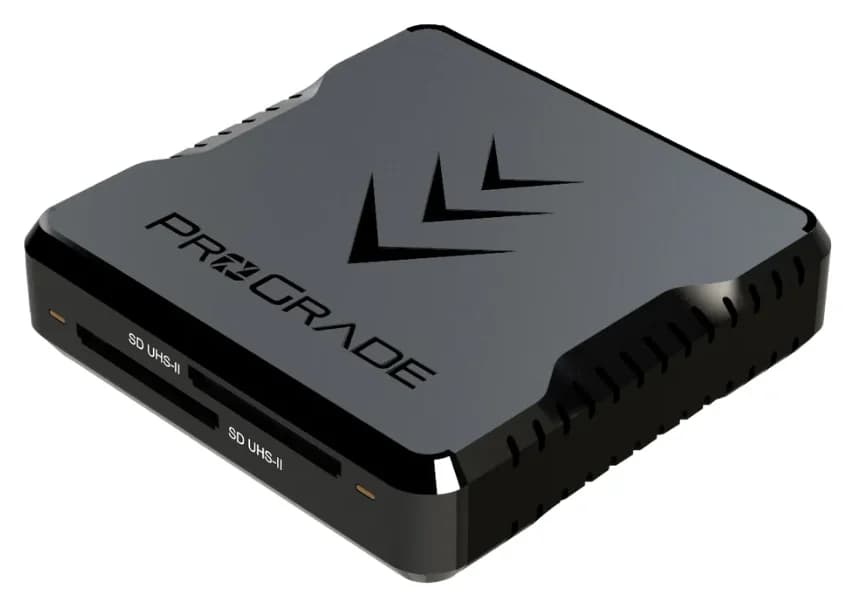
Best SD Card Readers in 2026: USB-C Picks for Every Workflow
The SD card readers worth buying, from makers' spec sheets: UHS-II dual-slot picks from Lexar and ProGrade, Apple's USB-C reader, and an Anker hub that reads cards too.
Updated November 7, 2026Read
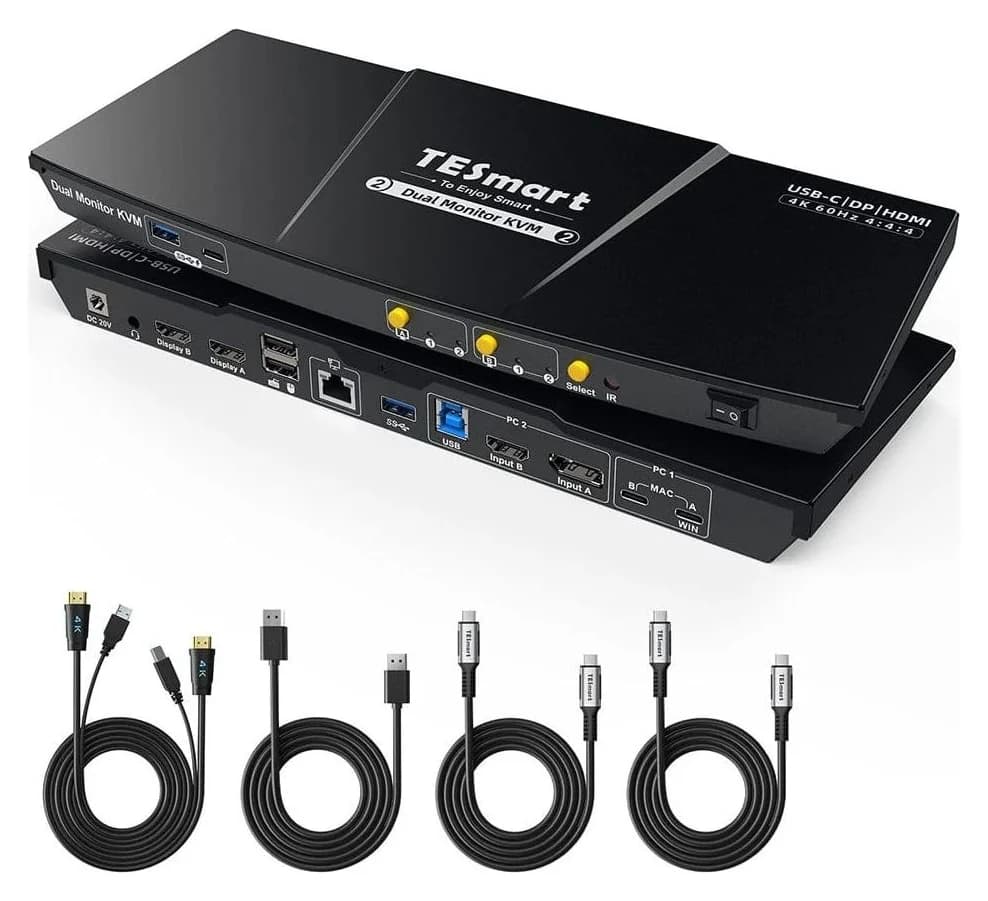
Best KVM Switches: Two Computers, One Keyboard, Mouse and Monitor Set
Pick the right KVM switch for two PCs, laptops, dual monitors, gaming or USB-only sharing. Compare HDMI, DisplayPort and USB-C models, docks and Mac limits.
Updated November 7, 2026Read
The Best USB Wi-Fi Adapters for Mac (The macOS Compatibility Truth)
Which USB Wi-Fi adapters actually support a Mac? The verified models, the macOS version limits, the USB-C problem on modern Macs, and the Ethernet workaround.
Updated November 10, 2026Read