Black Friday: the specs to check before you buy
Explainer
Updated November 3, 2026Dell Docking Stations: WD25, Thunderbolt, Smart and Older Versions
Short answer
For a compatible Dell USB-C laptop, buy the WD25 for up to 100W laptop charging, or the WD25Z if your Dell needs 130W; for a Thunderbolt desk with two 4K monitors, the WD25TB4 is our starting choice. Check your exact laptop against Dell's compatibility matrix before choosing: connector shape alone does not establish video, charging or management support.
Our picks at a glance
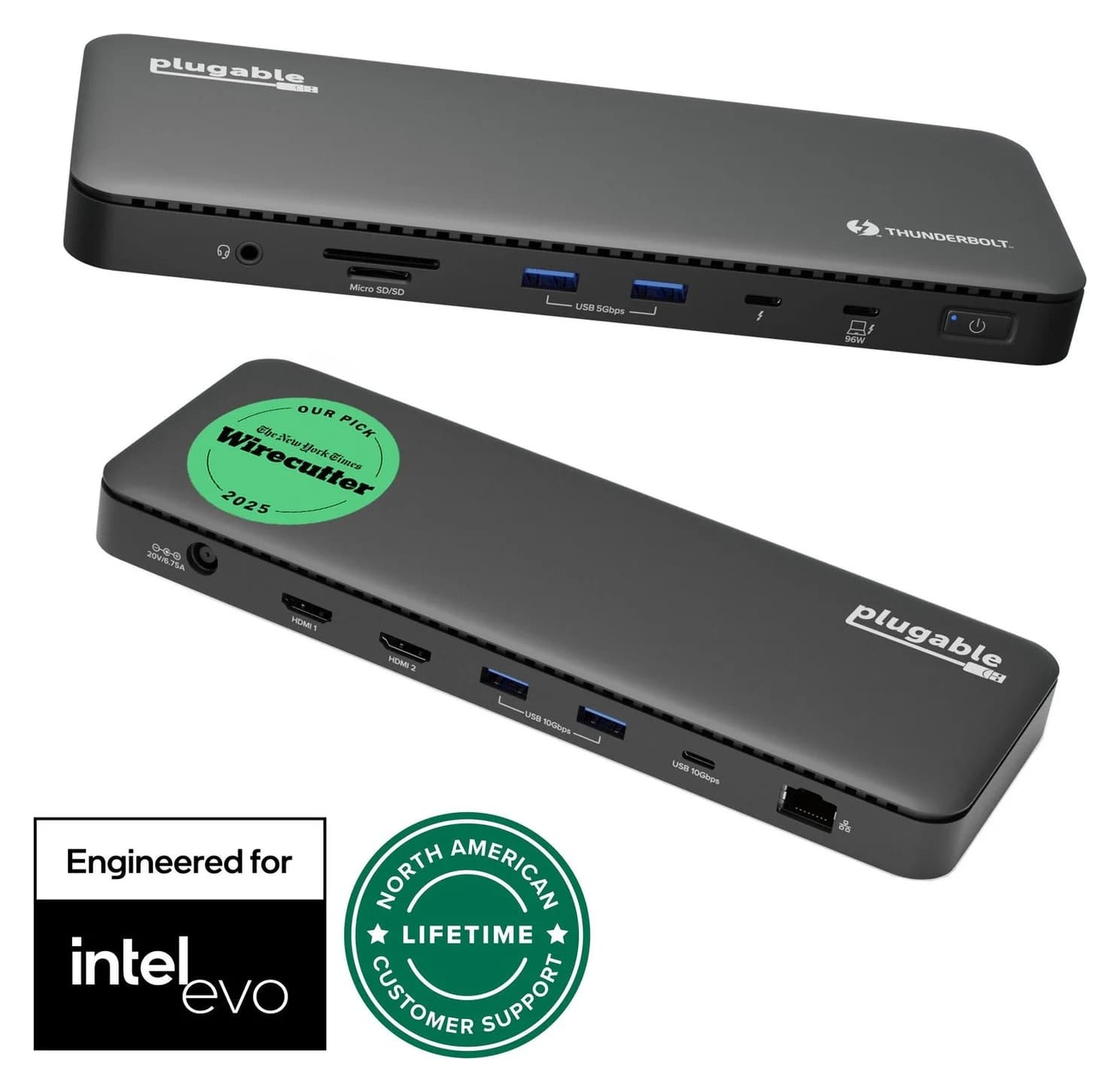
Cross-brand alternative for two HDMI monitorsPlugable
Plugable Thunderbolt 4 Dock (TBT4-UD5)
- to laptop
- 96W
- data
- 40 Gbps
- video
- 4K
- Choose
- Two HDMI outputs support dual 4K 60Hz on capable hosts, with up to 100W charging, 96W certified.
- Limit
- Gigabit (not 2.5GbE) Ethernet
Quick picks
- Everyday USB-C Dell desk: WD25 at Dell. Our pick when its up-to-100W Dell charging and native display configurations meet your needs.
- More Dell charging without Thunderbolt: WD25Z at Dell. Up to 130W to supported Dell laptops; check the Z suffix.
- Thunderbolt monitors and accessories: WD25TB4 at Dell. Up to 130W Dell charging plus downstream Thunderbolt ports.
- Cross-brand HDMI desk: Plugable TBT4-UD5. Consider it after ruling out Dell-specific power and IT requirements.
Choose a Dell dock by exact laptop and port
Use the laptop's Service Tag to find its manual on Dell Support, then locate its model and footnotes in the compatibility matrix. Dell's June 26, 2026 matrix marks Latitude 5450 supported across the new dock families, but Inspiron 5445 unsupported across those columns. A Dell badge alone is insufficient.
The WD25 family requires USB-C with DisplayPort Alt Mode; Dell's new-dock matrix excludes data-only USB-C configurations. The WD25TB4 guide recommends Thunderbolt but also permits compatible USB-C DisplayPort Alt Mode hosts. In that fallback mode, Dell says it loses Thunderbolt functionality. These are host requirements, not capabilities a dock adds to a data-only port. Dell's docking guide explains where to find the laptop manual.
Confirm the exact laptop
Read its manual and the compatibility-matrix footnotes; do not stop at the product-family name.
Confirm video and charging
Check DisplayPort Alt Mode or Thunderbolt support, then match the dock's laptop output to the laptop's power requirement.
Write down the monitor pair
Match both resolutions, refresh rates and connectors to the dock's display-resolution table.
Confirm workplace requirements
Have IT specify required management features and whether DisplayLink software is permitted.
USB-C, Thunderbolt and universal versions compared
The supplied power adapter's rating is power available to the dock; laptop output is a separate rating. Dell's family brochure separates these figures:
| Version | Host/video family | Adapter → maximum laptop charging | Buy it for |
|---|---|---|---|
| WD25 | USB-C DisplayPort Alt Mode | 130W → 100W Dell / 96W non-Dell | Everyday compatible USB-C desk |
| WD25Z / SD25 | USB-C DisplayPort Alt Mode | 180W → 130W Dell / 96W non-Dell | Higher Dell power; SD adds independent remote management |
| WD25TB4 / SD25TB4 | Thunderbolt 4; reduced USB-C fallback | 180W → 130W Dell / 96W non-Dell | Thunderbolt peripherals and suitable dual 4K setups |
| WD25TB5 / SD25TB5 | Thunderbolt 5 | 330W → up to 300W Dell / 240W non-Dell, on compatible EPR hosts | Supported high-power workstation configurations |
| WD19S | Earlier USB-C family | 130W → 90W Dell; 180W → 130W Dell | A documented older kit that fits your laptop |
| WD22TB4 | Earlier Thunderbolt 4 family | 180W → 130W Dell / 90W non-Dell | An existing installation or carefully matched older kit |
| UD22 | USB-C; DisplayLink for full functionality | 130W → up to 96W | A software-approved universal setup |
EPR means Extended Power Range. Dell qualifies the Thunderbolt 5 power figures by EPR support; its matrix warns that some Precision models still accept only 130W and need separate power. Treat the headline maximum as a compatibility question, not an automatic workstation upgrade.
Best everyday USB-C choice: Dell Pro Dock WD25
Choose WD25 when the laptop and monitor table fit and you need no more than its up-to-100W Dell output. The WD25/WD25Z user guide lists a 130W adapter, up to 96W to non-Dell computers and a 0.9m host cable.
Its connections include four USB-A and two USB-C ports in the 10Gbps generation, with video on the rear multifunction USB-C port. There are also two DisplayPort 1.4 outputs, one HDMI 2.1 output and 2.5 Gigabit Ethernet. The front USB-C connection is for peripherals; use the rear multifunction port for a USB-C monitor.
Monitor example: on the guide's HBR3 row without Display Stream Compression, WD25 supports one 4K screen at 60Hz or two QHD screens at 60Hz. Higher configurations depend on DSC. This makes WD25 a sensible shortlist entry for an office monitor pair, provided its exact resolution row fits.
Best USB-C choice for 130W Dell charging: WD25Z
WD25Z is the power variant to shortlist when a supported Dell needs more than WD25 supplies. Its 180W adapter delivers up to 130W to Dell, while non-Dell delivery remains up to 96W. The shared manual gives it the same display-resolution table and 0.9m cable as WD25.
The Z therefore changes the charging decision, not the display technology. It remains a native USB-C DisplayPort Alt Mode dock. Buying it for a non-Dell laptop solely to obtain extra charging power gains nothing on Dell's stated figures. Compare the laptop's required input with the dock's host-specific output before committing.
Best Dell Thunderbolt choice: WD25TB4
For a compatible Thunderbolt laptop and demanding monitor pair, start here. The WD25TB4 user guide documents two 4K 60Hz displays through its DisplayPort pair in the Thunderbolt HBR3 configuration without DSC. Its two downstream Thunderbolt 4 ports also support Thunderbolt accessories, with a specified maximum link rate of 40Gbps.
The kit uses a 180W adapter, supplies up to 130W to Dell or 96W to non-Dell computers, and has a 0.83m host cable. It also has four USB-A 10Gbps ports, two ordinary USB-C 10Gbps ports including multifunction video, two DisplayPort 1.4 outputs, HDMI 2.1 and 2.5 Gigabit Ethernet.
Watch out: the user guide has separate display tables for Thunderbolt and non-Thunderbolt computers. A USB-C fallback connection does not earn the Thunderbolt table's monitor capabilities.
Which SD Smart Dock version should IT choose?
Match SD25 to WD25Z, SD25TB4 to WD25TB4, and SD25TB5 to WD25TB5 for the interface and charging tiers above. Dell says Smart Docks can be managed remotely through Dell Device Management Console without a PC connected. Standard WD models also have management: the WD25 and WD25TB4 product pages describe console management through software installed on the host PC. The useful distinction is independent fleet management, not merely having a power button.
Have IT check MAC address pass-through, PXE boot, wake behavior and button synchronization against the laptop documentation. Dell qualifies these features by host compatibility; its WD25TB4 guide even excludes waking from S5 for Thunderbolt computers with vPro support. Choose the approved configuration for the workplace rather than assuming every Dell-only feature transfers to another brand.
Match the monitor pair, not the advertised maximum
Resolution, refresh rate, graphics capabilities and DSC decide what the output sockets can do together. Do not treat “supports four displays” as a promise of four high-resolution screens on every host. Dell's matrix also gives some Qualcomm notebooks a two-display dock limit and Intel Lunar Lake notebooks a three-display limit.
For Macs, Dell warns that using both DisplayPort outputs gives mirrored screens; on a compatible Thunderbolt Mac, use a downstream Thunderbolt connection for the second screen. See our Mac dual-monitor guide before applying the Windows configurations here.
Older WD19S, WD22TB4 and universal UD22 listings
Dell places these in the previous-generation section of its compatibility matrix. Keep a working, supported installation unless you need a documented upgrade; for a fresh purchase, shortlist the current family first.
WD19S: the adapter determines whether Dell lists 90W or 130W delivery. Require the listing to identify both the dock model and supplied adapter. Do not assume a familiar enclosure proves the right charging kit.
WD22TB4: its manual lists Gigabit Ethernet and HDMI 2.0. Its HDMI and rear multifunction USB-C video outputs share a connection: only one works for video at a time. Dell also documents upgrading compatible WD19-series docks with the Thunderbolt cable module, but that needs the specified firmware procedure and a 180W adapter. A cable-module-only offer is not a complete dock.
UD22: choose this branch only with software approval and the documented host requirements. Its manual requires USB-C DisplayPort Alt Mode and lists a 130W adapter, a 0.8m USB-C cable and up to 96W host charging. “Universal” does not establish USB-A compatibility for this model.
Dell's general guide says universal docks need DisplayLink for any video, but its specific UD22 article allows HDMI plus DisplayPort 1 or USB-C without it; DisplayPort 2 and three- or four-monitor operation need the driver. That conflict matters when software installation is restricted. We would not buy UD22 for an undocumented data-only or USB-A setup.
PSU wattage, upstream cable and the complete kit
Dell's current WD manuals list the dock, power adapter, mains cable and documentation. Keep its host cable with the kit and compare the adapter label with the charging row above. Require a seller to state condition, included PSU and cable, and return terms; do not infer a complete new kit from a support manual.
The charging difference is easy to see on compatible Dell hosts:
Source: Dell's model-specific user guides; compatible Dell hosts only
For a Precision or Dell Pro Max configuration requiring more than 130W, Dell says the lower-power docks can require the laptop's separate adapter. Resolve that before buying a single-cable setup. Before first use, follow Dell's instructions to update the host BIOS, graphics/network drivers and relevant dock firmware.
Cross-brand alternative: Plugable TBT4-UD5
Plugable
Plugable Thunderbolt 4 Dock (TBT4-UD5)
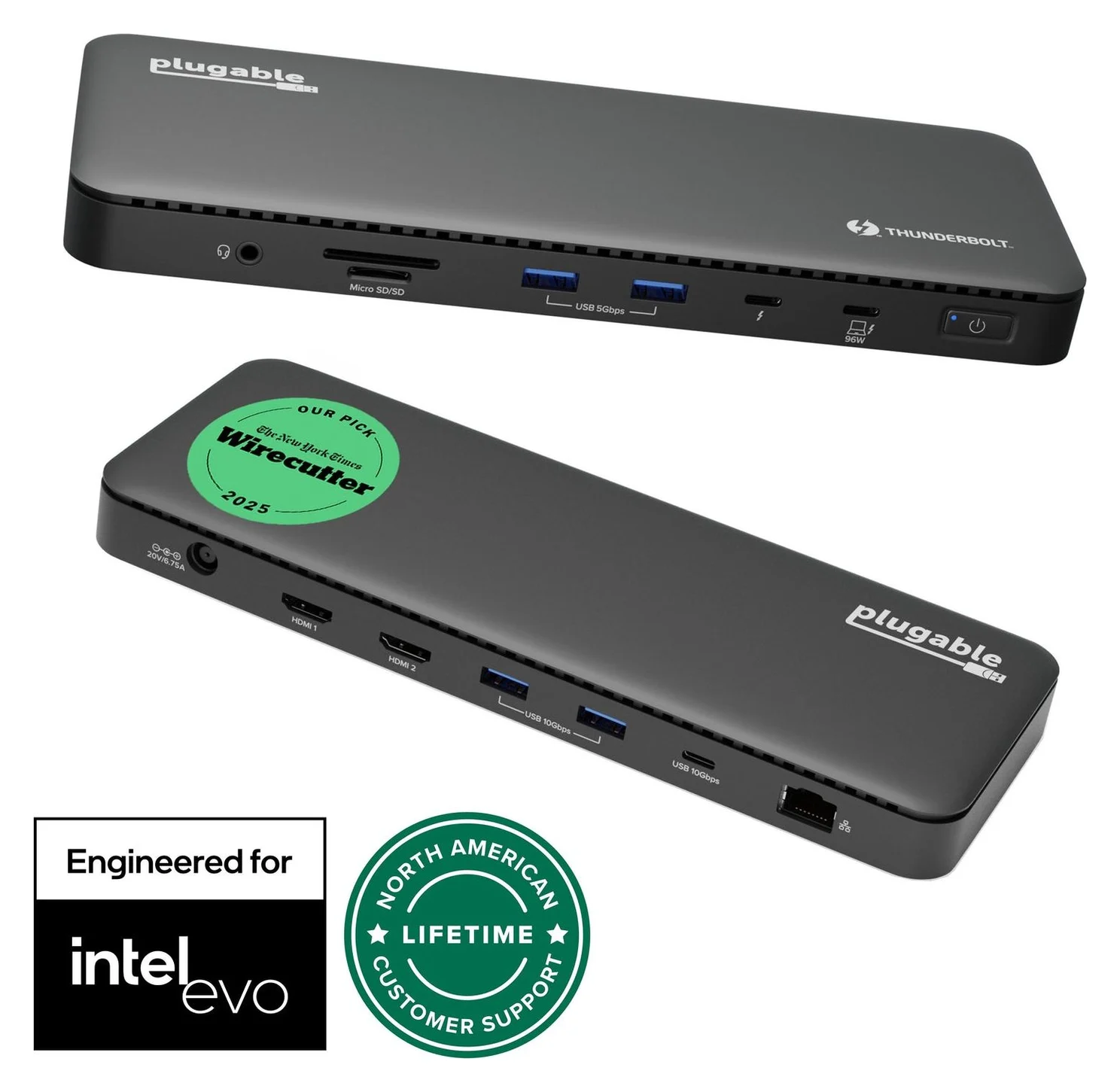
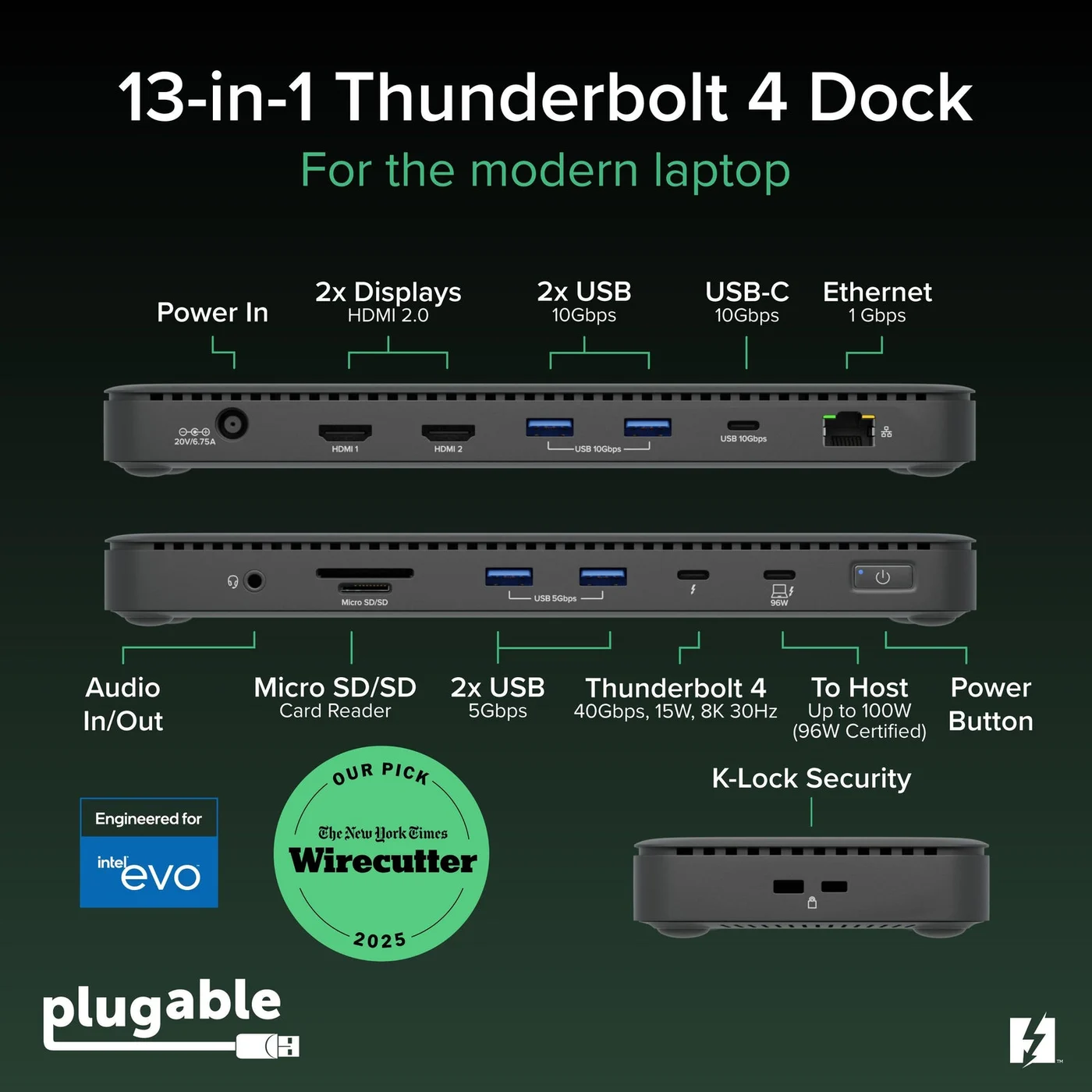
A Thunderbolt 4 dock with dual HDMI, 100W laptop charging (96W certified), Gigabit Ethernet and an SD/microSD reader.
- 96W PD passthrough
- 40 Gbps data
- 4K video
- 13 ports
Consider the existing TBT4-UD5 when your laptop's charging needs fit and you do not require Dell's management integration. Plugable specifies two HDMI outputs at up to 4K 60Hz each on capable hosts, up to 100W laptop charging with 96W certification, and Gigabit Ethernet. It includes a Thunderbolt cable, power supply and mains cable.
Plugable describes driverless dual-display support on suitable Windows Thunderbolt 4, Thunderbolt 5 and USB4 hosts, but only one display on plain USB-C or Windows Thunderbolt 3. Its support section says Windows Ethernet may need a driver. It is our conditional HDMI alternative, subject to the Dell laptop's power requirement. Check price on Amazon, or compare broader choices in our Windows docking-station guide.
How we choose
This is a specification-based selection using Dell's laptop compatibility matrix, exact dock manuals and US product pages, plus Plugable's documentation. We compare host requirements, simultaneous display configurations, laptop power and complete manufacturer kits. Recommendations are conditional on that documentation; we flag conflicting claims and do not infer current seller condition or bundle contents from a model name.
Verdict
| Your requirement, after checking laptop compatibility | Choose |
|---|---|
| Native USB-C desk within 100W Dell charging | WD25 |
| Native USB-C desk requiring up to 130W Dell charging | WD25Z |
| Thunderbolt desk, downstream Thunderbolt devices or suitable dual 4K monitors | WD25TB4 |
| Independent remote fleet management | Corresponding SD Smart Dock |
| Workstation needs beyond the lower docks' output | Check WD25TB5 / SD25TB5 compatibility and EPR support, or retain separate laptop power |
| Approved software-based universal installation | Compare UD22's exact wiring and complete kit before buying |
Buy the version that satisfies the laptop, monitor pair, charging requirement and workplace policy together. Start with WD25; move to WD25Z for supported Dell charging needs, or WD25TB4 for Thunderbolt capabilities.
Frequently asked questions
Which Dell docking station should I buy?
Start with the exact laptop in Dell's compatibility matrix. Choose WD25 for a supported USB-C DisplayPort Alt Mode laptop needing up to 100W, WD25Z for up to 130W Dell charging over that interface, or WD25TB4 for a Thunderbolt desk. Check the monitor-resolution table separately: a compatible dock does not guarantee every display combination. Smart versions suit an IT-managed fleet.
What is the difference between Dell WD25 and WD25Z?
The shared user guide gives WD25 a 130W adapter and up to 100W delivery to Dell laptops. WD25Z uses a 180W adapter for up to 130W to Dell laptops. Both list up to 96W to non-Dell computers and share the same display-resolution table. WD25Z remains a USB-C DisplayPort Alt Mode dock; the Z does not turn it into a Thunderbolt dock.
Is WD22TB4 better than WD19S?
WD22TB4 adds Thunderbolt connectivity, including downstream Thunderbolt ports, while WD19S belongs to Dell's USB-C family. Charging alone is not a reason to upgrade: Dell lists up to 130W to supported Dell laptops from WD22TB4 and from WD19S with the 180W adapter. The WD19S kit with a 130W adapter instead supplies up to 90W. Check your laptop and complete kit before buying either older version.
Will a Dell docking station work with another brand of laptop?
It can, when the host meets that dock's requirements. WD25, WD25Z and WD25TB4 list up to 96W delivery to non-Dell computers, rather than their higher Dell-specific maximums. Native video still needs the appropriate host port. MAC address pass-through, waking and power-button behavior require separate compatibility checks; Dell documents these features for selected hosts rather than promising them for every laptop.
Does the Dell UD22 require DisplayLink?
Install DisplayLink for full functionality and three- or four-monitor configurations. Dell's specific UD22 support article says HDMI plus DisplayPort 1 or USB-C can work without it; DisplayPort 2 requires the driver. Dell's general docking guide instead says universal-dock video will not work without DisplayLink. That documentation conflicts, so confirm the intended wiring and software permission before choosing UD22, especially for a managed work laptop.
Can a Dell dock run two extended monitors on a Mac?
The Mac model and wiring matter. Dell says two displays connected to a dock's DisplayPort outputs mirror on macOS; on a compatible Thunderbolt Mac, it directs one screen to DisplayPort or HDMI and the other to a downstream Thunderbolt port. Base M1 and M2 MacBooks have additional native-display limits. Use the exact Mac's display specifications before buying, rather than applying a Windows monitor table to macOS.
Related guides
Best External GPU Enclosures in 2026: Thunderbolt eGPUs That Still Exist
The current Thunderbolt eGPU enclosures from maker pages: Sonnet's Breakaway Box 850 T5 and 750ex and Razer's Core X V2, plus the Mac compatibility truth and what to check before buying.
Updated November 7, 2026Read
OWC Thunderbolt Go vs CalDigit TS4: Which Thunderbolt Dock Should You Buy?
The Go Dock packs its own power for travel; the TS4 anchors a desk with 18 ports and 98W charging. Compare full kits, monitors and which to buy.
Updated November 5, 2026Read
Plugable TBT4-UD5 vs UD-3900PDH: Which Dock for Dual Monitors?
Choose between Plugable's TBT4-UD5 Thunderbolt 4 dock and UD-3900PDH DisplayLink dock: which laptop ports they need, display counts, charging and software.
Updated November 5, 2026Read