Cyber Monday: the specs to check before you buy
Explainer
Updated November 22, 2026iPhone Won't Charge? The Fixes in Order: Cable, Adapter, Port and Settings
Short answer
Most of the time an iPhone won't charge because of the cable, the wall adapter or lint in the port. All three are easy to check yourself using Apple's own troubleshooting steps. Run through them in order; if none resolve it, the port or battery may need service.
We may earn a commission when you buy through links on this page. As an Amazon Associate, thisUSB earns from qualifying purchases. How we earn
Our picks at a glance
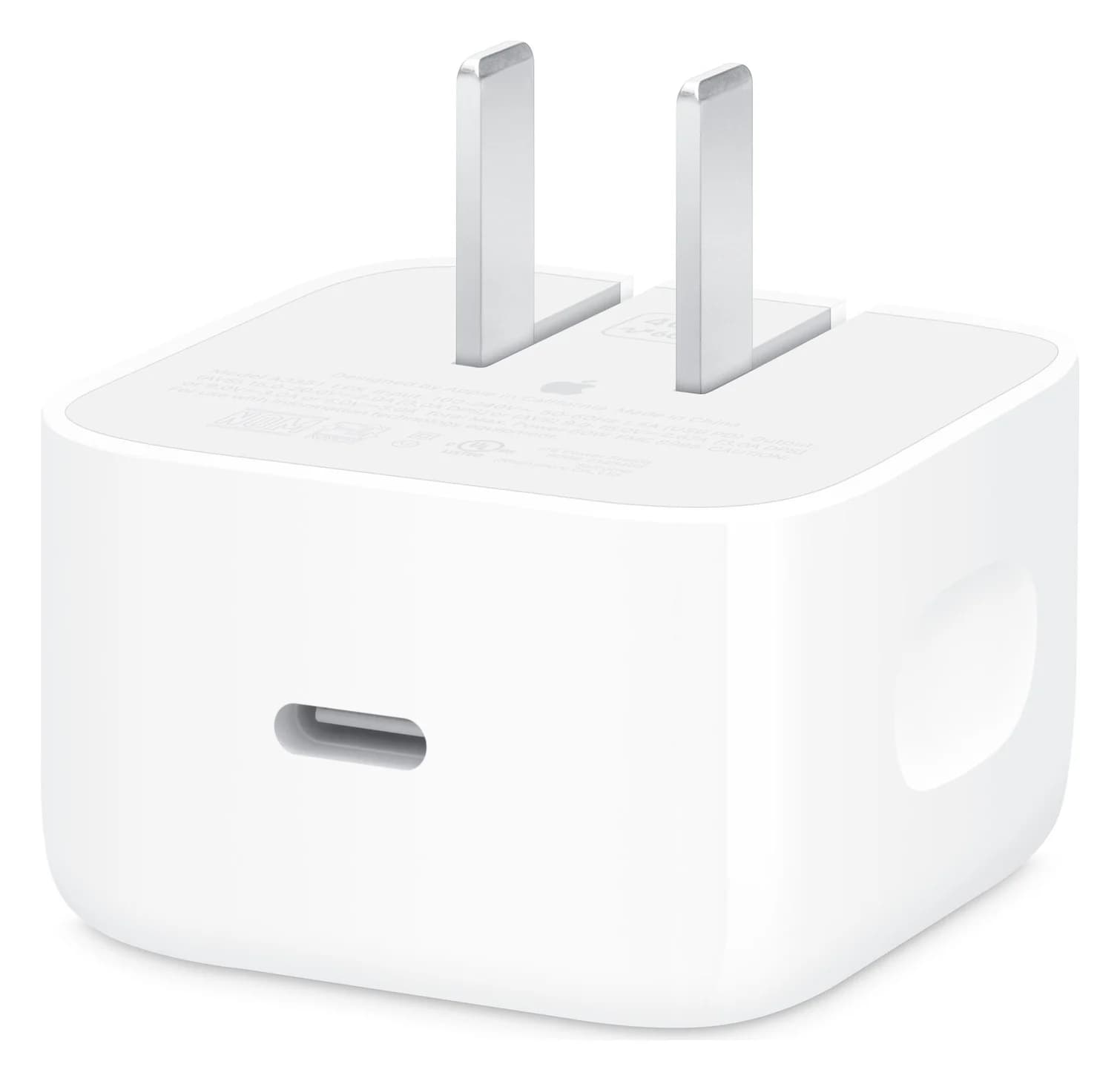
Best wired fixApple
Apple 40W Dynamic Power Adapter with 60W Max
- max output
- 40W
- port
- 1
- Choose
- Apple's 40W Dynamic Power Adapter, which can deliver up to 60W, is the adapter Apple names to fast-charge iPhone 18 Pro models and iPhone Duo, and it meets the 40W Apple asks for on iPhone 17 models and the 18W on earlier iPhones.
- Limit
- Single USB-C port, so one device at a time
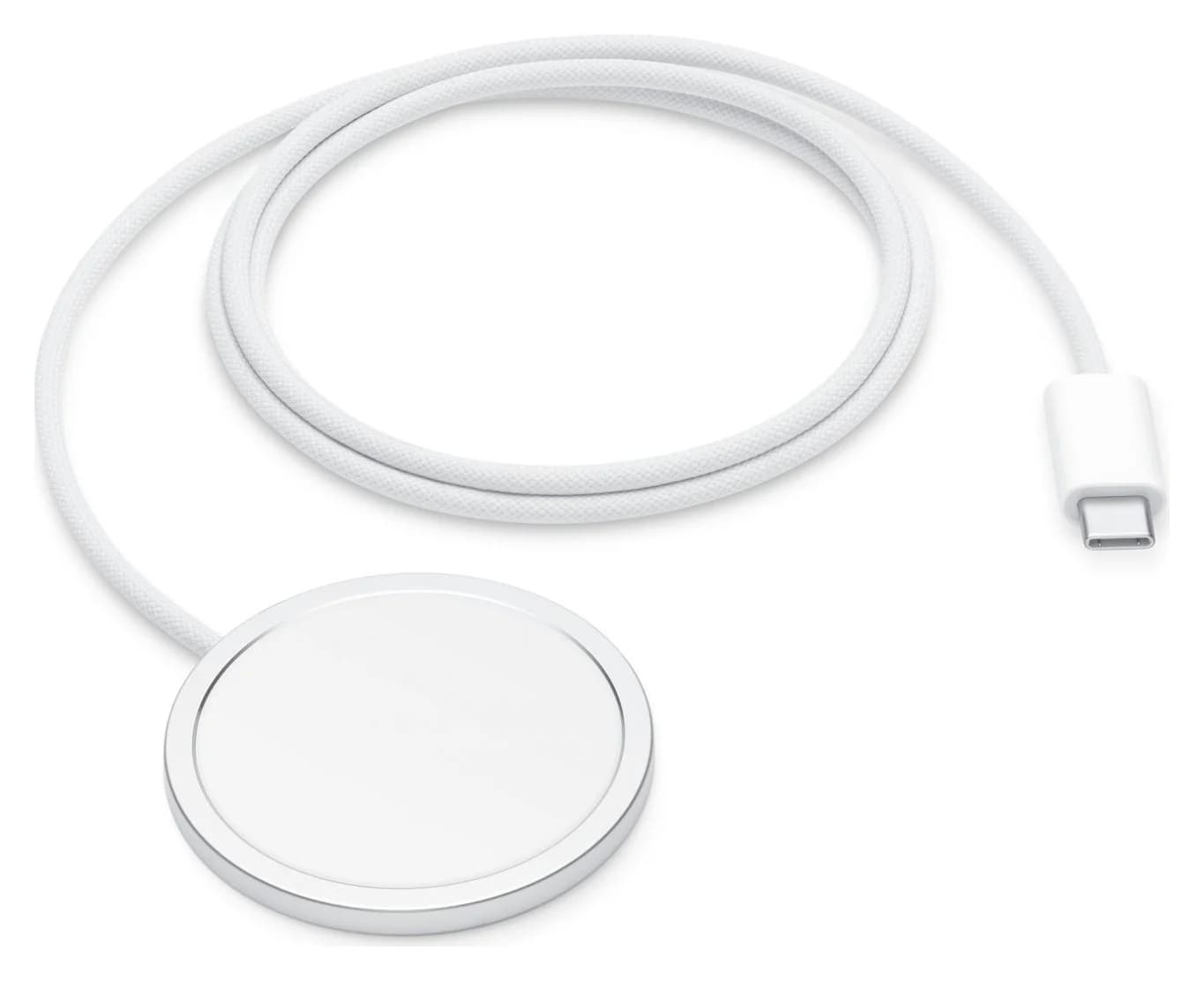
Best wireless fixApple
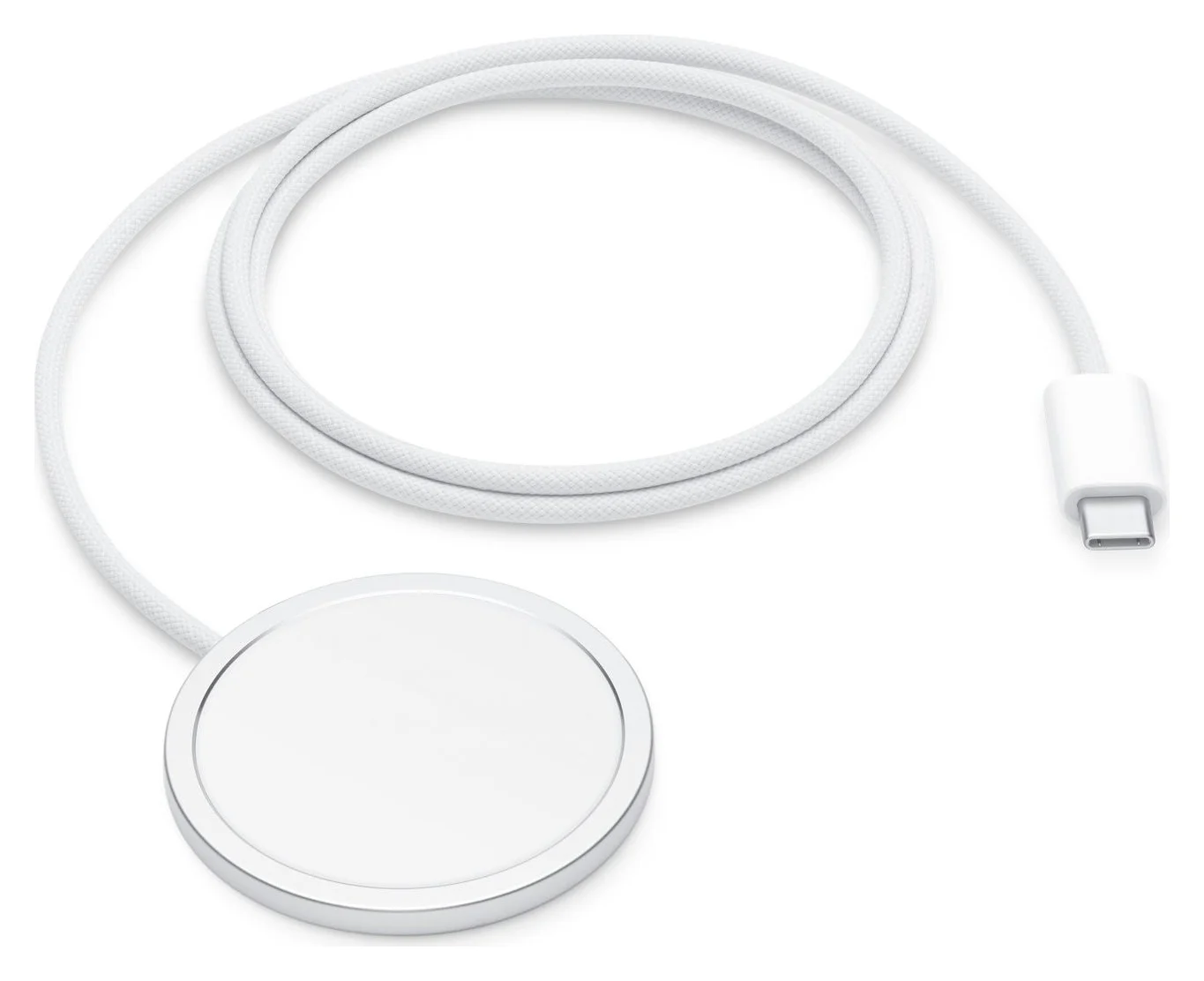
Apple MagSafe Charger (1 m, Qi2 25W, 2025)
- max output
- 25W
- Choose
- Apple's own MagSafe Charger, certified for Qi2 25W: up to 25W peak on supported iPhones with a 30W or greater adapter, the highest wireless speed Apple specifies for iPhone.
- Limit
- No power adapter in the box; 25W needs a 30W or greater adapter (15V/2.0A), or 35W+ for the iPhone 18 Pro's and Duo's quoted times
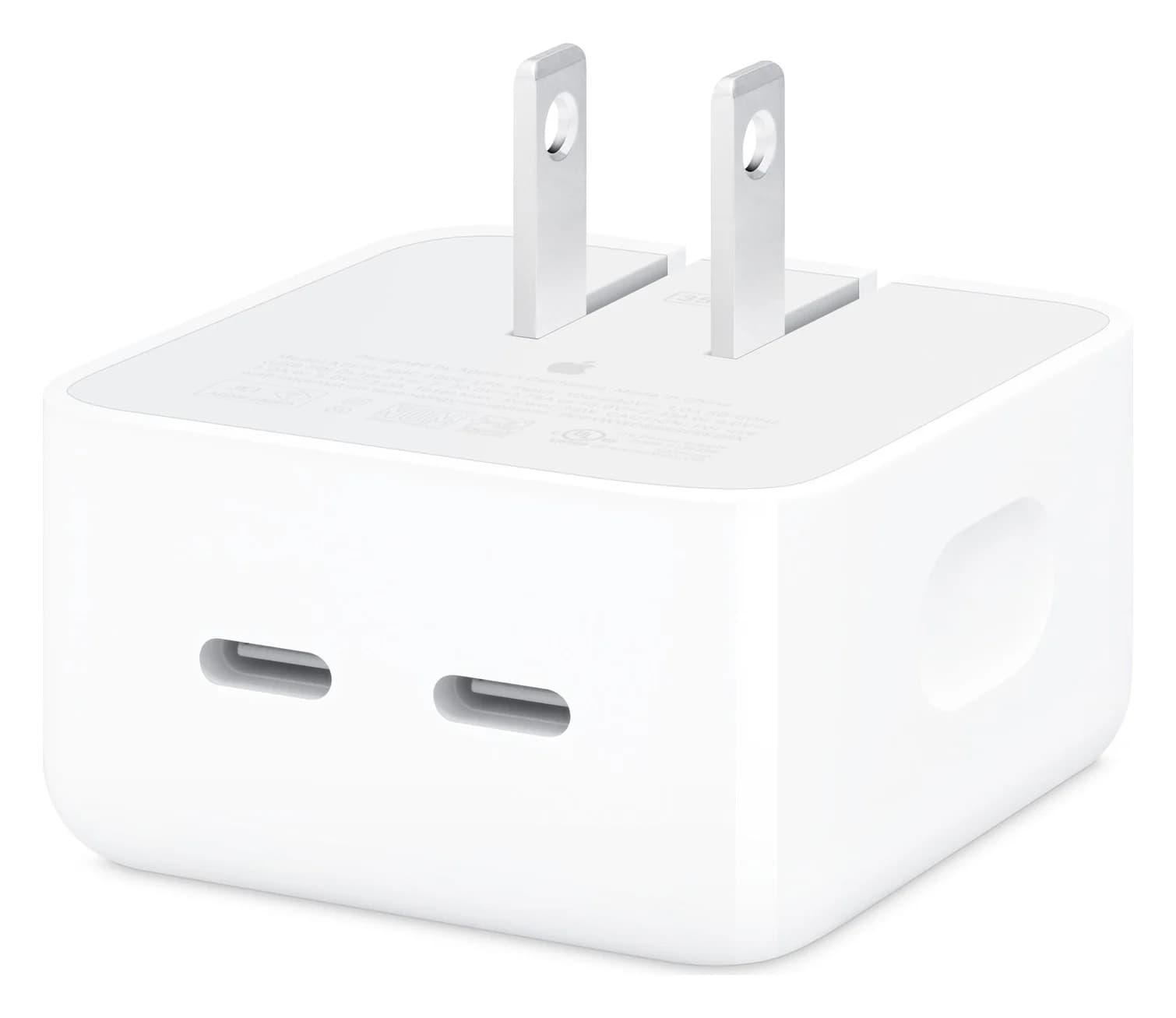
Best for a desk setupApple
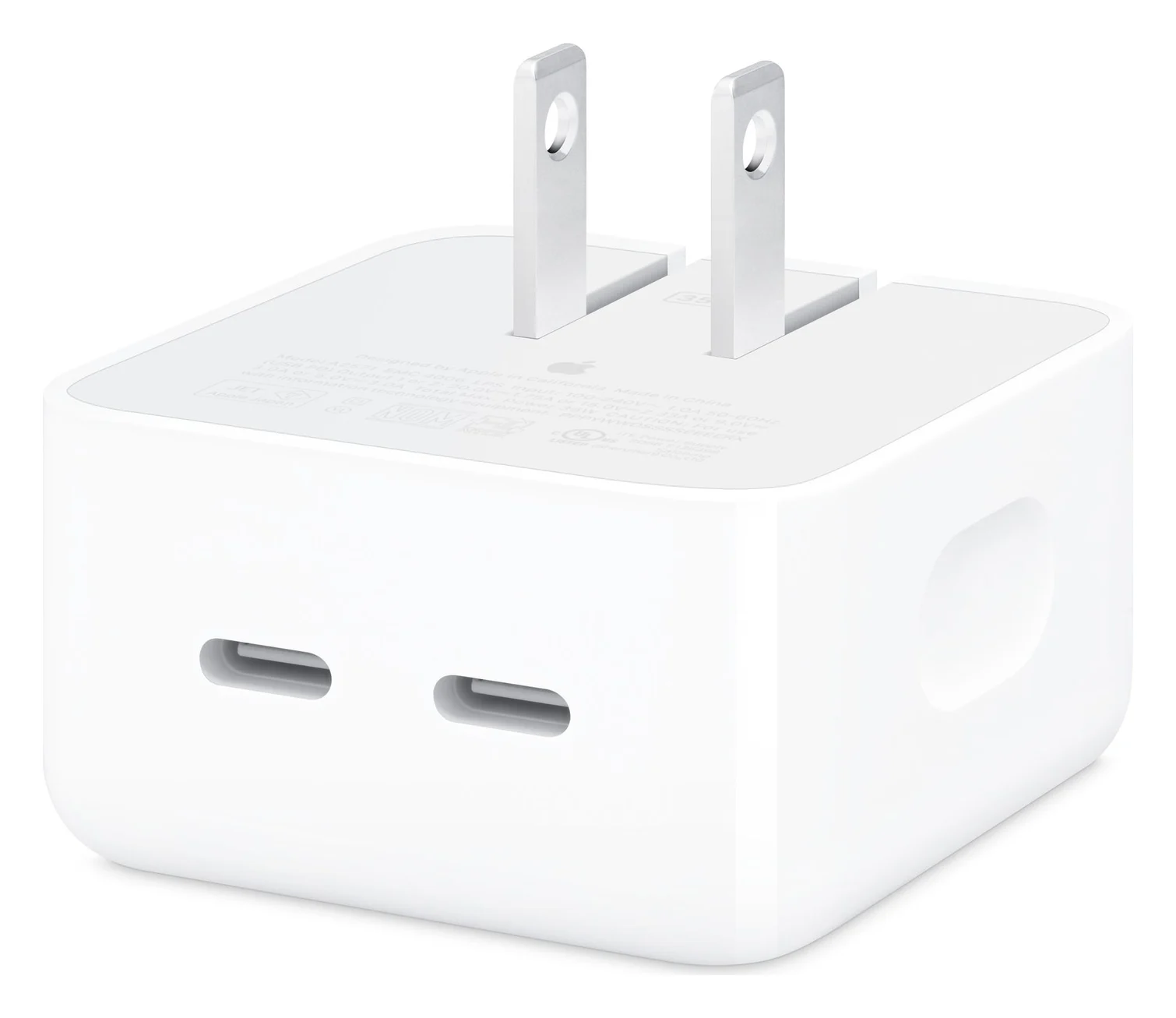
Apple 35W Dual USB-C Port Compact Power Adapter
- max output
- 35W
- ports
- 2
- Choose
- Two USB-C ports that share a 35W maximum: Apple says an iPhone gets up to 27.5W next to AirPods or an Apple Watch, or up to 17.5W next to an iPad.
- Limit
- 35W is shared: a MacBook Air gets up to 17.5W while an iPhone or iPad is also charging
This guide draws on Apple's support documents at support.apple.com. We haven't tested these steps on your device, and Apple's messages and settings vary slightly by iOS version and model.
- 7.5WWired chargers at or below this can make charging take longer than expected (Apple)
- 10 wattsWireless chargers below this can do the same (Apple)
- 25WMagSafe Charger peak on supported iPhones, with a 30W or greater adapter (Apple)
Quick diagnosis
| What you see | Most likely cause | Fix |
|---|---|---|
| Nothing happens when you plug in | Damaged cable, bad adapter, or dirty port | Swap the cable, try another outlet, clean the port |
| Slow Charger in Settings > Battery | Underpowered charger | Use the adapter Apple lists for your model (section 1) |
| Stuck at 80% | Optimized Battery Charging or Charge Limit | Normal; turn off the setting if you need full charge |
| "Accessory Not Supported" alert | Dirty port, wrong cable, or non-charging adapter | Clean port, use an Apple or certified cable |
| "Liquid detected in connector" alert | Moisture in the port | Don't plug in; let it dry |
| Charging paused at any level | Phone is too warm | Move to a cooler location |
| Still won't charge after all checks | Hardware fault | Apple service |
Plug into power
A wall outlet, a power accessory or a computer. If you use a computer, make sure it's on: Apple says a computer that's turned off can drain the battery instead of charging it.
Restart the iPhone
Apple lists a normal restart before the cable checks.
Check cable and adapter for damage
Look for breakage or bent prongs. Apple says not to use damaged accessories.
Check the connections at the wall
Use a wall outlet, make sure the cable, adapter and outlet are firmly connected, or try a different outlet.
Clear the charging port
Remove any debris from the port, then firmly plug the cable back in. Let it charge for half an hour.
Force-restart, then charge again
If it still won't turn on or shows a battery icon, force-restart (section 7) and charge for another half hour. Still nothing? Apple says you might need service.
1. Check the cable and adapter
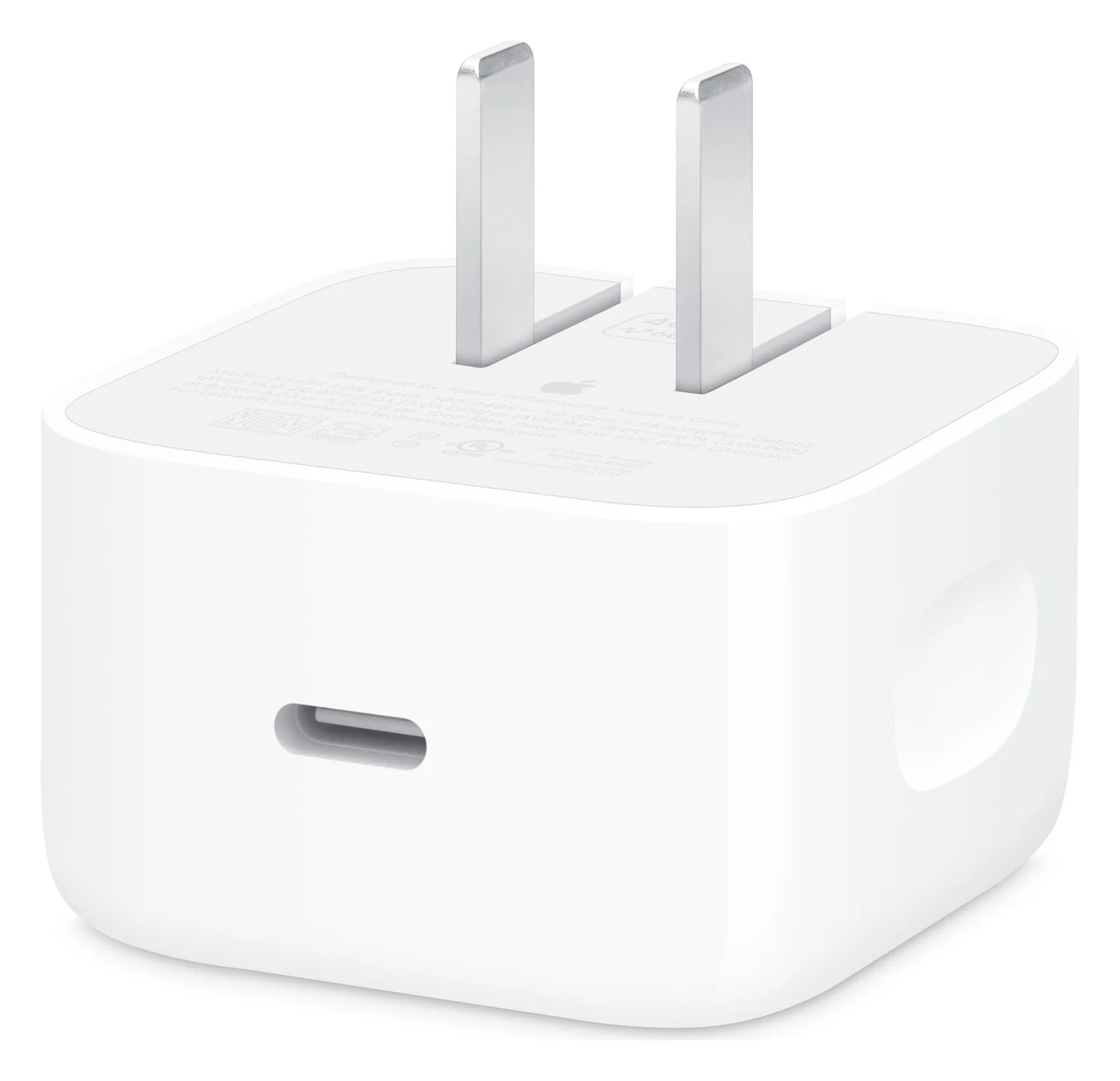
Apple says to check the cable for "signs of damage, like breakage or bent prongs" on the adapter, and not to use a damaged accessory.
Try a different cable first if you have one. For fast charging, Apple's fast-charge page asks for an Apple 18W or greater USB-C Power Adapter (or a comparable USB-PD adapter) on earlier iPhone models, a 40W adapter or higher on iPhone 17, 17 Pro and 17 Pro Max, and, on iPhone 18 Pro models and iPhone Duo, the Apple 40W Dynamic Power Adapter with 60W Max or a comparable 60W-capable adapter with Adjustable Voltage Supply (AVS). Use a USB-C cable with USB-C iPhones, or a USB-C to Lightning cable with earlier models. If you're unsure which to get, see our best iPhone charger guide and USB-C cables for iPhone 17. For an iPhone 14 or earlier, see our best USB-C to Lightning cables.
2. Clean the charging port the right way
Apple's step for the port is to "remove any debris from the charging port on the bottom of your device, then firmly plug your charging cable into your device." Apple's page doesn't name a tool for it.
What Apple says not to do, from its How to clean your iPhone page and general cleaning guide:
- "Don't use compressed air."
- "Avoid getting moisture in openings."
- Don't use cleaning products unless you're following Apple's disinfecting instructions, and don't use aerosol sprays, bleaches, or abrasives.
If the iPhone still won't charge after Apple's steps, Apple says you might need service (section 8).
For MagSafe: Apple notes the MagSafe Charger and Battery Pack "contain magnets that might attract debris during everyday use" — brush off the magnetic ring before cleaning with a cloth.
3. Check the settings that look like "not charging"
Some iPhone settings can make it look like something is broken when it's working exactly as designed.
Optimized Battery Charging (iOS 13 and later)
Since iOS 13, iPhone has learned your daily charging routine using on-device machine learning and held off finishing a full charge until you need the phone. When active, iPhone stops charging at 80% and completes the charge just before you pick it up. Apple says this is "active only when your iPhone predicts that it will be connected to a charger for a long period of time." The routine data stays only on your iPhone.
Fix: Turn it off in Settings > Battery > Optimized Battery Charging if you need a full charge now, then back on after.
Charge Limit on iPhone 15 and later
iPhone 15 and later add a Charge Limit that caps the maximum charge between 80% and 100% as a fixed rule, separate from the learned routine.
Fix: Change it in Settings > Battery > Charge Limit. Raise it or turn it off.
Temperature pause
Apple says charging "may pause temporarily while in extreme temperature conditions" and that software "might limit charging above 80 percent" when the battery gets too warm. Charging resumes once the temperature drops; Apple recommends a cooler location.
Fix: Do what Apple suggests: move your iPhone and charger to a cooler location, and let it cool.
4. Wireless charging (MagSafe and Qi2)
If the cable path is failing, wireless is a reliable fallback on iPhone 8 and later.
Apple's Charge the battery guide pairs a MagSafe Charger with an Apple 20W USB-C power adapter or other compatible adapter, or uses a Qi-certified charger. The MagSafe Charger page sets the adapter by model:
- Up to 25W peak (iPhone 18 Pro and 18 Pro Max, iPhone 17, 17 Pro and 17 Pro Max, iPhone 16 Plus and iPhone 16 Pro Max): a 30W or greater power adapter, rated 15V/2.0A or higher. iPhone 16 and 16 Pro reach 22.5W peak, and iPhone Air 20W.
- Up to 15W (iPhone 17e, and iPhone 15 and earlier): a 20W or greater USB-C power adapter.
- iPhone 16e has no MagSafe: Apple lists it as a non-MagSafe, Qi-compatible device, so power and charge times differ on a MagSafe Charger.
If your MagSafe Charger is slow or won't start, Apple's page gives these checks: plug the charger into power before you place the iPhone on it (if you did it the other way round, remove the iPhone, wait three seconds and put it back); keep the charger face up on a flat surface, clear of metal objects or other foreign material; and use an adapter that meets the ratings above. Apple says the charger still works from an adapter of at least 12W (5V/2.4A), but charging is slower. Its magnets can also attract debris, so brush off the magnetic ring.
For more options, see our best MagSafe charger guide.
5. "Accessory Not Supported or Certified" alert
This pop-up appears when the cable or charger isn't recognized as a genuine or compatible Apple accessory. Apple's troubleshooting steps for this are:
- Connect directly to the charger, without any adapters or splitters between the phone and the cable.
- Remove any debris from the charging port.
- Restart your iPhone.
- Try a different USB cable or charger.
- Make sure you have the latest version of iOS.
Apple's own list of causes for this alert: a dirty or damaged charging port, a defective cable or accessory, or a USB charger not designed to charge devices.
6. Liquid detected in the connector
On iPhone XS, XS Max, XR and later, iPhone can warn you if there's liquid in the Lightning or USB-C connector. Apple says charging and accessory connection are unavailable until the connector, cable ends and accessory are dry. The iPhone User Guide's warning is straightforward: "If you suspect there may be liquid in the charging port of iPhone, don't plug the charging cable into it."
Apple's liquid-detection steps:
Do: unplug the cable from the iPhone and from the adapter, tap the iPhone gently against your hand with the connector facing down, and leave it in a dry area with some airflow. After at least 30 minutes, try charging again; if the alert comes back, Apple says it might take up to 24 hours to fully dry. A wireless charger still works in the meantime, once the back of the iPhone is dry.
Don't: dry it with an external heat source or compressed air, insert a foreign object such as a cotton swab or a paper towel into the connector, or put it in a bag of rice. Apple's cleaning guide notes that liquid damage isn't covered under the Apple product warranty or AppleCare Protection Plans, but you may have rights under consumer law.
7. Force-restart, then charge
If the iPhone still won't turn on, or the screen shows a battery icon, after the port check and half an hour on the charger, Apple's next step is a force-restart. The exact buttons depend on your iPhone model.
| iPhone model | How to force-restart |
|---|---|
| iPhone 8 or later, iPhone SE (2nd gen and later) | Volume up, volume down, then hold side button until Apple logo |
| iPhone 7 and 7 Plus | Hold side button and volume down until Apple logo |
| iPhone 6s and earlier, iPhone SE (1st gen) | Hold side or top button and Home button until Apple logo |
After the restart, Apple says to let the iPhone charge for another half hour.
8. When it needs service
If you've worked through cable, adapter, port cleaning, the settings, wireless and a force-restart and iPhone still won't charge or turn on, Apple says "you might need service."
Apple's Get support page and an Apple Authorized Service Provider can diagnose whether it's the battery, the port or the charging circuit. For context, Apple says its lithium-ion batteries retain about 80% of original capacity for a high number of charge cycles.
For more on what charger each iPhone model needs, see our compare iPhone models guide and Apple USB-C power adapter versions. If it's a laptop that won't charge, our USB-C laptop not charging guide is the equivalent checklist.
The fixes, when the fix is hardware
For fast wired charging anywhere.
Apple
Apple 40W Dynamic Power Adapter with 60W Max
Apple's single-port USB-C wall charger, rated 40W continuous, that can dynamically deliver up to 60W and supports Adjustable Voltage Supply (AVS).
- 40W max output
- 1 port
Apple's fast-charge page names this adapter for iPhone 18 Pro models and iPhone Duo, and at 40W it also meets the 40W adapter Apple asks for on iPhone 17, 17 Pro and 17 Pro Max and the 18W on earlier iPhones (section 1). Apple rates it at 40W continuous and up to 60W maximum, and it supports Adjustable Voltage Supply (AVS), which Apple's footnote ties to the iPhone 18 Pro's fastest charge. Apple's quoted speeds need a 60W-capable USB-C cable, and the adapter comes without one. Check price on Amazon.
For wireless charging on any iPhone 8 or later.
Apple
Apple MagSafe Charger (1 m, Qi2 25W, 2025)
Apple's magnetic wireless charging puck with an integrated 1 m USB-C cable, certified for Qi2 25W and rated up to 25W on supported iPhones when paired with a 30W or greater adapter.
- 25W max output
Apple's own MagSafe Charger is certified for Qi2 25W and Qi charging, so Apple says it can wirelessly charge iPhone 8 or later. Its top speed, up to 25W peak, is the highest wireless speed Apple specifies for iPhone, but it needs a 30W or greater adapter and a supported model (see the list in section 4); Qi-only iPhones get up to 7.5W. It's a flat puck on a 1 m cable, not a stand, and the power adapter is sold separately. Check price on Amazon.
For a dual-charger desk setup.
Apple
Apple 35W Dual USB-C Port Compact Power Adapter
Apple's compact two-port USB-C wall charger that shares 35W between two devices, with folding prongs.
- 35W max output
- 2 ports
Apple's 35W Dual USB-C Port Compact Power Adapter charges two devices at once, but 35W is the most it can deliver in total, not per port. Apple's power-sharing figures: an iPhone and an iPad get up to 17.5W each, and an iPhone with AirPods or an Apple Watch gets up to 27.5W while the other gets up to 7.5W. If your iPhone charges slowly on it, Apple's first suggestion is to charge a single device so it gets the most power the adapter can give. Check price on Amazon.
How we put this together
This guide draws on Apple's official support documents, each linked where it's used: the If your iPhone won't charge troubleshooting page (updated November 2026), the Charge the battery section of the iPhone User Guide (iOS 27), the Restart an unresponsive iPhone guide, and Apple's cleaning, liquid-detection, fast-charge, MagSafe Charger and power adapter articles. Settings and messages vary by iOS version and model.
Verdict
Run the cable-and-adapter check, then the port, then the settings. If iPhone stops at 80%, it's usually Optimized Battery Charging, Charge Limit or heat doing its job — turn it off if you need a full charge. A MagSafe or Qi2 pad is a reliable wireless workaround when the port itself is the problem. When none of this resolves it, Apple service is the answer.
Frequently asked questions
Why is my iPhone not charging at all?
Start with the three things most likely to blame: the cable, the adapter and the port. Swap each in turn, testing after each. Apple says to check the cable and adapter for visible damage like breakage or bent prongs, and not to use a damaged accessory. Apple also says to restart the iPhone, and to remove any debris from the charging port, then firmly plug the cable in.
Why is my iPhone stuck at 80% and not charging past it?
Two settings can hold a charge at 80% on purpose. Optimized Battery Charging, active since iOS 13, learns your routine and waits to finish charging past 80% until you need the phone. Charge Limit on iPhone 15 and later sets a fixed ceiling between 80% and 100%. A third cause is temperature: Apple says software may limit charging above 80% when the battery is too warm, and charging resumes when it cools.
How do I clean the iPhone charging port safely?
Apple's step is short: remove any debris from the charging port on the bottom of the iPhone, then firmly plug your charging cable in. Apple doesn't name a tool for it. Its How to clean your iPhone page adds the limits: avoid getting moisture in openings, don't use cleaning products unless you're following Apple's disinfecting instructions, and don't use compressed air. If it still won't charge after Apple's steps, Apple says you might need service.
Why does my iPhone say 'Accessory Not Supported' when I plug in a charger?
Apple's steps for this alert are: connect directly without any adapters in the path, clean the port, restart the iPhone, then try a different cable and charger, and update iOS. Causes include a dirty or damaged port, a defective cable or charger, or a charger not designed to charge devices.
What does the liquid-detected alert mean?
Your iPhone has detected liquid in the Lightning or USB-C connector, or on the cable or accessory, and charging stays unavailable until they're dry. Apple says to unplug the cable, tap the iPhone gently against your hand with the connector facing down, and leave it in a dry area with some airflow. Try again after at least 30 minutes; it can take up to 24 hours. Don't use a heat source, compressed air or rice.
Why is my iPhone warm and why did charging stop?
iPhone pauses charging if it gets too warm and resumes when it cools. Apple recommends moving the phone and charger to a cooler location. A stop at 80% can also be Optimized Battery Charging doing its job — neither is a fault.
Why is my iPhone charging so slowly?
If you see the Slow Charger message in Settings > Battery, the charger isn't delivering optimal power. Apple says charging might take longer than expected with a wired charger that provides 7.5 watts or less, or a wireless charger under 10 watts. For full speed, use the adapter Apple's fast-charge page lists for your model: an Apple 18W or greater USB-C adapter on earlier iPhones, 20W or higher on iPhone 17e and iPhone Air, 40W or higher on iPhone 17, 17 Pro and 17 Pro Max, and the 40W Dynamic Power Adapter or a comparable 60W-capable AVS adapter on iPhone 18 Pro models and iPhone Duo.
When should I contact Apple about a charging problem?
Work through the checks first: different outlet, different cable, clean the port, force-restart, then charge for 30 minutes. Apple says if the iPhone still won't turn on or charge, you might need service from Apple or an Apple Authorized Service Provider.
Related guides
USB-C Charging Requirements by Device: What Apple, Samsung and Nintendo State
The charger wattage Apple, Samsung and Nintendo state for each iPhone, iPad, MacBook, Galaxy phone and the Switch 2, with a link to the maker's own page for every figure.
Updated November 23, 2026Read
Which iPhones Have Wireless Charging? Every Model, and Qi vs MagSafe vs Qi2
Every iPhone from the iPhone 8 on charges wirelessly. iPhone 12 and later add MagSafe (except the 16e). Each model's top wireless speed, from Apple's own pages.
Updated November 25, 2026Read
Best Chromebook Chargers in 2026: 45W and 65W USB-C Picks
Most USB-C Chromebooks charge on a 45W USB-C Power Delivery charger; 65W covers models that shipped with a 65W adapter. Five picks matched to the adapter in your box.
Updated November 23, 2026Read