Black Friday: the specs to check before you buy
Explainer
Updated November 5, 2026Mac USB Multiport Adapter: Apple A2119 vs A1621
Short answer
For an Apple Mac USB multiport adapter, our new-purchase pick is the USB-C Digital AV Multiport Adapter A2119: it reaches 3840 x 2160 (4K) at 60Hz on the hosts Apple specifies. Keep an A1621 if its 4K at 30Hz or 1080p at 60Hz output already meets your needs; do not buy it expecting A2119’s highest display mode. Both belong to Apple’s HDMI, USB-A and USB-C charging family, whose ports Apple says can work simultaneously.
- 60HzA2119 maximum at 4K on Apple’s specified hosts
- 30HzA1621 maximum at 4K
Quick picks
| Your situation | Choose | Complete usable kit / next step |
|---|---|---|
| Buying a new Apple adapter for a supported HDMI display | A2119 — best Apple revision | Adapter + HDMI cable; add your USB-C charger and charging cable to charge the Mac. Check Apple’s current package. |
| Already own A1621 and need 1080p at 60Hz or 4K at 30Hz | Keep A1621 | Check the model marking before spending on a replacement. |
| Need card readers or USB-C data ports | Choose a larger hub | Use our MacBook hub guide; see the UGREEN alternative below. |
A1621 vs A2119: the revision comparison
| What changes | A2119 | A1621 |
|---|---|---|
| Highest documented HDMI mode | 3840 x 2160 at 60Hz, host dependent | 3840 x 2160 at 30Hz |
| Lower-resolution mode | Up to 1080p at 60Hz | Up to 1080p at 60Hz |
| Mac software for listed modes | macOS Mojave 10.14.6 or later | macOS Sierra 10.12 or later |
| Apple’s listed iOS minimum | iOS 12.4 or later | iOS 12 or later |
| Downstream connections | HDMI + USB-A + USB-C charging | HDMI + USB-A + USB-C charging |
| USB data / charging rating | USB-A devices supported; no numerical data-speed or pass-through-wattage rating in Apple’s published pages | USB-A devices supported; no numerical data-speed or pass-through-wattage rating in Apple’s published pages |
| System Information Product Identifier | 0x1463 | 0x1460 |
The display modes and identifiers above come from Apple’s adapter support page. The higher refresh rate is the reason to choose A2119; Apple’s published pages do not establish a faster USB data port or higher charging ceiling for it.
Best Apple revision to buy: A2119
Choose A2119 when you want Apple’s adapter for an HDMI display, a USB-A peripheral and charging through the same Mac connection. Apple calls it the newest hardware model and lists its higher display mode with macOS Mojave 10.14.6 or later.
For a MacBook Air introduced in 2020 or later, or a 14-inch MacBook Pro introduced in 2021 or later, Apple’s support matrix lists 4K at 60Hz. The same adapter is limited to 4K at 30Hz on other listed hosts, including the USB-C MacBook introduced in 2015 or later. Match your exact Mac to the table below before ordering; the word “4K” in an offer is insufficient for this decision.
Apple’s current US family package is MW5M3AM/A, while the support document identifies the hardware as A2119. These are different identifiers: verify A2119 on the actual unit or box rather than treating a storefront title as proof of revision.
Check Apple’s current Digital AV Multiport Adapter package
A1621: keep for a suitable existing setup
A1621 remains useful for a setup that needs up to 1080p at 60Hz or 4K at 30Hz, the modes Apple documents for it. Our advice is to keep a working one that meets those requirements; it is not our new-purchase pick.
Its listed software minimum is macOS Sierra 10.12 or iOS 12, earlier than A2119’s Mojave 10.14.6 or iOS 12.4. If you must retain older software, use those documented requirements rather than assuming that the newer adapter is qualified for it.
Apple’s support page documents A1621 but names A2119 as the newest model. That establishes the revision difference, not current A1621 stock, condition or package contents. For an older offer, require a readable model photograph and an explicit contents list; skip it if the seller cannot identify what will arrive.
How we choose
This is a comparison of manufacturer specifications and support instructions, without a physical product evaluation. We prioritize the marked hardware revision, an explicit host/display match and a complete connection kit. We preserve conflicts between Apple’s own pages and leave unsupported speed and wattage figures unspecified. A1621 is here to identify older adapters; A2119 is our Apple purchase recommendation.
Buying guide: match the Mac, model and complete kit
Which Macs get A2119’s higher display mode?
Apple’s support matrix separates Macs by display mode; this table also includes lower-rate entries from the store overview. Read the specific Pro exceptions before the broader older-model wording.
| Mac group named by Apple | A2119 display mode / qualification |
|---|---|
| MacBook Air introduced in 2020 or later | 4K at 60Hz in the support matrix; store wording overlaps |
| 14-inch MacBook Pro introduced in 2021 or later | 4K at 60Hz |
| 16-inch MacBook Pro introduced in 2019 or later; 15-inch introduced in 2017 or later | 4K at 60Hz |
| 13-inch MacBook Pro with Apple silicon introduced in 2020 or later; 13-inch Pro (2020, four Thunderbolt 3 ports) | 4K at 60Hz; these are the specific exceptions to the broader 13-inch wording |
| Other 13-inch MacBook Pro entries from 2016 onward; MacBook introduced in 2015 or later | 4K at 30Hz; the store also puts the 2016 15-inch Pro and 2018–2019 Air in this group |
| Retina iMac introduced in 2017 or later; iMac Pro; Mac Studio introduced in 2022 or later; Mac Pro introduced in 2019 or later | 4K at 60Hz |
| Mac mini introduced in 2018 or later | 4K at 60Hz in support; the store puts the 2018 mini at 30Hz — unresolved conflict |
The non-Retina 21.5-inch iMac from 2017 is in the store’s 4K-at-30Hz group. For MacBook Neo, the current store lists compatibility, but Apple’s adapter support matrix has no named refresh-rate entry. Confirm the required mode for a host absent from that matrix instead of extrapolating from a compatible-products list.
Identify the hardware before comparing offers
Apple prints the model on the retail box and the adapter’s side near the ports. On a connected Mac, System Information’s USB section provides another check: A2119 is 0x1463, and A1621 is 0x1460.
Read the marking
Look for A2119 or A1621 beside the ports or on the retail box.
Check a connected adapter
Open the USB section of System Information: 0x1463 identifies A2119; 0x1460 identifies A1621.
Match the offer
Request the marked model and contents of the unit you will receive.
Retail part numbers: current, regional and historical
Keep the hardware-code check separate from the retail-code check. Apple’s current US and UK storefronts use different part numbers for this product family.
| Retail reference | Official evidence | How to use it |
|---|---|---|
| MW5M3AM/A | Current US Apple store package | Use as the US retail reference; verify the marked hardware. |
| MW5M3ZM/A | Current UK Apple store package | Match the destination region and exact contents. |
| MUF82AM/A | Digital AV adapter in Apple’s 2023 institutional list | Historical family reference; require the model marking. |
| MJ1K2AM/A | Digital AV adapter in Apple’s 2018 institutional list | Historical family reference; require the model marking. |
The historical references come from Apple’s 2023 list and 2018 list. Those rows name the product family without an A-series hardware code; they do not prove a particular older offer’s revision or current availability. Do not infer a new hardware generation from a changed retail code alone.
HDMI, USB data and charging: account for each connection
Apple’s box-contents section lists the adapter alone, and the required HDMI cable is sold separately. HDMI carries video and audio. For a usable charging setup, account for your existing power adapter and charging cable as well as the display cable.
Apple describes the standard USB port for flash drives, cameras, and cables that sync or charge iOS devices. It describes the adapter’s USB-C socket for a charging cable. Treat that socket as the power connection when planning your kit; do not count it as an extra USB-C SSD or monitor connection. If USB-C data is essential, choose a hub that explicitly specifies it.
Apple’s published pages do not publish a numerical USB data-speed rating or pass-through-wattage ceiling for this family. We therefore leave both unspecified rather than borrowing a rating from another Apple adapter. Apple recommends a power source providing at least the wattage recommended for your Mac for the best charging experience. To check what the connected setup provides, hold Option while opening Apple menu > System Information, then select Power and read AC Charger Information.
Setup checks before blaming the revision
Apple advises connecting all cables to the adapter before plugging it into the Mac or iPad if you have connection problems. Its support page says video should appear within 10 seconds. On the Mac, open System Settings > Displays to inspect the resolution and refresh rate. Check the host row as well as the adapter marking if your desired mode is unavailable.
Apple also warns against disconnecting this adapter from AC power while transferring data because of possible data loss or corruption. Finish the transfer before changing the power connection.
Compare whole kits when an offer looks attractive
Compare the same marked revision, retail region, condition and included equipment before choosing an offer. Apple’s standard package lists only the adapter, so include any HDMI cable and charging equipment you still need in your buying decision. A bundle earns preference only when you need its extras and can verify their specifications. Save the exact model and contents before checkout, then check the delivered marking while a return remains possible.
When a larger hub is the better purchase
Apple’s family provides HDMI, USB-A and a USB-C charging port. If your shopping list includes card readers or USB-C storage, use the broader MacBook hub comparison. Our HDMI hub guide covers the wider display-oriented choice.
UGREEN
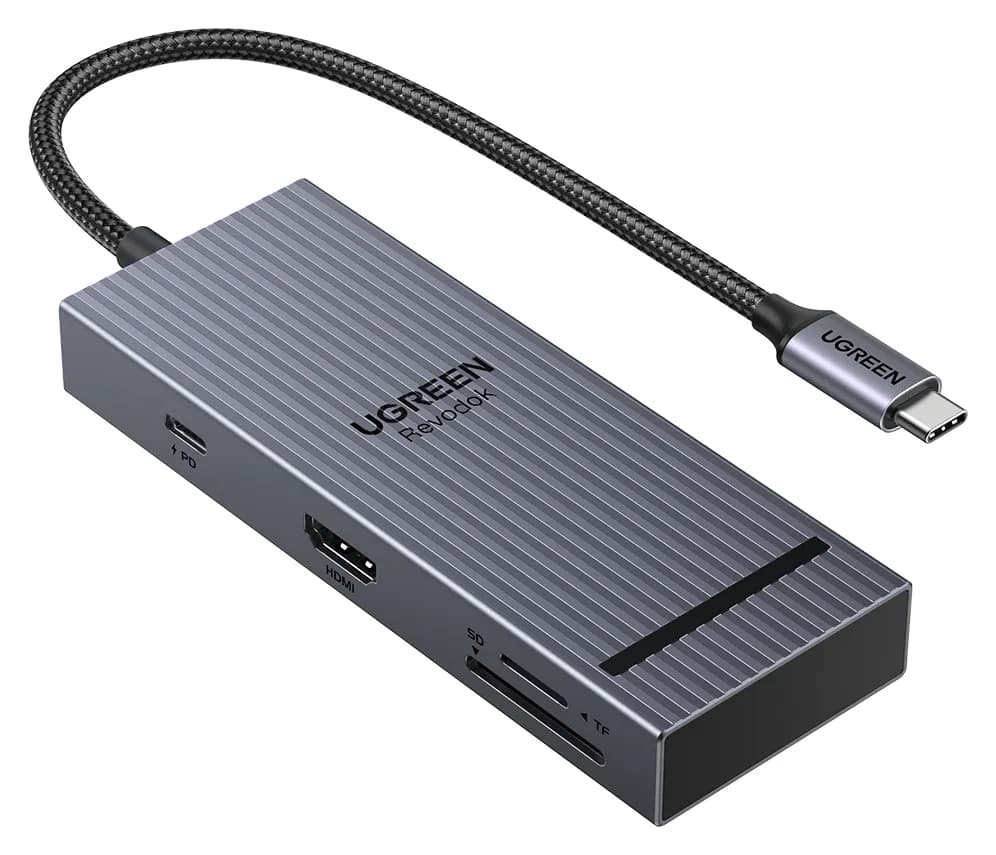
UGREEN Revodok Pro 108 USB-C Hub (8-in-1)
A compact single-cable 8-in-1 USB-C hub with 4K@60Hz HDMI, 10Gbps USB ports, 170MB/s SD and microSD readers and 100W PD input.
- 85W PD passthrough
- 10 Gbps data
- 4K60 video
- 8 ports
The UGREEN Revodok Pro 108, model 75027, is the alternative to consider for extra ports: its maker lists SD/microSD readers and USB-C data ports. Its 4K-at-60Hz HDMI mode requires a DisplayPort 1.4 Alt Mode host; its USB-C data ports support data only. Check that requirement rather than assuming another hub removes your host’s limits.
Check price on Amazon for the UGREEN Revodok Pro 108
Verdict
Buy A2119 for a new Apple Digital AV setup after matching the Mac and monitor to Apple’s documented display modes. Keep A1621 when its 4K-at-30Hz or 1080p-at-60Hz output is sufficient. Verify the hardware marking, match the retail package and account for the cables and power source before comparing offers. Move to the MacBook hub guide if you need more connections.
Frequently asked questions
What is the difference between Apple A1621 and A2119?
A2119 adds up to 4K at 60Hz on the hosts Apple names; A1621 is limited to 4K at 30Hz. Both support up to 1080p at 60Hz. Apple prints the model code on the box and beside the ports. Buy A2119 for a new setup, but check the host matrix before expecting its highest refresh rate.
How do I identify my Apple USB-C Digital AV Multiport Adapter?
Read the model number on the retail box or the side of the adapter near its ports. If it is already connected to a Mac, open System Information and inspect the USB section: A2119 has Product Identifier 0x1463; A1621 has 0x1460. For an older offer, request a photograph of that marking before ordering.
Does every MacBook get 4K at 60Hz through A2119?
No: Apple lists different modes for different hosts. Its support page names MacBook Air from 2020 onward, 14-inch MacBook Pro from 2021 onward, and specific other Pro models for 4K at 60Hz. The store overview has overlapping older entries for Air and 13-inch Pro, so check this guide’s detailed matrix and documented conflicts before buying for a particular mode.
Can I charge my Mac while using HDMI and USB?
Yes: Apple says the HDMI, USB-A and USB-C charging ports can operate simultaneously. Connect your charging cable to the adapter’s USB-C port. Apple’s product and adapter-support pages do not specify a pass-through wattage, so this guide does not promise the full output of your wall charger through it. Check AC Charger Information under Power in System Information for the connected wattage.
Will this Apple multiport adapter work with an iPad?
Apple lists iPad support, but the display mode depends on the iPad. Its iPad page lists up to 4K at 60Hz for iPad Pro and several newer models, and up to 4K at 30Hz for iPad Air (4th generation), iPad mini (6th generation) and iPad (10th generation). It also says Home Screen and apps appear at 1080p and 60Hz, with video switching to match content.
Related guides
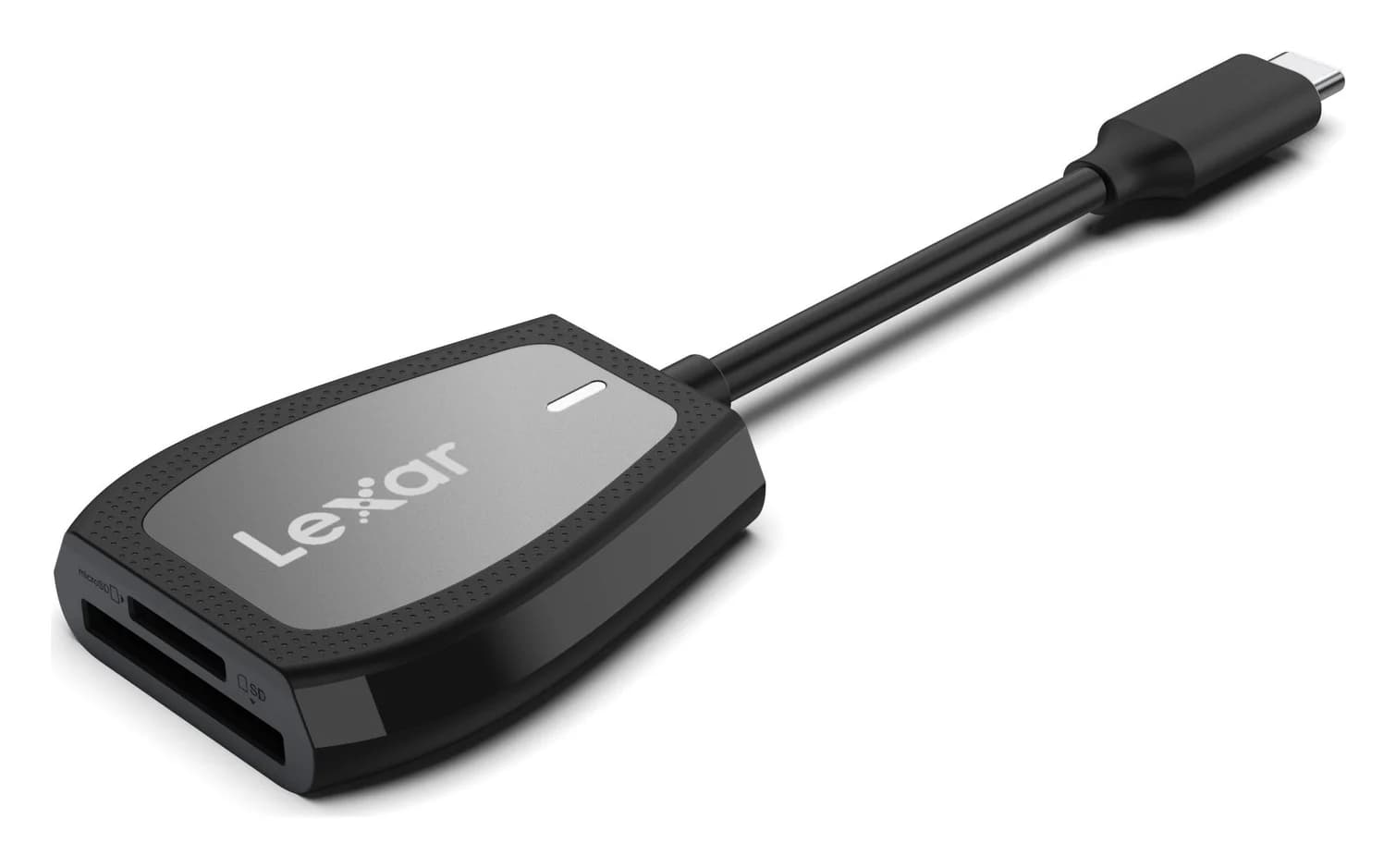
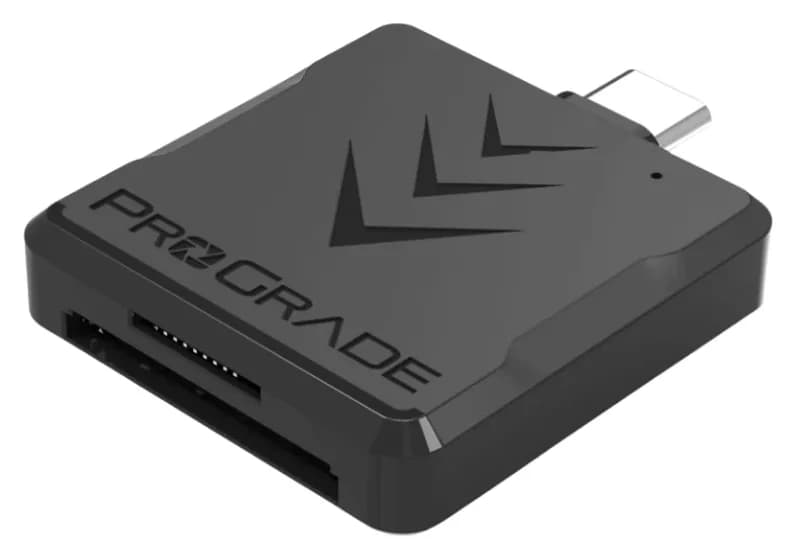
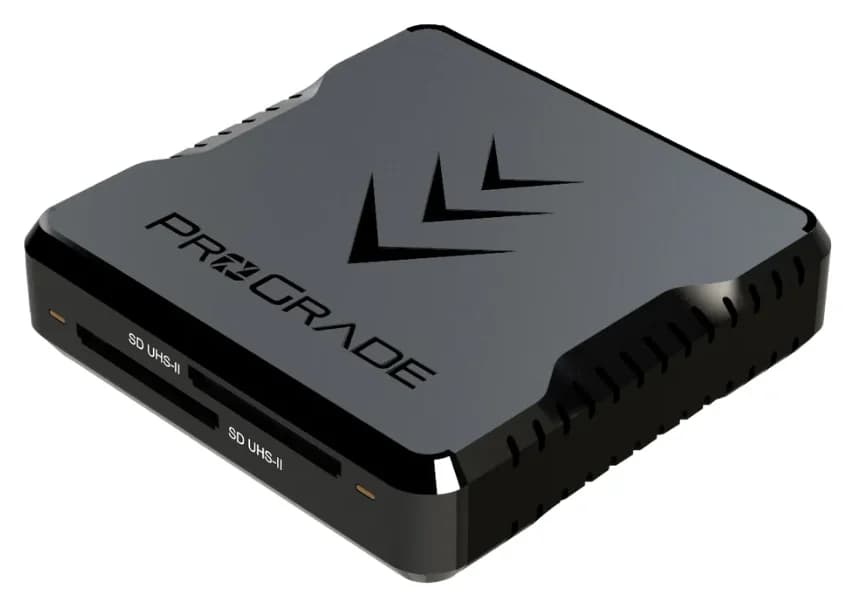
Best SD Card Readers in 2026: USB-C Picks for Every Workflow
The SD card readers worth buying, from makers' spec sheets: UHS-II dual-slot picks from Lexar and ProGrade, Apple's USB-C reader, and an Anker hub that reads cards too.
Updated November 7, 2026Read
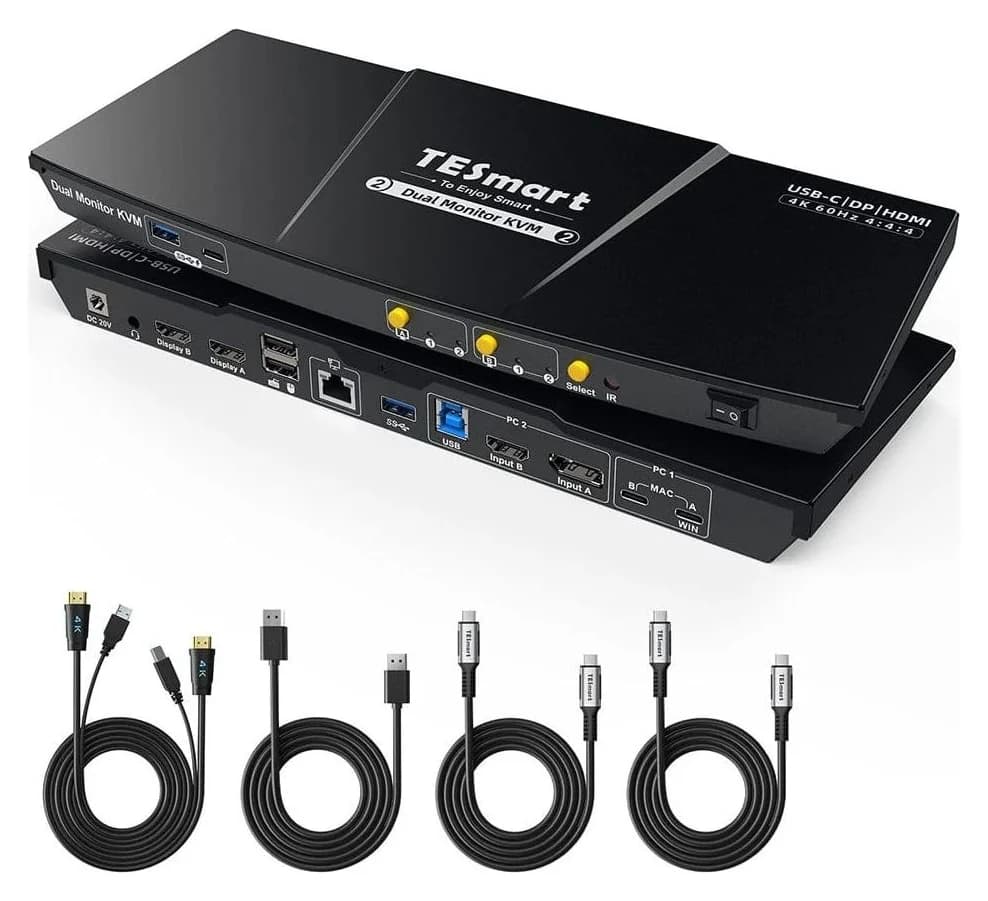
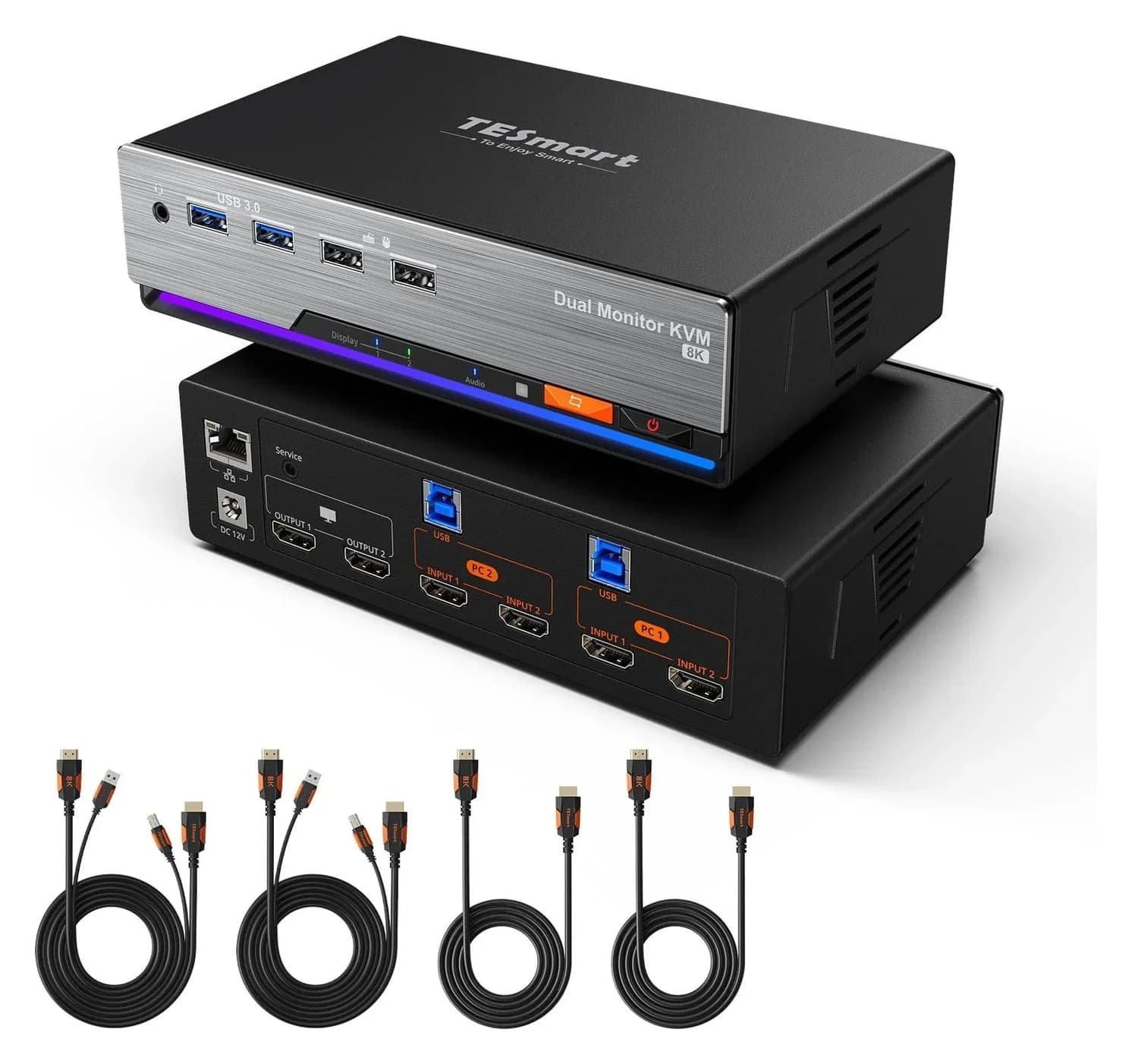
Best KVM Switches: Two Computers, One Keyboard, Mouse and Monitor Set
Pick the right KVM switch for two PCs, laptops, dual monitors, gaming or USB-only sharing. Compare HDMI, DisplayPort and USB-C models, docks and Mac limits.
Updated November 7, 2026Read
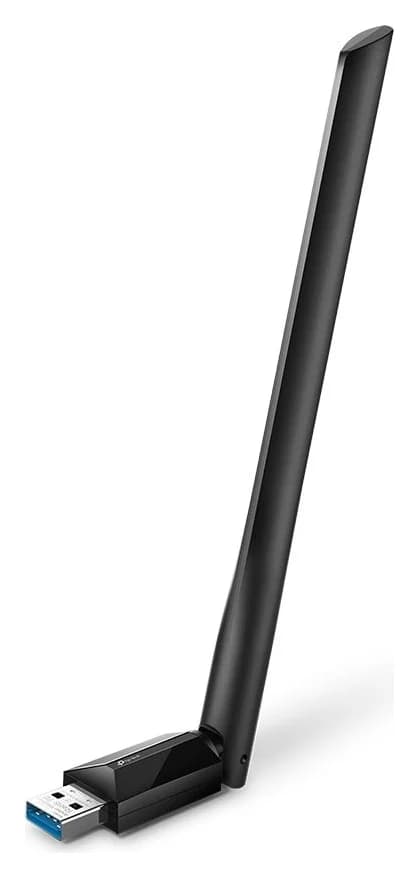
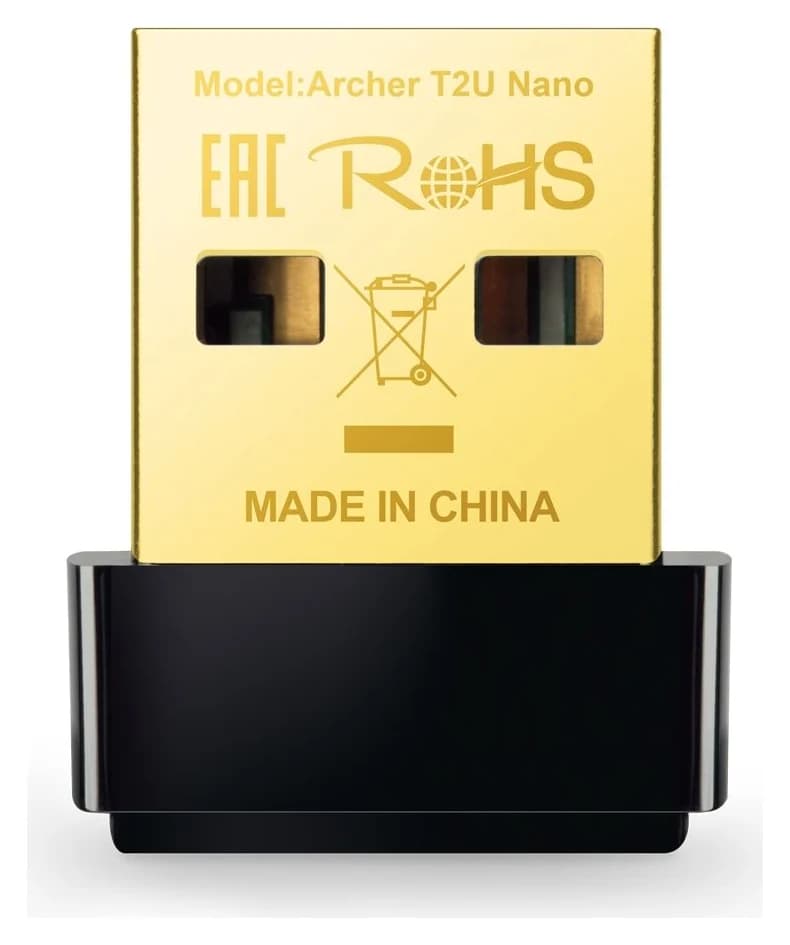
The Best USB Wi-Fi Adapters for Mac (The macOS Compatibility Truth)
Which USB Wi-Fi adapters actually support a Mac? The verified models, the macOS version limits, the USB-C problem on modern Macs, and the Ethernet workaround.
Updated November 10, 2026Read