Black Friday: the specs to check before you buy
Comparison
Updated November 4, 2026ASUS MB169CK vs Lenovo M14t Gen 2: Is Touch Worth It?
Short answer
Choose the ASUS ZenScreen MB169CK for a straightforward second screen: its 15.6-inch 1080p panel and mini HDMI input suit keyboard-and-mouse work. Choose the Lenovo ThinkVision M14t Gen 2 for supported touch workflows or laptop charging through the monitor: it has a 14-inch 2240 x 1400 touchscreen and up to 65W power pass-through. The catch is the pen: Lenovo's included passive stylus is different from its separately sold active stylus.
Our picks at a glance
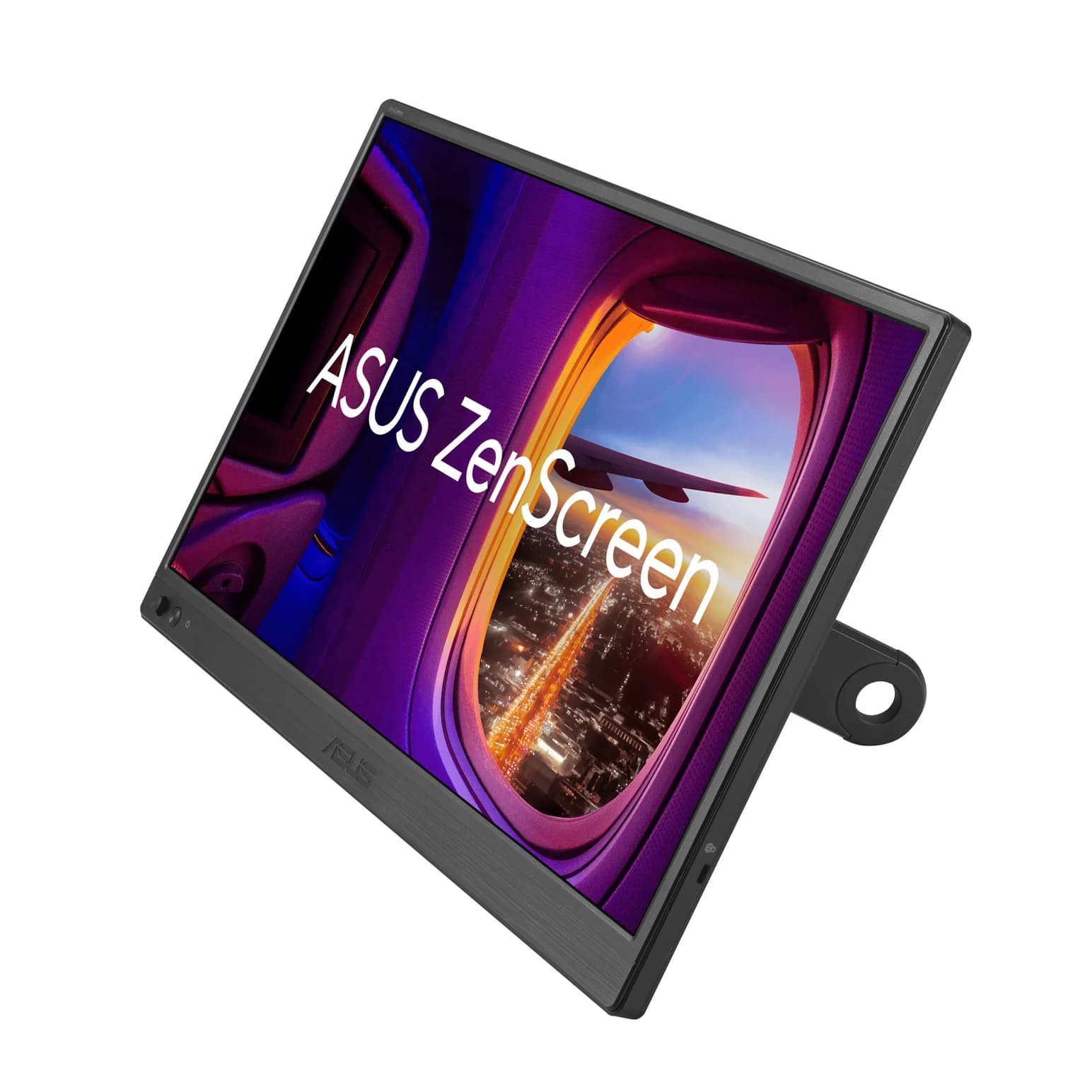
Best for a simple second screenASUS
ASUS ZenScreen MB169CK Portable USB-C Monitor (15.6-inch, 1080p)
- ports
- 3
- host link
- USB-C
- Choose
- A 15.6-inch 1920 x 1080 display with single-cable USB-C operation and a mini HDMI alternative for laptops without USB-C video.
- Limit
- 1080p at 60Hz with 250 nits: fine indoors, dim near a bright window
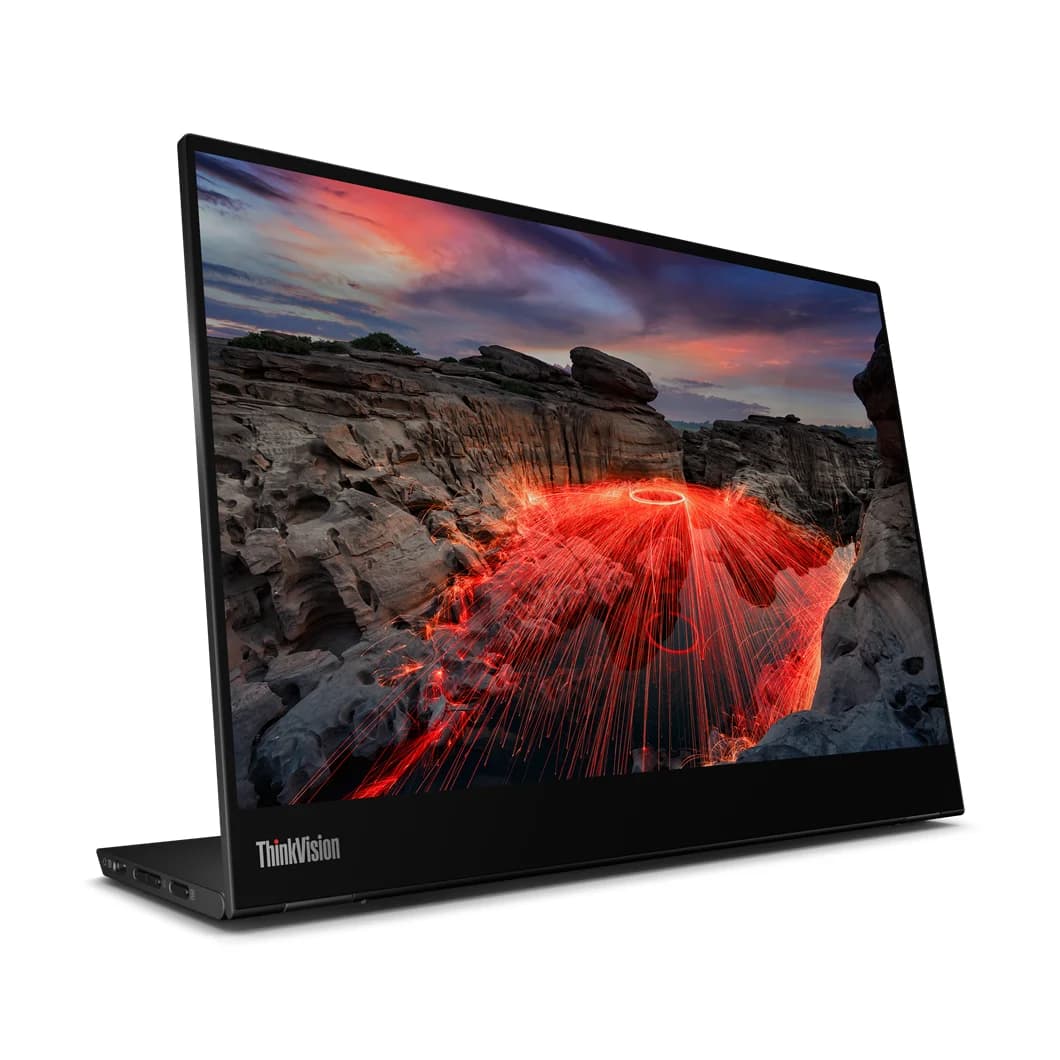
Best for supported touch workflowsLenovo
Lenovo ThinkVision M14t Gen 2 Portable Touch Monitor (14-inch, 2.2K)
- to laptop
- 65W
- ports
- 2
- host link
- USB-C
- Choose
- A 14-inch 2240 x 1400 touchscreen with up to 65W laptop power pass-through; the included passive pen differs from the separately sold active stylus.
- Limit
- 60Hz only, so not a gaming pick
Quick picks
- Email, reference documents and an HDMI-only laptop: our pick is the ASUS. Buy for the larger display and its alternative video input.
- Windows annotation, touch navigation or charging through the screen: choose the Lenovo if these features justify its complete-kit premium at checkout.
- Mac drawing: do not choose Lenovo on that promise; its user guide does not document macOS touch support.
Both are IPS displays with LED backlights. Searching for a “portable LED monitor” does not distinguish their most useful differences: input support, readable workspace and power routing do.
ASUS MB169CK vs Lenovo M14t Gen 2: the comparison
| Feature | ASUS ZenScreen MB169CK | Lenovo ThinkVision M14t Gen 2 |
|---|---|---|
| Panel | 15.6-inch IPS, anti-glare | 14-inch IPS |
| Native resolution and shape | 1920 x 1080, 16:9 | 2240 x 1400, 16:10 |
| Maximum refresh rate | 60Hz | 60Hz |
| Touch and pen | No touch or pen features specified | 10-point touch; passive pen listed in box; active stylus sold separately |
| USB-C video inputs | Two, DisplayPort Alt Mode | Two, DisplayPort 1.2 Alt Mode; USB 2.0 data |
| HDMI input | Mini HDMI | None listed |
| Laptop charging through monitor | No pass-through rating published | Up to 65W; conditions below |
| Brightness | 250 cd/m² typical | PSREF: 300 cd/m² panel, 270 cd/m² set |
| Stand | Detachable 360° kickstand, rear tripod socket | Integrated stand; 0–90° tilt, ±90° pivot, 11mm lift |
| Published monitor weight | 0.78kg without stand | 0.7kg unpacked |
Sources: ASUS specifications, Lenovo PSREF and Lenovo's datasheet. Weight figures have different stated bases; neither is a weighed travel kit.
Best for a simple second screen: ASUS ZenScreen MB169CK
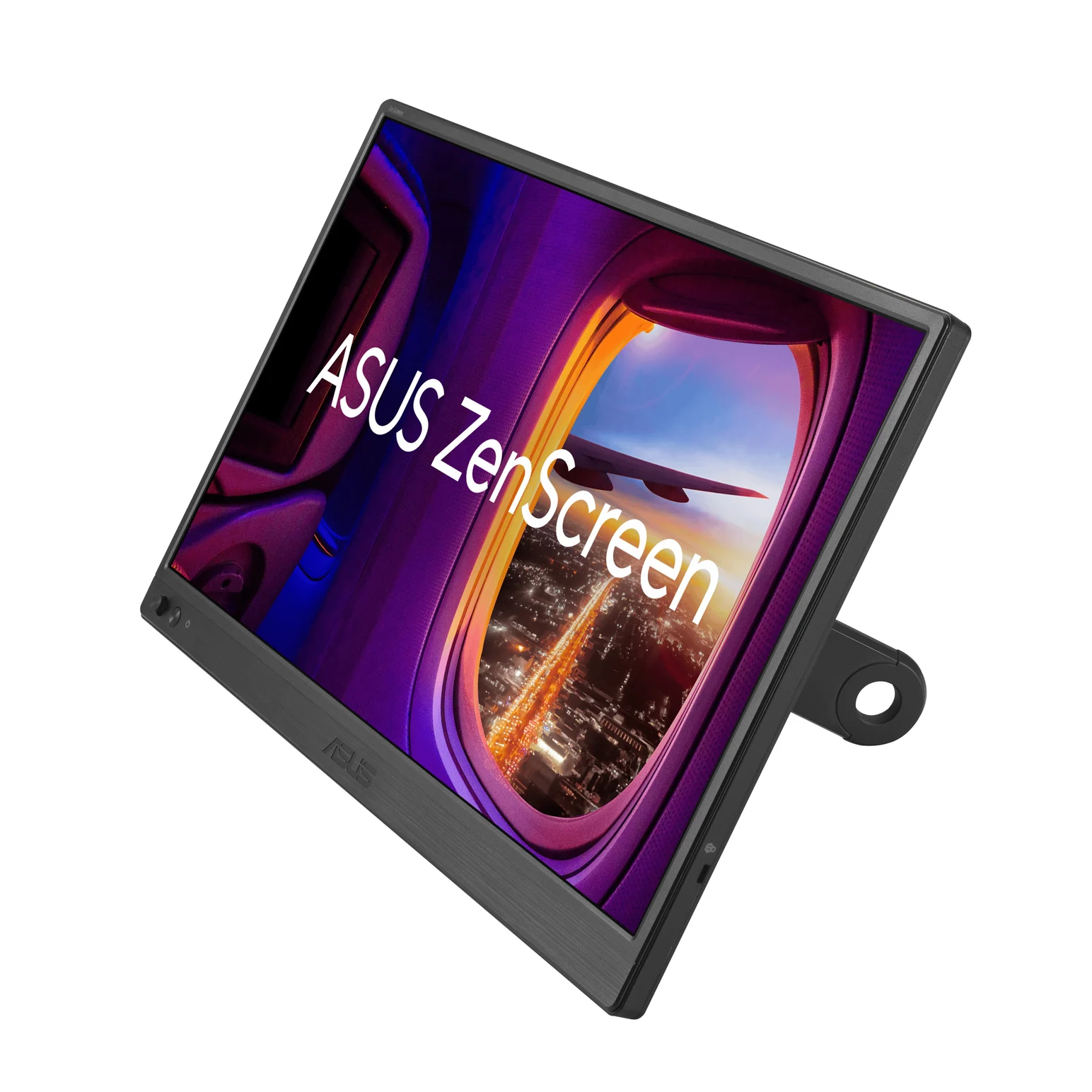
ASUS
ASUS ZenScreen MB169CK Portable USB-C Monitor (15.6-inch, 1080p)
A 15.6-inch 1080p IPS portable monitor with two USB-C (DP Alt Mode) ports, a mini HDMI input and a detachable 360° kickstand.
- 3 ports
The ASUS is our default when you want a document, chat window or reference page beside your laptop. ASUS explicitly supports extending or duplicating a laptop screen over one USB-C cable carrying both video and power. The laptop must support DisplayPort Alt Mode; the connector's shape alone is insufficient.
Its mini HDMI input is the useful fallback. ASUS specifies HDMI for video plus USB-C for power when the host lacks USB-C video. That makes it the practical pick here for an HDMI-only laptop, although the fallback needs separate video and power connections.
The screw-in kickstand supports portrait and landscape use. Buy it for those straightforward display functions; ASUS publishes no laptop pass-through wattage, so plan to charge the laptop through its own charging connection.
Check price on Amazon for the ASUS MB169CK
Best for supported touch workflows: Lenovo ThinkVision M14t Gen 2
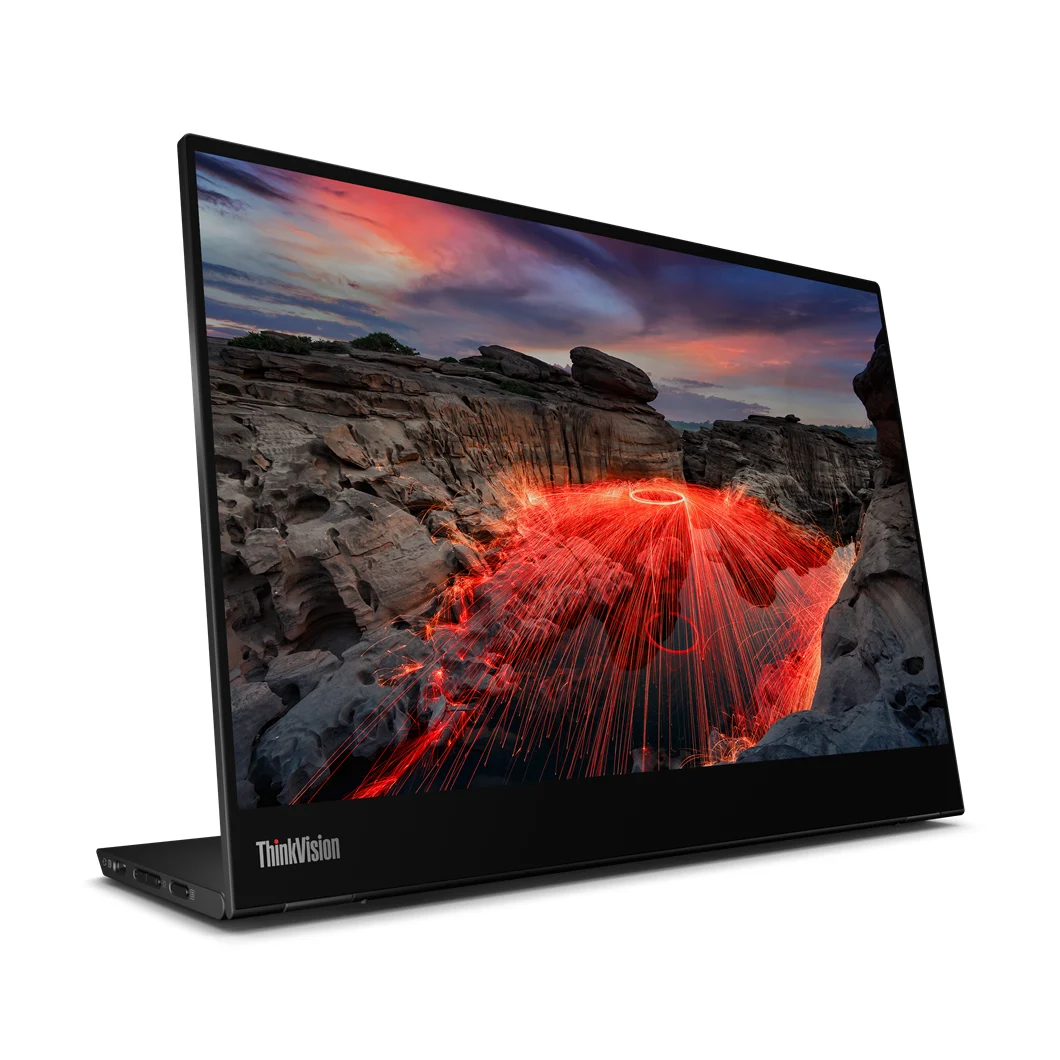
Lenovo
Lenovo ThinkVision M14t Gen 2 Portable Touch Monitor (14-inch, 2.2K)
A 14-inch 2240 x 1400 IPS touchscreen portable monitor with two USB-C (DP 1.2 Alt Mode) ports, up to 65W power pass-through and a pen.
- 65W PD passthrough
- 2 ports
Lenovo earns the upgrade when you will actually navigate or annotate on the screen. Its stand tilts down for touch use, and its USB-C power pass-through offers another reason to choose it even when you mostly type. The smaller panel also carries more pixels than the ASUS; decide how much scaling you need before treating that as extra workspace.
Treat the included passive pen as a selection and basic touch-input tool. Do not build an illustration purchase around an unspecified pen bundle or assume pressure support in every application. These distinctions come from Lenovo's datasheet and user guide.
Check price on Amazon for the Lenovo M14t Gen 2
Exact variants: match the model before the bundle
ASUS's product heading says “16 inch (15.6 inch viewable)”; its specifications identify the panel as 15.6 inches. Those descriptions refer to the MB169CK, rather than separate screen-size options.
For Lenovo, match ThinkVision M14t Gen 2, machine type 63FD, and the native resolution in the table. The original M14t PSREF lists 1920 x 1080 and a region-dependent optional active-pen bundle. Do not transfer that older model's pen contents to Gen 2. Before ordering, check the exact regional part number, seller and included accessories against the official documents.
Resolution and scaling: which gives useful workspace?
Lenovo's higher resolution fits more pixel columns and rows, but into a smaller screen. Its active image is 301.6 x 188.5mm; ASUS lists 344.16 x 193.59mm. The Lenovo's taller aspect ratio therefore does not mean a physically taller image than this particular ASUS.
At equal scaling, Lenovo has more addressable workspace. Increase its text and app scaling for comfortable reading, and some of that advantage becomes larger text instead. Our recommendation: favor ASUS if comfortable document viewing is the whole job; favor Lenovo if you value denser text rendering, touch or charging as well.
Keep native resolution and adjust scaling first. Microsoft's Windows display instructions let you select each display independently, change Scale, and choose orientation. Microsoft warns that lowering resolution below native can make text less sharp. Try your actual spreadsheet or document at a comfortable size before deciding that more pixels mean more usable windows.
Touch and pen: operating system and app support
Lenovo's user guide names Windows, Android and Chrome OS hosts supporting the relevant touch protocols, including HID multi-touch or Microsoft Pen Protocol. It asks buyers to confirm availability with their host manufacturer. Windows is the monitor's default touch setting; Android/Chrome is another selectable mode.
- Yes: Windows: documented touch support on compatible hosts
- Partly: Android / Chrome OS: touch depends on host protocol support
- No: macOS: Lenovo's user guide makes no touch or pen support promise
The datasheet's Mac OS compatibility statement concerns Lenovo Accessories and Display Manager software. It is not a declaration that Mac touch and pressure input work. For a Mac, verify the computer's external-display compatibility and judge Lenovo on its display and power features alone.
There is a concrete Windows use case: Microsoft's Office inking documentation supports drawing with a finger or digital pen on a touch-enabled device. Word, Excel and PowerPoint offer ink tools, but available features depend on device and Office version; Word requires Print Layout for inking. Confirm your application supports the input behavior you need before paying for a drawing setup.
USB-C power: one cable has conditions
For either monitor, a single cable requires a host that outputs video and sufficient power. Use the included video-capable USB-C cable for initial setup. Lenovo's manual specifies an electronically marked 5A cable; match that rating and video support when replacing it. VESA specifies a full-featured USB-C cable for simultaneous video, data and power; a charging-only cable is not a display substitute. Our USB-C cable guide explains the distinction.
For Lenovo, connect a USB-C PD charger to one monitor port and the laptop to the other. Its manual recommends a 65W or higher adapter for charging a notebook, lists a 100W maximum monitor input, and permits up to 65W output only with 20V input. These are different ratings: a 65W charger is not a guarantee of 65W reaching the laptop. Lenovo also warns that actual pass-through can decline with monitor configuration, including higher brightness.
Check the laptop's charging requirement against the available output. If it needs more, retain its own charger. For the ASUS, use its separate USB-C power route with HDMI; its manual's connection diagram specifies at least 10W. See the USB Power Delivery explainer for charging terminology.
Compare the complete travel kit
Official accessory lists checked 3 November 2026 give this starting point:
| Kit item | ASUS | Lenovo |
|---|---|---|
| Video cable | USB-C and mini HDMI to HDMI cables listed | USB-C to USB-C cable, 1m, listed |
| Stand and protection | Detachable kickstand and sleeve listed | Monitor with stand and protective bag listed |
| Input accessories | No pen listed | Passive pen, L-shaped dongle and clips listed; check regional bundle |
| Power adapter | Manual says optional; absent from US spec accessory list | Datasheet says sold separately |
Budget for the monitor plus the accessories your workflow requires. A suitable laptop may power either screen without an extra charger. HDMI use on ASUS needs a separate USB-C power source; charging through Lenovo needs a suitable PD adapter and its cable. Pressure-sensitive Lenovo work also requires verifying and budgeting for the active stylus.
Lenovo lists a 5Gbps cable, but PSREF specifies USB 2.0 data at the monitor ports; the cable rating is not a promise of a fast USB hub.
Lenovo's published monitor weight is lower, but cables, sleeve, charger and pen still belong in your bag calculation. No complete-kit weight or fixed saving is established here. If you only need a second document window, avoid paying extra for unused input features. If annotation is a daily task, compare the Lenovo with the right pen and charger included in your checkout total. For other screen sizes and workflows, use our portable monitor guide.
Setup checks before replacing a cable or monitor
Verify video output
Confirm the laptop supports USB-C DisplayPort Alt Mode, or use ASUS mini HDMI with separate USB-C power.
Resolve insufficient power
Add the appropriate power source if the screen will not start or repeatedly reconnects; both manuals discuss inadequate host power.
Map Lenovo touch to the right display
In Windows, open Control Panel, then Tablet PC Settings, choose Setup, press Enter until the message reaches the Lenovo, and tap that screen.
Check the Lenovo menu
Select the appropriate Touch support mode and close the monitor's on-screen menu; its manual says touch is confined to that menu while it is open.
How we choose
This is a specification-based comparison, without physical product testing. We checked the manufacturers' product pages, PSREF, datasheet and manuals, plus Microsoft's display and inking instructions. Picks reflect documented connections and workflows; they do not imply measured pen latency, color accuracy or battery runtime.
The documents contain conflicts worth preserving. Lenovo's PSREF separates panel and set brightness, while its datasheet headlines panel brightness. Its PSREF lists 8W typical / 9.5W maximum consumption; the manual lists 7.3W / 8.5W without output. We do not infer battery-life rankings from these figures. ASUS's product page says auto-rotation works on Windows and Mac OS, whereas its manual says Windows only; verify the current utility before relying on Mac auto-rotation. ASUS also gives different contrast and color-count figures across its specs and manual, so those figures do not decide our recommendation.
Verdict
Buy the ASUS MB169CK for a simple, larger second screen and the HDMI fallback. Choose the Lenovo M14t Gen 2 when supported touch, its denser panel or laptop pass-through justify the complete kit. For pressure-sensitive art, resolve the active-pen bundle and application compatibility first; for Mac touch, the official documentation does not establish that upgrade case.
Frequently asked questions
Is the Lenovo M14t Gen 2 worth the premium over the ASUS MB169CK?
For supported Windows touch workflows, it can be: Lenovo adds a 2240 x 1400 touchscreen and up to 65W laptop power pass-through. For email, reference documents and keyboard work, our default is the larger ASUS display. Compare the complete kit before paying extra: Lenovo includes a passive pen, while its datasheet says the active stylus is sold separately. Neither touch nor pressure-sensitive drawing should be assumed from the word pen alone.
Does the ThinkVision M14t Gen 2 include a pressure-sensitive pen?
Do not assume so. Lenovo's datasheet advertises 4,096 pressure levels but its footnote specifies an included passive stylus and a separately sold active stylus. The user guide also lists a passive pen, with a qualification that selected models include it. Match the regional box contents and confirm the exact active pen, host operating system and drawing application before buying for pressure-sensitive artwork.
Does the Lenovo M14t Gen 2 touchscreen work with a Mac?
Lenovo's user guide documents touch for compatible Windows, Android and Chrome OS hosts; it does not promise macOS touch or pen support. Its display-management software separately lists Mac OS support, which is not the same promise. Check your Mac's USB-C video capability for display use, and do not pay the touch premium expecting a supported Mac drawing tablet based on that software listing.
Can either monitor work from one USB-C cable?
Yes, with a suitable host. ASUS explicitly supports video and power over one USB-C cable when the laptop supports DisplayPort Alt Mode. Lenovo likewise requires video and power output from the host. An additional charger can be necessary when the host cannot supply enough power. To charge a laptop through the Lenovo, its manual recommends a USB-C adapter rated at least 65W; that is separate from powering the screen alone.
Which monitor should I buy for a laptop with HDMI only?
Choose the ASUS between these two. It has a mini HDMI input, and ASUS lists a mini HDMI to HDMI cable in its regional accessory list. HDMI carries the picture in this setup; USB-C supplies the monitor's power separately. Lenovo lists USB-C video inputs only. Do not buy an ordinary USB-C charging cable or a passive connector adapter expecting it to create USB-C video output from the laptop.
Best for a simple second screen
ASUS ZenScreen MB169CK Portable USB-C Monitor (15.6-inch, 1080p)
Related guides
InnoView INVPM406 vs ASUS ZenScreen MB16ACV: Which Portable Monitor?
Choose between the InnoView INVPM406 and the ASUS ZenScreen MB16ACV from maker specs: ports, USB-A driver rules, kit contents, stands and return checks.
Updated November 7, 2026Read
ASUS ZenScreen MB16NCG vs Lenovo ThinkVision M14d: Which Portable Monitor?
Choose between the ASUS MB16NCG and Lenovo M14d with panel, refresh, weight, stand and USB-C power differences explained, plus the travel kit each one needs.
Updated November 5, 2026Read
AOC 16T20 vs ASUS ZenScreen MB16ACV: Pick by Your Laptop's Ports
AOC 16T20 vs ASUS ZenScreen MB16ACV compared from official specs: inputs, power, drivers, stands and travel weight, so you buy a complete kit that works.
Updated November 5, 2026Read