Black Friday: the specs to check before you buy
Comparison
Updated November 5, 2026ASUS ZenScreen MB16NCG vs Lenovo ThinkVision M14d: Which Portable Monitor?
Short answer
For a laptop-centric second screen you will carry often, the Lenovo ThinkVision M14d is the calmer choice: a 14-inch, 2240 x 1400 panel, 0.6 kg, and one of the few portable monitors whose stand both tilts and adjusts height. Choose the ASUS ZenScreen MB16NCG when you want the screen rather than the carry weight: a 16-inch, 2560 x 1600 panel with up to 155Hz over USB-C, plus a mini-HDMI input the Lenovo lacks. Both deliver video and up to 65W notebook power over one USB-C cable, subject to the power source. (ASUS specifications, ASUS overview, Lenovo M14d datasheet)
Our picks at a glance
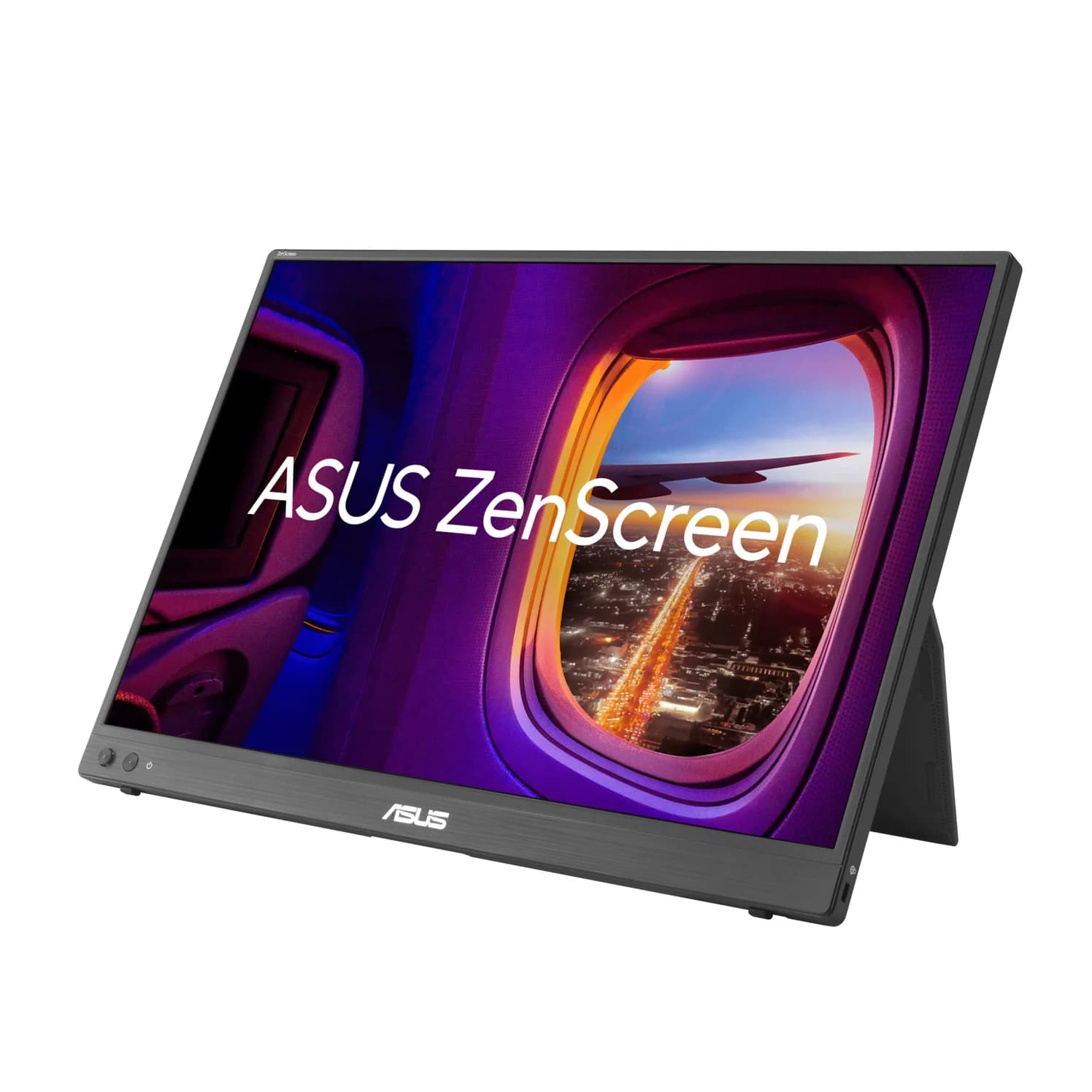
Best for screen size, sharpness, HDMI and high refreshASUS
ASUS ZenScreen MB16NCG Portable USB-C Monitor (16-inch, 2560x1600, 155Hz)
- to laptop
- 65W
- ports
- 3
- host link
- USB-C
- Choose
- A 16-inch, 2560 x 1600 panel that runs up to 155Hz over USB-C, with a second input on mini-HDMI.
- Limit
- 155Hz is an overclocked figure and needs USB-C; mini HDMI tops out at 120Hz
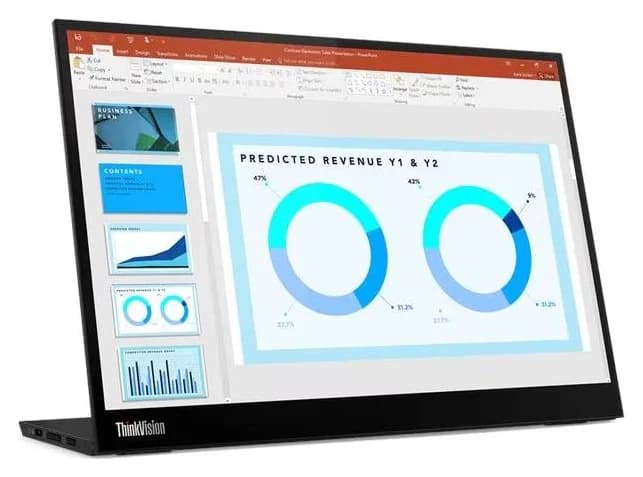
Lenovo M14d
Quick picks: compare the complete kit, not the monitor
| Your priority | Pick | Kit to confirm before ordering | Price link |
|---|---|---|---|
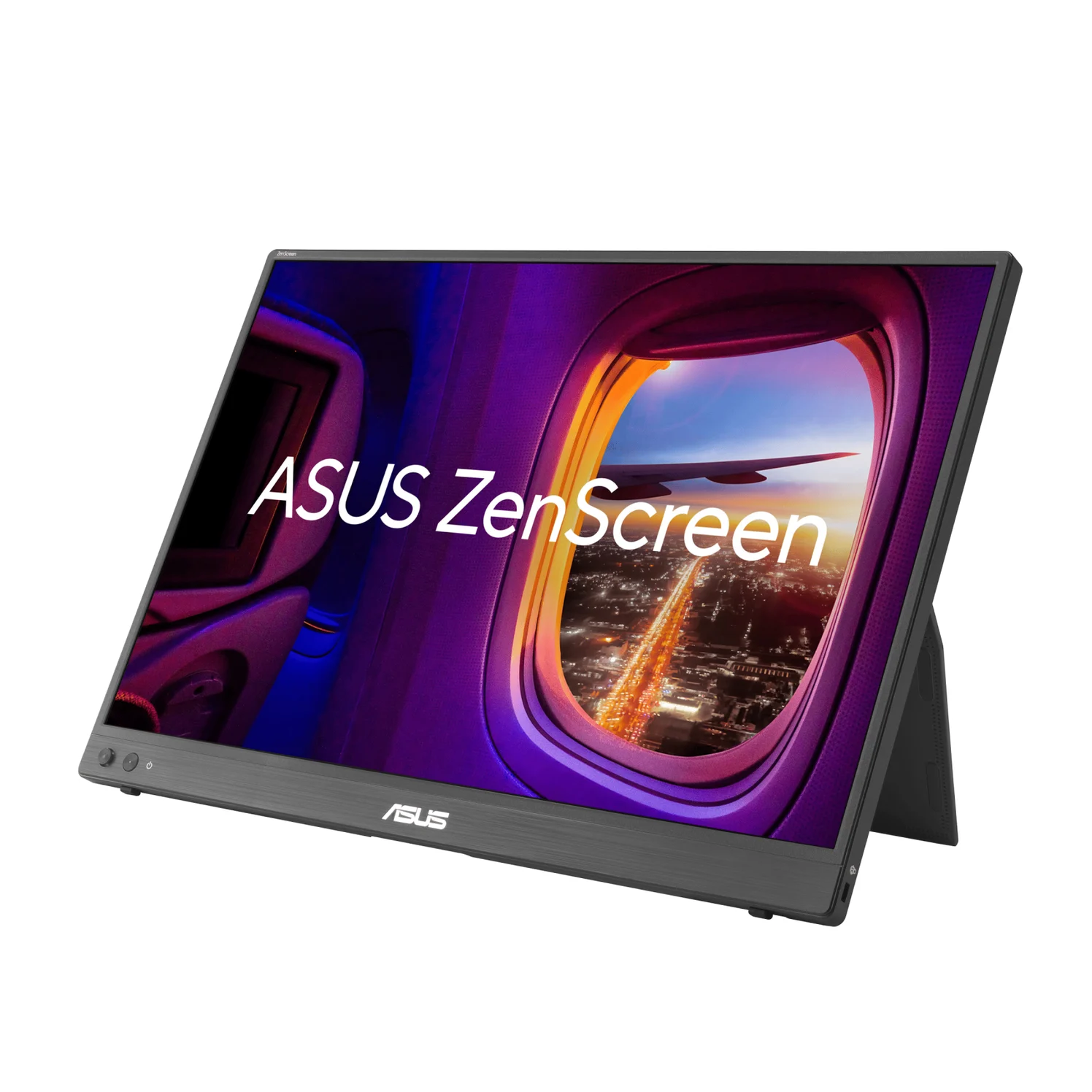
| A tall, tilting work screen that weighs almost nothing | Lenovo M14d | Monitor with integrated stand, supplied 1.0 m USB-C cable; add a 90W-class charger if you want full pass-through | No verified US listing yet — Lenovo PSREF model page |
| Bigger, sharper, faster, or an HDMI source | ASUS MB16NCG | Monitor, sleeve, USB-C and mini-HDMI-to-HDMI cables; confirm the region's power adapter, or reuse a suitable charger | Check price on Amazon |
Both makers document single-cable video and power from a DisplayPort Alt Mode laptop. That is the simplest kit when you do not need the monitor to charge the computer. For a wider field of candidates, see our portable monitor chooser.
ASUS MB16NCG vs Lenovo M14d: the differences that matter
| Buying detail | ASUS ZenScreen MB16NCG | Lenovo ThinkVision M14d |
|---|---|---|
| Panel | 16-inch IPS, 16:10, anti-glare | 14-inch IPS, 16:10, anti-glare |
| Native resolution | 2560 x 1600, 189 PPI | 2240 x 1400, 189 PPI |
| Refresh at native resolution | USB-C: 144Hz, or 155Hz overclocked; mini-HDMI: up to 120Hz | 60 Hz |
| Brightness / contrast | 400 nits typical / 1500:1 | 300 cd/m² typical, 375 cd/m² peak / 1500:1 |
| Color | 100% sRGB, HDR10 | 100% sRGB coverage, 105% sRGB area |
| Video inputs | 2x USB-C (DP Alt Mode) + 1x mini-HDMI | 2x USB-C Gen 1 (DP 1.2 Alt Mode); no HDMI |
| USB hub / audio | Headphone jack; no speakers | USB 2.0 upstream and downstream; audio out via USB-C |
| Laptop pass-through ceiling | 65W | 65W |
| Stand and mounting | Fold-out stand; tripod socket; no height adjustment | Integrated stand: tilt and 11 mm lift; VESA 100 mm |
| Published weight | 0.90 kg net, estimated | 0.6 kg unpacked with stand; 1.8 kg packed |
| In the box | Sleeve, USB-C cable, mini-HDMI-to-HDMI cable; adapter region-dependent | Monitor with stand, 1.0 m USB-C cable, quick setup guide |
Sources: ASUS specifications and Lenovo M14d datasheet. These are manufacturer specifications, not measured performance.
- 155HzASUS maximum refresh over USB-C, an overclocked mode
- 60 HzLenovo maximum refresh
- 11 mmHeight adjustment in the M14d's stand — rare on a portable monitor
Best for screen size, sharpness, HDMI and high refresh: ASUS MB16NCG
ASUS
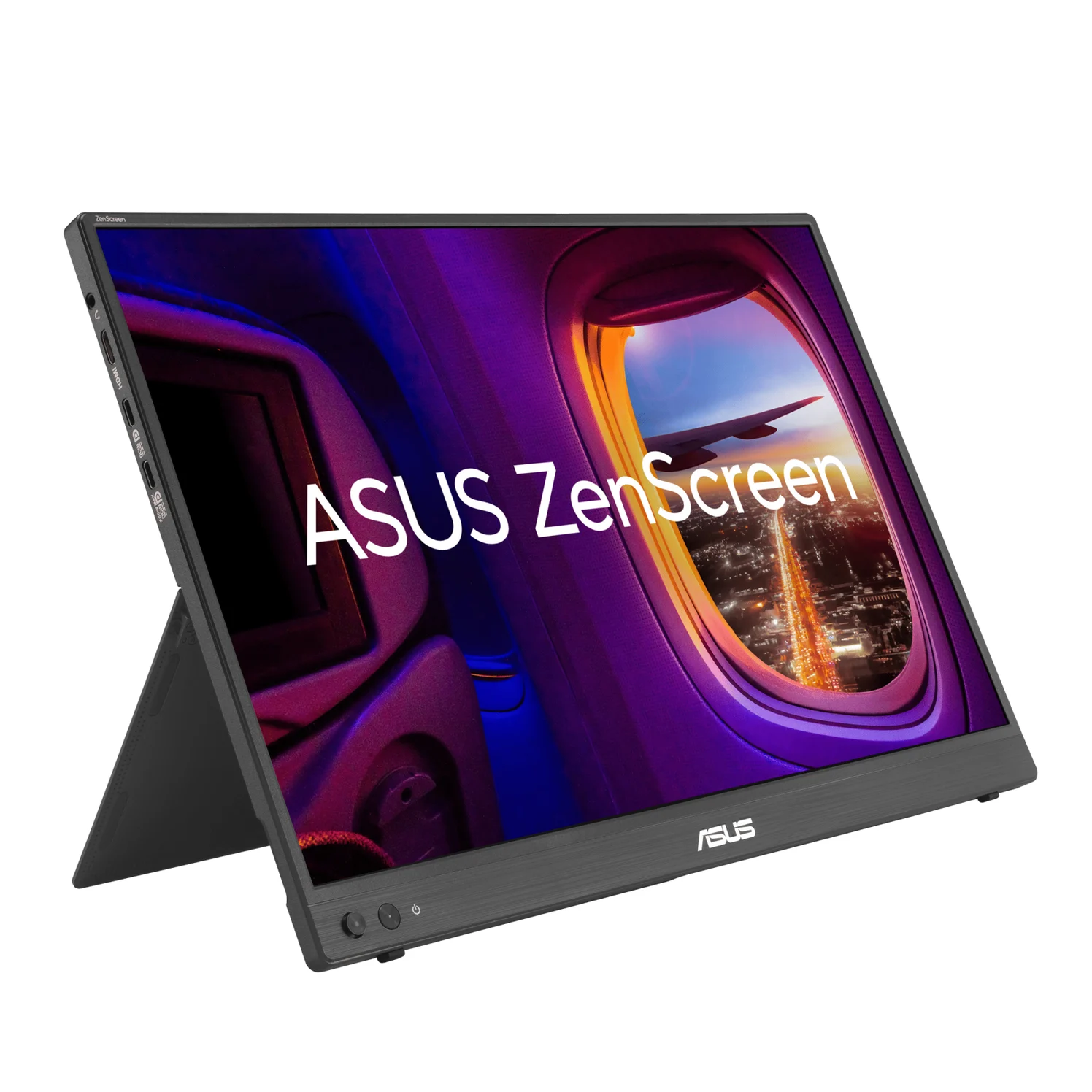
ASUS ZenScreen MB16NCG Portable USB-C Monitor (16-inch, 2560x1600, 155Hz)
A 16-inch 16:10 portable IPS monitor with 2560x1600 resolution, up to 155Hz over USB-C, two USB-C inputs with up to 65W pass-through, and mini HDMI.
- 65W PD passthrough
- 3 ports
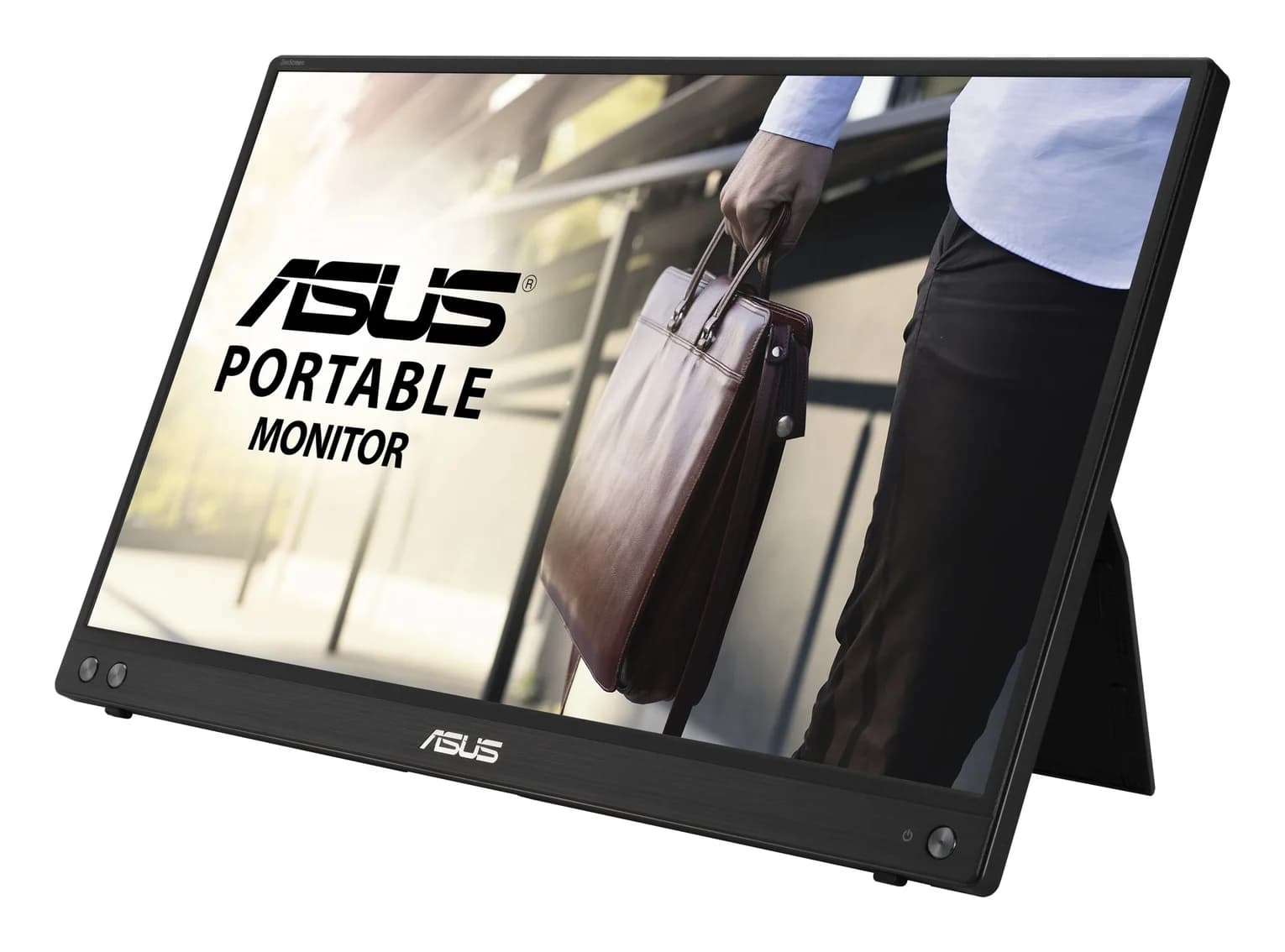
Choose ASUS when the second screen is for content, gaming or a mixed bag of sources. Its 16-inch, 2560 x 1600 panel at 100% sRGB with HDR10 gives roughly a third more physical panel area than the Lenovo's 14-inch screen — a calculation from the specified diagonals and matching 16:10 aspect ratios, not a measurement. The higher-resolution grid suits fine text and detailed work. (ASUS specifications, Lenovo M14d datasheet)
The headline 155Hz is an overclocked USB-C mode; ASUS lists 120Hz as the mini-HDMI ceiling at native resolution. With Adaptive-Sync listed, it is the only one of the pair that fits a gaming laptop or handheld console at high refresh — provided the source can supply the frames. A monitor's supported mode does not guarantee a game's frame rate. (ASUS specifications, ASUS US overview)
The mini-HDMI input is the practical differentiator for HDMI-only hardware. Connect HDMI video to the monitor and provide power separately over USB-C; ASUS lists a mini-HDMI-to-HDMI cable among its region-dependent accessories. There is a headphone jack and no speakers, so plan audio. ASUS's English manual says auto-rotation works in Windows with DisplayWidget Center installed, so verify Mac operation before relying on it. (ASUS user guide, ASUS specifications)
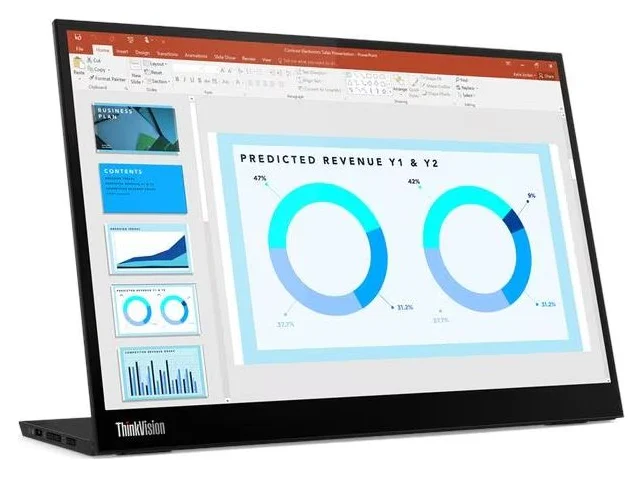
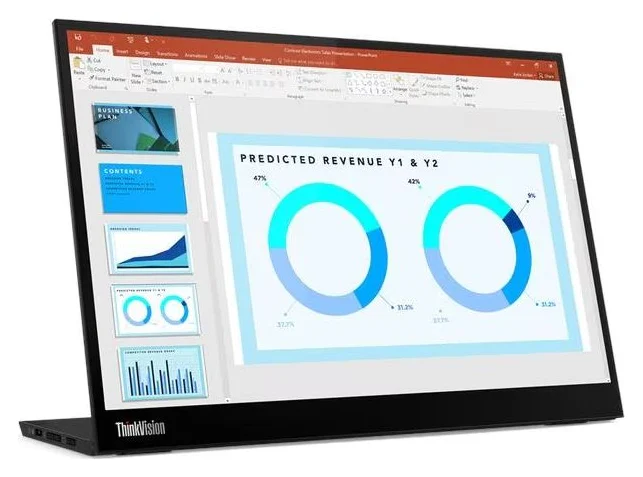
Best for an ergonomic work second screen: Lenovo ThinkVision M14d
The M14d's argument is the stand. Lenovo's integrated stand tilts from -5° to 95° and lifts up to 11 mm, and the monitor mounts on a 100 mm VESA arm — a combination that lets you put a second screen at a comfortable working height, not flat on the desk like most portables. Its 2240 x 1400 panel and the ASUS share the same 0.135 mm pixel pitch (189 PPI), so per-inch sharpness is equal; the M14d's 16:10 shape mirrors current ThinkPads and business laptops. (Lenovo M14d datasheet, ASUS specifications)
It is also the lighter thing to carry: Lenovo specifies 0.6 kg / 1.3 lbs unpacked with the stand and a 1.8 kg packed weight, with a 1.0 m USB-C cable in the box. Lenovo pairs that with eye-comfort certifications (TÜV Rheinland Low Blue Light, Flicker Free, an Eyesafe rating and its Natural Low Blue Light mode) and modest 6W typical power consumption. (Lenovo M14d datasheet)
The compromises are connectivity and speed. There is no HDMI input — every source must support USB-C DisplayPort 1.2 Alt Mode — and its USB hub runs at USB 2.0 speed, fine for a keyboard, not for storage. The 60 Hz refresh is a non-issue for documents and a real one for gaming. (Lenovo M14d datasheet)
We could not verify a US retail listing for the M14d, so there is no Amazon link yet. North American machine types 63AAUAR6US and 63AAUAR6UZ carry the same specification; confirm the MTM on the listing before buying. (Lenovo PSREF model list)
Power: both say 65W pass-through; neither promises a 65W charger is enough
ASUS's manual says a PD adapter of at least 30W is required and an adapter over 80W is needed for the MB16NCG's maximum 65W charging; its spec page lists the adapter as optional and region-dependent. Lenovo rates the M14d "up to 65W" and warns that actual delivery may vary with devices connected or higher brightness. The conservative reading for either monitor: a PD source rated around 90W at the port leaves headroom for the monitor itself, and a 30W-class source supports video but little or no laptop charging. (ASUS user guide, ASUS specifications, Lenovo M14d datasheet)
Source: ASUS overview and Lenovo M14d datasheet
If your laptop needs more than either monitor can pass, keep its charger connected directly and use the monitor for video only. The underlying negotiation is explained in our USB Power Delivery guide, and before substituting any cable, check the USB-C cable types guide.
What the M14d's stand and software actually do
Not every buyer needs a height-adjustable portable. If your second screen sits at a fixed café-desk angle, the ASUS's fold-out stand and tripod socket are enough. If your neck disagrees, the M14d's 11 mm lift and 95° back tilt — far past vertical into presentation mode — are the reason to prefer it, and the VESA holes extend it to an arm. (Lenovo M14d datasheet, ASUS specifications)
Software is a smaller asymmetry. Lenovo says the former Display Control Center is now Lenovo Accessories and Display Manager, while ThinkColour supports Windows 10 and 11, macOS and Windows on Arm. ASUS's English manual says auto-rotation works in Windows with DisplayWidget Center installed. Neither datasheet promises driver-free operation on every host, so check your operating system before relying on optional utilities. (Lenovo PSREF model record, ASUS user guide)
How we choose
This is a specification-based comparison; we have not physically evaluated these monitors. Recommendations use the makers' specification pages, datasheets and package lists. Where their documents disagree — as ASUS's adapter-inclusion lists do across its own pages — we name the conflict instead of picking a side. The research supports connection planning and purchase requirements; it does not establish real-world color accuracy, gaming latency or laptop battery runtime.
Before you buy either one
Check the source port
Both monitors need USB-C DisplayPort Alt Mode. For HDMI-only sources, only the ASUS works, with USB-C power added.
Choose the cable path
Start with the supplied USB-C cable. ASUS HDMI use needs the mini-HDMI-to-HDMI cable plus USB-C power; a substitute cable must carry video — see the USB-C cable guide.
Check the whole basket
Confirm the model code, the region's actual box contents and a charger that meets your pass-through goal. Compare packed weights, not bare panel weights.
Verdict
Buy the Lenovo ThinkVision M14d if the second screen is a working surface you carry and set up often: lighter, height-adjustable, equally sharp per inch, and simple to run from one USB-C cable. Buy the ASUS MB16NCG when the screen itself is the point — a bigger, higher-resolution panel, up to 155Hz over USB-C for gaming and handhelds, and an HDMI input for sources the Lenovo cannot take. Whichever you choose, buy the charger from the documented pass-through requirement and your laptop's needs, then compare the complete kit you will pack.
Frequently asked questions
Is the ASUS MB16NCG or Lenovo M14d better for a laptop?
Choose the ASUS MB16NCG for the bigger canvas: a 16-inch, 2560 x 1600 panel, a mini-HDMI input for HDMI-only sources, and USB-C refresh up to 155Hz. Choose the Lenovo ThinkVision M14d when you carry it daily for work: it weighs 0.6 kg, and its integrated stand tilts and adjusts height, which most portable monitors cannot do. Both take USB-C DisplayPort Alt Mode video and list up to 65W notebook power pass-through.
Can the Lenovo ThinkVision M14d connect over HDMI?
No. Lenovo's datasheet lists only 2x USB-C Gen 1 (DP 1.2 Alt Mode) inputs; there is no HDMI port. Every device you connect must output DisplayPort Alt Mode over USB-C, which includes most recent business laptops but excludes HDMI-only sources like many consoles and older machines. If you need HDMI, the ASUS MB16NCG has a mini-HDMI input alongside its two USB-C ports.
How much power does each monitor pass through to a laptop?
Both advertise up to 65W over USB-C. ASUS's manual says a PD adapter of at least 30W is required and an adapter over 80W is needed for maximum 65W charging; its spec page lists the power adapter as optional and region-dependent. Lenovo rates the M14d 'up to 65W' and notes the actual capacity may vary with connected devices or a higher brightness setting.
Is the ASUS MB16NCG good for gaming or a handheld console?
On paper it is the better fit: a 155Hz maximum refresh over USB-C, HDR10 support and Adaptive-Sync, versus the M14d's 60 Hz panel. ASUS lists 155Hz as an overclocked mode and caps mini-HDMI at 120Hz. A monitor's supported mode does not guarantee a game's frame rate, and we have not measured latency on either screen.
Which one is easier to carry every day?
The M14d: Lenovo specifies 0.6 kg unpacked with its stand and a 1.8 kg packed weight, and includes a 1.0 m USB-C cable. ASUS estimates 0.90 kg net for the MB16NCG's larger panel. The M14d's stand is built in, while the ASUS uses a fold-out stand and ships with a protective sleeve, so compare the complete kits you will actually pack.
Does the Lenovo M14d need its Windows software?
The supplied software is optional. Lenovo says its former Display Control Center is now Lenovo Accessories and Display Manager, and lists ThinkColour support for Windows 10 and 11, macOS and Windows on Arm. The datasheet does not state driver-free plug-and-play behavior, so confirm operation with your specific host and operating system.
Best for screen size, sharpness, HDMI and high refresh
ASUS ZenScreen MB16NCG Portable USB-C Monitor (16-inch, 2560x1600, 155Hz)
Related guides
InnoView INVPM406 vs ASUS ZenScreen MB16ACV: Which Portable Monitor?
Choose between the InnoView INVPM406 and the ASUS ZenScreen MB16ACV from maker specs: ports, USB-A driver rules, kit contents, stands and return checks.
Updated November 7, 2026Read
AOC 16T20 vs ASUS ZenScreen MB16ACV: Pick by Your Laptop's Ports
AOC 16T20 vs ASUS ZenScreen MB16ACV compared from official specs: inputs, power, drivers, stands and travel weight, so you buy a complete kit that works.
Updated November 5, 2026Read
Dell U2725QE vs ASUS PA279CRV for Mac mini: 4K Hub Monitor Comparison
Dell U2725QE vs ASUS PA279CRV for a Mac mini desk: charging, hub ports, Ethernet, KVM and color specs from the makers, and which complete kit to buy.
Updated November 5, 2026Read