Black Friday: the specs to check before you buy
Comparison
Updated November 7, 2026InnoView INVPM406 vs ASUS ZenScreen MB16ACV: Which Portable Monitor?
Short answer
If you are choosing between the InnoView INVPM406 and the ASUS ZenScreen MB16ACV for a second travel screen, decide on the connection route and the documented kit, not the panel numbers: on paper both are 15.6-inch-class 1080p 60Hz IPS displays, so the real differences are the InnoView's HDMI input, speakers and advertised bundled 18W adapter versus the ASUS's USB-A driver route and full manufacturer support trail. This is a specification comparison: we have not tested either screen.
Our picks at a glance
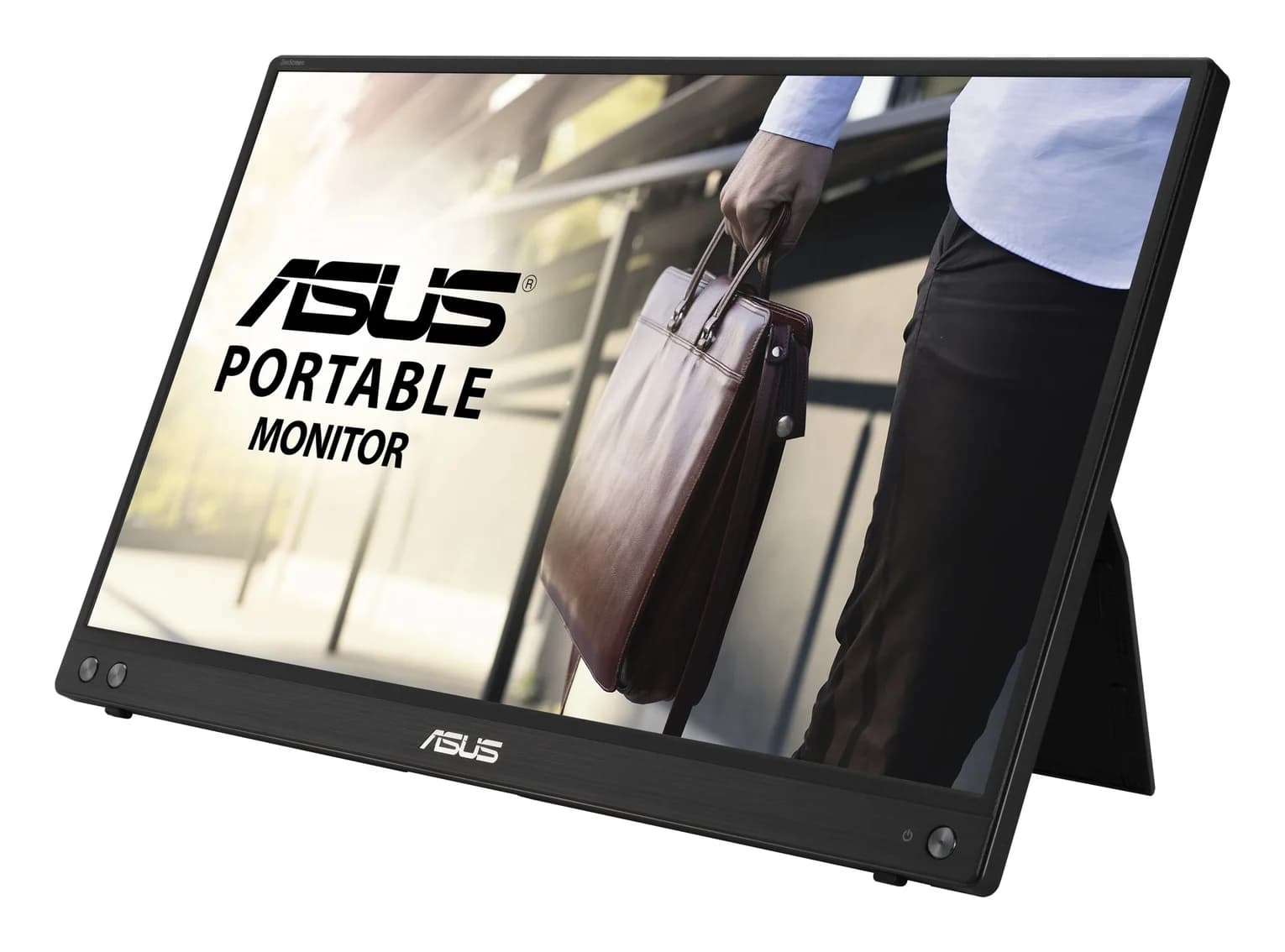
Best for USB-A laptops and documented supportASUS
ASUS ZenScreen MB16ACV Portable Monitor (15.6-inch, Full HD, USB-C)
- data
- 5 Gbps
- port
- 1
- host link
- USB-C
- Choose
- One USB-C socket with DisplayPort Alt Mode, plus a USB-A route with the ASUS driver, backed by model-specific manuals and downloads.
- Limit
- 60Hz, 250-nit panel — fine for documents, not for fast gaming or bright rooms
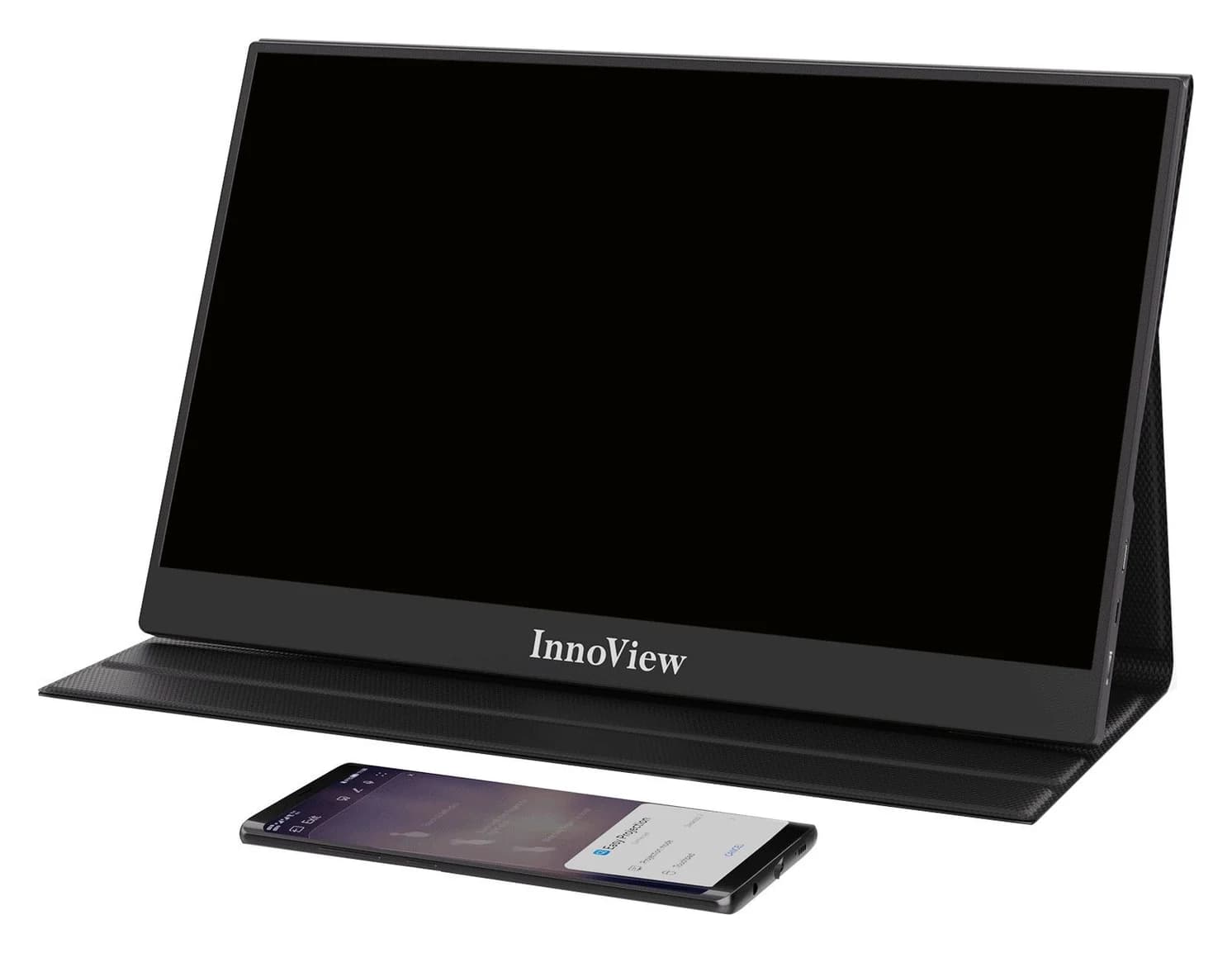
Best for HDMI input and speakers (confirm the kit)InnoView
InnoView INVPM406 15.6" FHD 1080P USB-C Portable Monitor
- charger
- 18W
- max output
- 18W
- to laptop
- 18W
- Choose
- Adds a mini HDMI input and built-in speakers, with an advertised 18W adapter and case-stand; confirm the exact model and kit with the seller.
- Limit
- 1080p resolution and 45% NTSC colour - fine for documents and casual video, not colour-critical work
- 1920 x 1080The resolution both makers list for these monitors
- 60HzThe refresh rate both makers list
- 18WThe adapter InnoView advertises in the INVPM406 package
- 0.9 kgASUS's listed net weight for the MB16ACV
Quick picks
- USB-C laptop, want the full kit on paper: the InnoView INVPM406, conditionally — verify the exact version and current bundle with the seller first. Check the InnoView product page.
- USB-A-only or driver-approved work laptop: the ASUS ZenScreen MB16ACV, the only one of the two with a documented USB-A display route. Check the MB16ACV at ASUS.
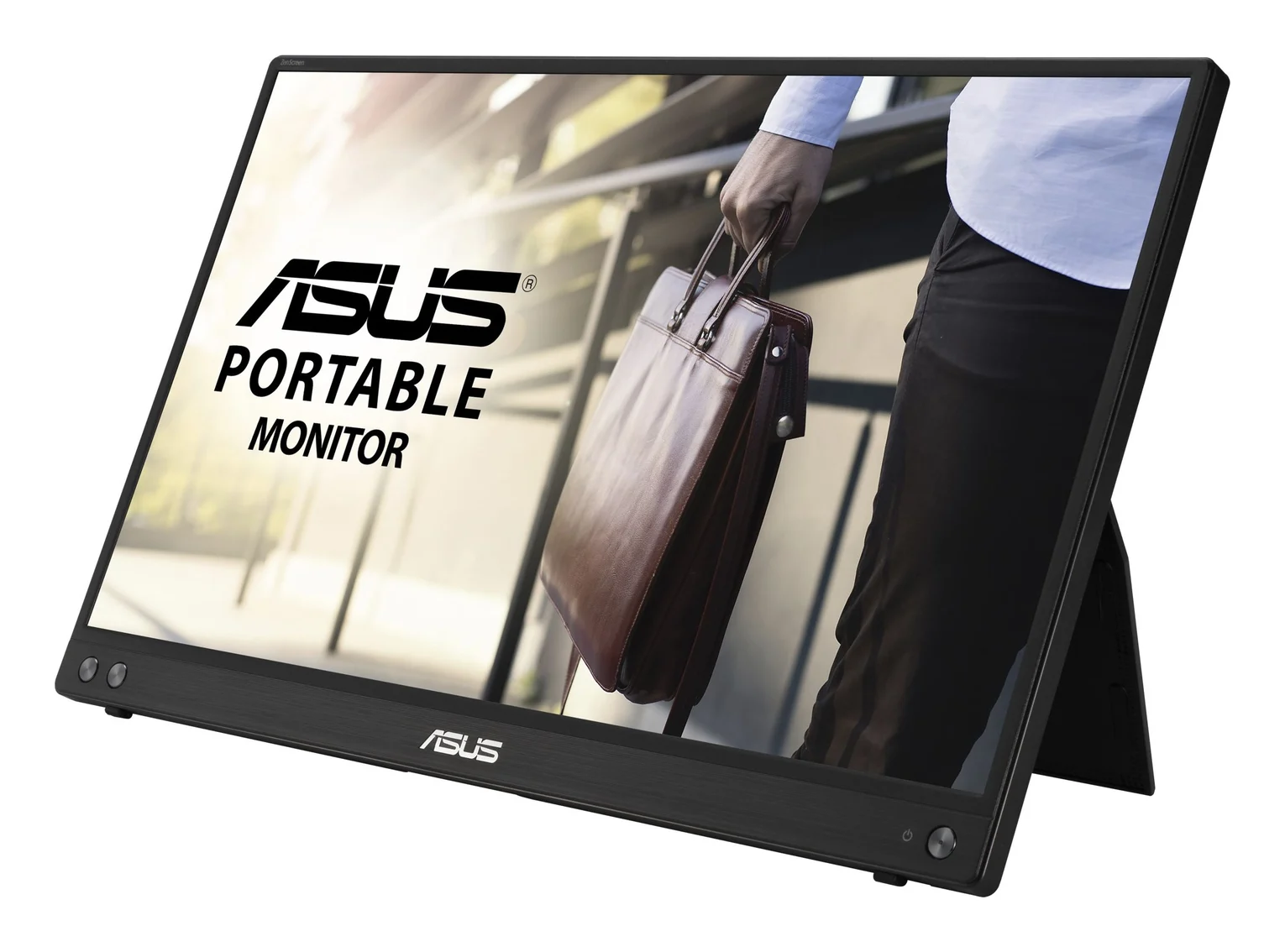
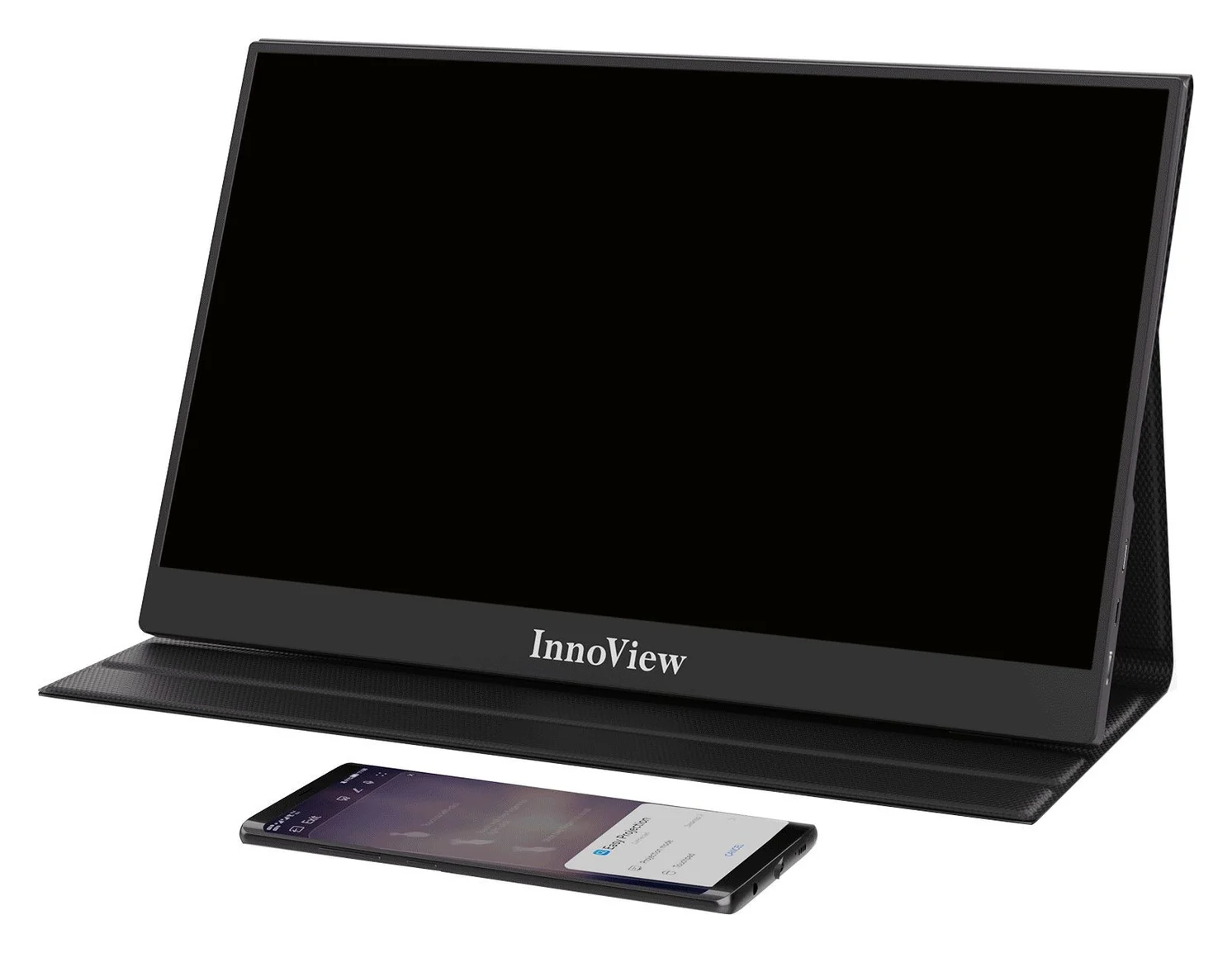
For a wider shortlist, see our best portable monitors roundup.
Start with your laptop's ports
A USB-C port that charges your laptop does not necessarily output video, and the two monitors cover different fallback paths. Check your laptop's specification for DisplayPort Alt Mode before anything else; our USB-C to display connection guide explains the check.
| What your laptop provides | Better fit | What must work |
|---|---|---|
| USB-C with DisplayPort Alt Mode | Either | A full-function USB-C cable and sufficient source power |
| HDMI, no USB-C video | InnoView INVPM406 | Mini HDMI to HDMI cable plus a separate monitor power plan |
| USB-A only, no usable video output | ASUS MB16ACV | USB-C to USB-A cable plus the ASUS USB monitor driver |
| Work laptop that blocks driver installs | InnoView INVPM406 (HDMI route) | Native HDMI video, so no driver is needed |
- Yes: USB-C DP Alt Mode: works on either monitor with a full-function cable
- Yes: InnoView INVPM406: Mini HDMI input for HDMI sources
- Yes: ASUS MB16ACV: USB-A display route through the required driver
- Partly: ASUS MB16ACV USB-A: protected content may be blocked
- No: InnoView INVPM406: no USB-A display route documented
- No: ASUS MB16ACV: no HDMI input listed
INVPM406 vs MB16ACV: what the makers actually publish
| Feature | InnoView INVPM406 | ASUS ZenScreen MB16ACV |
|---|---|---|
| Panel (listed) | IPS, 1920 x 1080, 60Hz | IPS, 1920 x 1080, 60Hz |
| Diagonal | 15.6-inch title vs 15.8-inch body on the maker's own pages | 15.6-inch (viewable) |
| Brightness | 250 cd/m² | 250 cd/m² (typ.) |
| Video inputs | Dual USB-C (full-featured), Mini HDMI | 1x USB-C (DP Alt Mode and USB 3.2 hybrid signal) |
| USB-A display route | Not documented | Yes, via cable and required driver |
| HDMI input | Mini HDMI | None listed |
| Speakers | Dual speakers | No speakers |
| Stand | Folding protective folio case | Fold-out kickstand, plus 1/4-inch tripod socket |
| Power plan | 18W adapter advertised in the package | DC 5V, 3A input rating; adapter not in the US accessory list |
| Weight | 1.5 lb per the maker's landing page | 0.9 kg net per the US spec page |
| Listed bundle | Case, USB-C cable, USB-A cable, Mini HDMI cable, 18W adapter, cloth, guide | Sleeve, USB-C cable, quick start guide, warranty card |
Sources: InnoView's INVPM406 product page and INVPM406 landing page; ASUS's MB16ACV US specifications, product page and English manual.
The paper panels are a wash — the same resolution, refresh rate and typical brightness — so no tie-breaker exists there. What genuinely separates them: the InnoView has an HDMI input and speakers, while the ASUS has no HDMI at all but is the only one that can display over a laptop's plain USB-A port. That asymmetry, plus documentation quality, is the whole decision.
USB-C, HDMI and separate power: the complete connection paths
InnoView INVPM406. The maker advertises "exclusive dual type-c full features ports" and single-cable use with a full-function USB-C 3.0 cable that comes in the box. That one-cable setup needs a source with USB-C video output and enough power; the maker also notes you can power the monitor from an AC adapter or a mobile power bank. For consoles and other HDMI devices, it lists connections through the Type-C or Mini HDMI port.
ASUS ZenScreen MB16ACV. Its single USB-C socket carries power and video in native DisplayPort Alt Mode. If the computer "does not support Type-C interface but only USB3.0 interface," the manual says to install the official driver from ASUS's website first, then connect via the USB-A cable. The download portal supplies the ASUS MB Series USB Monitor Driver for Windows and states plainly that no driver is needed if you use Type-C DP Alt Mode video.
Neither maker documents laptop charging through the monitor. The MB16ACV's spec sheet gives a DC 5V, 3A input rating and 6.64W consumption; its manual lists power-on consumption under 15W at its stated measurement conditions. InnoView advertises the 18W adapter for the monitor. None of that is a pass-through charging claim, so keep your laptop charger in the bag.
Confirm the laptop's video output
USB-C charging alone does not establish video; check for DisplayPort Alt Mode or an HDMI port.
Pick the video path
INVPM406: full-function USB-C or Mini HDMI. MB16ACV: USB-C DP Alt Mode, or USB-A with the driver installed.
Sort the power
One-cable USB-C needs sufficient source power; otherwise the INVPM406's adapter or another suitable USB-C power source.
Troubleshoot no signal
Check the input selection and cable, and follow the maker's manual; insufficient source power can cause a blank screen.
Model labels, bundles and what has not been independently tested
The InnoView has a documentation problem you should price into any offer: its official product page's title says 15.6 inches while its body and landing page say 15.8 inches; the footer of its own store lists a "PM406-15.6 FHD" model. Its warranty wording also conflicts — the product page advertises a 30-day risk-free and 12-month warranty, while the refund policy provides an 18-month quality warranty restricted to the country of purchase. The store page shows the monitor sold out. None of this makes it a bad screen; it means you must confirm the exact unit and bundle with the seller before paying. Our InnoView INVPM406 buying guide covers that identification process in detail.
The ASUS does not have that problem: model-specific tech specs, a manual, and a download portal with its USB monitor driver at version 10.1 M2. Its own open question is smaller: the US accessory list includes only a USB-C cable, while the global specifications also list a USB-C to USB-A cable, and the English manual lists both that cable and a leather case. Confirm what the box you are buying actually contains.
Picture quality, speaker quality, build and battery drain on your laptop are not established by any of these pages. Do not read "HDR mode" or contrast figures on either listing as a quality promise; on paper the panels match.
Stand, packed size and the travel setup
The InnoView's protective folio case is also its stand: it folds to hold the screen at an angle and covers it in a bag, which the maker pitches for travel. ASUS's MB16ACV uses a fold-out kickstand that props the screen in portrait or landscape, with a 1/4-inch tripod socket at the rear for a tripod or mount (the tripod is not included). ASUS lists a 0.9 kg net weight and a 35.8 x 22.5 x 1.0 cm body; the InnoView's landing page gives 1.5 lb. Manual rotation is what both offer — ASUS's automatic rotation needs its DisplayWidget software and works only with Windows.
Warranty, seller and return checks before you buy
Before checkout on either, run this checklist:
- InnoView: the refund policy allows a 30-day money-back return for any reason on direct-store purchases, with returns needing all accessories; quality claims carry an 18-month warranty limited to the country of purchase. For purchases not made through InnoView's own stores, contact the retailer for refunds. Check who the actual seller is and which warranty applies to your unit.
- ASUS: a warranty card ships in the box, and the download portal and support pages are model-specific. Confirm the seller is an authorized ASUS outlet and the box matches your region's accessory list.
- Both: match the exact model on the rear label to the listing, and confirm which cables and adapters are included so your kit works on day one.
When to keep looking
If your laptop has no USB-C video, no HDMI and you cannot install the ASUS driver, neither of these is the right buy yet. If you need a documented native HDMI plus USB-C combination, check the maker's current model-specific specification pages rather than assuming a monitor's headline alone; and if your real question is which ASUS to buy between its own models, our ZenScreen MB16ACV vs MB169CK comparison covers that pair directly.
How we choose
We have not physically tested either monitor. This comparison comes from InnoView's official product pages and refund policy and from ASUS's product pages, US specifications, English manual and driver download page, all linked above. Where the maker's own documents disagree — panel size and warranty length for the InnoView, US versus global cable bundles for the ASUS — we report the conflict instead of picking a side. Buyer-reported patterns are not used as facts here.
Verdict
Buy the InnoView INVPM406 only when the seller confirms the exact model, the full 18W-adapter kit and the case-stand, and you specifically need its HDMI input or speakers. Buy the ASUS ZenScreen MB16ACV when your usable connection is a laptop's USB-A port and its driver is approved, or when you want the safety of a single manufacturer's documented support trail. Otherwise, let your available video ports and the seller's confirmed bundle decide between these two.
Frequently asked questions
Which should I buy, the InnoView INVPM406 or the ASUS ZenScreen MB16ACV?
If your laptop has USB-C DisplayPort Alt Mode, either screen can work over one cable, and the decision comes down to the documented bundle and support behind the specific offer. Prefer the ASUS when you value a single maker with model-specific manuals, spec pages and a download portal; prefer the InnoView only when the seller confirms the exact version, full cable-and-adapter kit and stand. For an older USB-A-only laptop, only the MB16ACV offers a documented display route, and it needs the ASUS MB Series USB Monitor Driver for Windows.
Does the InnoView INVPM406 come with a power adapter and stand?
InnoView's INVPM406 landing page lists an 18W adapter, a protective case it describes as the stand, a USB-C to USB-C cable, a USB-C to USB-A cable and a Mini HDMI to HDMI cable in the package. Its store page shows the monitor sold out, and the maker does not confirm the exact current US retail bundle, so treat the contents as a checklist to verify with the seller rather than a guarantee. The MB16ACV's US accessory list has only a USB-C cable, sleeve and quick start guide.
Can the ASUS MB16ACV work over a USB-A port?
Yes, that is its headline hybrid feature, with conditions. The monitor itself has one USB-C socket; the USB-A connection is at the laptop end of a USB-C to USB-A cable, and ASUS requires its USB monitor driver for that route. The manual describes connecting to a USB 3.0 interface. Native USB-C DisplayPort Alt Mode video needs no driver. ASUS also warns that protected content may be blocked over the USB-A route.
Is the InnoView INVPM406 actually 15.6 or 15.8 inches?
InnoView's own pages disagree, so do not decide based on the size in a listing title. The official product page's title says 15.6 inches, while its body and the separate INVPM406 landing page say 15.8 inches. Ask the seller for the rear label and the matching manual before buying; the same goes for warranty length, where the product page says 12 months and the refund policy provides an 18-month quality warranty.
Can these monitors charge my laptop over the same cable?
Neither maker documents laptop charging over the monitor's connection. The MB16ACV is a powered display with a 5V, 3A DC input rating, and InnoView advertises an 18W adapter for the monitor itself. Keep your laptop's own charger in your travel kit, and treat any pass-through charging claim in a listing as unverified unless the maker documents it.
Best for USB-A laptops and documented support
ASUS ZenScreen MB16ACV Portable Monitor (15.6-inch, Full HD, USB-C)
Related guides
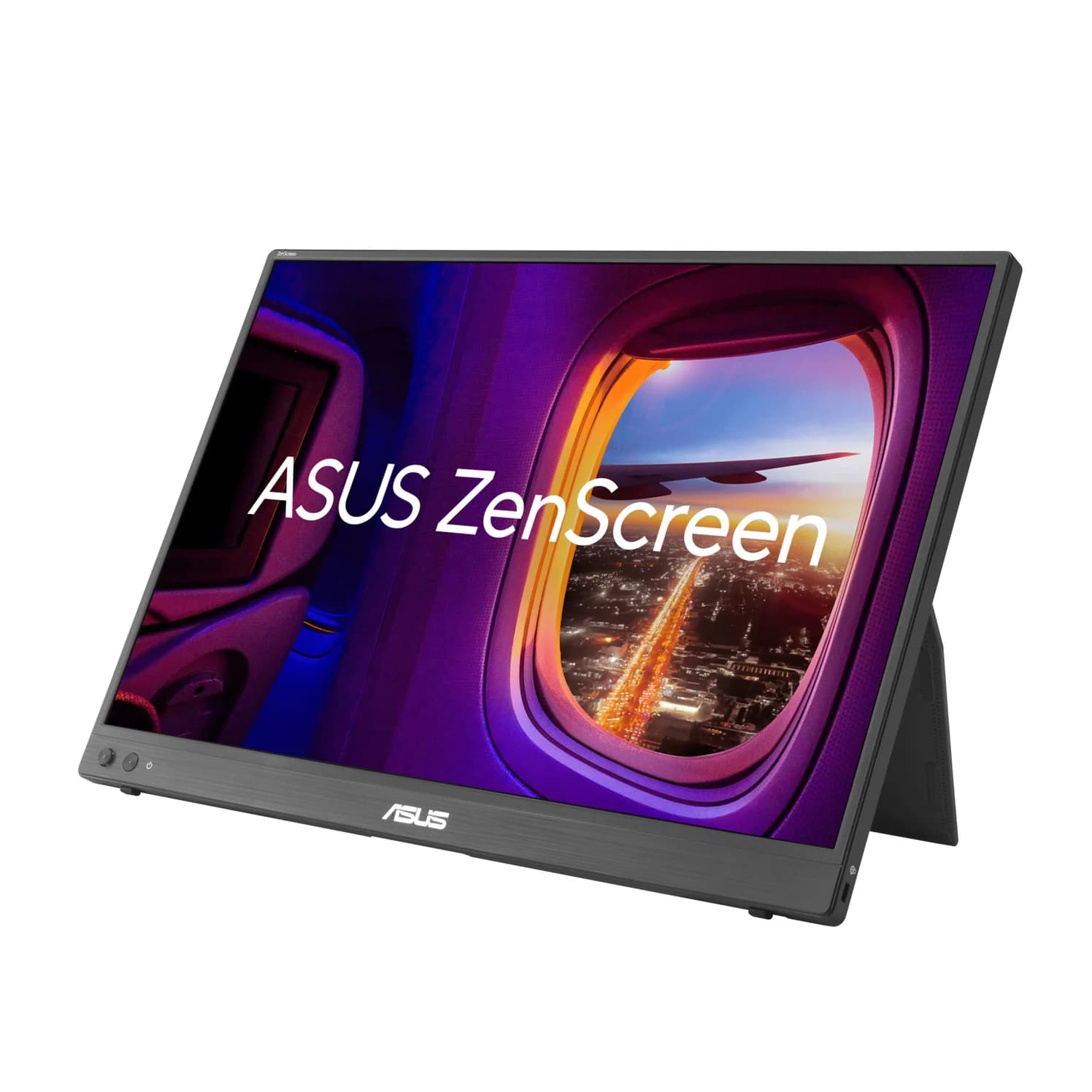
ASUS ZenScreen MB16NCG vs Lenovo ThinkVision M14d: Which Portable Monitor?
Choose between the ASUS MB16NCG and Lenovo M14d with panel, refresh, weight, stand and USB-C power differences explained, plus the travel kit each one needs.
Updated November 5, 2026Read
AOC 16T20 vs ASUS ZenScreen MB16ACV: Pick by Your Laptop's Ports
AOC 16T20 vs ASUS ZenScreen MB16ACV compared from official specs: inputs, power, drivers, stands and travel weight, so you buy a complete kit that works.
Updated November 5, 2026Read
Dell U2725QE vs ASUS PA279CRV for Mac mini: 4K Hub Monitor Comparison
Dell U2725QE vs ASUS PA279CRV for a Mac mini desk: charging, hub ports, Ethernet, KVM and color specs from the makers, and which complete kit to buy.
Updated November 5, 2026Read