Black Friday: the specs to check before you buy
Comparison
Updated November 3, 2026ASUS ZenScreen MB16ACV vs MB169CK: Pick by Your Laptop’s Ports
Short answer
For most buyers choosing between these ASUS portable laptop monitors, buy the ZenScreen MB169CK if your laptop has USB-C video or HDMI: it takes native video, with USB-C power added for HDMI. Choose the MB16ACV for a USB-A connection only when you can install its required DisplayLink driver. If your work laptop blocks software installation, decide the connection route before comparing discounts.
Our picks at a glance
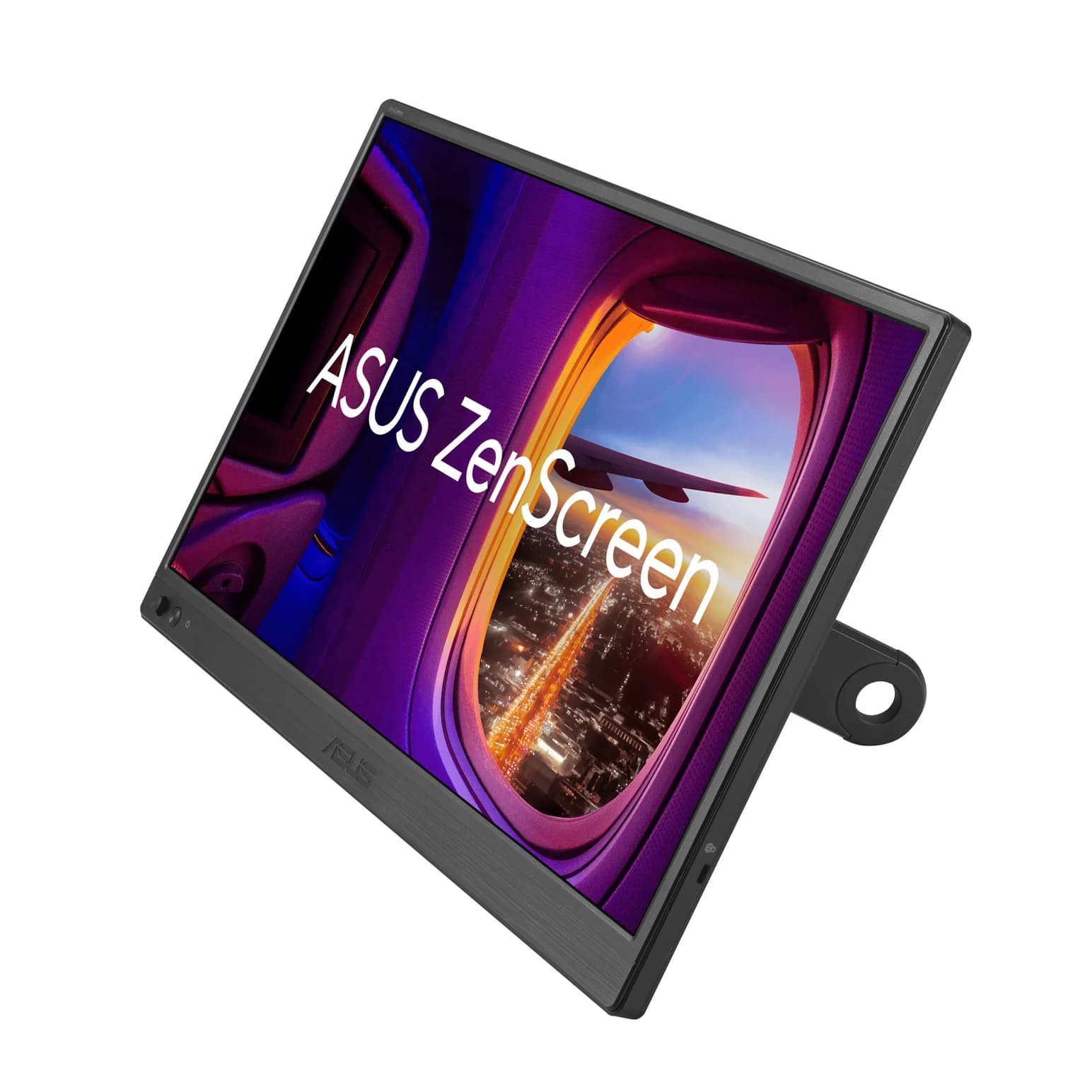
Best for native USB-C video or HDMIASUS
ASUS ZenScreen MB169CK Portable USB-C Monitor (15.6-inch, 1080p)
- ports
- 3
- host link
- USB-C
- Choose
- Two USB-C DP Alt Mode ports and mini HDMI offer native video connections, with separate USB-C power for HDMI.
- Limit
- 1080p at 60Hz with 250 nits: fine indoors, dim near a bright window
Quick picks
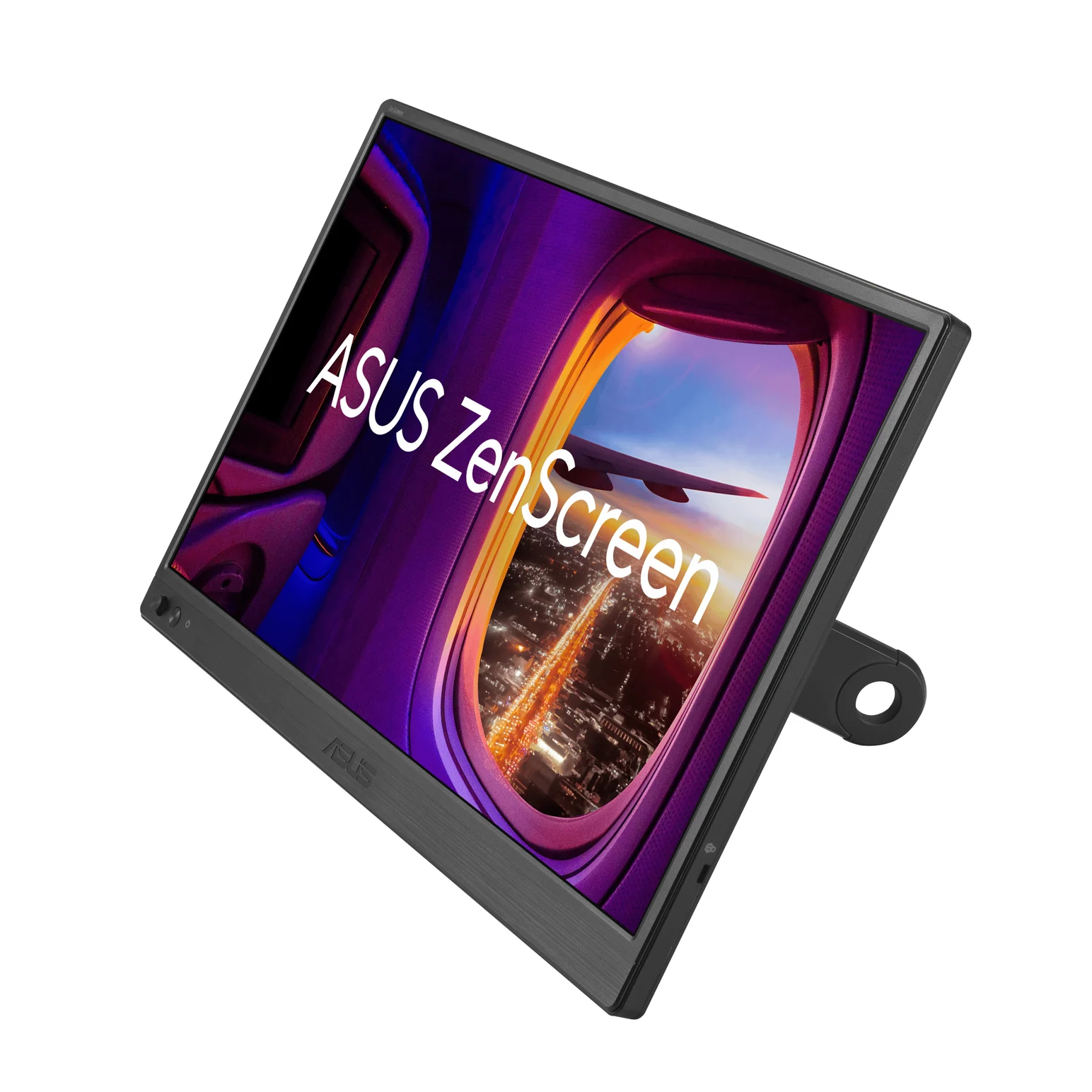
MB169CK — our pick for USB-C video and HDMI: Check price on Amazon. Its native inputs avoid the MB16ACV’s USB-A driver requirement.
MB16ACV — the USB-A choice with driver approval: Check the exact model and buying options at ASUS. Verify the US cable bundle before ordering.
These are connection choices within this exact pair. For a wider shortlist, see our best portable monitors.
Start with your laptop’s port
| What your laptop provides | Pick | What must work |
|---|---|---|
| USB-C with DisplayPort Alt Mode | MB169CK | USB-C video and enough power over the supplied cable |
| HDMI, but no USB-C video | MB169CK | HDMI to mini HDMI for video, plus USB-C power |
| USB-A 3.0, no usable native video output | MB16ACV, conditionally | Approved USB graphics driver and USB-C to USB-A cable |
| USB-C for data only; no HDMI | Investigate MB16ACV’s hybrid route | Confirm the host and driver with ASUS; do not assume native USB-C video |
A USB-C connector does not identify its video capabilities: ASUS distinguishes data-only, charging and display-capable ports. Look up the exact laptop model’s port specification or manual; the fact that it charges over USB-C is not proof of display output. Our USB-C to display connection guide explains the same port check for an external screen.
MB16ACV vs MB169CK: the useful differences
| Feature | ZenScreen MB16ACV | ZenScreen MB169CK |
|---|---|---|
| Screen | 15.6-inch, 1920 × 1080, IPS, anti-glare | 15.6-inch, 1920 × 1080, IPS, anti-glare |
| Maximum refresh / typical brightness | 60Hz / 250 nits | 60Hz / 250 nits |
| Physical video inputs | 1x USB-C: DP Alt Mode and USB 3.2 hybrid signal | 2x USB-C DP Alt Mode; 1x mini HDMI |
| USB-A display route | Yes, through the required DisplayLink driver | No native USB-A display route documented |
| HDMI input | None listed | Mini HDMI; add USB-C power |
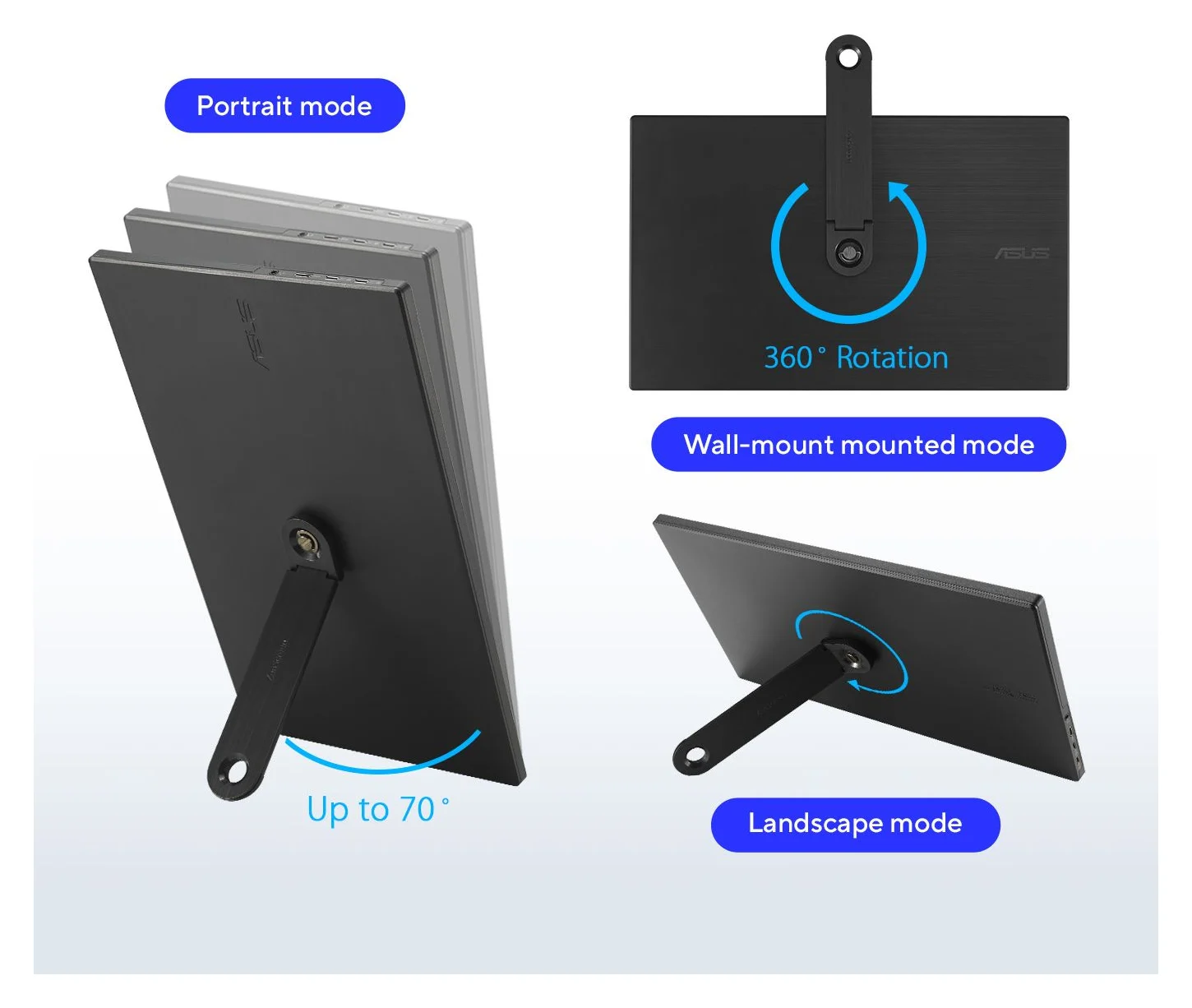
| Stand | Built-in fold-out kickstand | Detachable 360° screw-in kickstand |
| Published weight | 0.9 kg net | 0.78 kg without stand |
| Published dimensions | 35.8 × 22.5 × 1.0 cm | 36.0 × 22.6 × 1.2 cm without stand |
| US-listed cables | USB-C cable; USB-A cable not listed | USB-C and mini HDMI to HDMI cables |
Sources: ASUS’s MB16ACV US specifications and MB169CK US specifications, with connection details from their product pages.
The weights are not a complete carry-kit comparison: ASUS explicitly excludes the MB169CK stand. Both have the same headline resolution, refresh rate and typical brightness; do not treat either as a panel upgrade solely from these figures. ASUS’s MB169CK US spec page lists 16.7M colors and an 800:1 contrast ratio, while its manual lists 262K colors and 1000:1; ASUS’s own documents conflict, so do not use color count or contrast as a tie-breaker.
Best for native video: ASUS ZenScreen MB169CK
ASUS
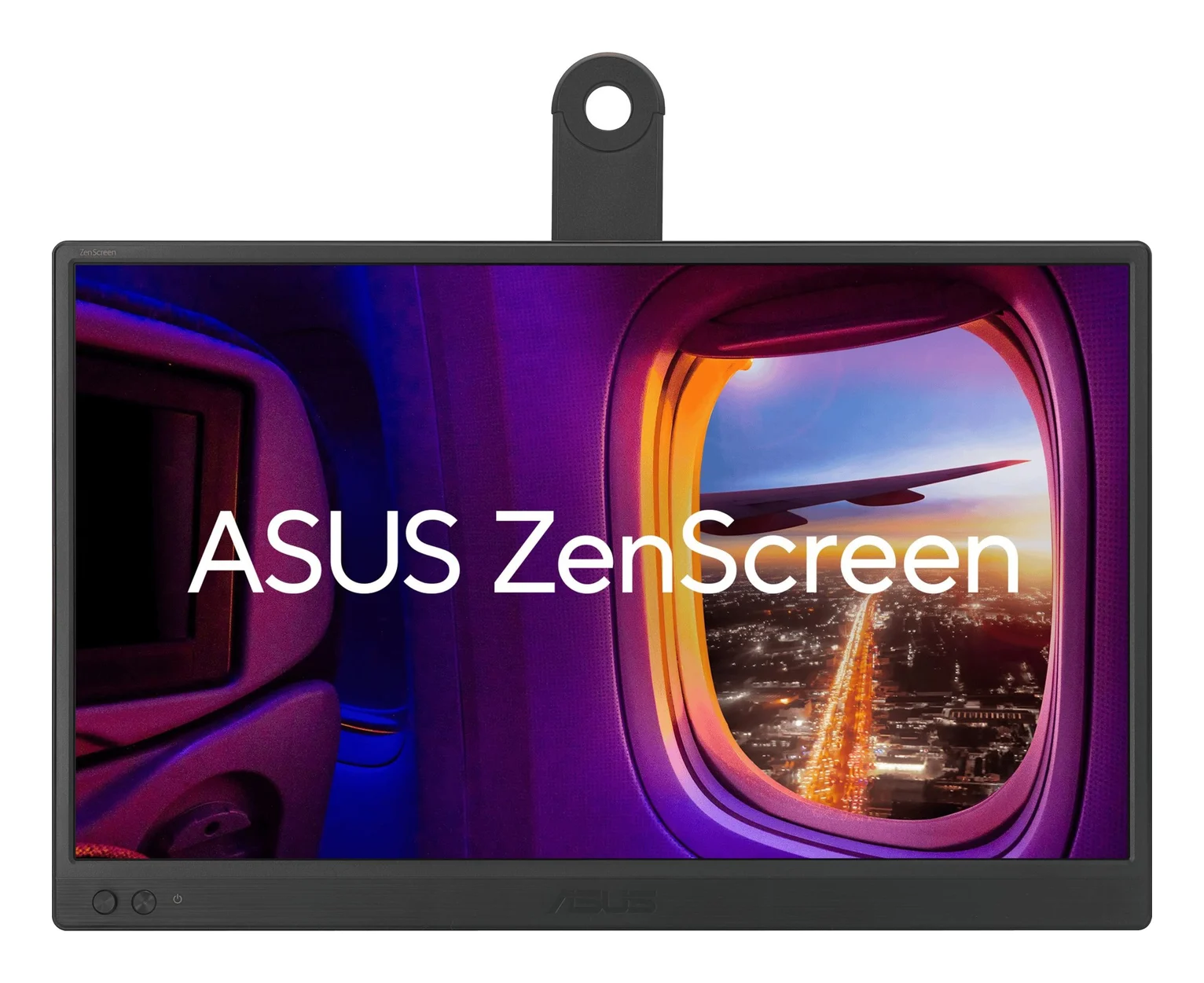
ASUS ZenScreen MB169CK Portable USB-C Monitor (15.6-inch, 1080p)
A 15.6-inch 1080p IPS portable monitor with two USB-C (DP Alt Mode) ports, a mini HDMI input and a detachable 360° kickstand.
- 3 ports
The MB169CK is the cleaner purchase for a compatible laptop. ASUS documents single-cable USB-C power and video, plus mini HDMI with separate USB-C power when the laptop lacks DP Alt Mode. USB-A alone will not feed its native video inputs; a passive connector adapter does not turn this model into the MB16ACV’s driver-based USB display.
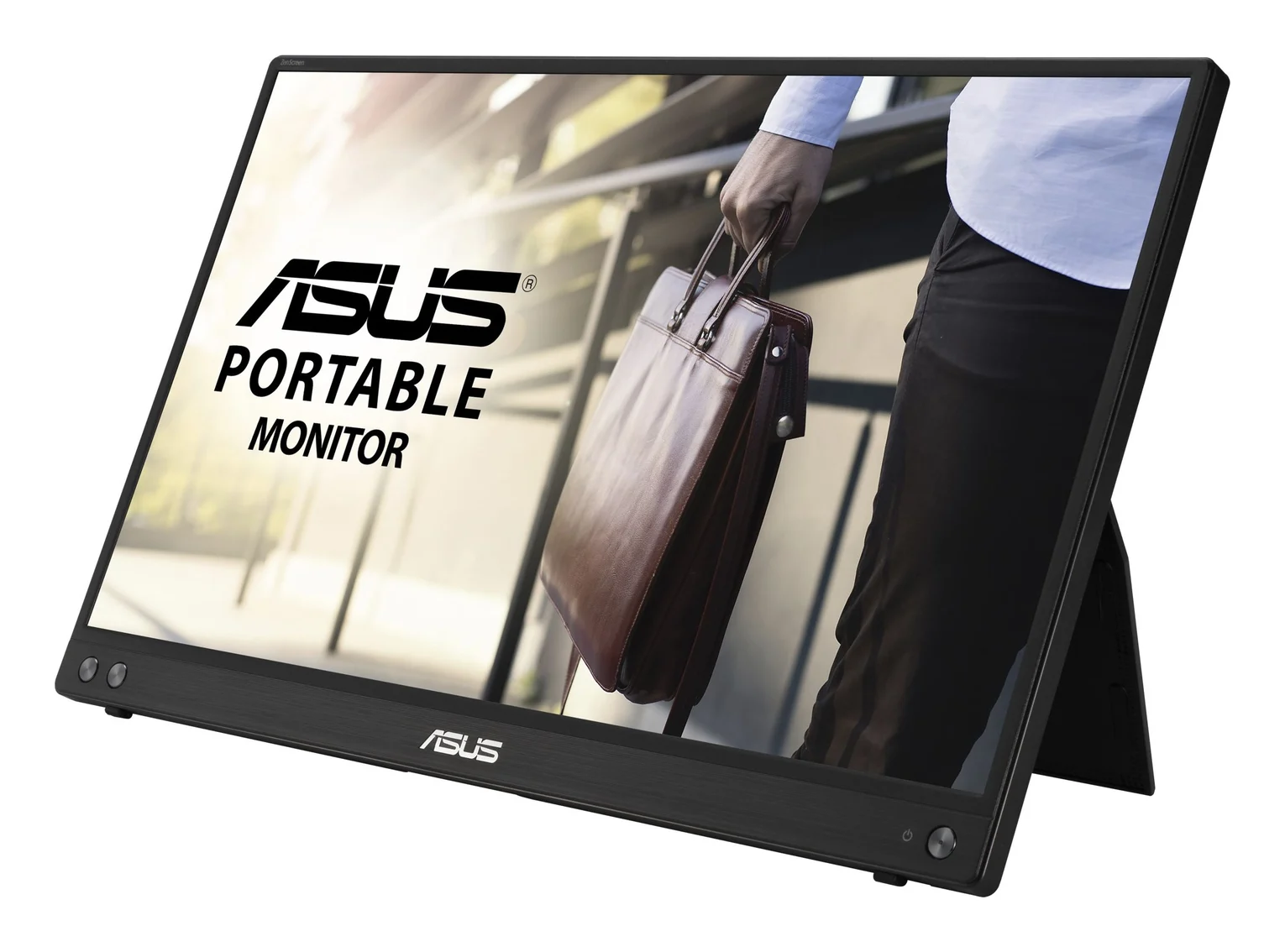
Its supplied mini HDMI to HDMI cable matters: the monitor end is mini HDMI, not a full-size HDMI socket. ASUS also lists a sleeve and the detachable kickstand. The manual marks the power adapter optional, so budget for separate power when buying it for an HDMI-only source.
The stand screws into the rear tripod socket and supports portrait or landscape positioning. That is useful for a long document beside your laptop, but software-driven rotation is a separate feature.
Our pick: MB169CK for a laptop with a supported native video output, especially if driver installation is restricted. Check price on Amazon.
Best for USB-A with driver approval: ASUS ZenScreen MB16ACV
The MB16ACV’s advantage is the hybrid signal input. The monitor itself has one USB-C socket; the USB-A connection is at the laptop end of the cable. ASUS requires a DisplayLink driver for that route, and the manual describes connecting to USB 3.0. Native USB-C DP Alt Mode can also be used without installing the USB graphics driver.
This is the conditional choice for an older laptop whose usable display connection is USB-A. Confirm software approval first: buying the hybrid model does not remove its driver dependency.
There is a real regional bundle discrepancy. ASUS’s global spec page and English manual list both USB-C to USB-C and USB-C to USB-A cables. The US spec page lists only a USB-C cable. Ask the seller to identify the exact MB16ACV box contents; add a suitable USB-A connection cable to your shopping list if it is absent.
For packing, ASUS lists 0.9 kg net weight and a fold-out kickstand. Its product page describes a 10.5 mm profile, while the US spec table lists a depth of 1.0 cm; use the published dimensions as approximate, not a snug sleeve-fit guarantee.
Our pick: MB16ACV when the USB-A driver route solves your specific laptop problem. Check model details and buying options at ASUS.
Drivers: check the operating system and work policy
ASUS’s MB16ACV download page lists Windows 10 and Windows 11 options, with its USB monitor package shown as 10.1 M2. Synaptics’ Windows downloads separately list 12.3 for those systems. Newer chipmaker software and an ASUS model-specific package are different support claims; have IT approve the appropriate package rather than assuming they are interchangeable.
For Mac, ASUS’s model-specific listing names Monterey 12, Ventura 13, Sonoma 14 and Sequoia 15. Synaptics’ current Mac download list names Sonoma 14, Sequoia 15, Tahoe 26 and Golden Gate 27 for DisplayLink Manager. The chipmaker list alone does not establish ASUS support for every newer OS on this monitor. For a Mac with USB-C video, our preference is MB169CK’s native input.
DisplayLink’s Mac setup instructions require Screen Recording permission so the app can access pixels for the USB display. ASUS also warns that protected content can be unavailable on its USB graphics connection. If you need a screen mainly for paid streaming, favor a native connection and check the service’s display rules.
- Yes: Native USB-C DP Alt Mode on either model: no USB graphics driver needed
- Yes: MB169CK HDMI: native video with a separate USB-C power connection
- Partly: MB16ACV USB-A: proceed after confirming the OS package and permission to install it
- No: No driver approval and no usable native video output: do not buy either yet
Compare the complete working kit
For HDMI use, the MB169CK manual shows a USB-C power source of at least 10W. That is a supply requirement in the connection diagram, not a promise of laptop charging. The adapter is marked optional.
| Connection | Working kit | Check before ordering |
|---|---|---|
| MB169CK over USB-C | Monitor + supplied USB-C cable + DP Alt Mode laptop with sufficient power | Verify the laptop’s port and power capability |
| MB169CK over HDMI | Monitor + mini HDMI to HDMI cable + USB-C power cable + suitable power source | Add an adapter providing at least 10W if the kit lacks one |
| MB16ACV over USB-A | Monitor + USB-C to USB-A cable + approved USB monitor driver | The US cable listing differs from the global list |
Compare the screen plus every missing cable or power supply before choosing a deal. Keep the laptop’s own charger in your plan: neither linked ASUS spec sheet specifies USB PD pass-through charging for the laptop. Monitor power consumption and laptop charging are different specifications.
If the screen stays blank
A missing image can be a video-path problem; repeated logo cycling or a blinking power indicator can point to insufficient source power, according to both manuals. Diagnose those separately.
Identify the host output
Look up the exact laptop port; USB-C charging alone does not establish video support.
Connect the matching video path
For MB169CK HDMI, connect video and USB-C power; choose the matching input in the monitor menu.
Check the software route
For MB16ACV over USB-A, install the approved ASUS USB monitor package.
Investigate unstable power
If the logo repeats or the indicator blinks, follow the exact model’s manual and safe-mode instructions.
How we choose
This comparison is based on ASUS’s product pages, regional specifications, English manuals and model-specific download listings, plus Synaptics’ driver documentation. We have not physically tested either monitor. We prioritize a working connection, permission to install software and the complete cable-and-power kit; we do not infer image quality, gaming latency or battery runtime from these documents.
Verdict
Buy MB169CK for native USB-C video or HDMI plus USB-C power. Choose MB16ACV when its USB-A hybrid connection is what your laptop needs and the driver is approved. Match the full model suffix, confirm the regional cables, and compare the cost of a working kit before ordering.
Check MB169CK pricing on Amazon · Check MB16ACV details at ASUS
Frequently asked questions
Which ASUS portable laptop monitor should I buy?
Choose MB169CK for a laptop with USB-C DisplayPort Alt Mode, or HDMI plus USB-C power. Choose MB16ACV when you specifically need its USB-A hybrid display connection and can install the required driver. Both have a 15.6-inch 1080p IPS screen at up to 60Hz, so the connection is the useful starting point.
Does ASUS MB16ACV work over USB-A without a driver?
No. ASUS explicitly requires a DisplayLink driver for the USB-A hybrid connection, and its manual describes a USB 3.0 host connection. Native USB-C DisplayPort Alt Mode does not need that USB graphics driver. Before buying for a managed work laptop, have IT approve the driver and confirm the correct cable is included.
Can MB169CK work from a laptop without USB-C video?
Yes, if the laptop has an HDMI output: use the monitor’s mini HDMI input for video and a USB-C connection for power. ASUS lists a mini HDMI to HDMI cable in the US accessories, while the manual marks the power adapter optional and shows a supply of at least 10W. USB-A alone is not a native video input for this model.
Does MB16ACV work with current macOS versions?
ASUS lists an MB Series application naming macOS Monterey 12, Ventura 13, Sonoma 14 and Sequoia 15. Synaptics separately lists DisplayLink Manager for Sonoma 14, Sequoia 15, Tahoe 26 and Golden Gate 27. That broader chipmaker list is not an ASUS guarantee for this exact model. For a Mac with USB-C video, we prefer the native connection.
Do these ZenScreens rotate automatically on a Mac?
Do not rely on it when choosing between them. ASUS says MB16ACV auto-rotation is Windows-only. For MB169CK, its product page says Windows and Mac, but its manual says Windows-only with DisplayWidget Center. Both stands allow portrait positioning; confirm current Mac software support with ASUS if automatic rotation is essential to your purchase.
Why does a ZenScreen blink or keep showing the ASUS logo?
Both manuals identify insufficient power from the USB-C source as a possible cause. Check the video-capable host port and the supplied cable first, then consult the exact model’s safe-mode instructions. On MB169CK, ASUS also documents separate USB-C power with HDMI. A power problem and a missing video signal need different fixes.
Best for native USB-C video or HDMI
ASUS ZenScreen MB169CK Portable USB-C Monitor (15.6-inch, 1080p)
Related guides
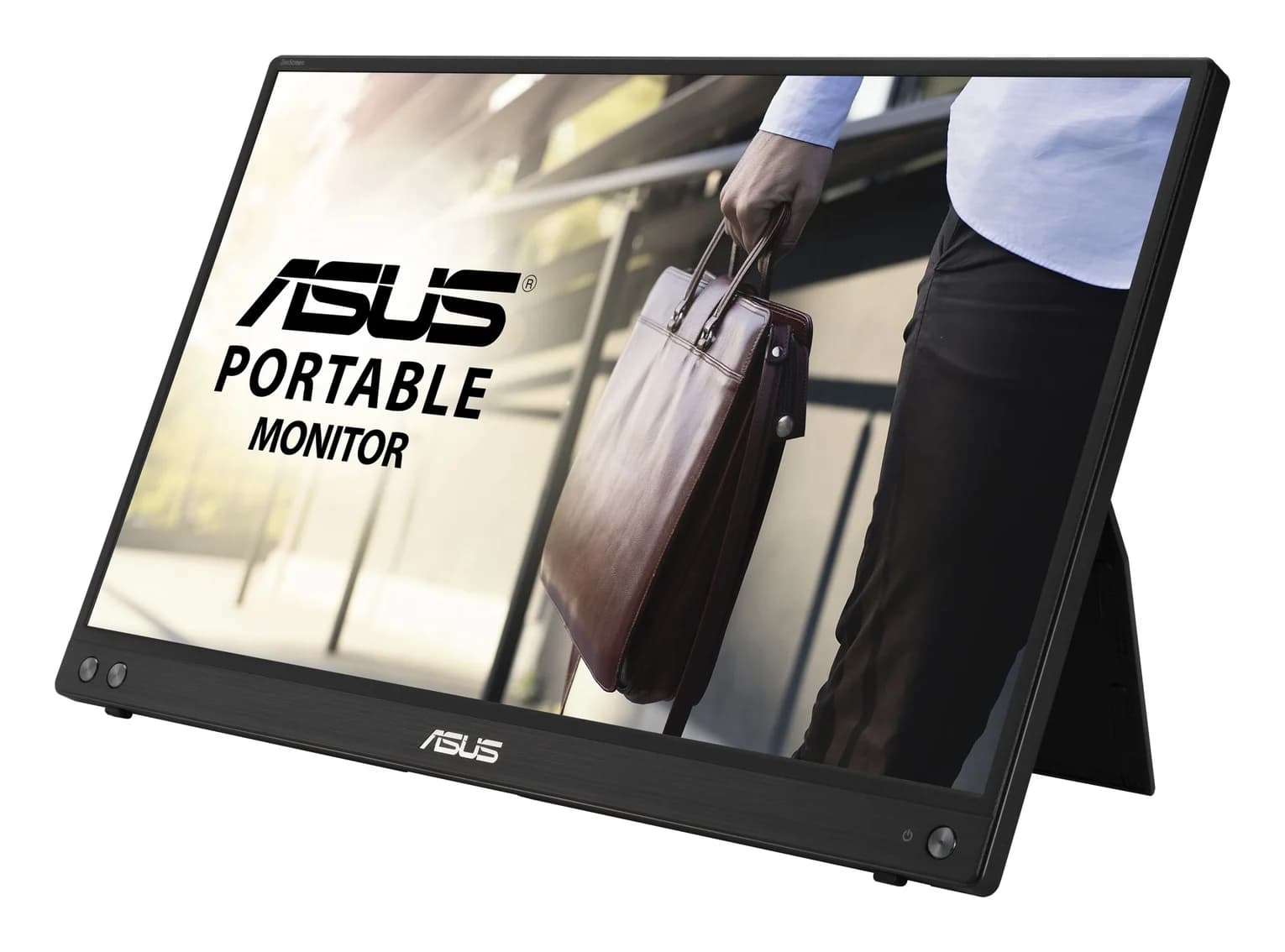
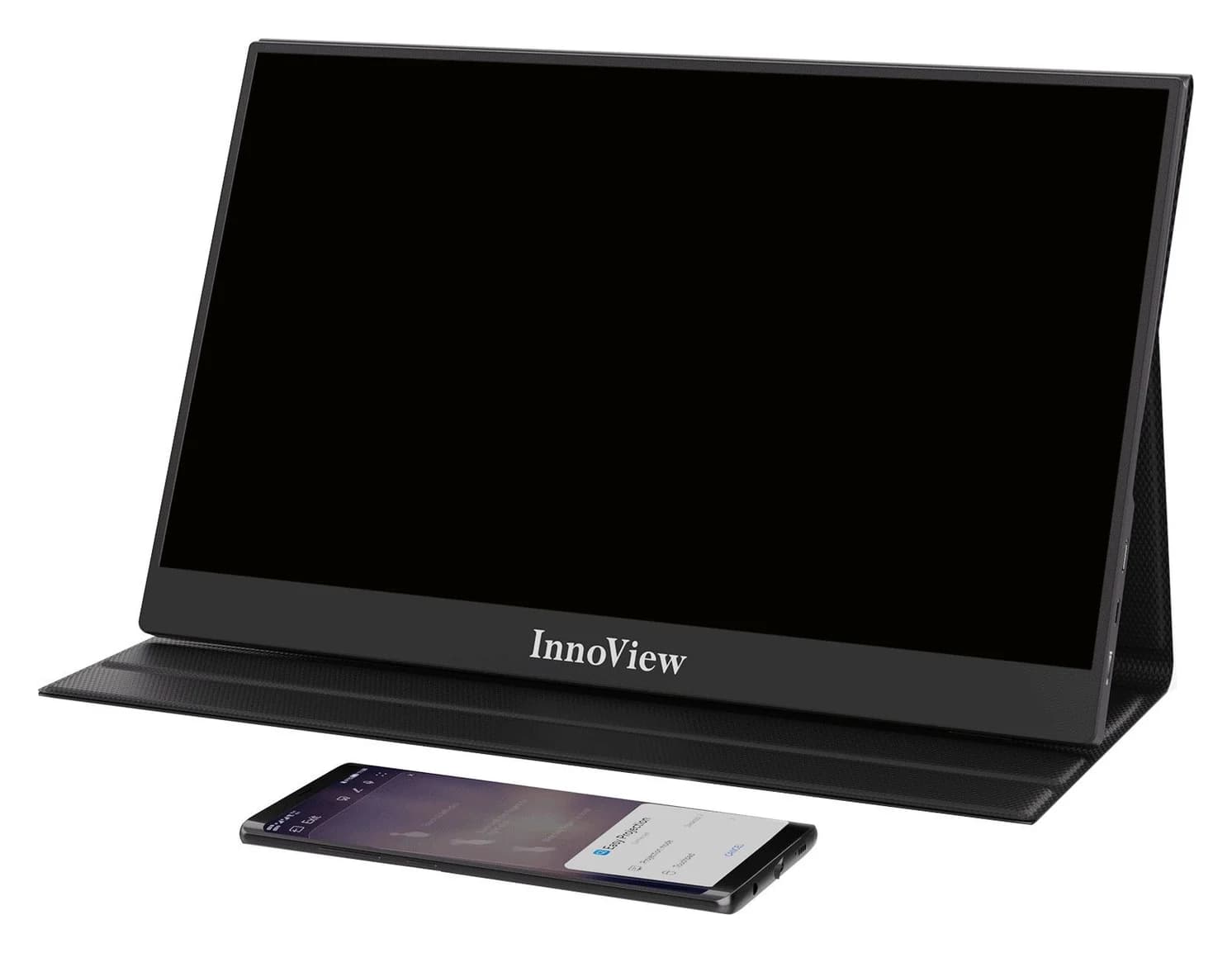
InnoView INVPM406 vs ASUS ZenScreen MB16ACV: Which Portable Monitor?
Choose between the InnoView INVPM406 and the ASUS ZenScreen MB16ACV from maker specs: ports, USB-A driver rules, kit contents, stands and return checks.
Updated November 7, 2026Read
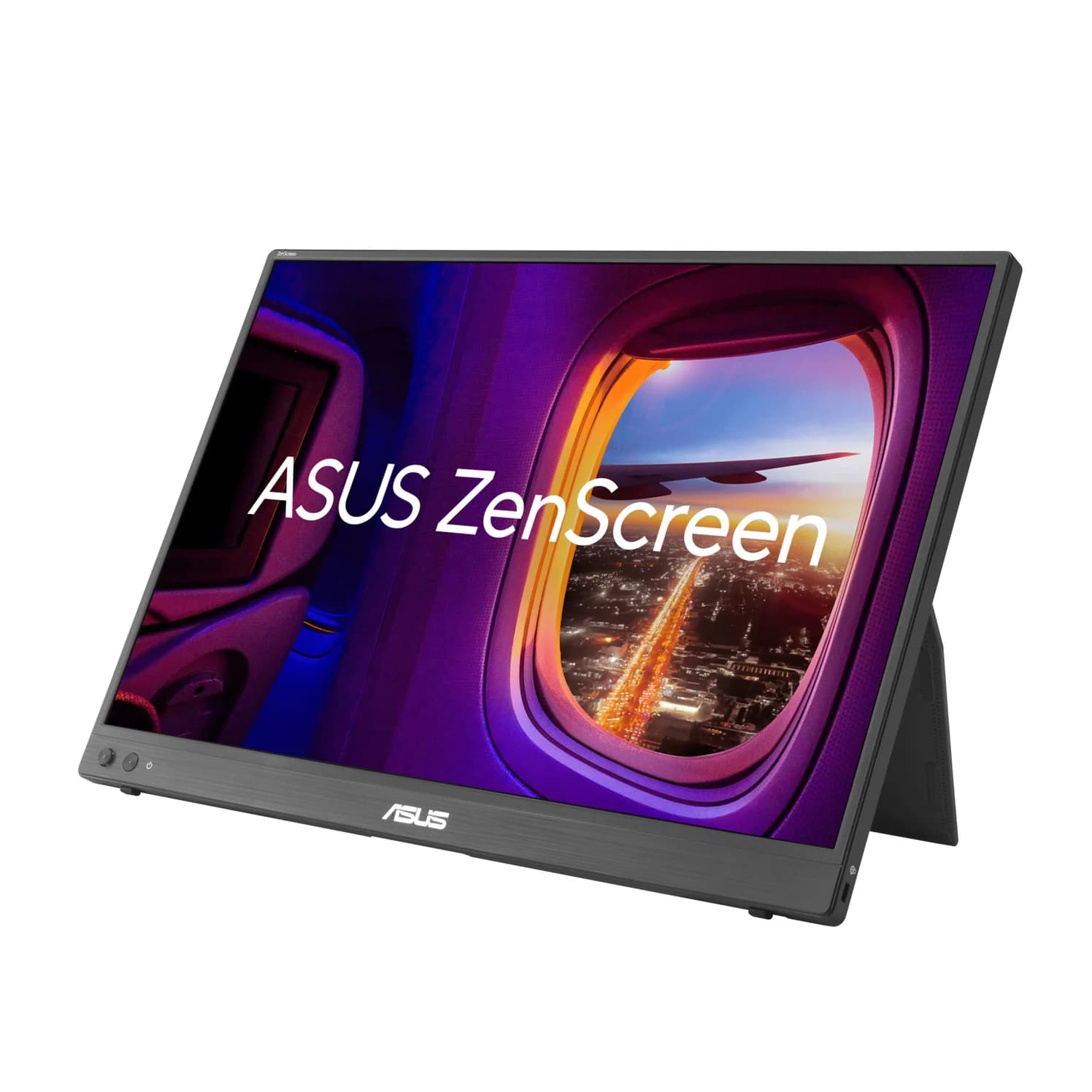
ASUS ZenScreen MB16NCG vs Lenovo ThinkVision M14d: Which Portable Monitor?
Choose between the ASUS MB16NCG and Lenovo M14d with panel, refresh, weight, stand and USB-C power differences explained, plus the travel kit each one needs.
Updated November 5, 2026Read
AOC 16T20 vs ASUS ZenScreen MB16ACV: Pick by Your Laptop's Ports
AOC 16T20 vs ASUS ZenScreen MB16ACV compared from official specs: inputs, power, drivers, stands and travel weight, so you buy a complete kit that works.
Updated November 5, 2026Read