Black Friday: the specs to check before you buy
Best picks
Updated November 3, 2026Best Hubs and Docking Stations for iMac: Match Your Model
Short answer
The best iMac docking station for accessible everyday data connections is the StarTech.com HB31C2A2CB: two USB-A and two USB-C ports, rated up to 10Gbps, without a model-specific clamp. Choose the Plugable USBC-HUB7BC for seven USB-A ports backed by a 60W adapter. If you specifically want ports attached beneath the screen, Satechi's clamp is the fit-specific alternative, but its store shows sold out and its compatibility list does not confirm the M6 iMac.
Our picks at a glance
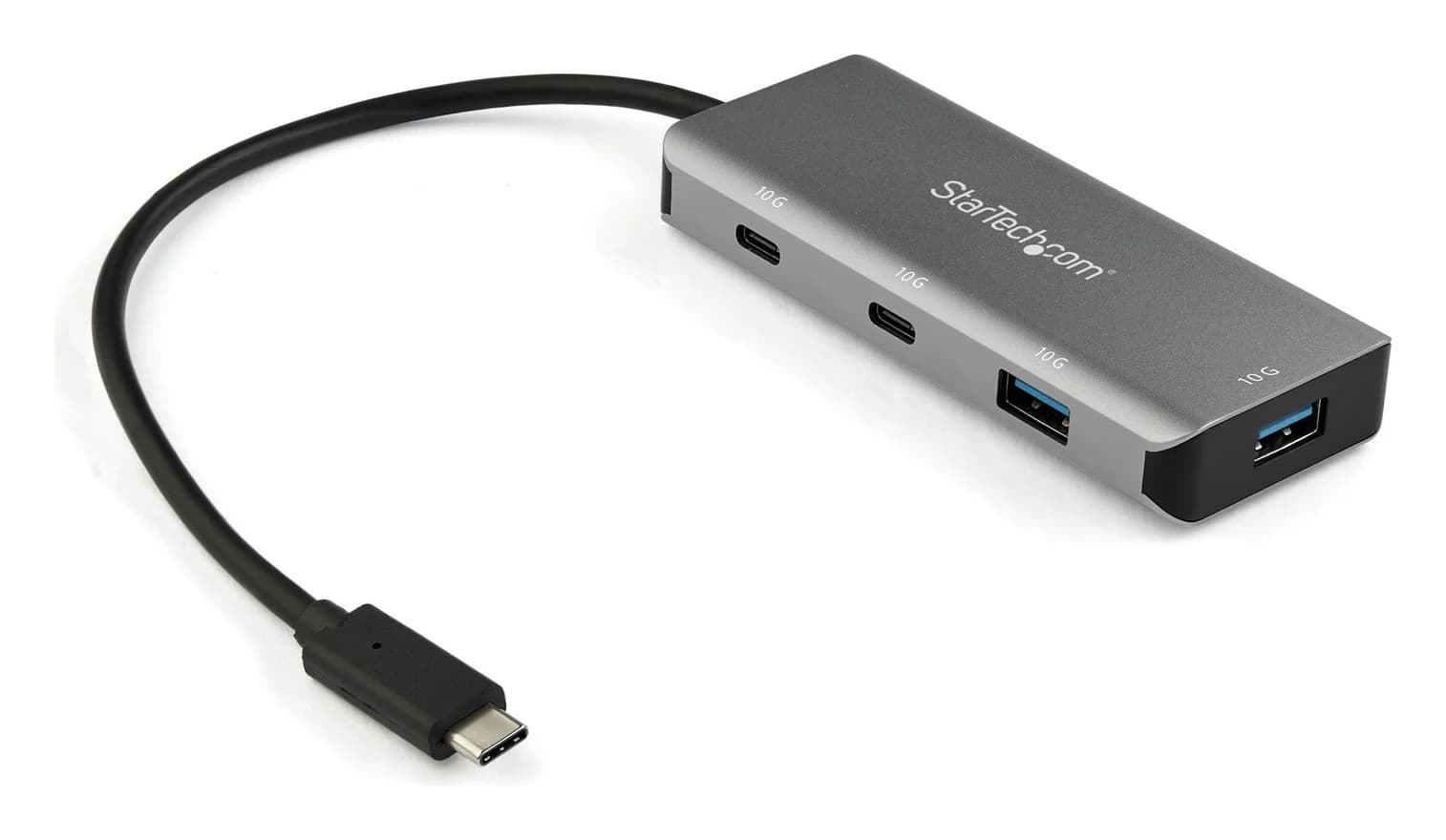
Best for accessible USB-A and USB-C data portsStarTech.com
StarTech.com 4-Port USB-C Hub 10Gbps (2x USB-C + 2x USB-A)
- data
- 10 Gbps
- ports
- 4
- host link
- USB-C 3.2 Gen 2
- Choose
- Two USB-A and two USB-C data ports share a 10Gbps connection, with an attached 25cm host cable and no enclosure-specific clamp.
- Limit
- No video output: the USB-C ports do not support DisplayPort Alt Mode
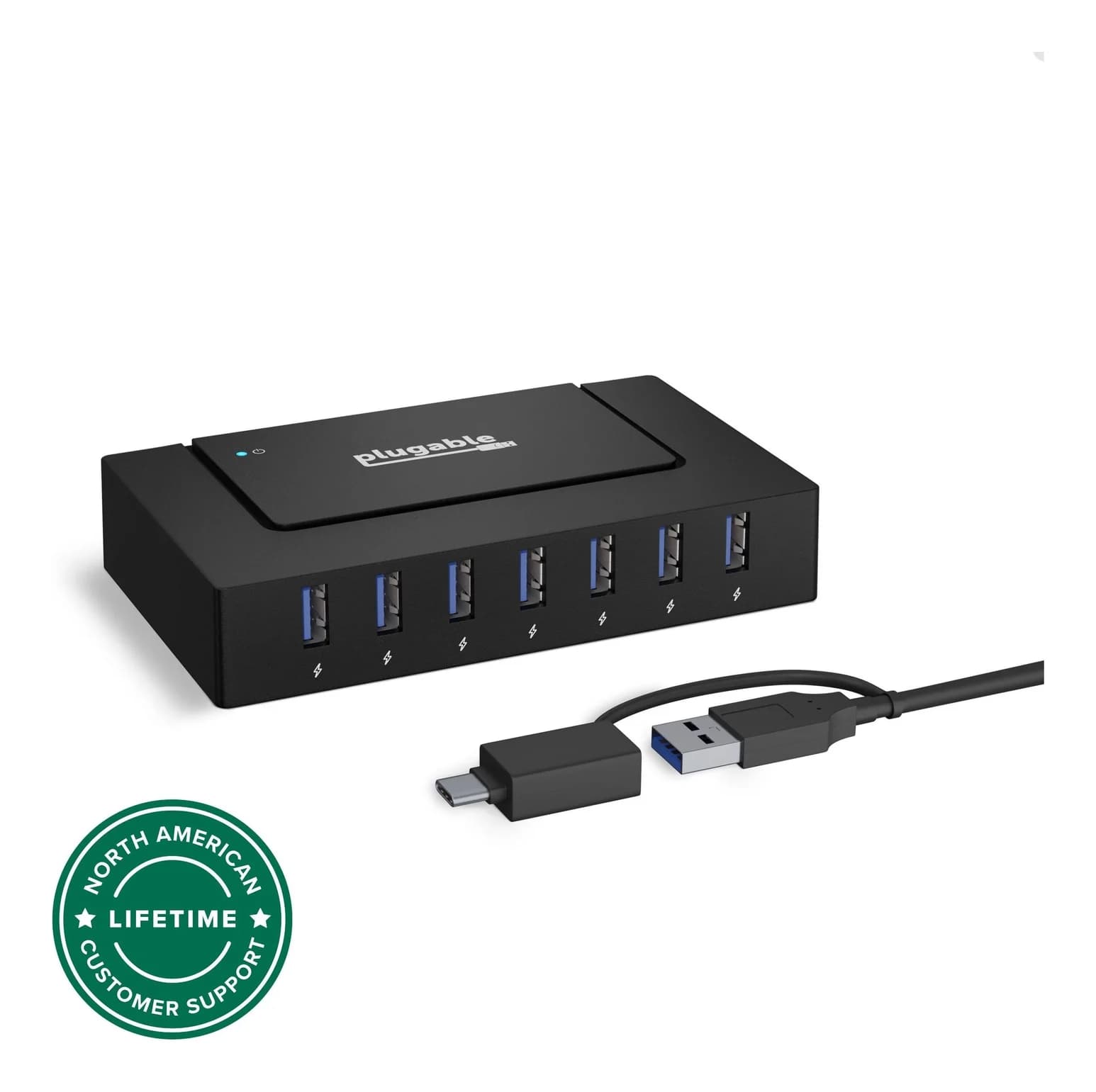
Best powered hub for USB-A peripheralsPlugable
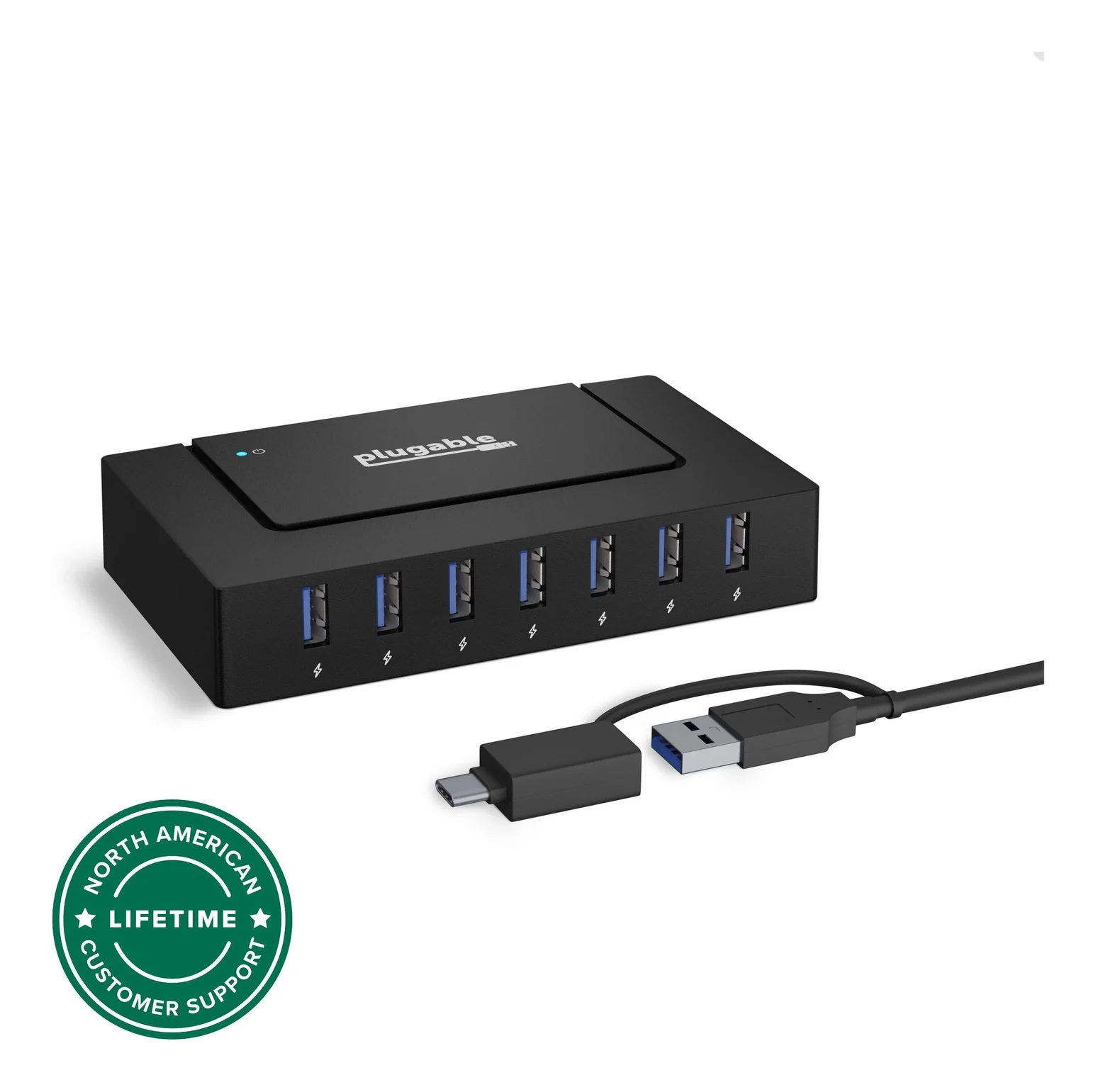
Plugable USB 3.0 and USB-C 7-Port Charging Hub
- data
- 5 Gbps
- ports
- 7
- host link
- USB-C or USB-A
- Choose
- Seven front-facing USB-A ports, a 60W power adapter and an included USB-A/USB-C host cable suit a permanent peripheral setup.
- Limit
- Does not charge the laptop
A clamp and card slots
Satechi USB-C Clamp Hub. A comparison reference, with no buying award while its maker shows sold out
Quick picks
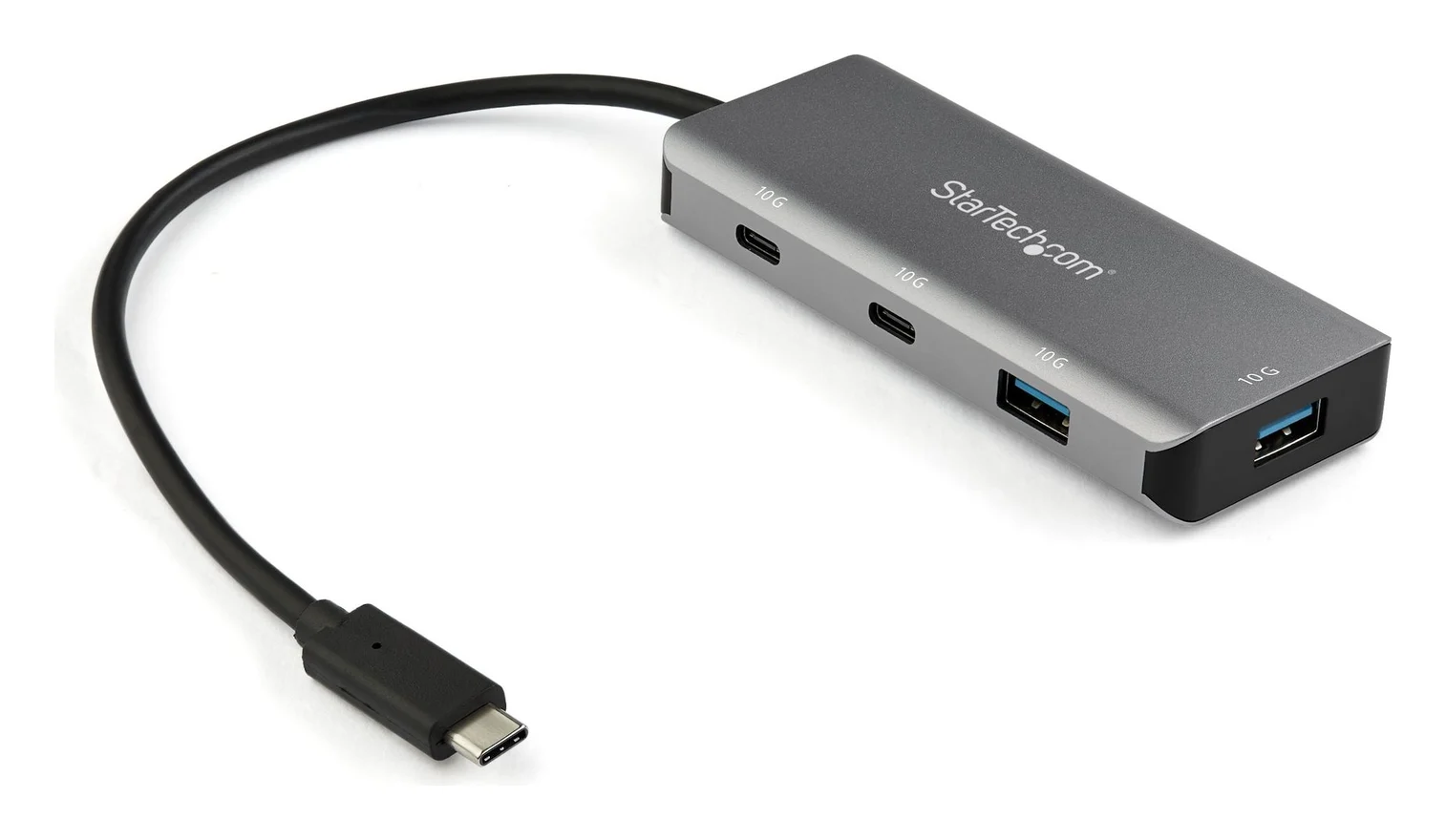
- Mixed USB-A and USB-C accessories: StarTech.com HB31C2A2CB. Our default for adding reachable data ports; check the attached cable's reach before buying.
- A permanent bank of USB-A peripherals: Plugable USBC-HUB7BC. Choose its powered design when host bus power is the concern.
- A clamp and card slots: Satechi USB-C Clamp Hub. A comparison reference, with no buying award while its maker shows sold out.
Compare the ports you will actually use
These are different solutions to the same access problem. The specifications below come from StarTech.com's datasheet, Plugable's product documentation and Satechi's specifications and FAQ.
| Model and placement | USB peripheral ports | USB link rating | Card reader | Power and host connection |
|---|---|---|---|---|
| StarTech.com HB31C2A2CB; loose on desk | 2 USB-A + 2 USB-C, data | Up to 10Gbps | None | Bus-powered; up to 15W shared, host-dependent; attached 25cm USB-C cable |
| Plugable USBC-HUB7BC; seven ports across the front | 7 USB-A | Up to 5Gbps | None | Included 60W adapter; 1m USB-B host cable with USB-A plug and USB-C adapter |
| Satechi ST-UCICHS / ST-UCICHB; clamps beneath compatible screen | 3 USB-A + 1 USB-C, data | Up to 5Gbps | SD + microSD; UHS-I, 104MB/s; one card at a time | No charging support; 22.5cm USB-C connection cable; sold out at maker |
These are advertised link limits, not measured file-copy speeds. StarTech's downstream connectors are rated at 10Gbps, but the hub itself has one 10Gbps host connection: do not budget that bandwidth independently for every connected drive.
Best for accessible data ports: StarTech.com HB31C2A2CB
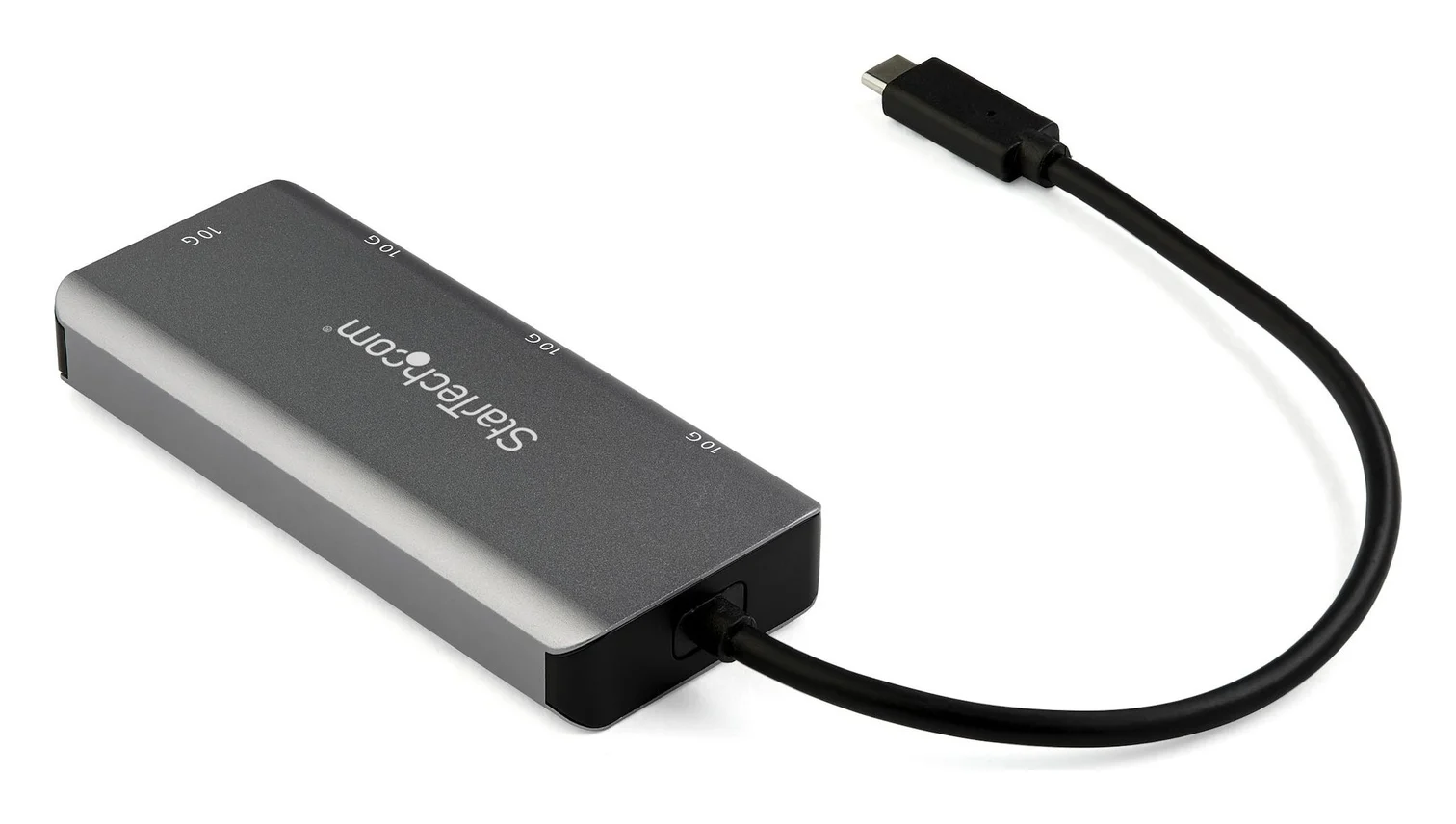
StarTech.com
StarTech.com 4-Port USB-C Hub 10Gbps (2x USB-C + 2x USB-A)
A small aluminum USB-C data hub that turns one USB-C or Thunderbolt 3 port into two USB-C and two USB-A ports at up to 10Gbps, on a 25cm attached cable.
- 10 Gbps data
- 4 ports
Choose this when the job is plugging in a flash drive, webcam or USB-C storage without choosing hardware around the screen's shape. The official datasheet specifies two USB-A and two USB-C downstream ports, a built-in 25cm cable and driverless macOS compatibility. Its cabled design avoids the enclosure-fit question entirely.
The buying catch is reach. Measure the cable route from your rear host port to the intended desk position; the included lead is attached. A short cable is useful beside the computer, but do not assume it will put the hub wherever your hand naturally reaches.
Power is shared. StarTech lists up to 4.5W per downstream connector and up to 15W across the hub, with total power dependent on the host. Those per-port ceilings are not a promise that every accessory can draw its maximum together. For several bus-powered devices, compare their requirements before choosing this over a mains-powered hub.
It has no card reader, no PD pass-through and no USB-C video/DisplayPort Alt Mode support. Buy it for data expansion; choose a separate reader if cards are essential, and keep monitor requirements on your dock shopping list.
Best powered hub for USB-A peripherals: Plugable USBC-HUB7BC
Plugable
Plugable USB 3.0 and USB-C 7-Port Charging Hub
A powered 7-port USB-A hub with a 60W adapter and a 2-in-1 cable that connects to USB-C or USB-A computers.
- 5 Gbps data
- 7 ports
Choose this for a desk full of USB-A accessories rather than a mixed USB-C collection. Plugable specifies seven front-facing USB-A ports at up to 5Gbps, an included 60W supply and a detachable 1m host cable. The cable connects to the hub over USB-B and to the computer through USB-A or its USB-C adapter, so it serves both connector generations without buying another host adapter.
That USB-C connection is upstream only: there are no USB-C peripheral sockets in this model's port bank. The longer supplied cable is also the more flexible choice here when you want the hub forward on the desk rather than immediately beside the iMac.
Plugable lists BC 1.2 charging at 1.5A per port during connected use; its separate up-to-2.4A figure describes standalone charging. Neither figure turns it into a USB-C PD fast charger. The 60W number belongs to the power supply, not to each USB port.
Connect the supplied adapter as instructed. Plugable says the hub itself needs no driver installation, although an attached device may need its own driver. For more port layouts, see our powered USB hub guide.
The clamp option: Satechi, with exact-model limits
The USB-C Clamp Hub for 24-inch iMac is ST-UCICHS in silver or ST-UCICHB in blue. Satechi's store page shows sold out; its product data also marks both color variants unavailable. We would use the cabled picks above for an immediate purchase.
There is a wording mismatch worth explaining: the store's headline copy says exclusively for the 2021 model, while its compatibility section covers 2021–2024. The more explicit compatibility support page names the M1, M3 and M4 iMacs. It also says unlisted devices have not been confirmed; that leaves the M6 unconfirmed rather than proven incompatible.
- Yes: Clamp compatibility confirmed by Satechi: 24-inch M1, M3 and M4 iMac
- No: This clamp does not fit 2020 or earlier iMac enclosures
- Partly: M6 iMac: not listed in Satechi's compatibility support page
The quick-start guide attaches it to the bottom of the display on the port side, then connects its USB-C cable. This is an enclosure clamp: check the exact computer model before ordering, rather than matching the screen size alone.
You get one USB-C data port, three USB-A data ports and SD/microSD slots. USB data is rated up to 5Gbps, and the UHS-I card reader at 104MB/s; its FAQ says only one card reads at a time. The box contains the hub and user manual. Neither selected cabled hub has a card reader, so this is the meaningful feature you give up if you choose one of those instead.
Do not buy the clamp to solve a device-power problem. Satechi excludes charging and USB-C video, and explicitly excludes CD readers including Apple SuperDrive from its USB-A ports.
Identify your iMac before choosing a hub
Start at Apple menu > About This Mac, as Apple's identification guide directs. Match the model identifier as well as the enclosure year when checking a clamp listing.
| Your iMac | Identifier / variant | Available host connections | Buying implication |
|---|---|---|---|
| 24-inch M1, 2021 | iMac21,2: two ports; iMac21,1: four ports | Two Thunderbolt/USB4 ports; four-port version adds two USB-C USB 3 ports | Satechi lists this enclosure |
| 24-inch M3, 2023 | Mac15,4: two ports; Mac15,5: four ports | Two Thunderbolt/USB4 ports; four-port version adds two USB-C USB 3 ports | Satechi lists this enclosure |
| 24-inch M4, 2024 | Mac16,2: two ports; Mac16,3: four ports | Two or four Thunderbolt 4 / USB4 ports | Satechi lists this enclosure |
| M6, currently on preorder | 10-core CPU: two ports; 12-core CPU: four ports | Thunderbolt 4 / USB4 up to 40Gbps; USB data up to 10Gbps | Choose a cabled hub; clamp fit remains unconfirmed |
| 27-inch Retina 5K, 2020 | iMac20,1 or iMac20,2 | Four USB-A ports and two Thunderbolt 3 USB-C ports | Choose by cable reach; this Satechi clamp does not fit |
Apple's M1, M3, M4 two-port, M4 four-port, M6 preorder specifications and 2020 Intel specifications establish the port distinctions above. The identifiers come from its identification guide.
On the four-port M1 and M3, the extra USB 3 ports support up to 10Gbps. Use those for a USB data hub and reserve a Thunderbolt port for equipment that needs Thunderbolt. For older machines, look up the actual model: Apple's Late 2015 Retina 5K specification lists Thunderbolt 2, so a familiar Thunderbolt name does not establish the right connector for a current dock.
Clamp, cabled hub or powered dock?
Choose a clamp for fixed access and card slots, after confirming the enclosure and stock. Choose the StarTech for mixed USB-A/USB-C data, after measuring its cable route. Choose the powered Plugable for USB-A devices needing external hub power, after checking their individual requirements.
A full dock makes sense when your shopping list includes display output, networking or Thunderbolt expansion as well as USB ports. Compare those connections in our Thunderbolt dock guide. Keep the iMac connected to its own power supply; Apple's M6 specifications include a 143W adapter, so a laptop dock's charging award is not a reason to choose it here.
For storage, check both interface and power requirements; our portable SSD guide covers drive selection. Plugable warns that bus-powered devices can disconnect when their combined demand exceeds available power. A mains-powered hub helps address that constraint, but it is not a guarantee for every drive combination.
Check the complete kit before ordering
Match the computer
Use About This Mac and the maker's exact compatibility list before choosing a clamp.
Match the hub model
HB31C2A2CB is the mixed-port data hub; USBC-HUB7BC is the powered USB-A model. Match Satechi's color SKU if waiting for its clamp.
Check the supplied parts
StarTech has an attached cable; Plugable includes its host cable, USB-C adapter and power supply; Satechi lists the hub and manual.
Plan the desk position
Measure the host-cable route and reserve an outlet for the powered hub before buying.
The compact switched Sabrent HB-UMP3 is another existing option, but we favor Plugable for this job: Sabrent supplies a 5V/2.5A adapter, while Plugable includes the larger 60W supply and both host-connector options. Check the exact powered kit rather than assuming every similar-looking Sabrent hub includes an adapter.
How we choose
This is a specifications-based guide; we have no physical test results. We compare manufacturer port inventories, included cables, peripheral-power limits and explicit iMac compatibility. Enclosure fit takes priority for clamps, and accessible ports take priority over laptop-charging features. A sold-out model or an unlisted host does not receive an unconditional recommendation.
Verdict
Buy the StarTech.com HB31C2A2CB for accessible USB-A and USB-C data ports, provided its cable reaches your intended position. Buy the Plugable USBC-HUB7BC for a powered bank of USB-A peripherals. Consider the Satechi clamp only when stock returns and its compatibility list covers your exact iMac; M6 fit still needs confirmation.
Frequently asked questions
What is the best docking station for an iMac?
For accessible USB data ports, our pick is the StarTech.com HB31C2A2CB: it adds two USB-A and two USB-C ports at up to 10Gbps without needing a particular iMac enclosure. Choose the Plugable USBC-HUB7BC instead for seven USB-A peripherals and an external power supply. Neither is a monitor dock; choose around the connections you actually need.
Does the Satechi clamp hub fit M1, M3, M4 and M6 iMacs?
Satechi's compatibility support page explicitly lists the 24-inch M1, M3 and M4 iMacs. It does not list the M6, so physical fit on that model remains unconfirmed. The product page excludes iMacs from 2020 and earlier. Although older marketing describes the hub as exclusively for the 2021 model, the support list also confirms the later M3 and M4 models.
How do I connect USB-A accessories to a 24-inch iMac?
Use a hub with a USB-C host connection and USB-A downstream ports. The StarTech.com pick supplies two USB-A ports alongside two USB-C data ports. The powered Plugable supplies seven USB-A ports and includes a host cable with both USB-A and USB-C connection options. Its USB-C adapter connects the hub to the computer; it does not add a USB-C peripheral port.
Will an Apple SuperDrive work through an iMac hub?
Satechi explicitly excludes CD readers, including Apple SuperDrive, from this clamp hub's USB-A ports. Apple says to connect a SuperDrive directly to the Mac if it does not respond through a USB hub or external display. For a Mac with USB-C ports, Apple lists its USB-C to USB Adapter and its USB-C Digital AV and VGA Multiport Adapters as connection options.
Can a monitor connect to the USB-C port on these hubs?
The StarTech.com hub does not support USB-C video or DisplayPort Alt Mode, and Satechi labels its clamp hub's USB-C port as data-only with no video support. Plugable's selected hub is a USB-A peripheral hub. Connect a display to an appropriate port on the iMac or choose a separate display-capable dock, checking the Mac's own external-display specifications first.
Can the Satechi clamp hub read SD and microSD cards together?
No. Satechi's product FAQ says the hub reads one card at a time, although its other ports can operate simultaneously. The maker lists a UHS-I reader rated at 104MB/s; that is a specification rather than a measured transfer result. Buy it for accessible card slots after checking model fit and availability, rather than for simultaneous transfers from both card formats.
Best for accessible USB-A and USB-C data ports
StarTech.com 4-Port USB-C Hub 10Gbps (2x USB-C + 2x USB-A)
Related guides
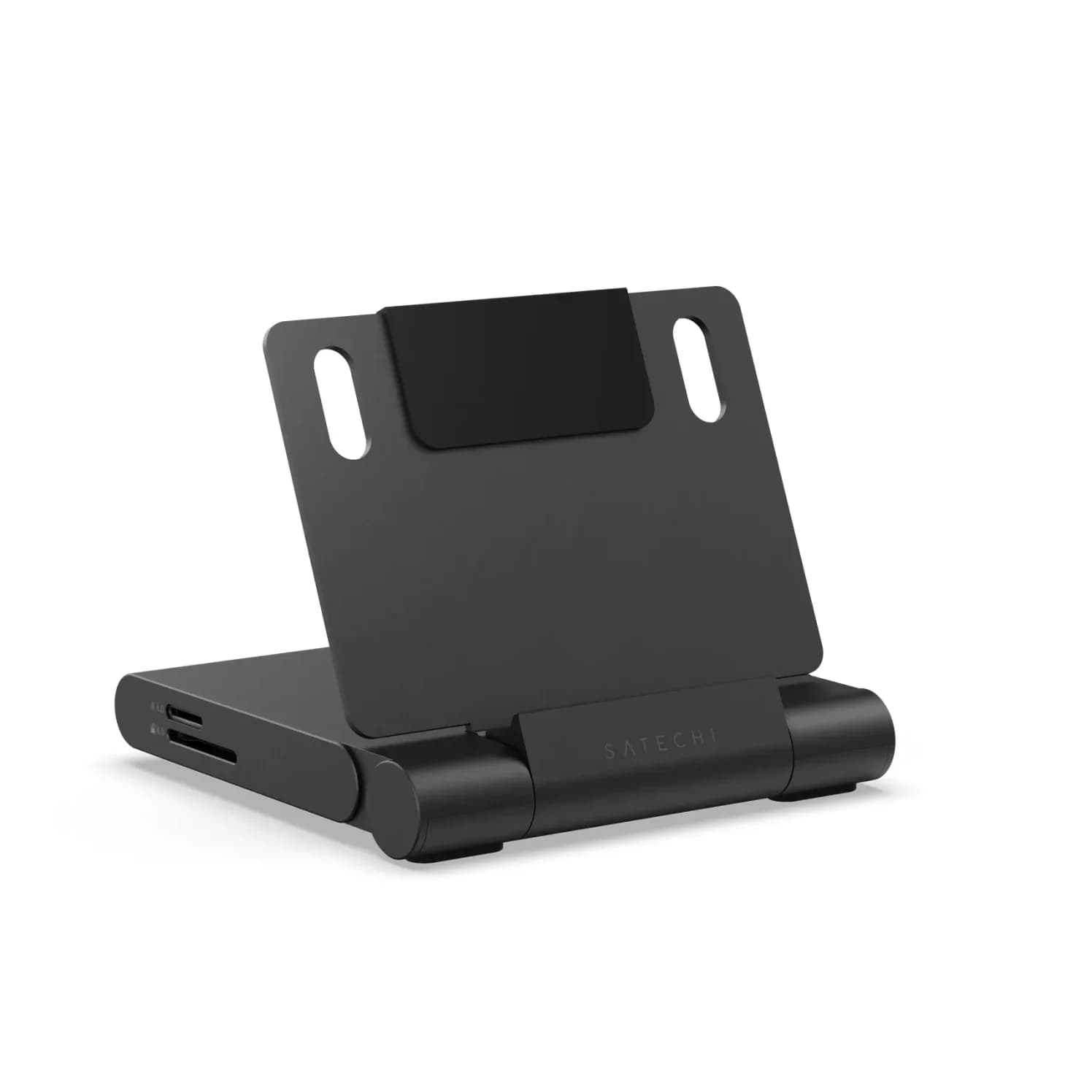
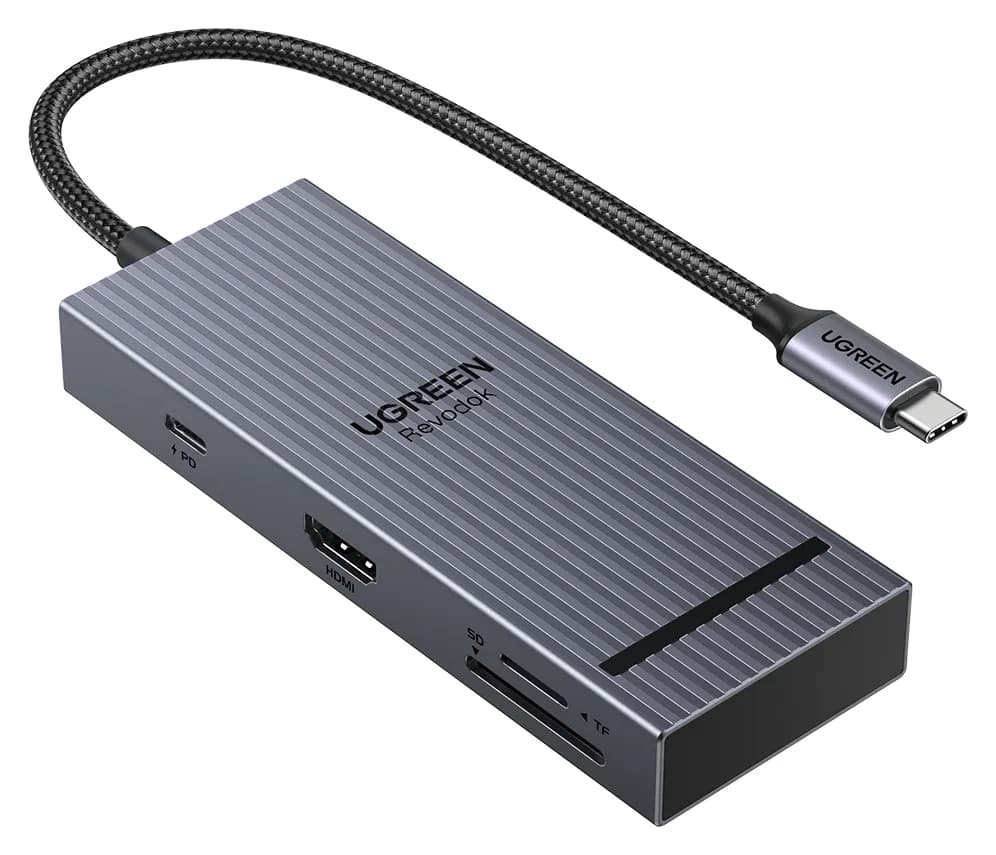
Satechi OntheGo vs UGREEN Revodok Pro 108 for iPad Pro: Which Hub Should You Buy?
Satechi OntheGo vs UGREEN Revodok Pro 108 for iPad Pro: stand-and-audio hub vs cable hub, case fit, the 4K display ceiling, SD card speed and the charger reserve that decides it.
Updated November 5, 2026Read
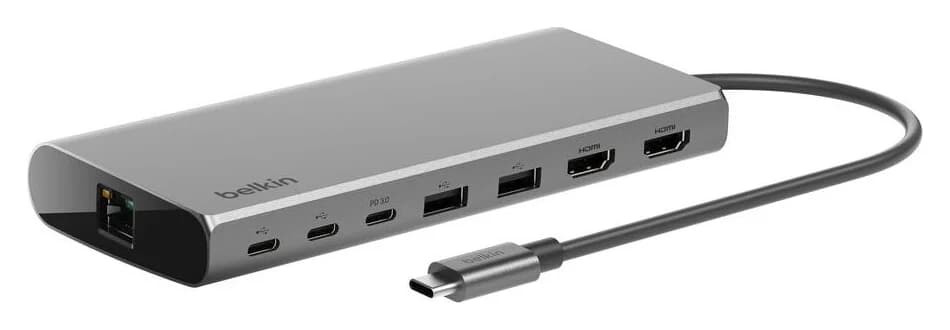
Belkin Core 8-in-1 vs Anker 553: Pick by Laptop and Monitors
Choose between Belkin's Core 8-in-1 and Anker 553 with exact models, Mac and Windows display limits, real laptop charging budgets, and a complete-kit checklist.
Updated November 5, 2026Read
Anker 553 vs Plugable USBC-MSTH2: Hub or Display Adapter?
Choose Anker 553 or Plugable USBC-MSTH2 for dual monitors: check Windows support, 4K limits, Mac mirroring, charging and the complete setup before you buy.
Updated November 4, 2026Read