Cyber Monday: the specs to check before you buy
Best picks
Updated November 22, 2026Best Mouse for MacBook: Bluetooth and USB-C Mice That Work Well with macOS
Short answer
The best mouse for a MacBook is the Logitech MX Master 4: it ships with a USB-C Logi Bolt receiver that plugs straight into a MacBook's USB-C port, pairs over Bluetooth Low Energy when you prefer no dongle at all, switches between up to three devices, and Logitech rates it for up to 70 days per full charge. If you want Apple's own mouse with macOS gestures, pick the Apple Magic Mouse (USB-C); for a smaller travel mouse, the Logitech MX Anywhere 3S for Mac; for wrist comfort, the Logitech Lift vertical mouse.
We may earn a commission when you buy through links on this page. As an Amazon Associate, thisUSB earns from qualifying purchases. How we earn
Our picks at a glance
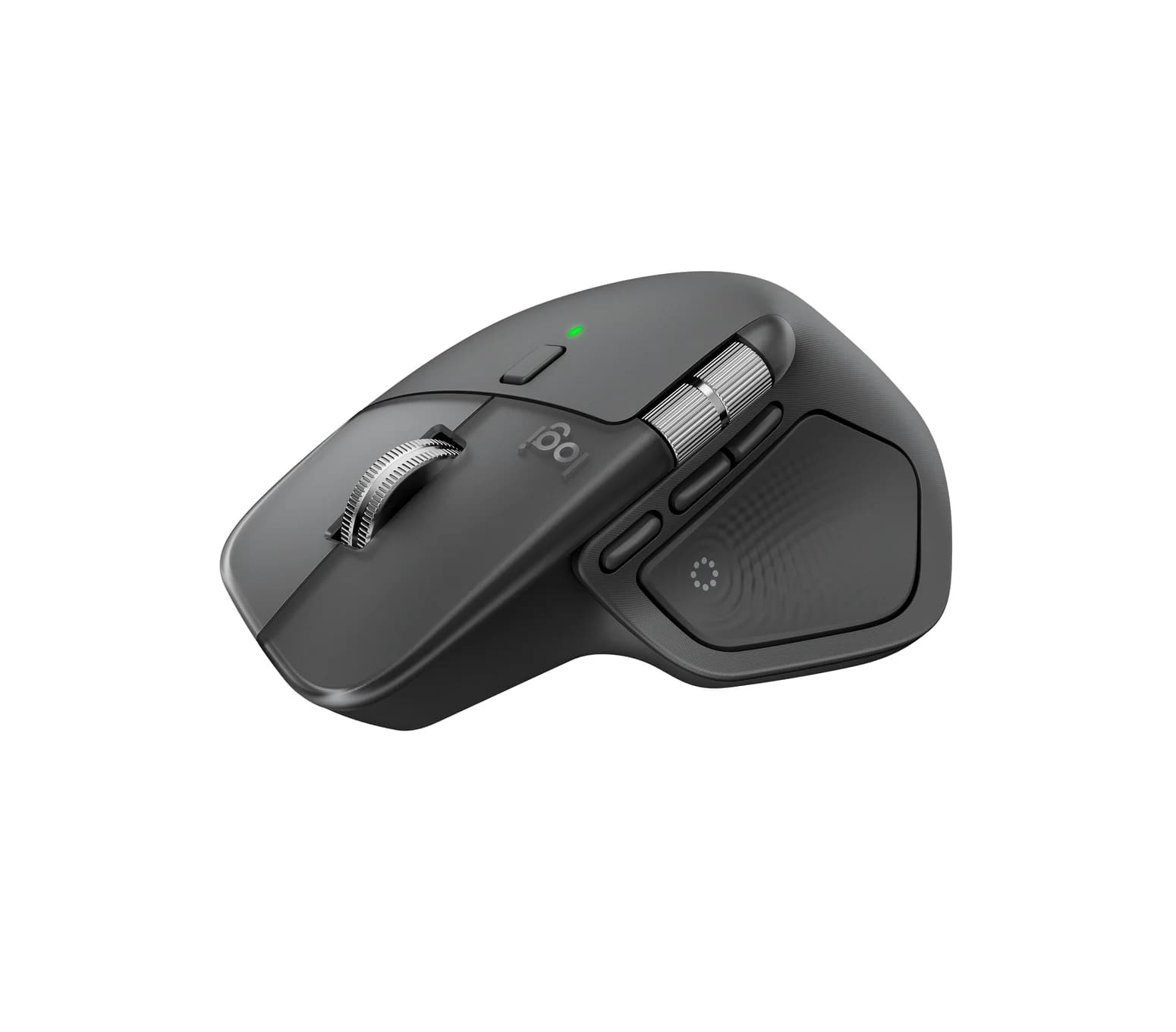
Best overall for MacLogitech
Logitech MX Master 4 Wireless Mouse (Graphite)
- Choose
- Ships with a USB-C Logi Bolt receiver that plugs straight into a MacBook, switches between three devices, and Logitech rates it up to 70 days per charge.
- Limit
- No charging cable in the box; you need your own USB-C cable
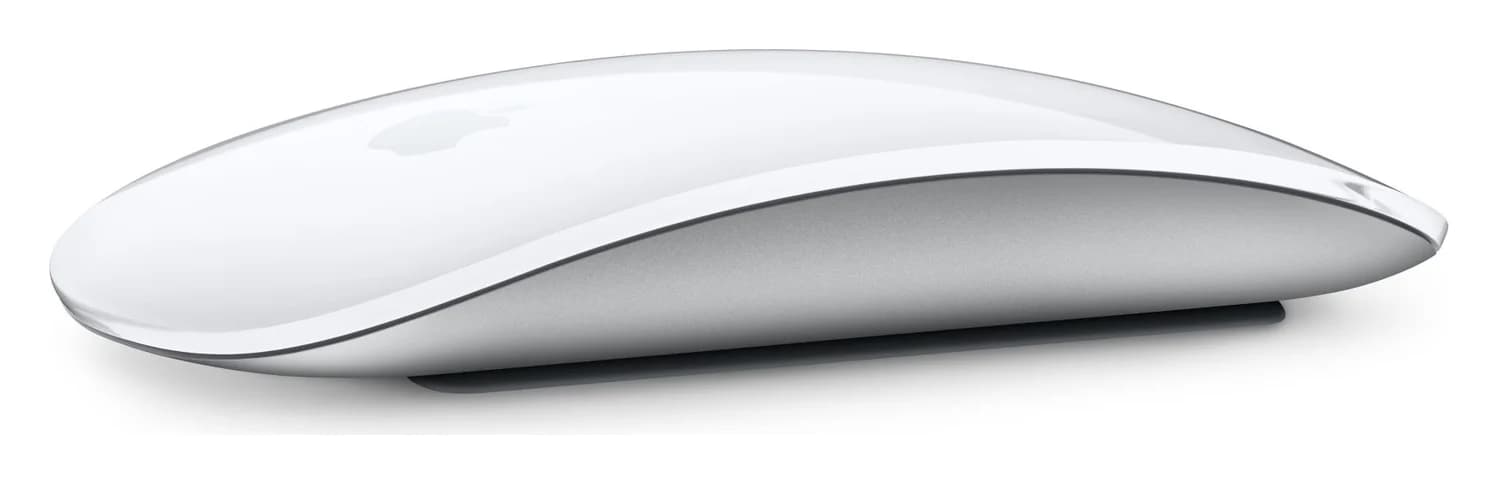
Best for Mac gesturesApple
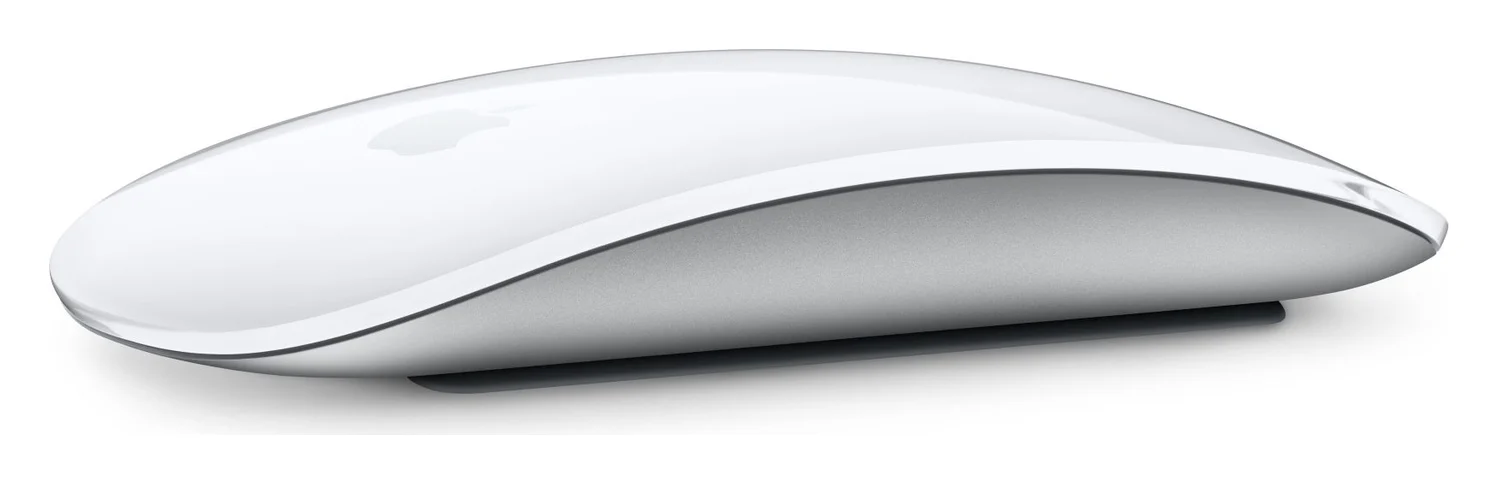
Apple Magic Mouse (USB-C, White Multi-Touch Surface)
- Choose
- A Multi-Touch top surface for macOS swipes and scrolling, about a month per charge, with the catch that its USB-C port is underneath.
- Limit
- The USB-C port is on the underside, so you can't use the mouse while it charges
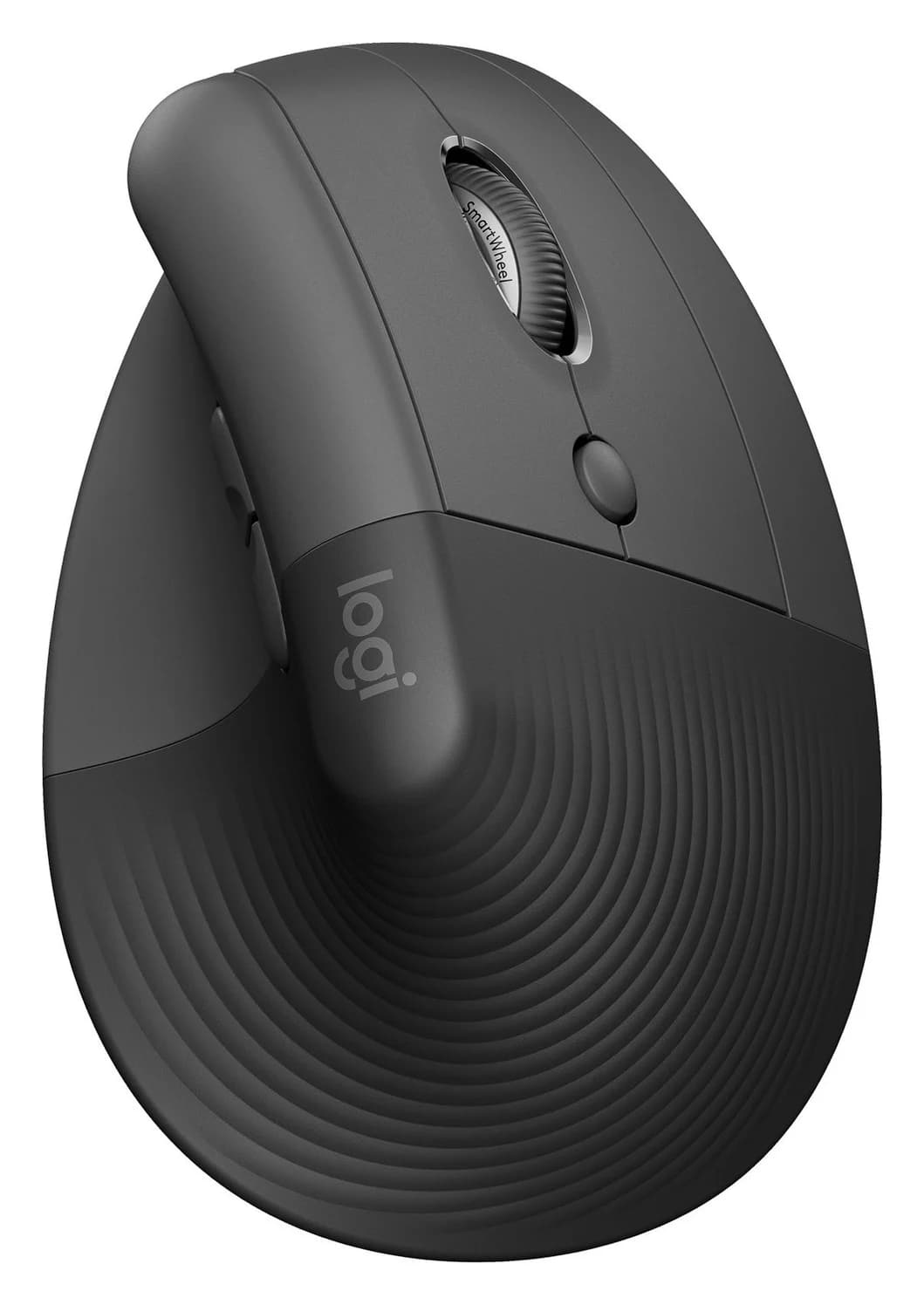
Best vertical mouseLogitech
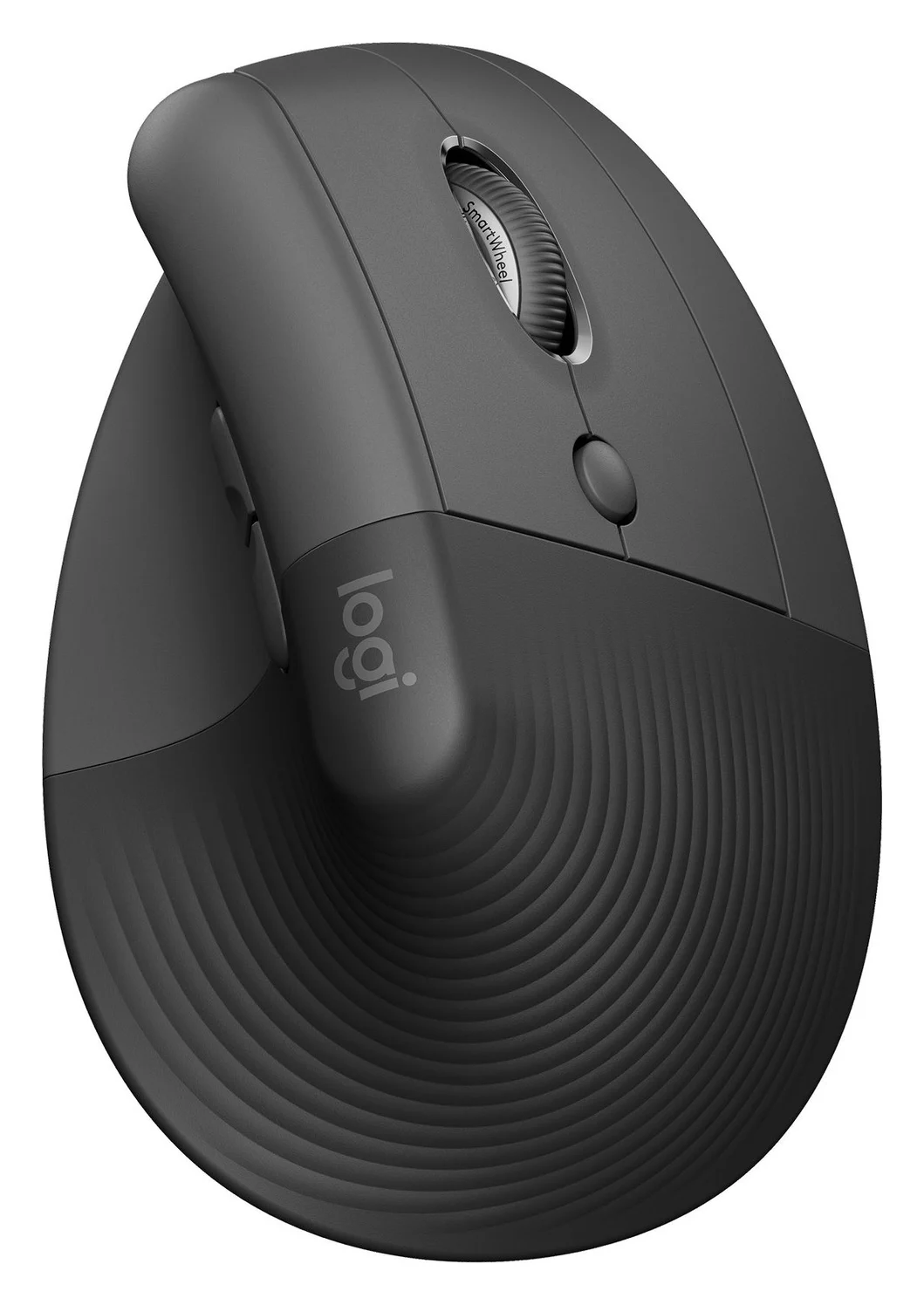
Logitech Lift Vertical Ergonomic Mouse
- Choose
- A vertical ergonomic mouse angled at 57 degrees for a natural handshake position, shaped for small to medium hands, connecting over Bluetooth Low Energy or the included Logi Bolt USB receiver.
- Limit
- No rechargeable battery; uses AA cells
- Find on Amazon
best travel mouse for a MacBook
Logitech MX Anywhere 3S for Mac
The short version:
| Mouse | Best for | Connection | Charging | One thing to know |
|---|---|---|---|---|
| Logitech MX Master 4 | Best overall | Bluetooth Low Energy or included USB-C Logi Bolt receiver | USB-C, up to 70 days per charge | 3 hours of use from a 1-minute quick charge |
| Apple Magic Mouse (USB-C) | macOS gestures | Bluetooth | USB-C port on the underside | Cannot be used while charging |
| Logitech MX Anywhere 3S for Mac | Travel | Bluetooth Low Energy or Logi Bolt USB receiver (sold separately) | USB-C, up to 70 days | Pairs with Apple devices only |
| Logitech Lift | Ergonomics | Bluetooth Low Energy or included Logi Bolt USB receiver | One AA battery, up to 24 months | 57-degree vertical angle |
- Every mouse here pairs with a MacBook over Bluetooth — no receiver required.
- Only a USB-C receiver (like Logi Bolt USB-C) plugs into a MacBook without an adapter.
- The Magic Mouse's charging port is underneath; Logitech's picks charge from the front edge.
- Pick by need: overall use, gestures, travel size, or wrist comfort.
Logitech MX Master 4 — best overall mouse for a MacBook
Logitech
Logitech MX Master 4 Wireless Mouse (Graphite)
Logitech's flagship ergonomic wireless mouse with haptic feedback, an 8,000 DPI sensor and MagSpeed wheel, connecting over Bluetooth or the included Logi Bolt USB-C receiver and charging over USB-C.
- 1 port
The MX Master 4 is the mouse that fits the most MacBook use cases at once. On connection, it covers both routes: Bluetooth Low Energy, or the Logi Bolt USB-C receiver that comes in the box and plugs directly into a MacBook — no USB-A adapter needed. Logitech lists macOS 13 or later among its supported systems, alongside Windows, Linux, ChromeOS, iPadOS, and Android, so it also jumps between a MacBook and other machines with Easy-Switch. Quiet clicks, an 8K DPI sensor that tracks on glass (minimum 4 mm thickness), and up to 70 days per charge round out the package. Logitech notes you can use the MX Master 4 while it charges via USB-C (cable not included).
Apple Magic Mouse (USB-C) — best for macOS gestures
Apple
Apple Magic Mouse (USB-C, White Multi-Touch Surface)
Apple's low-profile wireless Bluetooth mouse with a Multi-Touch gesture surface, recharged through a USB-C port on its underside.
- 1 port
The Magic Mouse is the only mouse with a Multi-Touch surface that supports macOS gestures — swiping between web pages, scrolling through documents, and other trackpad-like gestures — without extra software. It pairs over Bluetooth, charges via a USB-C port on the underside (so it can't be used while plugged in), and Apple rates the battery for about a month or more between charges. It requires macOS 15.1 or later and comes in White or Black Multi-Touch finishes.
Logitech MX Anywhere 3S for Mac — best travel mouse for a MacBook
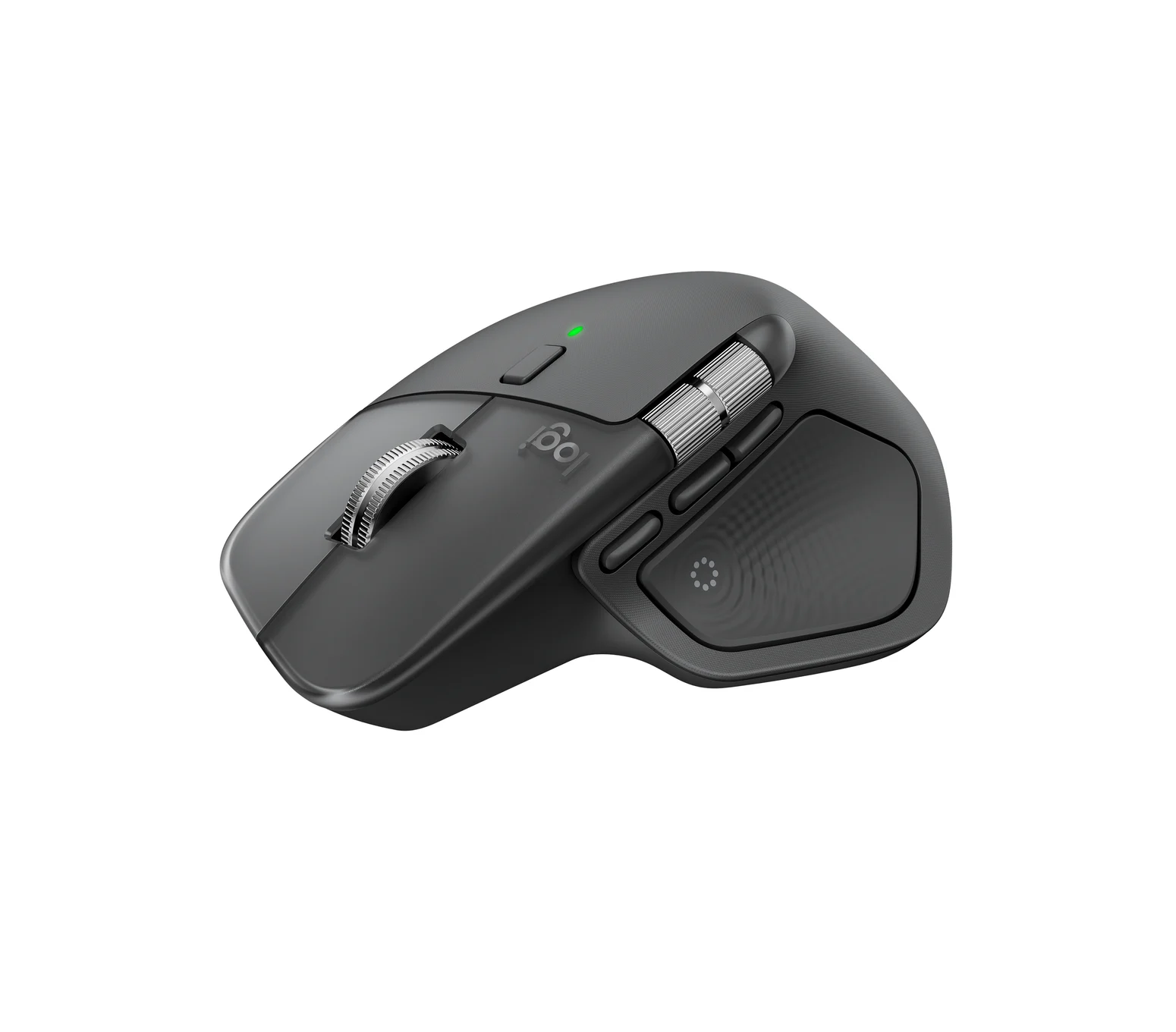
The MX Anywhere 3S for Mac is a compact performance mouse built for Apple devices. It connects via Bluetooth Low Energy and is also compatible with a Logi Bolt USB receiver (sold separately), giving you a dongle fallback if Bluetooth is unavailable. The 8K DPI sensor tracks on virtually any surface including glass, it charges over USB-C, and Logitech rates it for up to 70 days per charge. It pairs with up to three Apple devices via Easy-Switch, and Logi Options+ adds macOS-specific button customisation. Finishes: Space Gray and Pale Grey.
Logitech Lift — best vertical mouse for a MacBook
Logitech
Logitech Lift Vertical Ergonomic Mouse
A vertical ergonomic mouse at a 57-degree angle for small to medium hands, running up to 24 months on one AA battery.
The Logitech Lift is a vertical ergonomic mouse angled at 57 degrees for a natural handshake position, shaped for small to medium hands. It connects via Bluetooth Low Energy or the included Logi Bolt USB receiver (USB-A; a hub or adapter is needed to plug it directly into a MacBook's USB-C port), switches between up to three devices with Easy-Switch, and runs up to 24 months on one AA battery (included). A left-handed model is also available. Logi Options+ enables six-button customisation on macOS and Windows.
Why you might want a USB-C receiver
MacBooks have only USB-C ports, so a mouse that ships with a USB-C receiver — the MX Master 4's Logi Bolt receiver in the box — plugs straight in. A USB-A receiver needs a hub or adapter; if that is your situation, a USB-C hub for a MacBook solves it, or you can use the Logi Bolt USB-C receiver that Logitech sells on its own.
How to connect any mouse here to a MacBook
Bluetooth route: open System Settings > Bluetooth, put the mouse in pairing mode, click to pair.
Receiver route: plug the receiver into a MacBook USB-C port — direct with a USB-C receiver, via a hub for USB-A.
Pick a default route: Bluetooth for mobility, receiver for a fixed desk setup.
Install Logi Options+ if you use a Logitech mouse and want button customisation.
What to look for in a mouse for a MacBook
Connection and receiver. Bluetooth works everywhere on a Mac. If you want a receiver, make sure it is USB-C, or budget for a hub. Mice with both — like the MX Master 4 and the Lift — give you a fallback either way.
Charging and battery. Three patterns appear here: a rechargeable battery charged over a front-edge USB-C port (MX Master 4, MX Anywhere 3S — usable while charging), a rechargeable battery charged from underneath (Magic Mouse — not usable while charging), and a replaceable AA battery (Lift — up to 24 months, swap in seconds).
Size and shape. Full-size mice like the MX Master 4 fill the palm and suit a desk; compact mice like the Anywhere 3S travel well with a MacBook Air; vertical shapes like the Lift change wrist posture for long days.
Gestures and software. Only the Magic Mouse offers Multi-Touch surface gestures in macOS. Logitech's mice lean on Logi Options+ for macOS customizations — button mapping, Easy-Switch, and app-specific settings.
How we choose
Every mouse on this page comes from the maker's official product pages and Apple's own support documentation — specifications, battery ratings, and system requirements are quoted from those sources, and we drop any mouse we cannot confirm details for. We match each pick to a specific MacBook use case — overall desk use, gestures, travel, and ergonomics — rather than ranking by brand, and we note the trade-off each pick makes. Battery-life figures are the makers' own ratings; your results depend on usage.
The verdict
For most MacBook owners, the Logitech MX Master 4 is the mouse to buy — the USB-C Logi Bolt receiver in the box, Bluetooth fallback, three-device switching, and up to 70 days per charge cover every common setup. Choose the Apple Magic Mouse (USB-C) if macOS Multi-Touch gestures matter more than battery life, the MX Anywhere 3S for Mac if your mouse lives in a laptop bag, and the Logitech Lift if wrist comfort is the priority. Pair any of them with the right accessories: see our best keyboards and mice with USB-C, best USB-C hubs for MacBook, and best USB-C cables for fast charging. For the other half of the desk, see our best Bluetooth keyboards for Mac and iPad.
Frequently asked questions
Do you need a USB receiver to use a mouse with a MacBook?
No. Every MacBook has Bluetooth built in, so a Bluetooth mouse pairs without any dongle. A receiver is worth it for a steadier connection on a crowded desk or when you move the mouse between machines. Pick a mouse whose receiver is USB-C, like the Logi Bolt receiver that ships with the MX Master 4, and it plugs straight into a MacBook without an adapter.
What is the best mouse for a MacBook Air?
For most MacBook Air owners the Logitech MX Master 4 is the best all-round choice: a USB-C Logi Bolt receiver in the box, quiet clicks, an 8K DPI sensor that tracks on glass, and up to 70 days per charge. If you want the smallest option for a bag, the MX Anywhere 3S for Mac is the compact pick; if you want gestures, the Apple Magic Mouse (USB-C) is the one built into macOS.
Does the Apple Magic Mouse work well as a MacBook mouse?
It works and it is the only mouse with macOS-grade Multi-Touch gestures such as swiping between web pages, but it charges via a USB-C port on its underside, so it cannot be used while it is plugged in. Apple rates the rechargeable battery for about a month or more between charges.
Can I use a mouse while it charges?
It depends on the design. The Apple Magic Mouse charges through a port on its underside, so it is out of action while connected. Logitech's MX Master 4 and MX Anywhere 3S use a USB-C port on the front edge, and Logitech notes you can use the MX Master 4 while it charges (cable not included).
Is a vertical mouse worth it for long days on a MacBook?
If your wrist aches after long sessions, yes. The Logitech Lift holds your hand at a 57-degree vertical angle in a natural handshake position, is shaped for small to medium hands, and runs up to 24 months on one AA battery. It is a desk mouse, not a travel mouse.
Related guides
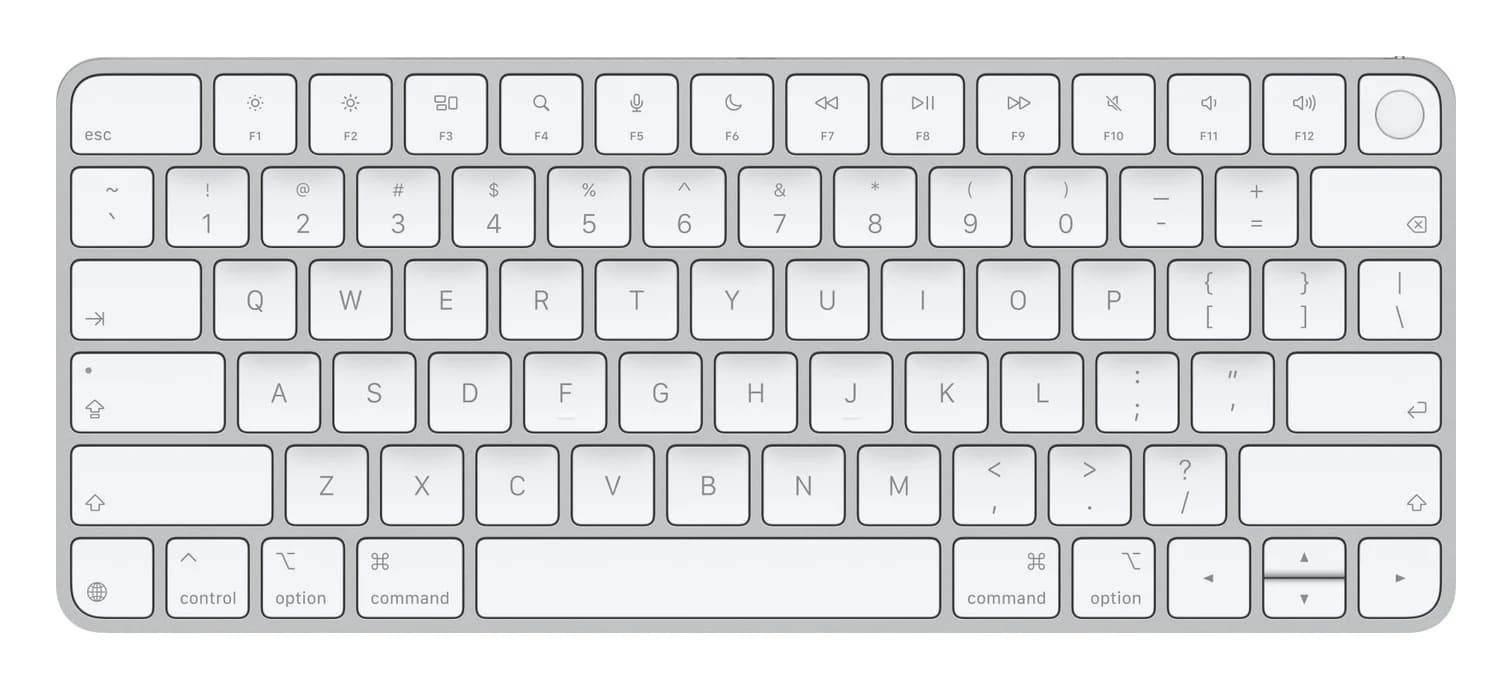
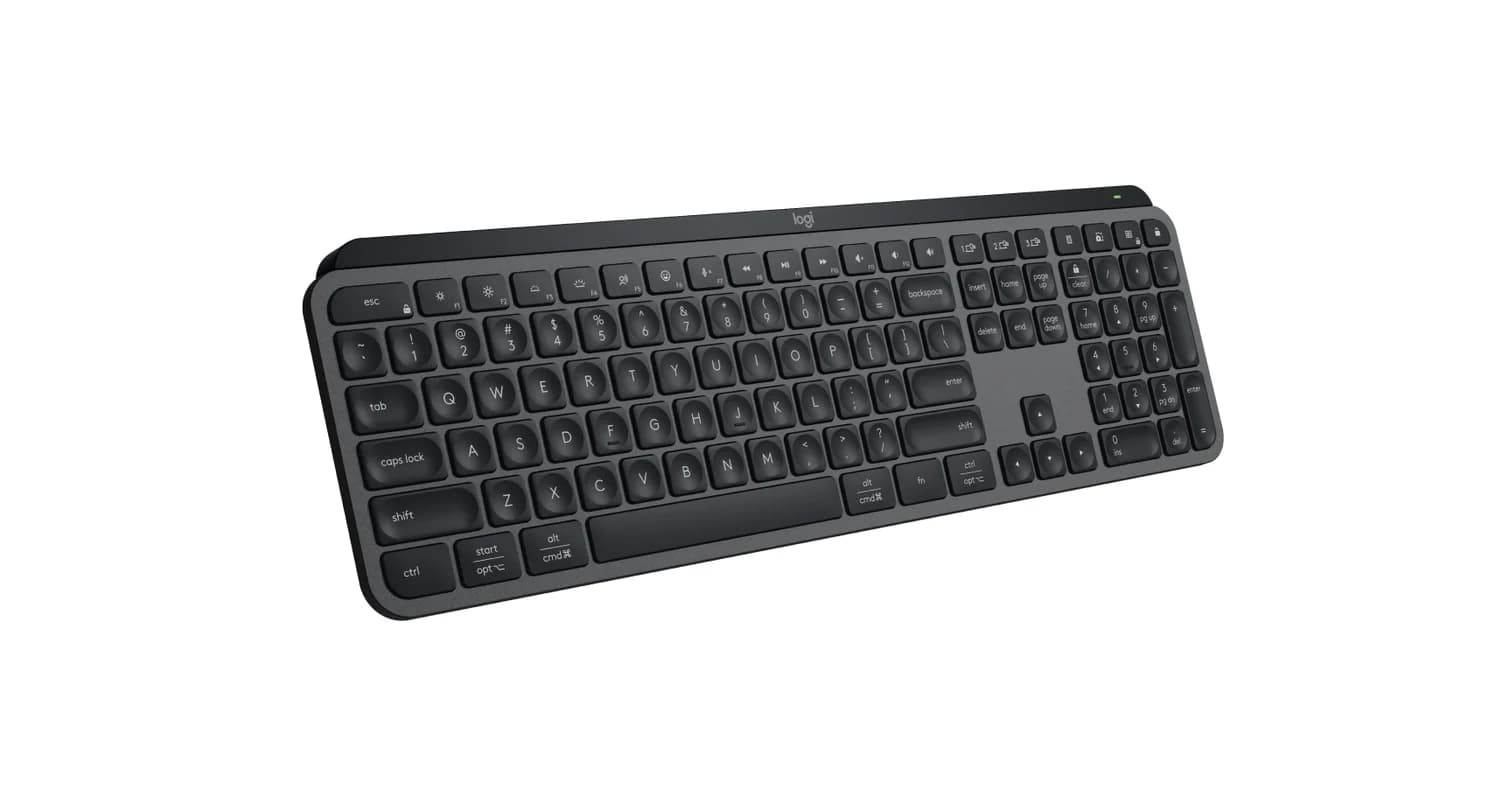
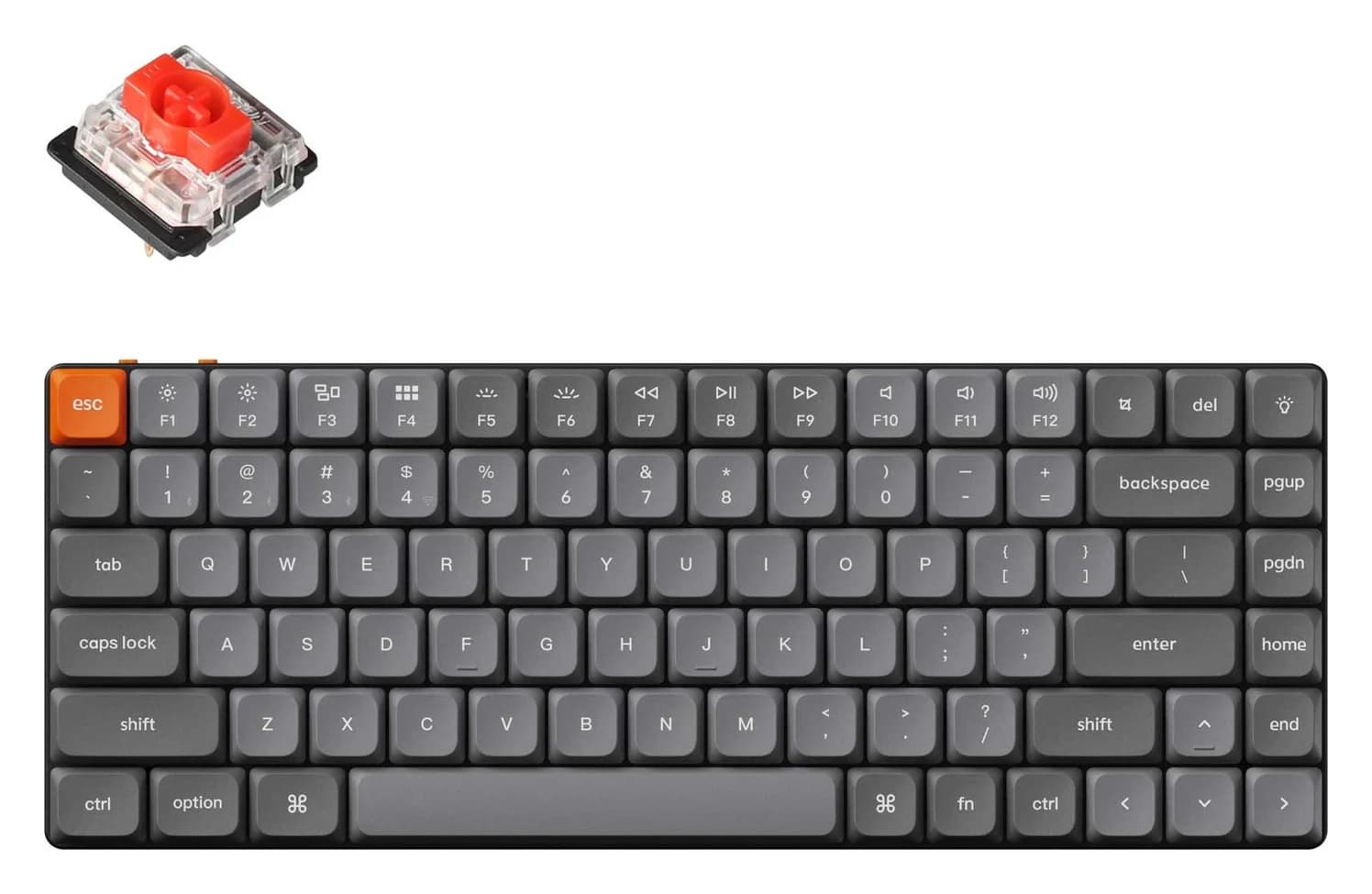
Best Bluetooth Keyboards for Mac and iPad in 2026
Best Bluetooth keyboards for Mac and iPad: Touch ID and Mac-layout picks from Apple, Logitech, Satechi and Keychron, with multi-device switching and USB-C charging explained.
Updated November 26, 2026Read
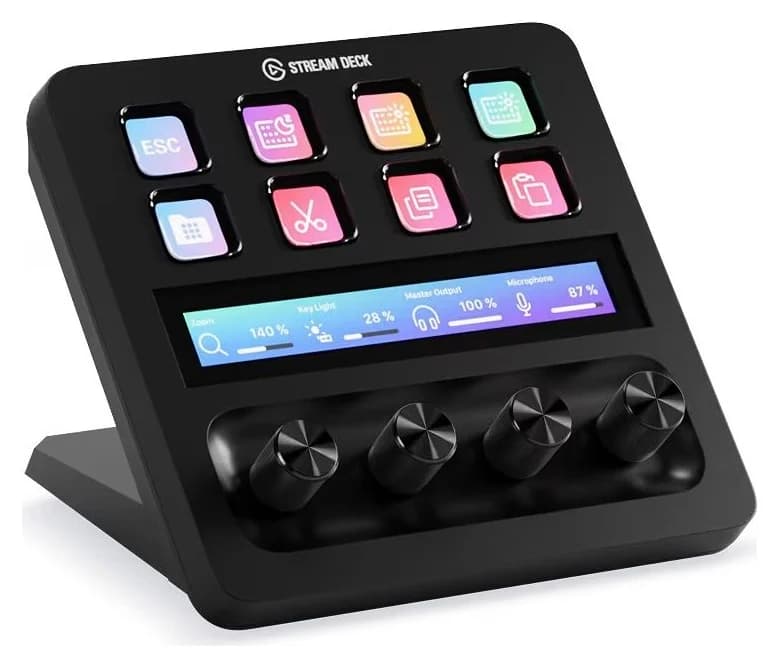
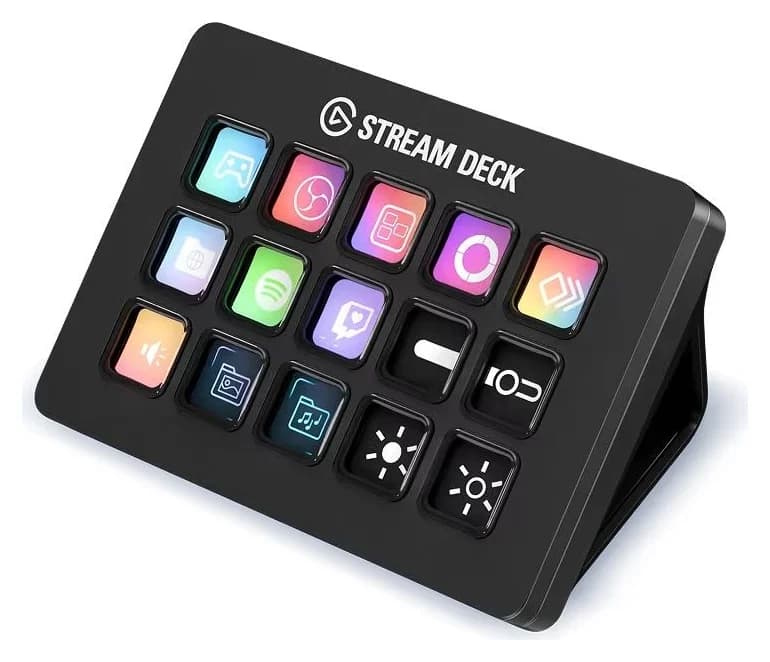
Which Elgato Stream Deck Should You Buy: Mini, MK.2, Plus or XL
A clear model-by-model guide to every Elgato Stream Deck — Mini, MK.2, Plus, XL and Pedal — with specs, ports and which one fits your desk.
Updated November 26, 2026Read
Best USB-C Keyboards and Mice 2026: Mac, Windows and iPad
Logitech's MX Keys S and MX Master 4 are the best USB-C rechargeable keyboard and mouse for most: three-device switching over Bluetooth or Bolt. Plus Mac picks.
Updated November 26, 2026Read