Black Friday: the specs to check before you buy
Comparison
Updated November 3, 2026ASUS ZenScreen MB16NCG vs Dell P1425: Which Travel Monitor?
Short answer
The Dell P1425 is our pick for a light, work-focused laptop travel kit: Dell specifies a 14-inch screen and 0.57 kg without cables. Choose the ASUS ZenScreen MB16NCG when its larger 16-inch, 2560 x 1600 screen, high refresh rates or mini-HDMI input earn their space in your bag. Both advertise up to 65W laptop pass-through, but reaching that output requires a stronger power source than a 65W charger. (Dell manual, ASUS specifications, ASUS manual)
Our picks at a glance
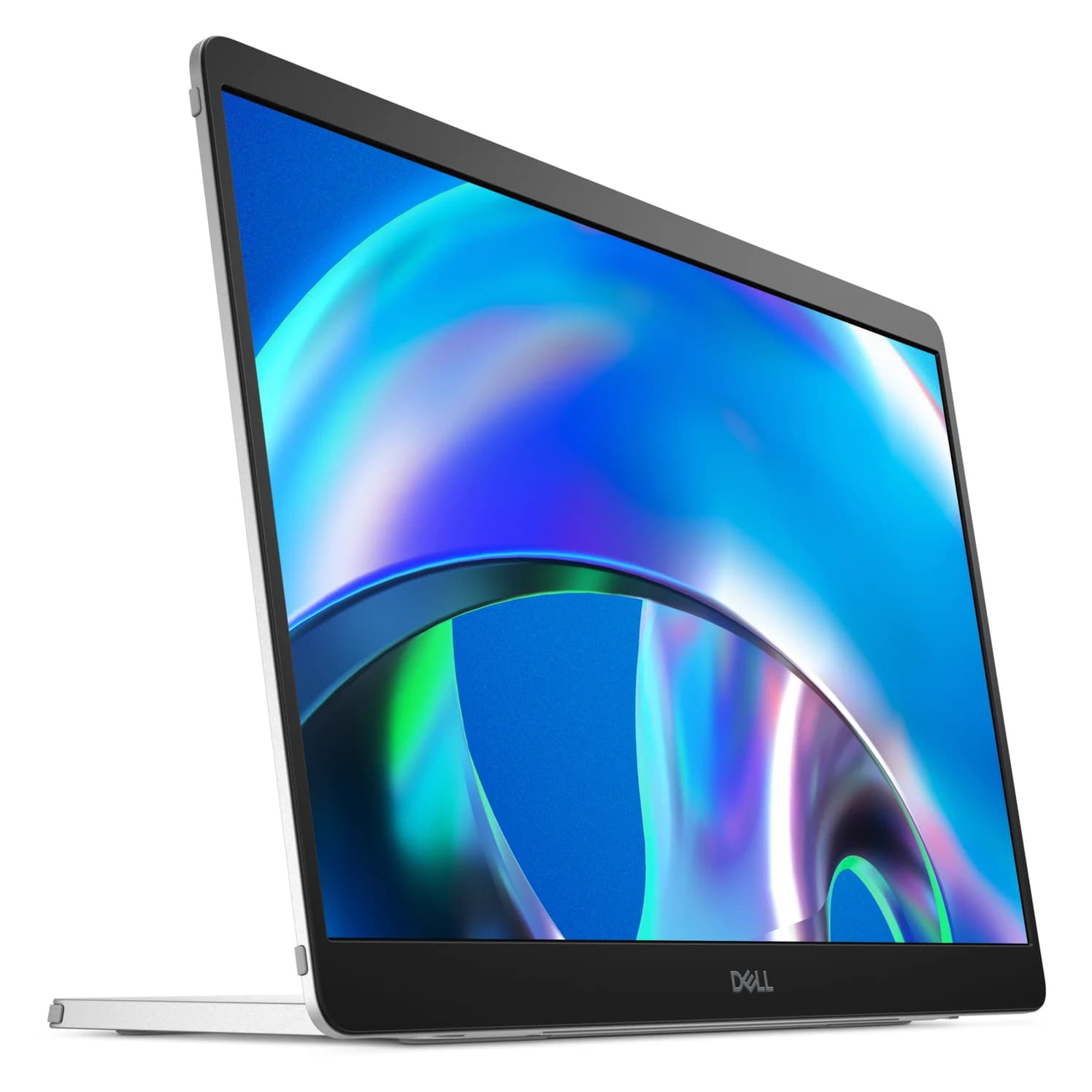
Best for a light work kitDell
Dell Pro 14 Plus Portable Monitor (P1425)
- to laptop
- 65W
- ports
- 2
- host link
- USB-C
- Choose
- The 14-inch P1425 weighs 0.57 kg without cables and carries video and power over one USB-C connection.
- Limit
- 60Hz and 1920 x 1200 only
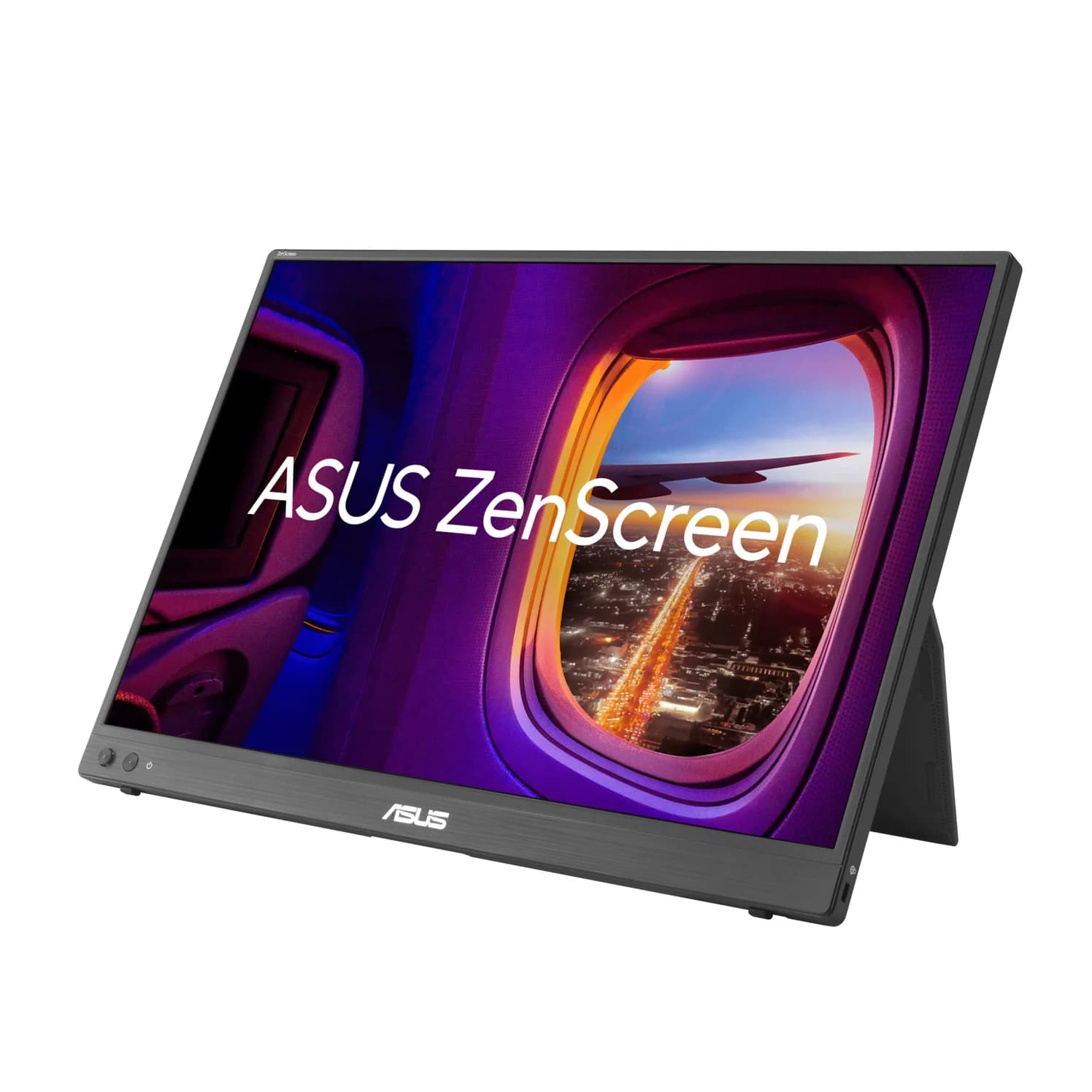
Best for screen space, HDMI and high refreshASUS
ASUS ZenScreen MB16NCG Portable USB-C Monitor (16-inch, 2560x1600, 155Hz)
- to laptop
- 65W
- ports
- 3
- host link
- USB-C
- Choose
- The 16-inch MB16NCG combines 2560 x 1600 resolution, up to 155Hz overclocked over USB-C, and a separate mini-HDMI input.
- Limit
- 155Hz is an overclocked figure and needs USB-C; mini HDMI tops out at 120Hz
Quick picks: choose the complete usable kit
| Your job | Pick | Kit to compare before ordering | Price link |
|---|---|---|---|
| Documents, email and frequent packing | Dell P1425 | Monitor, supplied USB-C video cable and sleeve; add external power only if your setup needs it | Check price on Amazon |
| A larger canvas, high refresh or an HDMI source | ASUS MB16NCG | Monitor, sleeve and supplied USB-C cable; for HDMI, mini-HDMI-to-HDMI cable plus USB-C power; confirm adapter inclusion | Check price on Amazon |
Both makers document single-cable video and power from a compatible laptop. That is the simplest kit when you do not need the monitor to charge the computer. For alternatives beyond this pair, use our portable monitor chooser. (Dell connection guidance, ASUS connection guidance)
ASUS MB16NCG vs Dell P1425: the differences that matter
| Specification | ASUS ZenScreen MB16NCG | Dell P1425 |
|---|---|---|
| Panel | 16-inch IPS, 16:10, anti-glare | 14-inch IPS, 16:10, anti-glare |
| Native resolution | 2560 x 1600 | 1920 x 1200 |
| Refresh at native resolution | USB-C: 144Hz, or 155Hz overclocked; mini-HDMI: up to 120Hz | Up to 60Hz |
| Manufacturer brightness / gamut | 400 nits typical / 100% sRGB | 400 nits typical / 100% sRGB |
| Physical video inputs | Two USB-C DP Alt Mode ports; one mini-HDMI | Two USB-C DP 1.2 Alt Mode ports; no HDMI |
| Laptop pass-through ceiling | 65W | 65W |
| Power source for that ceiling | Current manual: PD adapter above 80W | PD adapter at least 90W |
| Published weight basis | 0.90 kg net, estimated | 0.57 kg without cables; 0.62 kg with cables |
| Stand / mounting | Built-in stand; tripod socket | Tilt stand; VESA mounting |
Sources: ASUS specifications, ASUS supported modes and power instructions, and Dell manual. These are manufacturer specifications, not measured performance.
- 155HzASUS maximum at native resolution over USB-C, overclocked
- 60HzDell maximum at native resolution
Best for a light work kit: Dell P1425
Dell
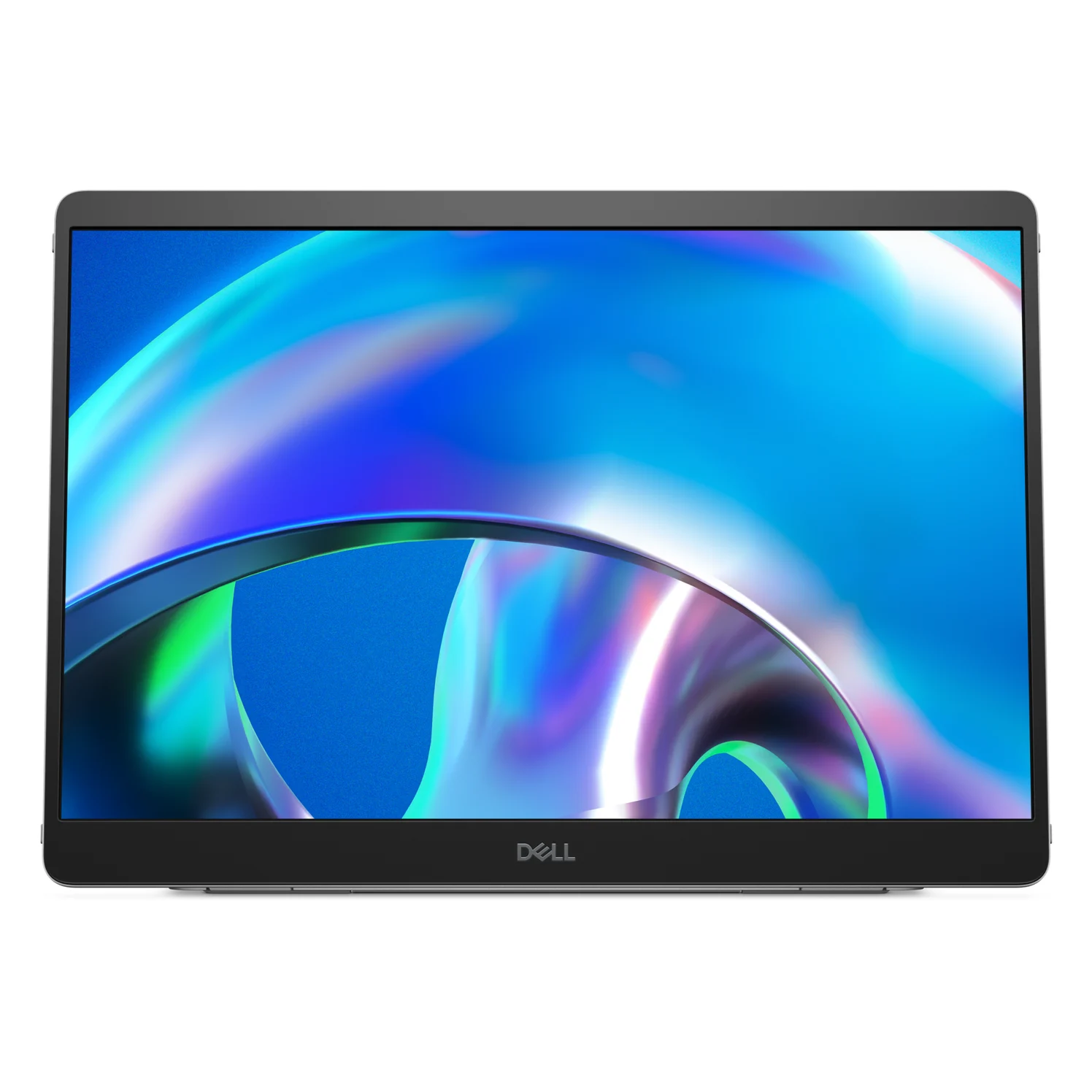
Dell Pro 14 Plus Portable Monitor (P1425)
A 14-inch 1920 x 1200 IPS portable monitor with two USB-C (DP 1.2 Alt Mode) ports, up to 65W power pass-through, a tilt stand and VESA mounting.
- 65W PD passthrough
- 2 ports
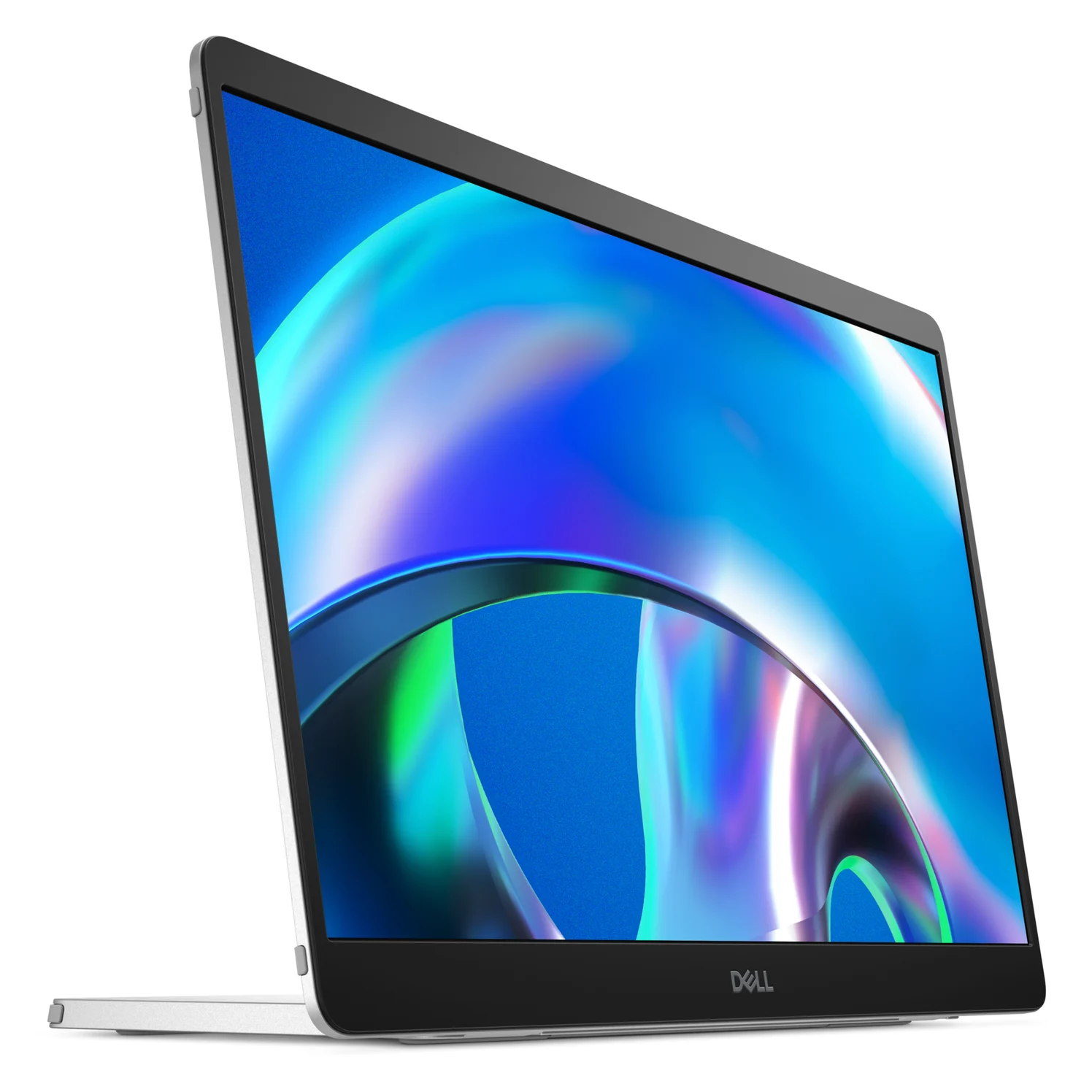
Choose Dell when the second screen mainly holds reference documents, chat or a spreadsheet. Its smaller panel and lower published monitor weight make it our portability pick. Dell's manual specifies 0.57 kg without cables and 0.62 kg with cables; those labels matter because the shop's technical table instead labels similar figures by stand inclusion. Use the manual's explicit cable basis when comparing luggage. (Dell manual, Dell product page)
The supplied 1.0 m USB-C-to-C cable has an L-shaped end Dell recommends connecting to the monitor. A port on either side makes left- or right-side placement easier. For laptop-powered use, Dell requires the source to provide video and 7W at 5V/1.4A; a USB-C connector alone is insufficient. (Dell manual, Dell product page)
The compromise is connectivity: Dell lists only USB-C video inputs, and the manual explicitly says USB data is unsupported. Do not plan to connect storage or a keyboard through this monitor. Its 60Hz ceiling also makes ASUS the better choice when high refresh is a buying requirement. (Dell manual)
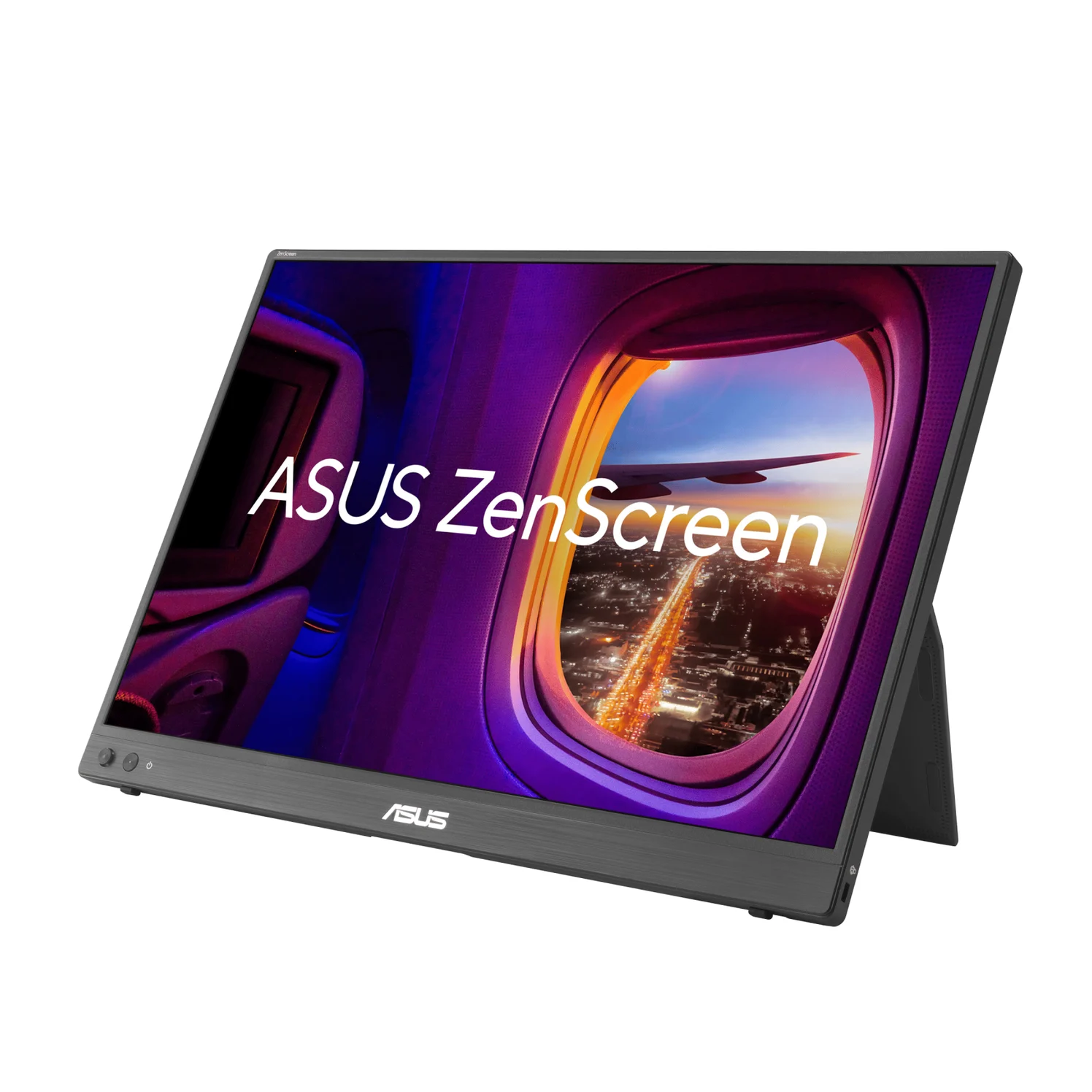
Best for screen space, HDMI and high refresh: ASUS MB16NCG
ASUS
ASUS ZenScreen MB16NCG Portable USB-C Monitor (16-inch, 2560x1600, 155Hz)
A 16-inch 16:10 portable IPS monitor with 2560x1600 resolution, up to 155Hz over USB-C, two USB-C inputs with up to 65W pass-through, and mini HDMI.
- 65W PD passthrough
- 3 ports
Choose ASUS if you spend more time using the screen than carrying it. From the specified diagonals and matching aspect ratios, its physical panel area is roughly a third larger than Dell's; that is a calculation, not a measurement. Its higher resolution offers a denser pixel grid, though your text-scaling preference determines how much working space you actually gain. (ASUS specifications, Dell specifications)
The headline 155Hz is an overclocked USB-C mode. ASUS also lists native-resolution 144Hz over USB-C and 120Hz over mini-HDMI. Those connection-specific limits make it worth choosing your input before comparing refresh figures. Both monitors list the same typical brightness, so ASUS's main advantages here are size, resolution, refresh and HDMI access. (ASUS manual, ASUS specifications, Dell manual)
For an HDMI laptop or console output, connect HDMI video to the monitor's mini-HDMI input and provide power separately over USB-C. ASUS lists a mini-HDMI-to-HDMI cable among its region-dependent accessories. It lists a headphone jack and no speakers, so plan your audio too. (ASUS connection guidance, ASUS specifications)
Charger math: 65W pass-through does not mean a 65W adapter
Dell publishes a useful adapter-to-laptop power ladder: a 45W adapter permits up to 30W pass-through, a 65W adapter up to 45W, and an adapter of 90W or above up to 65W. Below 30W, Dell lists up to 7.5W. These are ceilings, not promises that every laptop will negotiate that power. Its instructions specify an electronically marked 5A cable for the computer connection in this powered arrangement. (Dell power instructions)
Source: Dell P1425 manual
ASUS's current manual requires at least 30W for a PD adapter and more than 80W for maximum 65W pass-through. Its overview instead says the adapter must supply “up to 80W” for maximum output. Follow the stricter manual requirement when specifying a kit: a PD source rated at least 90W at the port meets both makers' stated full-output thresholds on paper. Check that port's allocation with your other devices connected. (ASUS manual, ASUS overview)
If your laptop needs more power than either monitor can pass, keep its charger connected directly and use the monitor for video. Dell specifically warns of battery drain when a computer requiring 90W or more relies on its pass-through alone. For the underlying negotiation, see our USB Power Delivery explainer. (Dell manual)
Do not infer battery life from the consumption figures: ASUS's manual qualifies its 6.79W figure at 200-nit brightness, while Dell specifies 5.4W on-mode and 7W maximum. Those are different stated conditions, not a matched efficiency test. (ASUS manual, Dell manual)
Model names, regional kits and the real purchase comparison
Order by MB16NCG and P1425. ASUS specifies this model as 16-inch. Dell's shop heading now uses “Pro P 14,” while its technical product-name field says “Pro 14 Plus”; both identify P1425. Treat those Dell names as labels for this model, not evidence of different refresh-rate variants. (ASUS specifications, Dell product page)
ASUS adapter inclusion is unresolved across its own documents. The overview mentions an in-box 30W adapter, the specifications call the adapter optional with accessories varying by region, and the manual lists an adapter. Confirm the actual package and local plug. Even a supplied 30W adapter does not meet the manual's maximum pass-through requirement. (ASUS overview, ASUS specifications, ASUS manual)
Dell's manual lists a sleeve and USB-C cable; its shop lists the stand and cable. Neither contents list includes a power adapter. For a fair purchase comparison, put the monitor, any missing power source and required cables in each basket. Reuse a suitable existing charger before buying another. Published monitor weights exclude at least some kit components; they are not complete packed-bag weights. (Dell manual, Dell product page, ASUS specifications)
Portrait use needs a separate check. Dell documents sensor-based rotation, initial OS setup, and full-screen portrait in Extend mode; Duplicate mode cannot fill the panel in physical portrait orientation. ASUS's overview says DisplayWidget Center supports Windows and Mac auto-rotation, but the current English manual describes Windows. Verify the ASUS software's support for your Mac before making that feature decisive. (Dell rotation instructions, ASUS overview, ASUS manual)
How we choose
This is a specification-based comparison; we have not physically evaluated these monitors. Recommendations use the makers' specifications, supported-mode tables, package lists and power diagrams. Where their pages disagree, we name the conflict. The research supports connection planning and purchase requirements; it does not establish real-world color accuracy, gaming latency or laptop battery runtime.
Before you replace your current monitor
Keep it if its screen already fits your work and its connections suit your laptop. Choose ASUS to solve a specific screen-space, refresh or HDMI need; choose Dell to prioritize carrying less. Before ordering:
Check the source port
Confirm USB-C DisplayPort Alt Mode; for Dell laptop-powered use, also check the documented power requirement.
Choose the cable path
Start with the supplied USB-C video cable. ASUS HDMI use also requires USB-C power. See the USB-C cable guide before substituting a cable.
Check the whole basket
Confirm the model code, regional contents, sleeve and charger. Compare the laptop power requirement with pass-through output before paying for a larger adapter.
Verdict
Buy the Dell P1425 for a compact work screen you will carry often. Buy the ASUS MB16NCG when the larger, higher-resolution panel, faster refresh or mini-HDMI input solves a need Dell cannot. For either powered kit, choose the charger from the documented pass-through requirement and your laptop's needs, then compare the complete basket.
Frequently asked questions
Is the ASUS MB16NCG or Dell P1425 better for a laptop?
For a work-focused travel kit, choose the Dell P1425: its 14-inch screen and 0.57 kg weight without cables favor portability. Choose the ASUS MB16NCG for a larger 16-inch, 2560 x 1600 canvas, higher refresh rates or HDMI. Both support USB-C video and up to 65W pass-through, subject to the power source.
Can the ASUS MB16NCG run at 155Hz over HDMI?
No. ASUS lists 2560 x 1600 at 155Hz as an overclocked USB-C mode. Its manual also lists 144Hz at that resolution over USB-C, while mini-HDMI supports up to 120Hz at native resolution. Use the supplied USB-C video cable and check the refresh options offered by your source device; a monitor's supported mode does not guarantee a game's frame rate.
Will a 65W charger give the laptop 65W through the Dell P1425?
No. Dell specifies up to 45W pass-through with a 65W adapter, up to 30W with a 45W adapter, and up to 65W with an adapter rated at least 90W. Its connection instructions also specify an electronically marked 5A cable. Compare your laptop's required input with the power left after the monitor, rather than the charger's headline rating.
Does the ASUS MB16NCG include a power adapter?
Confirm the exact regional package before ordering. ASUS's overview refers to an in-box 30W adapter, its specification page calls the adapter optional and region-dependent, and its manual lists an adapter among the contents. The manual requires at least 30W for PD adapter use and more than 80W for maximum 65W pass-through. An included adapter therefore does not establish full laptop-charging capability.
Do these portable monitors rotate automatically on a Mac?
Dell describes sensor-based rotation and documents initial operating-system display setup for the P1425. ASUS's overview says DisplayWidget Center auto-rotation works on Windows and Mac, but its current English manual describes Windows use. Treat that ASUS documentation mismatch as unresolved for your Mac software version. Choose based on confirmed video compatibility and verify auto-rotation separately if it is essential.
Related guides
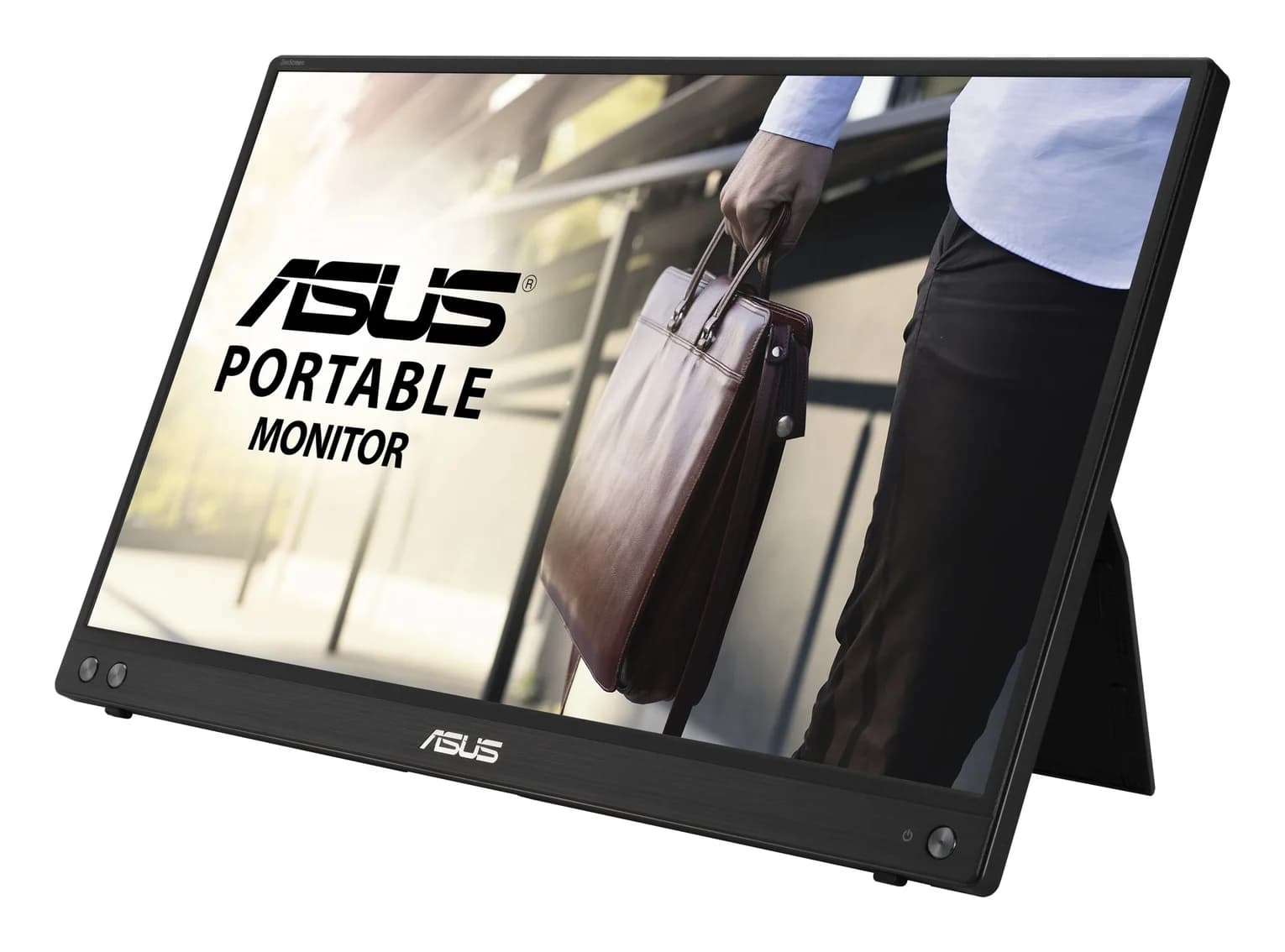
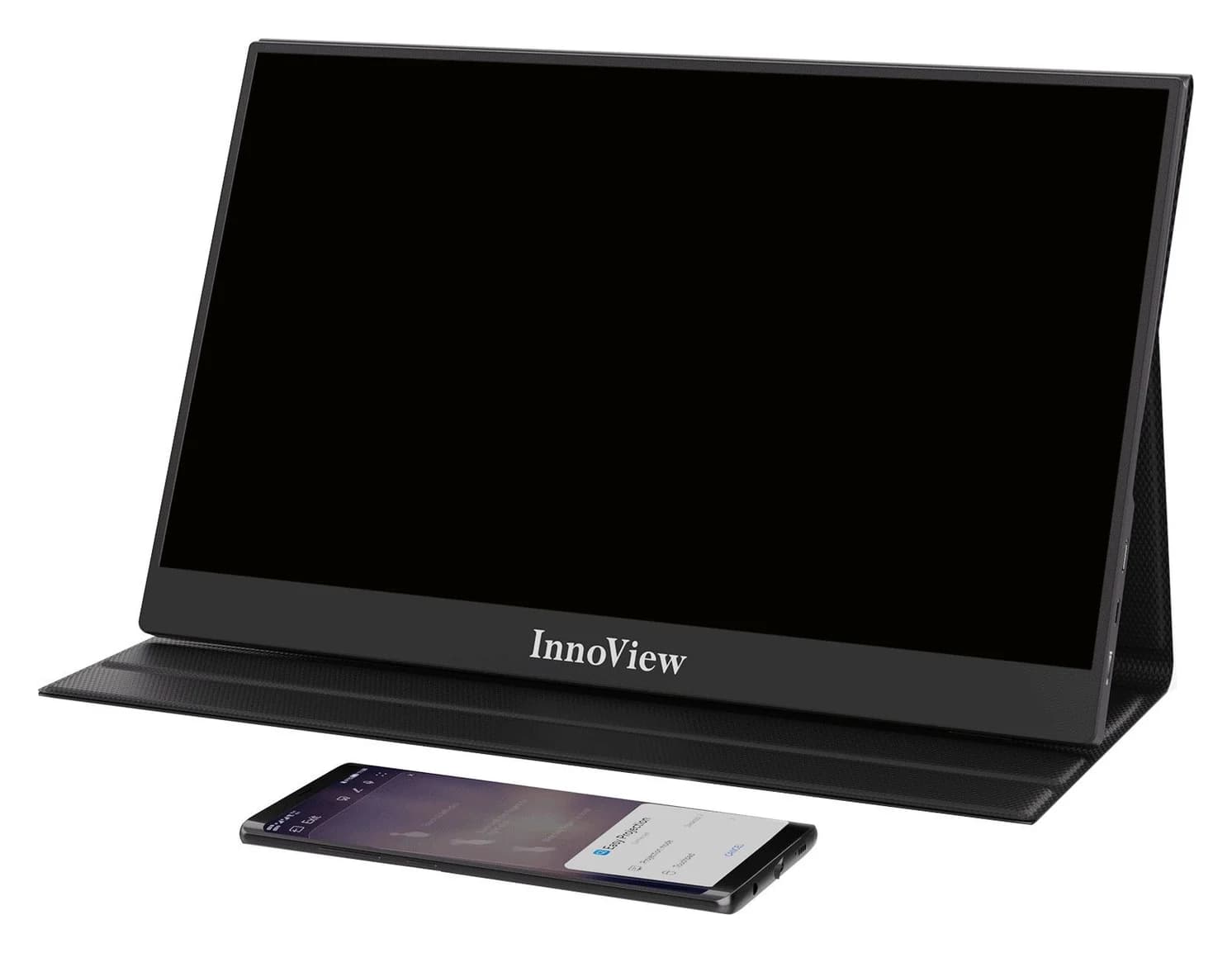
InnoView INVPM406 vs ASUS ZenScreen MB16ACV: Which Portable Monitor?
Choose between the InnoView INVPM406 and the ASUS ZenScreen MB16ACV from maker specs: ports, USB-A driver rules, kit contents, stands and return checks.
Updated November 7, 2026Read
ASUS ZenScreen MB16NCG vs Lenovo ThinkVision M14d: Which Portable Monitor?
Choose between the ASUS MB16NCG and Lenovo M14d with panel, refresh, weight, stand and USB-C power differences explained, plus the travel kit each one needs.
Updated November 5, 2026Read
AOC 16T20 vs ASUS ZenScreen MB16ACV: Pick by Your Laptop's Ports
AOC 16T20 vs ASUS ZenScreen MB16ACV compared from official specs: inputs, power, drivers, stands and travel weight, so you buy a complete kit that works.
Updated November 5, 2026Read