Black Friday: the specs to check before you buy
Best picks
Updated November 3, 2026Best HDMI-to-USB-C Monitor Adapters: Direction, Power and Picks
Short answer
If your PC or console has HDMI output and the monitor takes USB-C video, our default pick is the Club 3D CAC-1332 for a separately powered screen at up to 4K60. Choose the CAC-1336 only for a confirmed 4K120 or 8K30 combination; if the screen has an HDMI input, use that first. Both converters require the USB-C display to have its own power.
Our picks at a glance
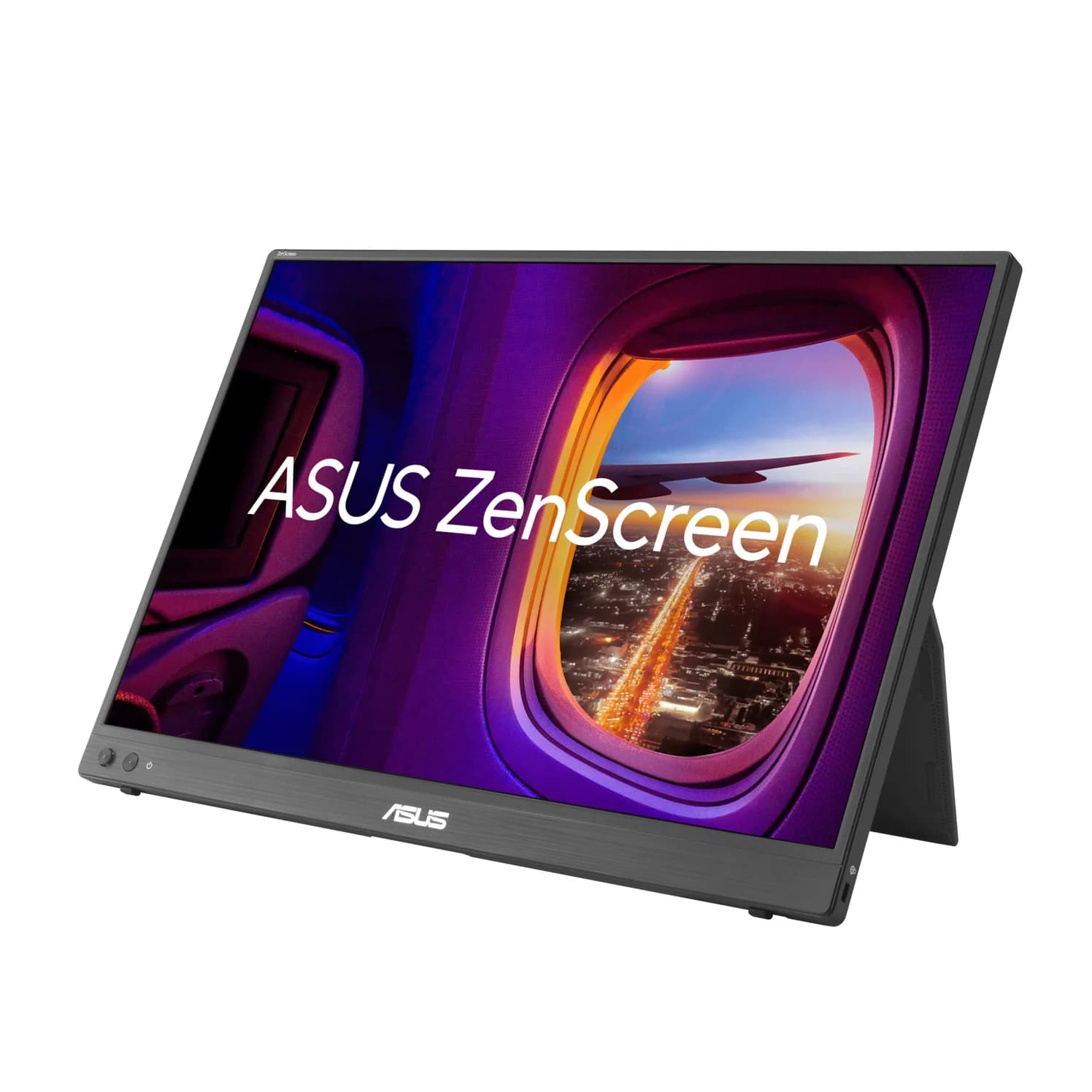
Alternative if buying a screenASUS
ASUS ZenScreen MB16NCG Portable USB-C Monitor (16-inch, 2560x1600, 155Hz)
- to laptop
- 65W
- ports
- 3
- host link
- USB-C
- Choose
- The ASUS MB16NCG has mini HDMI for video and USB-C DC-IN for power, allowing an HDMI source to skip reverse conversion.
- Limit
- 155Hz is an overclocked figure and needs USB-C; mini HDMI tops out at 120Hz
Quick picks
| Your purchase | Pick | Deciding detail |
|---|---|---|
| Separately powered USB-C screen, up to 4K60 | Club 3D CAC-1332 | Default reverse-converter pick; USB-C display cable required |
| Confirmed 4K120 / 8K30 display combination | Club 3D CAC-1336 | Higher advertised ceiling, with DSC conditions to check |
| Display cable for the converter | Club 3D CAC-1571 | Full-featured USB-C; explicitly recommended with CAC-1336 |
| Buying a portable screen as well | ASUS ZenScreen MB16NCG | Mini HDMI input lets you skip the reverse converter |
Quick answer: which direction must the picture travel?
For this guide, the path is HDMI OUT on the PC or console → active HDMI-to-USB-C converter → USB-C video IN on the monitor. The monitor input must accept DisplayPort Alt Mode, the video interface carried over USB-C. Check the display manual for that input, rather than buying by connector shape.
HDMI source → converter
Connect the converter’s HDMI male plug to the source’s HDMI output.
Converter → display cable
The converter’s USB-C female socket takes a full-featured USB-C-to-USB-C cable.
Display cable → USB-C screen
Connect to the monitor’s DisplayPort Alt Mode video input.
A normal USB-C-to-HDMI dongle handles the opposite job: VESA says that converter plugs into the USB-C video source. Turning it around does not establish reverse conversion. If that is your direction, start with our USB-C-to-TV connection guide.
Compare the active HDMI-to-USB-C converters
The CAC-1332 specification sheet and CAC-1336 specification sheet distinguish the actual kits. Neither box list includes a wall supply or a USB-C display cable; both include the auxiliary power cable.
| Exact model | Maker’s maximum mode | Converter power input | Included kit |
|---|---|---|---|
| CAC-1332 | 4096×2160 at 60Hz; sold as 4K60 | Micro-USB, 5V/1A | Adapter + 1m USB-A-to-Micro-USB power cable |
| CAC-1336 | 3840×2160 at 120Hz or 7680×4320 at 30Hz | Micro-USB, 5V/1.5A (7.5W) | Adapter + 1m USB-A-to-Micro-USB power cable |
Those are converter ceilings, conditional on the source and display. The CAC-1336 sheet explicitly requires a source supporting the advertised resolutions and flags DSC support; a headline refresh rate is not confirmation for your particular console, GPU or monitor.
Best for a separately powered 4K60 monitor: Club 3D CAC-1332
Choose this for an existing USB-C DisplayPort monitor when you want up to 4K60 and can power the monitor separately. Club 3D specifies HDMI 2.0 input, a USB-C female output, and a Micro-USB power input. Its product page says no drivers are required.
The practical catch is the shopping list: add a full-featured USB-C display cable and a USB-A power source capable of the documented 5V/1A. The supplied USB-A-to-Micro-USB lead powers the converter. It is not permission to run a portable screen from the converter’s USB-C output; the sheet expressly requires a self-powered display.
Our recommendation assumes your screen accepts the intended timing. Do not interpret the 4K60 maximum as a published list of every lower-resolution high-refresh mode: the sheet does not provide that list.
Check the CAC-1332 model and downloads at Club 3D.
For a confirmed high-refresh setup: Club 3D CAC-1336
This is the conditional upgrade for a USB-C display accepting 4K120 or 8K30. It uses a 5V/1.5A Micro-USB feed, so do not assume a USB-A port suitable for the CAC-1332 necessarily meets this model’s requirement. The included power lead is 1m long; add the display cable and the screen’s separate power arrangement.
Read the fine print before buying for gaming. Club 3D asks for updated graphics drivers, DSC1.2 support on the devices and suitable display firmware for the advertised modes. It also says only games designed for 4K120 provide that experience. Ask Club 3D to confirm your exact source, monitor and target timing if high refresh is the reason for buying.
Check the CAC-1336 model and downloads at Club 3D.
Best documented companion cable: Club 3D CAC-1571
The CAC-1571 is our cable choice because Club 3D specifically recommends it with the CAC-1336. Its sheet describes a full-featured, USB-IF certified USB4 cable with DisplayPort support, USB-C male connectors at both ends and a length of 0.8m. Check that reach before ordering for a desktop setup.
Its 100W Power Delivery rating is a cable capability, not power supplied by the converter. A different cable can be worth considering if the display maker supplies a suitable full-featured cable, but a charging wattage alone is not a video specification. Our USB-C cable types guide explains what to look for.
Check the CAC-1571 cable at Club 3D.
Alternative if buying a screen: ASUS ZenScreen MB16NCG
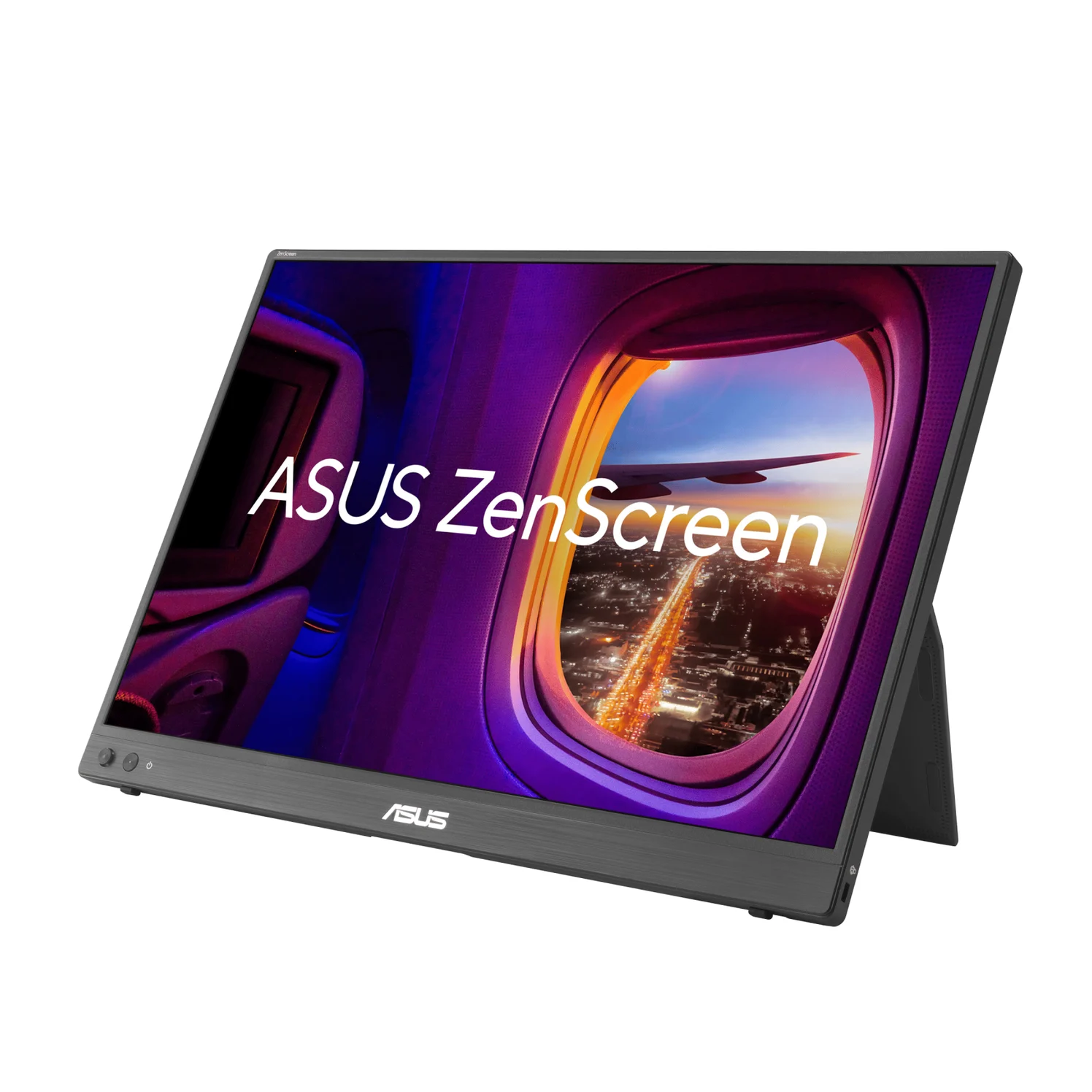
ASUS
ASUS ZenScreen MB16NCG Portable USB-C Monitor (16-inch, 2560x1600, 155Hz)
A 16-inch 16:10 portable IPS monitor with 2560x1600 resolution, up to 155Hz over USB-C, two USB-C inputs with up to 65W pass-through, and mini HDMI.
- 65W PD passthrough
- 3 ports
If you are buying the display too, consider avoiding conversion. The MB16NCG has a 16-inch, 2560×1600 panel, two USB-C DP Alt Mode inputs and a mini HDMI input. ASUS documents HDMI for video with USB-C DC-IN for power: use an HDMI-to-mini-HDMI cable from the source and power the screen separately.
The input choice affects refresh rate. ASUS lists up to 155Hz over USB-C, with 155Hz described as overclocked, and up to 120Hz over mini HDMI. More usefully, its manual lists 2560×1600 at 120Hz for both inputs. That is an accepted monitor timing, not a guarantee that a particular console outputs it.
Box contents need checking: the tech-spec page lists USB-C and mini-HDMI-to-HDMI cables, with the power adapter optional and varying by region. The overview instead refers to an in-box 30W adapter, and the manual lists an adapter. Confirm the exact bundle before counting on that supply. This is an HDMI-input alternative, not evidence that either reverse converter has been validated with this monitor.
Check price on Amazon. For more screen choices, see our portable monitor guide.
How we choose
These recommendations come from official documentation, without physical evaluation. We compare direction, accepted display mode, auxiliary power and included cables before considering the headline resolution. Club 3D’s sheets and product pages establish the converter specifications; ASUS’s manual supplies an example of checking actual input timings. VESA’s documentation establishes what DisplayPort over USB-C means.
There is also an operating-system documentation conflict: both Club 3D product pages list Windows 11, while the CAC-1332 sheet says “All” and the CAC-1336 sheet says “Microsoft, Mac OS”. We cannot turn those conflicting labels into a blanket OS compatibility promise.
Buying guide: power the converter and the screen correctly
Make two separate power checks. For the converter, connect its included USB-A-to-Micro-USB cable to a regulated 5V USB-A source meeting the model’s current requirement: 1A for CAC-1332 or 1.5A for CAC-1336. Verify the output specification of a PC or console USB port before relying on it; otherwise choose a suitable USB-A wall supply.
For the monitor, follow its own power instructions. Both converter sheets require a self-powered display, so a screen that depends entirely on power arriving with video is outside this documented setup unless it can be powered separately. Do not replace the monitor’s power requirement with the converter’s smaller requirement.
For the ASUS alternative, the manual specifies a PD adapter of at least 30W for charging use, separate from the converter figures above. Its HDMI setup uses USB-C DC-IN. Check the monitor’s own manual rather than transferring that wattage to a different screen.
Console, PC and USB-C monitor compatibility checks
Before ordering, write down the exact source model, monitor model and desired resolution at the desired refresh rate. Verify an HDMI output on the source, a USB-C DisplayPort Alt Mode input on the display, and a supported timing at both ends. Then match the converter and cable to that mode. The CAC-1336 documentation makes source support an explicit condition.
Treat HDR, variable refresh, touch input, a monitor’s USB hub and protected streaming playback as separate checks. The cited converter sheets do not establish all those features together. If one is essential, ask for confirmation of that feature on the exact pairing before purchase; “4K120” is not a promise about every other function.
A laptop’s built-in screen is a different destination. These converters document a USB-C display output, not a USB video-capture connection into a computer. Capture hardware works differently: Elgato, for example, describes HDMI-to-USB camera capture that appears as a webcam. Do not buy either converter to turn an ordinary laptop USB-C port into a monitor input.
If there is no picture, first recheck signal direction, monitor power, converter power, the display cable and the selected monitor input. ASUS’s menu, for example, distinguishes HDMI and its USB-C inputs. For a picture that works only at a lower refresh rate, compare the exact timing lists; our monitor refresh troubleshooting guide covers the broader checks.
Final purchase matrix
| Your situation | Buy or use | Stop and verify |
|---|---|---|
| Monitor already has HDMI input | Direct HDMI connection first | Correct HDMI connector size and separate screen power |
| USB-C-only display, separately powered, up to 4K60 | CAC-1332 + display-capable USB-C cable | 5V/1A converter supply and accepted monitor timing |
| Need 4K120 or 8K30 through USB-C | CAC-1336 + CAC-1571, after pairing confirmation | 5V/1.5A, DSC conditions and separate monitor power |
| Destination is a laptop’s built-in screen | Research video-capture hardware instead | These converters specify a display destination |
Verdict
For an HDMI source and a separately powered USB-C monitor, choose CAC-1332 when its documented 4K60 ceiling meets your needs. Consider CAC-1336 only after confirming the desired high-refresh pairing and its power and DSC requirements. Add a full-featured cable such as the maker-recommended CAC-1571; if the screen already accepts HDMI, use that input first.
Frequently asked questions
Does an HDMI-to-USB-C adapter work both ways?
Not these models. Club 3D specifies HDMI-source-to-USB-C-display conversion for the CAC-1332 and describes the CAC-1336 as unidirectional. A normal USB-C-to-HDMI converter is designed for a USB-C video source, according to VESA. Read the input and output labels before buying; matching plugs alone do not establish that an adapter converts in the direction your setup needs.
Can the adapter power my portable USB-C monitor?
Do not plan on it with these converters. Both Club 3D specification sheets require a self-powered USB-C display. Their Micro-USB input powers the converter itself: 5V/1A for CAC-1332 or 5V/1.5A for CAC-1336. A portable screen needs a separate power arrangement supported by its own manual. The included auxiliary cable does not establish a powered single-cable monitor connection.
Can I connect a console to my laptop screen through USB-C?
These converters do not document that job: their output is for a USB-C display accepting DisplayPort video. A computer receiving HDMI through USB instead needs an appropriate video-capture solution. For example, Elgato describes its camera capture device as making an HDMI camera appear as a USB webcam. Treat laptop-screen capture as a separate purchase and compatibility check.
Which HDMI-to-USB-C adapter supports 4K at 120Hz?
Club 3D advertises the CAC-1336 for 4K120 or 8K30, but makes source and display support conditions of those modes. Its sheet also asks for DSC1.2 support and updated graphics drivers. The product page labels the output DP1.2 Alt Mode. Confirm the exact source, display and timing with Club 3D before choosing it specifically for high refresh; the documentation does not settle every pairing.
What cables come with the Club 3D converters?
Both specification sheets list the converter and a 1m USB-A-to-Micro-USB power cable. Neither lists a USB-C display cable or wall supply. Add a full-featured USB-C-to-USB-C display cable and a suitable USB-A power source, plus the monitor’s own power arrangement. Club 3D explicitly recommends the CAC-1571 cable with the CAC-1336; check its 0.8m length against your setup.
Alternative if buying a screen
ASUS ZenScreen MB16NCG Portable USB-C Monitor (16-inch, 2560x1600, 155Hz)
Related guides
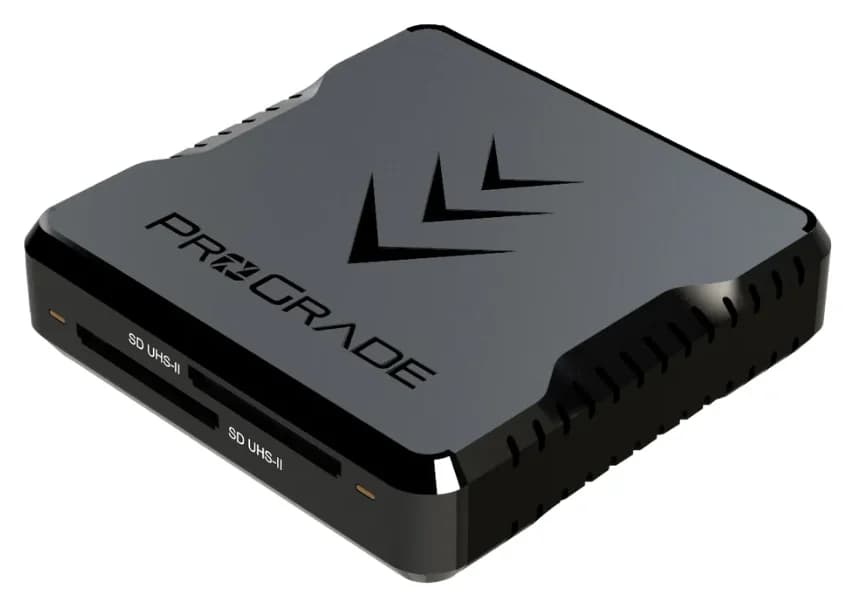
Best SD Card Readers in 2026: USB-C Picks for Every Workflow
The SD card readers worth buying, from makers' spec sheets: UHS-II dual-slot picks from Lexar and ProGrade, Apple's USB-C reader, and an Anker hub that reads cards too.
Updated November 7, 2026Read
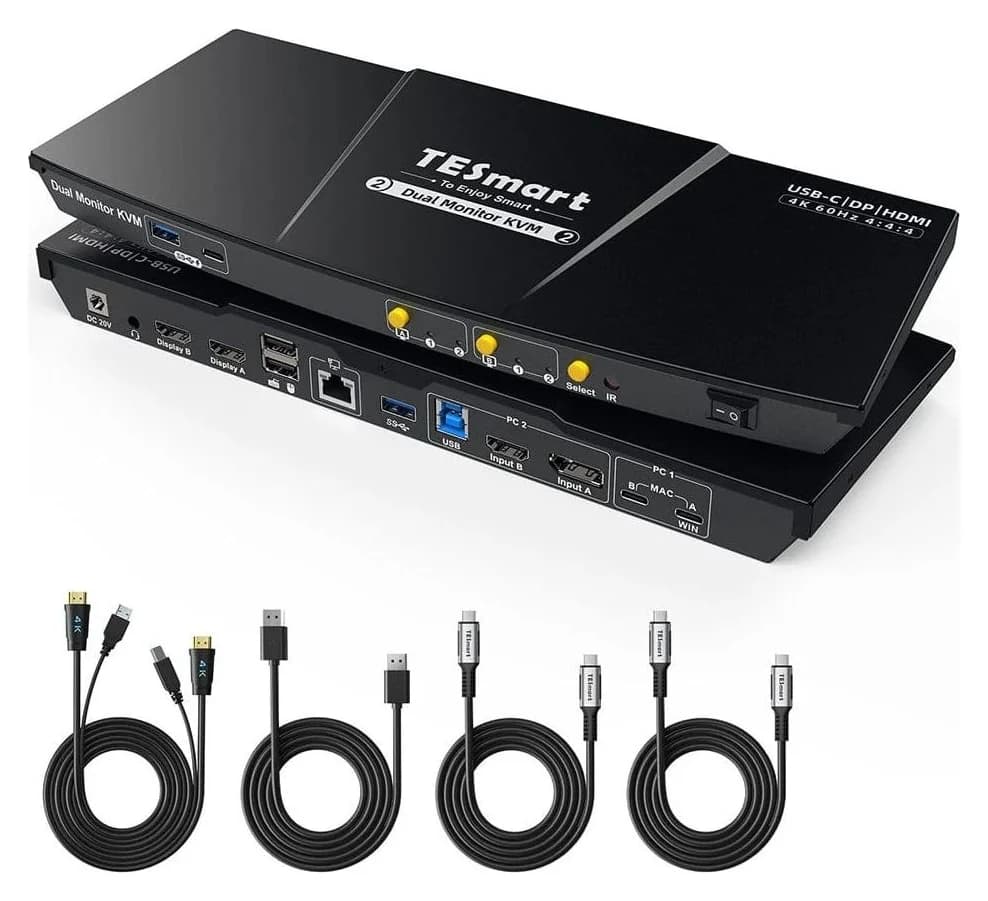
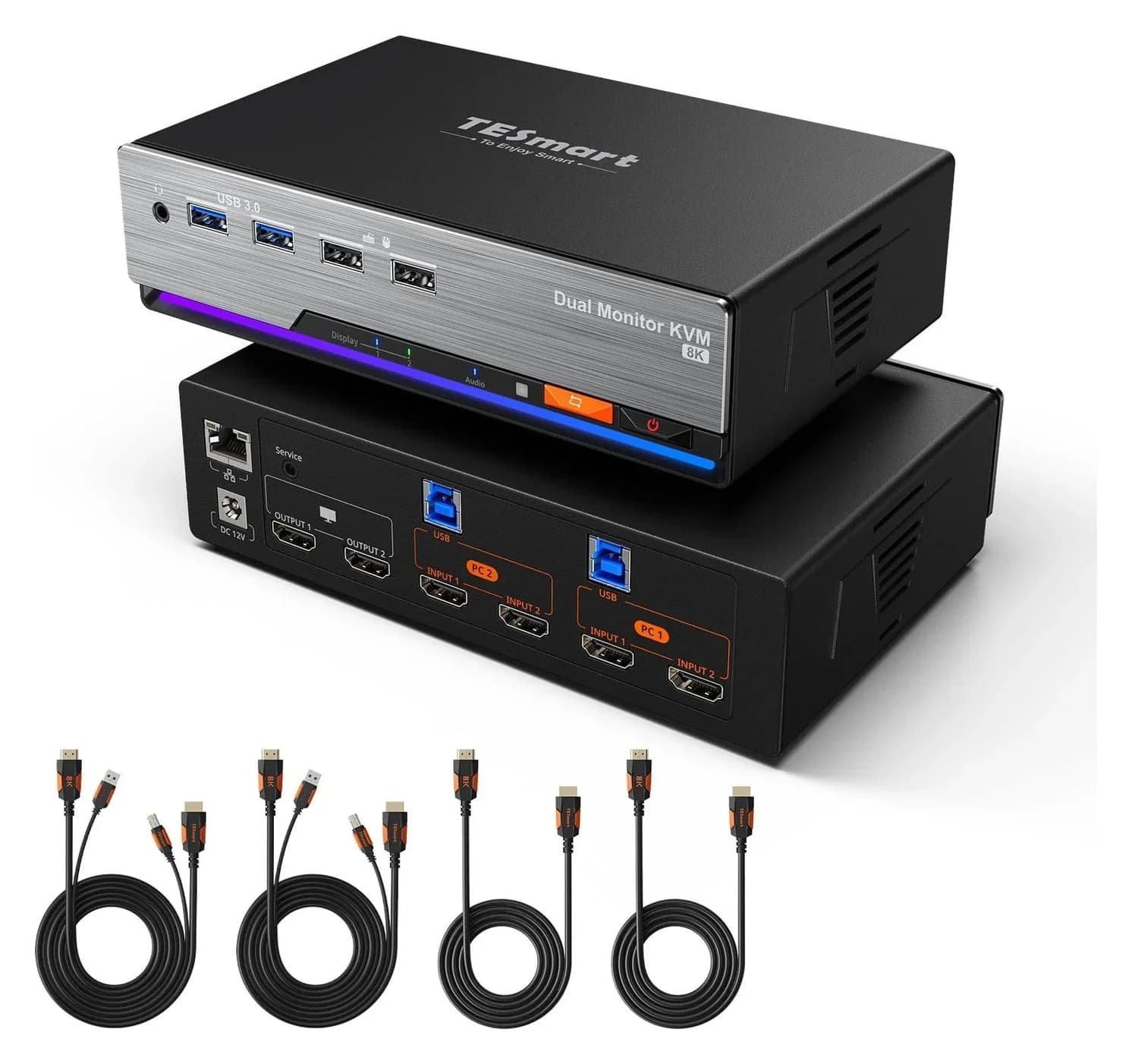
Best KVM Switches: Two Computers, One Keyboard, Mouse and Monitor Set
Pick the right KVM switch for two PCs, laptops, dual monitors, gaming or USB-only sharing. Compare HDMI, DisplayPort and USB-C models, docks and Mac limits.
Updated November 7, 2026Read
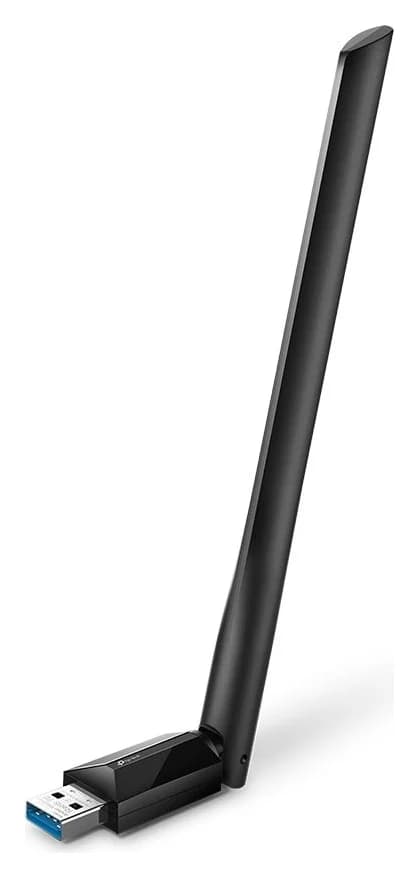
The Best USB Wi-Fi Adapters for Mac (The macOS Compatibility Truth)
Which USB Wi-Fi adapters actually support a Mac? The verified models, the macOS version limits, the USB-C problem on modern Macs, and the Ethernet workaround.
Updated November 10, 2026Read