Black Friday: the specs to check before you buy
Best picks
Updated November 5, 2026Best USB to HDMI Adapters for USB-A and Data-Only USB-C
Short answer
For an office computer with USB-A or data-only USB-C, buy the Plugable UGA-HDMI-2S for up to two 1080p monitors at 60Hz; it includes both host connector options and uses Silicon Motion software. For dual 4K at 60Hz, choose the Plugable USBC-6950U on USB-A Windows PCs or the USBC-6950M on a USB-C Mac. These are USB graphics adapters: check software compatibility before buying, because an ordinary USB-C HDMI dongle requires native video output.
Our picks at a glance
Best for dual 4K on a USB-C MacPlugable
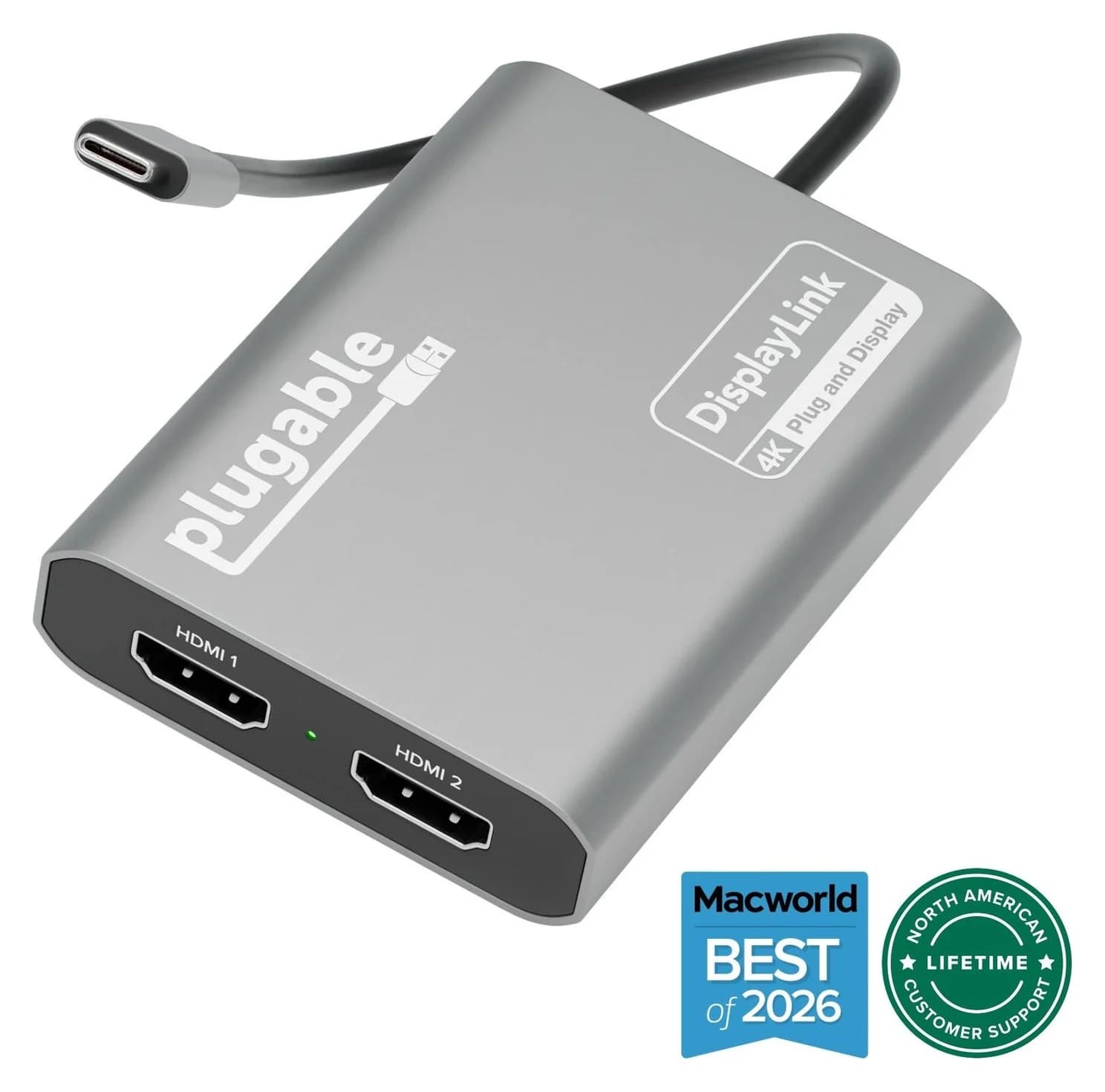
Plugable USBC-6950M USB-C to Dual HDMI DisplayLink Adapter (4K@60Hz)
- video
- 4K60
- ports
- 2
- host link
- USB-C
- Choose
- Plugable USBC-6950M adds two HDMI screens at up to 3840x2160 at 60Hz from its attached USB-C cable, with DisplayLink Manager required on macOS.
- Limit
- Requires the DisplayLink Manager app and macOS Screen Recording permission
One or two everyday office screens
UGA-HDMI-2S, using Silicon Motion rather than DisplayLink
Higher-resolution Windows workspace
USBC-6950U, with USB-A connectivity included
Quick picks
- One or two everyday office screens: UGA-HDMI-2S, using Silicon Motion rather than DisplayLink.
- Higher-resolution Windows workspace: USBC-6950U, with USB-A connectivity included.
- Higher-resolution Mac workspace: USBC-6950M, with an attached USB-C plug and DisplayLink Manager.
Native video dongle or USB graphics: buy the right class
First check the computer's specifications for an available HDMI output or a USB-C port with DisplayPort Alt Mode. A native connection is our preference when it covers your screen: Plugable's standard USB-C HDMI adapter requires that video capability and needs no downloaded driver. USB graphics is the alternative when the available port supplies USB data instead; the selected adapters use Silicon Motion or DisplayLink to add HDMI displays. See our laptop-to-TV connection guide for native video setup.
Does the available port output native video?
If your computer's specifications confirm HDMI or USB-C DisplayPort Alt Mode, start with a native video connection.
Do you need HDMI from a USB data port instead?
Choose USB graphics, then confirm the adapter's operating-system support and permission to install its matching software.
Buying a different connector shape alone does not answer the software question. In particular, USBC-6950U works with USB-A despite its name; USBC-6950M's own host specification lists USB-C. Their model-specific pages matter more than the shared family tables.
All three selected adapters specify a USB 3.0 (5Gbps) host connection. Check that capability on the computer, including a data-only USB-C port; we would not buy against the table's maximum modes for a USB 2.0-only host.
Compare connectors, software and display modes
These are manufacturer maximum output modes, not measured application performance. Each selected adapter supports extended or mirrored displays.
| Adapter | Computer connection | HDMI output ceiling | OS buying guidance | Software |
|---|---|---|---|---|
| Plugable UGA-HDMI-2S | USB-A or USB-C hybrid cable | Two screens, each 1920x1080 at 60Hz | Windows 10/11, ChromeOS 100+; macOS caveat below | Silicon Motion; InstantView on Mac |
| Plugable USBC-6950U | USB-C plus included USB-A adapter | Two screens, each 3840x2160 at 60Hz | Windows 10/11, ChromeOS 100+; Mac not recommended | DisplayLink |
| Plugable USBC-6950M | Attached USB-C cable | Two screens, each 3840x2160 at 60Hz | macOS with support caveat below; Windows 10/11, ChromeOS 100+ | DisplayLink; Manager on Mac |
| StarTech USB32HD4K, comparison only | USB-A | One screen, up to 4K at 30Hz | Maker lists Windows, macOS, ChromeOS and Linux; confirm exact release | DisplayLink |
Sources: Plugable's UGA-HDMI-2S, USBC-6950U and USBC-6950M pages, and StarTech's USB32HD4K datasheet.
Best for 1080p office monitors: Plugable UGA-HDMI-2S
This is the straightforward choice for spreadsheets, email and browsers on existing Full HD monitors. Plugable specifies up to two 1920x1080 displays at 60Hz, with a hybrid USB-A/USB-C host cable. You can use one screen now and retain the second HDMI output for later.
The important distinction is its Silicon Motion graphics system. Windows normally obtains that driver through Windows Update; a Mac needs InstantView installed manually. DisplayLink software does not operate this adapter. If your employer already deploys DisplayLink, ask IT whether it also permits Silicon Motion before ordering.
Skip it for a higher-resolution workspace: Plugable explicitly excludes 4K workflows. Its documentation also lists unsupported display color calibration and Night Shift/Night light features. Those restrictions matter if you depend on software-controlled color or evening color adjustments.
See the UGA-HDMI-2S at Plugable
Best for dual 4K on USB-A Windows PCs: Plugable USBC-6950U
Choose this for a Windows desk with higher-resolution HDMI screens. Plugable rates both displays up to 3840x2160 at 60Hz, and the included USB-C-to-USB-A keychain adapter connects it to an older USB-A computer. It uses the DisplayLink DL-6950 chipset.
This is the resolution upgrade from the UGA-HDMI-2S, not a promise of gaming performance. The required DisplayLink driver typically installs through Windows Update. Plugable's minimum-requirements section lists Windows 10/11 and ChromeOS 100+, and says Linux is unsupported.
Do not choose the U model for a Mac on the strength of a family chart. Its own page says macOS is not recommended and directs Apple owners to the USBC-6950M. It also explicitly says there is no USB-C Power Delivery to charge the laptop.
See the USBC-6950U at Plugable
Best for dual 4K on a USB-C Mac: Plugable USBC-6950M
Plugable
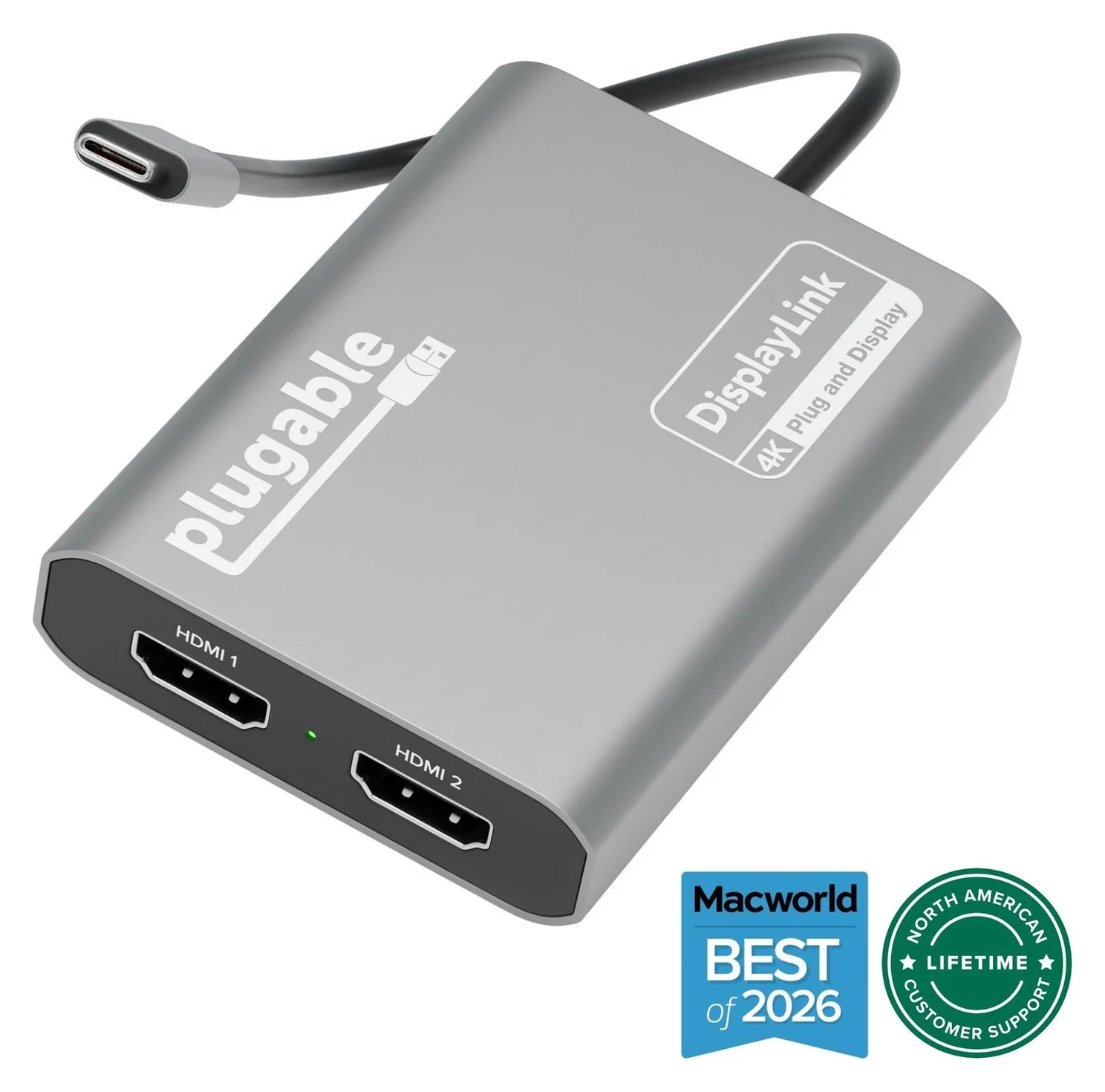
Plugable USBC-6950M USB-C to Dual HDMI DisplayLink Adapter (4K@60Hz)
A compact DisplayLink adapter that adds two extended HDMI displays, each up to 4K@60Hz, from one USB-C or Thunderbolt port, with no charging or extra ports.
- 4K60 video
- 2 ports
The M is the choice here when a Mac needs two HDMI workspaces through USB graphics. It supports two 3840x2160 displays at 60Hz, extended or mirrored, and requires DisplayLink Manager plus macOS Screen Recording permission. Plugable explains that this permission lets the software send display data over USB; it does not store a recording.
Its attached cable ends in USB-C. Plugable's U-model comparison table lists USB-A connectivity for the M, but the M model's own host and included-cable specifications list USB-C. For a USB-A purchase, use the U model on supported Windows systems instead of assuming the M includes the same adapter.
Plugable recommends connecting the M directly to the computer. It requires HDMI-to-HDMI monitor connections and provides no laptop charging, USB data ports or Ethernet. For a more complete desk connection, see our dual-monitor hub and dock guide.
Single-screen models and other brands worth checking
Plugable UGA-HDMI-S and UGA-4KHDMI: both maker pages showed out of stock when checked. The S model's selector still says 1080p at 60Hz, while its feature text and resolution table say 2560x1440 at 60Hz. The 4KHDMI is a different, DisplayLink-based USB-A adapter rated up to 3840x2160 at 30Hz. Neither receives a buying award here; out of stock does not establish discontinuation. Sources: UGA-HDMI-S, UGA-4KHDMI.
StarTech USB32HD4K: its official datasheet documents a single USB-A-to-HDMI DisplayLink output, up to 4K at 30Hz, with USB power. That is a useful one-screen alternative on paper, but we could not confirm current US purchase availability on StarTech's own product pages, so it receives no award. Do not confuse its 4K ceiling with the selected dual adapters' 60Hz capability. Our 30Hz troubleshooting guide covers refresh-rate checks.
Sabrent DA-CA2H: its product page describes both native DisplayPort Alt Mode and DisplayLink operation, an attached USB-A adapter, and output up to dual 4K at 60Hz. It also advertises HDCP support, but does not clearly separate that capability by video path. Get confirmation for your exact USB graphics setup before choosing it for protected streaming; we prefer the shortlisted models' clearer workflow restrictions.
Check OS support and installation rights first
Windows automatic installation is still driver installation. Plugable says both Silicon Motion and DisplayLink installations require administrative permission. On a managed laptop, ask IT for approval of the exact chipset and driver before spending money; a working USB port does not resolve that restriction.
Mac version labels conflict within Plugable's documentation. The UGA-HDMI-2S headline says macOS 10.14+, while its compatibility section starts at macOS 11. The USBC-6950M headline says macOS 11+, but its embedded current-support FAQ excludes macOS 13 and earlier. Check the exact release against Plugable's Silicon Motion downloads or DisplayLink downloads, including current versus legacy software, before buying for an older Mac.
ChromeOS is simpler: Plugable lists version 100 or later without a separate driver download. For Linux, neither new Plugable pick is supported by its maker; StarTech's broad Linux claim is a reason to ask about your exact distribution, not a guarantee for every installation.
One screen or two: order the full kit
The UGA-HDMI-2S and USBC-6950M box lists contain the adapter and quick-start guide; the USBC-6950U also lists its USB-C-to-USB-A keychain adapter. None lists an HDMI cable. Add one HDMI cable per connected monitor, or reuse suitable cables you already own.
For the M, Plugable recommends HDMI 2.0 displays and cables for best results. Keep the laptop's charger connected separately: neither 6950 model supplies laptop charging. Check the monitor's actual input before ordering the M, because Plugable does not support HDMI-to-USB-C or Thunderbolt monitor-input conversions with it.
Protected video, games and creative applications
The selected Plugable adapters are office tools. Their documentation warns against gaming and graphics-intensive applications, and does not support HDCP-protected playback on the USB graphics displays. More seriously, the Silicon Motion Mac notes say protected content can stop playing on all screens, including the built-in display, while the adapter is connected. A higher output resolution does not remove these software restrictions.
- Yes: Office documents and web browsing: intended uses for the selected adapters
- Partly: Managed computer: confirm permission to install the required graphics software
- No: Gaming and graphics-intensive applications: outside the recommended workflow
- No: HDCP-protected streaming: unsupported on the selected Plugable USB graphics displays
How we choose
These recommendations are based on manufacturer specifications and support documentation, without physical product evaluation. We compared host plugs, software families, supported display modes, OS restrictions and included cables, and checked manufacturer purchase status. We kept single-screen and cross-brand alternatives visible where stock or documentation prevented a confident award.
Final purchase checklist
Confirm the available computer port, monitor input and desired display mode. Match the adapter to your exact OS release and permitted software. Check the box list for host adapters, add the necessary HDMI cables, and keep a separate charging connection where required. Choose a native video connection if gaming, protected playback or graphics-heavy work is central to the purchase.
Verdict
Get the UGA-HDMI-2S for ordinary 1080p office screens. Step up to the USBC-6950U for dual 4K at 60Hz from a USB-A Windows PC, or the USBC-6950M for that display mode on a USB-C Mac. Buy only after checking the driver and OS requirements: the right HDMI socket is only part of a working USB graphics setup.
Frequently asked questions
Can a USB-A port connect to an HDMI monitor?
Yes, with a USB graphics adapter and compatible software. The Plugable UGA-HDMI-2S uses Silicon Motion; the USBC-6950U uses DisplayLink. Both offer USB-A connectivity. An ordinary USB-C HDMI dongle instead requires a port with DisplayPort Alt Mode video output. Choose the graphics adapter by your operating system and monitor resolution, then check that you can install its required driver.
Can I use USB to HDMI without installing a driver?
Windows may install the required USB graphics driver automatically through Windows Update, which still means software is involved. On macOS, the Plugable picks require either InstantView or DisplayLink Manager, plus Screen Recording permission. Plugable lists ChromeOS 100 or later without a separate driver download. If a work computer blocks installation, get IT approval before buying.
Will a USB to HDMI adapter work for Netflix or gaming?
The Plugable graphics adapters selected here are intended for office work and do not support HDCP-protected playback on their USB graphics displays. Plugable also advises against gaming and graphics-intensive applications. Its Silicon Motion documentation warns that protected playback on a Mac can fail on every display while the adapter is connected. Prefer a suitable native video connection for those uses.
What is the difference between USBC-6950U and USBC-6950M?
The USBC-6950U includes a USB-C-to-USB-A adapter and is Plugable's Windows and ChromeOS choice; its own page does not recommend macOS. The USBC-6950M has an attached USB-C cable and is the Mac choice here. Both advertise two HDMI displays up to 4K at 60Hz. Despite a conflicting family comparison table, the M model's own connector specification lists USB-C.
Best for dual 4K on a USB-C Mac
Plugable USBC-6950M USB-C to Dual HDMI DisplayLink Adapter (4K@60Hz)
Related guides
Best SD Card Readers in 2026: USB-C Picks for Every Workflow
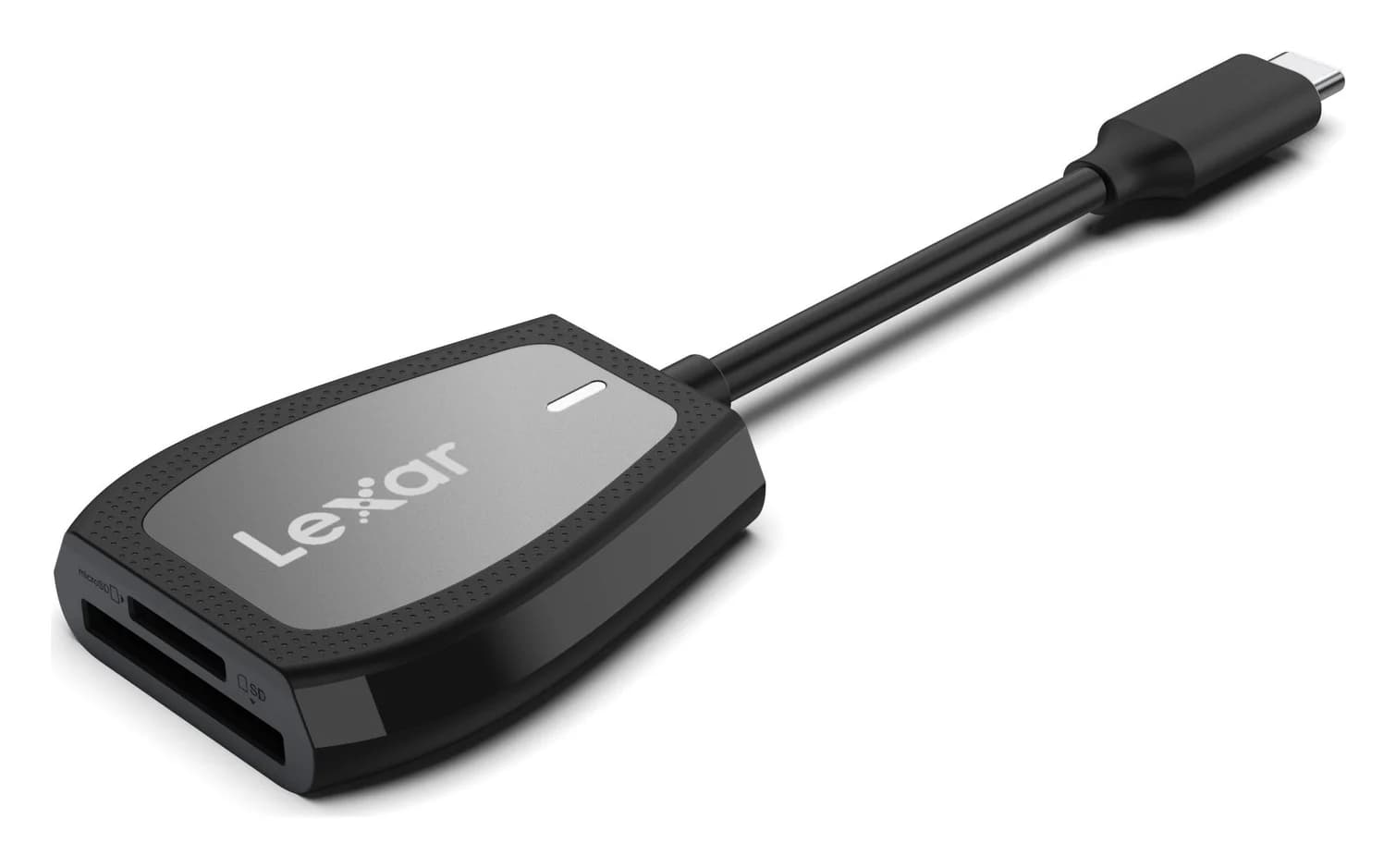
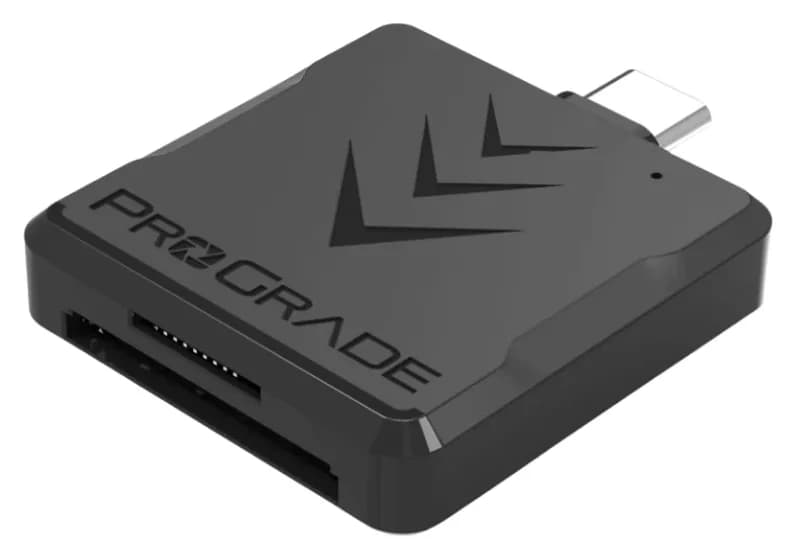
The SD card readers worth buying, from makers' spec sheets: UHS-II dual-slot picks from Lexar and ProGrade, Apple's USB-C reader, and an Anker hub that reads cards too.
Updated November 7, 2026Read
Best KVM Switches: Two Computers, One Keyboard, Mouse and Monitor Set
Pick the right KVM switch for two PCs, laptops, dual monitors, gaming or USB-only sharing. Compare HDMI, DisplayPort and USB-C models, docks and Mac limits.
Updated November 7, 2026Read

The Best USB Wi-Fi Adapters for Mac (The macOS Compatibility Truth)
Which USB Wi-Fi adapters actually support a Mac? The verified models, the macOS version limits, the USB-C problem on modern Macs, and the Ethernet workaround.
Updated November 10, 2026Read