Black Friday: the specs to check before you buy
Best picks
Best DisplayLink Docks in 2026: 4 Picks That Add Screens to Any Mac
The DisplayLink docks and adapters that add up to four 4K screens to base-model M-series Macs and laptops that natively support one display, with the driver and HDCP catches explained.
By thisUSB EditorialUpdated November 5, 202611 min read4 picks
Our picks at a glance
Best overallPlugable
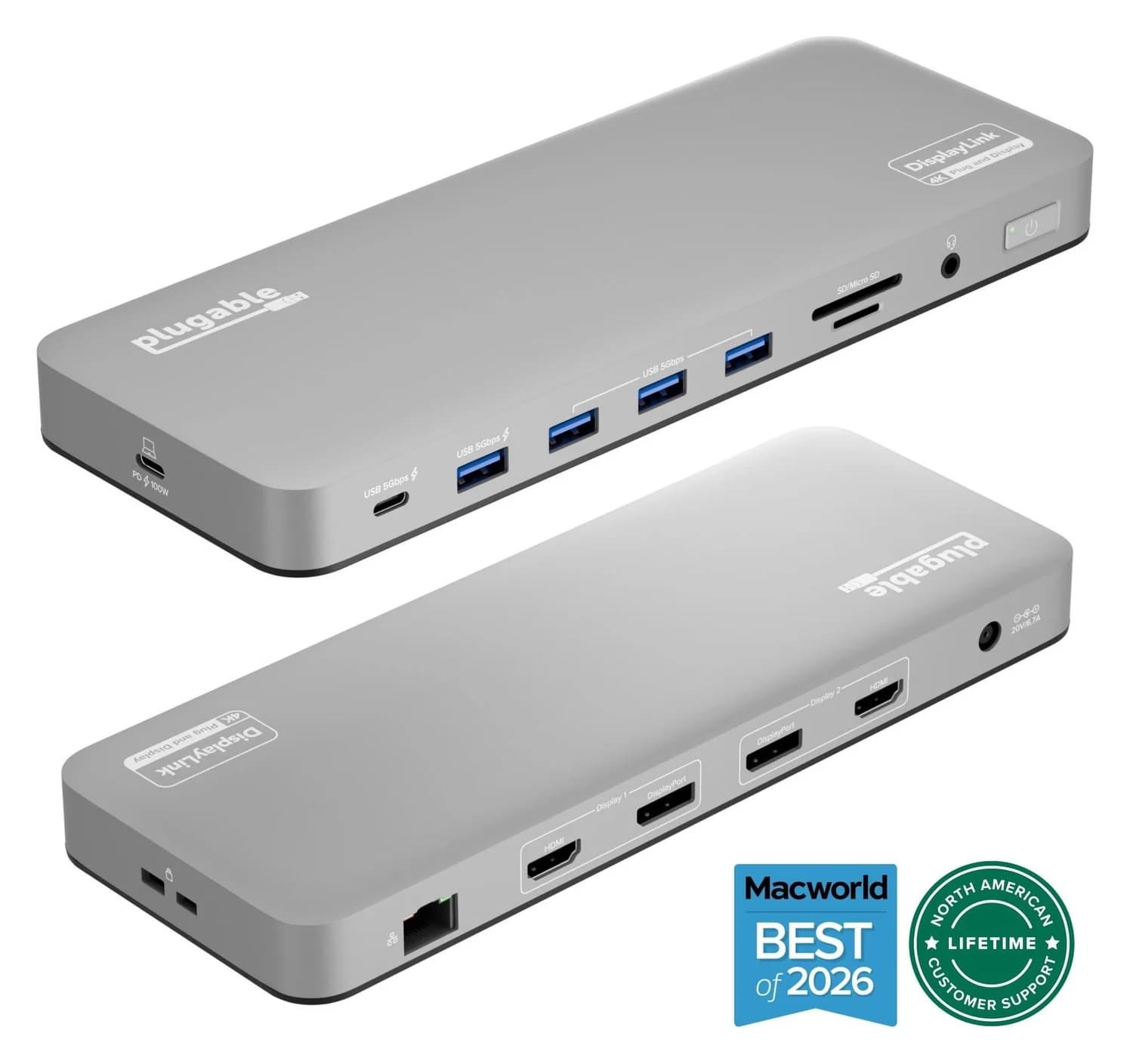
Plugable UD-6950PDH USB-C Dual 4K DisplayLink Dock (100W Charging)
- to laptop
- 100W
- data
- 5 Gbps
- video
- 4K60
- Choose
- Plugable's dual-4K dock adds two extended 4K@60Hz screens, 100W laptop charging, Ethernet and an SD reader over one USB-C cable, on Macs that natively support one external display.
- Limit
- Requires the DisplayLink Manager app on macOS, plus Screen Recording permission
Best dual-HDMI DisplayLink adapterPlugable
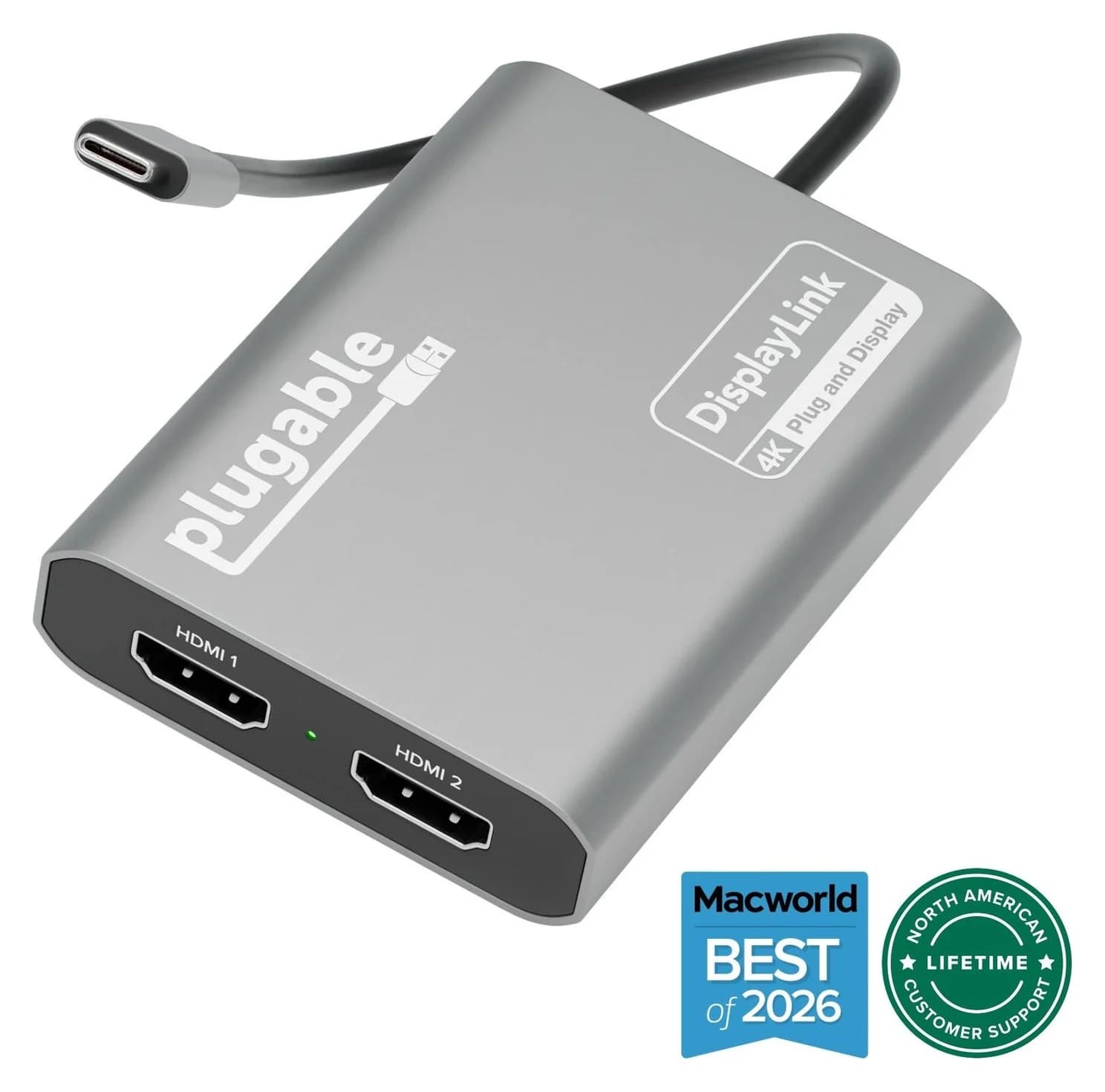
Plugable USBC-6950M USB-C to Dual HDMI DisplayLink Adapter (4K@60Hz)
- video
- 4K60
- ports
- 2
- host link
- USB-C
- Choose
- An 85-gram adapter that adds two extended 4K@60Hz HDMI screens from one USB-C port, leaving MagSafe and the other ports free.
- Limit
- Requires the DisplayLink Manager app and macOS Screen Recording permission
- Find on Amazon
Best for four screens
Plugable USBC-7400H4
If your laptop supports only one or two external displays and you want more, a DisplayLink dock is the one purchase that fixes it: the Plugable UD-6950PDH is the best pick for most people, because it adds two extended 4K@60Hz screens, 100W laptop charging, Gigabit Ethernet and card readers over a single USB-C cable, on Macs that natively manage one external display. For three screens, the Plugable UD-ULTC4K runs three 4K@60Hz monitors and charges at up to 100W, and for travel the Plugable USBC-6950M is an 85-gram adapter that adds two HDMI screens and nothing else. Every pick needs DisplayLink software, which on a Mac means an app and a Screen Recording permission, and none of them will show Netflix on a DisplayLink screen; both catches are explained below.
- 34K@60Hz screens the UD-ULTC4K dock drives on a laptop that natively supports one external display
- 100WLaptop charging over the dock's USB-C host connection (96W certified)
- 85 gramsThe USBC-6950M dual-HDMI adapter's weight, screens included
Quick picks
| Pick | Best for | Displays | Charges the laptop |
|---|---|---|---|
| Plugable UD-6950PDH | Best overall | 2x 4K@60Hz (HDMI or DisplayPort) | Yes, up to 100W |
| Plugable UD-ULTC4K | Best for three monitors | 3x 4K@60Hz (HDMI or DisplayPort) | Yes, up to 100W (96W certified) |
| Plugable USBC-6950M | Best travel adapter | 2x 4K@60Hz (HDMI) | No |
| Plugable USBC-7400H4 | Best for four screens | 4x 4K@60Hz (HDMI) | Pass-through, up to 90W |
Why M-series Macs need DisplayLink for 3+ displays
Apple silicon drew a hard line on external displays, and it runs through the whole lineup, not just the cheapest models. Apple's MacBook Air specs say the current 13-inch MacBook Air supports up to two external displays (two at 6K@60Hz or 4K@144Hz, both over a single Thunderbolt port, with the built-in display still on), while the base chips in earlier M1 through M3 Airs supported only one; base M4 Airs and 14-inch MacBook Pros support two. On the MacBook Pro specs, the M6 supports two external displays, the M5 Pro three and the M5 Max four, which is where money buys ports.
Two things make DisplayLink the workaround. First, macOS does not support DisplayPort Multi-Stream Transport (MST), so the single-cable dual-HDMI hubs that extend two screens on Windows just mirror the second screen on a Mac — Plugable says exactly this about its own MST adapters. Second, DisplayLink doesn't use the video pipeline at all: it compresses rendered frames and sends them over plain USB, so a Mac's display count limit never comes into play. Plugable's USBC-7400H4 page says base-model M1 through M5 MacBooks extend to four independent displays with it, five counting the laptop screen.
Source: Apple's MacBook Air and MacBook Pro pages, Plugable's UD-ULTC4K and USBC-7400H4 pages
Windows laptops and Chromebooks don't need DisplayLink as often: Windows supports MST, and ChromeOS handles multi-display hubs natively. But the same dock still adds screens on laptops whose USB-C ports are capped at one display output, and Plugable lists ChromeOS 100 or later as supported on both docks with no driver download.
The two catches: software and streaming
DisplayLink is not plug-and-play on a Mac. Plugable's setup steps for its Mac DisplayLink docks are: install Synaptics' DisplayLink Manager app, grant it Screen Recording permission in Privacy & Security settings, and keep it running. The permission sounds alarming but is required for the driver to send the desktop's pixels over USB — Plugable and Synaptics both say no data, images or pixels are recorded, stored or sent. After a macOS update, Plugable's FAQ advises reinstalling the latest DisplayLink Manager if displays stop working. One more wrinkle: Plugable's product pages advertise macOS 11+, but its support policy officially supports only macOS 14 Sonoma, 15 Sequoia, 26 Tahoe and 27, and explicitly does not support macOS 11-13; Synaptics' current DisplayLink Manager 17.0 covers macOS 14, 15, 26 and 27. Windows is easier: the DisplayLink software installs automatically through Windows Update.
HDCP streaming won't play on DisplayLink screens. Plugable's FAQ is direct: HDCP-protected content from Netflix, Hulu and Prime Video will not work, so for entertainment it recommends a standard display adapter. On the UD-6950PDH dock specifically, Plugable goes further: while that dock is connected to a Mac, HDCP content will not play on any display, including the laptop's own screen and monitors plugged directly into the computer. DisplayLink is for work screens — browsing, documents, calls, code.
Best overall: Plugable UD-6950PDH
Plugable
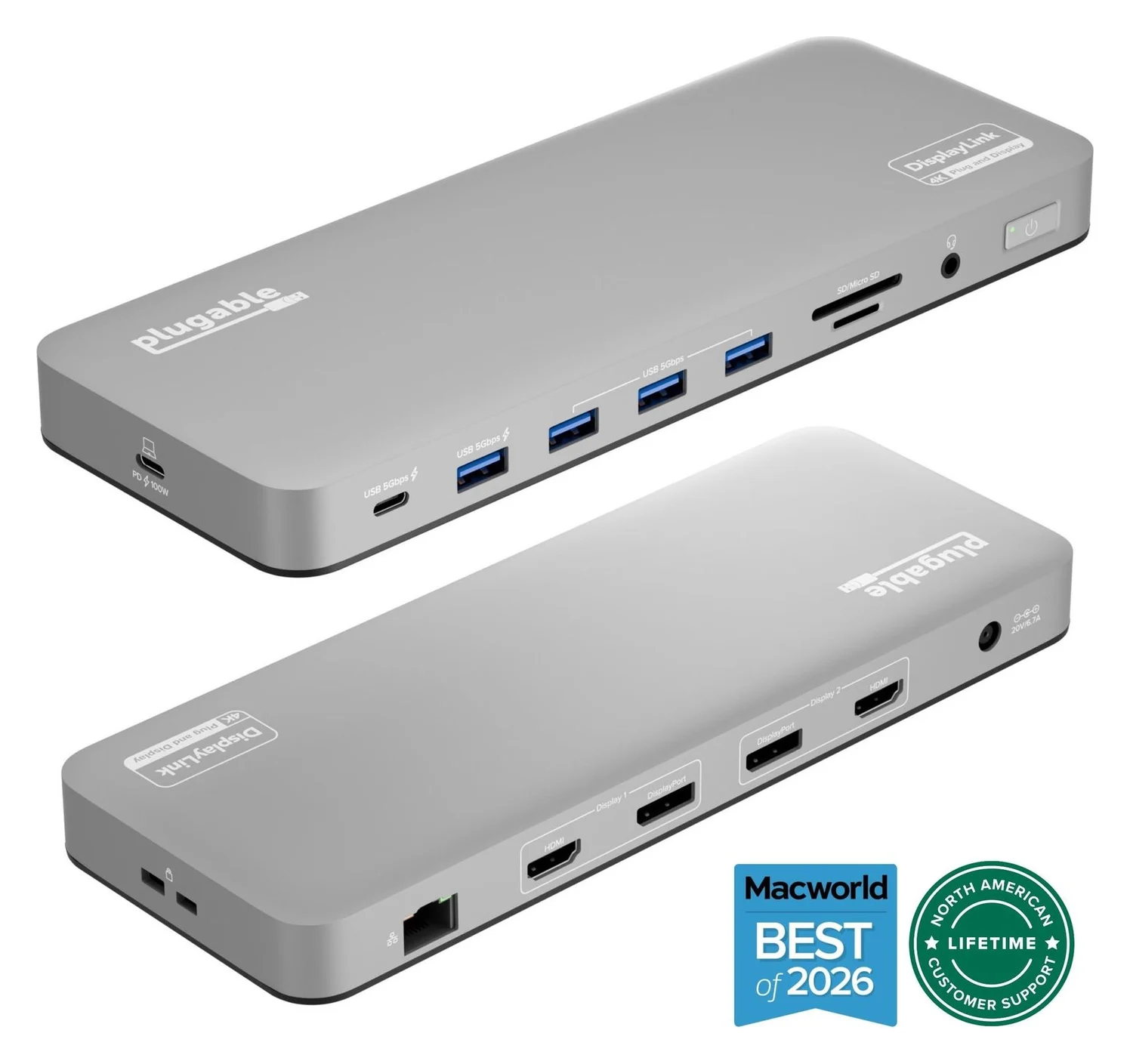
Plugable UD-6950PDH USB-C Dual 4K DisplayLink Dock (100W Charging)
A 14-in-1 DisplayLink USB-C dock that adds two extended 4K@60Hz displays over HDMI or DisplayPort, plus 100W laptop charging, Gigabit Ethernet, SD readers and five USB ports.
- 100W PD passthrough
- 5 Gbps data
- 4K60 video
- 14 ports
This is the dock to buy if you want two more screens and one cable for everything else. Plugable's page says it enables 2x 4K@60Hz monitors via HDMI and DisplayPort, even on Macs that natively support only one external display, with each of its two display channels offering an HDMI 2.0 and a DisplayPort 1.2 port, so both of your monitors connect without adapters. It charges the laptop at up to 100W over the host connection, and the dock also brings Gigabit Ethernet, SD and microSD card readers, a 3.5mm headset jack, three additional USB 3.0 ports and front-facing USB-C and USB-A charging ports, all across one USB-C cable.
The full dock picture, from Plugable's spec page: five USB ports in total, a 130W power adapter in the box, and support for Windows 10+, macOS 11+ and ChromeOS 100+. Its two known Mac limits: DisplayLink screens get no HiDPI (Retina) scaling, so a 4K monitor runs at native 4K or 1080p, and HDCP content won't play on any display while it's connected on macOS. It's a two-display dock — the comparison table on Plugable's own page gives the UD-ULTC4K the 3x 4K@60Hz row — its host link runs at USB 3.0 speed rather than the UD-ULTC4K's 10Gbps, and its USB ports stop at 5Gbps. At 22.5 x 8.5 x 2.45 cm and 465g, it's a desk dock, not a travel item.
See the Plugable UD-6950PDH on Amazon
Best for three monitors: Plugable UD-ULTC4K
Three 4K screens is where the UD-ULTC4K earns its spot. Plugable's page says it drives up to three 4K@60Hz monitors, with 3x HDMI 2.0 and 3x DisplayPort 1.2 outputs you can mix and match, and — the key DisplayLink line — it can connect three displays even if the computer supports only one display output on its own, which covers base-model M1 through M3 Macs and one-display Windows laptops. It charges the laptop at up to 100W Power Delivery (96W certified) and tops up a phone or tablet on its front USB-C port at up to 20W.
Its spec sheet fills in the rest: a 13th port count covering 4x rear USB-A 5Gbps, the 20W front USB-C, an SD UHS-II card slot (up to 312MB/s), audio in/out and Gigabit Ethernet, all carried over a 10Gbps USB-C host cable (1m, included) with a 135W adapter in the box. It works with Windows 10+, macOS 11+ and ChromeOS 100.x or later in Thunderbolt, USB4 or USB-C ports, and weighs 624g at 20 x 7.3 x 13.6 cm. One fine-print display rule: three 4K@60Hz screens need a host with DisplayPort 1.4 Alt Mode or better; on DisplayPort 1.2 hosts, Plugable lists 1x 4K@30Hz plus 2x 4K@60Hz.
Best dual-HDMI DisplayLink adapter: Plugable USBC-6950M
Plugable
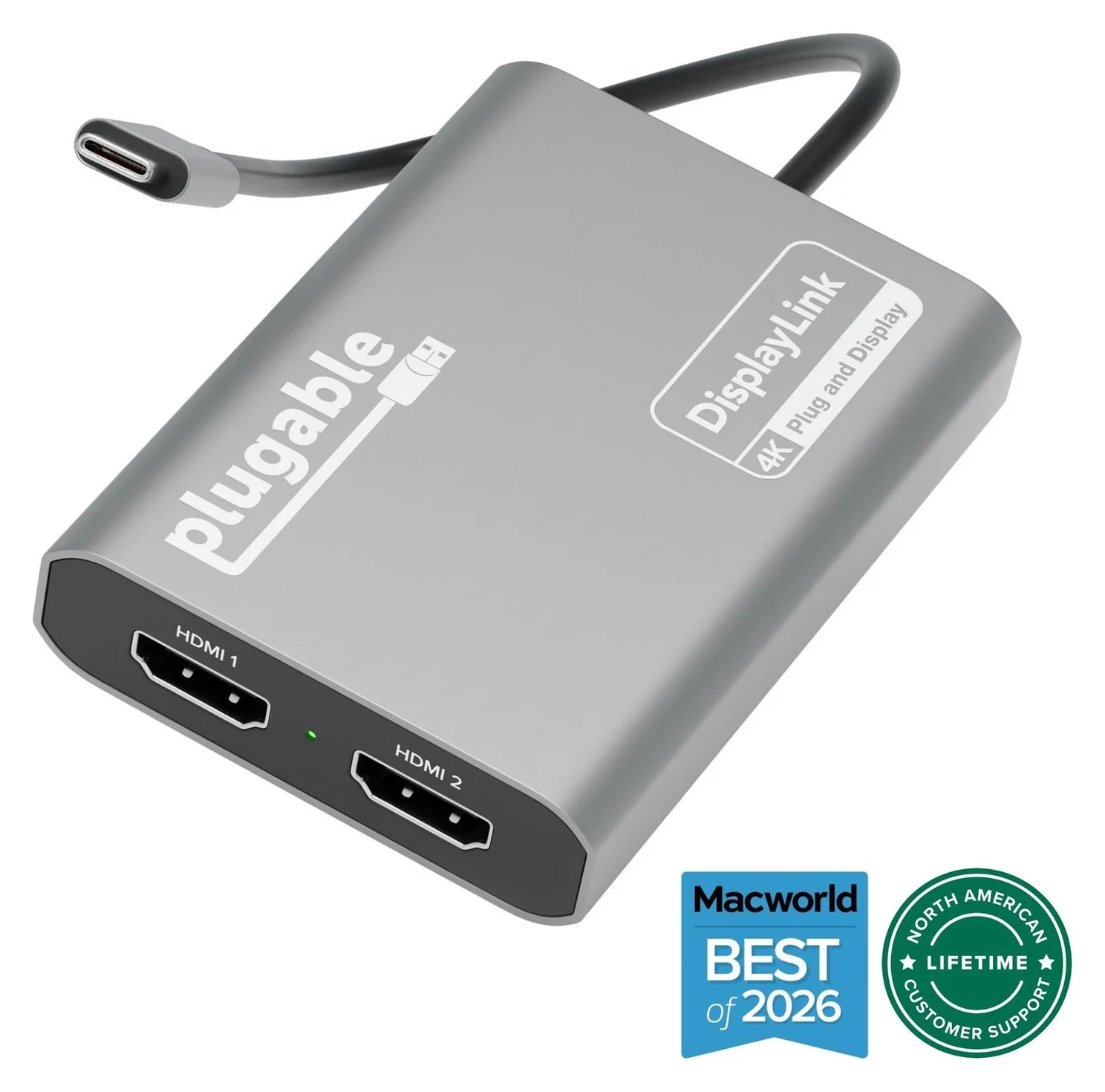
Plugable USBC-6950M USB-C to Dual HDMI DisplayLink Adapter (4K@60Hz)
A compact DisplayLink adapter that adds two extended HDMI displays, each up to 4K@60Hz, from one USB-C or Thunderbolt port, with no charging or extra ports.
- 4K60 video
- 2 ports
For a MacBook Air on the go, this is the lightest way to add two screens. Plugable's page says the USBC-6950M adds two 4K@60Hz HDMI external displays to M1 through M5 MacBooks from a single USB-C port, even base MacBook Air models limited to one external display natively — three total screens counting the laptop. It is 85 grams of aluminum with an attached USB-C cable, it's video-only (no charging, USB data, Ethernet or audio, per Plugable's own "video adapter only" note), and it leaves MagSafe and your other port free. Two screens connect HDMI-to-HDMI only; USB-C or DisplayPort Alt Mode monitor inputs are not supported.
On a desk, its limits are the ones every DisplayLink product shares: the DisplayLink Manager app and Screen Recording permission on macOS, no HDCP streaming on its displays, and Plugable's note that it may run warm during extended use, which is normal for DisplayLink adapters. Keep airflow clear and connect it directly to the Mac rather than through a hub.
See the Plugable USBC-6950M on Amazon
Best for four screens: Plugable USBC-7400H4
The ceiling for one USB-C port. Plugable's page says the USBC-7400H4 connects 4x 4K@60Hz HDMI displays, and that base-model M1 through M5 MacBooks extend to four independent displays with it, five counting the laptop screen. It attaches with a 12-inch (30cm) integrated USB-C cable at USB 3.2 Gen 2 speed (10Gbps), is powered by the DisplayLink DL-7400 chipset, and is built for productivity, not gaming, with copy-protected video playback not compatible.
Power is the clever part: plug your laptop's USB-C charger into its pass-through port and up to 100W goes in, with 10W reserved by the adapter and up to 90W delivered to charge the computer — or skip the charger entirely, because it is bus-powered. It is compatible with macOS 11+ and Windows 10+ hosts with USB-C (with USB Power Delivery), USB4 or Thunderbolt; Plugable lists macOS, Windows and ChromeOS for the USBC-7400H4, so confirm your specific configuration before buying. At 1.6 x 10.8 x 8.76 cm and 175g it's a desk or bag brick, and it's TAA-compliant, which matters for some government and enterprise buyers.
DisplayLink vs native Thunderbolt and Alt Mode
Before you buy a DisplayLink dock, check what your laptop already supports, because native video is smoother and driver-free. A Thunderbolt dock uses the Mac's own display outputs — a current 13-inch MacBook Air natively drives two external displays at up to 6K@60Hz or 4K@144Hz, and the M5 Pro and M5 Max MacBook Pros support three and four. DisplayPort Alt Mode adapters and MST hubs on Windows use the computer's graphics with no CPU overhead. Our best Thunderbolt docks and best dock for MacBook Pro guides cover those picks.
Choose DisplayLink when you're past the native limit — a third or fourth screen on a MacBook Air, a second or third on a base-chip laptop — or when the laptop's USB-C ports don't carry video at all. That's the whole reason the category exists, and both Plugable docks also work in Thunderbolt and USB4 ports, so they follow you to a better laptop.
- Yes: More displays than the laptop's native limit (up to 4 on a base-model Mac)
- Yes: One cable for displays, Ethernet, USB and laptop charging (the docks)
- Yes: Works in USB-C, USB4 and Thunderbolt 3, 4 and 5 ports
- Partly: 4K@60Hz on every DisplayLink screen (needs a DP 1.4 Alt Mode host for triple 4K; DP 1.2 hosts drop one screen to 30Hz)
- No: Netflix, Hulu and other HDCP streams on DisplayLink screens
- No: Gaming or latency-sensitive work
- No: Plug-and-play on a Mac (DisplayLink Manager app and Screen Recording permission required)
Laptop charging and what's on the cable
| Pick | Charging to the laptop | Host link | Other ports |
|---|---|---|---|
| UD-6950PDH | Up to 100W | USB-C 5Gbps | 5x USB, Gigabit Ethernet, SD/microSD, headset jack |
| UD-ULTC4K | Up to 100W (96W certified) | USB-C 10Gbps | 5x USB, Gigabit Ethernet, SD UHS-II, audio |
| USBC-6950M | None | USB-C (attached cable) | None, video only |
| USBC-7400H4 | Pass-through up to 90W from 100W input | USB-C 10Gbps (30cm attached cable) | 1x USB-C PD input, 4x HDMI |
The two docks charge over the same USB-C cable that carries video and data, so nothing extra is plugged into the laptop; a 135W adapter comes in the box with the UD-ULTC4K and a 130W adapter with the UD-6950PDH (130.0W at 20.0V, 6.5A, per its power table). The adapters leave charging to your own gear: on the USBC-6950M you keep MagSafe free, and the USBC-7400H4's pass-through port means your existing 100W USB-C charger powers both. Note that everything on a DisplayLink dock — displays, Ethernet, USB devices — shares the one 5Gbps or 10Gbps host link, so big file copies can land while three screens are streaming. For a laptop that only needs charging and one native display, a Thunderbolt dock or our MacBook Air charger guide is the better buy.
How we choose
We haven't put these docks on a test bench. Our picks come from research:
- Apple's display specs. Native external-display limits for the MacBook Air and MacBook Pro come from Apple's own spec pages, linked above, so the "do you even need DisplayLink" question is answered before the purchase.
- Manufacturer pages. Every port count, wattage, resolution and box contents claim comes from Plugable's product and support pages for each model.
- Driver reality. Software requirements, permissions and supported macOS versions come from Synaptics' DisplayLink download page and Plugable's DisplayLink support policy, not from the marketing headline.
- Buyer-reported patterns. The HDCP and HiDPI limits we flag are the ones Plugable documents itself, because they're the surprises after unboxing.
Buying checklist
- Count your displays first. If two screens is the goal and your laptop natively supports two, a Thunderbolt dock or a dual-HDMI Alt Mode hub on Windows is smoother and driver-free. DisplayLink starts making sense at the third screen or the second screen on a one-display Mac.
- Check your macOS version. DisplayLink needs the DisplayLink Manager app, Screen Recording permission, and (per Plugable's policy) macOS 14, 15, 26 or 27.
- Match the monitor inputs. The docks offer HDMI and DisplayPort per display channel; the adapters are HDMI-only, and the USBC-6950M doesn't work with USB-C or DisplayPort Alt Mode monitor inputs.
- Expect productivity, not pixels-in-motion. No gaming, no HDCP streaming, and no HiDPI Retina scaling on DisplayLink screens.
- Budget for charging. If the adapter doesn't pass power, your laptop's charger stays in play; see our best USB-C chargers if you need a spare.
Verdict
Buy the Plugable UD-6950PDH if you want one cable that adds two 4K@60Hz screens, 100W charging and a full port set to a laptop that natively supports one display — it's the best overall DisplayLink docking station for the money and the most common two-screen job. Buy the Plugable UD-ULTC4K for a third 4K screen and a 10Gbps link, and the Plugable USBC-6950M if the screens are the only thing you're adding. For four screens from one port, the Plugable USBC-7400H4 is the pick, with 90W charging passed through from your own charger. All four need DisplayLink software on a Mac, and none of them will show Netflix — plan the movie screen accordingly.
Frequently asked questions
Do DisplayLink docks work on MacBooks?
Yes, with two conditions. You install Synaptics' free DisplayLink Manager app (Plugable ships Mac DisplayLink docks, and Synaptics' current 17.0 release covers macOS 14, 15, 26 and 27), and you grant it Screen Recording permission in System Settings, because macOS requires that permission for the driver to send pixels over USB. Plugable's product pages say macOS 11+, but its support policy supports only macOS 14 and later; the DisplayLink screens stay blank until the app is installed, permitted and running.
Can a base M-series MacBook Air run three external displays?
Not natively: Apple's specs say the current 13-inch MacBook Air supports up to two external displays, and base-model M1 through M3 chips supported only one; base M4 chips support two. DisplayLink is the workaround. Plugable's UD-ULTC4K dock page says it can connect three displays even if the computer supports only one display output on its own, and its USBC-7400H4 adapter extends base-model MacBooks to four independent displays, five counting the laptop screen.
Do DisplayLink docks support Netflix and other streaming?
Not on the DisplayLink screens. Plugable's pages are blunt: HDCP-protected content from Netflix, Hulu, Prime Video and similar services will not play on DisplayLink displays, and while its UD-6950PDH dock is connected, HDCP content will not play on any display on macOS, including the laptop's own. Watch protected streams on the built-in screen with the dock disconnected, or use a native DisplayPort Alt Mode or Thunderbolt display path.
Is DisplayLink good for gaming?
No. Plugable says its DisplayLink products are built for productivity, not gaming, and recommends them against latency-sensitive gaming. DisplayLink sends compressed screen frames over USB, so it suits office work, browsing and code, not fast motion. On Windows, a DisplayPort MST adapter uses the computer's own graphics instead; macOS does not support MST.
Do DisplayLink docks charge the laptop?
The docks do. Plugable's UD-6950PDH and UD-ULTC4K each charge a laptop at up to 100W over the USB-C host connection (96W certified, with a 135W power adapter included on the UD-ULTC4K). The adapters don't: the USBC-6950M provides no charging, and the USBC-7400H4 passes up to 90W through from your own 100W USB-C charger.
Does a DisplayLink dock need a Thunderbolt port?
No. Both Plugable docks connect over plain USB-C at 5Gbps or 10Gbps and also work in USB4 and Thunderbolt 3, 4 or 5 ports, so even an older USB-C laptop works. The one requirement Plugable lists is a USB-C port that supports video output via DisplayPort Alt Mode and USB-C Power Delivery, which most laptops have and most desktops don't.
Related guides
Best External GPU Enclosures in 2026: Thunderbolt eGPUs That Still Exist
The current Thunderbolt eGPU enclosures from maker pages: Sonnet's Breakaway Box 850 T5 and 750ex and Razer's Core X V2, plus the Mac compatibility truth and what to check before buying.
Updated November 7, 2026Read
OWC Thunderbolt Go vs CalDigit TS4: Which Thunderbolt Dock Should You Buy?
The Go Dock packs its own power for travel; the TS4 anchors a desk with 18 ports and 98W charging. Compare full kits, monitors and which to buy.
Updated November 5, 2026Read
Plugable TBT4-UD5 vs UD-3900PDH: Which Dock for Dual Monitors?
Choose between Plugable's TBT4-UD5 Thunderbolt 4 dock and UD-3900PDH DisplayLink dock: which laptop ports they need, display counts, charging and software.
Updated November 5, 2026Read