Black Friday: the specs to check before you buy
Best picks
Updated November 8, 2026Best USB-C Cables for iPad: Charging, SSDs and Monitors
Short answer
For most people replacing a USB-C iPad charging cable, our pick is the Anker Prime A88E2 in 6 ft: it provides useful reach, USB-IF certification and USB 2.0 data for ordinary syncing. Choose the Native Union Pocket Cable for a compact spare, or the Plugable TBT5-240W1M for an SSD, dock or monitor; the cable's charging wattage alone does not establish its data or video capabilities. Our types of USB-C cables explained guide maps out those differences.
Our picks at a glance
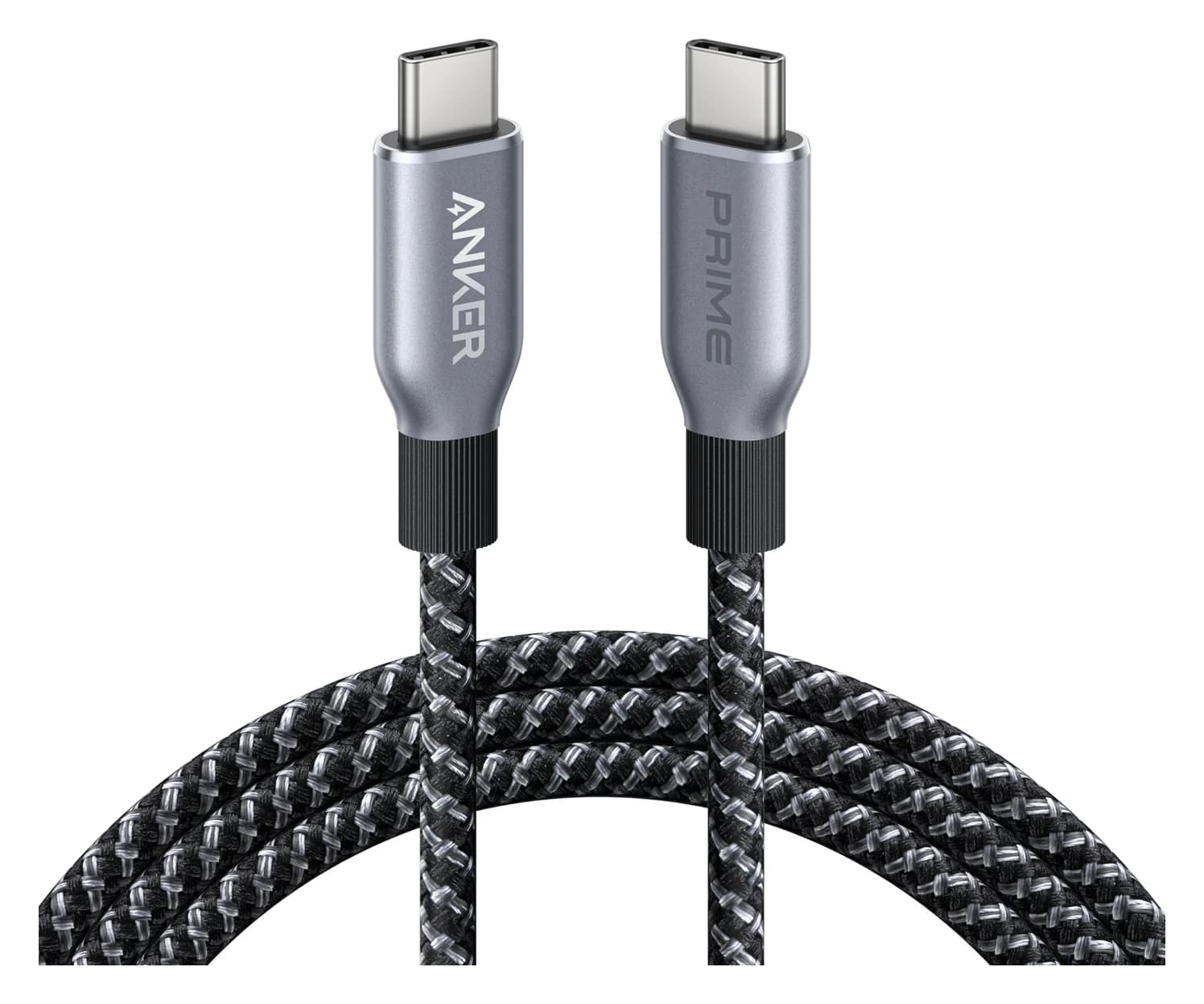
Best everyday charging cableAnker
Anker Prime USB-C to USB-C Cable (240W, Upcycled-Braided, 6 ft)
- data
- 480 Mbps
- ends
- USB-C to USB-C
- Choose
- The 6 ft A88E2 offers reach, USB-IF certification and a 240W power rating; its USB 2.0 data mode does not support video.
- Limit
- 480Mbps data only
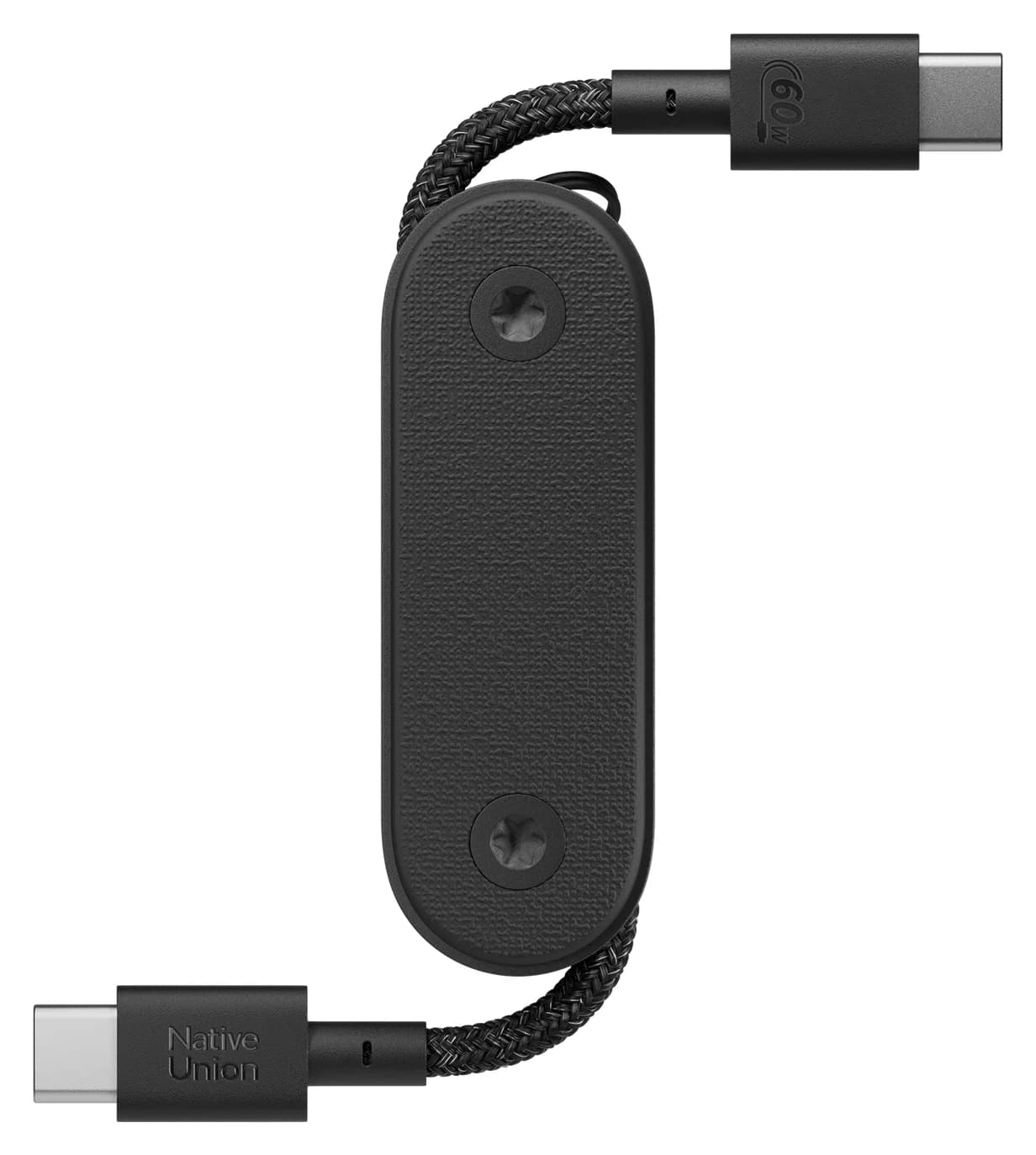
Best pocket spareNative Union
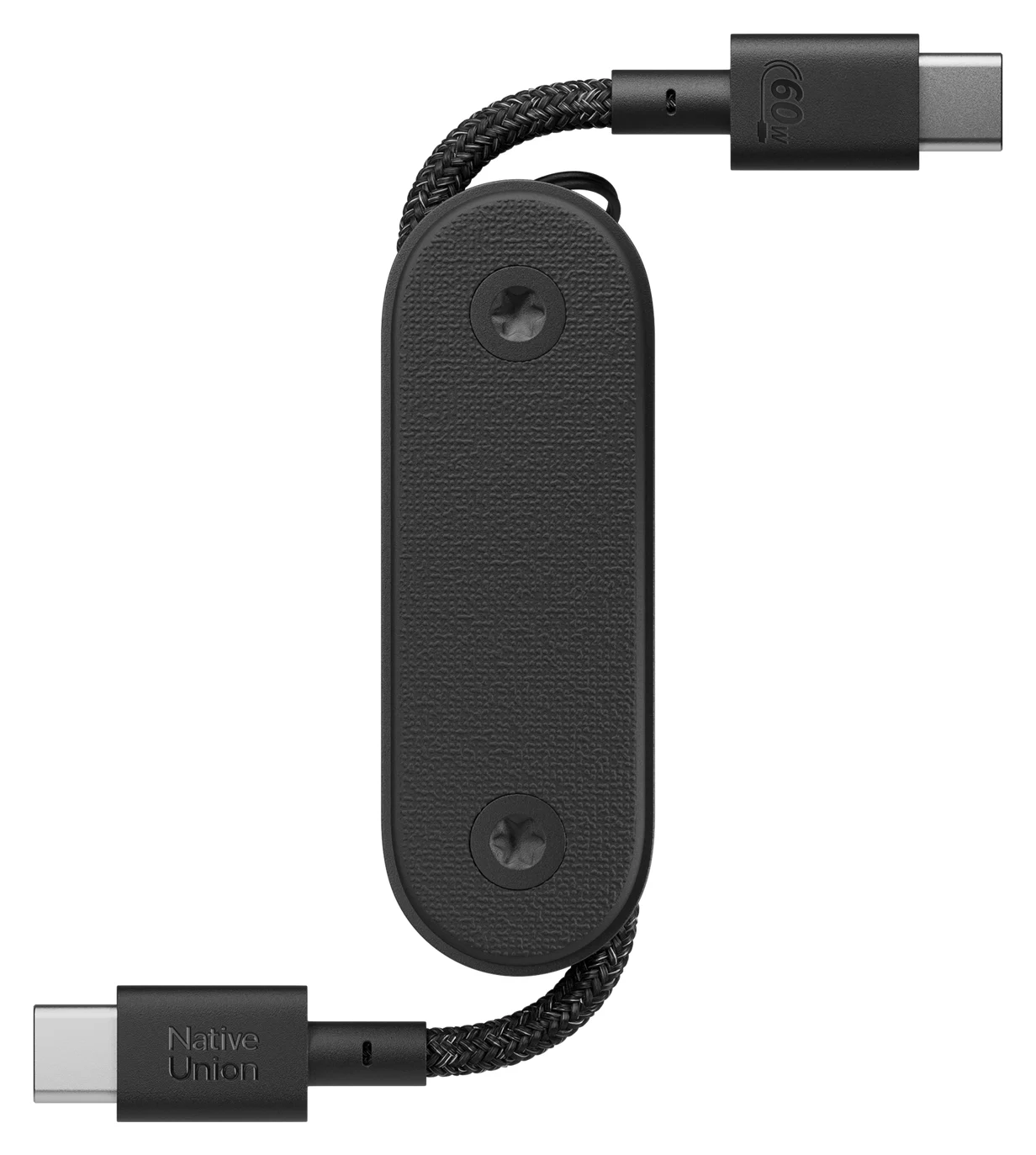
Native Union Pocket Cable (USB-C to USB-C, 60W)
- power rating
- 60W
- data
- 480 Mbps
- ends
- USB-C to USB-C
- Choose
- A folding USB-C cable with a keyring, up to 60W charging and a short 17cm reach for a nearby power bank.
- Limit
- Very short, so the device has to sit next to the charger or power bank
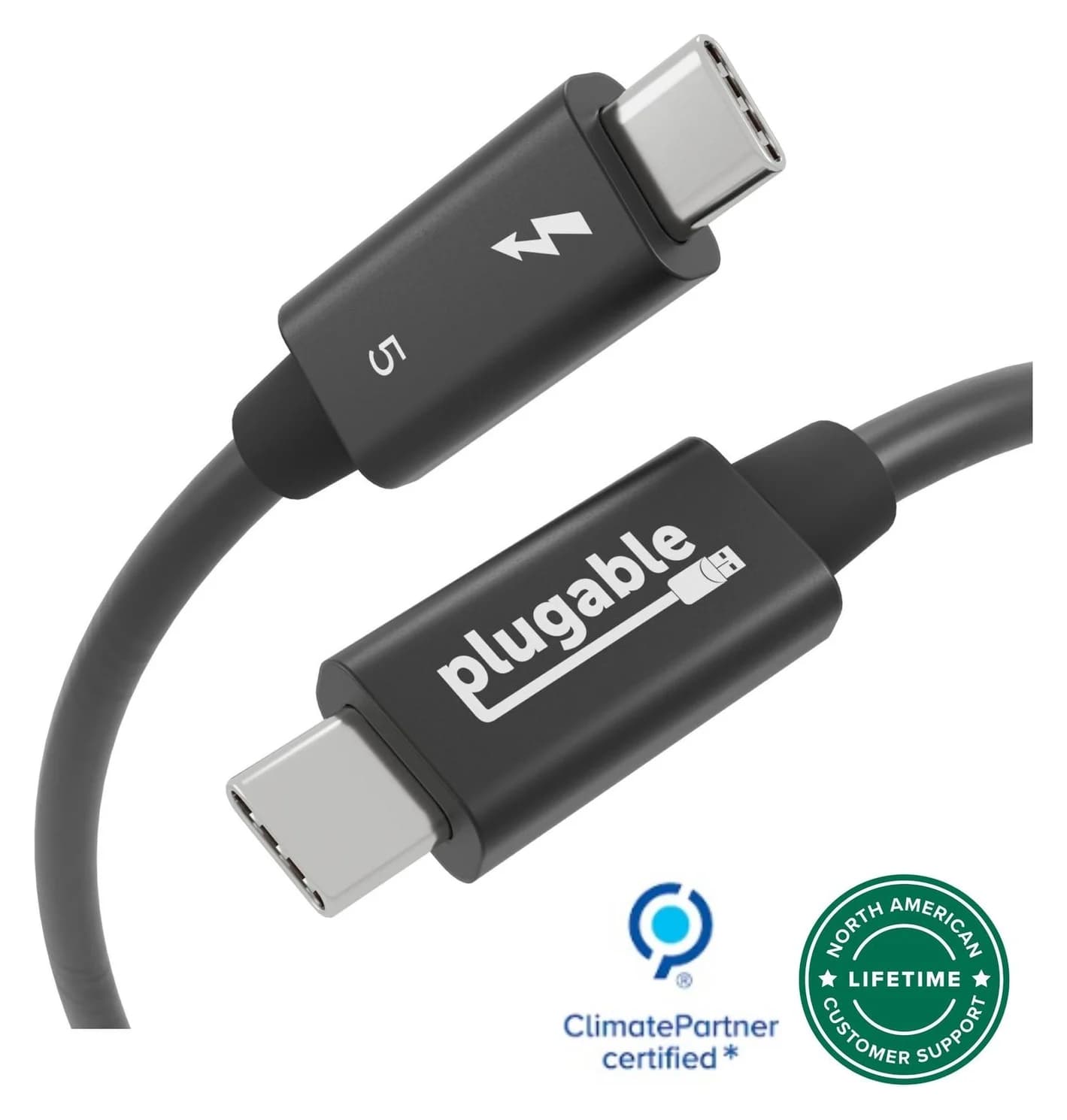
Best for storage and monitorsPlugable
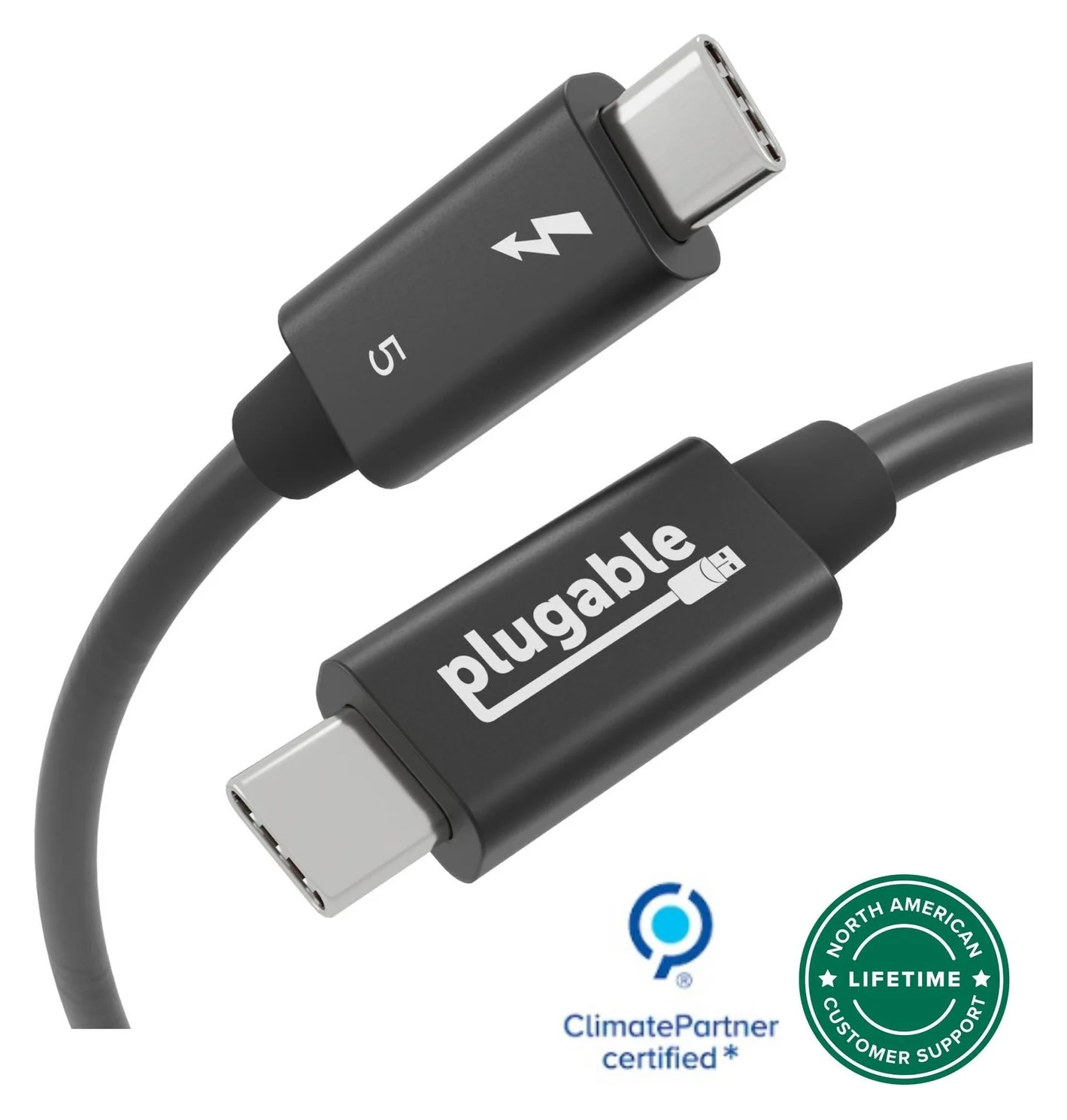
Plugable Thunderbolt 5 Cable, 240W (1m)
- data
- 80 Gbps
- video
- 8K
- ends
- USB-C to USB-C
- Choose
- This 1m Thunderbolt-certified cable supports data, video and charging, with backward compatibility for USB-C and older Thunderbolt connections.
- Limit
- Short 1m length
Quick cable picks
| Cable | Best use | Length | Power ceiling | Data and video | Main compromise |
|---|---|---|---|---|---|
| Anker Prime A88E2 | Everyday charging | 6 ft pick; 3 ft option | 240W | USB 2.0, 480Mbps; no video | Unsuitable for fast SSD transfers or a display |
| Native Union Pocket Cable | Spare beside a power bank | 17cm / 6.5 in opened | 60W | USB 2.0; no Alt Mode video | Too short for a distant outlet |
| Plugable TBT5-240W1M | Storage, docks and USB-C displays | 1m / 3.3 ft | 240W | Thunderbolt 5, up to 80Gbps; video supported | The iPad sets the actual speed and display limit |
Specifications: Anker, Native Union, Plugable and USB-IF's USB 2.0 cable rules.
Both charging picks carry USB 2.0 data; neither is literally a power-only cable. USB-IF specifies combined power and data-rate cable logos, so a 240W label alone does not mean fast data or video. For more general choices, see our USB-C charging cable guide.
Best everyday charging cable: Anker Prime A88E2, 6 ft
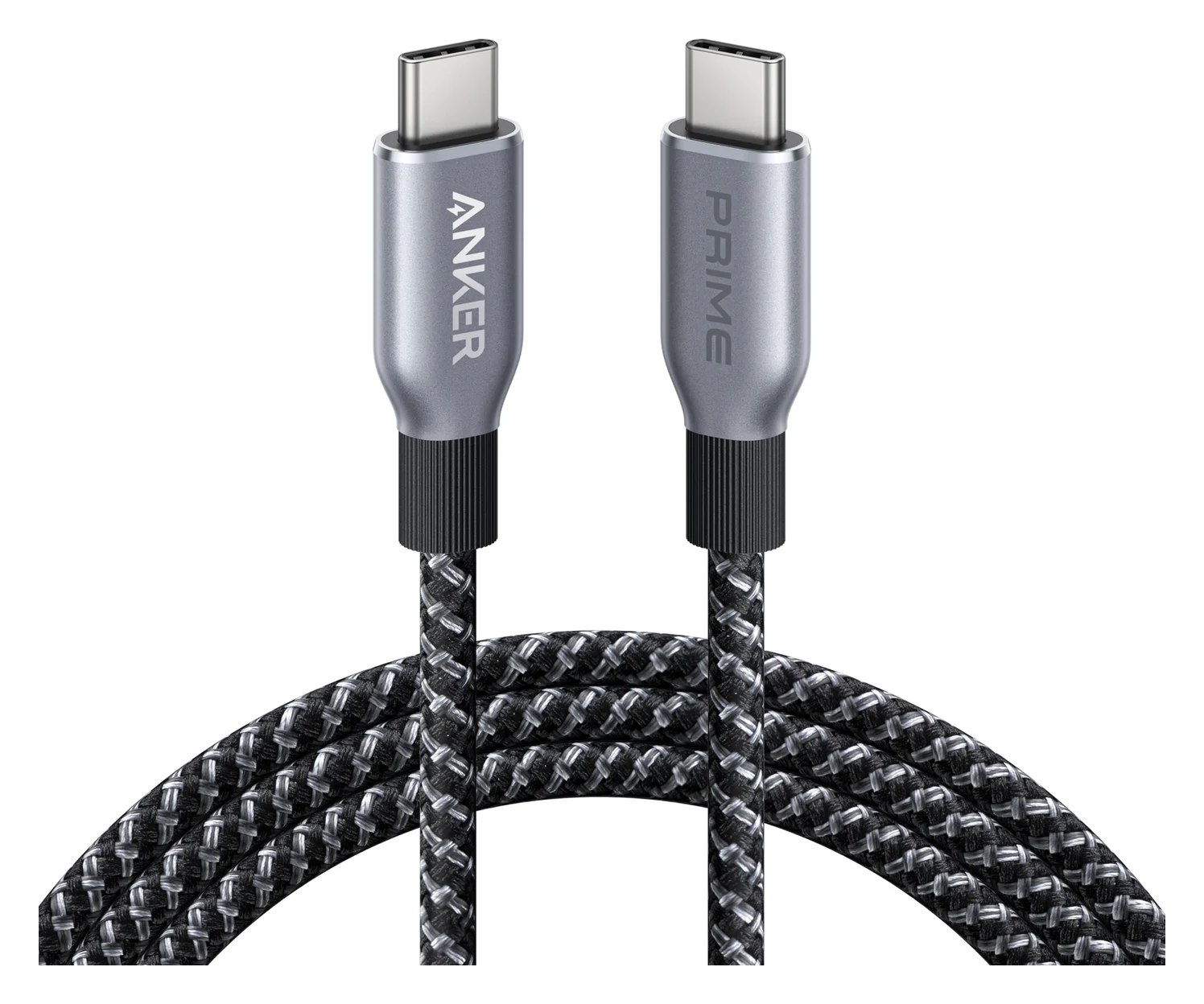
Anker
Anker Prime USB-C to USB-C Cable (240W, Upcycled-Braided, 6 ft)
A 6 ft USB-IF certified USB-C cable rated for 240W (USB PD 3.1 EPR) charging with USB 2.0 data.
- 0.48 Gbps data
Choose this for charging beside a sofa, bed or desk. Anker offers 3 ft and 6 ft versions; the linked catalog pick is the 6 ft version, so check the length selector before ordering. Anker's descriptive heading still names the shorter variant on the shared product page.
The useful specification is USB-IF certification. Its 240W rating also offers headroom for sharing with compatible high-power devices, but it does not make an iPad draw that much power. Anker lists 480Mbps USB 2.0 and explicitly rules out screen mirroring: use it for charging and ordinary computer syncing, and choose another cable for a monitor or faster storage.
Check the Anker Prime 6 ft cable's price on Amazon
Best pocket spare: Native Union Pocket Cable
Native Union
Native Union Pocket Cable (USB-C to USB-C, 60W)
A short, foldaway USB-C to USB-C cable with a built-in keyring, rated for 60W charging.
- 60W max output
- 0.48 Gbps data
This is our pick when portability matters more than reach. Native Union specifies USB-C to USB-C, charging up to 60W, a built-in keyring and folding cable management. At 17cm / 6.5 in opened, plan to place the power bank next to the iPad; choose the Anker for reaching an outlet.
There is a documentation problem worth catching: Native Union labels the data mode USB 2.0 but prints “480 MBs” for its speed. USB-IF specifies USB 2.0 Type-C data at up to 480Mbps. We use the documented USB 2.0 mode for this recommendation and do not interpret the maker's unclear units as an SSD-speed claim. That cable class also lacks Alt Mode video.
Check the Native Union Pocket Cable's price on Amazon
Best for storage and monitors: Plugable TBT5-240W1M
Plugable
Plugable Thunderbolt 5 Cable, 240W (1m)
A 1m passive Thunderbolt 5 cable with 80Gbps data, 120Gbps Bandwidth Boost support and 240W charging.
- 80 Gbps data
- 8K video
Choose this when you want a replacement cable that covers charging, data and video. Plugable specifies Thunderbolt and USB-IF certification, a 1m / 3.3 ft length, up to 80Gbps bidirectional bandwidth and 240W charging. It documents backward compatibility with Thunderbolt 3, Thunderbolt 4, USB4 and USB-C.
Those are cable capabilities. Apple's M5 iPad Pro tops out at 40Gbps Thunderbolt / USB4, while the M4 Air and A20 Pro mini offer USB data up to 10Gbps. This cable cannot raise those ceilings. It is our versatile spare, not a necessary charging upgrade.
For a USB SSD on an Air or mini, first try the drive's supplied cable if its documentation confirms the required data rate. For a monitor, first check the display's supplied cable: Apple recommends a high-bandwidth cable, including the one supplied with a suitable display. You may need no new cable at all.
Check the Plugable cable's price on Amazon
Match your iPad, task and cable ends
Find Model Name in Settings > General > About, following Apple's identification instructions. If your iPad has Lightning, buy USB-C to Lightning for a USB-C charger; the USB-C-to-USB-C picks here will not fit its tablet port.
The following are host limits, not promised transfer speeds. Monitor entries also require a compatible display input.
| Your iPad | Task | Cable ends | Required mode or host limit | Purchase decision |
|---|---|---|---|---|
| iPad A16 or 10th generation | Charging and computer sync | USB-C to USB-C | USB 2.0 host: up to 480Mbps | Anker; Pocket if short reach suits |
| iPad A16 | USB-C monitor | USB-C to USB-C | DisplayPort; up to 4K at 60Hz | Video-capable cable; Plugable or suitable supplied display cable |
| iPad 10th generation | USB-C monitor | USB-C to USB-C | DisplayPort; up to 4K at 30Hz | Same cable class; a new cable cannot unlock 4K at 60Hz |
| iPad mini 6th generation | USB SSD | USB-C to USB-C | USB data up to 5Gbps | Documented 5Gbps-or-faster cable; Plugable works as a spare |
| iPad Air 5th generation or M2/M3/M4; mini A17 Pro or A20 Pro | USB SSD | USB-C to USB-C | USB data up to 10Gbps | Documented 10Gbps cable or Plugable; reuse a suitable drive cable |
| iPad Pro 11-inch 3rd/4th generation or M4/M5 | Thunderbolt / USB4 storage or dock | USB-C to USB-C | Thunderbolt / USB4 up to 40Gbps | Matching certified cable; Plugable covers the cable requirement |
| iPad Air M4 | USB-C monitor | USB-C to USB-C | DisplayPort; one display up to 6K at 60Hz | Confirm display compatibility and use a video-capable cable |
| iPad Pro M5 | External display | USB-C to USB-C | One display: up to 6K at 60Hz or 5K at 120Hz | Confirm the exact monitor mode; cable capability alone is insufficient |
Host specifications: A16, 10th generation, mini 6, Air 5, Air M2, Air M3, Air M4, mini A17 Pro, mini A20 Pro, Pro 11-inch 3rd generation, 4th generation, Pro M4 and Pro M5. For other generations, check the exact model's specification instead of assuming the family name establishes its port speed.
For scale, the A16's 480Mbps is shown as 0.48 on the Gbps scale; the other current hosts below have 10Gbps or 40Gbps port ceilings.
Source: Apple specifications linked above
Charging: match the adapter as well as the cable
A suitable 60W cable covers the charging requirements Apple states here. The M5 iPad Pro specification gives up to 50% in around 30 minutes with Apple's 40W Dynamic Power Adapter with 60W Max, or another USB-C adapter capable of 60W or higher. The A20 Pro mini specification gives the same headline time with a 35W-or-higher USB-C adapter. These are Apple's conditional figures, not charge times measured for our picks.
Apple also lists fast-charging use for its own 60W USB-C Charge Cable, which transfers data at USB 2 rates.
Apple's US specification pages for those models list an included 20W adapter and 1m charge cable. The included adapter's wattage is therefore not their maximum charging requirement. For A16 and M4 Air, those pages also list 20W adapters but publish no equivalent fast-charge time. Apple says higher-wattage USB-C adapters can charge iPad faster; it does not promise the same benefit on every model.
USB Power Delivery negotiates supported power between source and device. Choose the charger's appropriate USB-C output, then choose sufficient cable capacity; our USB PD explainer explains the negotiation.
An SSD connection and a monitor connection need different checks
For an SSD, check the supported USB or Thunderbolt data mode at both ends. A 10Gbps USB cable suits the documented USB data ceiling of the M4 Air and current mini; a Thunderbolt-only drive also requires a Thunderbolt-capable iPad. Apple's accessory guidance identifies compatible Pro models, so do not assume a Thunderbolt cable adds Thunderbolt accessory support to an Air.
For a monitor, require DisplayPort video over USB-C or the exact supported Thunderbolt connection. A data-rate label alone does not establish video support. An HDMI TV needs a USB-C-to-HDMI adapter or appropriate video cable, rather than these USB-C-to-USB-C cables alone. Our iPad hub guide covers adapter and hub choices.
An external display's resolution is also separate from an extended workspace. Apple's extended-display model list includes the A20 Pro mini but omits the A17 Pro mini and A16 iPad. Treat that difference as a host feature; buying a better cable does not add a missing workspace mode.
Length, case clearance and the complete kit
Choose the 6 ft Anker for reach, the 17cm Pocket for adjacent devices, or the 1m Plugable for a nearby accessory. These are distinct lengths, not interchangeable variants. Check a recessed case opening before ordering: the cited maker specifications do not establish fit with your particular case, so request connector dimensions if clearance looks tight.
These picks are cables. Check separately whether you need a USB-C wall adapter, a display adapter or a hub. For simultaneous storage and charging, look for an iPad-compatible hub with a USB-C PD input and the required data port; PD-input and USB-data ports perform different jobs. Start with accessories you already own, and verify their documented modes before buying a replacement.
Before replacing a cable that seems faulty
Apple's storage instructions and display instructions suggest useful checks beyond the cable:
Look for a drive in Files under Browse > Locations; Apple requires a single data partition in a supported format such as APFS or exFAT, and external hard drives can need external power. For a blank monitor, Apple recommends checking the video input, reconnecting the iPad, then reconnecting display power if necessary.
Check cable capability
For fast storage or a monitor, replace a USB 2.0 charging cable with the documented data/video class the job requires.
Check an invisible drive
In Files, use Browse and look under Locations. Apple requires a single data partition and a supported format such as APFS or exFAT; external hard drives may also need external power.
Check a blank display
Select the correct display input. Apple suggests reconnecting the iPad, then reconnecting display power if necessary.
How we choose
This is a manufacturer-specification comparison, with no physical evaluation of these cables. We compare exact model numbers, cable ends, power ratings, data modes, video support and lengths against Apple's host specifications and USB-IF guidance. Recommendations follow those documented capabilities; advertised bandwidth is not a measured transfer result. Unclear maker units and contradictory compatibility guidance remain identified above.
Verdict
Buy the Anker Prime 6 ft for everyday charging reach, the Pocket Cable for a compact spare, and the Plugable when you need a versatile storage or display cable. First check any suitable cable supplied with your accessory. Match the iPad's port and the accessory's required mode before paying for bandwidth your tablet cannot use.
Frequently asked questions
What USB-C cable do I need for my iPad?
For an iPad with a USB-C port and a USB-C charger, use USB-C connectors at both ends. Our everyday charging pick is the Anker Prime A88E2. For an SSD, match the cable's data mode to your iPad and drive; for a monitor, require video support. The Plugable cable covers those additional jobs. If your iPad has Lightning, choose a cable with Lightning at the tablet end.
Will a 240W cable charge my iPad faster than a 60W cable?
A cable's power rating is a ceiling, not the power it sends into the iPad. A suitable 60W cable covers Apple's specified adapter requirement for M5 iPad Pro fast charging and the lower requirement for iPad mini with A20 Pro. The charger and iPad negotiate power. Buy the Anker's higher rating for its length or sharing with other devices; it is not a promise of faster iPad charging.
Can I use a USB-C charging cable to connect iPad to a monitor?
Only if that cable also supports the required video connection. Anker explicitly says the A88E2 does not support screen mirroring, and USB-IF says USB 2.0 Type-C cables lack Alt Mode capability. For a USB-C monitor, use a suitable video-capable cable such as the Plugable or the display's documented supplied cable. An HDMI display needs a USB-C to HDMI adapter or an appropriate video cable instead.
Which cable makes an iPad A16 or 10th-generation iPad faster with an SSD?
Neither model gets faster USB data from a more capable cable: Apple specifies USB 2.0 at up to 480Mbps for both. A fast SSD remains limited by that host connection. A full-feature cable can still be useful for a monitor, because DisplayPort video is a separate capability. Buy a faster cable for another supported task or another device, rather than expecting it to upgrade the tablet's USB port.
Can I charge an iPad with a MacBook USB-C charger?
Yes. Apple says a higher-wattage USB-C power adapter, including one supplied with a Mac laptop, can charge an iPad and may charge it faster. Use a suitable USB-C cable and check your particular iPad's charging specification. A high power label on the cable does not force that wattage into the tablet: USB Power Delivery lets the power source and device negotiate a supported voltage and current.
Best everyday charging cable
Anker Prime USB-C to USB-C Cable (240W, Upcycled-Braided, 6 ft)
Related guides
Best Link Cables for Meta Quest 3: USB-C Specs That Actually Work
The best link cable for Quest 3 and older Quest headsets: Meta's own fiber cable, a charge-while-playing pick, and long active cables, per Meta's USB rules.
Updated November 8, 2026Read
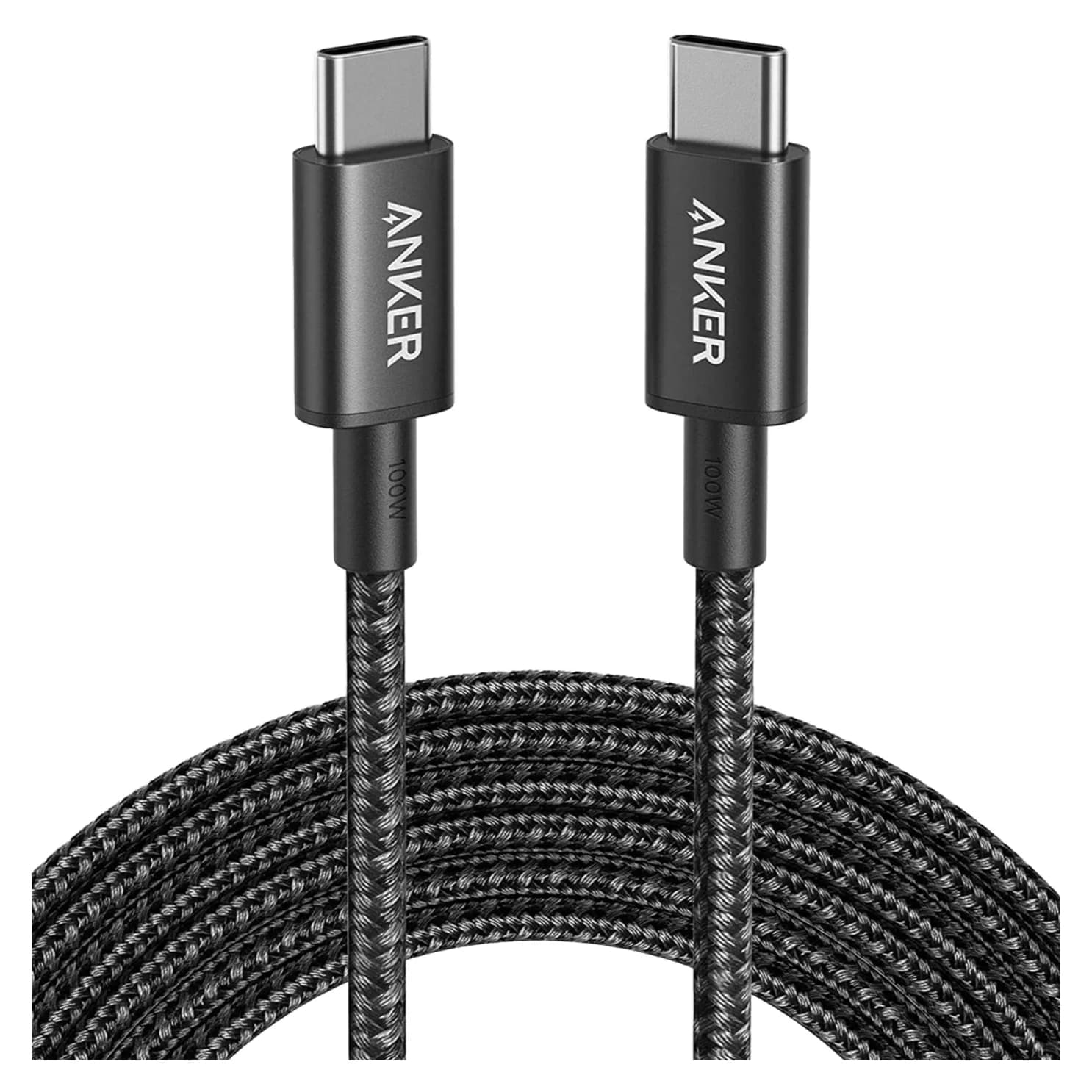
Anker 100W vs Baseus 100W USB-C Cables: Which Should You Buy?
Compare Anker A8758 10 ft with Baseus CAWJ020001 3.3 ft: charging, data, lengths, pack sizes and variant traps, plus how to judge an Anker 100W USB-C cable deal.
Updated November 5, 2026Read
Beats USB-C vs Apple USB-C Cable: Which Should You Buy?
Choose between the Beats USB-C woven cable (60W, USB 2.0) and a full-feature Thunderbolt 5 USB-C cable: charging, data, docks, displays and the exact SKUs.
Updated November 5, 2026Read