Black Friday: the specs to check before you buy
Buying guide
Updated November 8, 2026USB Cable for iPhone to Mac: Choose the Right Connection
Short answer
For routine sync and backups between a USB-C iPhone and USB-C Mac, start with the iPhone's included cable; our replacement pick is the Anker Prime A88E2, 6 ft, with data up to 480 Mbps. For large imports from an iPhone with USB 3 support, choose a 10Gbps data cable; the Plugable TBT5-240W1M is our versatile pick if you also want a Thunderbolt cable. A Lightning phone or USB-A Mac needs different cable ends, so choose your connection below before buying.
Our picks at a glance
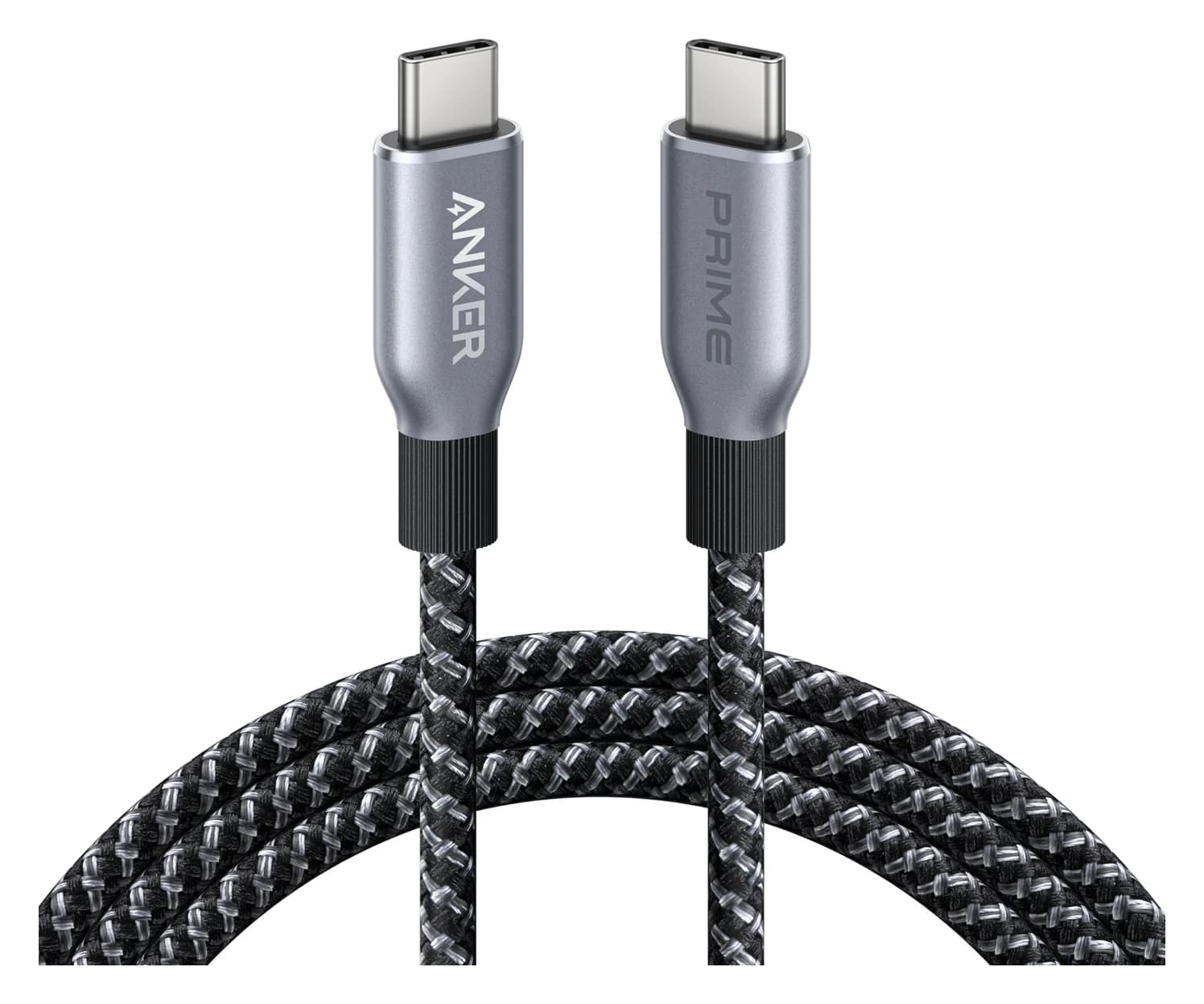
Best replacement for routine USB-C syncAnker
Anker Prime USB-C to USB-C Cable (240W, Upcycled-Braided, 6 ft)
- data
- 480 Mbps
- ends
- USB-C to USB-C
- Choose
- The Anker Prime A88E2 carries USB 2.0 data at up to 480 Mbps; choose the catalogued 6 ft version for a USB-C iPhone and USB-C Mac.
- Limit
- 480Mbps data only
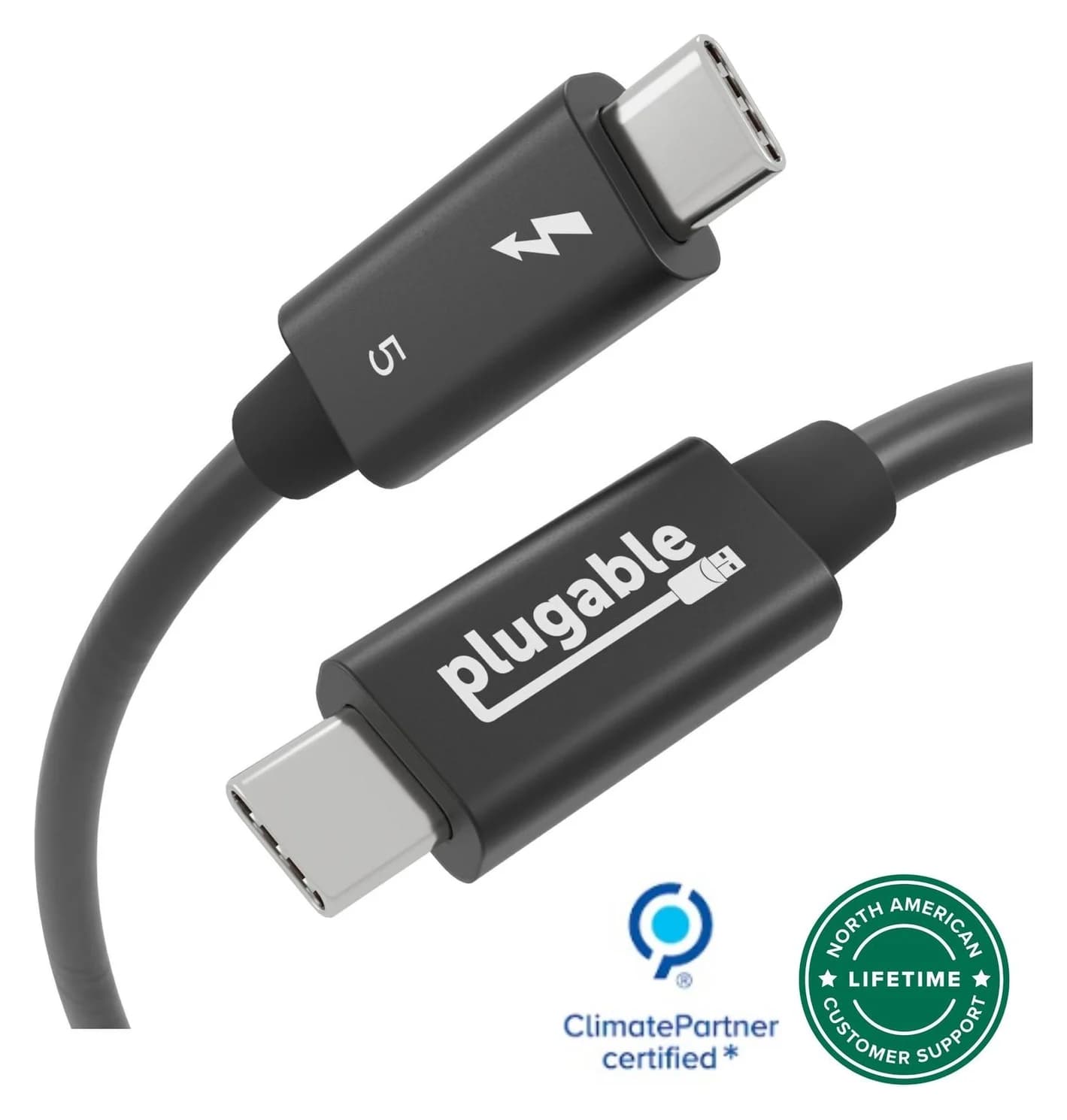
Best shared cable for fast imports and Thunderbolt gearPlugable
Plugable Thunderbolt 5 Cable, 240W (1m)
- data
- 80 Gbps
- video
- 8K
- ends
- USB-C to USB-C
- Choose
- Plugable's 1m TBT5-240W1M supports USB-C devices as well as Thunderbolt, making it a versatile option for an iPhone with USB 3 support.
- Limit
- Short 1m length
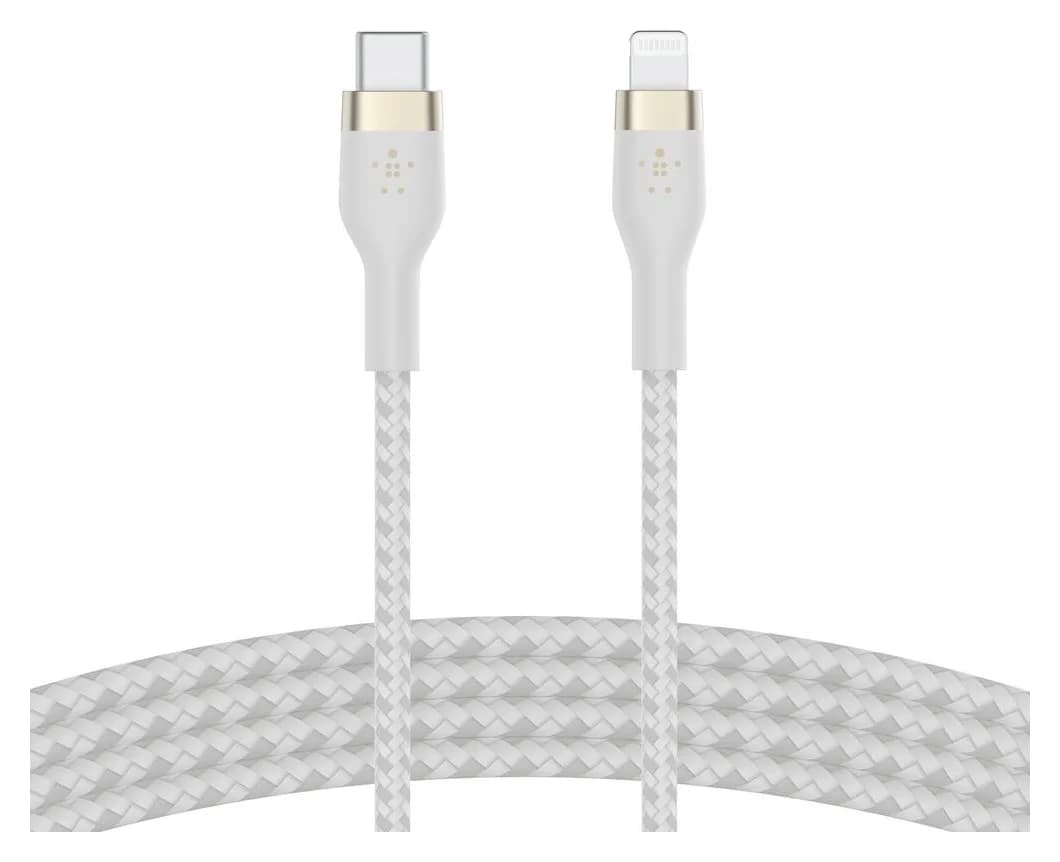
Best Lightning cable for a USB-C MacBelkin
Belkin BoostCharge Pro Flex USB-C to Lightning Cable (2m, White)
- Choose
- The 2m white Belkin CAA011bt2MWH has USB-C and Lightning ends, with MFi certification and sync support documented by Belkin.
- Limit
- Not useful for iPhone 15 and later, which use USB-C
- Find on Amazon
Best Lightning choice for USB-A
Apple Lightning to USB Cable
- Find on Amazon
Best USB-C-phone choice for USB-A
StarTech USB31AC1M
Quick picks: match the iPhone and Mac
These are direct connections: each row needs the cable alone. Data figures are cable capabilities; the phone and Mac can impose lower limits. The two USB-A choices link to manufacturer documentation.
| iPhone socket | Mac port | Cable to choose | Exact variant | Data capability |
|---|---|---|---|---|
| USB-C; routine sync | USB-C or Thunderbolt with USB-C shape | Anker Prime A88E2 | 6 ft | USB 2.0, up to 480 Mbps |
| USB-C; large imports on a USB 3 phone | USB-C or Thunderbolt with USB-C shape | Plugable TBT5-240W1M | 1m | Supports USB 3; iPhone ceiling up to 10Gbps |
| Lightning | USB-C or Thunderbolt with USB-C shape | Belkin BoostCharge Pro Flex CAA011bt2MWH | 2m, white | USB 2.0; sync supported |
| Lightning | USB-A | Apple Lightning to USB Cable | 1m, MUQW3AM/A | USB 2; sync supported |
| USB-C | USB-A | StarTech USB31AC1M | 1m, black | Up to 10Gbps; host-dependent |
Check the phone and Mac first
Apple says iPhone 15 and later use USB-C. The iPhone 14 family and iPhone SE second and third generations take Lightning cables, as listed on Apple's Lightning cable page. If you search for an “iPhone to USB-C cable,” check which end you mean: USB-C to Lightning serves a different phone from USB-C to USB-C.
On the Mac, Thunderbolt 3, Thunderbolt 4, Thunderbolt 5 and Thunderbolt / USB 4 ports accept USB-C cables. Older Thunderbolt and Thunderbolt 2 ports have a different shape; use the Mac's USB-A port for the direct USB-A choices here. Apple's port identification guide shows the sockets and explains how to find your exact Mac's specifications.
MacBook Neo owners: Apple specifies the leftmost USB-C port, when facing the Mac's left side, for USB 3 devices. Its rightmost USB-C port is for USB 2 devices. Check the port as well as the cable when chasing faster imports.
Best replacement for routine USB-C sync: Anker Prime A88E2
Anker
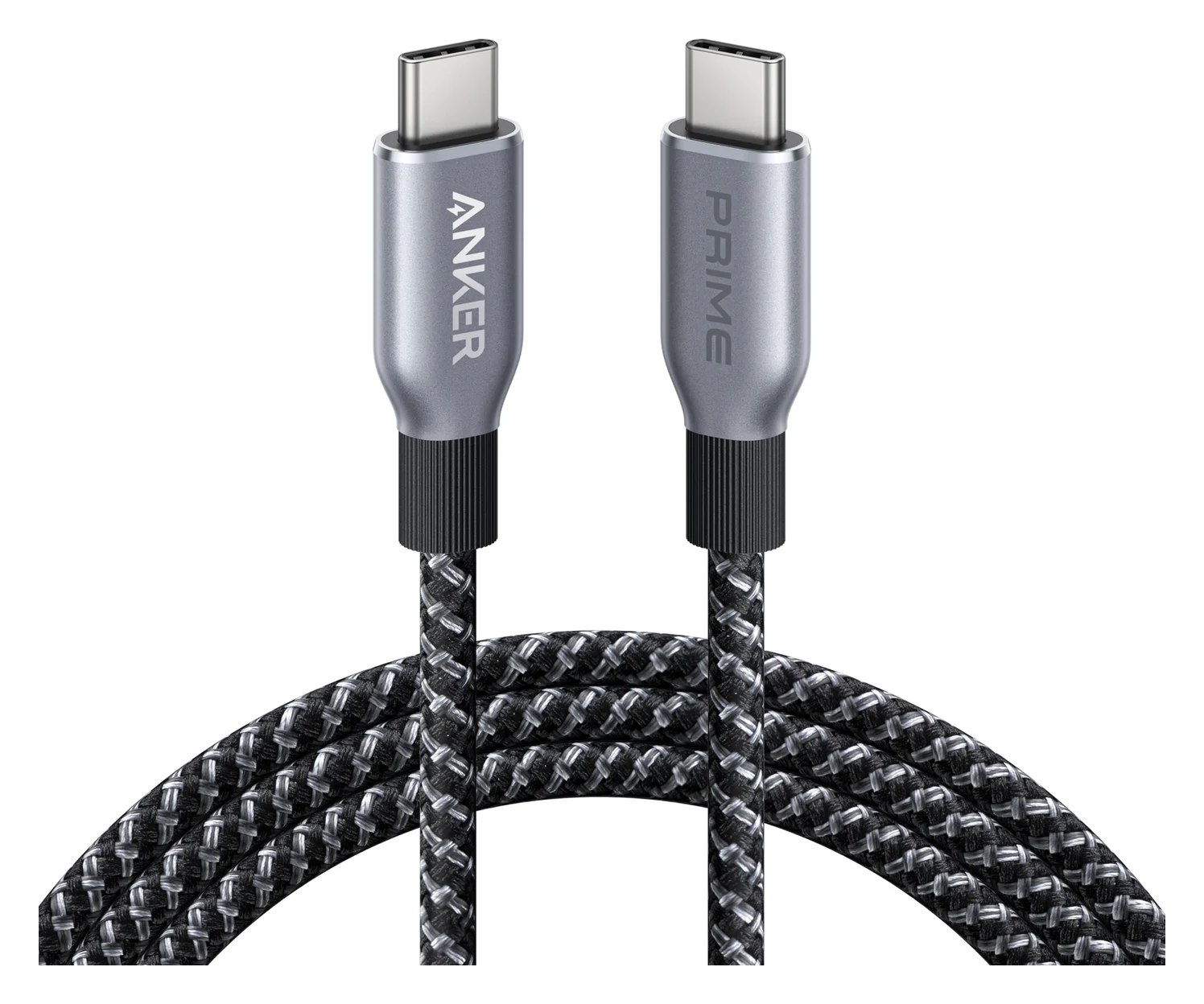
Anker Prime USB-C to USB-C Cable (240W, Upcycled-Braided, 6 ft)
A 6 ft USB-IF certified USB-C cable rated for 240W (USB PD 3.1 EPR) charging with USB 2.0 data.
- 0.48 Gbps data
Choose this for a USB-C-to-USB-C replacement when routine backups and syncing are the job. Anker documents USB 2.0 data up to 480 Mbps, USB-IF certification and a 240W charging rating on its A88E2 page.
The linked catalog variant is 6 ft; Anker also offers 3 ft. Choose length for where your phone will sit while connected. The 240W label is a power capability, not a data-speed rating: this remains a USB 2.0 cable. It also does not support screen mirroring, according to Anker. Buy it for this sync job; choose the faster-data branch below when your phone can use it.
Check the Anker Prime 6 ft cable on Amazon
Best shared cable for fast imports: Plugable TBT5-240W1M
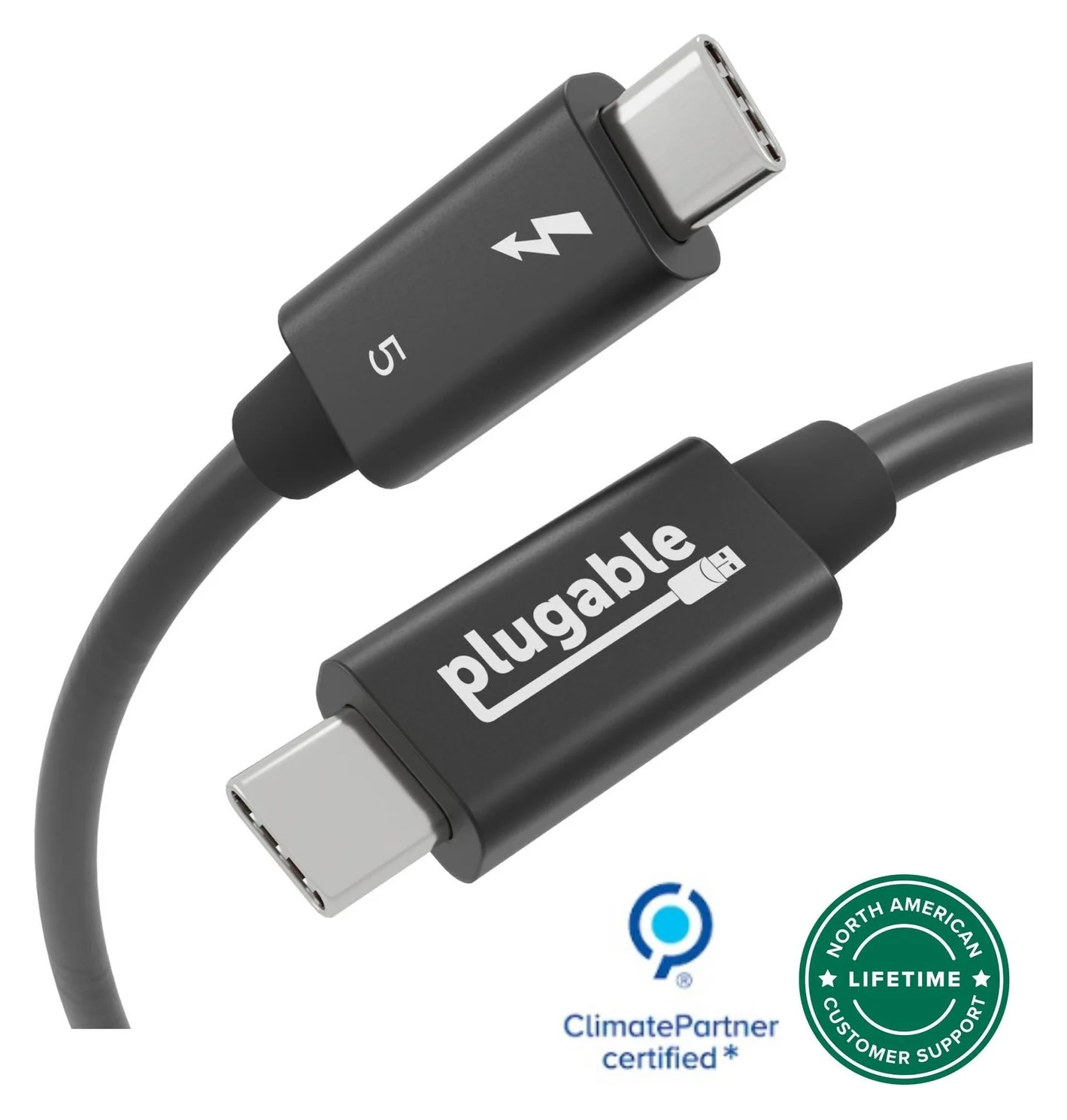
Plugable
Plugable Thunderbolt 5 Cable, 240W (1m)
A 1m passive Thunderbolt 5 cable with 80Gbps data, 120Gbps Bandwidth Boost support and 240W charging.
- 80 Gbps data
- 8K video
Choose this when you want a cable for a USB 3-capable iPhone that can also serve Thunderbolt equipment. Plugable documents 1m length, 80Gbps Thunderbolt bandwidth, 240W power delivery, and backward compatibility with USB-C devices on its product page. Its protocol explanation includes USB 3.2 Gen 2 at 10Gbps.
Your iPhone connection still tops out at Apple's 10Gbps USB ceiling on the supported models below. The 80Gbps specification describes the cable's Thunderbolt capability, not an iPhone transfer rate. For a cable dedicated solely to this phone connection, a compliant USB 3 cable rated for 10Gbps is sufficient; choose this one for its wider uses. The box contains the cable, so there is no adapter to add for a direct USB-C connection.
Check the Plugable TBT5-240W1M on Amazon
Best Lightning cable for a USB-C Mac: Belkin Pro Flex CAA011
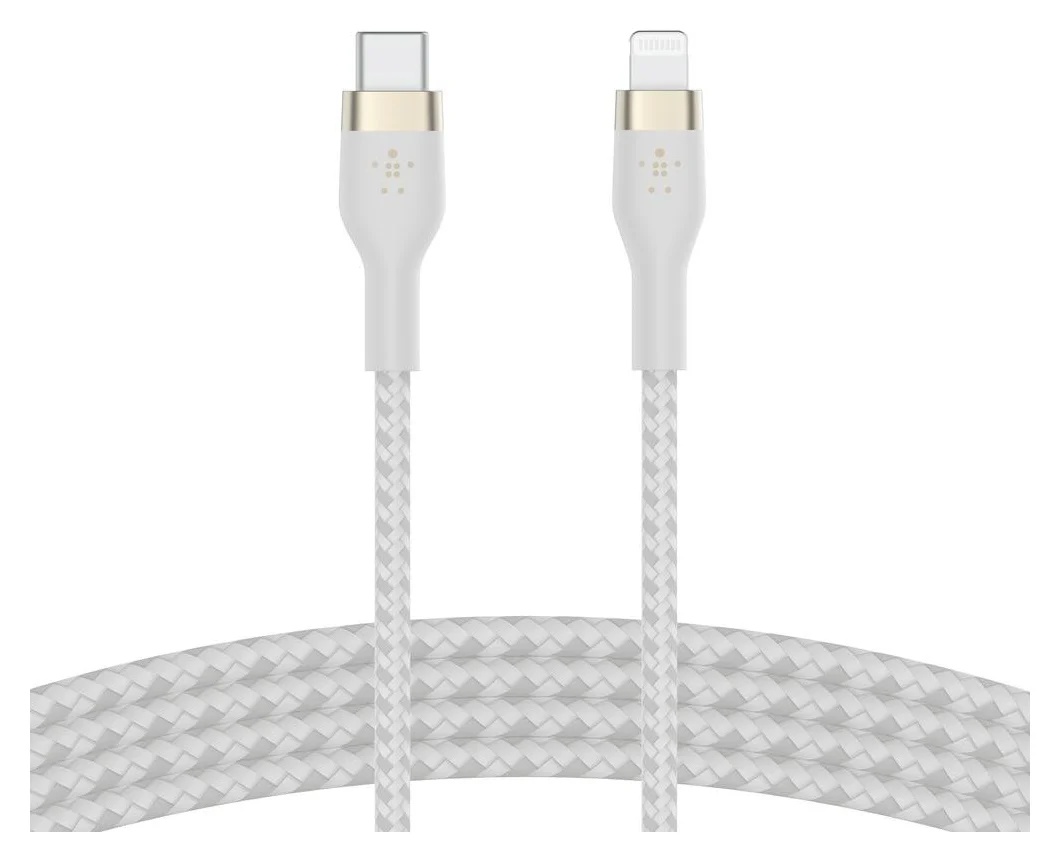
Belkin
Belkin BoostCharge Pro Flex USB-C to Lightning Cable (2m, White)
An MFi-certified braided silicone USB-C to Lightning cable with a magnetic cable strap, for older iPhones, AirPods and accessories.
Choose the CAA011bt2MWH: 2m, white, with USB-C at the Mac and Lightning at the phone. Belkin's exact variant page identifies that SKU. Its CAA011 support FAQ confirms MFi certification, USB 2.0 specifications and device syncing.
Belkin also offers 1m and 3m lengths; don't assume another length or color is the linked variant. The braided silicone construction and magnetic cable strap are useful reasons to choose this as a replacement, rather than expecting a higher data tier. It is a direct cable for a Lightning phone and USB-C Mac; a USB-C iPhone instead needs USB-C at both ends.
Check the Belkin Pro Flex 2m white cable on Amazon
Best Lightning choice for USB-A: Apple Lightning to USB Cable
For a Lightning iPhone and a Mac with USB-A, choose Apple's 1m Lightning to USB Cable, MUQW3AM/A. Apple's US product page explicitly describes a USB 2 cable for syncing and charging, and lists the cable as the box contents. Apple's adapter documentation confirms its USB-A connection.
This is the straightforward older-Mac purchase: the cable alone completes the connection. Check the full name when buying, because Apple's USB-C to Lightning cable serves the other Mac-port branch. If you already own this USB-A cable and are moving to a USB-C Mac, the adapter option below lets you keep using it.
Best USB-C-phone choice for USB-A: StarTech USB31AC1M
Choose the black 1m USB31AC1M, a USB-A-to-USB-C cable. StarTech's official datasheet documents USB-IF certification, USB 3.2 Gen 2 data up to 10Gbps with a supporting host, and one cable in the package. It completes this connection without a hub or adapter.
Buy by that exact part number and data specification. A USB-C connector alone does not identify the data rating, as the USB 2.0 Anker above demonstrates. StarTech's own document also needs care: its heading says 3A, while its connector specification rows say 4.5W. We recommend it for its documented data capability and make no fast-charging promise from that conflicting power wording.
Which data rating is worth buying for your exact iPhone?
Apple's specifications draw the useful dividing line:
| Your iPhone | Documented data ceiling | Buying decision |
|---|---|---|
| iPhone 15 / 15 Plus, 16 / 16 Plus, 16e, 17, 17e, Air | USB 2, up to 480 Mbps | Keep the included data cable or choose the matching USB 2 replacement |
| iPhone 15 Pro, 16 Pro, 17 Pro and 18 Pro families; iPhone Duo | USB 3.2 Gen 2, up to 10Gbps with an optional USB 3 cable | Choose 10Gbps data support for larger photo and video imports |
Sources: Apple's 15, 15 Plus, 16, 16 Plus, 16e, 17, 17e and Air specifications, and its USB-C connection guide for the USB 3 models.
A USB 2 data cable can still sync and back up a USB 3 phone; Apple explicitly allows the included cable for computer data transfer. Upgrade for available bandwidth when moving larger files. These are connection ceilings, not promised Finder backup times.
The Mac matters too. Apple's 2017 MacBook Air specifications list USB ports up to 5Gbps. Pairing that Mac with the 10Gbps StarTech cable and a USB 3 iPhone still leaves the Mac as the lower limit. Any intervening adapter or hub needs the intended data capability too; a USB-C hub for a MacBook Air can add the extra ports a photo import setup needs.
- Yes: USB 2 data cable: suitable for routine syncing and backups
- Yes: Supported USB 3 iPhone plus a 10Gbps cable and capable Mac: the faster-data branch
- Partly: USB-A Mac: check its exact port rating before expecting 10Gbps
- No: 240W label alone: does not establish fast data
For charging spares, see the iPhone 17 cable guide. For recording directly to a drive, use the iPhone ProRes SSD guide. Our USB-C cable types explainer covers the wider standards.
Direct cable versus an adapter: the complete purchase
Buying from scratch: choose the direct cable in the first table. That is the complete phone-to-Mac kit when the ports match; a wall charger is not needed to establish the data connection.
Apple confirms charging from a computer's USB-C port. Do not read a cable's 240W capacity as a promise of that output from the Mac.
Keeping a Lightning-to-USB-A cable: on a USB-C Mac, the alternative kit is that existing cable plus Apple's USB-C to USB Adapter at the Mac. Apple explicitly documents this combination for syncing and charging. Its adapter supports up to 5Gbps, which does not turn the USB 2 Lightning cable into a faster cable. For a new purchase, we favor the direct Belkin connection instead.
Connecting a USB-C phone to USB-A: buy the USB-A-to-USB-C data cable. Apple's adapter guide directs this pairing to a third-party cable. The USB-C-to-USB-A adapter above serves the opposite Mac-port arrangement. Apple's documentation distinguishes the two jobs.
Connect it and make the first backup
Apple's Mac backup instructions use Finder on macOS Catalina 10.15 or later, or iTunes on Mojave or earlier. Accept Allow on the Mac and Trust on the iPhone when prompted. Select Encrypt local backup if you want Health and Activity data included, create a password and keep it: Apple says the backup cannot be recovered without that password.
Connect and allow
Attach the data cable. Accept the accessory and trust prompts, and enter the iPhone passcode if asked.
Select and protect
Select the iPhone in Finder. Choose Encrypt local backup when needed and save its password.
Back up and verify
Click Back Up Now, wait for completion and check the displayed last-backup date and time.
Charging without appearing in Finder does not prove a cable can carry data. Apple's recognition troubleshooting says to use a cable supporting both data and charging, try another cable or USB port, and check the charging port for debris. Work through those checks before replacing a cable that may already be suitable.
How we choose
We select by connector pair, documented data capability and the complete connection kit. This guide uses Apple's device specifications and setup instructions alongside manufacturer product pages, support FAQs and datasheets. The recommendations are based on those documents; they do not claim measured transfer or backup times. We distinguish exact lengths and model numbers, and flag conflicting manufacturer power specifications where they affect the purchase.
Verdict
Keep the included cable if it fits and meets your data needs. Choose Anker Prime for routine USB-C sync, Plugable for a faster-capable shared cable, Belkin CAA011 for Lightning to USB-C, Apple MUQW3AM/A for Lightning to USB-A, or StarTech USB31AC1M for USB-C to USB-A. Match the ends first, then the phone and Mac's data capability.
Frequently asked questions
Which USB cable do I need to connect an iPhone to a Mac?
Match both sockets: a USB-C iPhone needs USB-C to USB-C for a USB-C Mac, or USB-A to USB-C for a USB-A Mac. A Lightning iPhone needs USB-C to Lightning or USB-A to Lightning respectively. Then check the data specification: a charging cable must also support data for syncing and backups.
Can I back up an iPhone with the charging cable that came with it?
Yes, if its computer end fits your Mac. Apple says the included USB-C iPhone cable supports charging and USB 2 data, and its Mac backup instructions require a cable connection. It works for routine backups; buying a USB 3 cable is useful for higher data bandwidth only when your exact iPhone and Mac support it.
Do I need a Thunderbolt cable for an iPhone Pro?
No. Apple specifies a compliant USB 3 cable supporting 10Gbps for the faster connection on supported Pro models and iPhone Duo. The Plugable Thunderbolt cable is an optional shared accessory for other equipment too. Its higher Thunderbolt bandwidth does not raise the iPhone's documented USB data ceiling.
Can I connect a USB-C iPhone to an older Mac with USB-A?
Yes, with a USB-A to USB-C data cable such as StarTech USB31AC1M. Its cable rating is up to 10Gbps, but your Mac may support less: Apple's 2017 MacBook Air has USB ports rated up to 5Gbps. Check the exact Mac specification before expecting the phone's full USB 3 speed.
Why does my iPhone charge from my Mac but not appear in Finder?
Apple says the cable must support both data and charging. Also accept Allow on the Mac and Trust on the iPhone when prompted. If it still does not appear, try another data cable and another USB port, check for debris in the phone's charging port, and follow Apple's computer-recognition troubleshooting before buying more accessories.
Best replacement for routine USB-C sync
Anker Prime USB-C to USB-C Cable (240W, Upcycled-Braided, 6 ft)
Related guides
Best Link Cables for Meta Quest 3: USB-C Specs That Actually Work
The best link cable for Quest 3 and older Quest headsets: Meta's own fiber cable, a charge-while-playing pick, and long active cables, per Meta's USB rules.
Updated November 8, 2026Read
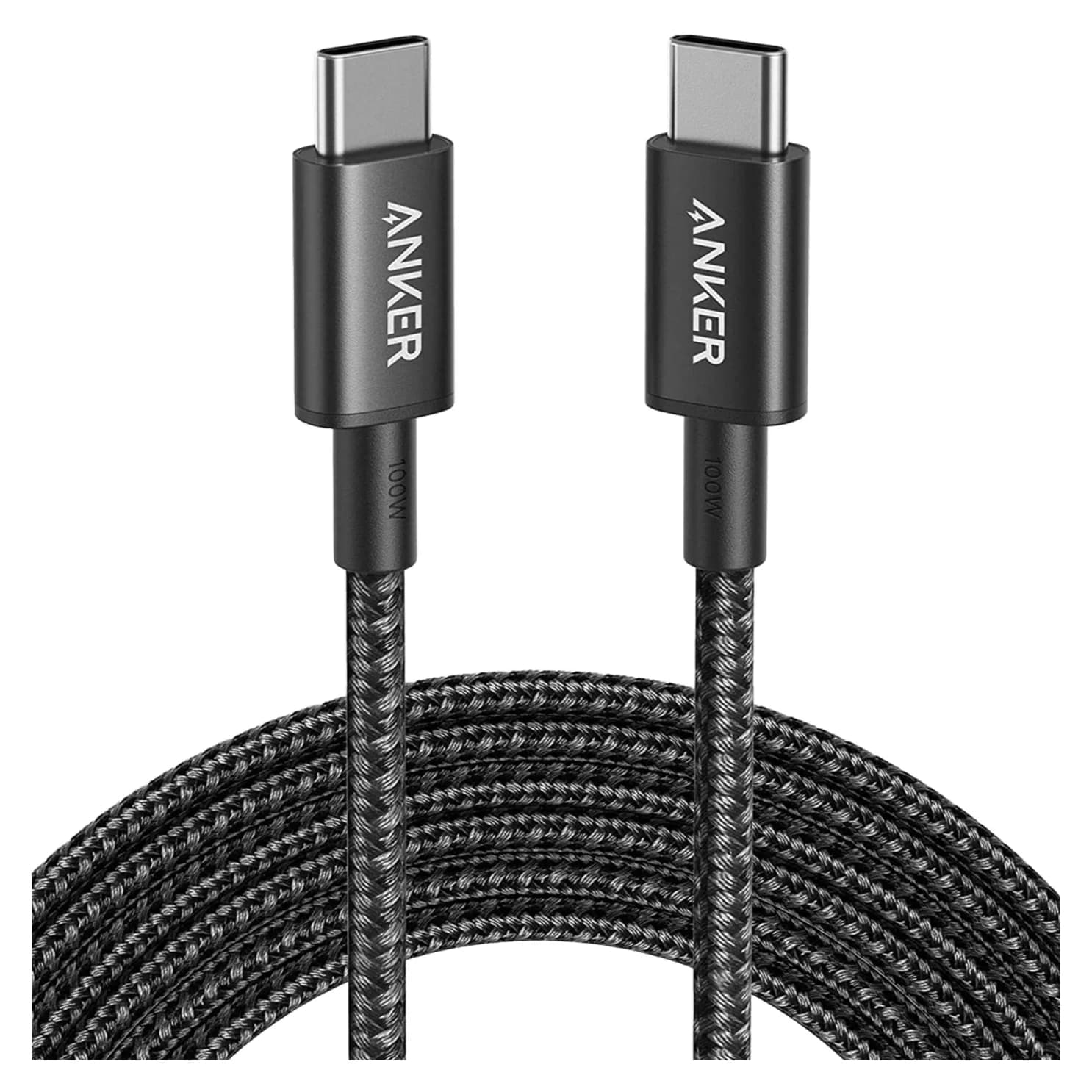
Anker 100W vs Baseus 100W USB-C Cables: Which Should You Buy?
Compare Anker A8758 10 ft with Baseus CAWJ020001 3.3 ft: charging, data, lengths, pack sizes and variant traps, plus how to judge an Anker 100W USB-C cable deal.
Updated November 5, 2026Read
Beats USB-C vs Apple USB-C Cable: Which Should You Buy?
Choose between the Beats USB-C woven cable (60W, USB 2.0) and a full-feature Thunderbolt 5 USB-C cable: charging, data, docks, displays and the exact SKUs.
Updated November 5, 2026Read