Cyber Monday: the specs to check before you buy
Explainer
Updated November 23, 2026Thunderbolt vs USB-C: Same Connector, Different Capabilities
Short answer
USB-C and Thunderbolt are not the same thing, and the confusion costs people money every day. USB-C is the shape of the plug — a small, oval, reversible connector you see on laptops, phones, tablets and chargers. Thunderbolt is a protocol — a set of rules for how data travels through that plug. The same USB-C connector can carry Thunderbolt 4, Thunderbolt 3, USB4, USB 3 or even just USB 2.0, depending on what the port was built for.
We may earn a commission when you buy through links on this page. As an Amazon Associate, thisUSB earns from qualifying purchases. How we earn
Our picks at a glance
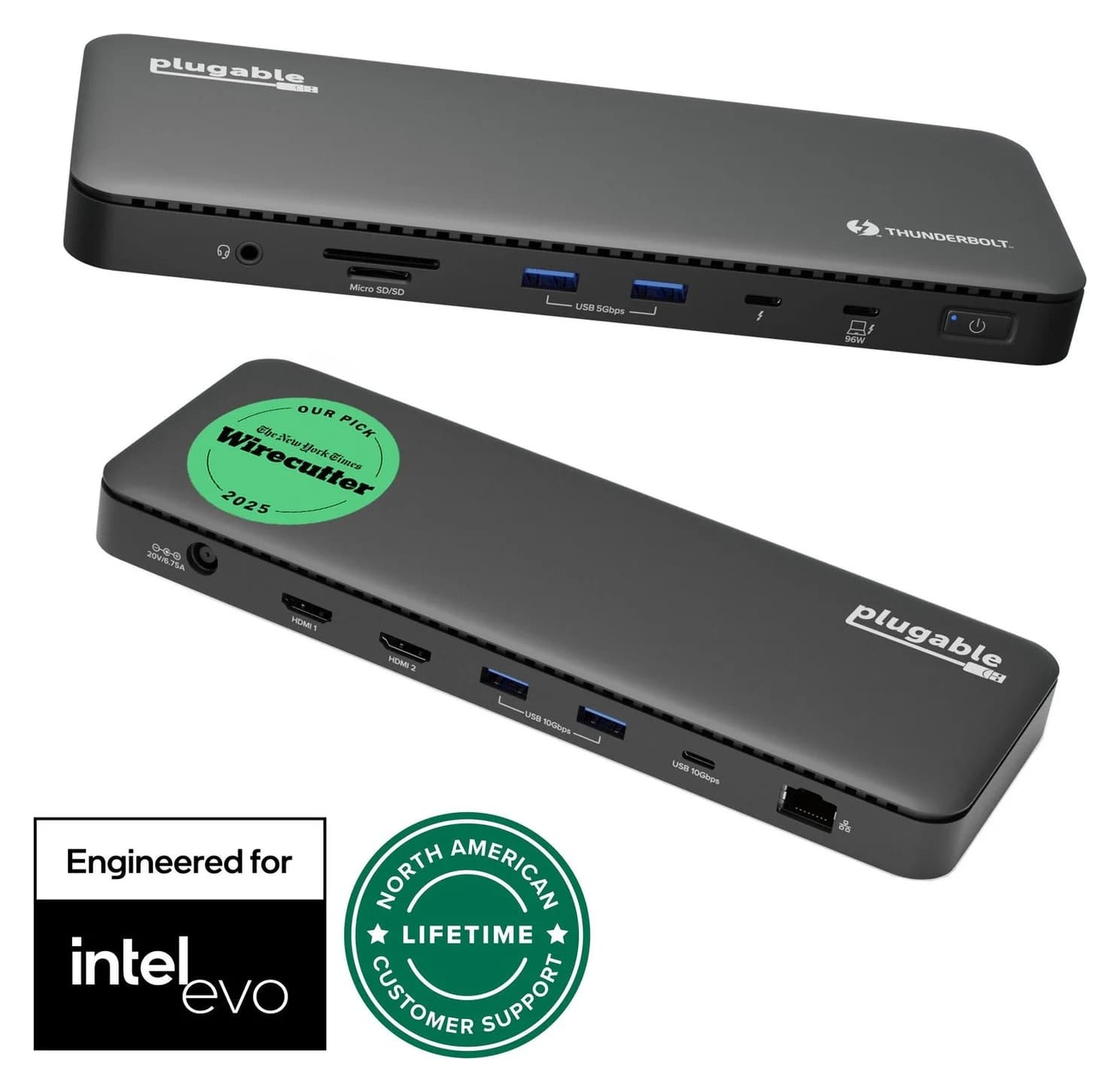
Best Thunderbolt 4 dock for most peoplePlugable
Plugable Thunderbolt 4 Dock (TBT4-UD5)
- to laptop
- 96W
- data
- 40 Gbps
- video
- 4K
- Choose
- A Thunderbolt 4 dock with 96W certified power delivery (100W advertised), dual HDMI 4K60 displays, Gigabit Ethernet, an SD card reader and a mix of USB-A and USB-C ports — the complete spec set Intel guarantees every Thunderbolt 4 port to support.
- Limit
- Gigabit (not 2.5GbE) Ethernet
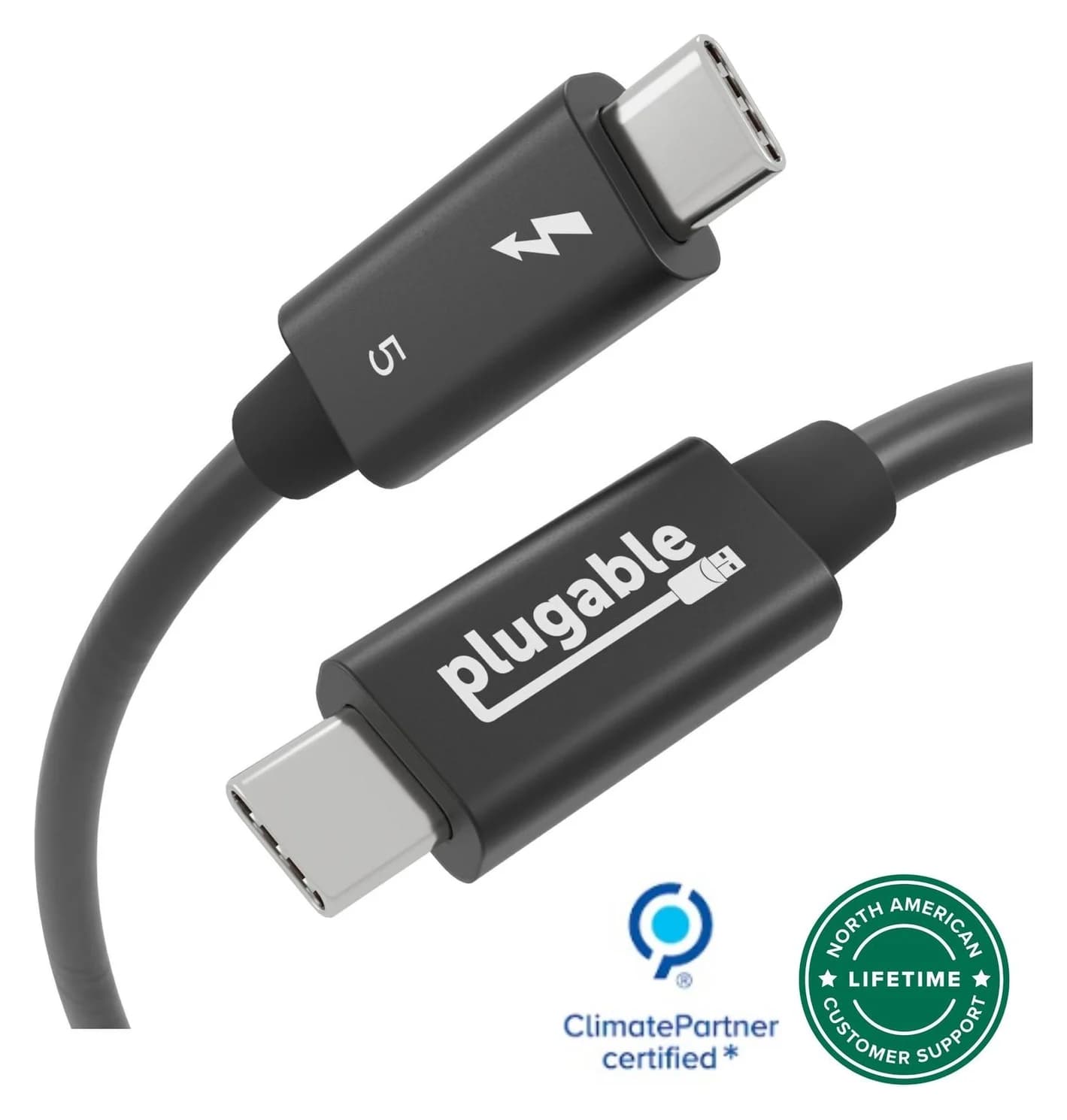
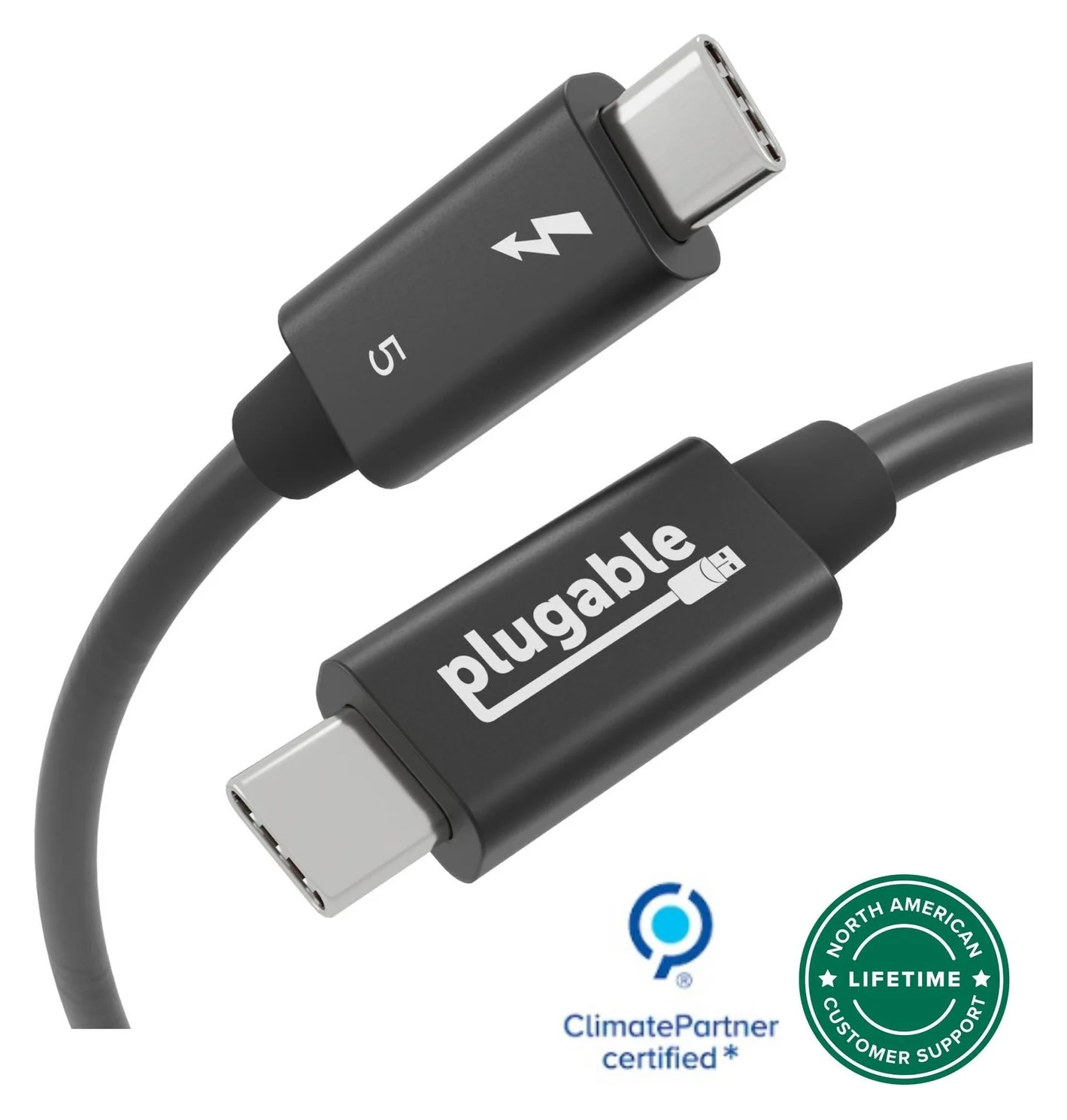
Best certified cable for Thunderbolt 4 or 5Plugable
Plugable Thunderbolt 5 Cable, 240W (1m)
- data
- 80 Gbps
- video
- 8K
- ends
- USB-C to USB-C
- Choose
- A 1m passive cable certified by both Intel and the USB-IF for 80Gbps, 120Gbps Bandwidth Boost and 240W, covering Thunderbolt 5, Thunderbolt 4, USB4 and USB-C hosts.
- Limit
- Short 1m length
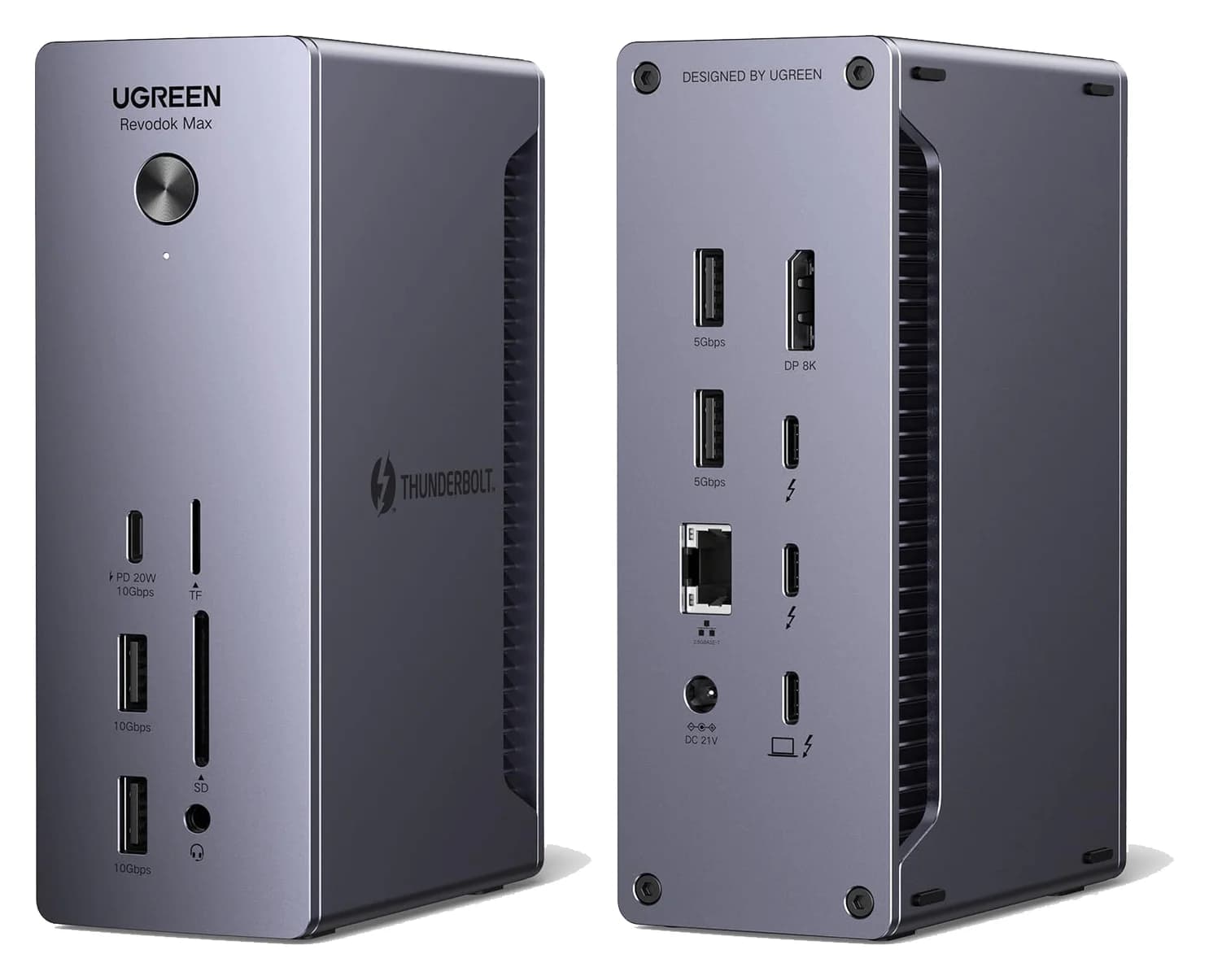
Best Thunderbolt 4 dock with 2.5GbEUGREEN
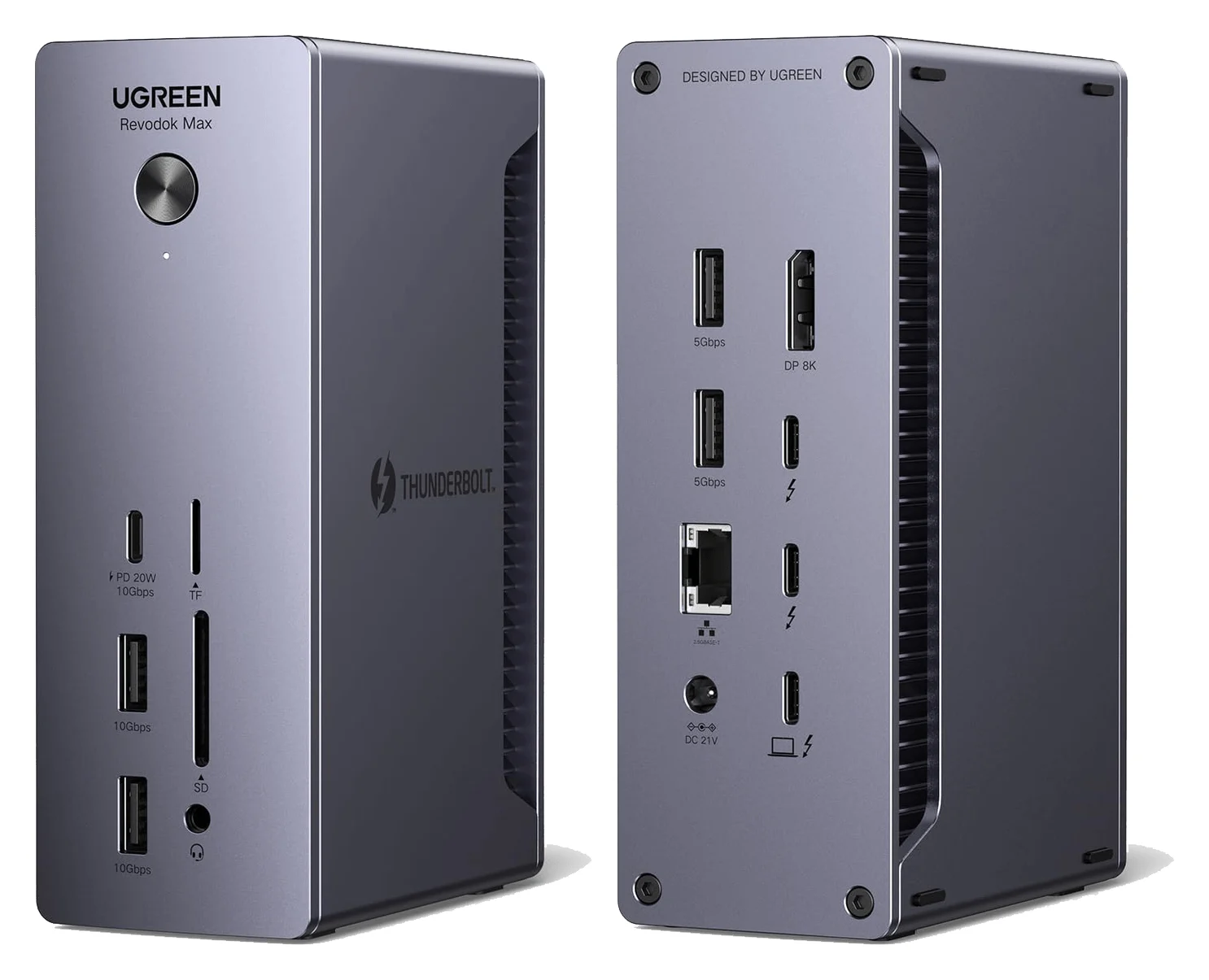
UGREEN Revodok Max 213 Thunderbolt 4 Dock (13-in-1)
- to laptop
- 90W
- data
- 40 Gbps
- video
- 4K
- Choose
- A 13-in-1 Thunderbolt 4 dock with DisplayPort 1.4, two downstream Thunderbolt 4 ports, 2.5Gbps Ethernet, SD and TF card readers and 90W laptop charging.
- Limit
- No HDMI port
Understanding the difference tells you what your port can actually do, what accessories will work at full speed, and what you'll need to buy.
The short version
- 1Physical connector shape: USB-C
- 2-4Protocol versions that run through it: Thunderbolt 3, 4 and 5; USB4
- 40 GbpsSpeed that every Thunderbolt 4 port guarantees
- 80 GbpsSpeed that every Thunderbolt 5 port guarantees (bidirectional)
USB-C is a connector, not a protocol
The USB-IF (the standards body behind USB) defines USB-C as a 24-pin physical connector specification covering the plug's shape, dimensions and pin assignments. It says nothing about what protocols run through it.
Intel's Thunderbolt technology, meanwhile, is a protocol that can use the USB-C connector. The USB-IF's USB4 specification is an open standard built on the Thunderbolt protocol that Intel contributed to the USB-IF in 2019. Both Thunderbolt and USB4 use the USB-C connector, but with different requirements.
According to the USB-IF's USB4 overview:
"Based on the Thunderbolt protocol specification contributed by the Intel Corporation, USB4 doubles the maximum aggregate bandwidth of USB and enables multiple simultaneous data and display protocols."
According to Intel's Thunderbolt 5 technology brief:
"It works through a USB-C connector by utilizing USB 2, USB 3, USB4, DisplayPort and PCIe protocols."
So when you see a USB-C port, it could be carrying anything from USB 2.0 charging to Thunderbolt 5. The only way to know is to look for the port's markings or check the maker's spec sheet.
How to identify a Thunderbolt port
Look for the lightning-bolt symbol. A Thunderbolt port usually has a small lightning-bolt icon next to it. A plain USB-C port has none, but some makers leave Thunderbolt ports unmarked too, so the spec sheet is the final word.
Apple lists "Three Thunderbolt 4 (USB-C) ports" or "Three Thunderbolt 5 (USB-C) ports" in its tech specs for each Mac. The port marking confirms which version.
On a Mac, open System Information → Thunderbolt (or USB) to see the connected devices and port version. On Windows, open Device Manager → look under "Universal Serial Bus controllers" or "Thunderbolt."
If there's no lightning-bolt symbol, the port may support USB-C charging and data but not Thunderbolt. On some laptops (particularly ultrabooks), a USB-C port that supports charging may not be Thunderbolt at all.
What works when you mix them
Mostly, yes. The connection runs at the best capability both ends share, according to the USB-IF and Intel, with one catch for Thunderbolt-only devices.
- Thunderbolt device on a USB4 port: works at the port's speed. A Thunderbolt storage drive on a USB4 40Gbps laptop works at 40Gbps.
- Thunderbolt device on a USB 3 port: works only if the device also supports USB (most current docks and drives do, at USB speed). Thunderbolt-only devices don't work there, so check the maker's compatibility list.
- USB device on a Thunderbolt port: works normally. A USB drive, hub or charger plugged into a Thunderbolt port works at the USB device's speed.
- Thunderbolt 5 device on a Thunderbolt 4 port: works at 40Gbps, the Thunderbolt 4 speed.
- Thunderbolt 4 device on a Thunderbolt 5 port: works at 40Gbps.
One exception from Microsoft's Windows USB4 requirements: if firmware disables PCIe tunneling for security reasons (a Windows security feature), a Thunderbolt dock falls back to USB 3.x operation, and PCIe-dependent features such as Ethernet in some docks won't work until PCIe tunneling is re-enabled.
What each standard guarantees
The key difference between Thunderbolt and plain USB4 is what the standard requires. USB4 is a minimum spec; Thunderbolt is a guaranteed spec.
| USB 3.2 | USB4 | Thunderbolt 4 | Thunderbolt 5 | |
|---|---|---|---|---|
| Top speed | 5–20 Gbps | 20–40 Gbps | 40 Gbps | 80 Gbps |
| PCIe for drives/docks | No | Optional | 32 Gbps required | 64 Gbps required |
| Displays | Varies | 1 minimum | 2x 4K | 2x 6K |
| Laptop charging | Varies | Not required | Required (laptops <100W) | Required (<140W), up to 240W |
| Port power for accessories | 4.5W | 7.5W | 15W | 15W |
| Certification | USB-IF (optional) | USB-IF (optional) | Intel (required) | Intel (required) |
Sources: Intel's Thunderbolt 5 technology brief and press deck, linked under "How we research this".
USB4 has no minimum PCIe speed, no guaranteed second display, and no required laptop charging. On Windows, Microsoft requires PCIe tunneling and DisplayPort output on USB4 ports for its hardware certification, but the PC's firmware can switch PCIe tunneling off. For docks and fast storage, this matters: a USB4 port without PCIe won't run a PCIe-dependent dock or SSD at full speed.
Thunderbolt 4, by contrast, guarantees 40Gbps, 32Gbps of PCIe, two 4K displays and 100W charging on qualifying thin-and-light laptops. It is also required in all Intel Evo and Intel vPro Enterprise laptops, meaning most business Ultrabooks have it.
Thunderbolt 5 doubles everything: 80Gbps (bidirectional), 64Gbps PCIe, two 6K displays and 140W charging, with up to 240W available. It also introduces Bandwidth Boost: when a lot of display traffic is needed, it can rebalance to 120Gbps in one direction and 40Gbps in the other, up to 3x the video bandwidth of Thunderbolt 4, according to Intel's brief.
Cables: what to buy
Not all USB-C cables are the same, and the label is what tells them apart.
Certified Thunderbolt cables are tested by Intel and carry the Thunderbolt logo. They are required for any cable that carries the Thunderbolt name on a product. For Thunderbolt 5, certified passive cables run up to 1m at 120Gbps, and active cables extend to 2m. Intel's press deck specifies: certified Universal cables up to 2 meters must carry 120 Gbps on Thunderbolt 5 and 40 Gbps on Thunderbolt 4, per the per-port PC speed requirements.
USB-IF certified USB 80Gbps cables (labelled "USB 80Gbps" with a 60W or 240W rating) are certified by the USB-IF. According to the USB-IF's naming guidelines, products that signal at 80Gbps should say "USB 80Gbps" rather than "USB4 Version 2.0" on consumer packaging.
The USB-IF's USB4 Version 2.0 announcement says the 80Gbps mode works over existing 40Gbps USB Type-C passive cables. Intel's brief confirms: Thunderbolt 5's PAM-3 signaling runs over the same passive cables that carried 40Gbps, up to 1m.
Our USB-C cable types explainer covers how to tell them apart by their markings, and USB-C vs USB-A covers the older rectangular plug.
Docks and displays
Thunderbolt docks use the PCIe tunnel to run multiple downstream ports, including Ethernet, audio and USB controllers, over one cable. A Thunderbolt 4 dock like the Plugable TBT4-UD5 can drive two 4K HDMI displays, charge at 96W certified (100W advertised) and provide USB-A, USB-C, Ethernet and SD card readers on a single cable. The Intel spec requires every Thunderbolt 4 computer to support one cable driving two 4K displays.
USB4 docks without Thunderbolt certification may not drive two monitors or charge at full speed — check the spec sheet. DisplayLink docks use a software graphics compression protocol and work on any USB-C port, including non-Thunderbolt ones, but require a driver. See our best DisplayLink docks if you need multi-display on any laptop.
For the best docks, see our best Thunderbolt docks and best USB-C hubs. For a deeper dive on the protocol versions, see our USB4 vs Thunderbolt 4 vs Thunderbolt 5 comparison.
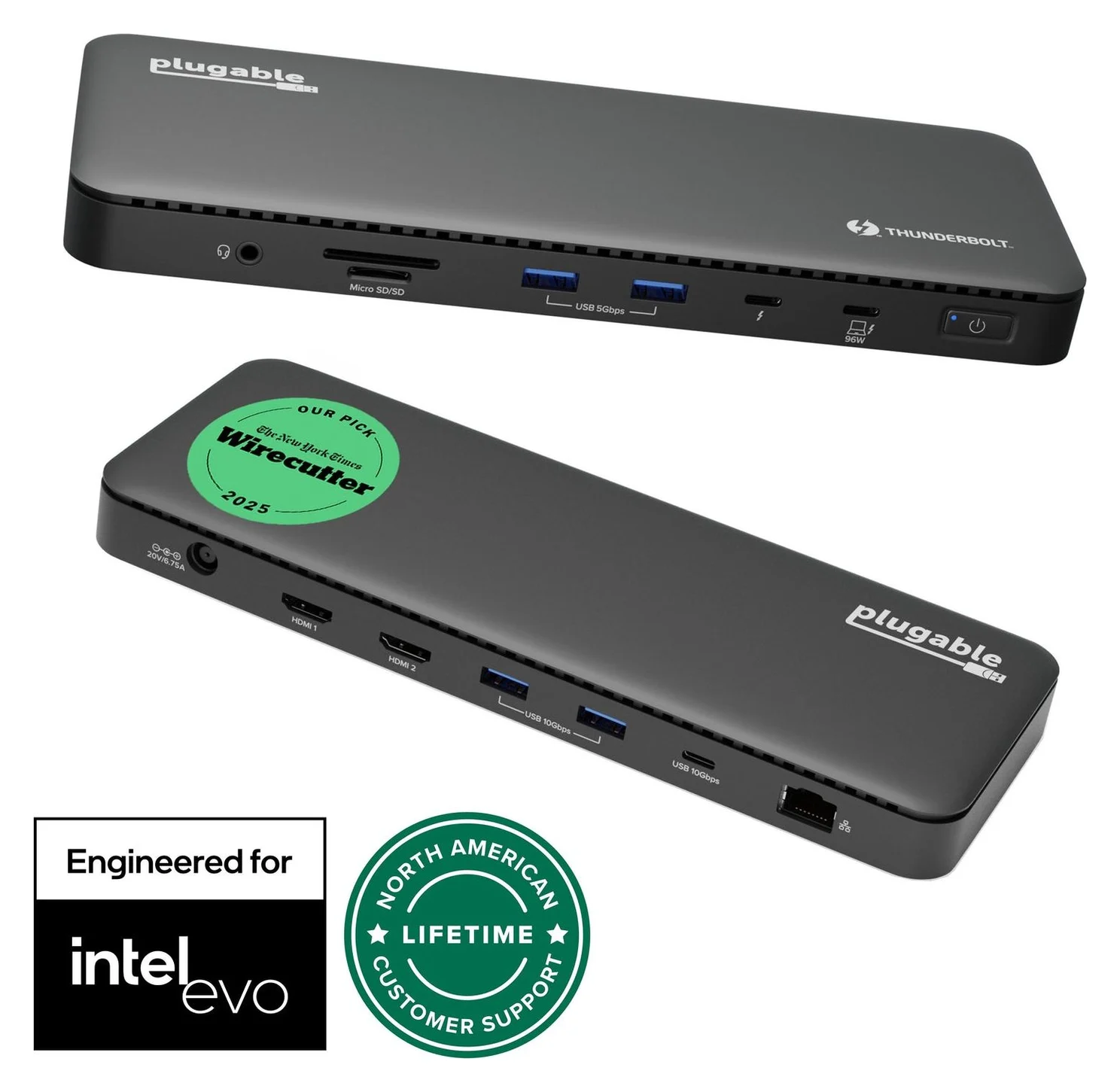
Best Thunderbolt 4 dock: Plugable Thunderbolt 4 Dock (TBT4-UD5)
Plugable
Plugable Thunderbolt 4 Dock (TBT4-UD5)
A Thunderbolt 4 dock with dual HDMI, 100W laptop charging (96W certified), Gigabit Ethernet and an SD/microSD reader.
- 96W PD passthrough
- 40 Gbps data
- 4K video
- 13 ports
The Plugable TBT4-UD5 is a full-spec Thunderbolt 4 dock that represents what Intel guarantees on every Thunderbolt 4 port: 96W certified power delivery (100W advertised), two HDMI 4K60 displays, Gigabit Ethernet, UHS-II SD and microSD card readers, and a mix of USB-A and USB-C ports. Plugable lists it as compatible with Thunderbolt 4, USB4 and Thunderbolt 5 hosts on Windows and macOS. Its two HDMI ports mean no adapters are needed for dual 4K setup.
See the Plugable Thunderbolt 4 Dock on Amazon
Best certified cable for both standards: Plugable Thunderbolt 5 Cable
Plugable
Plugable Thunderbolt 5 Cable, 240W (1m)
A 1m passive Thunderbolt 5 cable with 80Gbps data, 120Gbps Bandwidth Boost support and 240W charging.
- 80 Gbps data
- 8K video
This 1m passive cable is certified by both Intel and the USB-IF. Plugable rates it for 80Gbps, 120Gbps Bandwidth Boost and 240W Power Delivery. It works with Thunderbolt 5, Thunderbolt 4, Thunderbolt 3, USB4 and plain USB-C hosts and peripherals — one cable covers both standards. For 240W charging, verify the device accepts it; for runs over 1m, look for an active cable.
See the Plugable Thunderbolt 5 Cable on Amazon
Best Thunderbolt 4 dock with 2.5GbE: UGREEN Revodok Max 213
UGREEN
UGREEN Revodok Max 213 Thunderbolt 4 Dock (13-in-1)
A 13-in-1 Thunderbolt 4 dock with DisplayPort 1.4, 2.5GbE, SD/TF 4.0 readers and 90W laptop charging.
- 90W PD passthrough
- 40 Gbps data
- 4K video
- 13 ports
The Revodok Max 213 is a 13-in-1 Thunderbolt 4 dock that adds faster Ethernet and more ports than the Plugable TBT4-UD5. It has two downstream Thunderbolt 4 ports (40Gbps, 15W each), a DisplayPort 1.4, 2.5Gbps Ethernet, SD and TF 4.0 card readers, four USB-A ports (two 10Gbps, two 5Gbps) and a USB-C 10Gbps port with 20W output. UGREEN lists it as compatible with Windows and macOS. The 2.5GbE port is useful for wired networks that support it.
See the UGREEN Revodok Max 213 on Amazon
How we research this
We haven't physically tested these products. This explainer is based on:
- Intel's Thunderbolt 5 technology brief, its Thunderbolt overview page, and its Thunderbolt 5 press deck
- The USB-IF's USB4 overview, its USB4 Version 2.0 announcement, and its data performance naming guidelines
- Microsoft's USB4 requirements for Windows PCs
- Apple's tech specs for MacBook Pro, MacBook Air, and Mac mini
- Product details from Plugable's and UGREEN's own spec pages
Verdict
USB-C is the connector. Thunderbolt and USB4 are the protocols running through it. If your laptop has a Thunderbolt port (look for the lightning-bolt symbol), it will also accept any USB-C device or cable. If your laptop has plain USB-C, a Thunderbolt dock will still work — just at the USB port's speed.
For most people, a Thunderbolt 4 dock like the Plugable TBT4-UD5 gives you everything Intel guarantees: two HDMI 4K displays, 96W certified charging (100W advertised), Ethernet and a card reader, all on one cable. Pair it with a certified cable like the Plugable Thunderbolt 5 Cable and you have a setup that works with both standards and scales to a Thunderbolt 5 machine whenever you upgrade. If you need 2.5Gbps Ethernet or more downstream Thunderbolt ports, the UGREEN Revodok Max 213 is the richer option.
Frequently asked questions
What is the difference between USB-C and Thunderbolt?
USB-C is a physical connector shape. Thunderbolt and USB4 are protocols — software languages — that can travel through a USB-C connector. Thunderbolt is Intel's certified version; USB4 is the USB-IF's open standard built on the same technology. Both use the same USB-C plug, so they look identical.
How do I know if my USB-C port is Thunderbolt?
Look for a small lightning-bolt symbol next to the port on your laptop or desktop. If there's no symbol, it may be plain USB-C, but some makers skip the marking, so check the maker's spec sheet or Apple's tech specs, which name each port (for example "Thunderbolt 4 (USB-C)"). On a Mac, System Information also lists Thunderbolt ports and what is connected to them.
Can I use a Thunderbolt device with a USB-C port?
Usually. A USB-C device on a Thunderbolt port always works, at the device's speed. A Thunderbolt device on a plain USB-C port works only if it also supports USB: many Thunderbolt 4 and 5 docks and drives fall back to USB, but some Thunderbolt-only devices don't work on a USB 3 port at all. Check the device's compatibility list before you buy.
What's the difference between Thunderbolt 4 and USB4?
Thunderbolt 4 and USB4 share the same 40Gbps top speed, but Thunderbolt 4 guarantees it: Intel requires 40Gbps, 32Gbps of PCIe for drives and docks, two 4K displays and laptop charging on every certified Thunderbolt 4 port. USB4 only requires 20Gbps and one display, with PCIe and charging left to the laptop maker. For docks, this means a Thunderbolt 4 dock on a plain USB4 laptop may not charge at full speed or drive two monitors — check the spec sheet.
Do I need a special cable for Thunderbolt?
A Thunderbolt cable works with USB-C, but not all USB-C cables are Thunderbolt cables. Intel requires certified Thunderbolt cables for its logo, and they are tested to higher electrical standards than generic USB-C cables. For 240W charging, a USB 2.0 charging cable won't carry high-speed data even if it's rated 240W. A certified cable tells you what it supports on its packaging.
Can I use a Thunderbolt dock on a plain USB-C laptop?
Usually yes, at the laptop's speed. A Thunderbolt 4 dock on a USB4 40Gbps laptop connects at 40Gbps and charges up to the dock's rating. Docks that use PCIe for Ethernet or extra USB controllers (such as some 10GbE or 2.5GbE docks) may fall back to slower operation if the laptop doesn't support PCIe tunneling. Thunderbolt 5 docks from some makers don't support Thunderbolt 3 Windows PCs.
Related guides
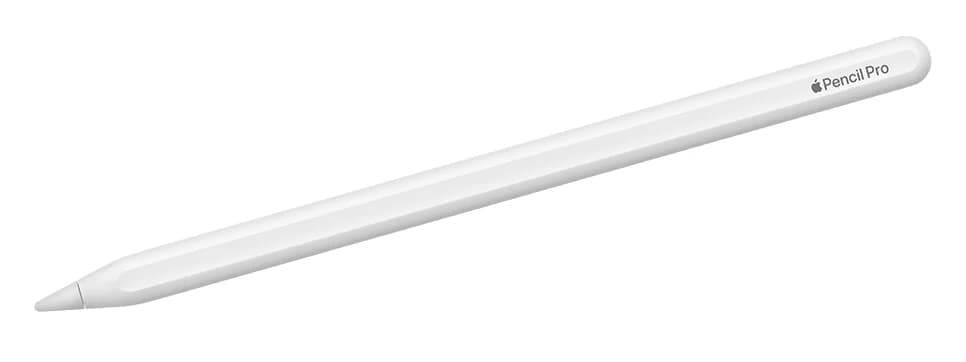
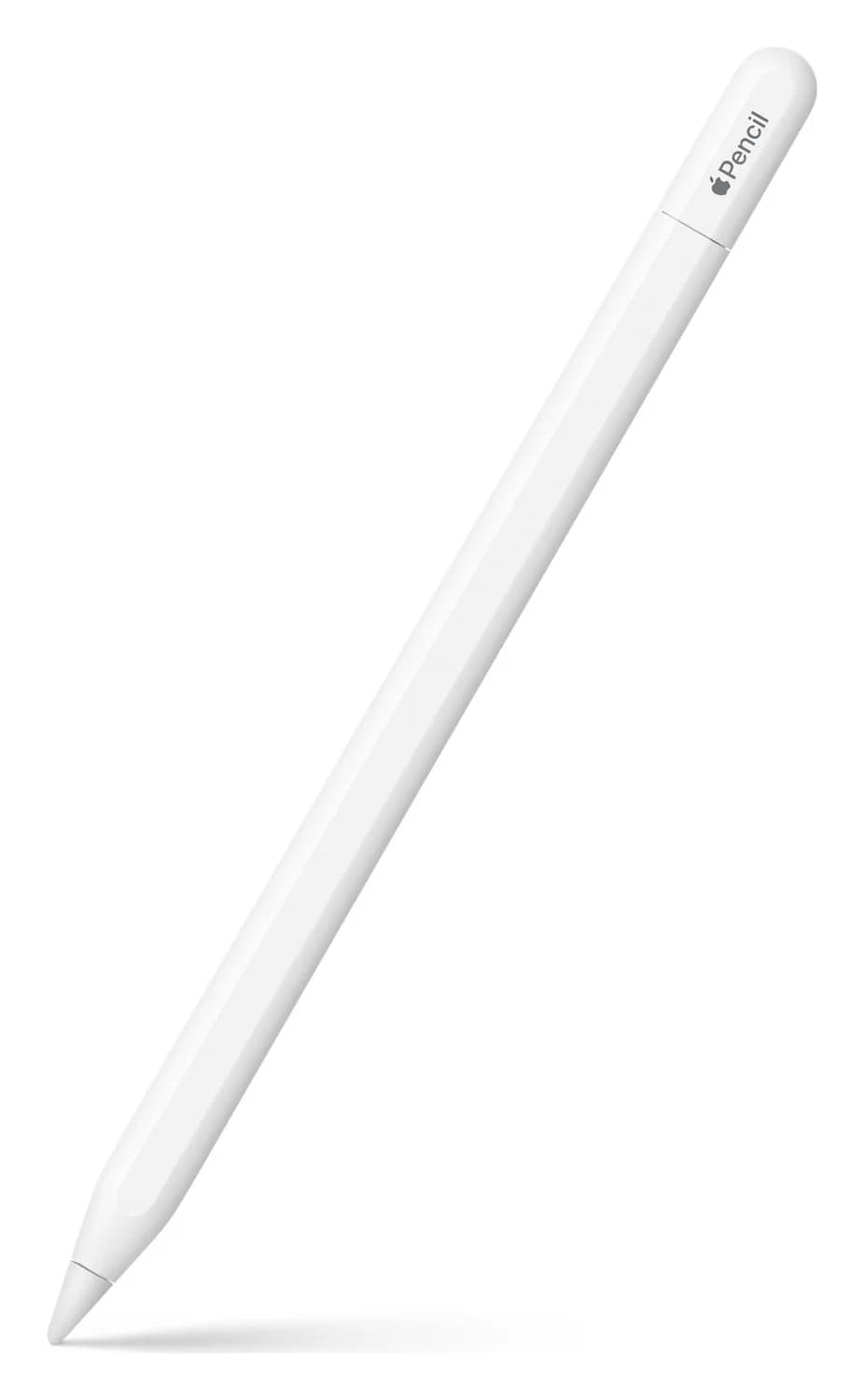
Apple Pencil (USB-C) vs Pencil Pro vs 1st and 2nd Generation: Which One Works With Your iPad
Which Apple Pencil works with your iPad, from Apple's own compatibility list: Pencil Pro for current iPad Pro, Air and mini; Pencil (USB-C) for almost every USB-C iPad.
Updated November 23, 2026Read
Best Stylus for iPad in 2026
Find the right Apple Pencil for your iPad — Pro for creators, USB-C for most owners, and 1st generation for older models with a Lightning port.
Updated November 26, 2026Read
MacBook Space Gray Wear and Fading: What Apple Says and How to Protect the Finish
A Space Gray MacBook shows wear on the palm rest and edges over time. Here's what Apple says about cleaning, carrying and cosmetic damage on its laptops.
Updated November 25, 2026Read